You have a short clip you like, generated cheaply at 480p or cut from older footage, and it has to go out at 1080p or 4K with its soundtrack intact. A video upscaling API does that in one call, but the call is only the middle of the job. What decides whether the file is usable is what you do before it (finish the edit, check the source) and after it (download in time, confirm size, length and audio, export the exact canvas the destination wants).
The short version: upscale the final cut, once, at the tier the destination needs. SpicyAPI Video Upscaler takes one MP4 of 3 to 60 seconds and a tier, and returns the same clip at a higher resolution with the same length, aspect ratio, motion and audio track. There is no prompt. Prices: $0.006 per source second at 720p or 1080p, $0.012 at 2K, $0.024 at 4K.
What you send and what you pay
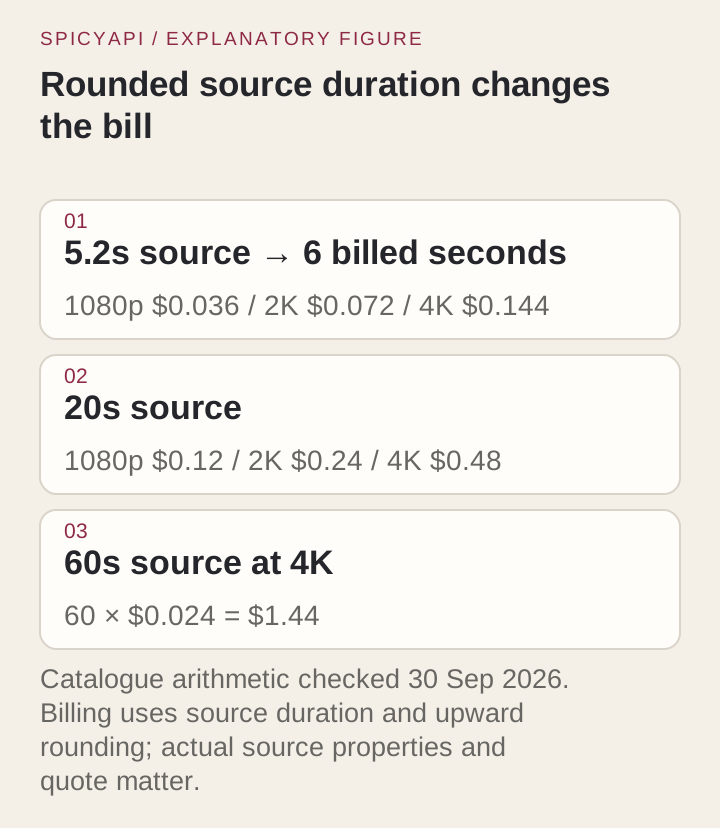
Send video_url (a direct link to an MP4, or an uploaded file) and optionally resolution: 720p, 1080p (default), 2k or 4k. Uploaded MP4s can be up to 90 MB. Billing is per second of the source clip, rounded up to a whole second, with a three-second minimum.
| Source clip | 720p / 1080p | 2K | 4K |
|---|---|---|---|
| 5.2 s (billed as 6 s) | $0.036 | $0.072 | $0.144 |
| 20 s | $0.12 | $0.24 | $0.48 |
| 60 s | $0.36 | $0.72 | $1.44 |
Rounding applies to each submitted clip, so three 5.2-second clips bill as 18 seconds, not 16. The estimate shown before you submit assumes a 60-second clip ($0.36 at 1080p, $1.44 at 4K); the unused part is released when the task settles, so a 6-second clip is billed for 6 seconds. A failed task is refunded.
The cost case for upscaling is on the generation side. A 10-second clip generated at 480p on Seedance 2.5 Spicy costs $2.16 per attempt; at native 1080p it costs $10.80. Draft at 480p, keep the take you want, and add $0.06 to upscale it to 1080p. The upscaler enlarges what is already in the frame, so a detail that is missing from the draft will not appear. If a tiny label or a face has to be right, check it in the draft or draft at a higher resolution.
Prepare the source
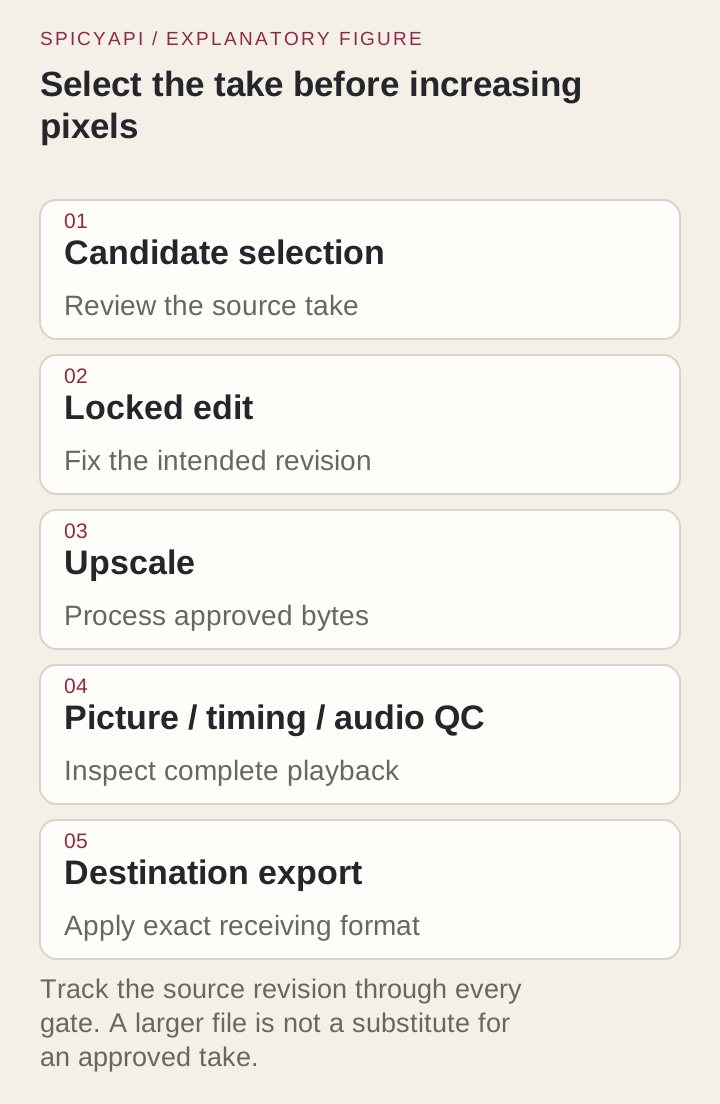
Finish the cut first. Trim, reorder and mix the audio before you upscale. Every later edit would otherwise have to be redone on a file with several times as many pixels, and you pay to process seconds you will throw away. The upscaler cannot fix a wrong take: a warped hand or a drifting logo comes back larger.
Check the file. ffprobe shows what you are really submitting, including a duration that rounds to "60 seconds" on screen but is 60.4:
ffprobe -v error \
  -show_entries format=duration,size:stream=codec_type,codec_name,width,height,avg_frame_rate,sample_rate,channels \
  -of json approved-source.mp4
Three things to look for. Duration must sit inside 3 to 60 seconds. A phone clip can play upright while the stored frame is landscape plus a rotation flag (ffprobe -show_streams lists it under side data); bake the rotation in before you upload. And note the audio stream: you will compare it with the result.
Skip clips that are already big enough. A clip at or above the tier comes back at about the same size and is still charged: a 786x1178 clip sent at 720p came back at 784x1176. If the source already meets the destination spec, export it and stop.
Start from the cleanest master. Compression blocks and noise are enlarged with everything else. Use the generation or edit master, not a copy re-downloaded from a social feed.
Choose a tier from the destination
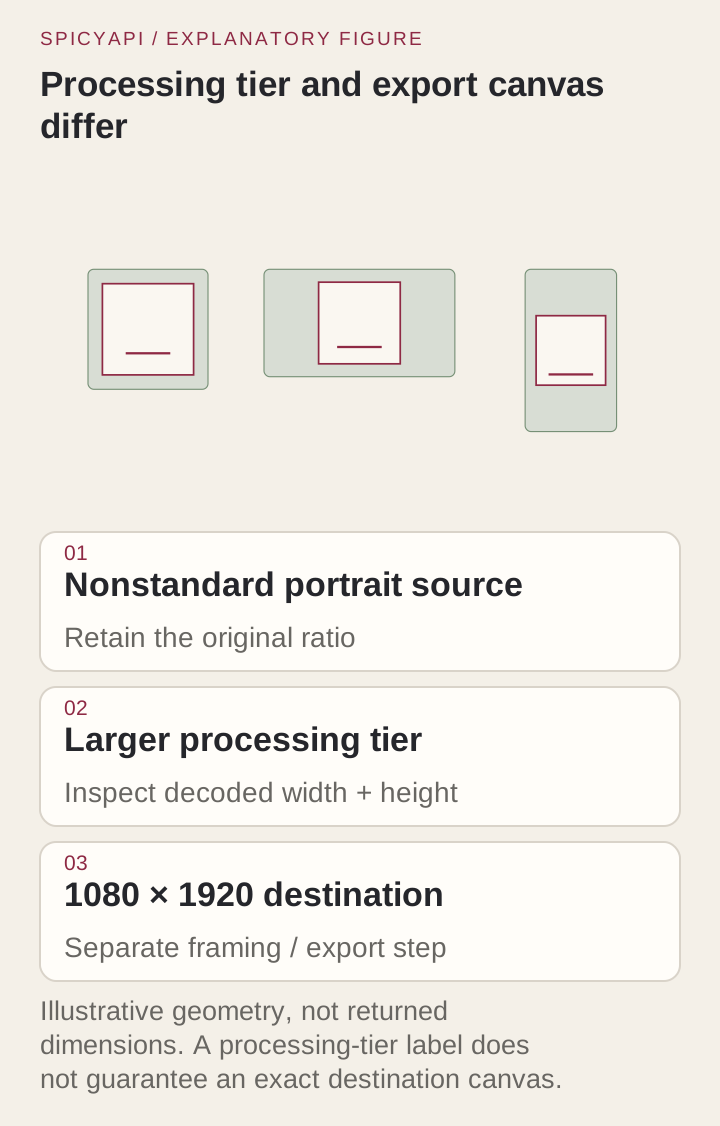
The tier is a pixel budget with the aspect ratio kept, so odd sources come back at odd sizes. An 832x480 clip returned at 1896x1094 on 1080p and 3792x2188 on 4K; an 854x480 clip returned at 1922x1080. Do not expect exactly 1920x1080.
- 720p or 1080p for feeds, landing pages and ads. They cost the same, so pick by the destination, not the price. 1080p is the default and usually the right one.
- 2K or 4K for large displays, presentations, or when you will crop in afterwards. They cost two and four times as much and take longer: about 35 seconds for a 5-second 1080p job and about 100 seconds at 4K. A 5-second 4K file is around 19 MB.
- If the destination needs an exact canvas, such as 1080x1920 for a vertical feed, treat that as a separate export step after the upscale.
Upscaling a landscape clip and cropping it to vertical afterwards pays for pixels you discard. Decide the framing before the upscale and send the final composition.
Try it in the Playground first
- Open the Video Upscaler page and stay on the Playground tab, in Form view. Sign in with a funded account to run.
- Under Input video, drop the approved MP4 (up to 90 MB) or paste a direct file link with Asset URL. A page that plays the video returns HTML and the call fails with the charge refunded; uploading the file is the most reliable route.
- Set Resolution to 720p, 1080p, 2K or 4K. It is marked as affecting price, and the estimate updates with your choice.
- Run it, play the result against the source (see the checks below), and only then copy it into your own storage.
A 5-second clip costs a few cents even at 4K, so try your real clip at the tier you expect to ship before you write code.
Then run it from code
Install the Python SDK (pip install spicyapi), set SPICY_API_KEY in your server environment, and run:
import uuid
from spicyapi import SpicyClient, output_assets

client = SpicyClient()  # reads SPICY_API_KEY from the environment

task = client.create_task(
    model="spicyapi/video-upscaler-v1/upscale",
    input_data={
        "video_url": "https://example.com/approved-product-ad.mp4",
        "resolution": "1080p",
    },
    idempotency_key=str(uuid.uuid4()),  # one key per approved clip and tier
)

print("Resume task:", task["taskId"], flush=True)
final = client.wait_for_terminal(task["taskId"])
if final["state"] != "succeeded":
    raise RuntimeError(f"{task['taskId']} ended as {final['state']}: {final.get('errorCode')}")
assets = output_assets(final)
if not assets or any(a.get("pending") or a.get("unavailable") or not a.get("url") for a in assets):
    raise RuntimeError(f"Task {task['taskId']} has no ready output; check this task before a new run")
print(assets[0]["url"])  # copy the file to your own storage now
Creating, waiting, retries, error codes and downloads are covered in the tasks guide and the Python SDK reference; a local file goes through the free upload flow and is passed as a spicy:// URI. The result link is short-lived and the file is kept for about 14 days, so see retention and delivery before you build on it. A succeeded task only means the service finished; mark the clip delivered after the checks below pass.
Or let an Agent run it
When an assistant should run the upscale, all three official tools show the price and ask you before a paid call.
- CLI. Put
{"video_url": "https://example.com/approved-product-ad.mp4", "resolution": "1080p"}ininput.json, then:
``bash spicyapi tasks create --model spicyapi/video-upscaler-v1/upscale --input-file input.json --wait ``
See the CLI docs; npx @spicyapi/cli works without installing.
- MCP server. Add the MCP server, then ask: "Upscale approved-source.mp4 to 1080p with Video Upscaler." It uploads the file with
spicyapi_upload_file, callsspicyapi_task_create, which stops for your price confirmation, thenspicyapi_task_wait. - Skill.
npx skills add spicyapi-ai/spicy-skillinstalls the Agent Skill, which has a coding assistant read the live model schema instead of guessing fields.
Check the result against the source
Run the same probe on both files and compare. This is a quick script that prints one line per clip:
probe() {
  ffprobe -v error -of json \
    -show_entries format=duration,size:stream=codec_type,codec_name,width,height,avg_frame_rate,sample_rate,channels,duration "$1" |
  jq -c '{size_bytes: (.format.size|tonumber), duration: (.format.duration|tonumber),
    video: (.streams|map(select(.codec_type=="video"))[0]|{codec:.codec_name,w:.width,h:.height,fps:.avg_frame_rate}),
    audio: (.streams|map(select(.codec_type=="audio"))[0]|if .==null then null else {codec:.codec_name,rate:.sample_rate,ch:.channels} end)}'
}
probe approved-source.mp4
probe returned.mp4
What to confirm:
- Size and shape. The aspect ratio matches the source and the dimensions are what the tier should give. Record the real width and height; do not copy them from the tier name.
- Length. Duration matches the source. If your destination depends on exact cut points, check the first and last frame, not only a rounded number.
- Audio. The returned file has an audio stream with the same channel count and length as the source. A stream that exists is not proof it is right, so play both files at the same points: the first spoken word, a cut, the last phrase. If the source was silent on purpose, the result should be too.
- Picture, in motion. Watch the whole clip at normal speed before you inspect stills. Flicker, shimmering texture and halos around moving edges show up in playback and rarely in a still.
- Detail that carries meaning. Product labels, logos, text and faces are where an upscaler can invent plausible detail instead of recovering real detail. Compare them with the source at the same crop. A changed brand mark fails the clip however sharp it looks.
To compare one moment side by side, with the source enlarged to the output size by nearest-neighbour so you see its real pixels:
ffmpeg -ss 2.0 -i returned.mp4 -ss 2.0 -i approved-source.mp4 \
  -filter_complex "[1:v]scale=1896:1094:flags=neighbor[s];[s][0:v]hstack" \
  -frames:v 1 compare-at-2s.png
Set the scale to the returned width and height.

Export the exact delivery file
When the destination needs a fixed canvas, finish with a local export. The example assumes a roughly vertical source such as 2:3; a landscape upscale padded to 1080x1920 leaves a thin strip of picture. Padding keeps the whole frame; cropping fills it but cuts the edges, so look at the product after either.
ffmpeg -i accepted-upscale.mp4 \
  -vf "scale=1080:1920:force_original_aspect_ratio=decrease,pad=1080:1920:(ow-iw)/2:(oh-ih)/2" \
  -c:v libx264 -pix_fmt yuv420p -crf 18 \
  -c:a aac -b:a 192k delivery-vertical.mp4
This re-encodes the audio. If you need the original track untouched, use -c:a copy when the destination accepts it, then run the probe again on the exported file. Burn captions and graphics in after the upscale, so letter edges are drawn at the final size rather than enlarged.
Keep three files: the approved source, the untouched upscale, and each export. A later crop or re-export then never costs a second upscale.

When something goes wrong
Fix the stage that failed instead of re-running the upscale.
| Symptom | Likely cause | Do this |
|---|---|---|
| Task fails and is refunded; length cannot be read | The URL is a web page, not the MP4 | Pass a direct file link or upload the file |
| Rejected or failed on length | Clip is under 3 s or over 60 s | Trim or split into compliant clips |
| Result looks no bigger | Source was already at or above the tier | Choose a higher tier, or skip the call |
| Result is not 1920x1080 | Tier is a pixel budget with aspect ratio kept | Export the canvas you need after the upscale |
| Download returns 403 | The result link expired (about 20 minutes) | Read the task again for a fresh link |
| Soundtrack differs in the final file | The export re-encoded or replaced it | Re-export with -c:a copy, or fix the mix upstream |
| Same defect on several clips | Shared cause, such as a heavily compressed source set | Pause the batch and fix the source, not each clip |
A pilot before a batch
Run one clip that has real motion and an audio track through the whole path: probe, upscale, download, compare, export, then play the final file in the actual destination (the feed, the player, the large display). Local players and platforms decode and recompress differently, so only the destination shows whether the result holds up. For a batch, include a fast pan, a cut-heavy ad and a fine-texture clip, and record for each clip the source duration, billed seconds, tier, final charge and the reason for any rejection.
If you are weighing tiers, hold the clip constant and compare 1080p against 4K at the size it will be viewed. If 1080p already meets the destination, the extra $0.018 per second buys nothing visible.
The decision
Treat the returned file as a master you check, not a finished deliverable. The call costs a few cents; the avoidable costs are re-doing the edit at higher resolution, upscaling a clip that was already big enough, and shipping a file whose audio or product label changed. Open the Video Upscaler model page to try a clip.