Generate an image · Your LoRA file
Qwen Image 2.1 LoRA · Text to Image
- loras
- Up to 3 files · Strength 0–4
Start with the author’s recommended strength.
Open this workflowAI image & video LoRA
A great character or style LoRA needs the right base. Match its training model, exact version and your image or video task, then go straight to a compatible workflow.
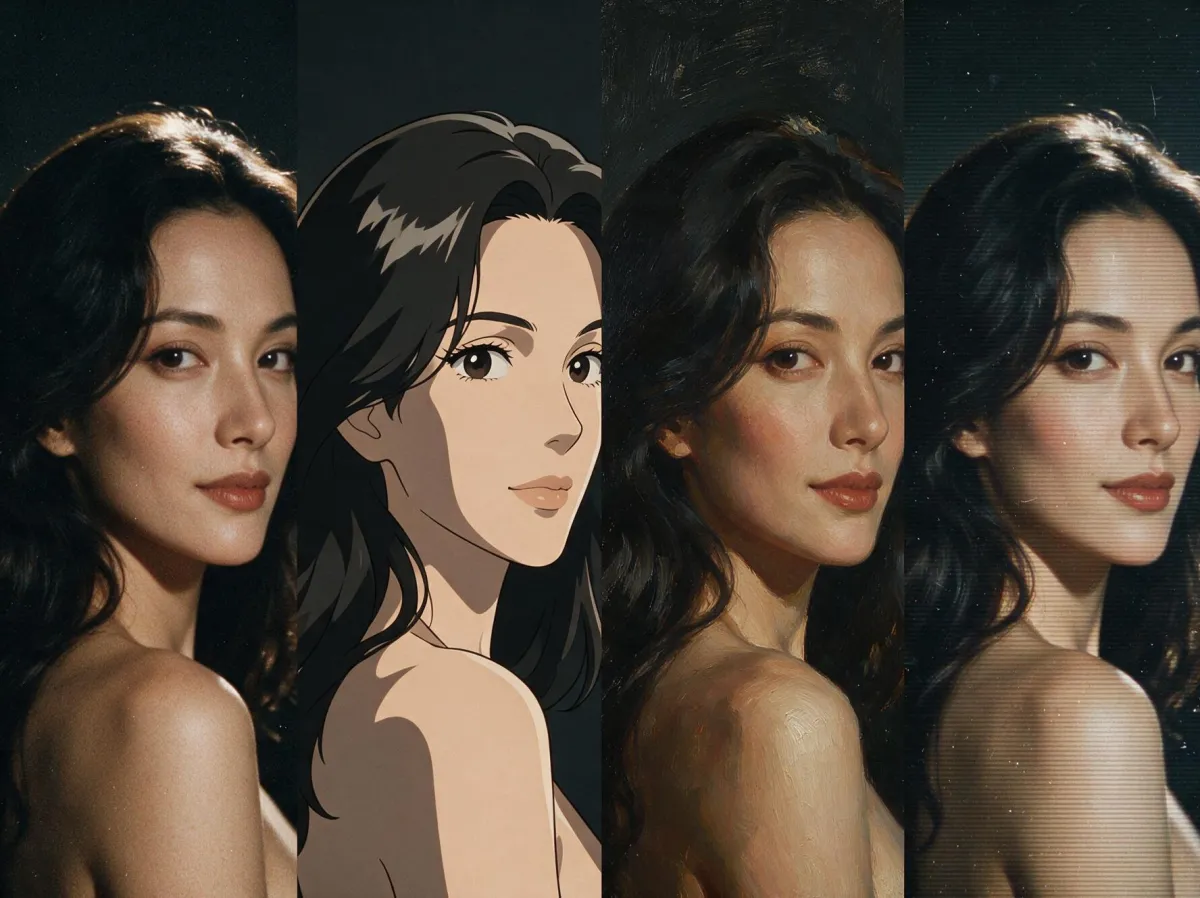
Choose the Base Model listed on the LoRA’s model card. Results use registered training bases and each current endpoint’s LoRA schema; your file stays with you.
Use the Base Model on the LoRA’s model card. No upload is needed.
Available workflows: 1
Generate an image · Your LoRA file
Start with the author’s recommended strength.
Open this workflowStart here even before choosing a file. Image generation, editing and video can use different weights within the same model family. Links below open the actual task; only currently available, schema-confirmed entries appear.
These saved Qwen Image 2.1 examples make the difference easy to see: the Grainscape example has a distinct texture, while the Qwen 2512 example looks close to the image without a LoRA. Match the base first, then compare one strength at a time.
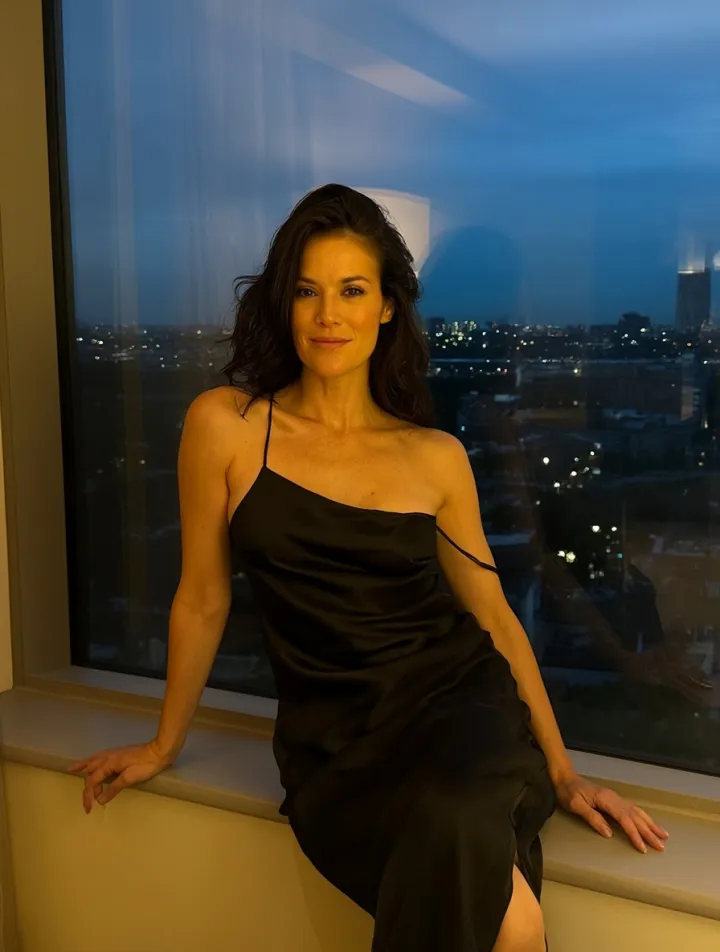
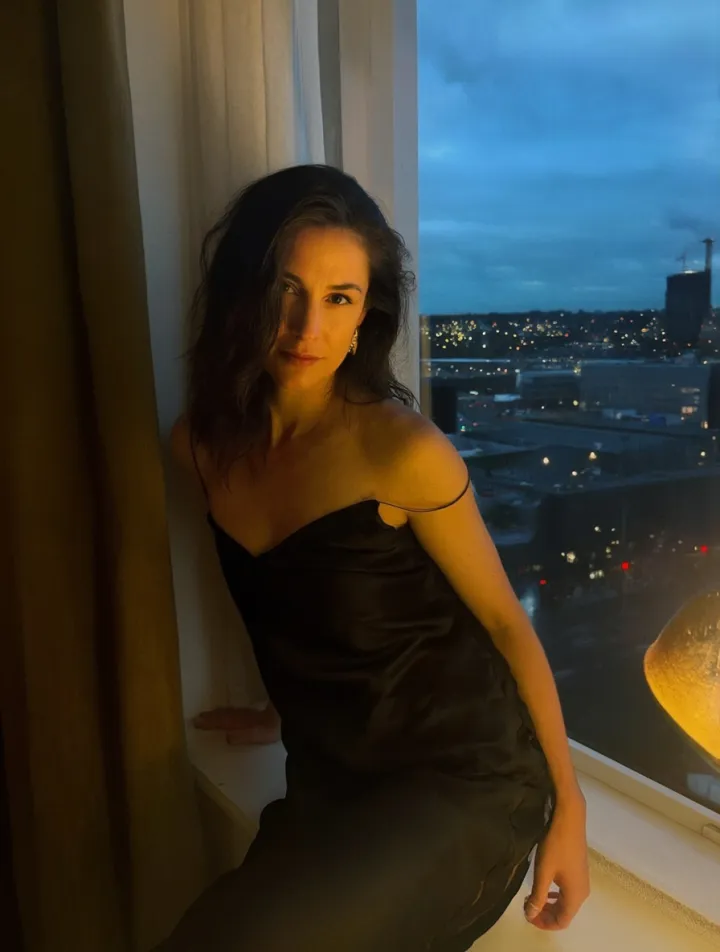
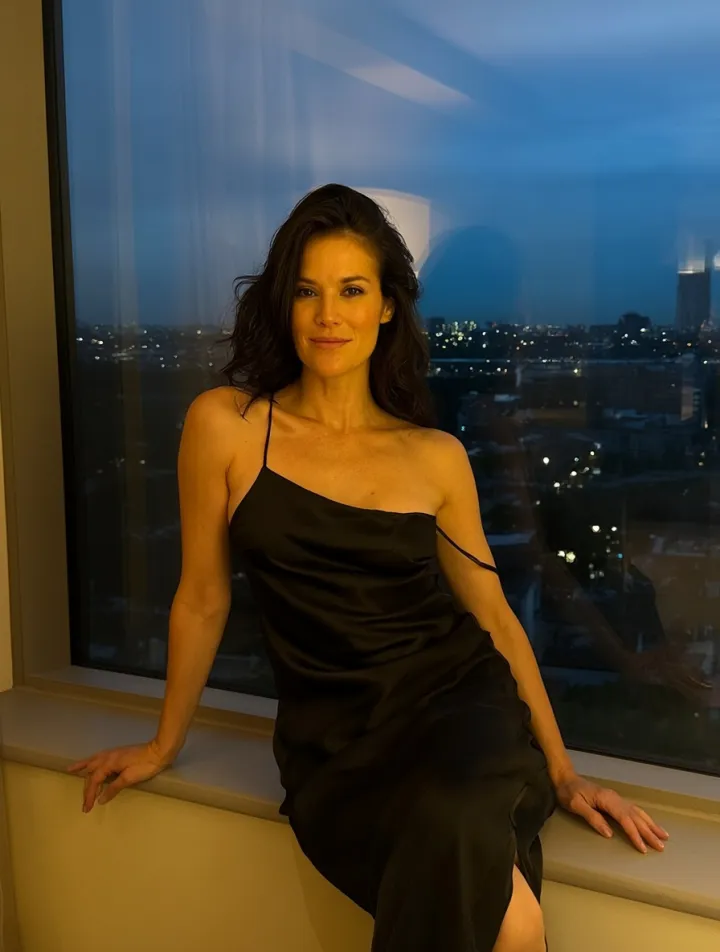
Saved outputs from the Qwen Image 2.1 LoRA guide.
Open the LoRA’s model card and find Base Model. Keep the exact edition: Qwen 2.1 is different from 2512, and Z-Image Base is different from Turbo.
A character portrait, an edit and an animated opening frame are different tasks. Match the task here, then use the model’s actual LoRA slot and the author’s trigger phrase.
Save a no-LoRA baseline. Keep the prompt, source image and seed steady, add one matching LoRA, and vary its strength. For a NSFW character series, check face, outfit and framing before producing the full set.
Explore model-specific LoRA guides, saved examples and current workflows for character, style and motion.