
n8n / ComfyUI

NSFW workflows. From first image to finished set.

Character sets, private scene requests and distinctive styles. Pick a creative result, import the matching n8n or ComfyUI template and make your first images.

Reference → variation → collectionIllustration
n8n / ComfyUISee the templates

NSFW / Character / Style

Choose your creative direction

Eight ways to use these workflows for NSFW creator projects. Start with a fictional adult character, then build the wardrobe, mood and scene around them.

NSFW character photo sets
Illustration

NSFW character photo sets

01

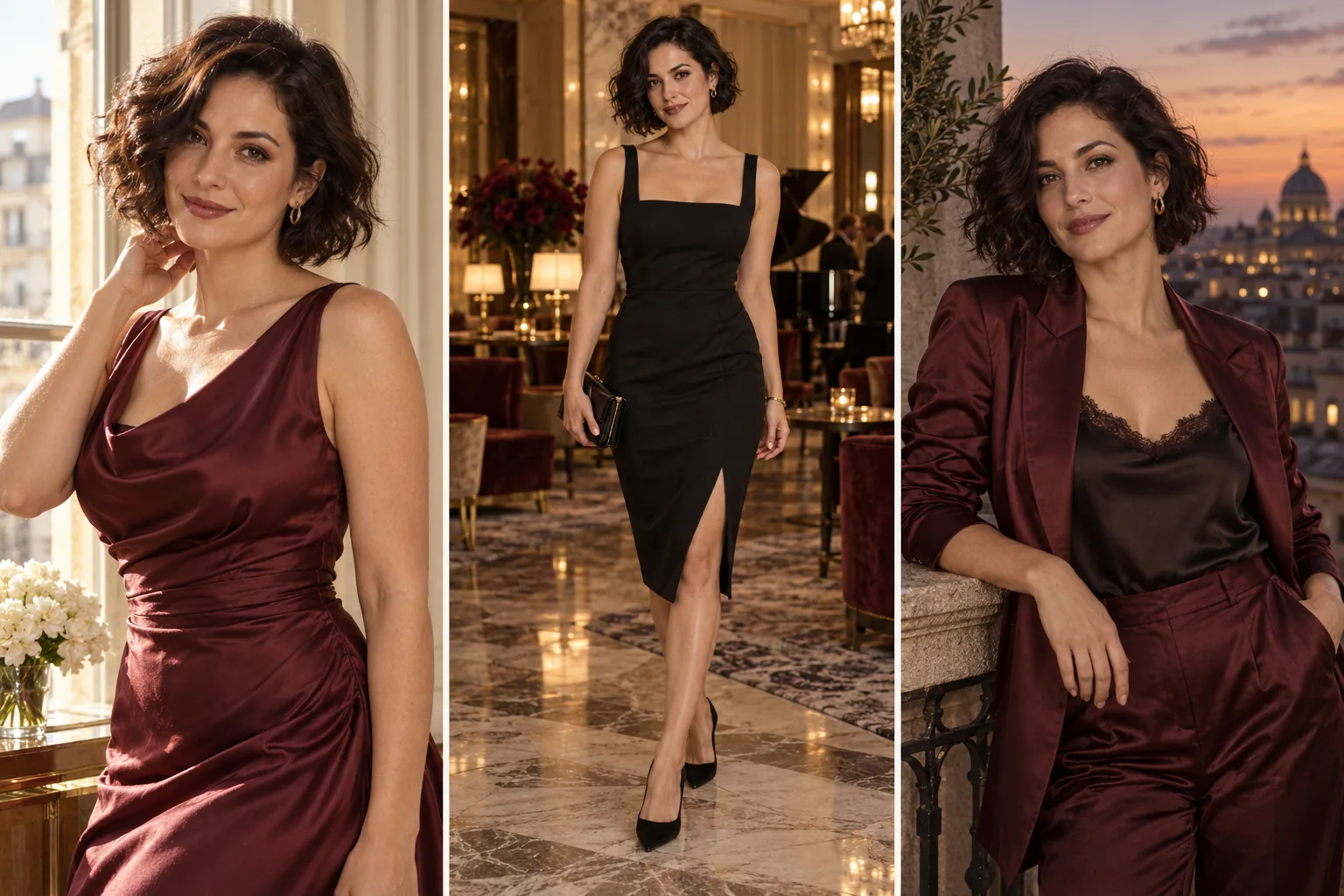
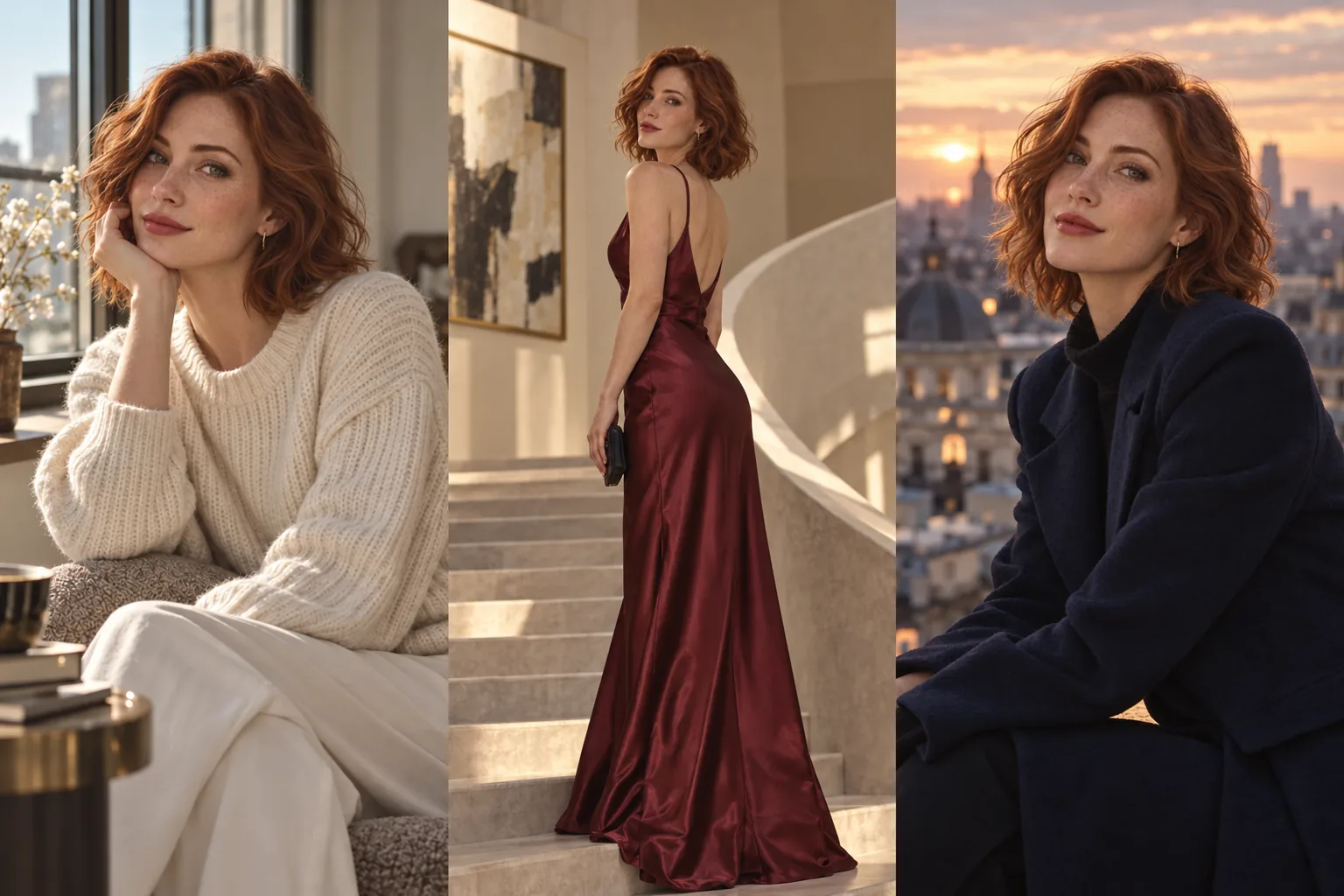
Give a recurring character a complete editorial story: window-light portraits, an evening look and a late-night balcony. Use four scenes to find a direction, then expand the strongest look into a larger set.

What to change first

Reuse the original portrait for each scene. Change the wardrobe and location; keep facial details and hair consistent.

Explore the workflow
Adult anime & visual novel art
Illustration

Adult anime & visual novel art

02

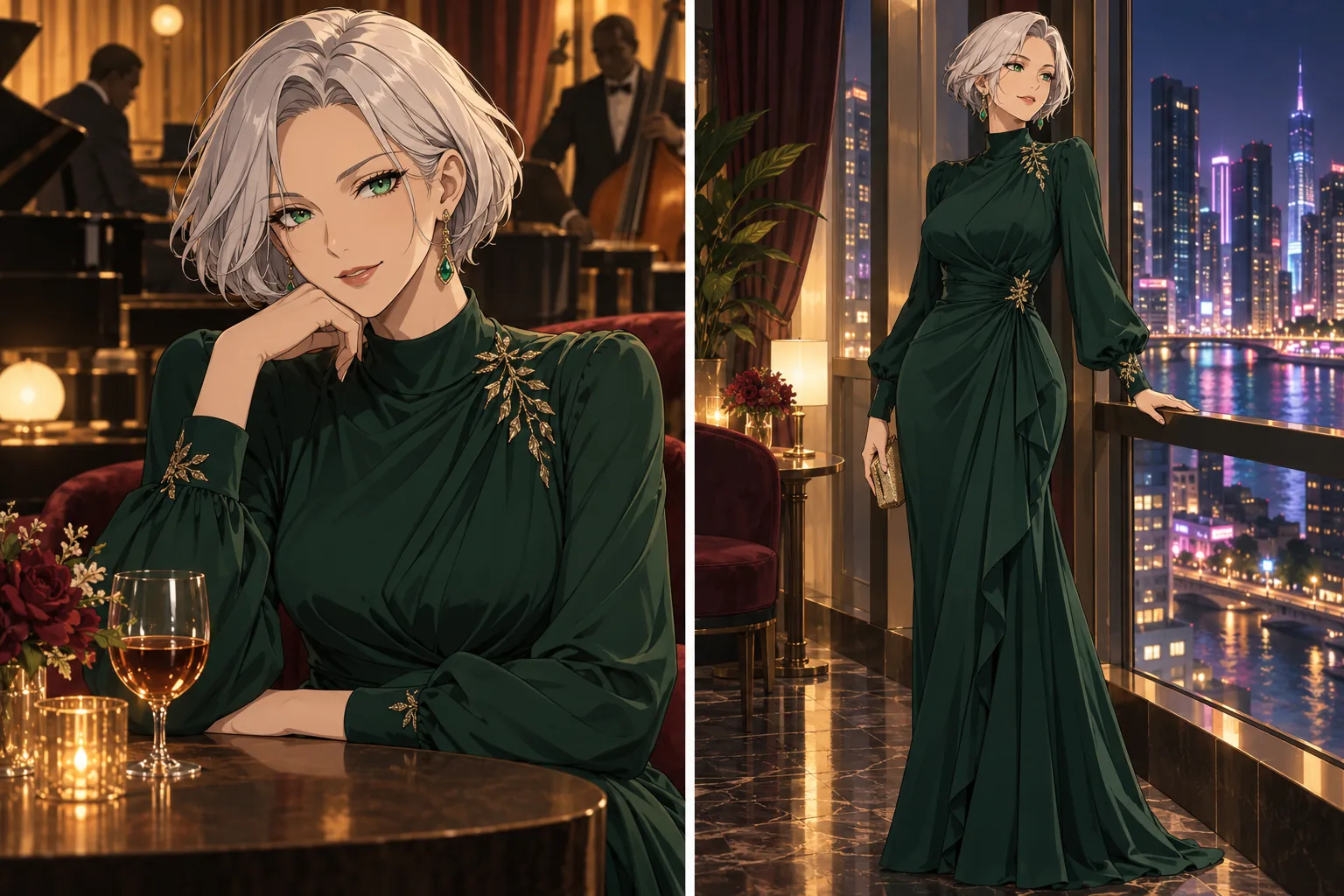
Build an original adult character for illustrated galleries, character cards or visual novel key art. A compatible style LoRA gives you another way to explore linework and finish alongside your prompt.

What to change first

Choose a LoRA made for Z-Image Turbo, include its trigger wording and compare one scene before adding another adapter.

Explore the workflow
Male creator lookbooks
Illustration

Male creator lookbooks

03

Create a recognizable male character across relaxed portraits, silk-shirt editorials and night-out looks. Keep a few signature traits so the gallery feels like one creator rather than a collection of unrelated faces.

What to change first

Keep the same reference and hair description. Change lighting or wardrobe first, then try a different framing.

Explore the workflow
BL & GL story frames
Illustration

BL & GL story frames

04

Build a romantic visual story around two fictional adult characters. Start with a composition that already places both people where you want them, then develop the mood, wardrobe and setting.

What to change first

Use distinct hair, outfits and left/right positions for each person. Inspect both faces before using the frame again.

Explore the workflow
Cosplay & wardrobe variations
Illustration

Cosplay & wardrobe variations

05

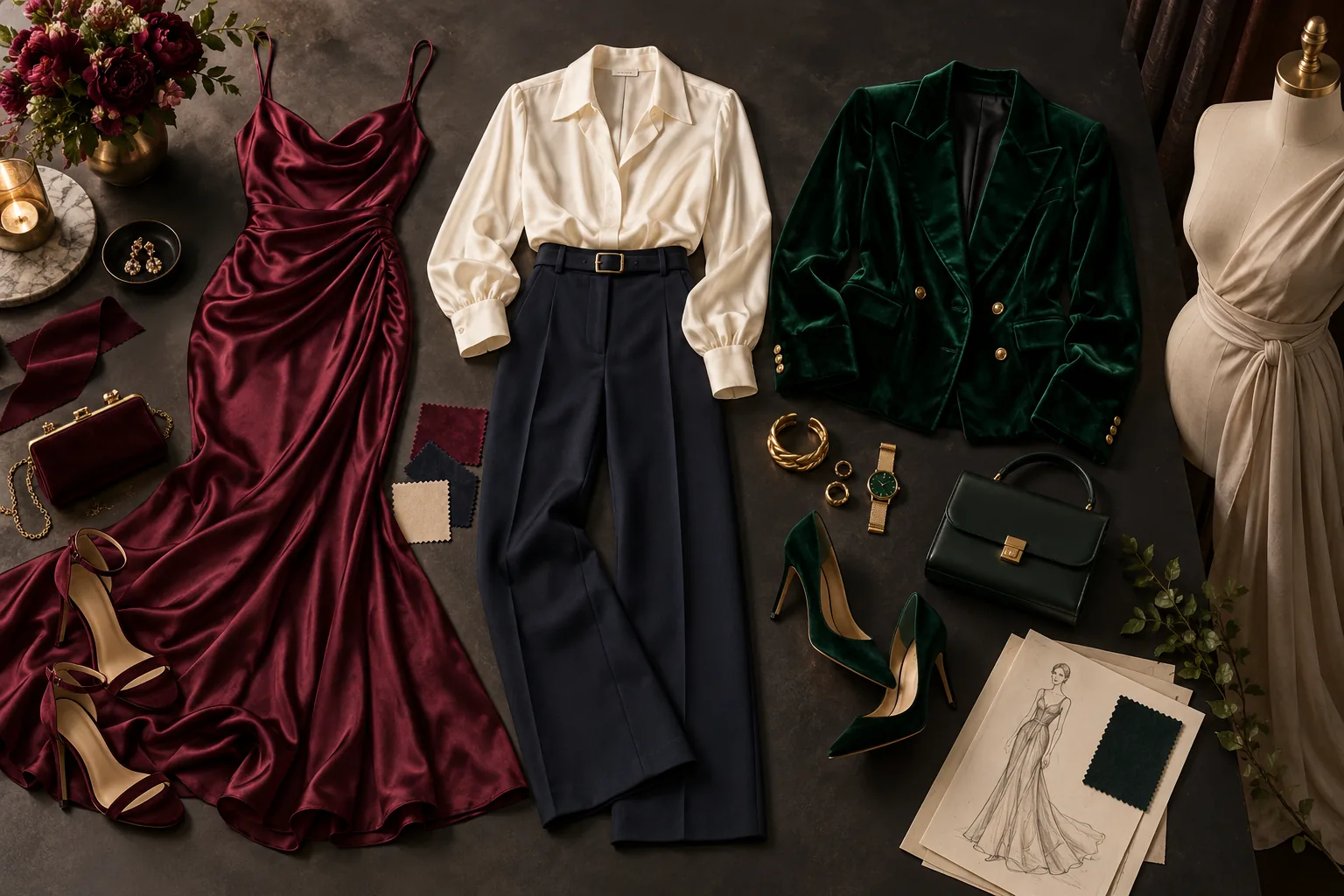
Explore a character’s wardrobe without rebuilding the entire scene: a fitted evening look, a themed costume or a different fabric treatment. Reference editing lets you compare the creative change against the original.

What to change first

Describe the garment, color and fabric explicitly. Keep pose and background steady for the first comparison.

Explore the workflow
Photo-to-video teaser frames
Illustration

Photo-to-video teaser frames

06

Create a strong opening image for a short NSFW creator teaser: a clear face, readable silhouette and a setting with room for motion. Finish the still here, then take the selected frame to image-to-video.

What to change first

Save the chosen image and continue in image-to-video. These downloads create the still; the video is a separate next step.

Explore the workflow
Private roleplay image requests
Illustration

Private roleplay image requests

07

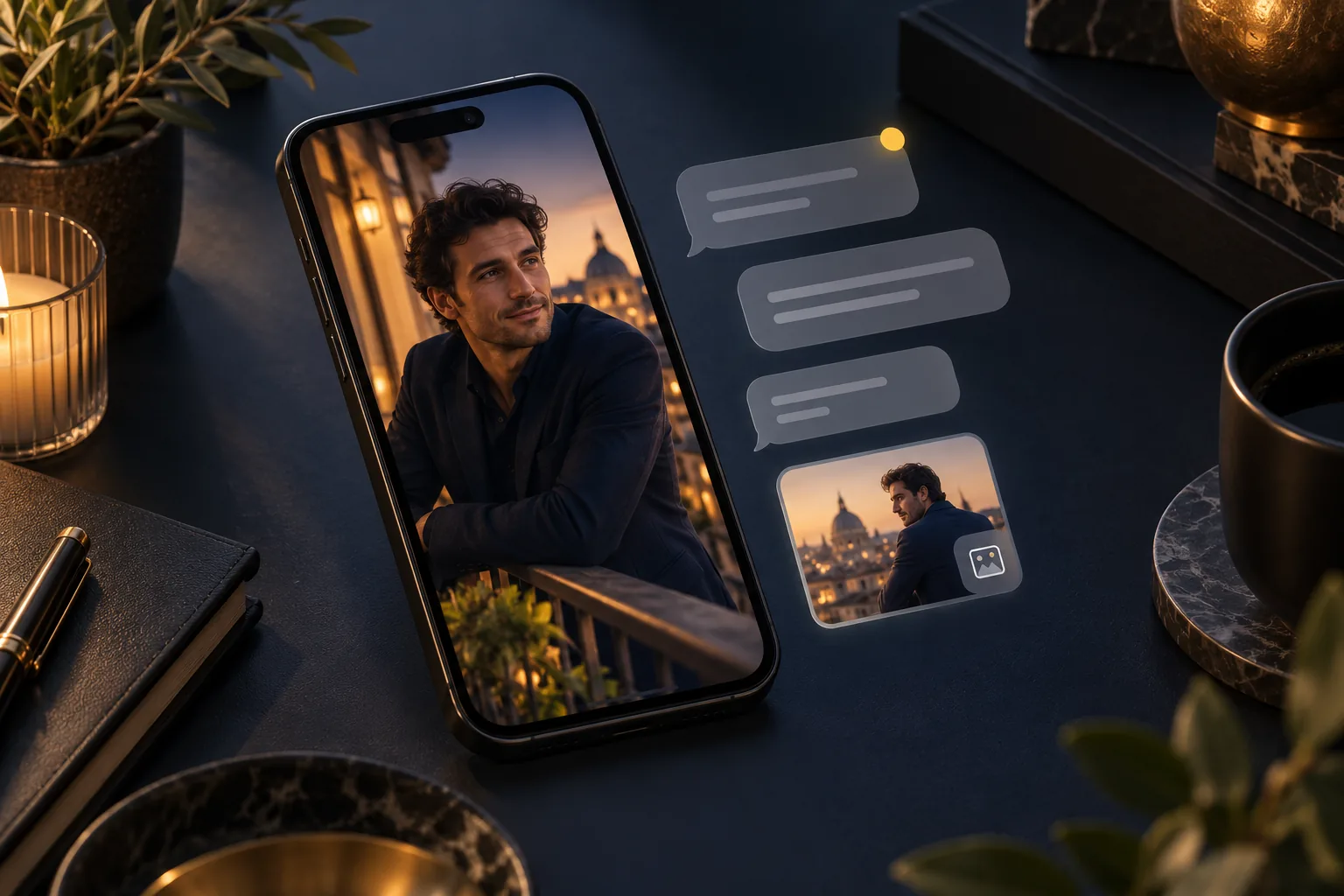
Request a new character scene from Telegram with /image: a different outfit, a new room or a mood for your next story. The configured portrait stays in the workflow while each message supplies the new scene.

What to change first

Set the allowed chat and reference once. Keep each request focused on one scene; this template returns an image, not a text conversation.

Explore the workflow
A content calendar from your prompt sheet
Illustration

A content calendar from your prompt sheet

08

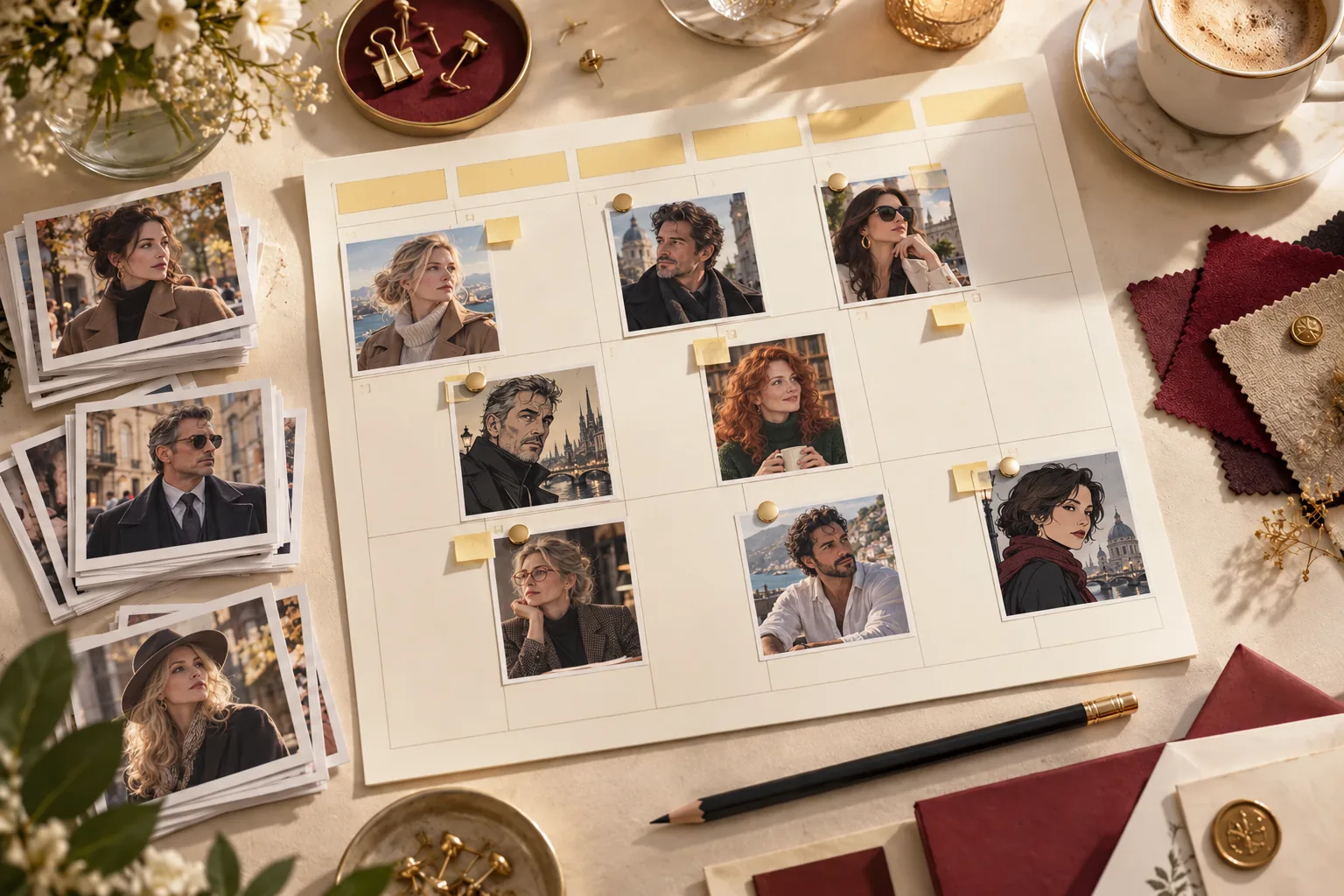
Keep your next gallery ideas in Google Sheets: themed portraits, alternate outfits and cover concepts. Generate a small queue and review each result beside its prompt before deciding what to publish.

What to change first

Use unique row IDs and mark ready prompts todo. The starter handles up to four rows per run and records each image’s status.

Explore the workflow

Keep a reference. Change the scene.

Use n8n for repeatable batches and requests. Use ComfyUI for visual editing, LoRA experiments and finishing. Both call hosted models through the same SpicyAPI account.

n8n: repeat the useful part

Use a reference portrait for a photo set, process rows from a Google Sheet or request a scene from a private Telegram chat. Photo sets and Sheets queues include both n8n Cloud HTTP and self-hosted plugin downloads. The Telegram template is for self-hosted n8n.

Set up the integration

ComfyUI: keep the visual decisions close

Edit one reference, attach a compatible LoRA or generate a draft and upscale it. API model nodes do the rendering while the canvas keeps inputs, connections and saved images visible.

Set up the integration

Start with → Get

Choose by the input you already have

A finished portrait belongs in an edit workflow. A list of new concepts belongs in a generation queue. A LoRA needs the matching model; a larger delivery file starts with an image worth keeping.

Three things to have ready

  1. 01

    Your workflow environment

    For n8n Cloud, import the built-in HTTP version without installing a community node. For self-hosted n8n or ComfyUI, follow the integration guide once, then import the matching template.

  2. 02

    Your key and starting material

    Keep your SpicyAPI key in a credential: Bearer Auth for the Cloud HTTP template, the SpicyAPI credential for the self-hosted plugin, or ComfyUI Settings. Reference workflows need an image you can use; generation workflows need a prompt.

  3. 03

    A small first batch

    Read the selected model’s current price and run the smallest useful set. A retry is another creative attempt unless it resumes the same recorded task; save successful results before starting a new attempt.

Before you import