ComfyUI / Workflow template

Give your NSFW character a signature LoRA style.

Bring a compatible character or style LoRA into Z-Image Turbo and shape a look for your NSFW gallery. Keep the adapter, strength and prompt together on your ComfyUI canvas, then save the images you want to develop.

Import the JSON, select your credentials and fill the required inputs before running.

Adult anime & visual novel art
Illustration
Try the model first
Start with
A compatible downloadable LoRA and its trigger wording
Get
Generated images saved in ComfyUI
Best for
Compatible character and style LoRA experiments

Images with a chosen adapter’s influence, useful for a repeatable character look, an illustrated gallery or a different visual treatment for your NSFW project.

How the workflow runs

How the workflow runs

  1. 01

    LoRA URL + scale

  2. 02

    Trigger + scene prompt

  3. 03

    Z-Image Turbo LoRA

  4. 04

    SaveImage

A visual guide to the workflow.

NSFW / Character / Style

Creative starting points

Adult anime & visual novel art
Illustration

Adult anime & visual novel art

01

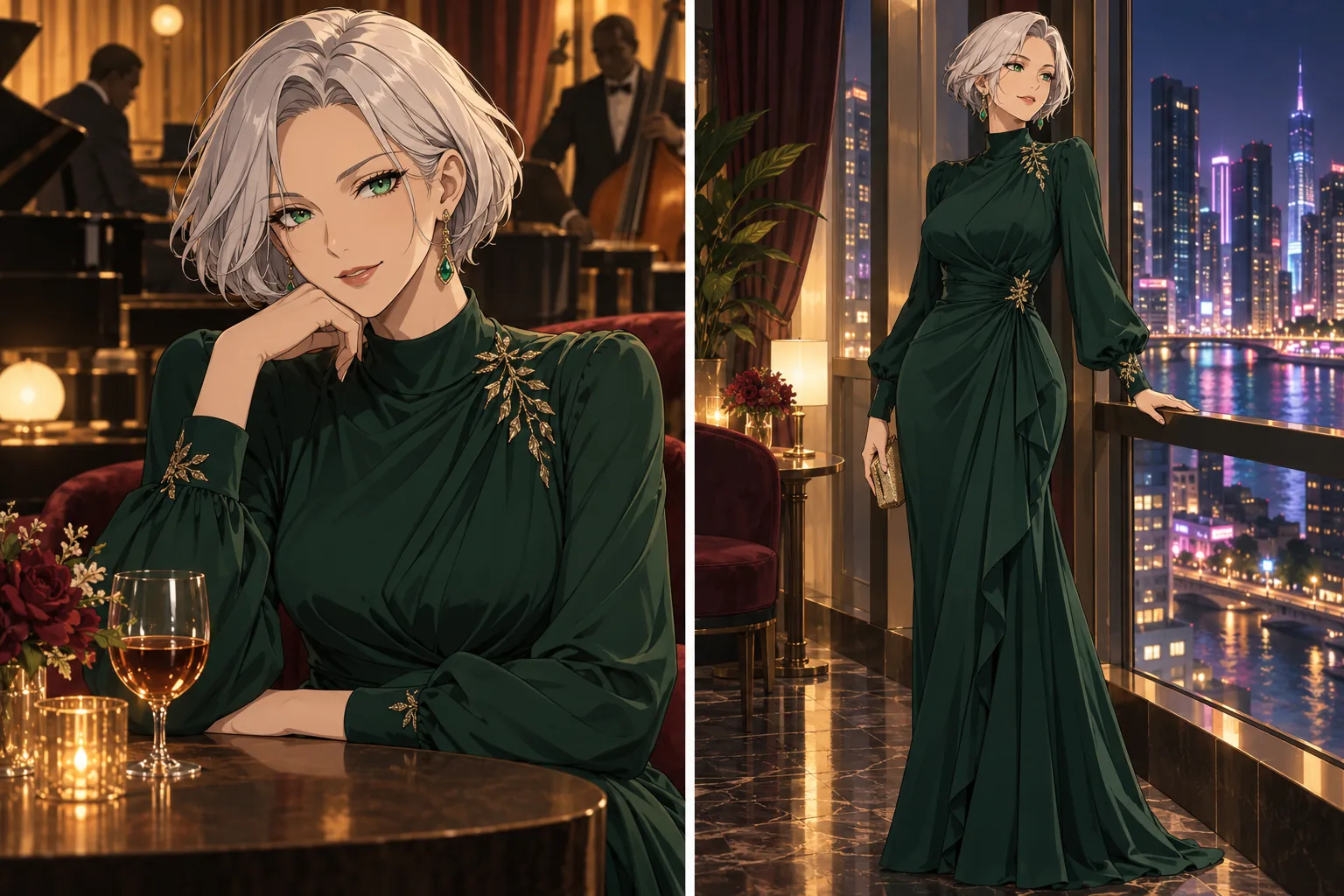
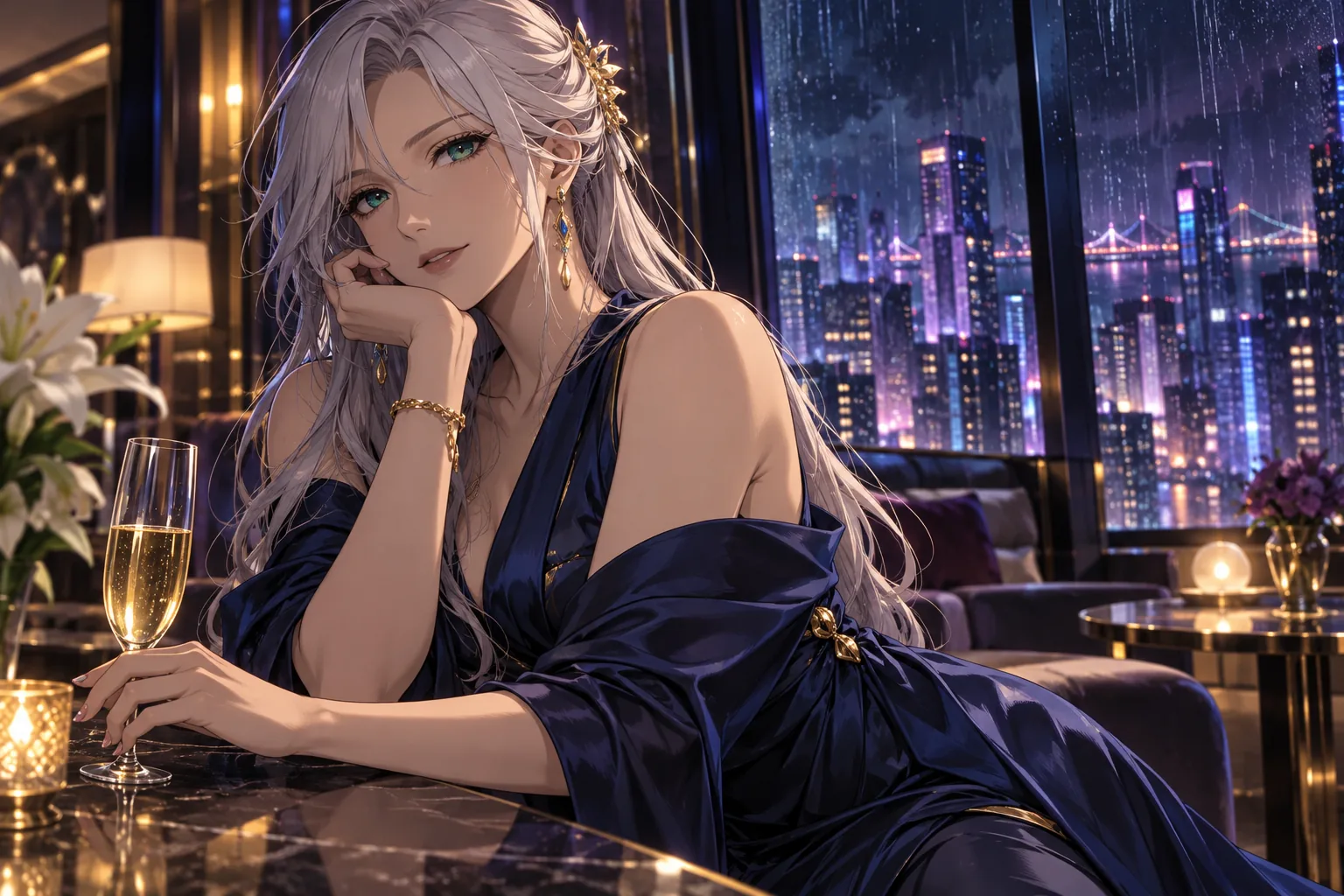
Build an original adult character for illustrated galleries, character cards or visual novel key art. A compatible style LoRA gives you another way to explore linework and finish alongside your prompt.

What to change first

Choose a LoRA made for Z-Image Turbo, include its trigger wording and compare one scene before adding another adapter.

Try this direction
Male creator lookbooks
Illustration

Male creator lookbooks

02

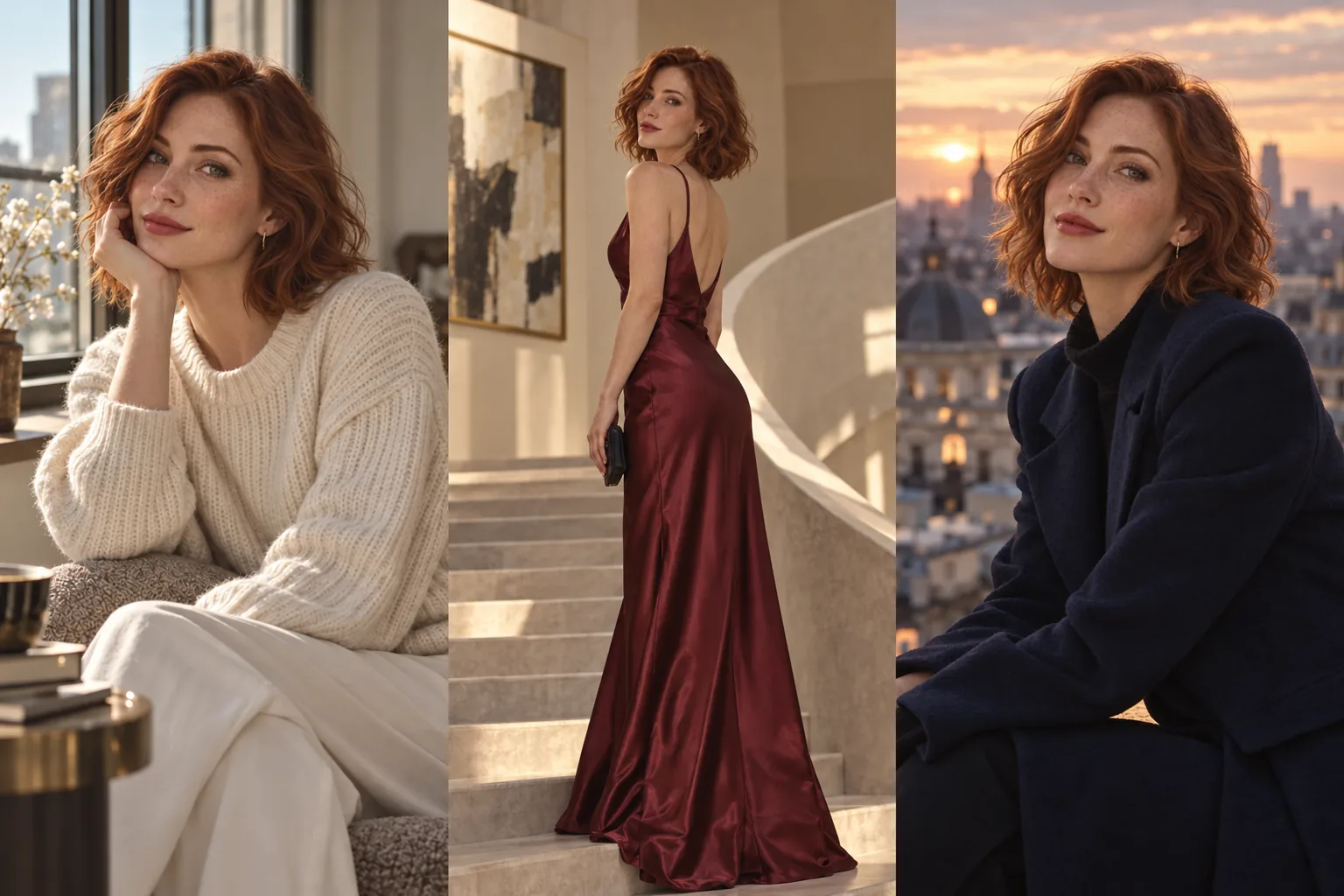
Create a recognizable male character across relaxed portraits, silk-shirt editorials and night-out looks. Keep a few signature traits so the gallery feels like one creator rather than a collection of unrelated faces.

What to change first

Keep the same reference and hair description. Change lighting or wardrobe first, then try a different framing.

Try this direction
NSFW character photo sets
Illustration

NSFW character photo sets

03

Give a recurring character a complete editorial story: window-light portraits, an evening look and a late-night balcony. Use four scenes to find a direction, then expand the strongest look into a larger set.

What to change first

Reuse the original portrait for each scene. Change the wardrobe and location; keep facial details and hair consistent.

Try this direction

Workflow tutorial

Steps to your first result

  1. 01

    Load the API-node graph

    Import the JSON after installing the official SpicyAPI node package. Enter your key in Settings → SpicyAPI. This graph does not load a local model checkpoint or attach a local CLIP connection. Set a positive Max cost per run before queuing.

  2. 02

    Check the adapter’s base

    Choose a LoRA made for the supported Z-Image Turbo base. Use a reachable download link to the weight file, not a model gallery page or a link that requires your browser login. A Qwen, FLUX or Z-Image Base adapter is a different base.

  3. 03

    Fill the LoRA node

    Replace the LoRA URL placeholder with a direct public .safetensors link in SpicyAPI_LoRA and start scale at 1. Keep its output connected to the model’s loras input. This starter has one adapter; the endpoint accepts up to three.

  4. 04

    Write the trigger and a specific scene

    Include the adapter author’s trigger wording when required, followed by your adult character, outfit, composition and light. Start with one adapter so you can see its effect before stacking more.

  5. 05

    Compare scale before expanding

    Queue a small test and save it. Keep the prompt and other settings steady when trying another scale; if the style overwhelms the face or composition, reduce the scale rather than adding more adapters.

Try this prompt

Creative example. Adapt it to your own fictional adult character and source image.

An original adult anime character, age 30, with short silver hair and emerald eyes, wearing an elegant dark green evening outfit beside a jazz lounge window. Confident expression, crisp illustrated linework, cinematic night lighting, detailed fabric.
Try this direction

Choose a model for your creative range

Reference editing starts with Qwen Image 2.1; new concepts start with Z-Image Turbo. For a more specific NSFW style, explore compatible LoRA models and the Spicy collection before scaling your batch.

Budget the complete run

Each queued result is a task on the selected LoRA image endpoint. Read that endpoint’s current price and accepted settings before comparing several scales. A new scale or prompt creates another generation; save the best files instead of expecting a later rerun to reproduce them exactly.

If the result is not what you expected

ComfyUI — If the result is not what you expected

The adapter does not load

Open the exact download URL and confirm that it returns the weight file without a login. Check the adapter’s base model and the connection into loras.

The image looks unchanged or distorted

Check the trigger wording and compatibility first. If it loads but dominates the result, lower the scale and compare one change at a time.

Before you import

Continue with another workflow

Make the first useful run

Download the template or try the same model in the Playground before connecting the full workflow.