ComfyUI / Workflow template

From ComfyUI concept to a larger finished image.

Make a character portrait or gallery cover with Z-Image Turbo, pass it to Image Upscaler and save the larger image from one ComfyUI graph. Use it for detailed portraits, illustrated covers and generous gallery layouts.

Import the JSON, select your credentials and fill the required inputs before running.

NSFW character photo sets
Illustration
Try the model first
Start with
A scene prompt and a chosen upscale tier
Get
An upscaled image saved in ComfyUI
Best for
Gallery covers, character portraits and larger delivery files

A larger finished image for a cover, full-width gallery placement or another layout that needs more pixels. The source composition is decided in generation, before the upscale stage.

How the workflow runs

How the workflow runs

  1. 01

    Scene prompt

  2. 02

    Z-Image Turbo

  3. 03

    Image Upscaler

  4. 04

    SaveImage

A visual guide to the workflow.

NSFW / Character / Style

Creative starting points

Photo-to-video teaser frames
Illustration

Photo-to-video teaser frames

01

Create a strong opening image for a short NSFW creator teaser: a clear face, readable silhouette and a setting with room for motion. Finish the still here, then take the selected frame to image-to-video.

What to change first

Save the chosen image and continue in image-to-video. These downloads create the still; the video is a separate next step.
Continue to image-to-video
Adult anime & visual novel art
Illustration

Adult anime & visual novel art

02

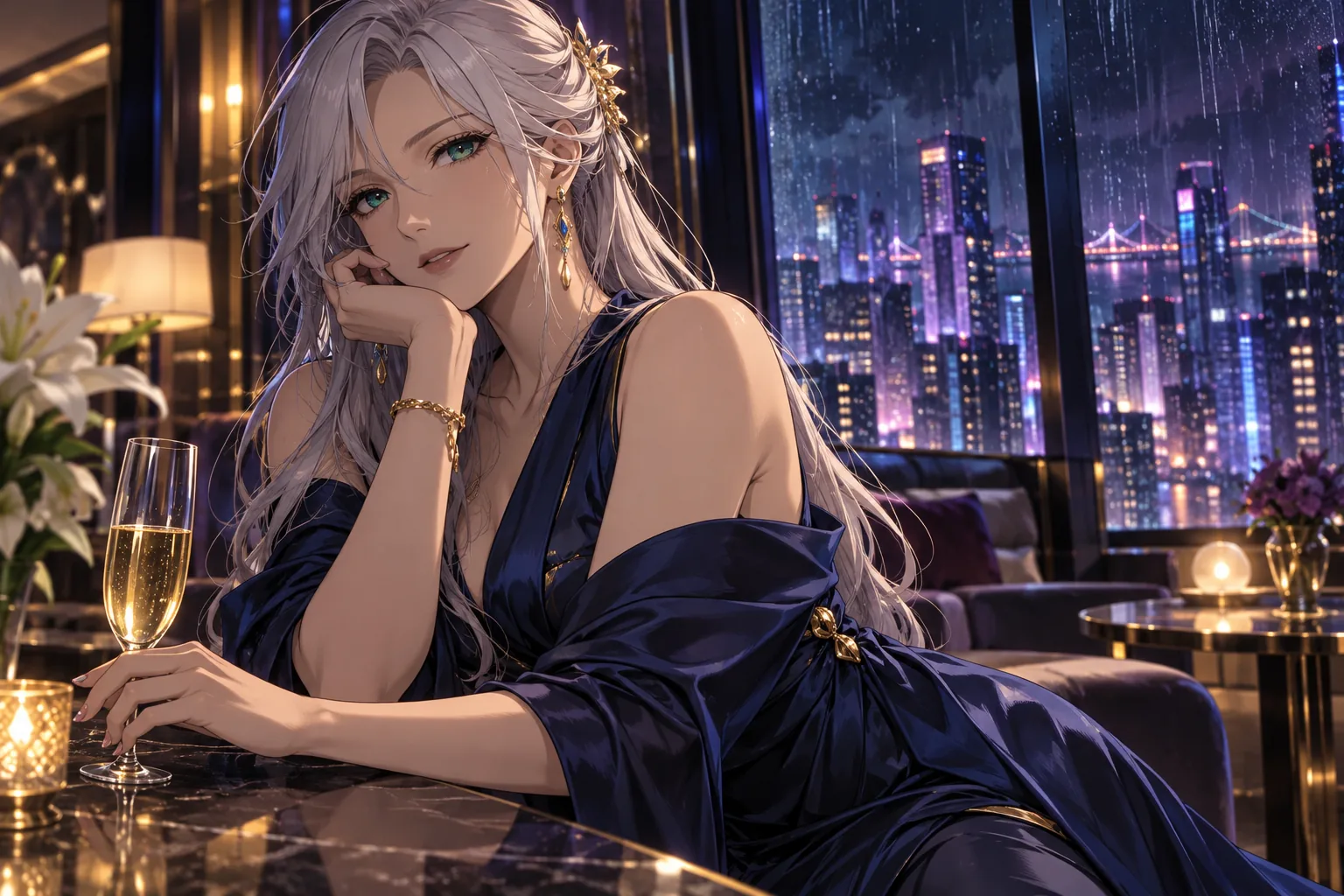
Build an original adult character for illustrated galleries, character cards or visual novel key art. A compatible style LoRA gives you another way to explore linework and finish alongside your prompt.

What to change first

Choose a LoRA made for Z-Image Turbo, include its trigger wording and compare one scene before adding another adapter.

Try this direction
NSFW character photo sets
Illustration

NSFW character photo sets

03

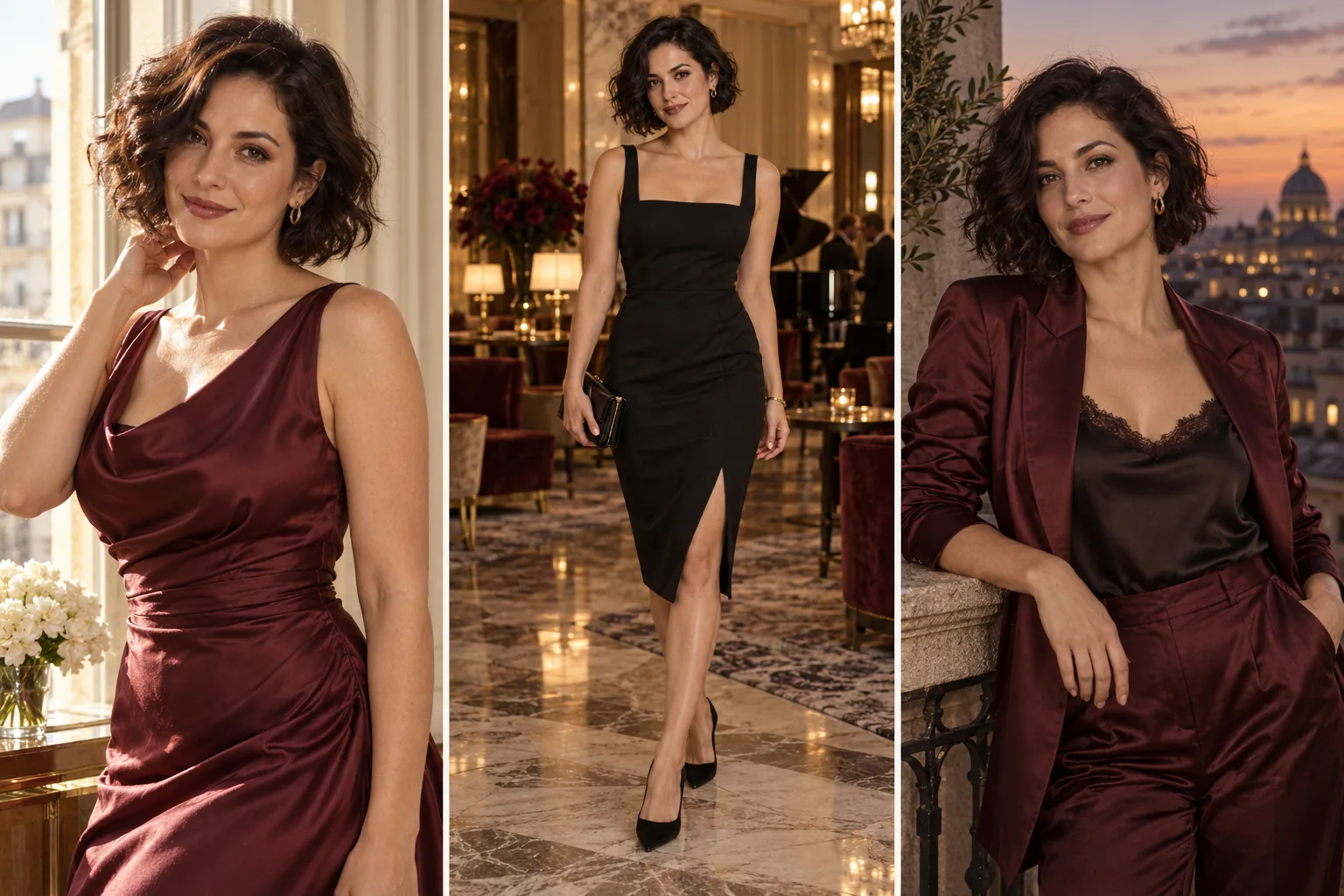
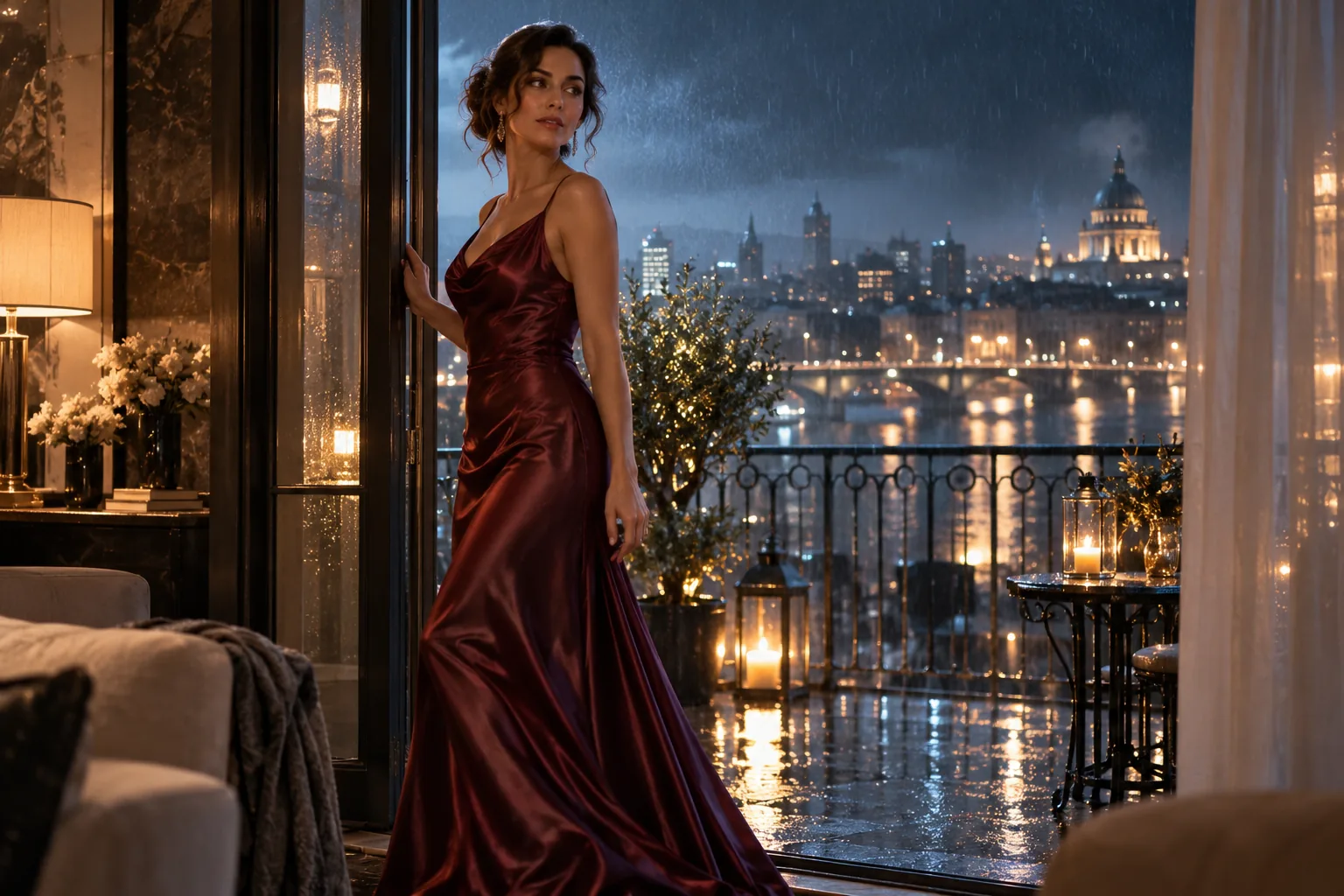
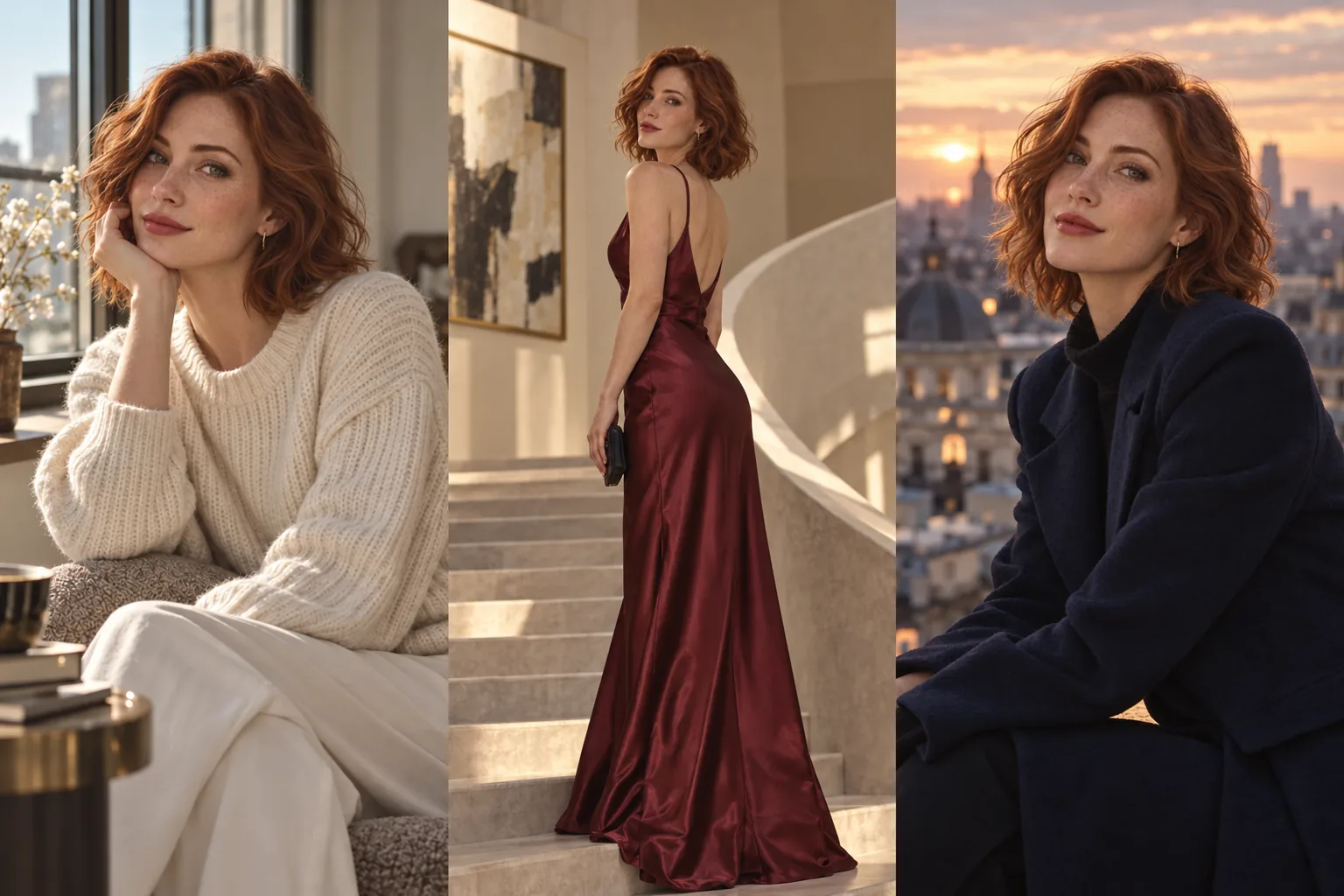
Give a recurring character a complete editorial story: window-light portraits, an evening look and a late-night balcony. Use four scenes to find a direction, then expand the strongest look into a larger set.

What to change first

Reuse the original portrait for each scene. Change the wardrobe and location; keep facial details and hair consistent.

Try this direction

Workflow tutorial

Steps to your first result

  1. 01

    Import and set your key

    Load the JSON with the official SpicyAPI node package installed. Set the key in Settings → SpicyAPI. Keep the generator’s image output connected to the upscaler’s image input. Set a positive Max cost per run: it applies separately to each model node.

  2. 02

    Make the composition useful first

    Describe the adult character, framing, outfit and light. Choose the source image’s shape for the final placement; upscaling keeps that composition rather than turning a square portrait into a wide cover.

  3. 03

    Choose the delivery tier

    The template starts with the upscaler’s 4K pixel tier while keeping the input aspect ratio; it does not force 3840 × 2160. Choose the tier for your layout. More pixels do not repair a wrong face, hand or outfit.

  4. 04

    Read both model prices

    A full run uses one generation task and one upscale task. Check both current model pages before queuing the connected graph, especially while experimenting with several portraits.

  5. 05

    Save and inspect at the intended size

    SaveImage writes the upscaled result. View the face, garment edges and any lettering at your delivery size. For a different creative take, revise the source prompt first and run the path again.

Try this prompt

Creative example. Adapt it to your own fictional adult character and source image.

Editorial portrait of a fictional adult woman, age 30, short auburn hair, navy satin shirt, seated beside a café window at golden hour, soft natural light, clean background, chest-up composition, fully clothed.
Try this direction

Choose a model for your creative range

Reference editing starts with Qwen Image 2.1; new concepts start with Z-Image Turbo. For a more specific NSFW style, explore compatible LoRA models and the Spicy collection before scaling your batch.

Budget the complete run

A complete connected run has two billable model stages: image generation plus image upscaling. Its planned cost is the sum of those two quotes. To avoid enlarging every exploratory take, generate drafts separately, choose the keeper and feed that saved image into an upscale-only run.

If the result is not what you expected

ComfyUI — If the result is not what you expected

The larger image still has a wrong face or hand

Return to generation or a reference-edit workflow. Upscaling enlarges the chosen source; it is not a replacement for correcting the creative result.

Every draft gets upscaled

That is the connected graph’s behavior. Separate draft generation from the upscale stage when you want to select a keeper before paying for the second task.

Before you import

Continue with another workflow

Make the first useful run

Download the template or try the same model in the Playground before connecting the full workflow.