
Introduction
Seedream 5.0 Pro Image Editing changes a supplied image according to a written instruction. Use it to replace a material, revise text or combine visual references while using an existing picture as the basis of the result.
ByteDance introduced the model in its July 8, 2026 launch article. In this mode, the brief should distinguish the requested change from the elements you want retained.
Choose a Seedream 5.0 Pro mode by starting material
| Starting material | Mode |
|---|---|
| A written art direction or design brief | Seedream 5.0 Pro Text to Image |
| An approved source image to revise | Seedream 5.0 Pro Image Editing |
| A finished image whose parts you need separately | Seedream 5.0 Pro Layer Decomposition |
Key features & highlights
Information-rich image design
Seedream 5.0 Pro combines text, diagrams and illustrations in structured compositions. Its layout capabilities address infographics, posters and other designs where the organization of information matters as much as the image itself.
Localized editing and spatial understanding
The model can interpret where a change belongs and which object it concerns. This supports regional replacements, color and material changes, and sketch-guided edits without requiring a new visual brief for the whole composition.
Photographic materials and lighting
Image creation emphasizes surface texture, reflections, lighting and portrait detail. These capabilities serve both photographic treatments and rendered scenes, with attention to how materials interact with the surrounding light.
Multilingual visual content
The model supports multilingual prompts and text rendering, including languages with different scripts and reading directions. This enables localized graphics with language-specific copy and typography.
Multi-image composition
Separate images can supply subjects, materials, style or layout for a combined result. Layer separation is available as its own endpoint, Seedream 5.0 Pro Layer Decomposition; ordinary image generation and editing do not export layers.
Request parameters
| Parameter | Required | Description |
|---|---|---|
prompt | Yes | Up to 5,000 characters. at least 1 characters · at most 5000 characters |
image_urls | Yes | One to ten publicly fetchable URLs for images you hold the rights to. at least 1 items · at most 10 items |
aspect_ratio | No | auto by default: the output takes the supported ratio closest to the first reference image, so a portrait source stays a portrait. |
resolution | No | 1k, 1.5k or 2k; 2k by default. |
output_format | No | jpeg by default, or png. png is lossless and the safer handoff into further retouching; it changes only the delivered file, not the image that was generated. |
background | No |
|
enable_thinking | No | On by default: the model runs a thinking pass that refines your instruction before editing. On edits, switching it off saves little time. Default: |
Pricing
| Specification | Price |
|---|---|
| $0.036 / image |
| $0.04 / image |
| $0.072 / image |
Use cases
Explore finishes on a photographed product
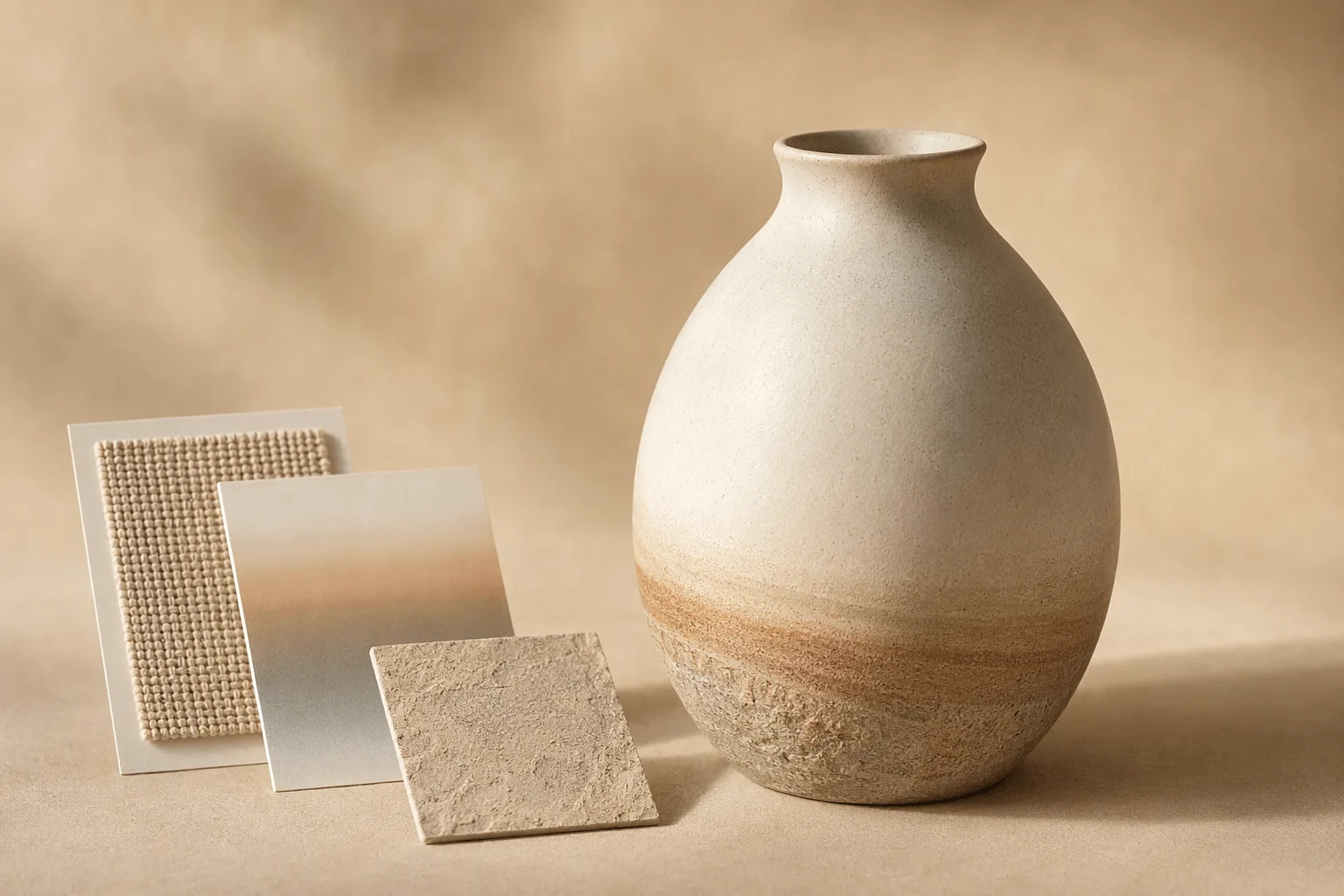
Use an authorized product photo as the base and a finish swatch as a reference. Ask to change the surface without redesigning the object. Review silhouette, hardware, reflections and printed details.
Update a campaign graphic without starting over
Upload the existing design and supply a new headline or event line. Specify which text to replace and which visual elements to retain. Check for accidental changes outside the text area.
Assemble a scene from separate visual assets
Provide a base scene and an object reference, then describe placement, scale and lighting. Review contact shadows and boundaries so the added object belongs visually in the scene.
Prompt guide & pro tips
How to make a localized edit in Seedream 5.0 Pro
Identify the source image, locate the target, describe the change and state what should remain. With multiple images, assign each a role rather than letting the model guess which is the base.
- Put the base photograph first in
image_urls. - Add a material or appearance reference only if it helps define the change.
- Name the exact object or region to modify.
- Describe the replacement and the surrounding details to preserve.
For a desk-lamp photograph and a brushed-metal swatch:
Image 1 is the base photograph. Image 2 supplies only the brushed-metal finish.
Change the outer surface of the desk lamp's shade in image 1 to that finish.
Keep the shade's shape, lamp stem, switch, cable and desk arrangement unchanged.
Match the new surface to the direction and softness of the existing window light.
Do not transfer the swatch's background or add new objects.
How to identify a region when words are ambiguous
If several similar objects are present, name the position and distinguishing detail: “the small lamp on the left,” not simply “the lamp.” For a more explicit target, prepare a copy of the image with a clear outline around the intended area, then describe the marked region and request removal of the guide marks.
In the outlined area of image 1, change only the small lamp's shade to matte terracotta.
Keep the larger lamp, desk and wall unchanged.
Remove the outline from the finished image and retain the original composition.
The outline is part of the prepared input image, not a separate API mask parameter. Check that guide marks have disappeared and that adjacent objects remain intact.
How to replace text without redesigning the graphic
Name the text to replace, provide the new wording in quotation marks, and state the layout and styling to retain. For example: replace the headline with “SPRING READING WEEK,” keeping its upper-left position, dark-green color and the surrounding illustration.
For a translation, provide the approved translated copy. Allow enough space for a longer line instead of asking the model to squeeze a different language into an unchanged word shape.
Review the changed region and its edges
Compare the replacement's perspective, texture and lighting with the source. If the wrong object changes, tighten the target description or mark the region. If a reference contributes unwanted surroundings, narrow its role to the specific color, material or subject you intended to borrow.
Content boundaries
Seedream 5.0 Pro · Edit — Uncensored. SpicyAPI adds no platform-side content filter. Model restrictions still apply, and results are not guaranteed. You are responsible for complying with our content policy.
API quick start
# Generate the idempotency key once; reuse it when retrying after a lost response.
export SPICY_IDEMPOTENCY_KEY="${SPICY_IDEMPOTENCY_KEY:-$(uuidgen)}"
curl -X POST https://api.spicyapi.ai/api/v1/jobs/createTask \
  -H "Authorization: Bearer $SPICY_API_KEY" \
  -H "Content-Type: application/json" \
  -H "Idempotency-Key: $SPICY_IDEMPOTENCY_KEY" \
  -d '{
  "model": "bytedance/seedream-5.0-pro/edit",
  "input": {
    "aspect_ratio": "auto",
    "background": "opaque",
    "image_urls": [
      "https://example.com/reference.png"
    ],
    "output_format": "jpeg",
    "prompt": "A ceramic teapot on a linen cloth, soft window light, muted palette",
    "resolution": "2k"
  }
}'

# Copy data.taskId from the response into TASK_ID, then poll the status.
TASK_ID="TASK_ID_FROM_RESPONSE"
curl "https://api.spicyapi.ai/api/v1/jobs/recordInfo?taskId=$TASK_ID" \
  -H "Authorization: Bearer $SPICY_API_KEY"
See the API reference for authentication, the complete schema, polling, and error handling.