Introduction
Seedream 5.0 Pro Text-to-Image creates a new image from a written design brief. Use it when you need to establish a composition, arrange supplied text or explore a photographic look without starting from an existing picture.
Developed by ByteDance and introduced in its July 8, 2026 launch article, the model supports design-oriented image creation. This mode focuses on deciding what should appear and how it should be arranged.
Choose a Seedream 5.0 Pro mode by starting material
| Starting material | Mode |
|---|---|
| A written art direction or design brief | Seedream 5.0 Pro Text to Image |
| An approved source image to revise | Seedream 5.0 Pro Image Editing |
| A finished image whose parts you need separately | Seedream 5.0 Pro Layer Decomposition |
Key features & highlights
Information-rich image design
Seedream 5.0 Pro combines text, diagrams and illustrations in structured compositions. Its layout capabilities address infographics, posters and other designs where the organization of information matters as much as the image itself.
Localized editing and spatial understanding
The model can interpret where a change belongs and which object it concerns. This supports regional replacements, color and material changes, and sketch-guided edits without requiring a new visual brief for the whole composition.
Photographic materials and lighting
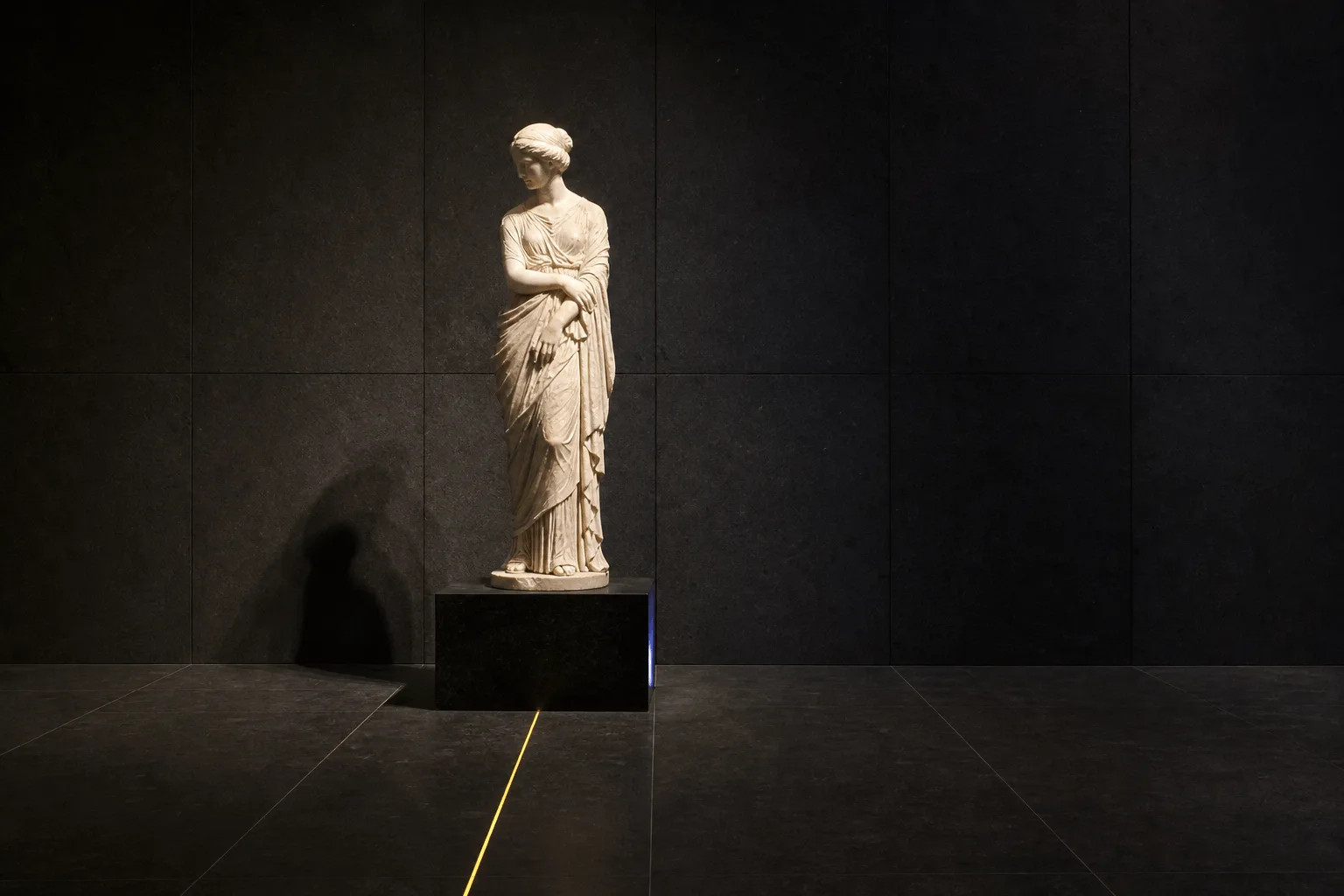
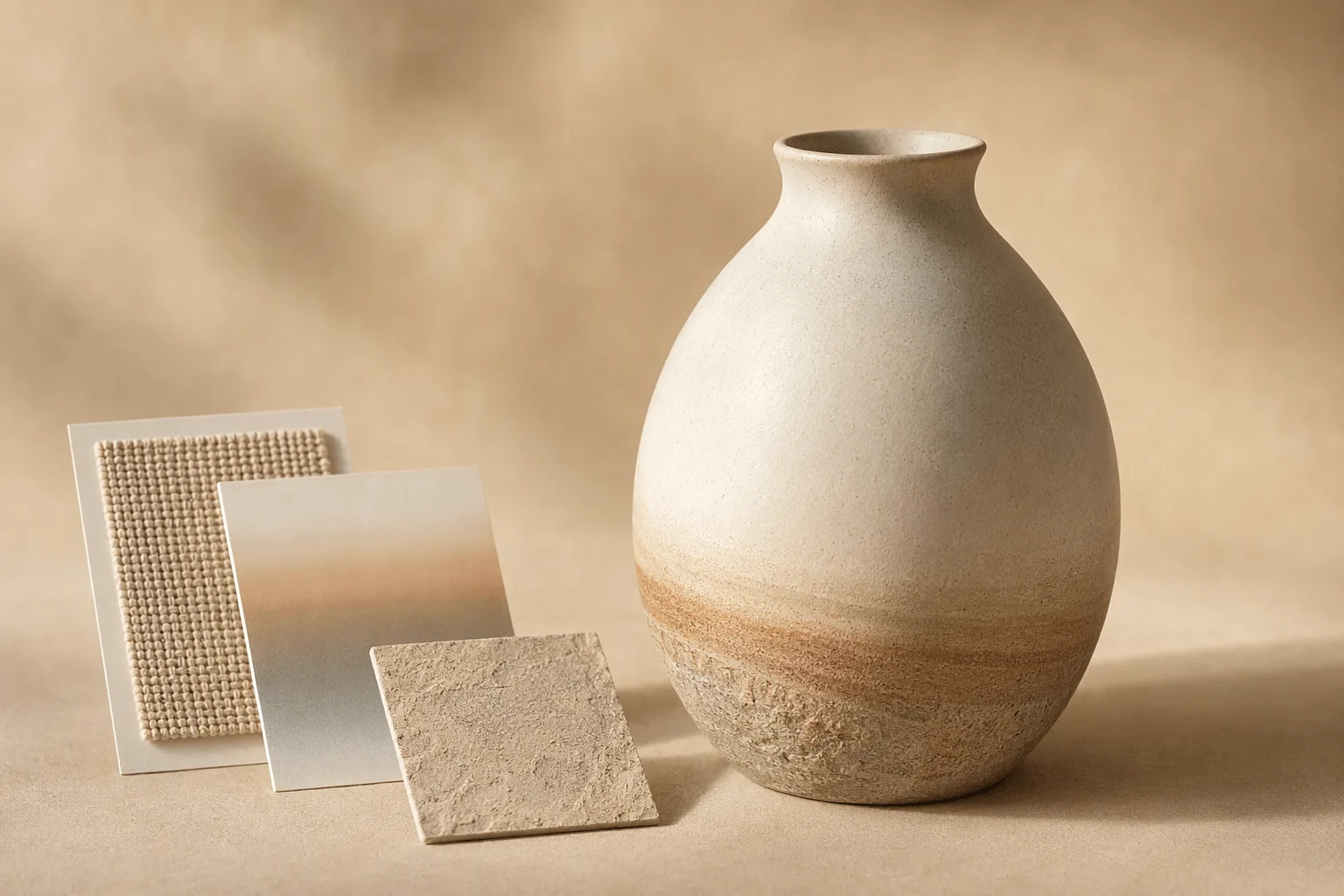
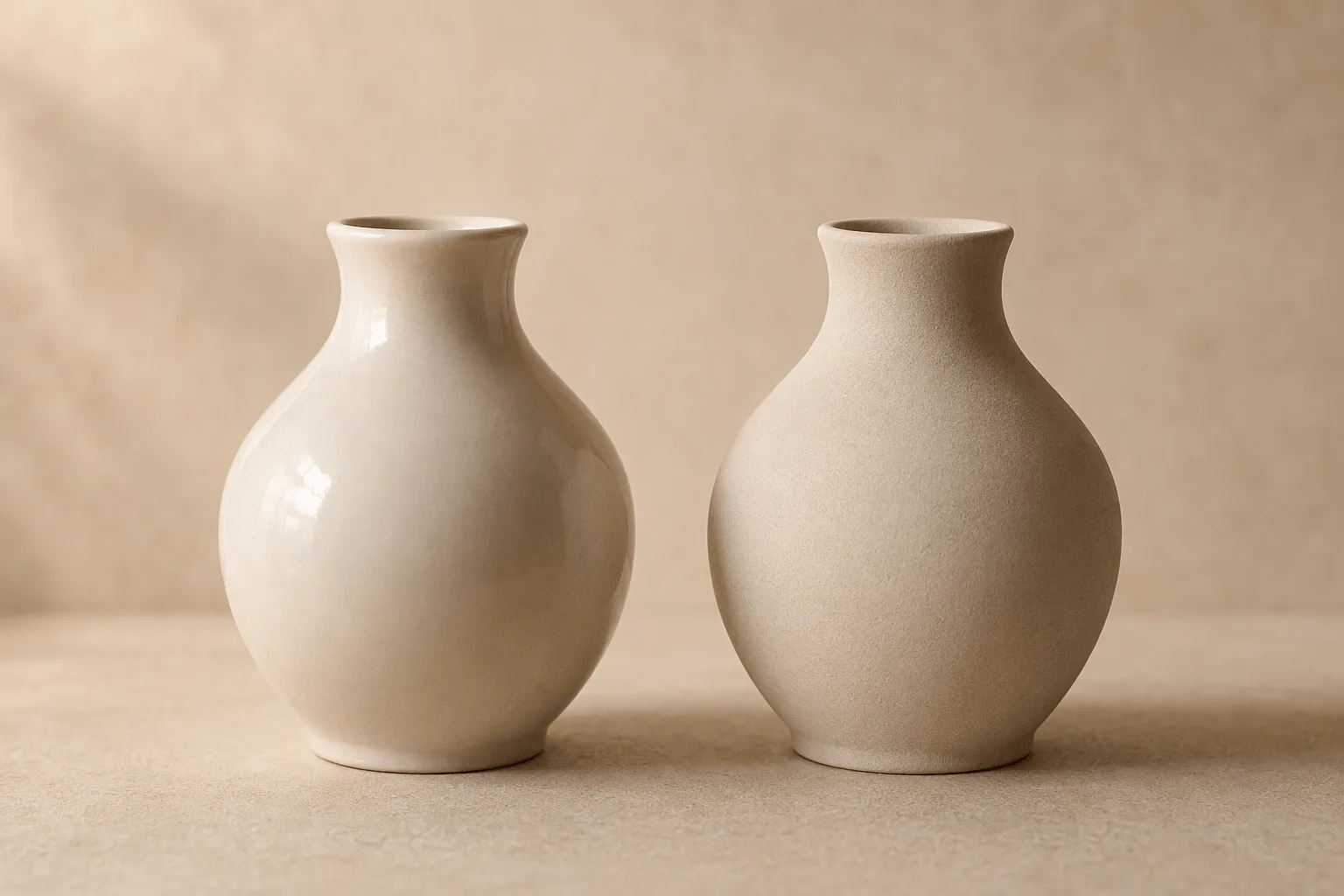
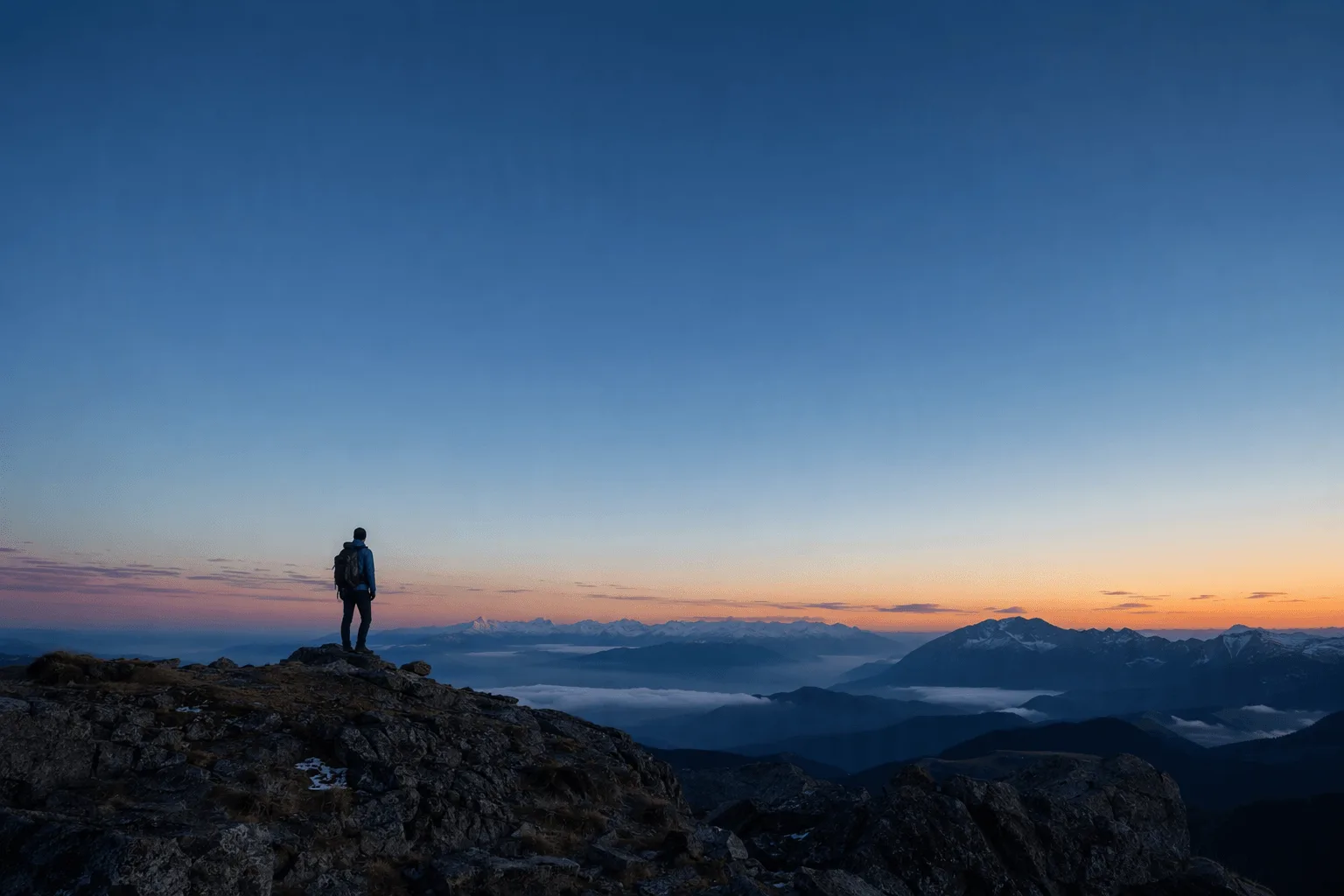
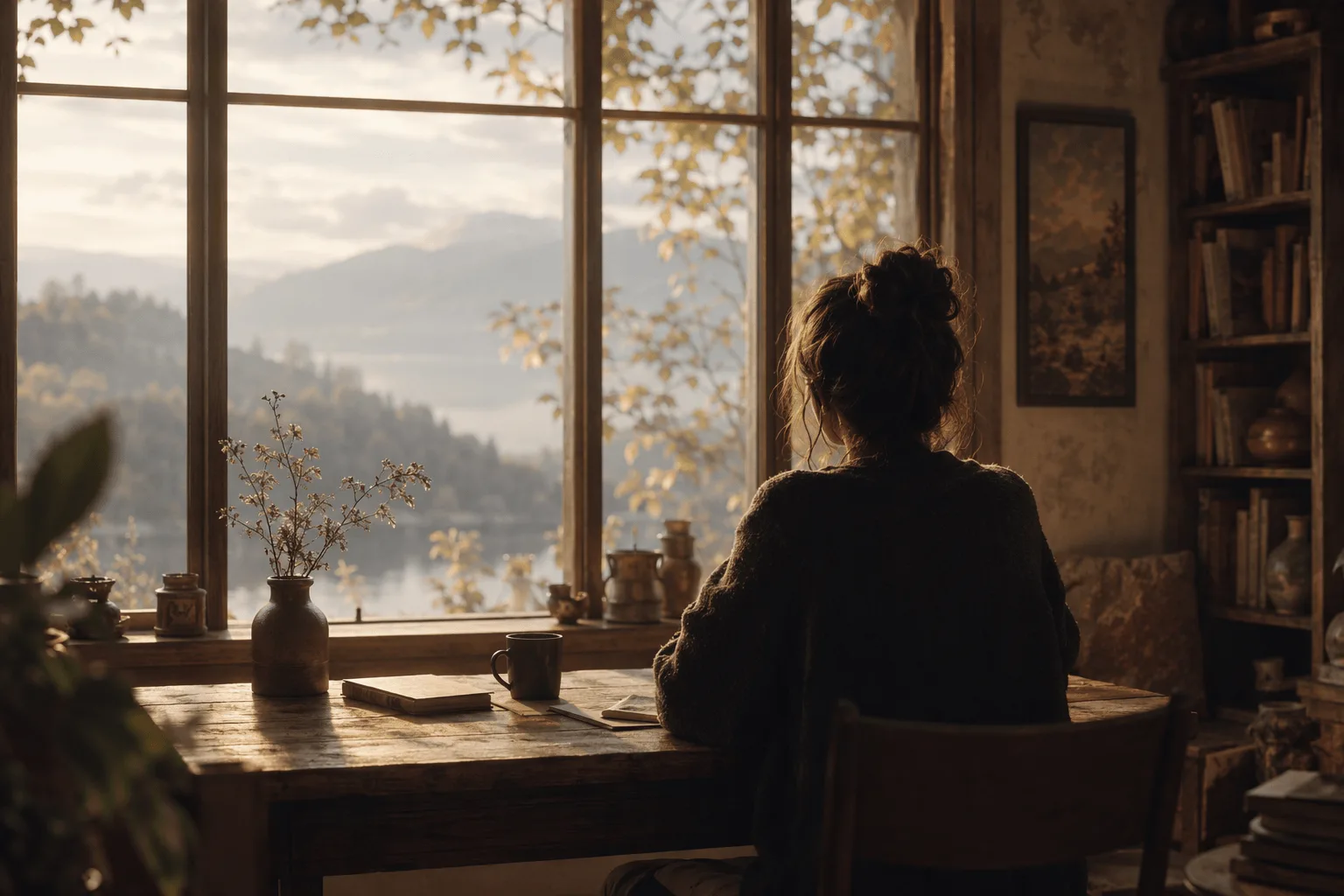
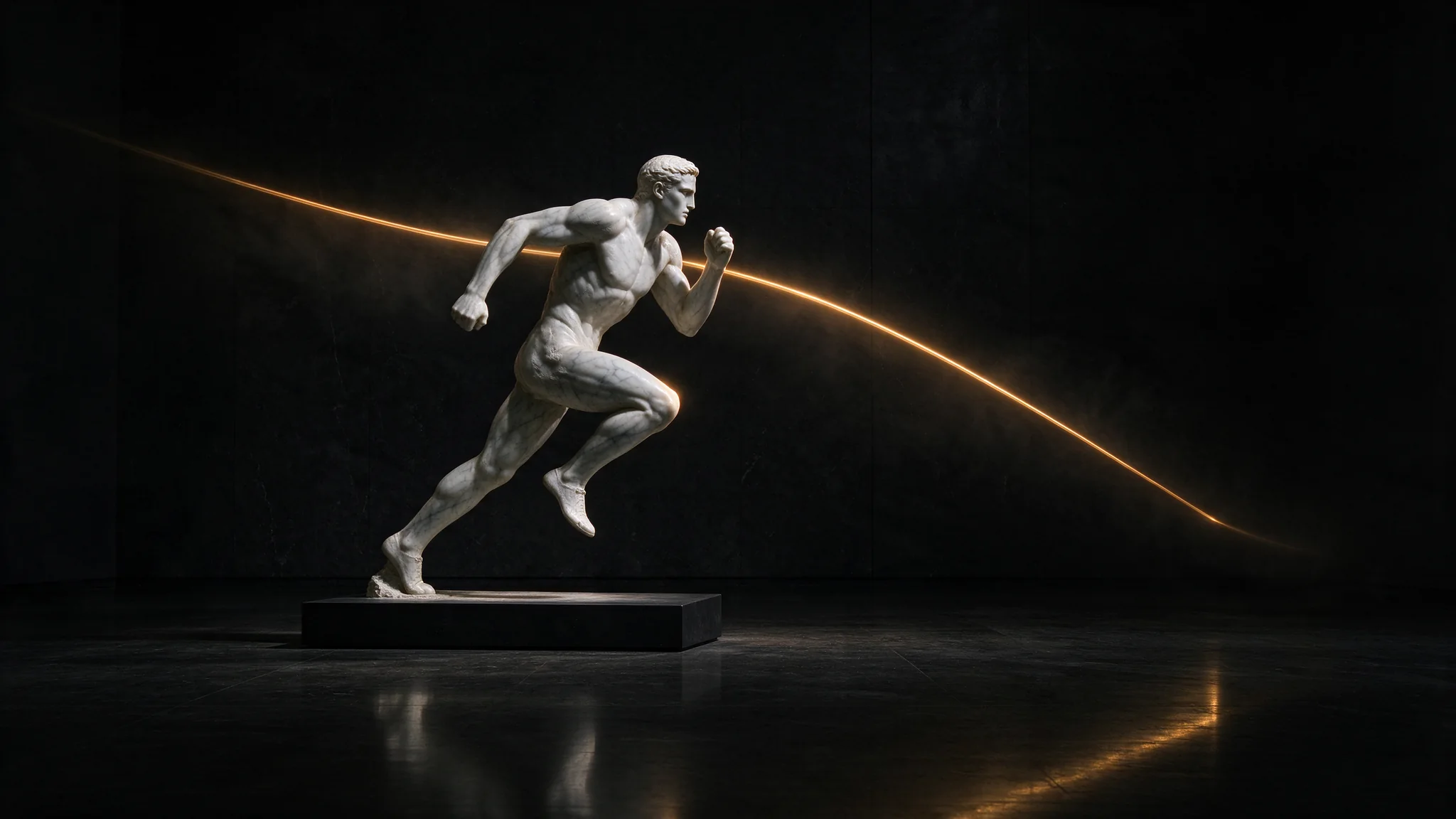
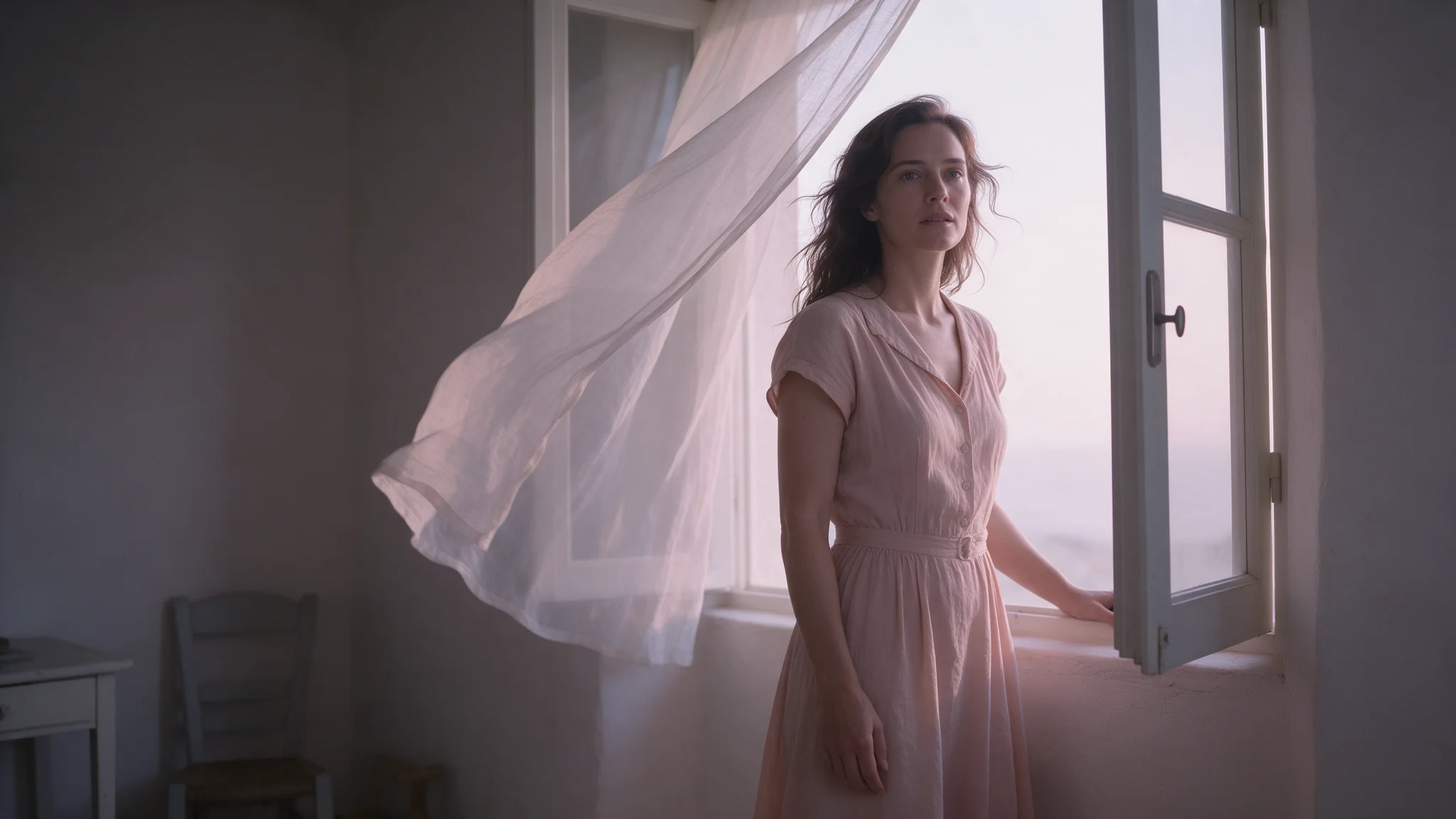
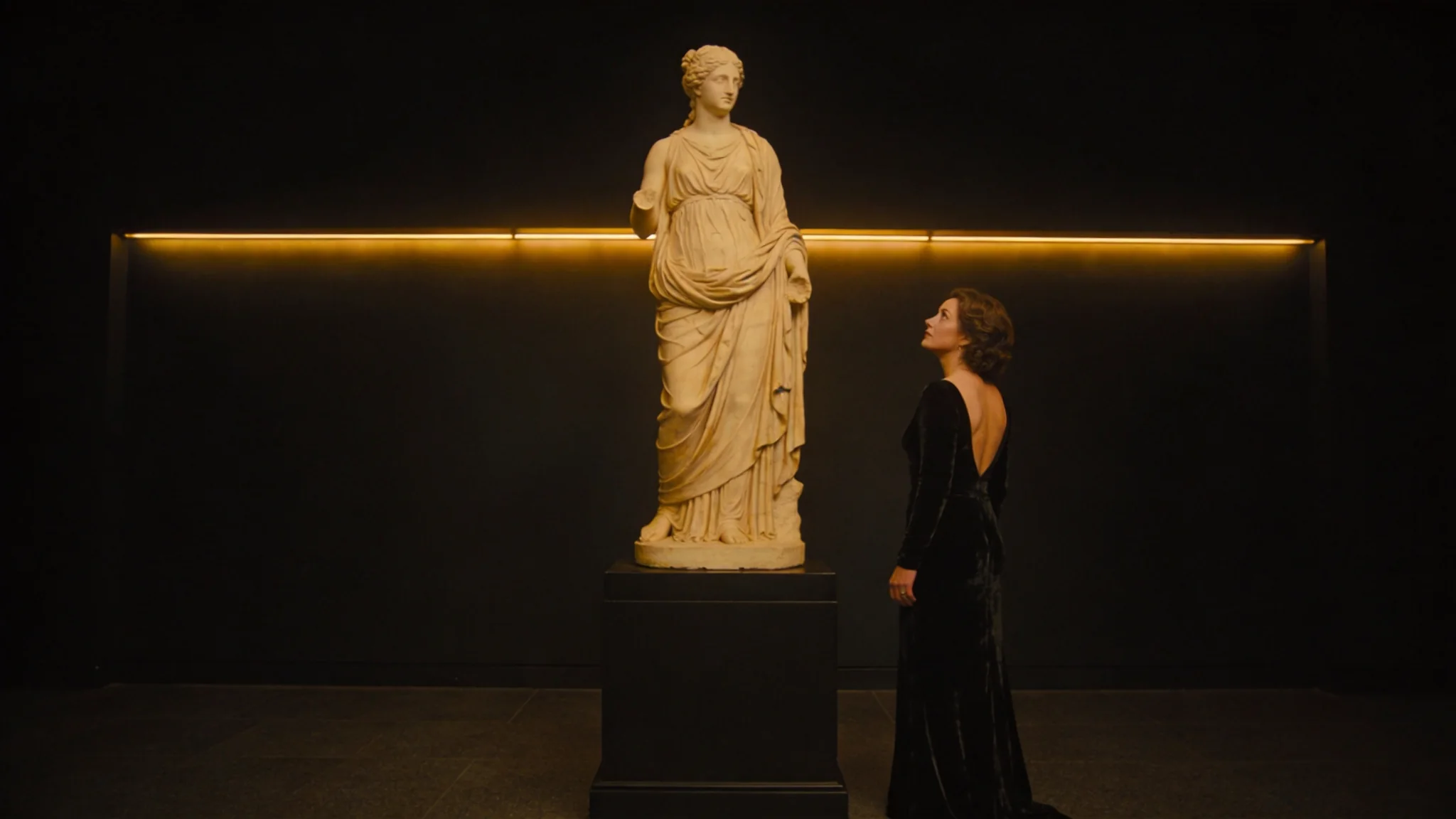
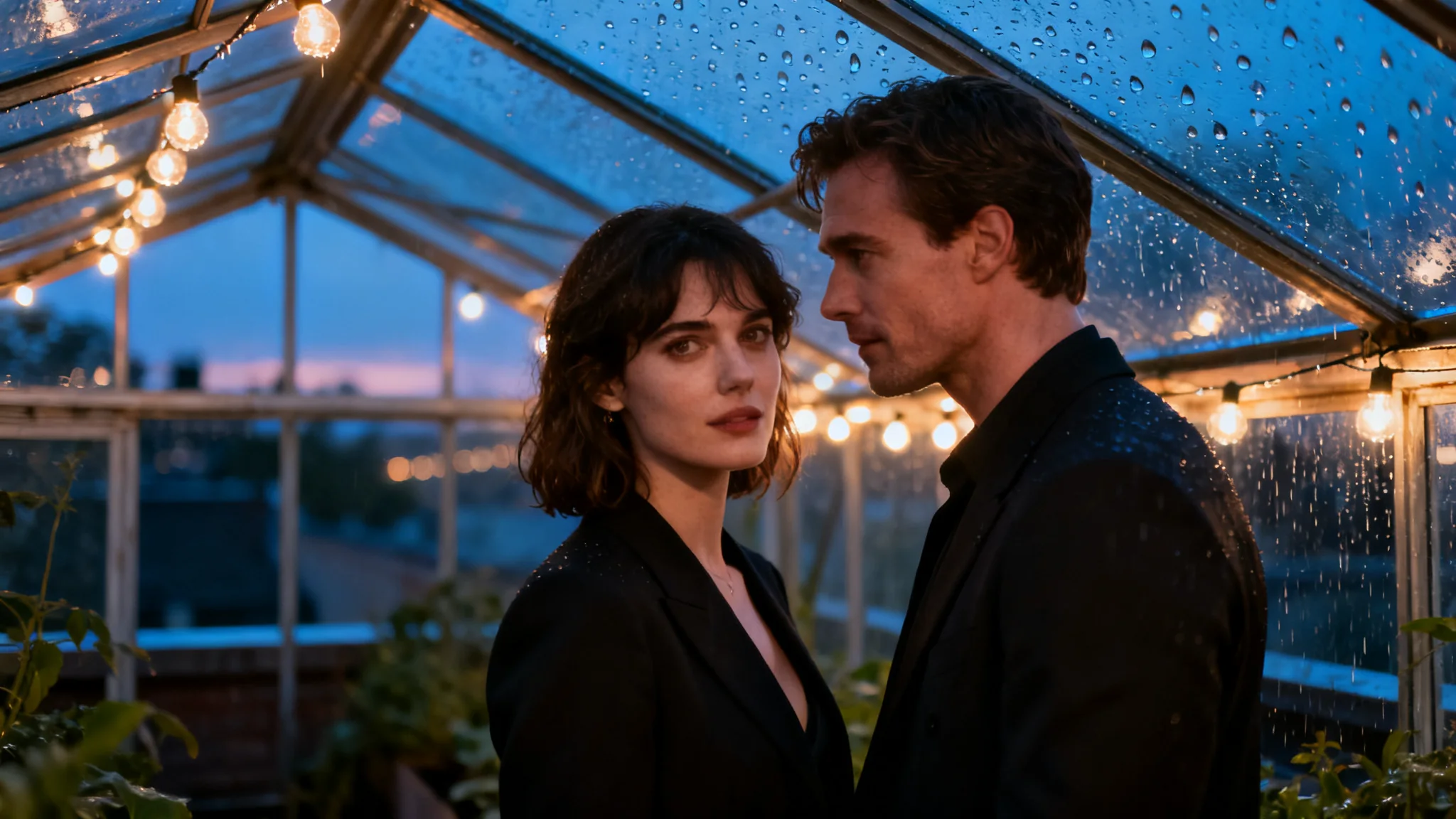
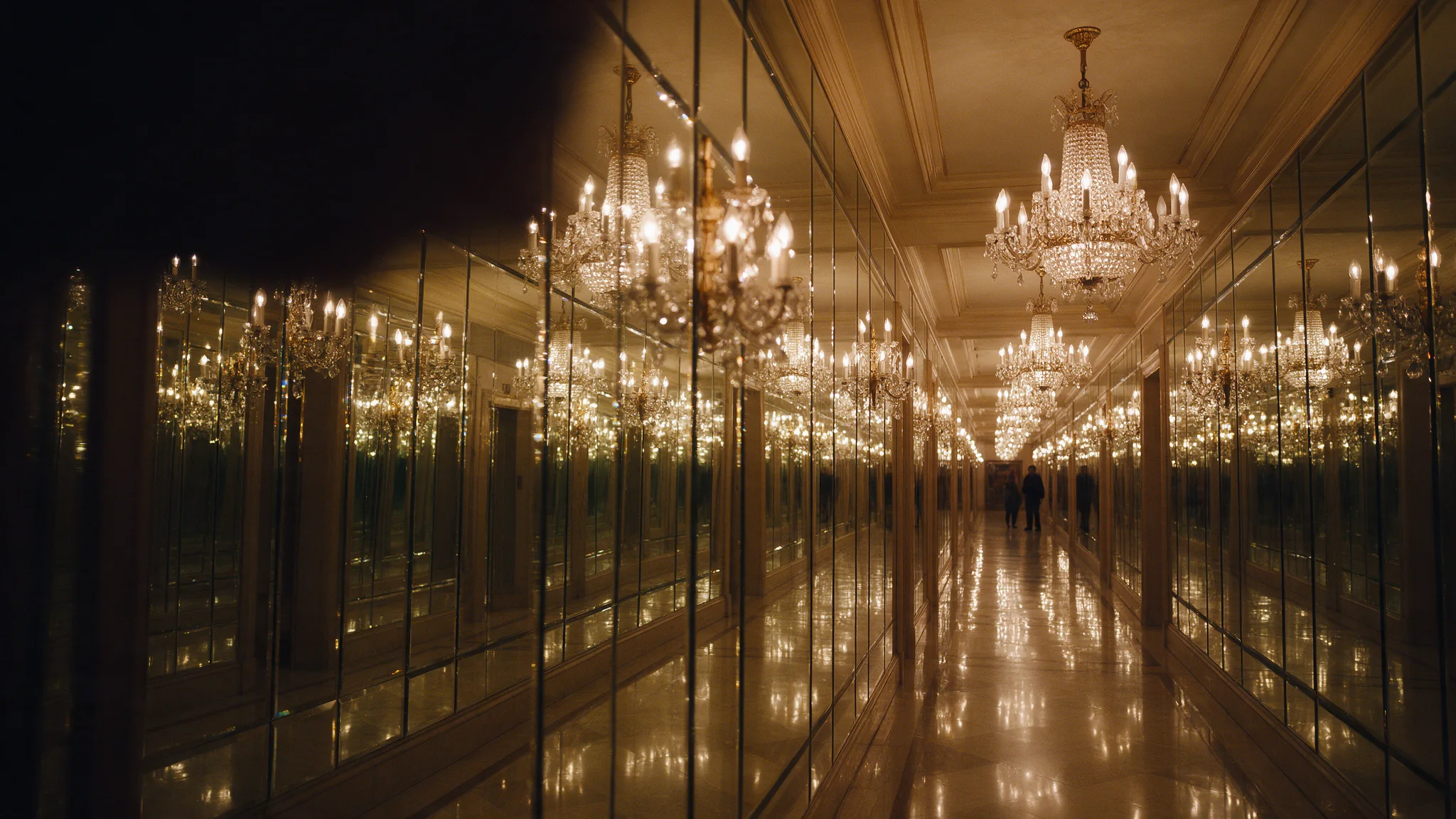
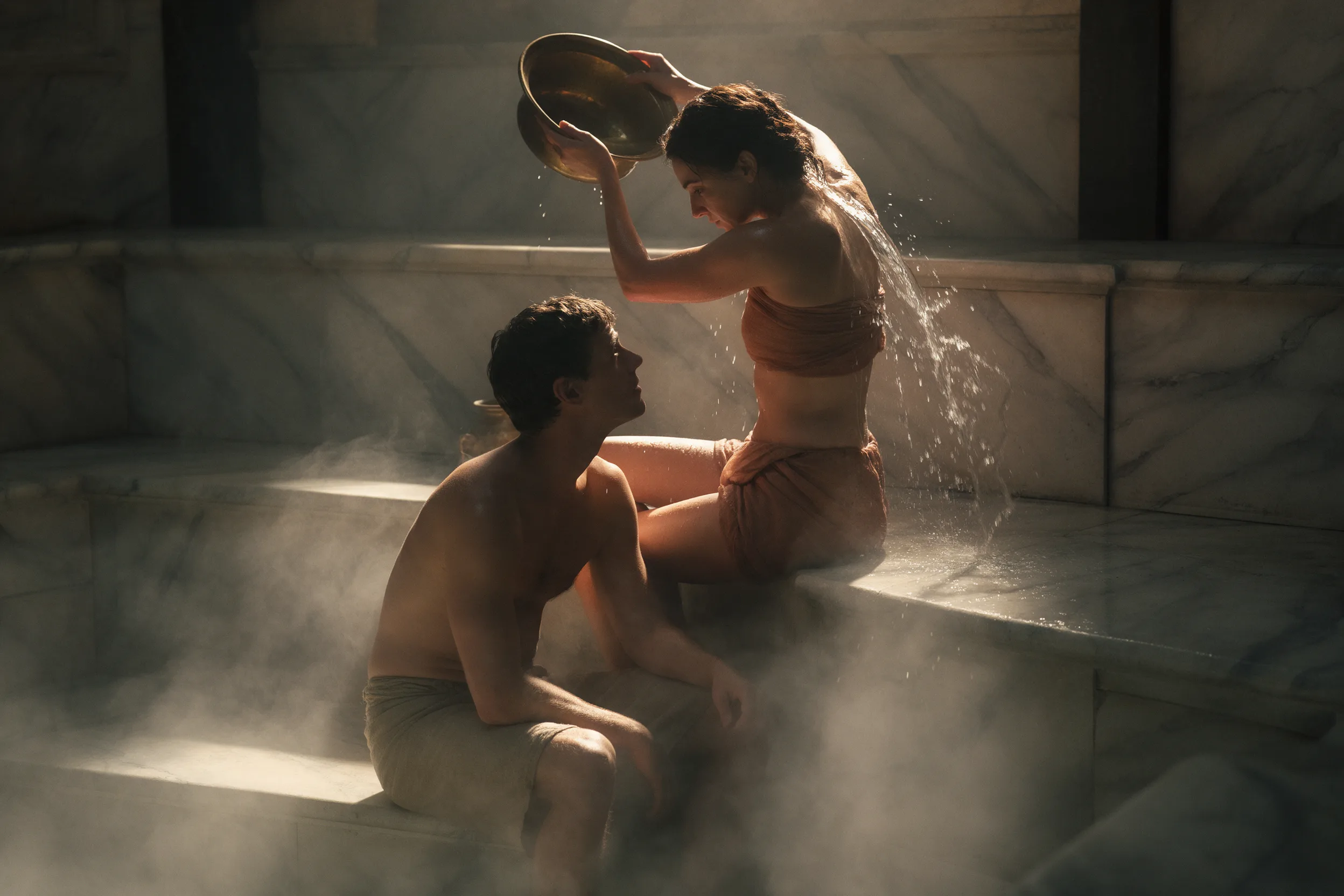
Image creation emphasizes surface texture, reflections, lighting and portrait detail. These capabilities serve both photographic treatments and rendered scenes, with attention to how materials interact with the surrounding light.
Multilingual visual content
The model supports multilingual prompts and text rendering, including languages with different scripts and reading directions. This enables localized graphics with language-specific copy and typography.
Multi-image composition
Separate images can supply subjects, materials, style or layout for a combined result. Layer separation is available as its own endpoint, Seedream 5.0 Pro Layer Decomposition; ordinary image generation and editing do not export layers.
Request parameters
| Parameter | Required | Description |
|---|---|---|
prompt | Yes | Up to 5,000 characters. Spend it on light source and direction, material and lens rather than adjectives — this tier renders what you specify and invents what you leave out. at least 1 characters · at most 5000 characters |
aspect_ratio | No | 1:1 (the default) or one of fourteen other shapes from 1:3 to 3:1, including 4:5, 21:9 and 9:21. |
resolution | No | 1k, 1.5k or 2k; 2k by default. |
output_format | No | jpeg by default, or png. png is lossless and the safer handoff into retouching or compositing; it changes the file you receive, not the image that was generated, and not the price. |
enable_thinking | No | On by default: the model runs a thinking pass that refines your prompt before generating. Switching it off skips that pass, so text-to-image finishes noticeably faster. Default: |
Pricing
| Specification | Price |
|---|---|
| $0.036 / image |
| $0.04 / image |
| $0.072 / image |
Use cases
Draft an event poster from final copy
Start with the headline, event details and a simple visual theme. Review the hierarchy and legibility before adding decorative elements or producing a finished campaign asset.
Visualize a product concept before photography
Describe a proposed object, its materials and the scene around it. Use the result to discuss a direction, not to document an existing product accurately. Switch to editing when an approved product photograph should anchor the work.
Turn supplied information into a visual explainer
Provide a short, checked list of facts and specify a layout that separates them. Review whether every label and relationship is represented correctly; an attractive diagram still needs factual review.
Prompt guide & pro tips
How to write a layout brief for Seedream 5.0 Pro
Describe the image as a design brief: purpose, composition, exact text, visual treatment and lighting. For text-heavy graphics, give the content a hierarchy rather than presenting an unstructured list of words.
- Choose the intended format through
aspect_ratio. - Describe where the main subject and text blocks belong.
- Supply the exact copy in quotation marks.
- Specify materials, colors and light in concrete terms.
For a vertical book-exchange poster, choose 2:3:
Create a vertical poster for a neighborhood book exchange.
Use a warm cream background with a dark-green and coral palette.

Place the headline "PASS A BOOK ON" in large dark-green lettering across the upper third.
In the center, show two hands passing a worn paperback, illustrated with cut-paper textures.
Below the illustration, place "Bring one. Find one. Share a story." in smaller type.
At the bottom, add "Saturday · 10 AM–2 PM" as a compact information line.

Keep a clear gap between the headline, illustration and supporting copy.
Use only the supplied text, with no extra badges or invented logos.
How to control text and information hierarchy
Separate the headline, supporting copy and practical information. Specify their relative size and position instead of asking for “beautiful typography.” For a chart or infographic, supply the actual labels and values; do not ask the model to invent factual data to fill the layout.
For localized graphics, provide approved text in the target language and describe the reading order. Proofread the generated lettering before publishing.
How to describe materials and photographic light
Name the surface and its interaction with light: brushed metal with a soft reflection, frosted glass with light passing through it, or textured paper under side lighting. These details communicate the intended appearance more clearly than stacking terms such as “premium” and “ultra-realistic.”
Revise the brief before increasing resolution
If the composition feels crowded, simplify the content or assign clearer regions. If the image has the wrong look, revise material and lighting directions. A higher resolution changes the output tier; it does not resolve a contradictory design brief.
Content boundaries
Seedream 5.0 Pro · Text-to-Image — Uncensored. SpicyAPI adds no platform-side content filter. Model restrictions still apply, and results are not guaranteed. You are responsible for complying with our content policy.
API quick start
# Generate the idempotency key once; reuse it when retrying after a lost response.
export SPICY_IDEMPOTENCY_KEY="${SPICY_IDEMPOTENCY_KEY:-$(uuidgen)}"
curl -X POST https://api.spicyapi.ai/api/v1/jobs/createTask \
  -H "Authorization: Bearer $SPICY_API_KEY" \
  -H "Content-Type: application/json" \
  -H "Idempotency-Key: $SPICY_IDEMPOTENCY_KEY" \
  -d '{
  "model": "bytedance/seedream-5.0-pro/text-to-image",
  "input": {
    "prompt": "A ceramic teapot on a linen cloth, soft window light, muted palette",
    "resolution": "2k",
    "aspect_ratio": "1:1",
    "output_format": "jpeg"
  }
}'

# Copy data.taskId from the response into TASK_ID, then poll the status.
TASK_ID="TASK_ID_FROM_RESPONSE"
curl "https://api.spicyapi.ai/api/v1/jobs/recordInfo?taskId=$TASK_ID" \
  -H "Authorization: Bearer $SPICY_API_KEY"
See the API reference for authentication, the complete schema, polling, and error handling.