Self-hosted n8n
Install the community package below. Add a SpicyAPI credential using a key from your console. The node provides Model, Prompt and Media Inputs controls, with model-specific parameters loaded from the catalogue.
Install the n8n noden8n × SpicyAPI
Turn a prompt or reference image into a creative pipeline: generate character portraits, make controlled edits, animate approved frames and connect roleplay models. The official SpicyAPI node brings model selection, price checks and downloadable outputs into n8n, so your next step can be storage, review or another AI task.
n8n CloudYour workflow at a glance
Reference image
Binary · data
SpicyAPI
Image → Generate
Make one controlled edit
Save the output file
Download Output
Install the community package below. Add a SpicyAPI credential using a key from your console. The node provides Model, Prompt and Media Inputs controls, with model-specific parameters loaded from the catalogue.
Install the n8n nodeImport our image or chat workflow JSON using built-in HTTP Request nodes. Create a Bearer Auth credential, assign it to the API request nodes and run your first item. These templates work without installing a community package; the dedicated SpicyAPI node is available for self-hosted n8n.
The image template starts with text-to-image. Change its Settings prompt to make a character portrait. The reference-editing configuration below is for the self-hosted SpicyAPI node.
@spicyapi/n8n-nodes-spicyapiInstalling the node adds no subscription. Model calls draw from your SpicyAPI balance, shared with Studio. Add a balance before the first run if your account is empty. Billing →
Start with one approved fictional adult character image. Pass its binary field into Media Inputs; the node uploads it and uses the committed file URI.
Choose an image-editing endpoint. Describe the wardrobe and lighting changes while specifying the face, hair and pose to keep. Start every variation from the approved original.
Leave Download Output on. Pass binary data to your storage node. Once the image is approved, use its binary file as the input for Video → Generate.
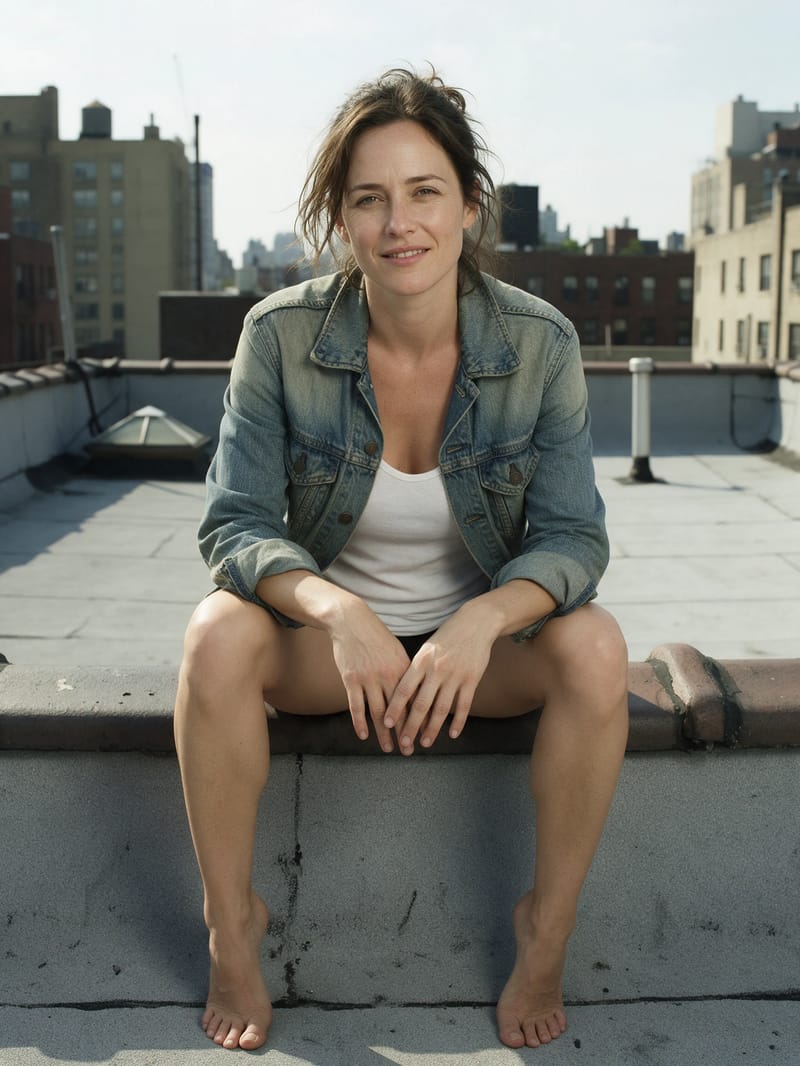
Reference
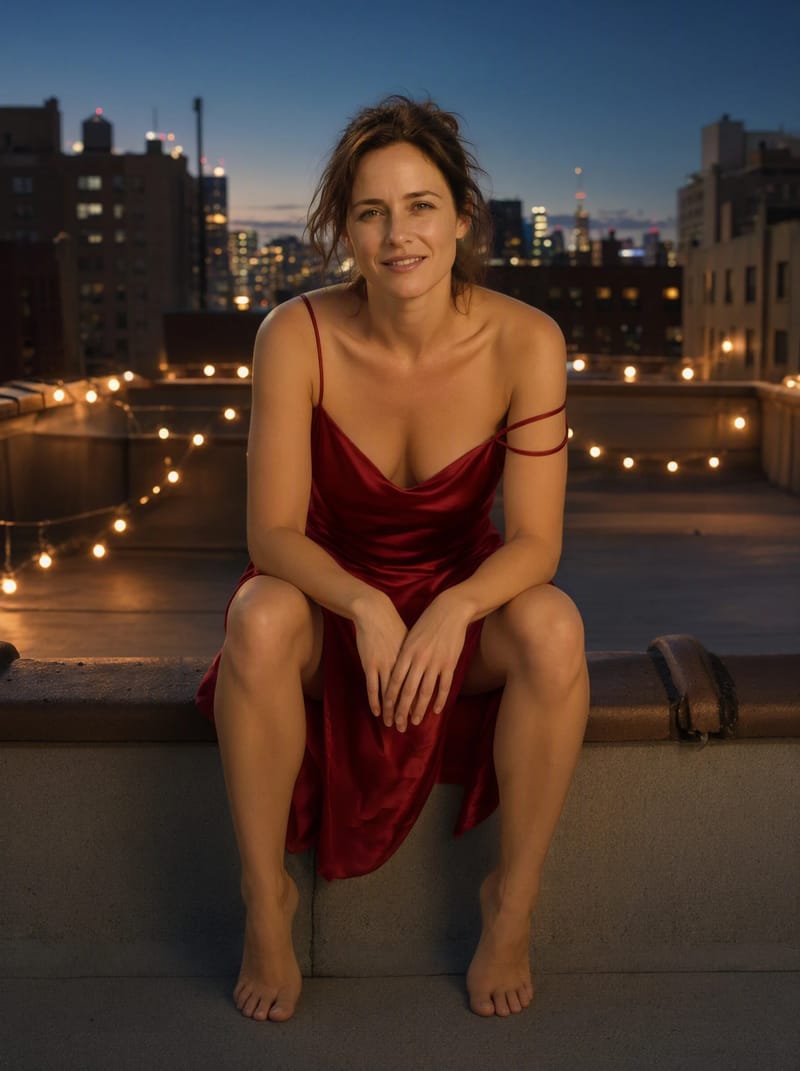
Edited result
A wardrobe edit with Qwen Image 2.1
The outfit, lighting and skyline change in this published model example. Compare the face, hair and pose before continuing your workflow.
Keep her face, her hair and her seated pose on the ledge. Change the scene to dusk with warm string lights and a glowing skyline, and dress her in a crimson satin slip dress with thin straps, one strap slipping off her shoulder, bare legs crossed. Warm low light on her collarbone, cool blue sky behind.
Put the reference image in the incoming item’s binary field named data. Use the scene-and-wardrobe prompt shown here with 2k resolution and a 3:4 frame. If the incoming binary field has another name, enter it instead. Choose Model → Get Quote with the same inputs to preview the cost.
| Resource / Operation | Image → Generate |
| Model | alibaba/qwen-image-2.1/edit |
| Media Inputs → Field Name or ID | image_urls |
| Media Inputs → Source | Binary File |
| Media Inputs → Input Binary Field | data |
| Additional Parameters (JSON) | {"resolution":"2k","aspect_ratio":"3:4"} |
| Download Output / Options → Put Output in Field | On / data |
Max Cost per Item is not a batch allowance. Six items can each pass the same limit. For a fixed request costing Q dollars, six runs cost 6 × Q; extra references, resolution or duration may change Q. Quote the exact inputs, use a dedicated capped key and save the accepted originals.
| Model | Choose an exact endpoint for generation, editing or video. Switching Model can change the available parameters and required media fields. |
| Prompt | Describe the scene or the change. For editing, state what must stay the same as well as what should change. |
| Media Inputs | Choose the declared file field and a URL or prior node’s binary field. Add multiple entries only when that field accepts a list. |
| Model Parameters | Set the actual resolution, aspect ratio, duration or seed that the endpoint exposes. Empty fields use model defaults. |
| Max Cost per Item (USD) | A quote above this limit stops before task creation. The limit applies to each item, not the entire workflow. |
| Download Output | Returns binary files as data, data_1 and so on. Save those files; signed result links expire after about 20 minutes. |
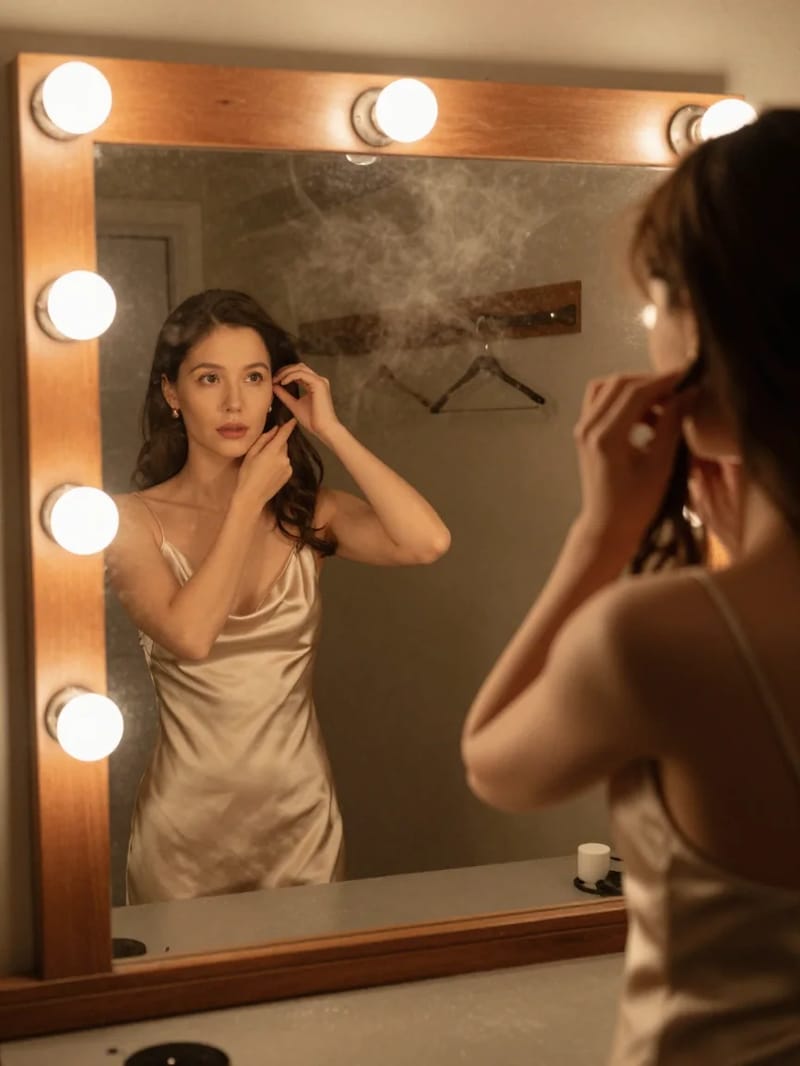
Use the backstage portrait prompt shown here. In the Cloud template, set Settings → model to the endpoint below, Settings → prompt to this scene and Settings → aspectRatio to 3:4. In the self-hosted node, use Image → Generate with a 3:4 frame and set output_format to png and enable_prompt_expansion to false in Additional Parameters (JSON). Run one item with Download Output on.
alibaba/z-image-turbo/text-to-imageAn old theatre dressing room before the show with only two vanity bulbs lit: an adult woman in a champagne satin slip dress is seen only in the mirror, pinning up her hair while her gaze meets the lens. Warm haze, powder hanging in the air, soft grain, intimate and restrained.
aspect_ratio: 3:4 · output_format: png · enable_prompt_expansion: false
With prompt expansion off, the current price is $0.01 per image: six separate runs cost $0.06. Changing the model or settings changes the quote; the node checks it before creating each task.
Open the PlaygroundStart with text-to-image for a new character, or choose an editing endpoint to work from an existing reference. These current image models have an unrestricted catalogue rating. Explore their examples and current prices, then use the exact endpoint in your workflow.
Seedream 5.0 Pro text-to-image is ByteDance's high-detail image model, turning a prompt of up to 5,000 characters into one frame. Choose from fifteen aspect ratios at 1K, 1.5K or 2K, in JPEG or PNG. Uncensored.
From $0.036 per image
Open the PlaygroundQwen Image 2.1 text-to-image is Alibaba's open-weight model: a 5,000-character prompt becomes one image at 1k, 1.5k or 2k in fifteen aspect ratios, as JPEG, PNG or WebP. Transparent backgrounds are available, and there is no content filter.
From $0.024 per image
Open the PlaygroundSeedream 5.0 Flash text-to-image is ByteDance's lighter Seedream tier, turning a prompt of up to 5,000 characters into one image. Choose from fifteen aspect ratios between 1:3 and 3:1 at 1K, 1.5K or 2K, all at one price.
From $0.029 per image
Open the PlaygroundSeedream 5.0 Pro image editing takes one to ten reference images plus an instruction and returns one image. Revise a single photo or assemble subject, wardrobe and set into one frame, in fifteen aspect ratios at 1K, 1.5K or 2K. Uncensored.
From $0.036 per image
Open the PlaygroundQwen Image 2.1 image editing revises one to ten reference images from a written instruction and returns one frame at 1k, 1.5k or 2k. It also does local edits with a black-and-white mask, where white is repainted.
From $0.036 per image
Open the PlaygroundQwen Image Edit Spicy edits a single source image from one plain-English instruction, with no mask, strength dial or aspect ratio to set. It is uncensored, and an optional seed keeps two edits comparable.
From $0.038 per image
Open the PlaygroundBuild 4, 8 or 12 photos from one character reference.
Turn your chosen adult character into a coordinated NSFW creator gallery. Make 4, 8 or 12 outfit and scene variants with n8n, reusing the same original portrait for every Qwen Image 2.1 edit.
Turn a sheet of NSFW creator ideas into an organized image queue. Generate up to four Z-Image Turbo concepts per run, then review every image beside its prompt, status and result link.
Send /image and a scene description from your allowed Telegram chat. Your configured reference portrait anchors the edit; Qwen Image 2.1 makes the new look and the bot sends the finished image back.
n8n × SpicyAPI