ComfyUI / Workflow template

Keep your character consistent in ComfyUI.

Change an outfit, rebuild a setting or prepare the next story frame from your chosen adult character image. Load the source in ComfyUI, describe the edit and save a Qwen Image 2.1 variant alongside the original.

Import the JSON, select your credentials and fill the required inputs before running.

Cosplay & wardrobe variations
Illustration
Try the model first
Start with
A local source image and one edit instruction
Get
An edited image saved by SaveImage
Best for
Outfit variants, scene changes and character frames

Separate outfit or location variants made from the original image, ready for a character gallery or the opening frame of a later video.

How the workflow runs

How the workflow runs

  1. 01

    LoadImage

  2. 02

    Describe one edit

  3. 03

    Qwen reference edit

  4. 04

    SaveImage

A visual guide to the workflow.

NSFW / Character / Style

Creative starting points

Cosplay & wardrobe variations
Illustration

Cosplay & wardrobe variations

01

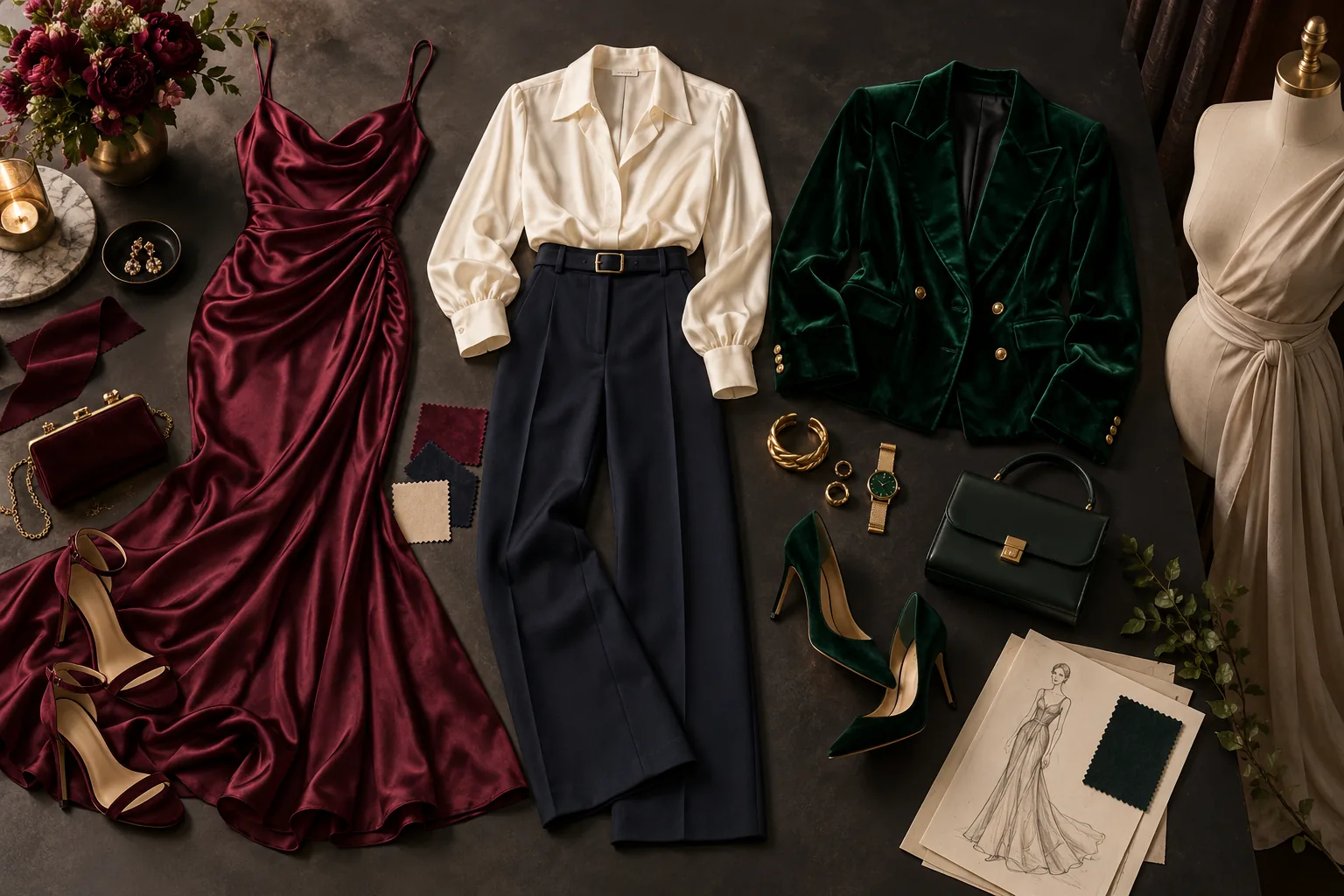
Explore a character’s wardrobe without rebuilding the entire scene: a fitted evening look, a themed costume or a different fabric treatment. Reference editing lets you compare the creative change against the original.

What to change first

Describe the garment, color and fabric explicitly. Keep pose and background steady for the first comparison.

Try this direction
BL & GL story frames
Illustration

BL & GL story frames

02

Build a romantic visual story around two fictional adult characters. Start with a composition that already places both people where you want them, then develop the mood, wardrobe and setting.

What to change first

Use distinct hair, outfits and left/right positions for each person. Inspect both faces before using the frame again.

Try this direction
Photo-to-video teaser frames
Illustration

Photo-to-video teaser frames

03

Create a strong opening image for a short NSFW creator teaser: a clear face, readable silhouette and a setting with room for motion. Finish the still here, then take the selected frame to image-to-video.

What to change first

Save the chosen image and continue in image-to-video. These downloads create the still; the video is a separate next step.

Continue to image-to-video

A wardrobe edit with Qwen Image 2.1

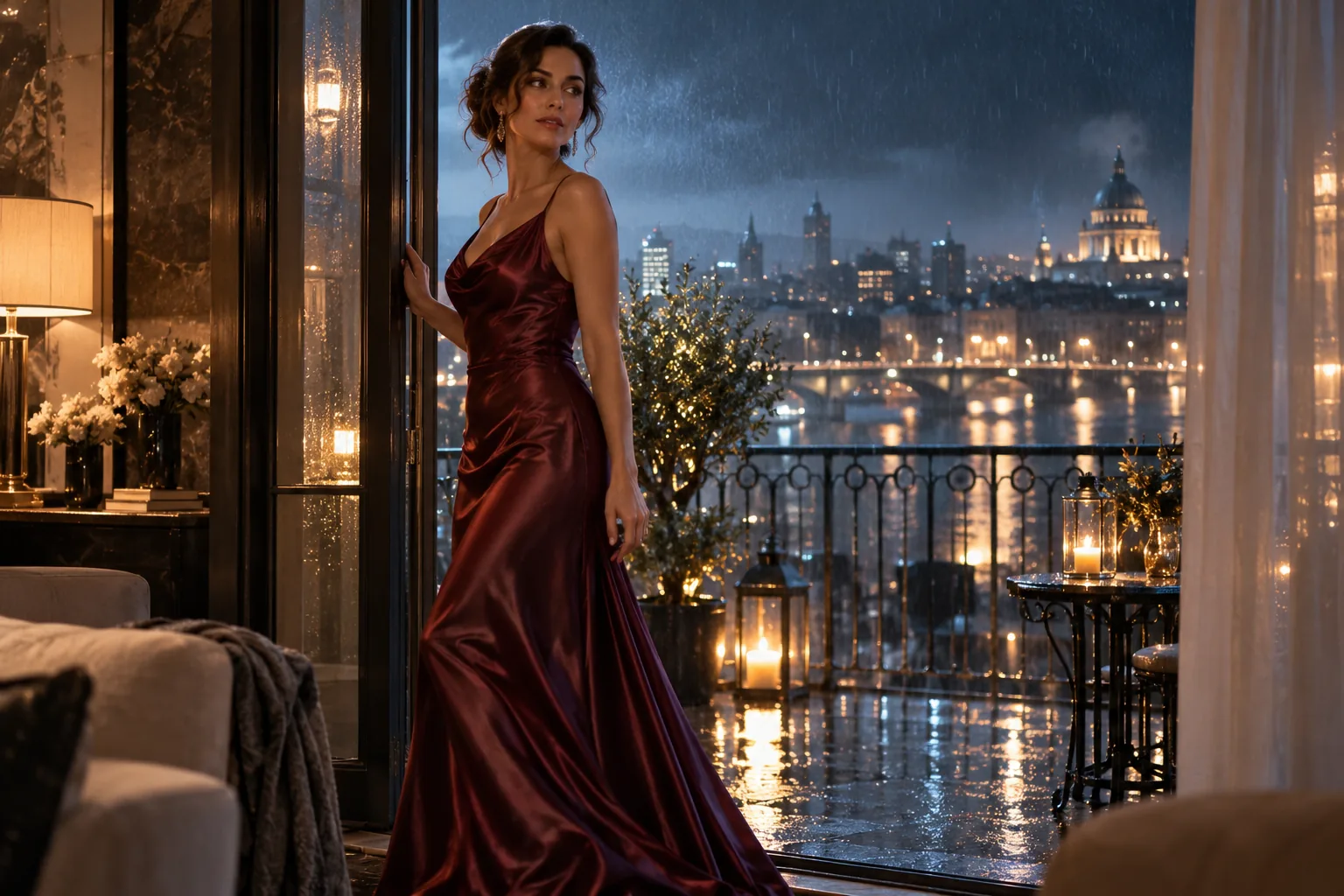
The outfit, lighting and skyline change in this published model example. Compare the face, hair and pose before continuing your workflow.

Qwen Image 2.1 · 2K · 3:4

$0.048 / image

Use this example
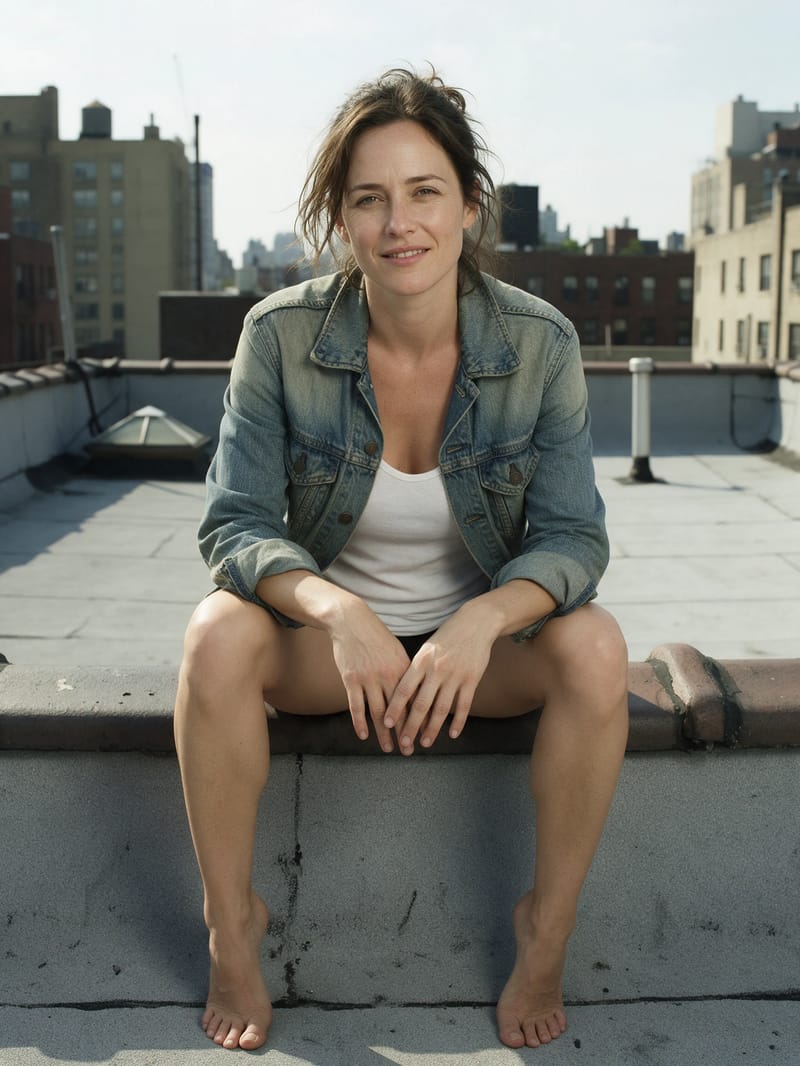
Reference image of an adult character on a rooftop
Reference
Qwen Image 2.1 editing example with an adult character in a red satin dress
Edited result

Workflow tutorial

Steps to your first result

  1. 01

    Import the graph

    Install the official SpicyAPI ComfyUI nodes using the integration guide, then load the downloaded JSON. Enter your key in Settings → SpicyAPI rather than putting it in the workflow file. Set a positive Max cost per run in the same settings.

  2. 02

    Load the original portrait

    Choose a clear source in LoadImage. For a series of changes, keep this original loaded instead of replacing it with the last edited output.

  3. 03

    Write the specific change

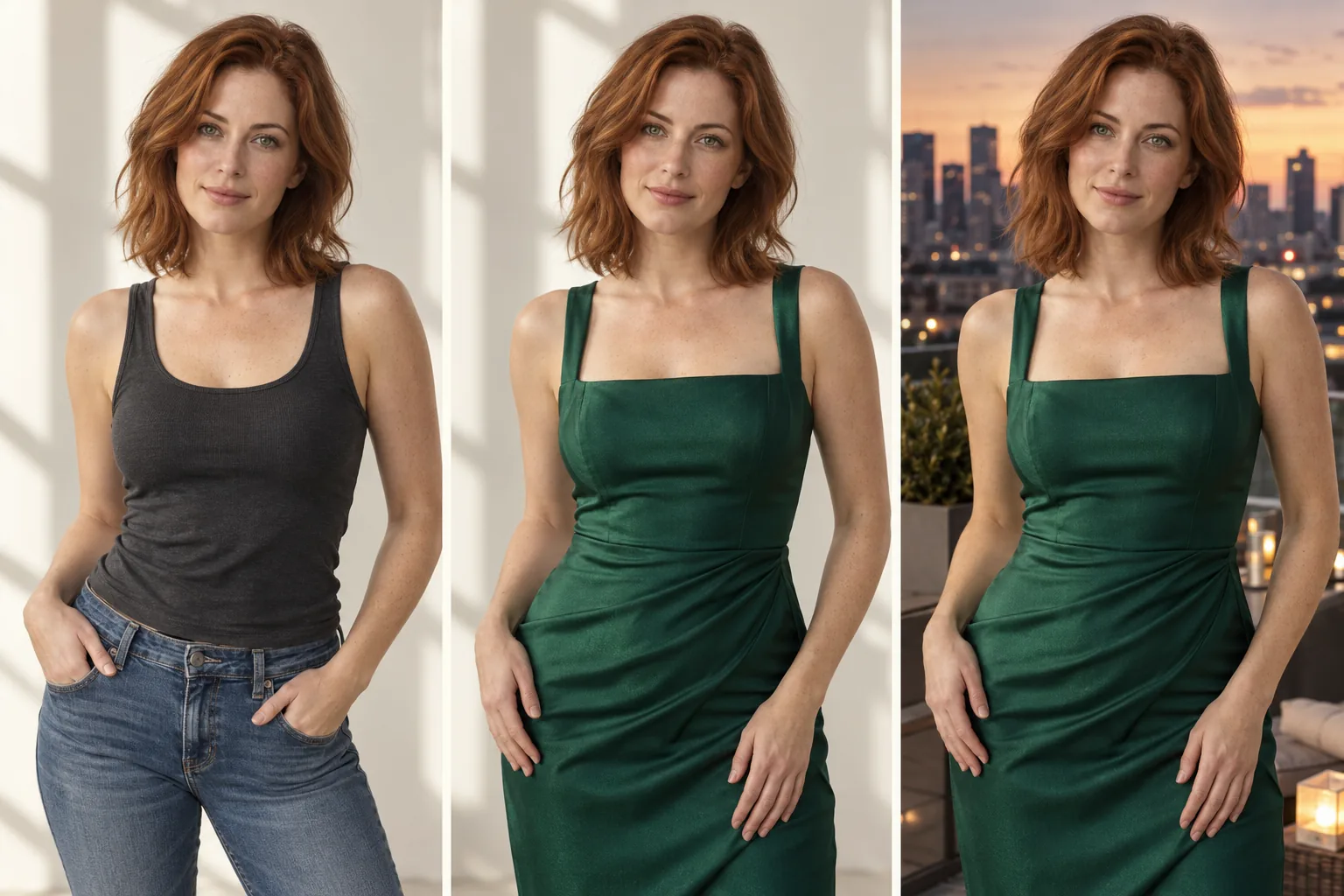
    Ask for a cream sweater while preserving the face, hairstyle, pose and background. For a location variant, make the room the only requested change. Avoid describing a different character in the same instruction.

  4. 04

    Choose settings and queue once

    The template starts at 1k, 3:4 and PNG, with prompt expansion off. Check the editor’s current price and queue once. You can try the same input and instruction on the linked model page before extending the canvas.

  5. 05

    Check and save the variant

    SaveImage writes the returned image to ComfyUI’s output location. Compare the face and untouched areas with the source, and keep the successful variant separately from the original.

Try this prompt

Creative example. Adapt it to your own fictional adult character and source image.

Keep the fictional adult character's face, auburn hairstyle and chest-up framing from the source image. Replace only the navy jacket with a cream sweater. Preserve the pose, background and light direction.
Try this direction

Choose a model for your creative range

Reference editing starts with Qwen Image 2.1; new concepts start with Z-Image Turbo. For a more specific NSFW style, explore compatible LoRA models and the Spicy collection before scaling your batch.

Budget the complete run

One queued edit is one image-edit task. Two outfit variants require two tasks; changing the input or prompt and queuing again is a new attempt. Compare current editing settings and price on the model page, then keep exploratory changes small before producing the final set.

If the result is not what you expected

ComfyUI — If the result is not what you expected

The graph shows missing nodes

Install or update the official SpicyAPI node package, restart ComfyUI and reload the JSON. Replacing a missing API node with a local checkpoint loader changes the workflow rather than repairing it.

The edit changes too much

Return to the original source and reduce the instruction to one change. Name the face, hair, pose and light you want preserved instead of repeatedly editing an already changed result.

Before you import

Continue with another workflow

Make the first useful run

Download the template or try the same model in the Playground before connecting the full workflow.