
ComfyUI / Workflow template

Bring two original characters into the same scene

A two-character scene needs more than “keep the face.” This ComfyUI template connects two separate LoadImage nodes to Qwen Image 2.1 Edit, so you can describe which reference belongs on the left, which belongs on the right and what the scene should change. Build romantic story frames, visual-novel panels or a shared creator-gallery cover.

Import the JSON, select your credentials and fill the required inputs before running.

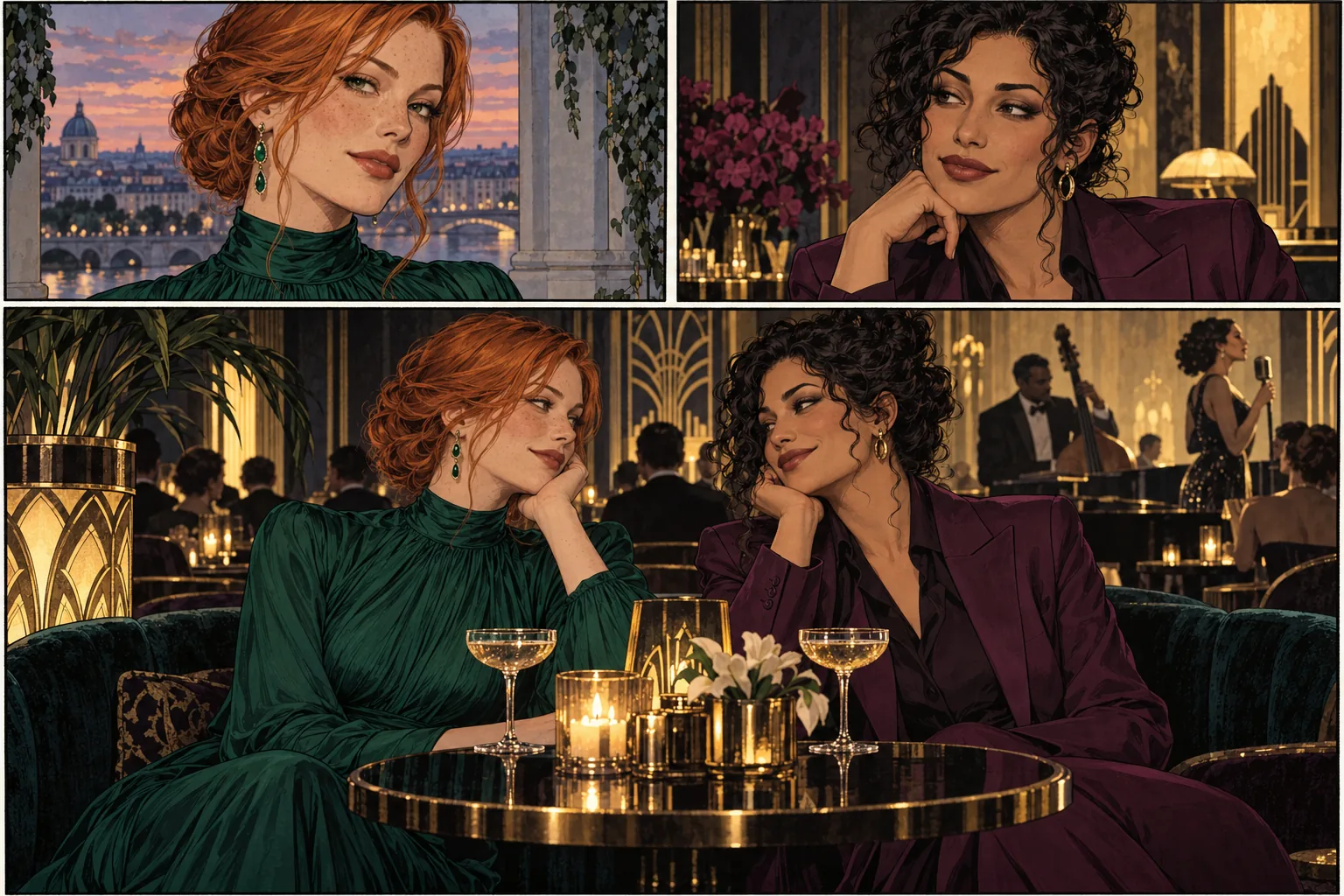
Graphic-novel moodboard with two distinct adult character portraits above their shared jazz-lounge scene.
Illustration: two distinct character references and one shared story scene.
Try the model first
Start with
Two separate character references and one scene-composition prompt.
Get
One edited image saved locally by SaveImage; the optional alpha output stays unconnected.
Best for
BL/GL story frames, paired character portraits and original adult visual novels.

Both references enter one edit request. They are not treated as two independent generation jobs. Give each character a distinct hairstyle, outfit and position, then review both faces in the composed result. Save a usable two-person frame as the basis for the next scene or a focused refinement.

How the workflow runs

How the workflow runs

  1. 01

    Load character A

  2. 02

    Load character B

  3. 03

    Compose the scene

  4. 04

    Save the image

A visual guide to the workflow.

NSFW / Character / Style

Creative starting points

BL & GL story frames
Illustration

BL & GL story frames

01

BL/GL story frames, paired character portraits and original adult visual novels.

What to change first

Two independent LoadImage inputs feed image_urls.image_0 and image_urls.image_1. A single LoadImage batch is a different input arrangement.

Try this direction
Cosplay & wardrobe variations
Illustration

Cosplay & wardrobe variations

02

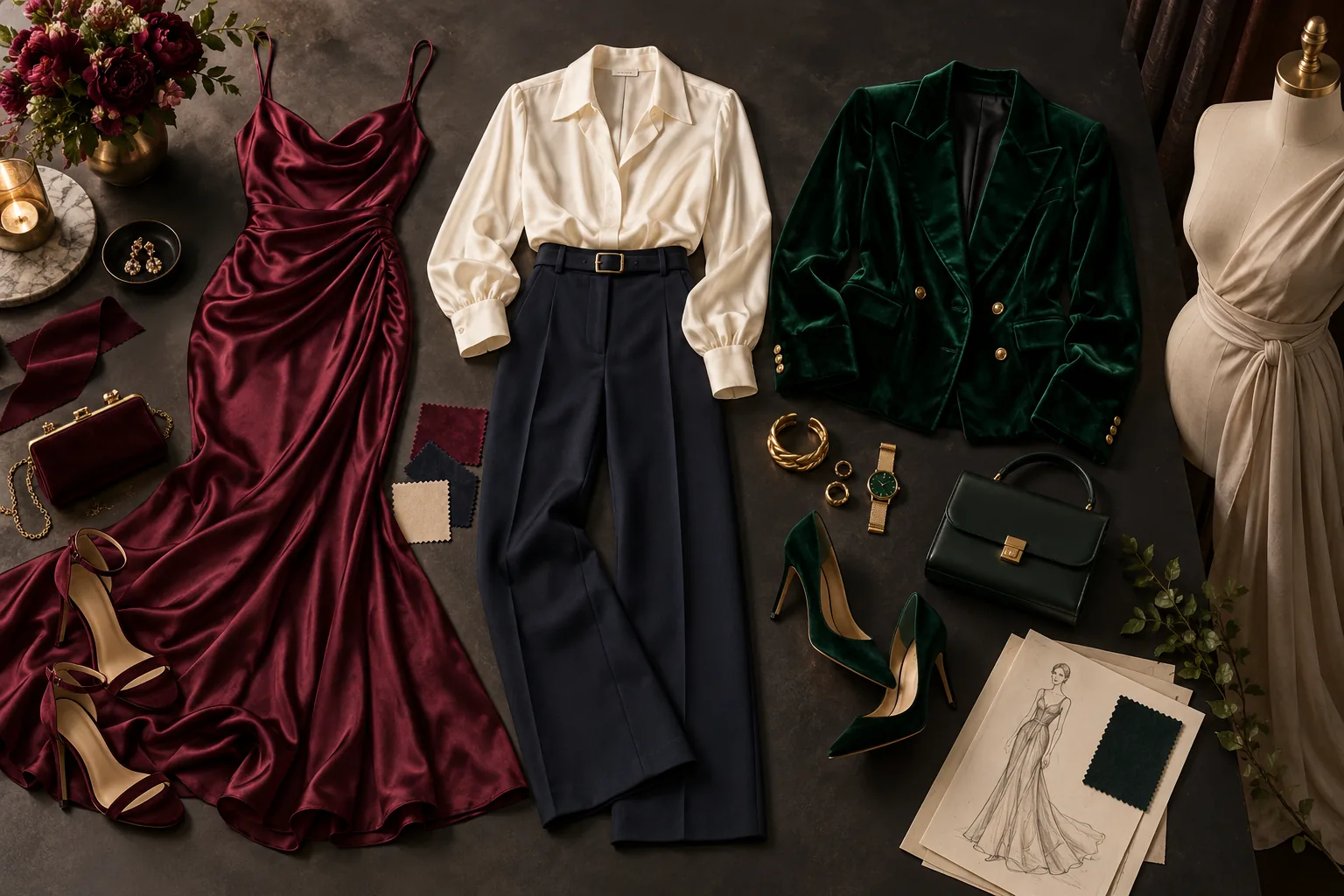
Explore a character’s wardrobe without rebuilding the entire scene: a fitted evening look, a themed costume or a different fabric treatment. Reference editing lets you compare the creative change against the original.

What to change first

Describe the garment, color and fabric explicitly. Keep pose and background steady for the first comparison.

Try this direction
Male creator lookbooks
Illustration

Male creator lookbooks

03

Create a recognizable male character across relaxed portraits, silk-shirt editorials and night-out looks. Keep a few signature traits so the gallery feels like one creator rather than a collection of unrelated faces.

What to change first

Keep the same reference and hair description. Change lighting or wardrobe first, then try a different framing.

Try this direction

Workflow tutorial

Steps to your first result

  1. 01

    Import the two-reference template

    Install the SpicyAPI custom nodes, restart ComfyUI and drag in the JSON. Add your API key in Settings → SpicyAPI. The graph has two LoadImage nodes, one Qwen edit node and one SaveImage node. It uses the hosted Qwen Image 2.1 Edit endpoint.

  2. 02

    Give each character a clear reference

    Load the first fictional adult character in Reference A and the second in Reference B. Prefer readable faces and distinct hair or clothing. Two near-identical references are difficult to describe unambiguously. The template preserves their socket order: A is image_0 and B is image_1.

  3. 03

    Write the composition before adding style

    Name “the character from reference 1” and “the character from reference 2,” assign left/right positions, and say which hair and outfit belong to each. Next specify the setting, camera framing and interaction. Begin with a two-person medium shot and a simple scene; add elaborate lighting after the placement is usable.

  4. 04

    Keep the edit settings steady for comparison

    The starter uses 3:4, 1k, opaque background, PNG and a fixed seed. Prompt expansion is disabled so the initial instruction stays easier to compare. Keep those settings while revising one character instruction. For a wider scene, try a landscape ratio; use 1.5k or 2k after you have a composition worth keeping.

  5. 05

    Review both characters and save the keeper

    Queue one execution and wait for the task. SaveImage writes the IMAGE output with the spicyapi/qwen-duo prefix in your configured output directory. Check left/right assignment, face shape, hair, hands and whether both characters remain visible. Use the selected result as a future composition reference when you want to refine that frame.

Try this prompt

Creative example. Adapt it to your own fictional adult character and source image.

Compose a medium two-person shot of both fictional adult characters in an elegant jazz lounge. Place the copper-haired character from reference 1 on the left in her emerald evening dress. Place the dark-haired character from reference 2 on the right in her plum tailored suit. Preserve each person's distinct face and hairstyle. Relaxed affectionate eye contact, both clearly visible, warm cinematic lighting.
Try this direction

Choose a model for your creative range

Choose Qwen Image 2.1 Edit to combine separate character references into one frame. If you want to animate the scene next, use the composed image as the starting frame for the H3 workflow.

Budget the complete run

The template submits one edit task carrying two reference images. Its quote reflects the actual inputs and selected settings; check the live model price rather than assuming the two-reference job costs the same as one reference. Configure Max Cost Per Run before the first queue. A fixed seed helps organize comparisons. Changing the prompt, references or settings creates a new paid edit even with the same seed.

If the result is not what you expected

ComfyUI — If the result is not what you expected

One character borrows the other’s face

Strengthen the distinction: reference number, left/right position, hairstyle and outfit. Reduce scene complexity first. Compare one revision at a time instead of changing both reference images and the prompt together.

Only one reference appears in the result

Check that both IMAGE links reach separate image_urls sockets and that the prompt explicitly requests two visible people. A tight portrait crop can encourage the model to prioritize one subject.

A mask causes an input error

Use the two-reference template without mask_url. For a focused mask edit, switch to a one-reference workflow using the composed frame as its single source.

Before you import

Continue with another workflow

Make the first useful run

Download the template or try the same model in the Playground before connecting the full workflow.