ComfyUI / Workflow template

Edit the outfit or scene with Seedream 5 Pro

Keep a strong character reference and build the next look around it. This ComfyUI template connects LoadImage to Seedream 5 Pro Edit and SaveImage, with an optional second reference socket for wardrobe or scene direction. Use it for original adult fashion galleries, themed lookbooks and new backgrounds without rebuilding a local sampling graph.

Import the JSON, select your credentials and fill the required inputs before running.

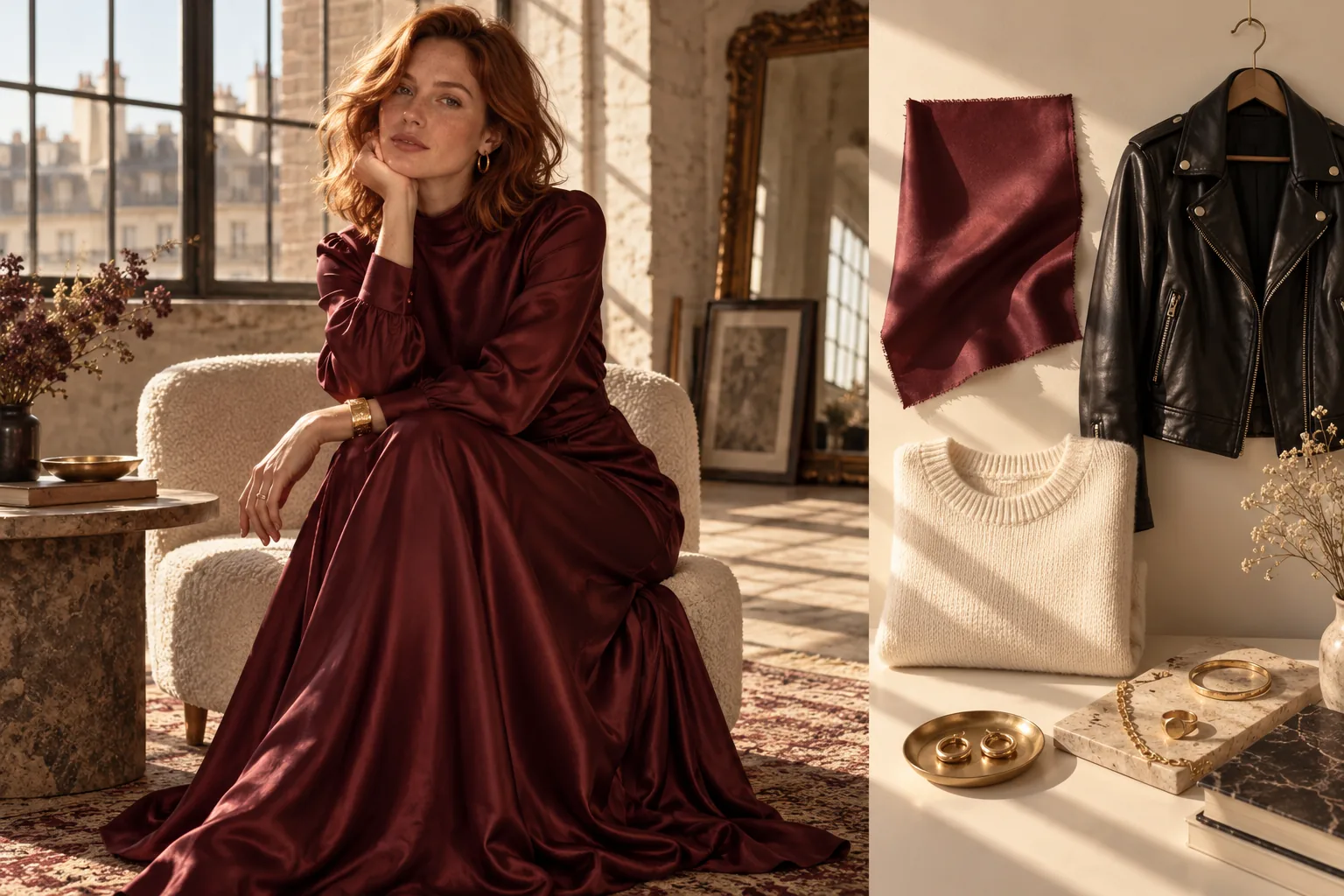
Fashion-editorial portrait of an adult woman in a burgundy dress beside fabric and wardrobe references.
Illustration: a character reference paired with wardrobe and fabric direction.
Try the model first
Start with
One character image, a focused edit prompt and an optional additional reference.
Get
One edited image saved locally by SaveImage with the spicyapi/seedream-edit filename prefix.
Best for
Wardrobe variations, character lookbooks and scene edits for adult creator galleries.

Start by changing one thing: the jacket, the setting or the lighting. State which face, hairstyle, pose and framing should remain. Once the edit is useful, add a second reference or request a more ambitious composition. This is a reference-guided image edit, so the best workflow begins with a deliberate source rather than a long list of settings.

How the workflow runs

How the workflow runs

  1. 01

    Choose the source image

  2. 02

    Describe one edit

  3. 03

    Generate the variation

  4. 04

    Save the keeper

A visual guide to the workflow.

NSFW / Character / Style

Creative starting points

Cosplay & wardrobe variations
Illustration

Cosplay & wardrobe variations

01

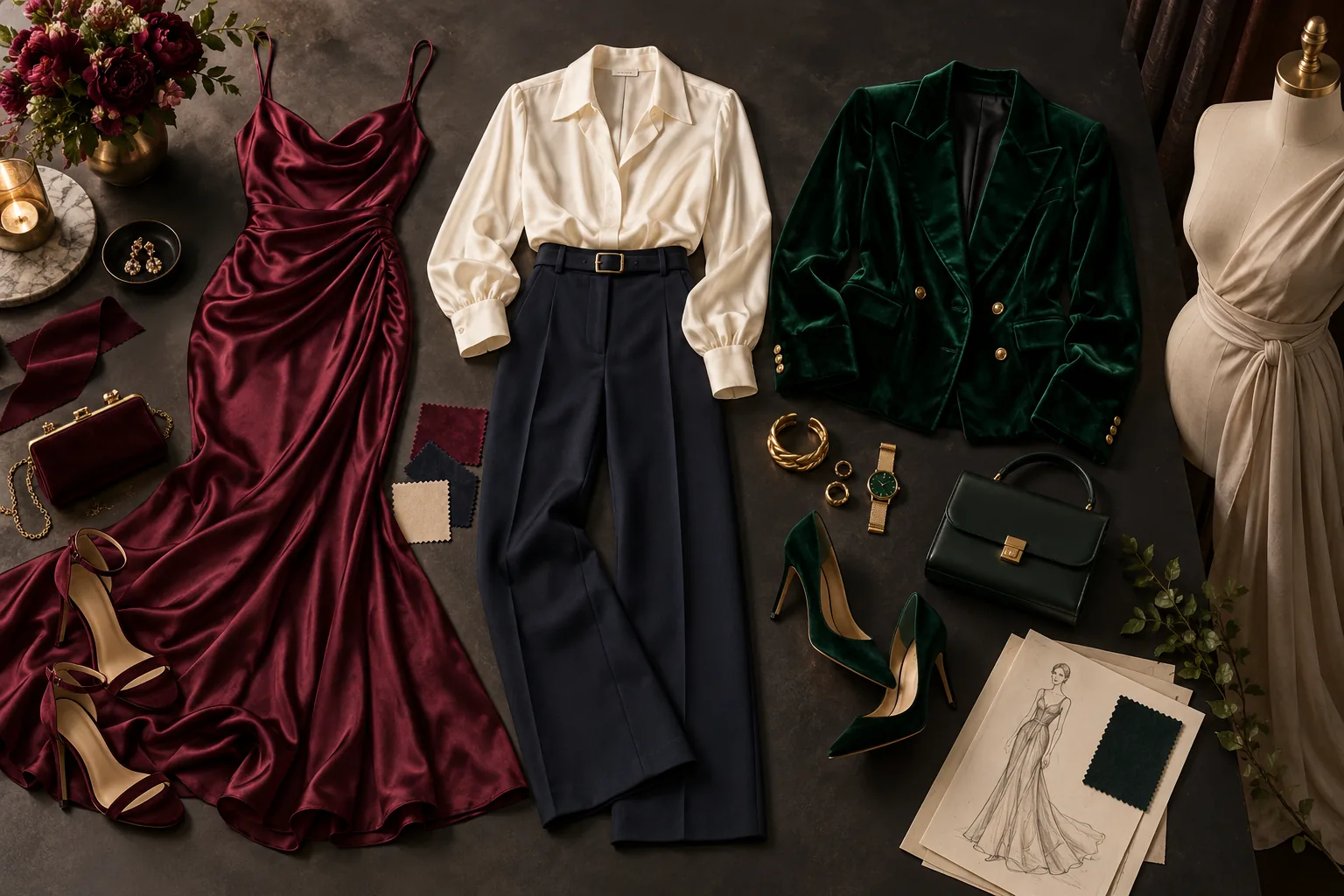
Explore a character’s wardrobe without rebuilding the entire scene: a fitted evening look, a themed costume or a different fabric treatment. Reference editing lets you compare the creative change against the original.

What to change first

Describe the garment, color and fabric explicitly. Keep pose and background steady for the first comparison.

Try this direction
NSFW character photo sets
Illustration

NSFW character photo sets

02

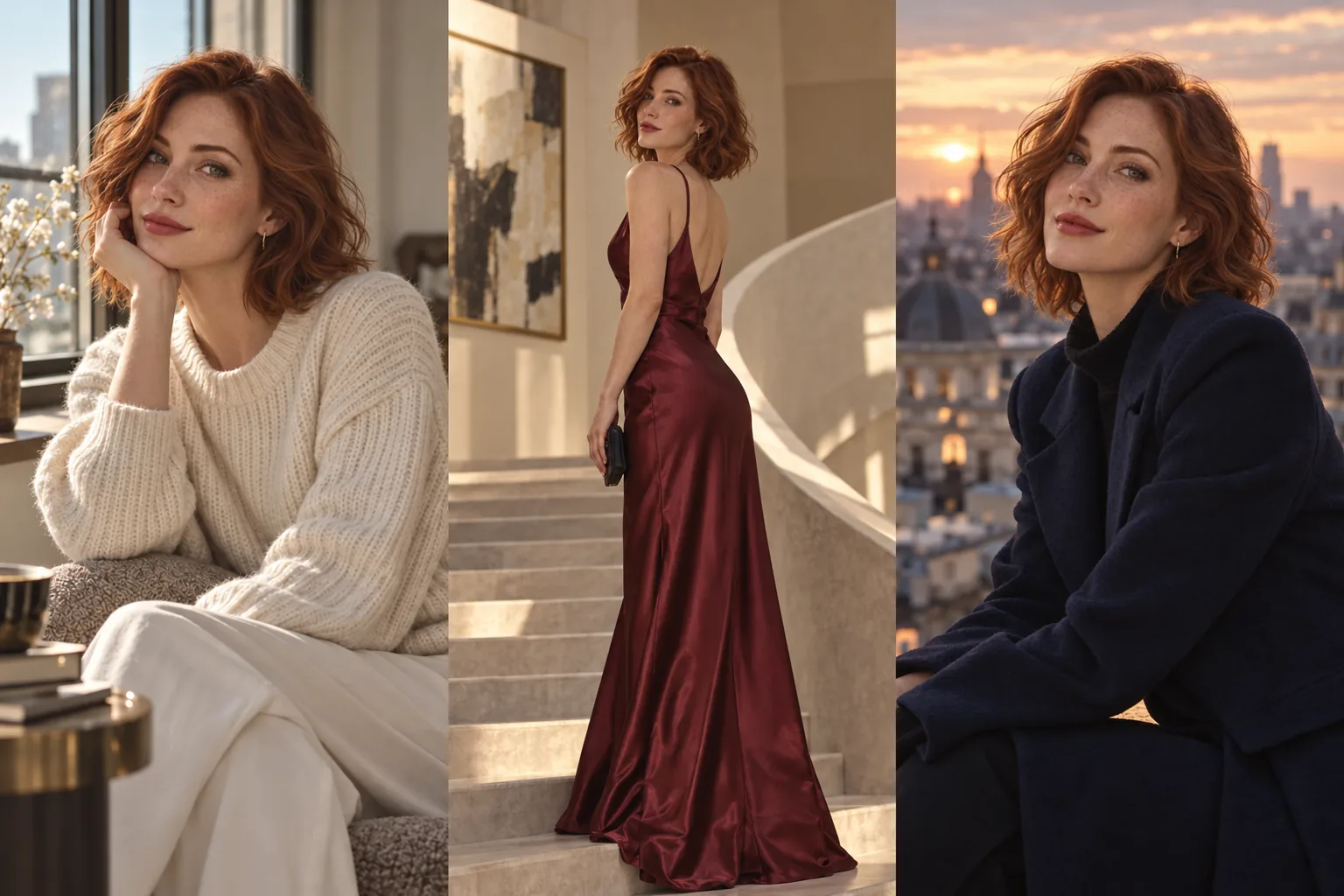
Give a recurring character a complete editorial story: window-light portraits, an evening look and a late-night balcony. Use four scenes to find a direction, then expand the strongest look into a larger set.

What to change first

Reuse the original portrait for each scene. Change the wardrobe and location; keep facial details and hair consistent.

Try this direction
Male creator lookbooks
Illustration

Male creator lookbooks

03

Create a recognizable male character across relaxed portraits, silk-shirt editorials and night-out looks. Keep a few signature traits so the gallery feels like one creator rather than a collection of unrelated faces.

What to change first

Keep the same reference and hair description. Change lighting or wardrobe first, then try a different framing.

Try this direction

Workflow tutorial

Steps to your first result

  1. 01

    Import the Seedream edit graph

    Install the SpicyAPI extension, restart ComfyUI and import the JSON download. Add your key in Settings → SpicyAPI. This graph uses Seedream 5.0 Pro Edit, with one hosted generation task per execution and no local checkpoint loader.

  2. 02

    Start from a source worth keeping

    Load an original fictional adult-character image with a readable face and usable pose. If you want a wardrobe change, keep the background simple at first. A clean source makes it easier to compare the outfit edit without simultaneously judging a new face, pose and environment.

  3. 03

    Separate the change from the things to preserve

    Fill the empty prompt with the specific edit, followed by the face, hair, pose, framing or light you want to preserve. For the first pass, choose one change. When adding a wardrobe reference, connect another LoadImage to image_urls.image_1 and explain that it supplies clothing, while reference 1 supplies the character.

  4. 04

    Choose a working size and output format

    The starter uses resolution 1k and aspect_ratio auto, so your first review follows the source’s composition. The endpoint also offers 2k. Choose PNG for a saved editing asset or JPEG for a smaller opaque image. enable_thinking is enabled in the starter; it is an instruction-processing option, not a local sampler setting.

  5. 05

    Save and inspect the edit before branching out

    Queue once and inspect the returned image. SaveImage writes to your configured ComfyUI output directory with spicyapi/seedream-edit as its prefix. Compare the requested garment or scene, the face and the pose. Return to the original source for a clean new variation; use a previous result when your intention is to refine that particular version.

Try this prompt

Creative example. Adapt it to your own fictional adult character and source image.

Keep the fictional adult character's face, copper hairstyle, pose, framing and light direction from the source. Change only the outfit to an elegant burgundy satin evening dress with simple gold accessories. Preserve the same background and natural expression.
Try this direction

Choose a model for your creative range

Use Seedream 5 Pro Edit for wardrobe and scene variations from a strong reference. Keep the original image as the anchor across a lookbook, then select your best edit before making more variants.

Budget the complete run

Each queue submits one hosted edit task. The quote reflects the actual references and selected settings; review the current price on the model page and set Max Cost Per Run accordingly. Start with one source at 1k for review, then choose 2k when the selected variation needs a larger final image. This template does not add an automatic upscale stage or silently submit a second generation.

If the result is not what you expected

ComfyUI — If the result is not what you expected

The outfit changes but the face drifts

Reduce the edit to the garment, explicitly preserve face and hair, and return to the original source. If a clothing reference is attached, state that it contributes the outfit rather than the person.

The background changes when you wanted only clothing

Keep the preservation instruction concrete: same background, pose, camera angle and light direction. Avoid introducing a new location in the same first-pass prompt.

The graph runs but the saved file is missing

Inspect the IMAGE link into SaveImage and the configured output directory. A preview or completed hosted task does not by itself prove that the local saver ran. Use the task ID to recover a result if the local wait was interrupted.

Before you import

Continue with another workflow

Make the first useful run

Download the template or try the same model in the Playground before connecting the full workflow.