Introduction
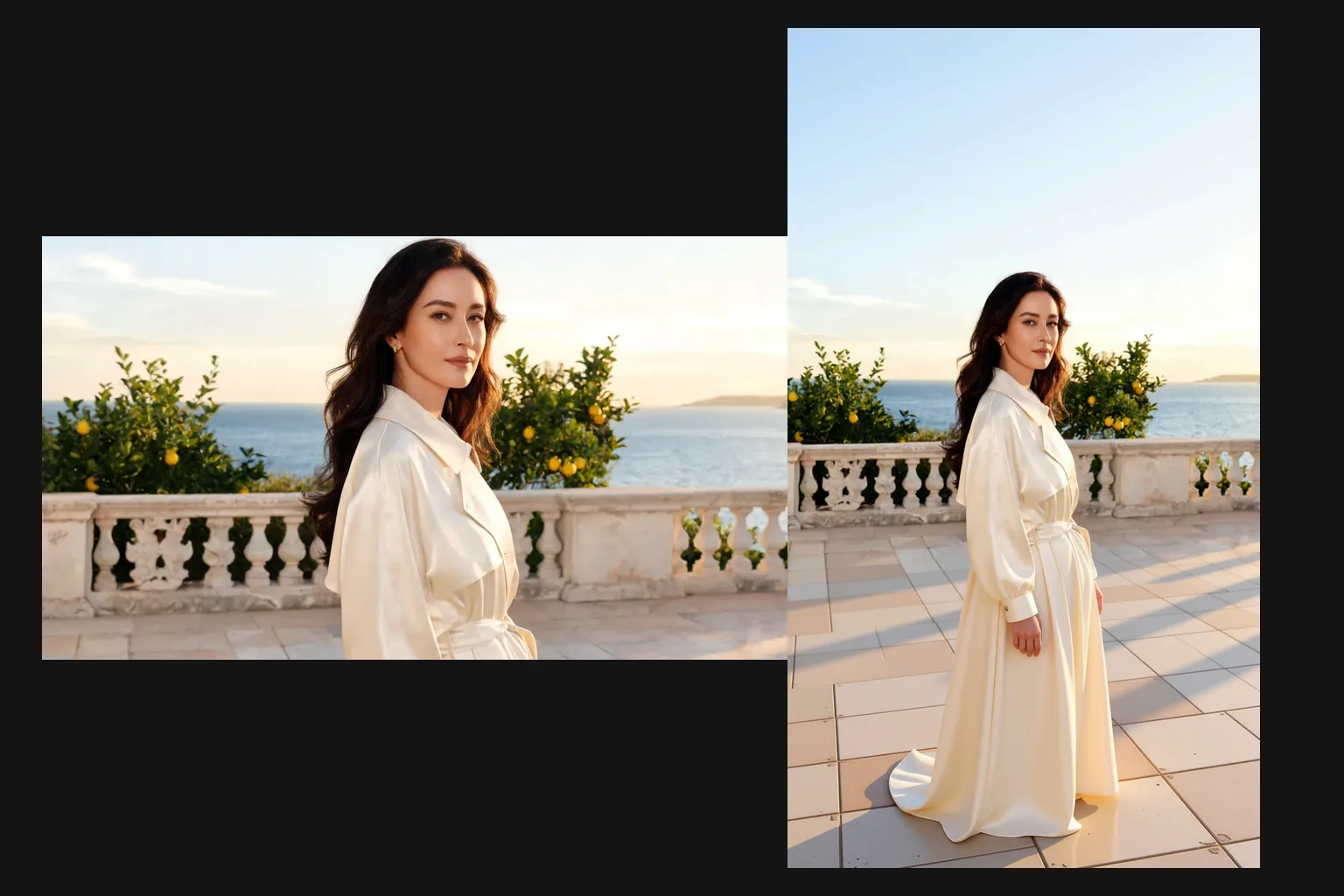
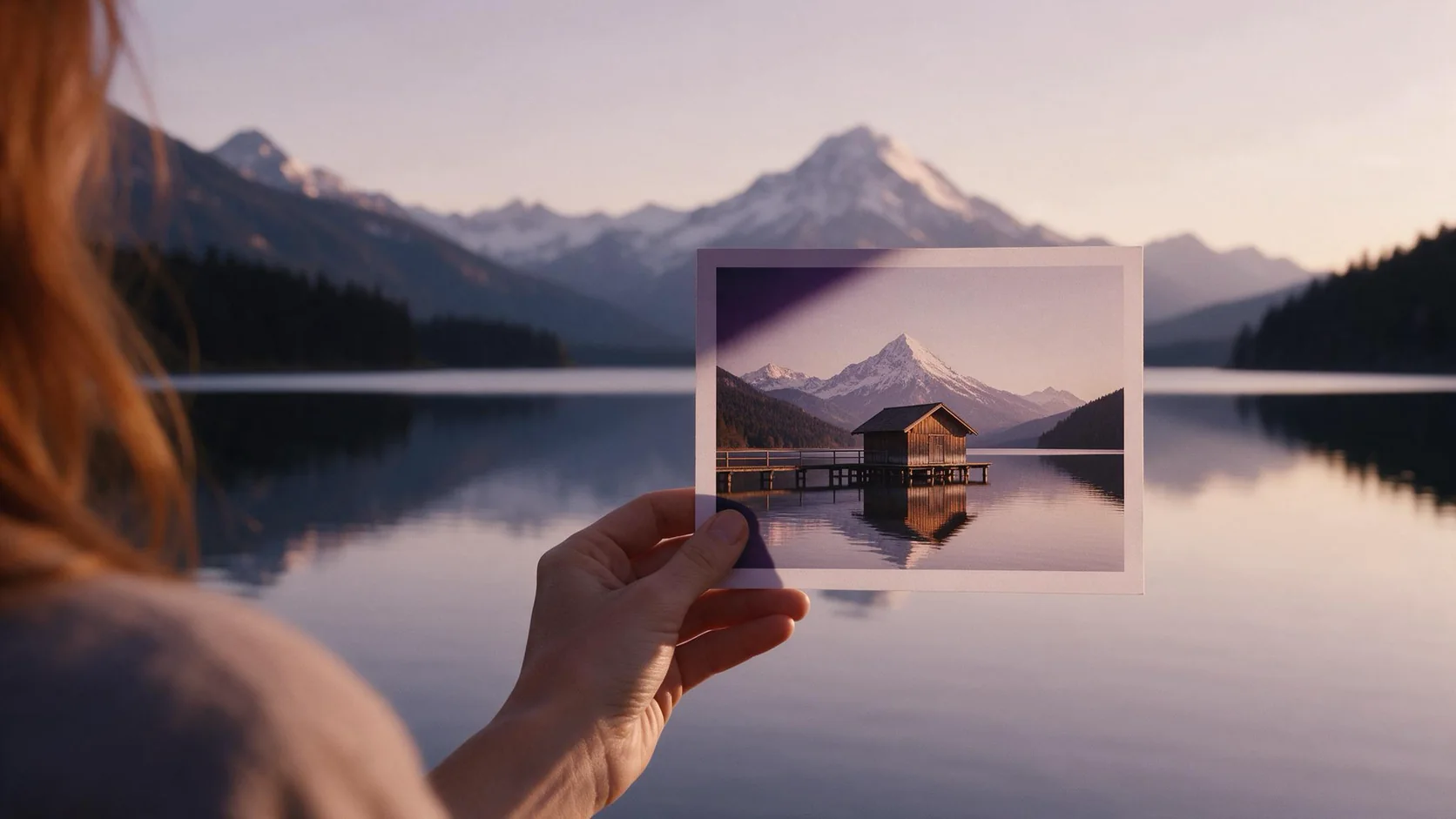
Image Expander grows a photo outward to a new shape. Pick a target aspect ratio and the tool keeps your picture, sets it inside a wider or taller frame and paints new scenery into the empty space, so the result reads as one continuous image. It is the opposite of cropping: nothing in the original is cut away, and nothing is stretched to fill the frame.
Key features & highlights
Seven target shapes
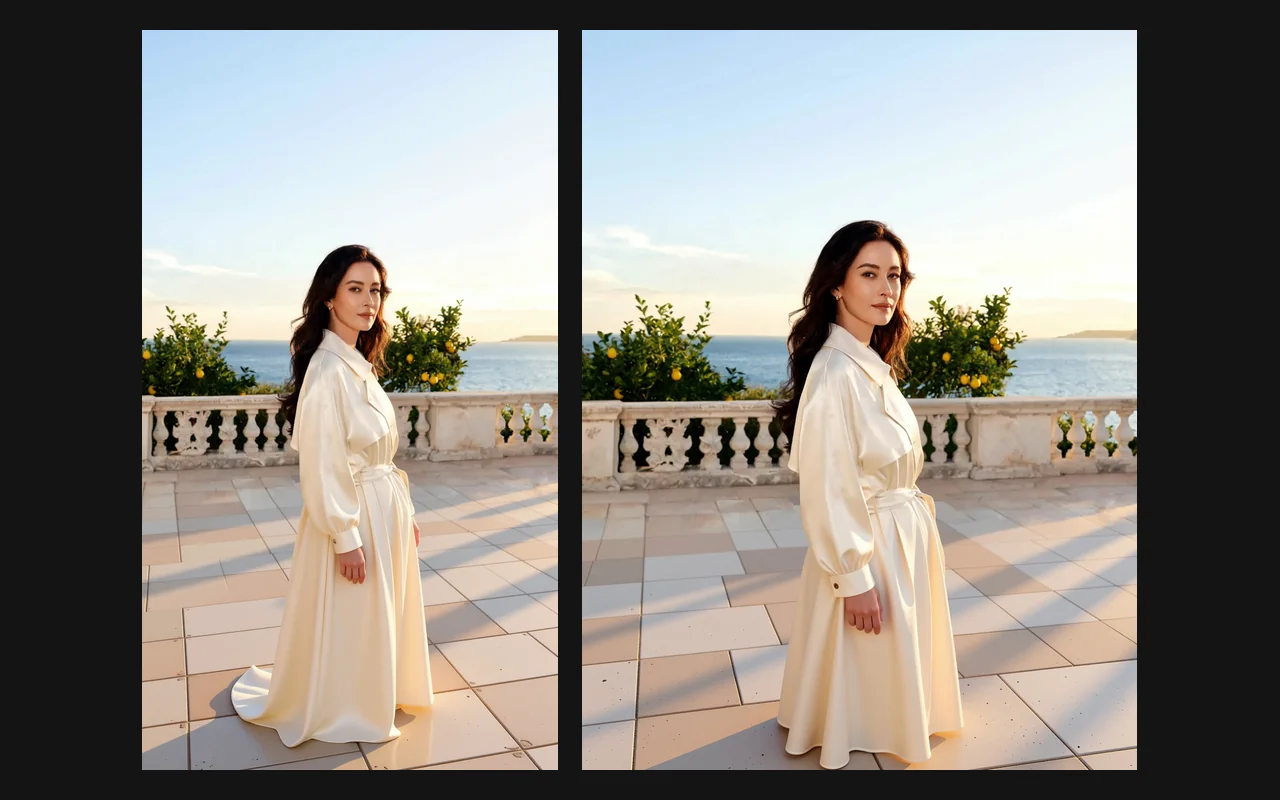
The finished image can be square, landscape or portrait: 1:1, 16:9, 9:16, 4:3, 3:4, 3:2 or 2:3. That covers feed posts, video covers, stories, banners and print-style layouts from one source photo, without planning every crop at the shoot.
Continuation instead of padding
The new area is painted to carry on what is already there. Floors, skies, walls, foliage and the direction of the light continue past the old border, instead of the frame being padded with blur, mirrored edges or a flat colour.
No prompt to write
The extension is inferred from the picture itself. One image and one ratio are the whole request, which makes it simple to turn a folder of vertical shots into landscape banners in a single batch.
Request parameters
| Parameter | Required | Description |
|---|---|---|
image_url | Yes | The photo to expand, as JPEG, PNG or WebP. It is set inside the larger frame and the surroundings are painted in. at least 1 characters |
aspect_ratio | No | Shape of the finished image. The long edge is always 1536 pixels: 16:9 gives 1536 × 864, 9:16 gives 864 × 1536 and 1:1 gives 1536 × 1536. |
output_format | No | PNG by default; JPEG or WebP for smaller files. |
Pricing
$0.024 / image
Charged per output image; the aspect ratio you pick does not change the price.
Use cases
One shoot, every format
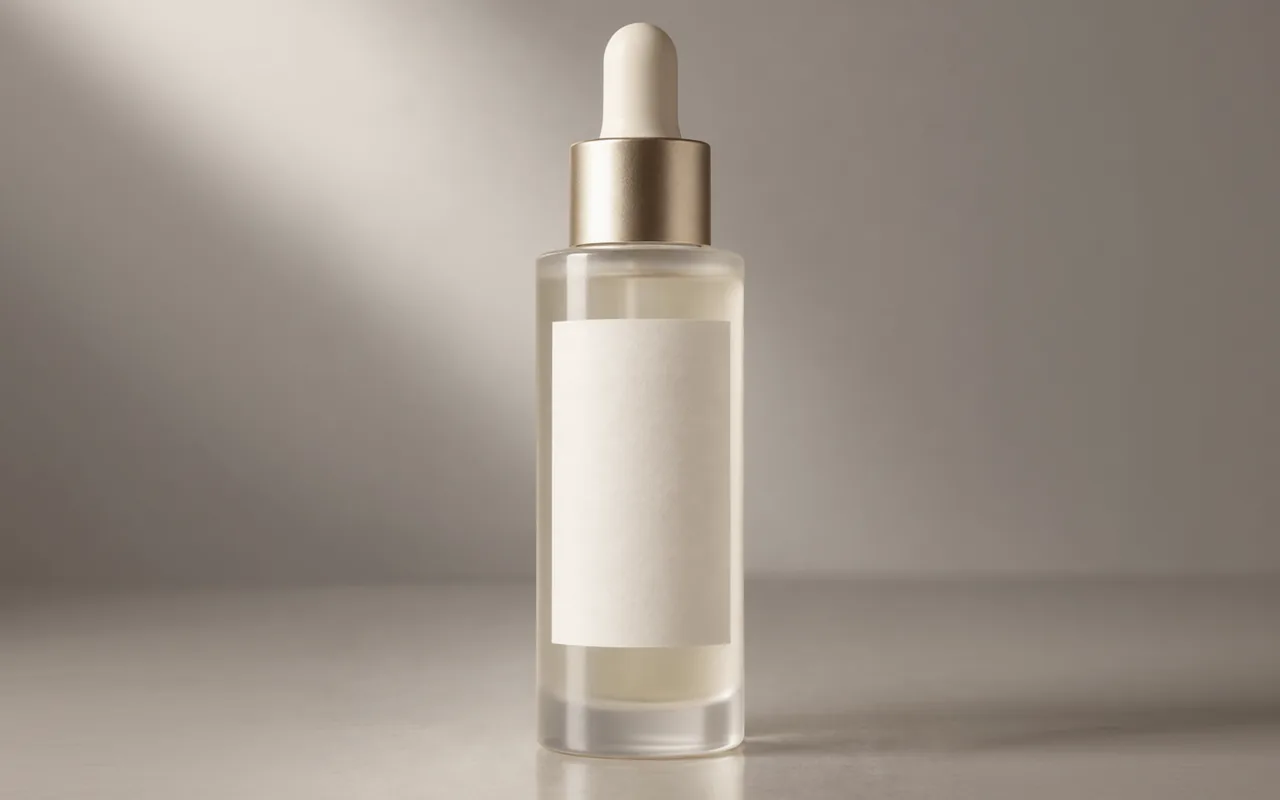
Turn a vertical product or portrait shot into a 16:9 website header and a 1:1 marketplace tile without reshooting, and without leaving awkward bars down the sides of the frame.
Room for text and layout
Add sky or backdrop around a subject so there is clean space for a headline, a logo or a call to action on a banner, a thumbnail or a presentation slide.
Fixing tight crops
Give breathing room back to photos framed too tightly: a cropped elbow, a chair cut off by the edge, a horizon pressed against the border.
Prompt guide & pro tips
Pick the ratio for the destination
Decide where the image will be used before expanding: 16:9 for video covers and headers, 9:16 for stories and reels, 1:1 for feeds and marketplaces, 3:2 or 2:3 for print-style layouts. The further the new shape is from the original, the more scenery has to be invented, so moderate changes blend best.
Mind the output size
The expanded image is 1536 pixels on its long edge. A large original therefore comes back smaller than it went in; if the destination needs more pixels, upscale the result afterwards instead of starting from a lower-quality source.
Start from clean edges
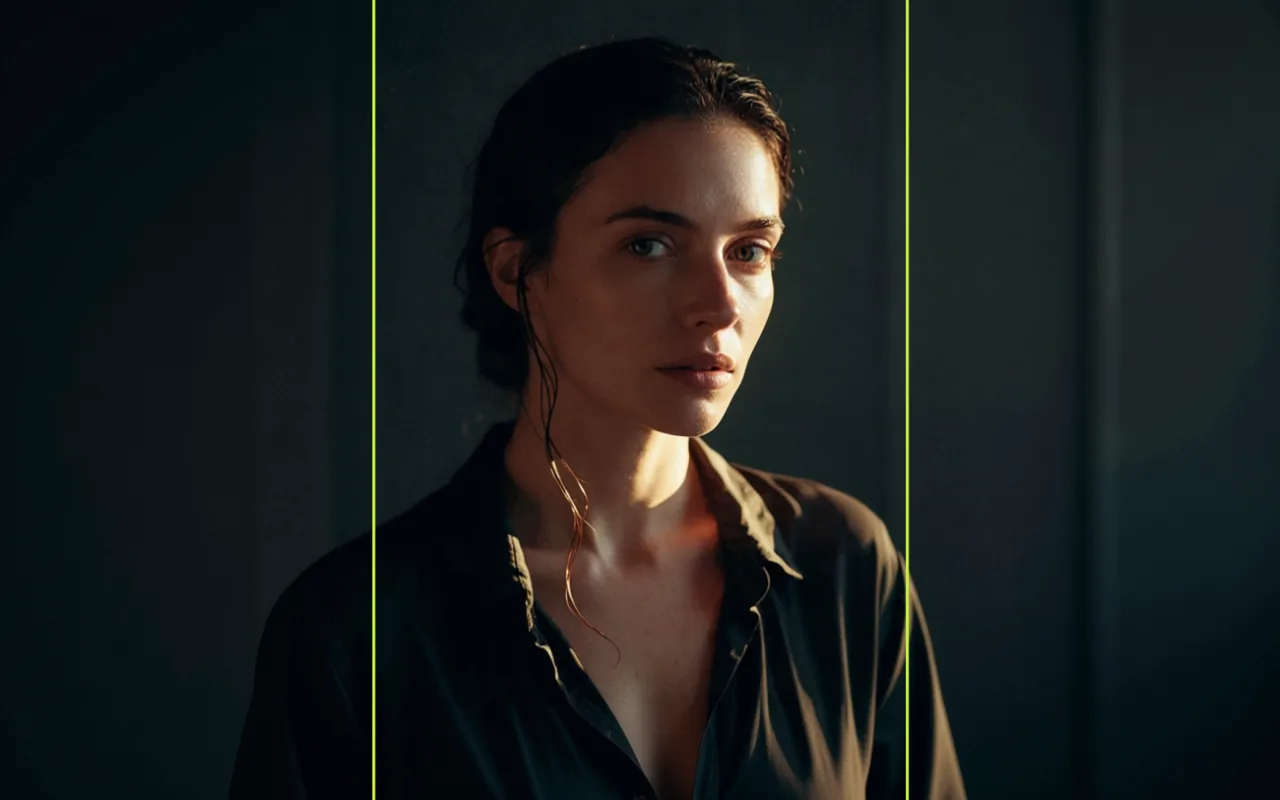
The tool continues whatever touches the border of the photo. Simple backgrounds such as sky, studio paper, plaster walls or sand extend most convincingly. When a face, a hand or lettering is cut by the edge, the tool has to invent the missing part, and that is where results are least predictable, so choose a source with more margin around such details.
API quick start
# Generate the idempotency key once; reuse it when retrying after a lost response.
export SPICY_IDEMPOTENCY_KEY="${SPICY_IDEMPOTENCY_KEY:-$(uuidgen)}"
curl -X POST https://api.spicyapi.ai/api/v1/jobs/createTask \
  -H "Authorization: Bearer $SPICY_API_KEY" \
  -H "Content-Type: application/json" \
  -H "Idempotency-Key: $SPICY_IDEMPOTENCY_KEY" \
  -d '{
  "model": "spicyapi/image-expander-v1/edit",
  "input": {
    "aspect_ratio": "1:1",
    "image_url": "https://example.com/reference.png",
    "output_format": "png"
  }
}'

# Copy data.taskId from the response into TASK_ID, then poll the status.
TASK_ID="TASK_ID_FROM_RESPONSE"
curl "https://api.spicyapi.ai/api/v1/jobs/recordInfo?taskId=$TASK_ID" \
  -H "Authorization: Bearer $SPICY_API_KEY"
See the API reference for authentication, the complete schema, polling, and error handling.