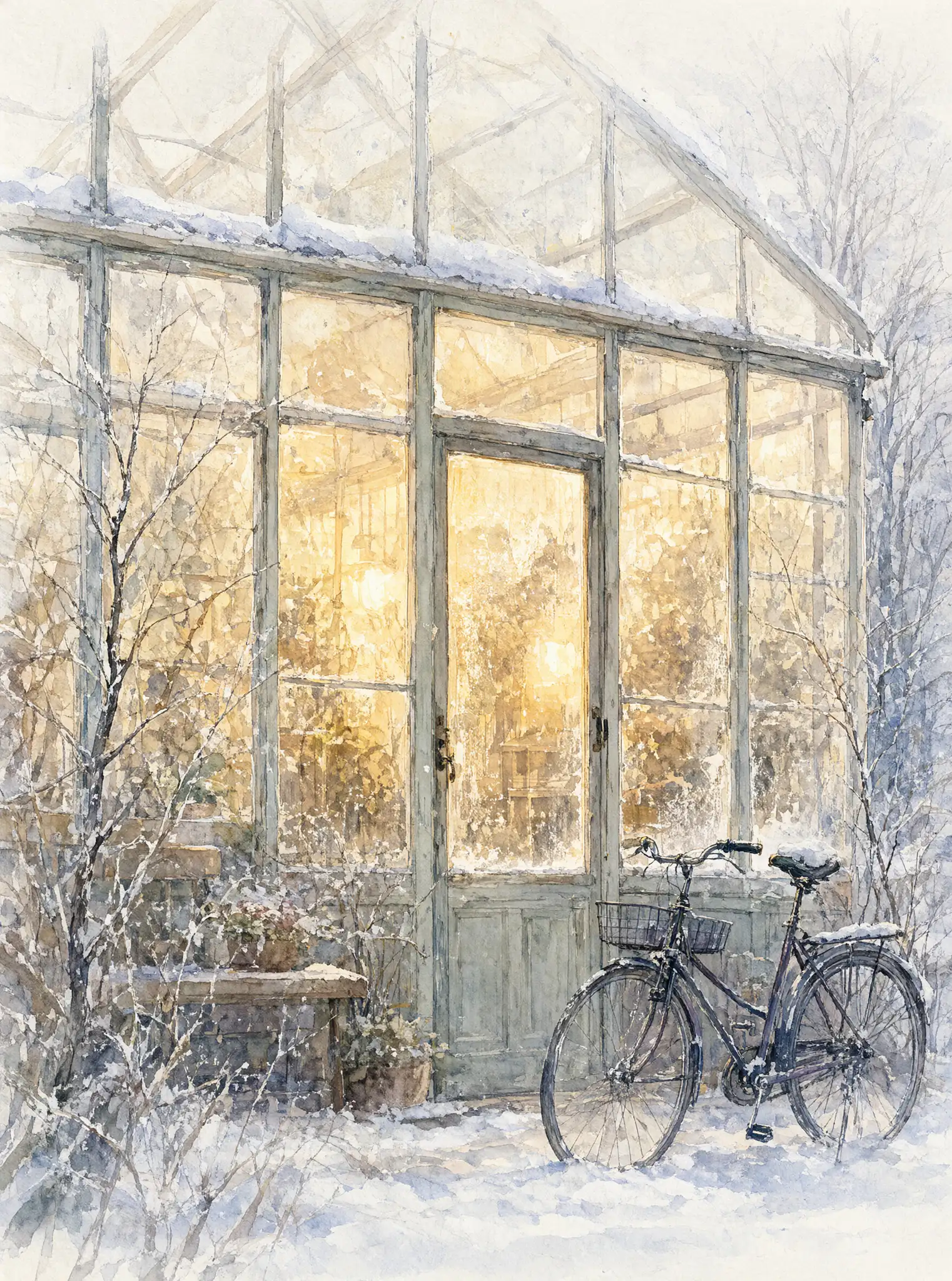
Image Expander on SpicyAPI (spicyapi.ai) is the quick way to get a landscape banner and a vertical story out of a square product photo: you send one image and one aspect ratio, and it returns the photo set inside a larger frame with new scenery painted around it. It costs $0.024 per image whatever ratio you pick, takes no prompt and no mask, and always returns a 1536 px long edge. The catch is that it also redraws part of your photo, so it suits backgrounds, not exact product detail. Pixel-exact packaging needs the original composited back on top. If you need to control what gets painted, generate the new-ratio scene with a prompt-based image-edit model instead; the product photo to ad layouts guide does this for the same three formats.
Crop, lay out, or outpaint
- Crop when the photo already has spare scenery on the sides you need. It is free and keeps every pixel.
- Design the canvas (flat colour or panel next to the photo) when the headline needs a guaranteed clean area. Generated scenery cannot promise that.
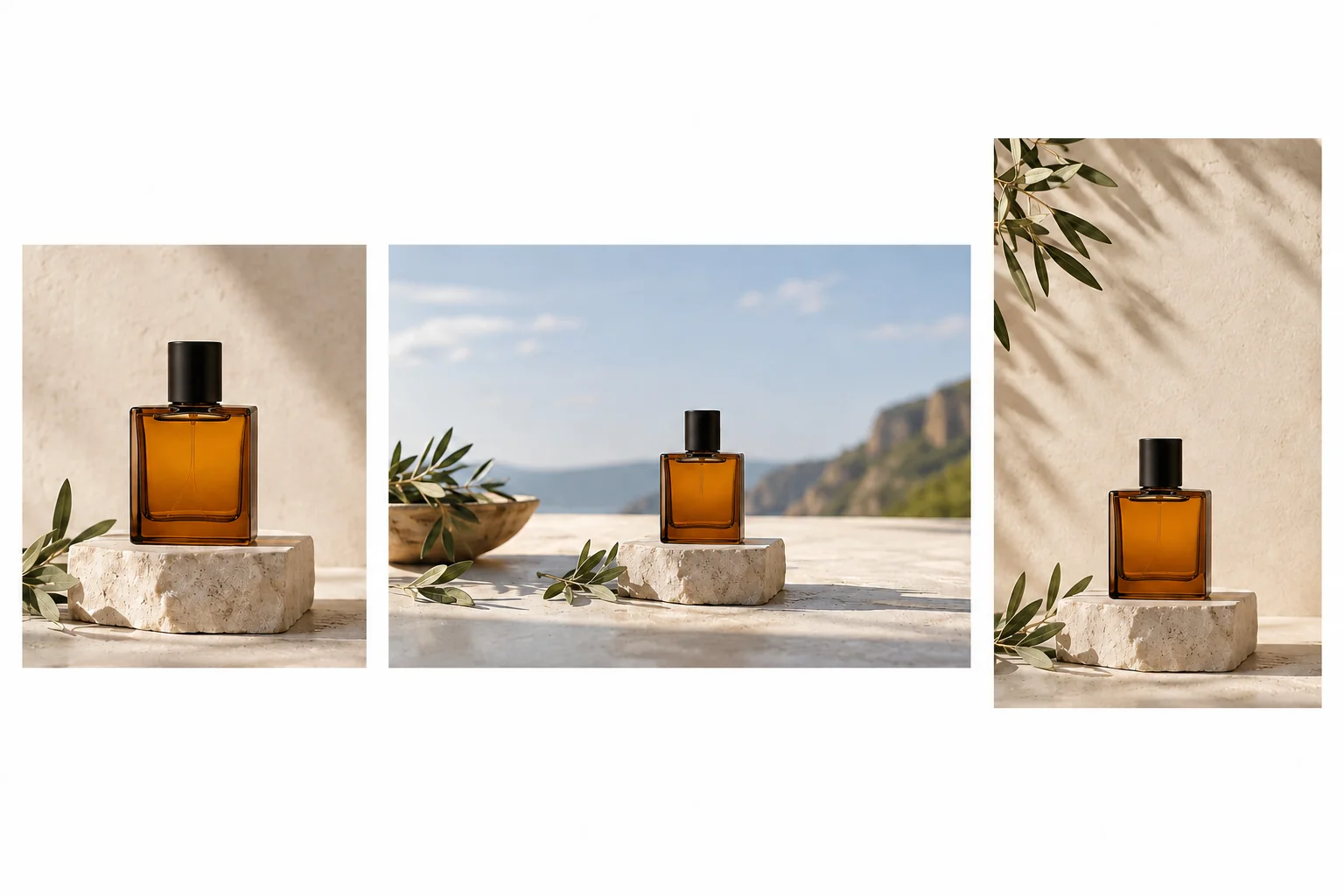
- Outpaint when the destination needs more picture than you shot and a flat colour would look wrong: sky above a vertical, counter and wall beside a square. Moderate shape changes blend best; the further the new shape is from the original, the more scenery is invented.
Output sizes for the seven ratios
The long edge is always 1536 px and the short edge follows the ratio. The task is spicyapi/image-expander-v1/edit, and it supports these values:
| Ratio | Output | Typical use |
|---|---|---|
| 1:1 | 1536 x 1536 | Feed post, marketplace tile |
| 4:3 | 1536 x 1152 | Slide, presentation |
| 3:4 | 1152 x 1536 | Portrait feed post |
| 3:2 | 1536 x 1024 | Print-style landscape, banner |
| 2:3 | 1024 x 1536 | Print-style portrait, pin |
| 16:9 | 1536 x 864 | Website header, video cover |
| 9:16 | 864 x 1536 | Story, reel |
Two consequences matter for planning. First, 4:5 and 1.91:1 are not offered: use 3:4 and trim 96 px from the height to reach 4:5 (1152 x 1440), or use 16:9 and trim about 60 px for 1.91:1 (1536 x 804). Second, the source is scaled to fit, so a 16:9 result from a square photo shows your product at most 864 px tall, however large the original was. If the destination needs more pixels, upscale the finished image with the image upscaling guide workflow rather than starting from a lower-quality source.
How much new scenery each jump asks for
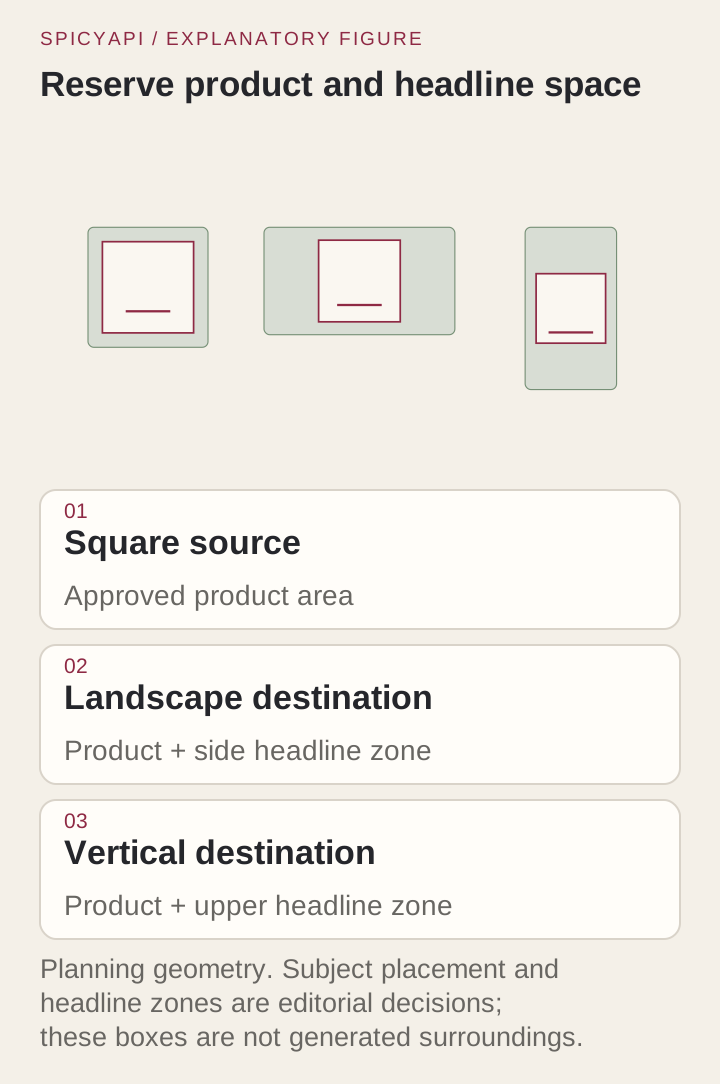
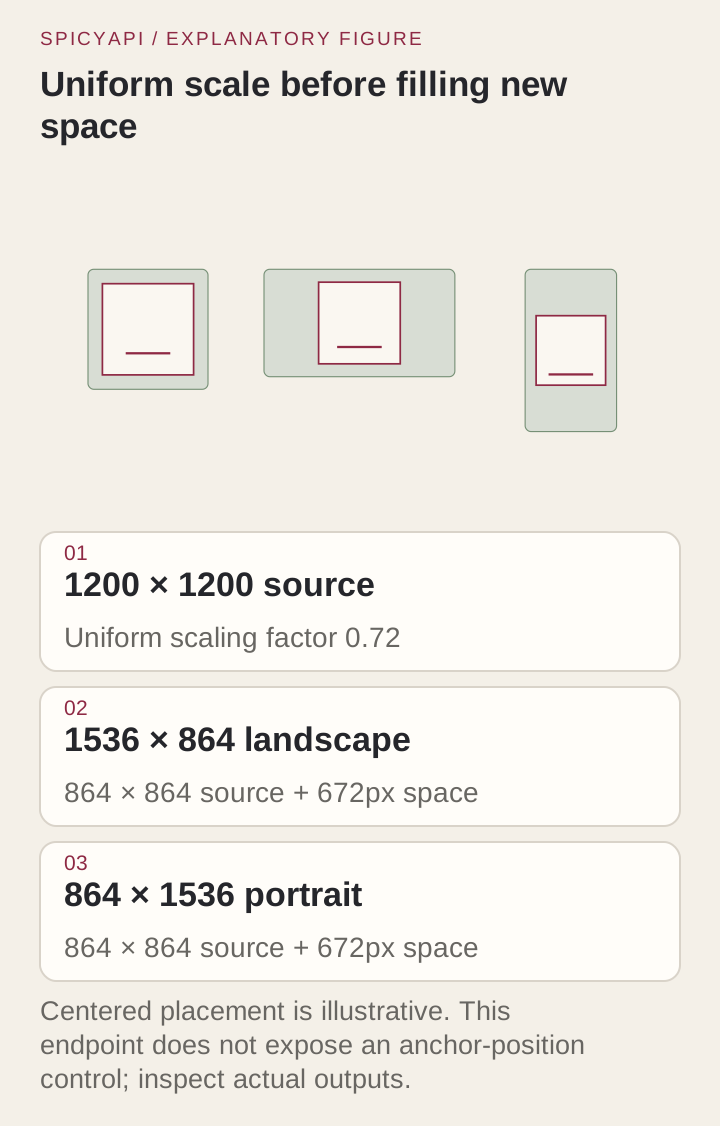
The photo is scaled by one factor so it fits inside the target canvas; everything else is painted. For a 1200 x 1200 square, the factor is 0.72 for both 16:9 and 9:16, which leaves an 864 x 864 photo in the middle of the frame and 672 px of new scenery (44% of the canvas). A 16:9 photo turned into 9:16 is much harder: the photo shrinks to 864 x 486 and 68% of the frame is invented.
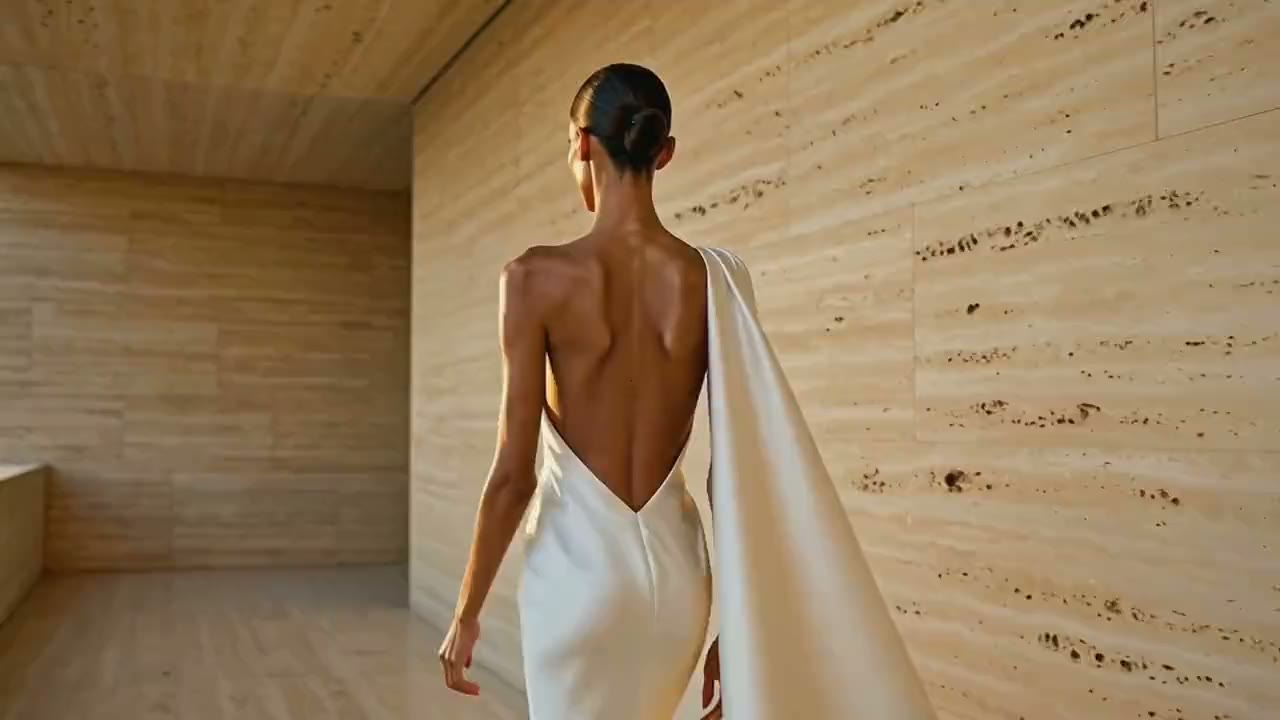
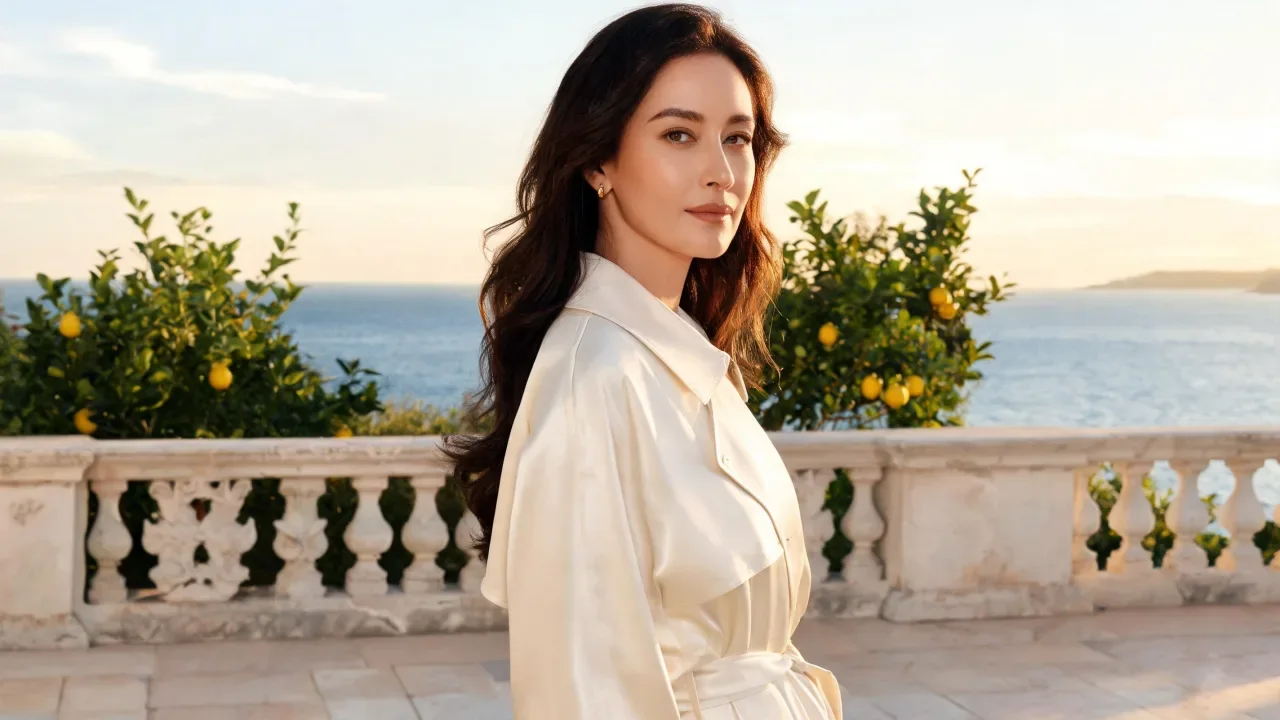
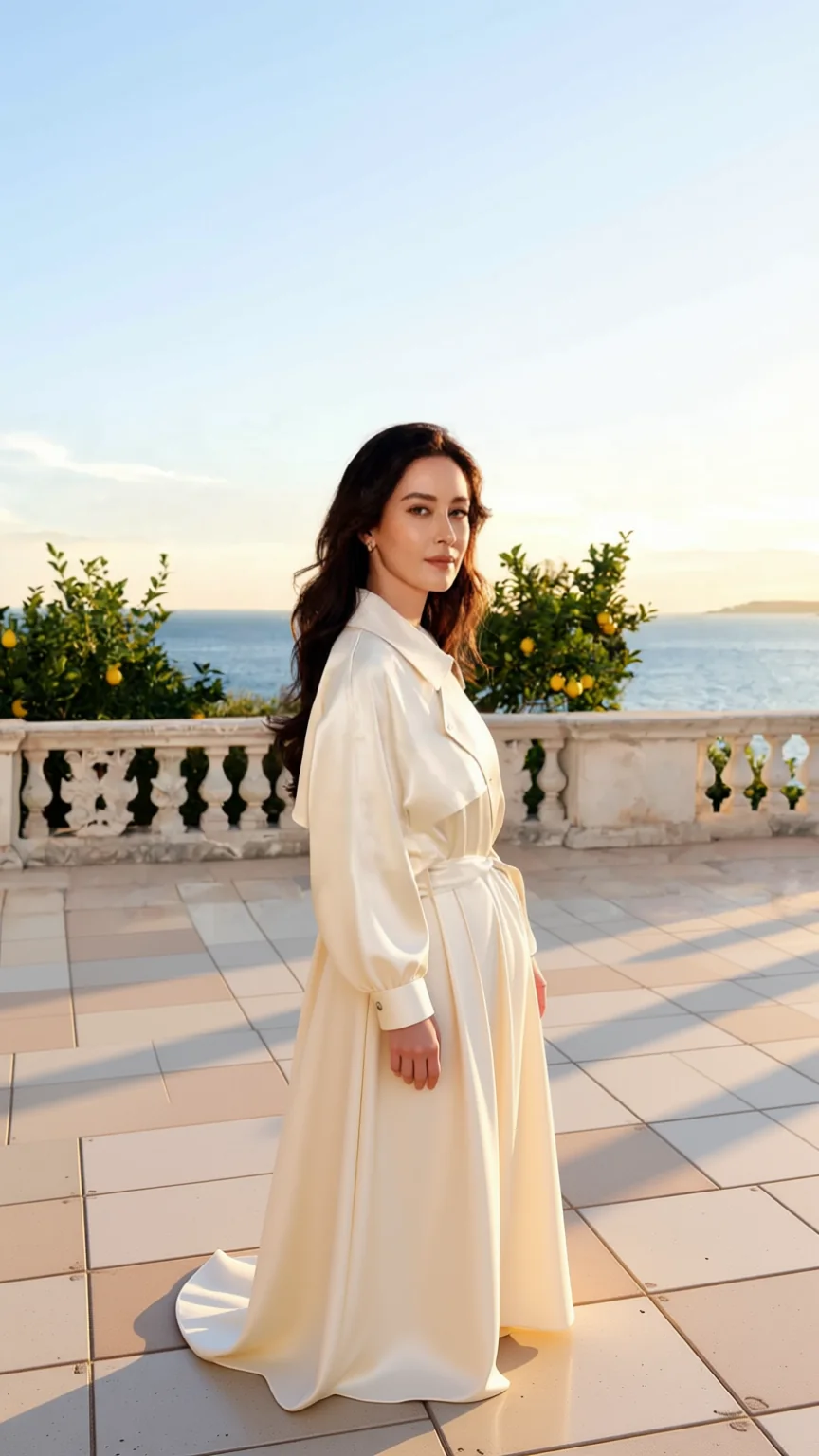
Large jumps still work. One published example turns a 1280 x 720 terrace portrait into a full-length 864 x 1536 story frame, with the rest of the dress, floor tiles and sky painted in:
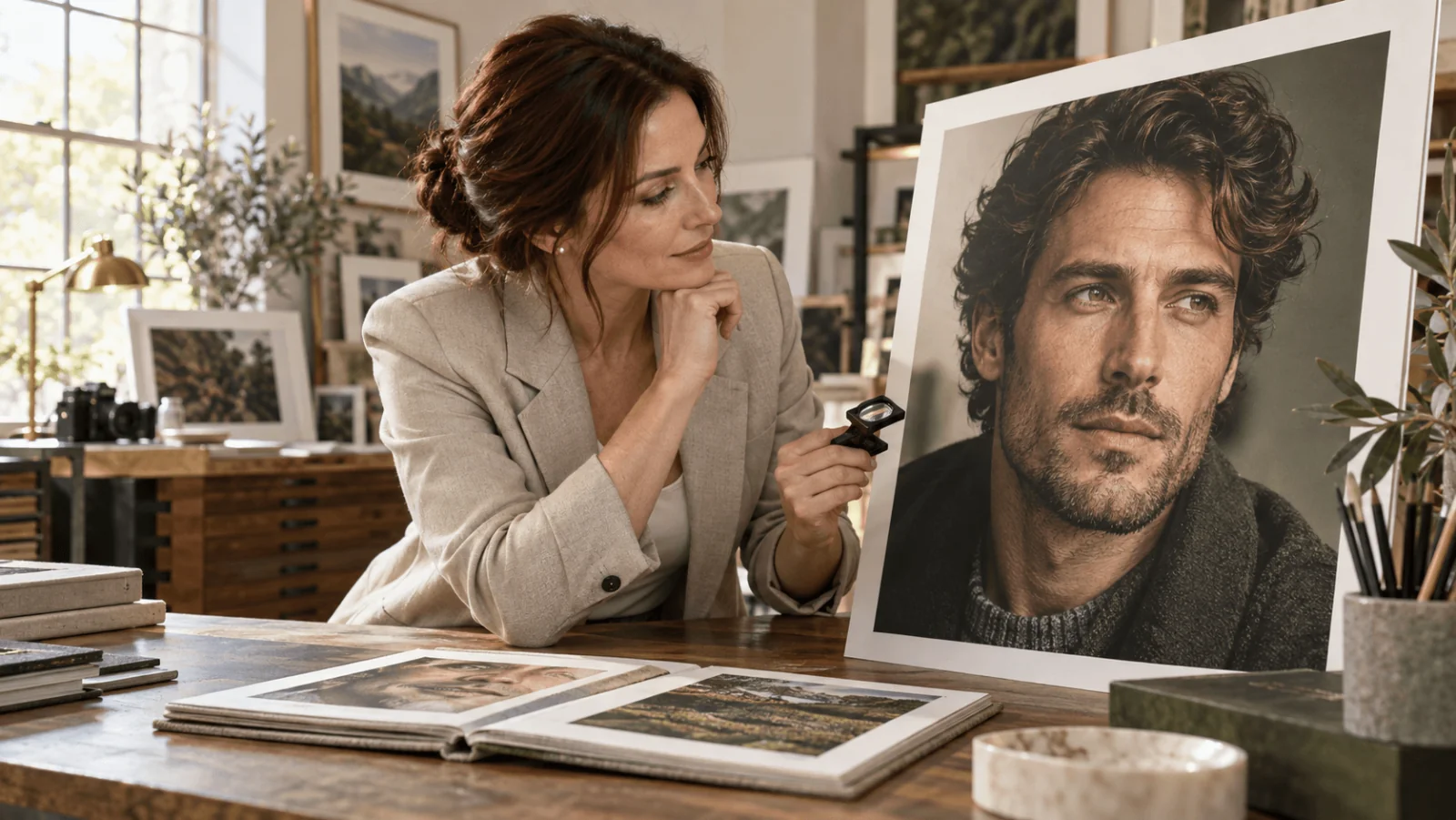
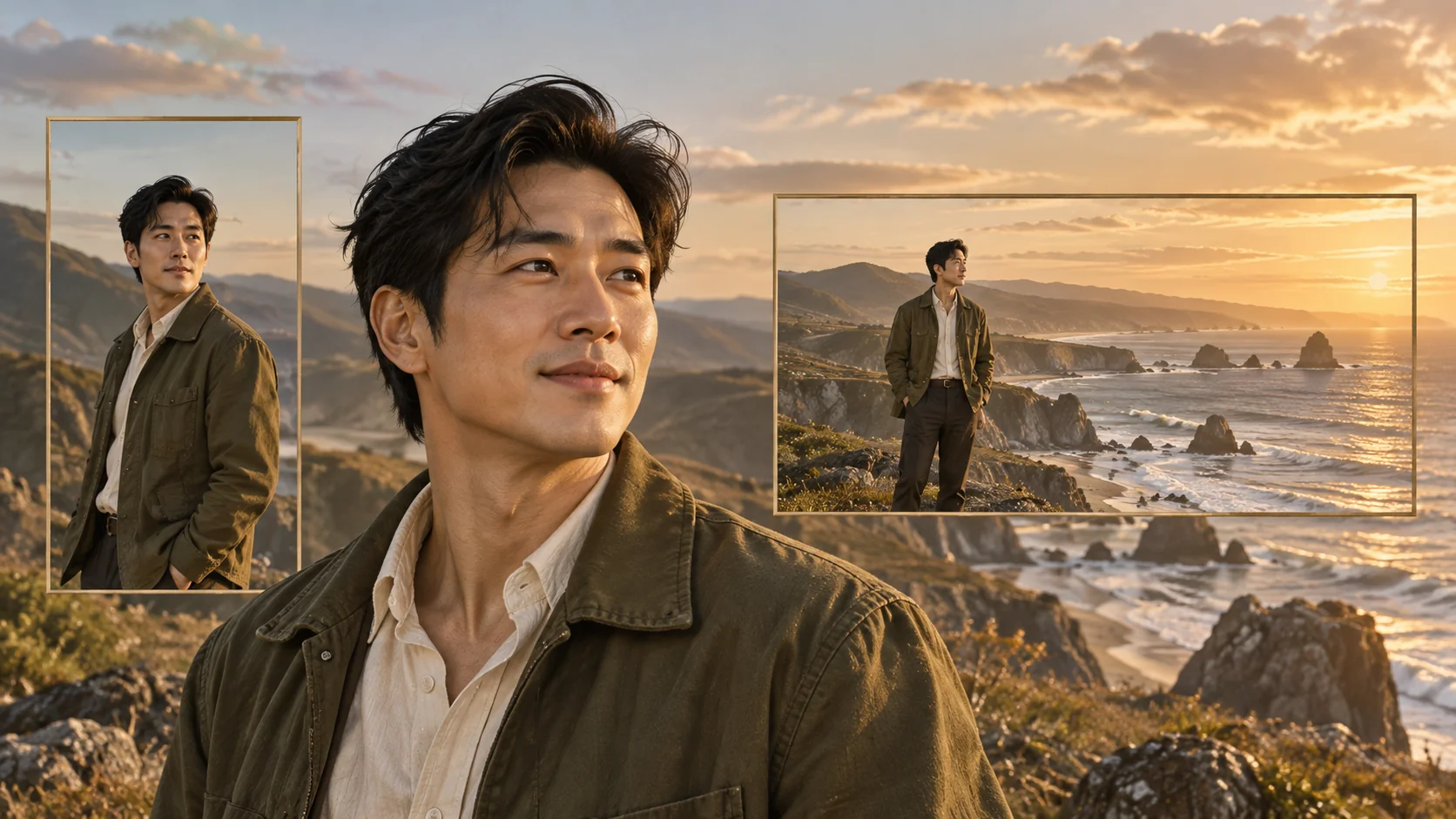
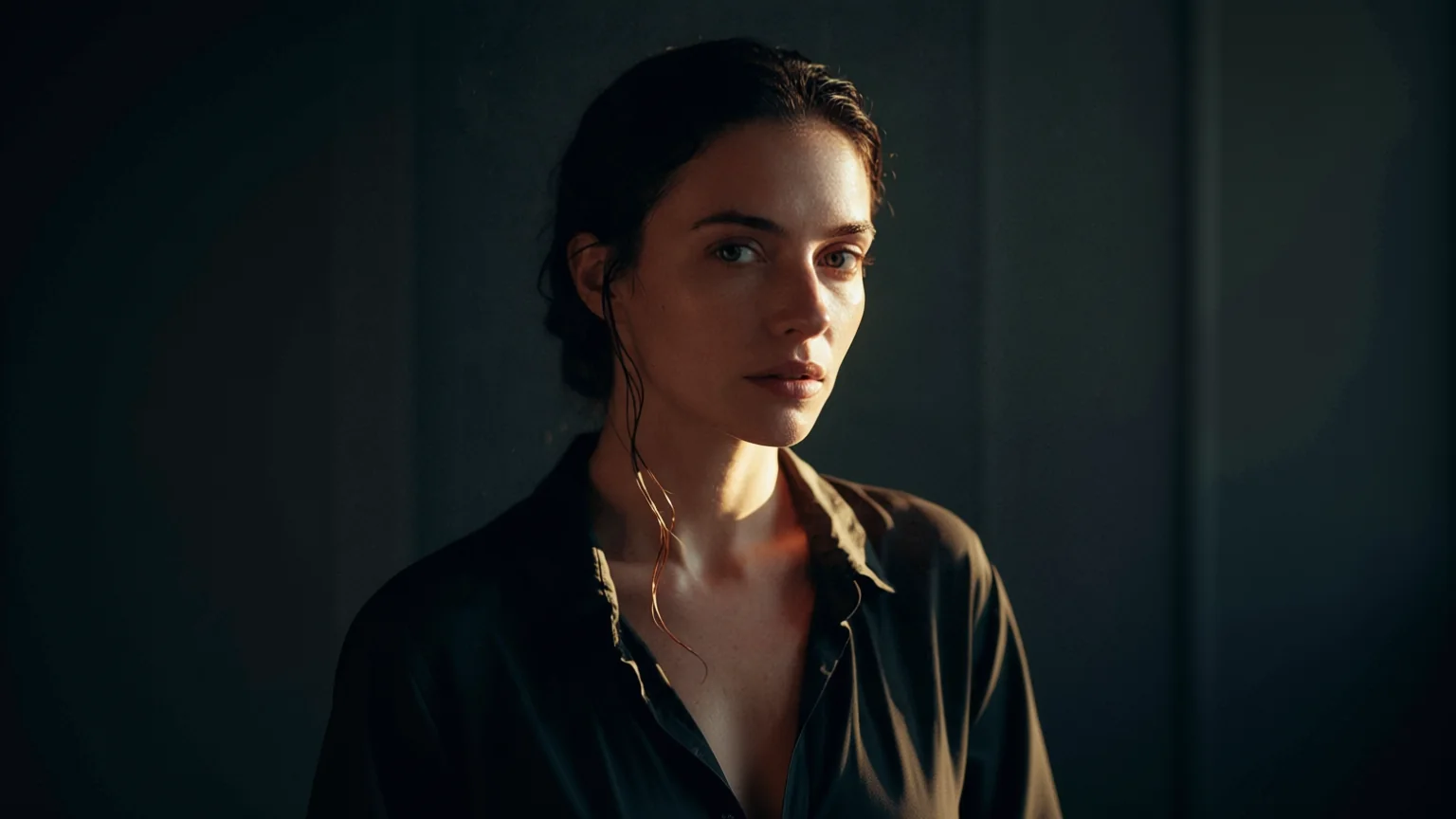
The other goes the opposite way: a close 2:3 portrait becomes a 1536 x 864 header with the dark wall continued on both sides, which is exactly the headline space a banner needs.
What the model does to your photo
Image Expander's published examples show three things that decide how you use the output:
- The photo is scaled to fit, not pinned to an edge. In the terrace result it sits 462 px from the top and 588 px from the bottom; in the portrait result, 453 px from the left and 507 px from the right. In both the photo sat slightly off-centre, so do not rely on exact centring, and you cannot move it: there is no anchor or padding field. Place copy zones on whatever the sides give, or shift the product by cropping the opposite side of the result.
- The photo itself is partly redrawn. In the terrace result the face, hair, lemon leaves and the balusters on the right differ from the source (the average pixel change inside the source area is 30 out of 255, including resampling and compression differences). The scene reads as the same shot, but fine detail is regenerated.
- Edges are the weak spot. Sky, studio paper, plaster and sand continue best. A face, hand or lettering cut by the border has to be invented.
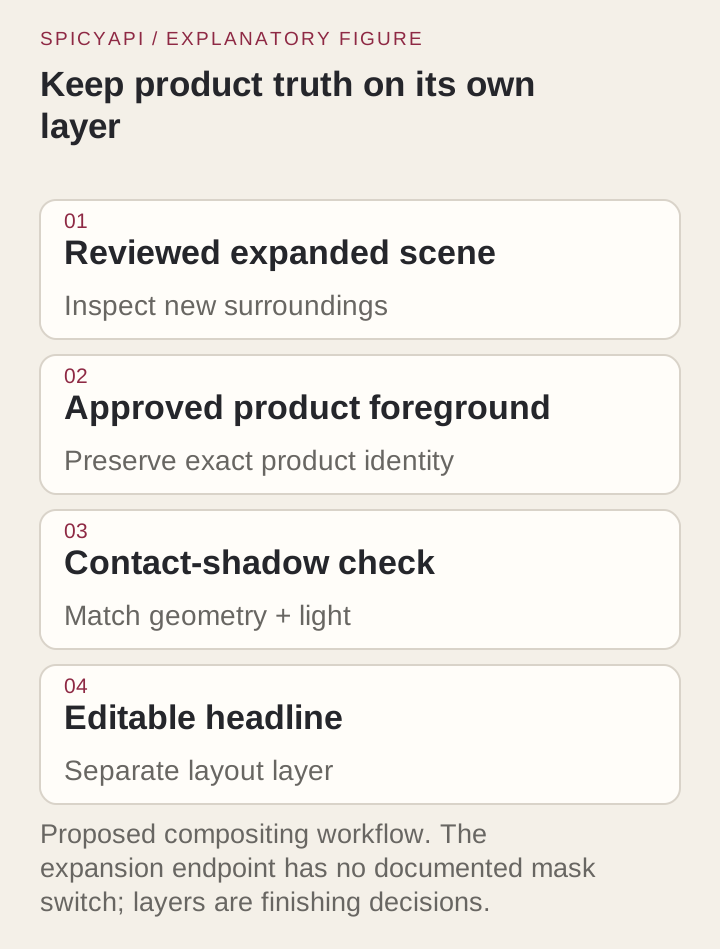
Compare your source with the result before you ship: a large pixel change on a logo or label area means that region must come from the original. The practical rule: use the result as a background, and bring the real product back on top when it must be exact. For a bag or bottle with a label, cut the product out of the original with the background removal workflow, place it on the expanded scene at the size the layout needs, and re-draw the contact shadow. The product photo to ad layouts guide covers the layout and label-protection steps for the same three formats, so they are not repeated here.
Pick a source that expands well
- Leave margin around the product and keep it clear of the border it will grow from. A complete product with empty space beside it expands more safely than a tight crop.
- Prefer plain surroundings: seamless paper, plaster wall, sky, a counter with one clear horizon line. Repeating patterns such as tiles or stripes can shift phase at the join.
- Pick the nearest ratio. If a marketplace wants 5:4, go from 1:1 or 4:3 rather than from a 9:16 source.
Try it in the Playground first
- Open the Image Expander task page and stay on the Playground tab, in Form view. Sign in with a funded account to run.
- Under Input image, drop your photo, or use Asset URL for a direct link (JPG, PNG or WebP, up to 10 MB).
- Pick a ratio in Aspect ratio (not Auto, which the API does not accept) for the destination, for example 16:9 for a header or 9:16 for a story. Output format is PNG by default; choose JPEG or WebP for smaller files.
- Check the price estimate, then run it. Try the ratios you need on your hardest source first: a bad join here will be bad from the API.
The request body shown under the form is the same JSON the API takes, so a setup that works here can be copied straight into code.
Then call it from code
Install the Python SDK (pip install spicyapi), set SPICY_API_KEY in the environment, and run one call per source and ratio:
import uuid

from spicyapi import SpicyClient, output_assets

client = SpicyClient()  # reads SPICY_API_KEY from the environment

photo = client.upload_file("./product-square.png")  # local files become spicy:// URIs

task = client.create_task(
    model="spicyapi/image-expander-v1/edit",
    input_data={"image_url": photo["uri"], "aspect_ratio": "9:16", "output_format": "png"},
    idempotency_key=str(uuid.uuid4()),  # new key per new request; reuse only to retry the same one
)

final = client.wait_for_terminal(task["taskId"])
if final["state"] != "succeeded":
    raise RuntimeError(f"Task {task['taskId']} ended as {final['state']}")

print(output_assets(final)[0]["url"])  # copy it to your own storage now
Uploads, waiting, errors and retries are in the Python SDK reference and the asynchronous tasks guide. Change aspect_ratio and the idempotency key for each extra format; only a succeeded task is charged.
Or let an Agent run it
If an assistant should produce the formats for you, give it the CLI or the MCP server. Both show the price and ask you to confirm before a paid call. The Skill adds instructions on top of either.
- CLI.
spicyapiruns one task from a terminal or script (npx @spicyapi/cliworks without installing):
``bash spicyapi files upload ./product-square.png # prints a spicy:// URI spicyapi tasks create --model spicyapi/image-expander-v1/edit \ --input-file input.json --idempotency-key product-square-9x16-v1 --wait ``
input.json holds the same input object as above, with the spicy:// URI.
- MCP server. Add the MCP server to your assistant, then ask: "Expand ./product-square.png to 9:16 and 16:9 with Image Expander." It calls
spicyapi_upload_file, thenspicyapi_task_create(which stops for your price confirmation), thenspicyapi_task_wait.
``json { "mcpServers": { "spicyapi": { "command": "npx", "args": ["--yes", "--package=@spicyapi/mcp", "spicyapi-mcp"], "env": { "SPICY_API_KEY": "YOUR_SPICY_API_KEY" } } } } ``
- Skill.
npx skills add spicyapi-ai/spicy-skillinstalls the Agent Skill, which teaches a coding assistant to read the live schema and reuse idempotency keys instead of guessing. It cannot run tasks by itself, so use it with the CLI or MCP.
Review each result in three passes
- Product: same item count, silhouette, colour, label and handle or cap. A changed logo or a second mug in the new area is a reject, not a style choice.
- Join: follow the counter edge, wall pattern, horizon and light direction across the old border. A seam behind the product matters; one in a corner you will crop does not.
- Layout: put the headline box and the platform's overlay areas on top. A vertical story can hide the product under interface controls, so check the placement's current safe-area guidance.
If the problem is outside your crop, crop it away. If it crosses the product or the copy zone, change the source (wider original, less tight framing, plainer background) or fall back to a designed canvas. A new generation with the same source is a fresh draw, not a repair, so change something first.
Cost for a three-format set
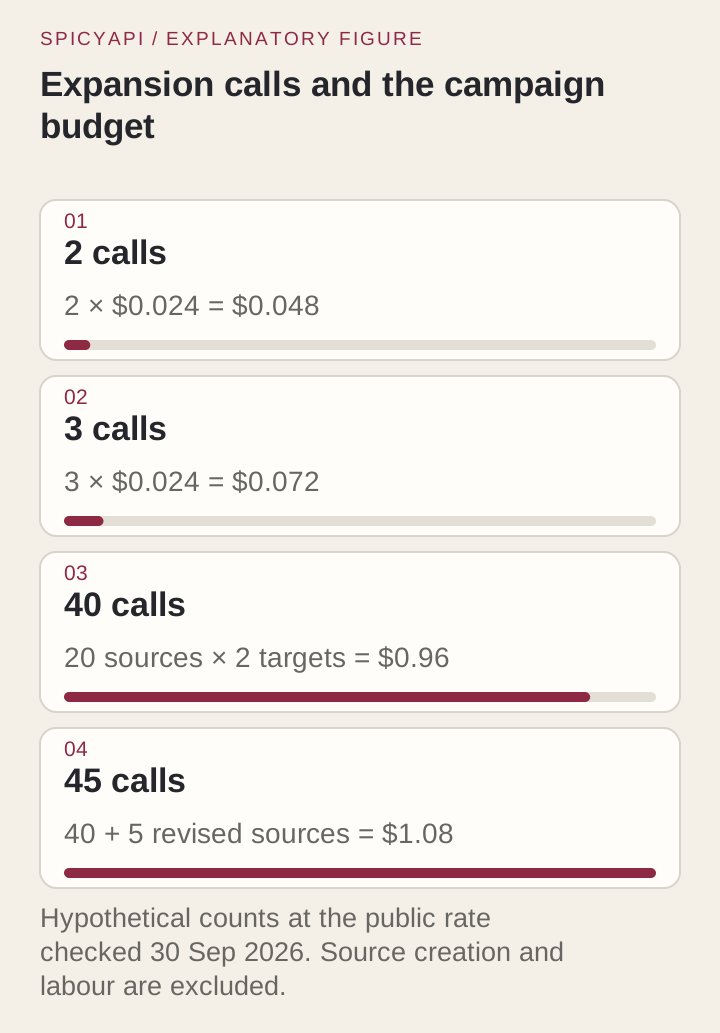
Each completed output is $0.024, so a 16:9 and a 9:16 from one source are 2 x $0.024 = $0.048, and three outputs (for example 1:1, 16:9 and 9:16 from a 4:3 source) are $0.072. A batch of 20 sources at two ratios is 40 calls, or $0.96; if 5 sources need one more attempt with a better source, 45 calls, or $1.08. These exclude cutouts, upscaling and design time. A completed request is billed whatever the result looks like, so fix the source before re-running rather than re-rolling.
FAQ
What if my photo is bigger than 1536 px? It comes back at 1536 on the long edge, so it can be smaller than the original. Upscale afterwards if the destination needs more pixels.
Can I use it to make a 9:16 first frame for video? Yes, if the person and pose are already complete; see turning a landscape portrait into vertical AI video. The model page has the current schema and price.