Use spicyapi/image-upscaler-v1/upscale to enlarge one finished image. Choose 2k, 4k or 8k by the pixels your final crop needs: the tiers are pixel budgets of roughly 4, 17 and 67 megapixels, not fixed long-edge sizes. All three cost $0.012 per output image (1,000 images is $12), in JPEG, PNG or WebP. Try it in the Playground first, then run the short Python example or hand it to an Agent.
Choose the tier from the final crop
The Image Upscaler keeps the source aspect ratio. A 1024×1536 portrait returns:
| Request | Pixel budget | Returned size | Price |
|---|---|---|---|
2k | about 4 MP | 1672×2508 | $0.012/image |
4k (default) | about 17 MP | 3344×5017 | $0.012/image |
8k | about 67 MP | 6689×10033 | $0.012/image |
Another aspect ratio gives other dimensions. If you think in "2×" or "4×", the linear enlargement is the square root of the budget divided by the source megapixels:
| Source | 2k | 4k | 8k |
|---|---|---|---|
| 1024×1536 (1.6 MP) | 1.6× | 3.3× | 6.5× |
| 1920×1080 (2.1 MP) | 1.4× | 2.8× | 5.7× |
| 4000×3000 (12 MP phone photo) | 0.6× (shrinks) | 1.2× | 2.4× |
A tier below the source's pixel count downscales: a 3344×5017 input sent at 2k returns 1672×2509. If the source already meets the destination, export it normally; this endpoint has no sharpen-at-original-size mode.
For a web card shown 600 pixels wide at 2× density, you need 1200 pixels across the final crop. If that crop keeps half the source width, the master needs 2400 pixels across. The 1672-pixel 2k portrait falls short; 4k covers it.
For print, multiply inches by the density your printer asks for. A 10×15-inch image at 300 pixels per inch needs 3000×4500 pixels, which the 4k portrait covers uncropped. Changing density metadata adds no pixels, and a tighter crop needs a new calculation.
Choose 8k only when the crop needs it. The price is the same, but 67 megapixels is about 268 MB of raw four-channel pixel data, which matters for editing memory, and the downloaded JPEG reaches about 8 MB at that tier.
Prepare one clean source
Finish object removal, cropping and other edits first, and start from the best original, not a website thumbnail. The input is one JPEG, PNG or WebP of at most 10 MB, so a large print master may need exporting before you send it. For a fictional stationery catalogue, use an approved photograph of a fountain pen and its box, and keep a separate reference for the exact engraved name: enlargement can turn ambiguous marks into confident letters that are wrong.
Pick output_format by what happens next. jpeg (default) is smallest; PNG is lossless but several times larger at 8k; WebP sits between. PNG does not make reconstructed detail factual. There is no prompt, exact width/height, face-restoration strength or seed.
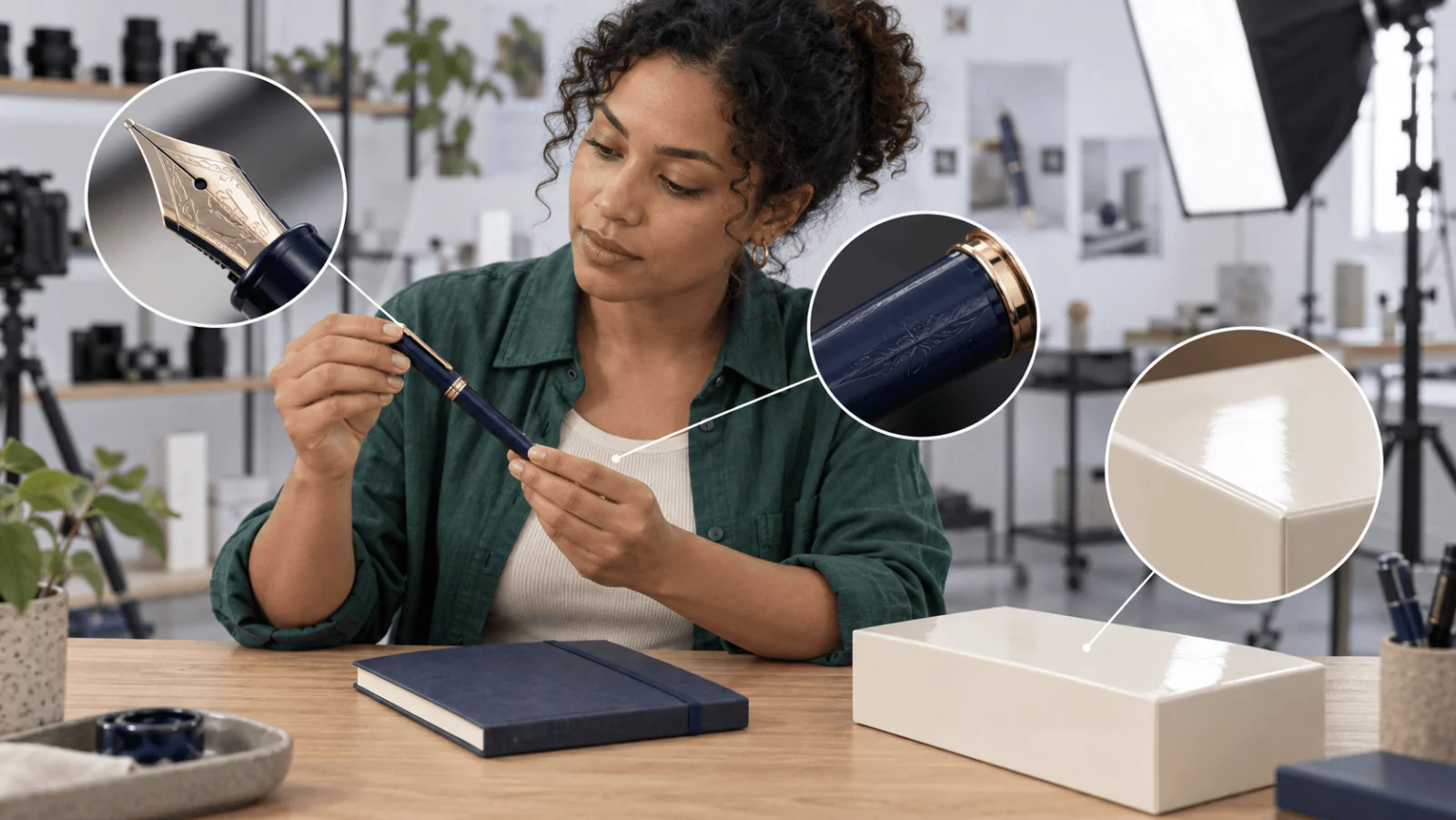
Illustration of inspection regions, not an upscaler result.
Try it in the Playground first
- Open the Image Upscaler page and stay on the Playground tab, in Form view. Sign in with a funded account to run.
- Drop your image into Input image (JPG, PNG or WEBP, up to 10 MB), or paste a link with Asset URL.
- Set Resolution to 2K, 4K or 8K and Output format to JPEG, PNG or WebP.
- Run it, then check the result at its final card or print size.
Try your hardest source here before you write code. The Playground request body is the same JSON the API takes, so a setup that works here copies straight into code.
Then call it from code
Install the Python SDK (pip install spicyapi), set SPICY_API_KEY in your environment, and run:
Install Pillow (python -m pip install Pillow) for the download validation in this example. The original output file is replaced only after the new JPEG decodes successfully.
import os
from pathlib import Path
import tempfile
import urllib.request
import uuid

from PIL import Image

from spicyapi import SpicyClient, output_assets

client = SpicyClient()  # reads SPICY_API_KEY from the environment

source = client.upload_file("./fountain-pen-master.png")  # local file becomes a spicy:// URI

task = client.create_task(
    model="spicyapi/image-upscaler-v1/upscale",
    input_data={"image_url": source["uri"], "resolution": "4k", "output_format": "jpeg"},
    idempotency_key=str(uuid.uuid4()),  # new key per new request; reuse only to retry the same one
)

print(f"Task ID: {task['taskId']}", flush=True)
final = client.wait_for_terminal(task["taskId"])
if final["state"] != "succeeded":
    raise RuntimeError(f"Task {task['taskId']} ended as {final['state']}")

assets = [a for a in output_assets(final)
          if a.get("url") and not a.get("pending") and not a.get("unavailable")]
if not assets:
    raise RuntimeError(f"Task {task['taskId']} has no downloadable output yet")

request = urllib.request.Request(assets[0]["url"], headers={"User-Agent": "upscale-example/1.0"})
target = Path("upscaled.jpg")
temporary = None
try:
    with tempfile.NamedTemporaryFile(dir=target.parent, suffix=".jpg", delete=False) as out:
        temporary = Path(out.name)
        with urllib.request.urlopen(request, timeout=60) as response:
            out.write(response.read())
    with Image.open(temporary) as image:
        if image.format != "JPEG":
            raise ValueError("Expected a JPEG output")
        image.load()  # reject unreadable or truncated data before replacing the keeper
    os.replace(temporary, target)
finally:
    if temporary is not None:
        temporary.unlink(missing_ok=True)
A run takes about 45 seconds. Switch tier or format by changing resolution and output_format. Uploads, waiting, retries and errors are covered in the tasks guide and the Python SDK reference. Result links last about 20 minutes and generated files are deleted after at most 14 days, so copy the result into your own storage.
Or let an Agent run it
When an assistant should upscale your images, all three official tools show the price and ask you before a paid call.
- CLI.
spicyapiruns one task from a terminal (npx @spicyapi/cliworks without installing). Put{"image_url": "spicy://...", "resolution": "4k"}ininput.json, using the URI that the upload prints:
``bash spicyapi files upload ./fountain-pen-master.png spicyapi tasks create --model spicyapi/image-upscaler-v1/upscale --input-file input.json --wait ``
- MCP server. Add the MCP server to your assistant, then ask: "Upscale ./fountain-pen-master.png to 4K with Image Upscaler." It calls
spicyapi_upload_file, thenspicyapi_task_create, which stops for your price confirmation, thenspicyapi_task_wait. - Skill.
npx skills add spicyapi-ai/spicy-skillinstalls the Agent Skill, which has a coding assistant read the live model schema instead of guessing fields. It cannot run tasks by itself, so use it with the CLI or MCP.
Decide whether the extra pixels are useful
Check the result in its final card or print layout, then at full size on the nib, engraving and box edges: do the extra pixels serve that use while keeping the product accurate?
| Symptom | Next step |
|---|---|
| Output is smaller than the source | Compare source pixels with the tier's budget; move up a tier only if the destination needs enlargement. |
| Engraved letters look crisp but wrong | Replace the source with a sharper photograph or approved artwork; a larger tier cannot verify missing letters. |
| Bright outlines appear around dark edges | Compare with the submitted original. If its own sharpening created the outline, export a cleaner source before retrying. |
| Face looks polished but different | Compare eyes, expression and hairline with the original; reject that candidate rather than approving sharpness alone. |
| Web page downloads an enormous image | Keep the approved master and export a smaller ordinary derivative for the displayed slot. |
| API rejects an extra field | Remove scale, face_restore, width and similar controls; this endpoint has none. |
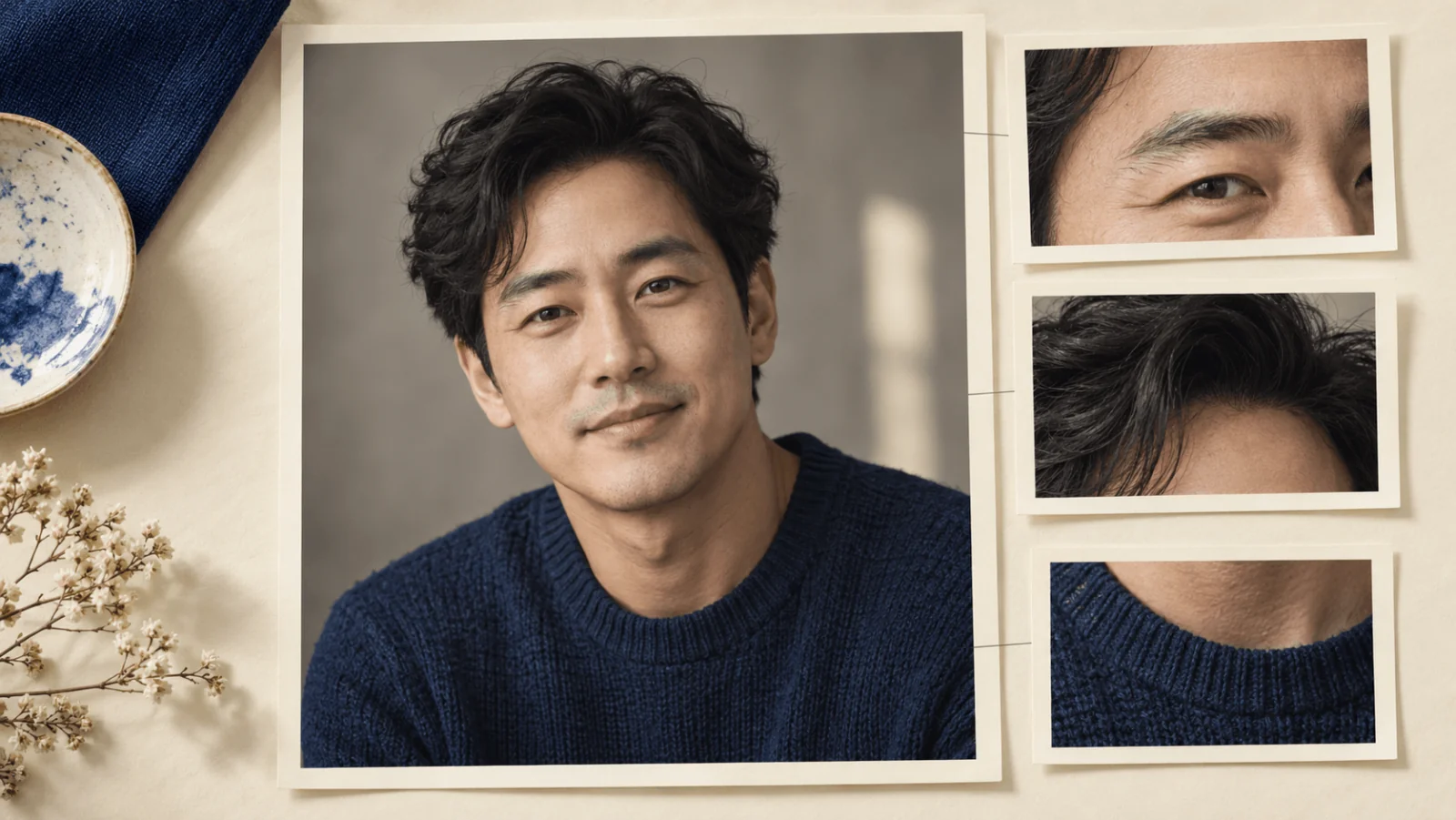
Illustration of portrait details to compare, not recovered facial detail.
For adult fictional portraits, SpicyAPI runs no safety checker on this tool, so consent and legal duties stay with you. Moderate and advanced NSFW inputs upscale normally; run one sample of your own material before a batch.
If the master is good but a small card loses the engraving, adjust that derivative or drop the zoom; another AI pass is not the first fix. If you need a wider frame rather than more pixels, see outpainting to a new aspect ratio; for clips, see video upscaling.