Upload the photo to Shadow Remover and you get it back in about 12 seconds with the hard shadows gone and the light soft and even. There is no prompt to write and no area to select. The person, the clothes and the scene stay where they are. It costs $0.03 per image and needs a funded account; there is no free tier. A request that fails without an image is not charged.
The catch is that it removes the harsh light along with the shadows, and it returns about one megapixel, not your original resolution. The examples below show what it did on our test photos.
Before and after: palm-leaf shadows on a face
Hard leaf shadows across a face are the classic case: the eyes fall into dark patches and the shirt is half bright, half striped.
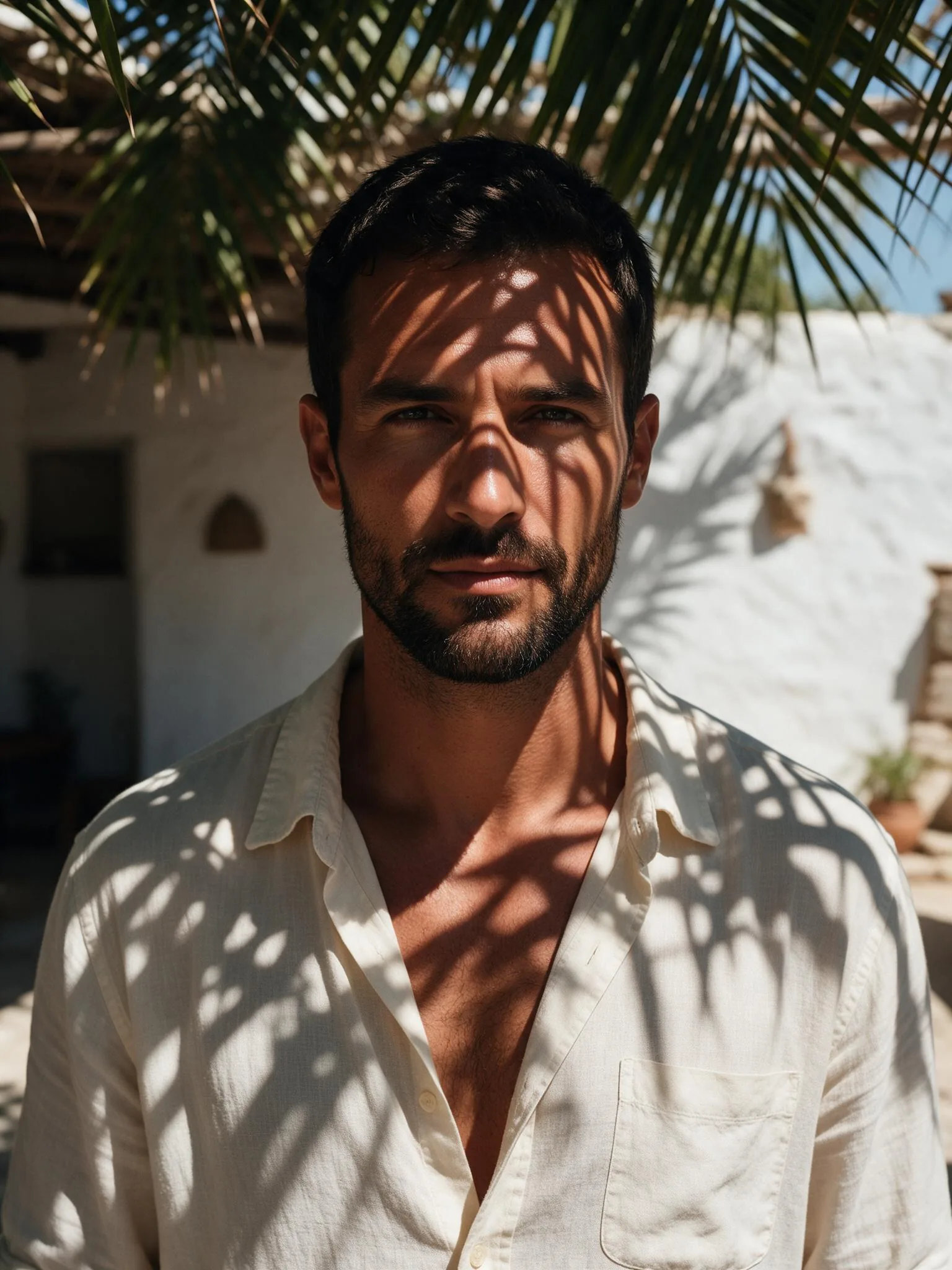
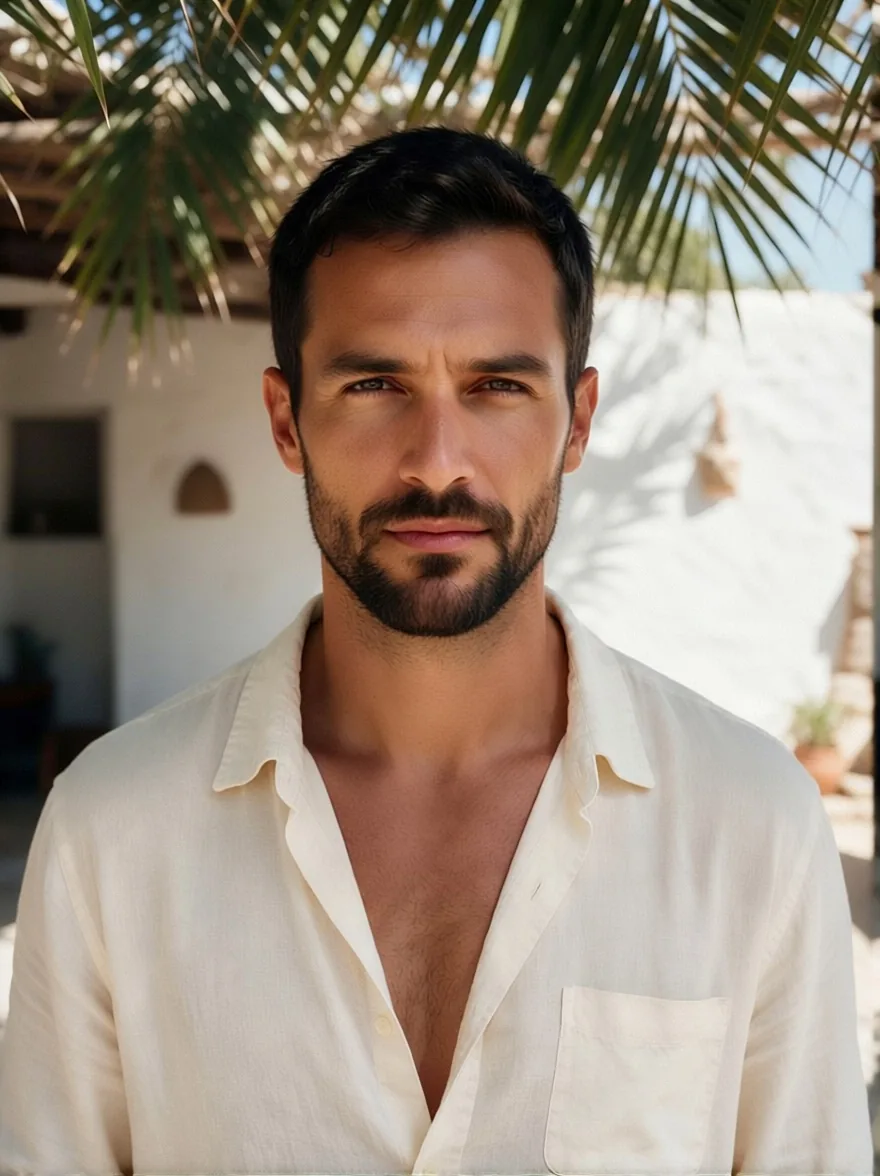
The shadows on the wall behind him disappeared too, not just the ones on his skin. The photo looks as if it had been taken in open shade.
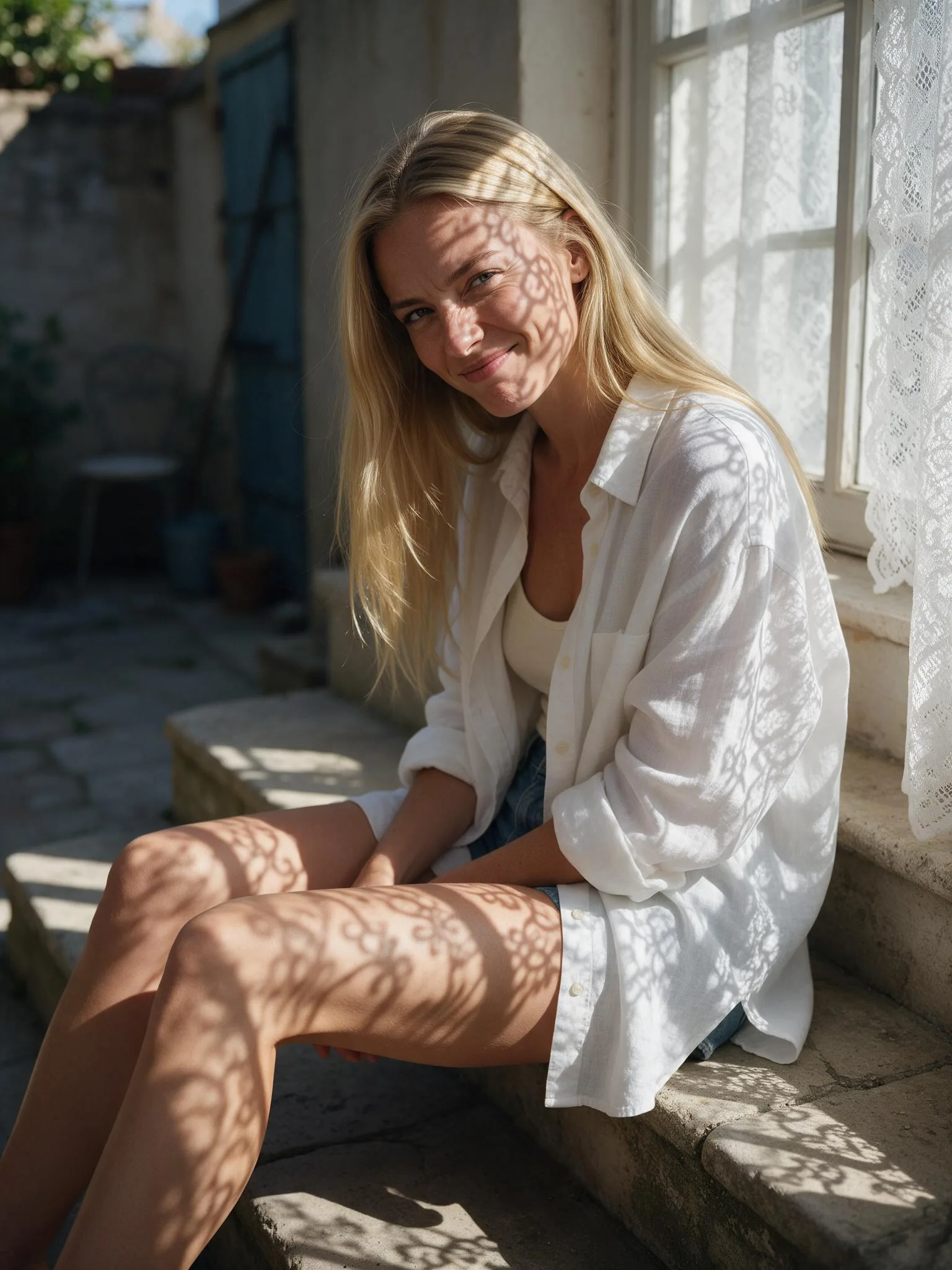
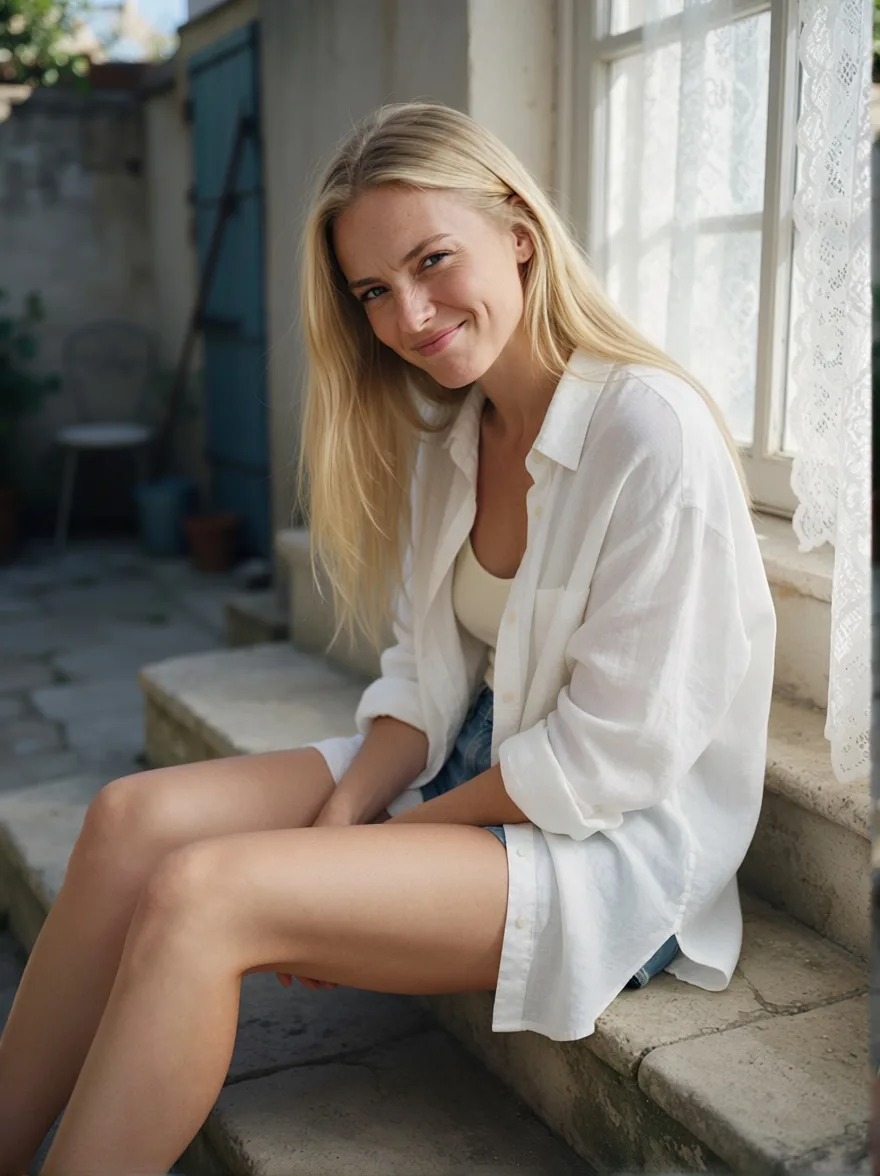
Lace-curtain light on skin and stone steps
Patterned shadows from a lace curtain are hard to fix by hand because they cover skin, fabric and stone at once.
Venetian blinds and a pergola grid
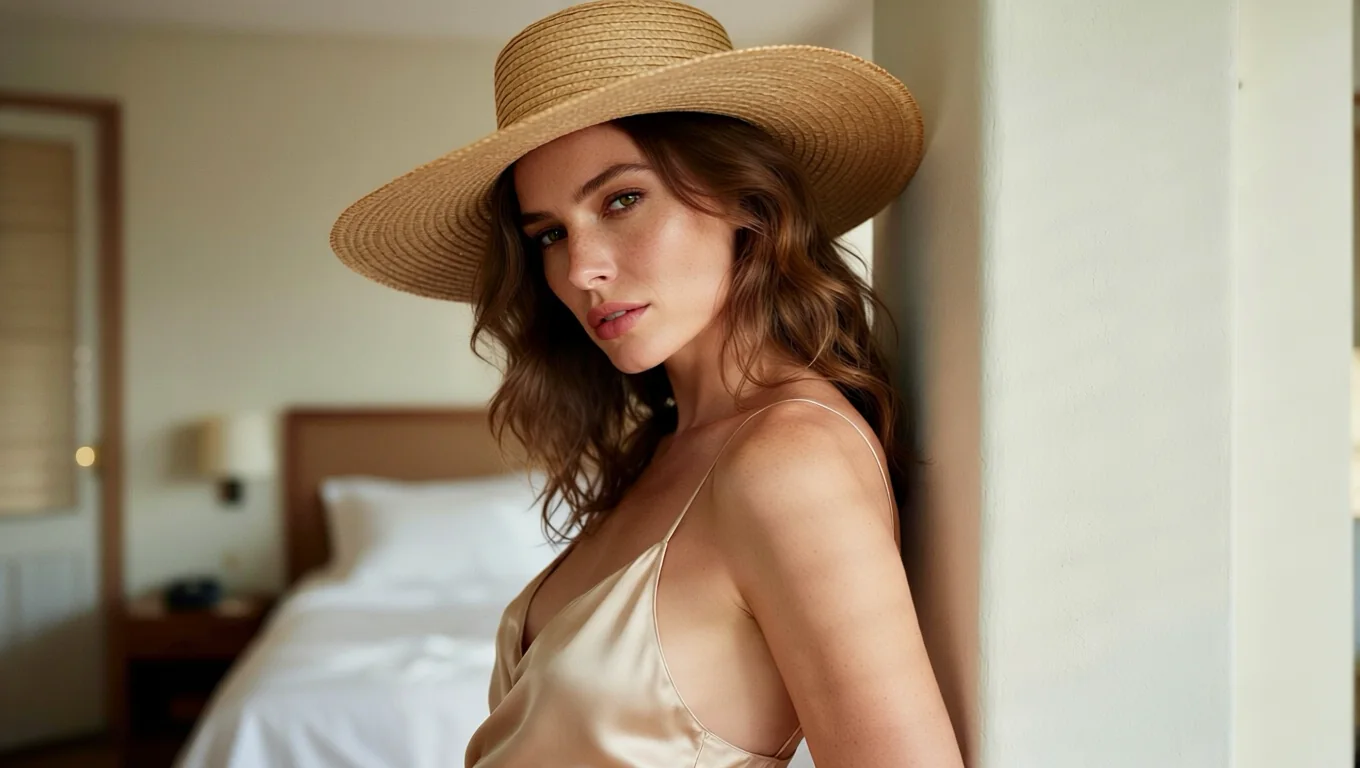
Two more tests, shown as results only. One was a woman in a straw hat against a hotel wall striped by blind shadows. The other was a man leaning on a balcony rail under a pergola, the grid of its beams falling across his face and arms. We do not show the originals here, so read these two as samples of the output, not as proof of the removal.
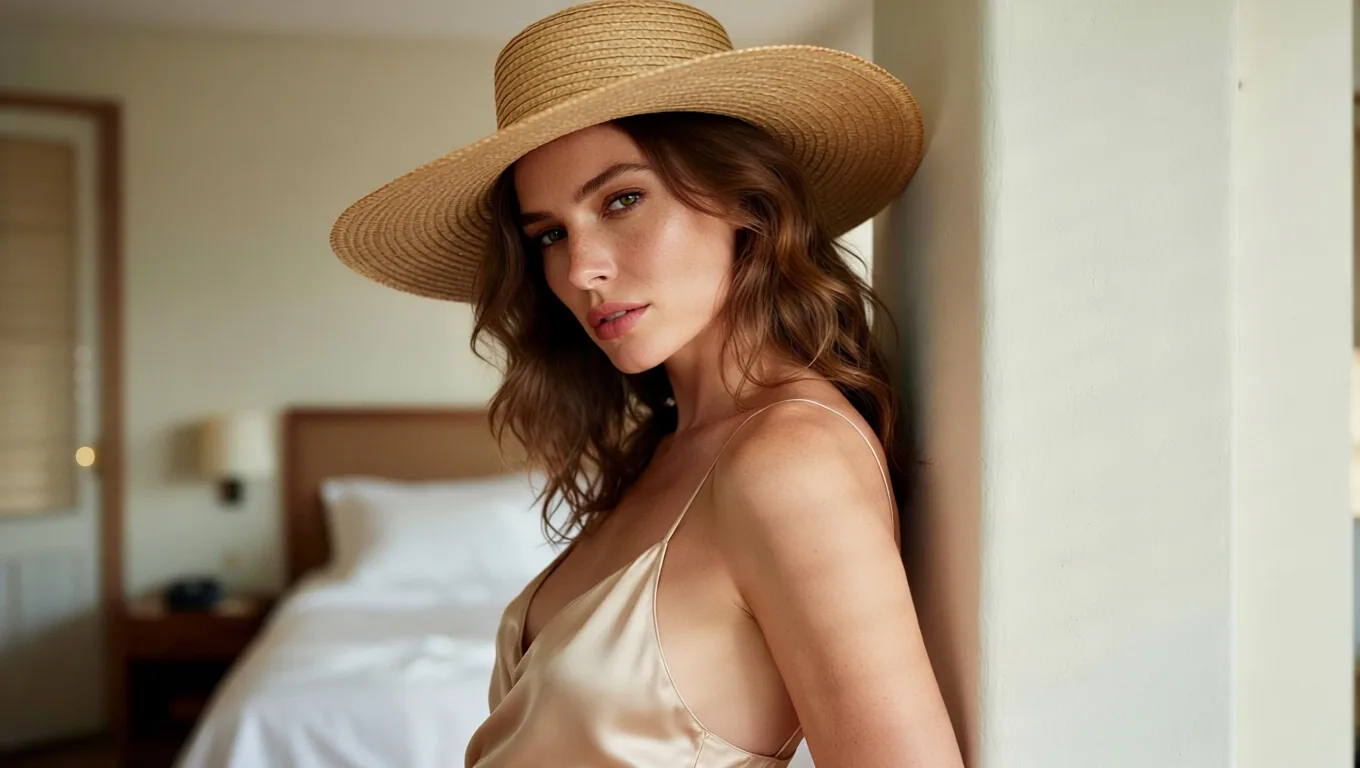
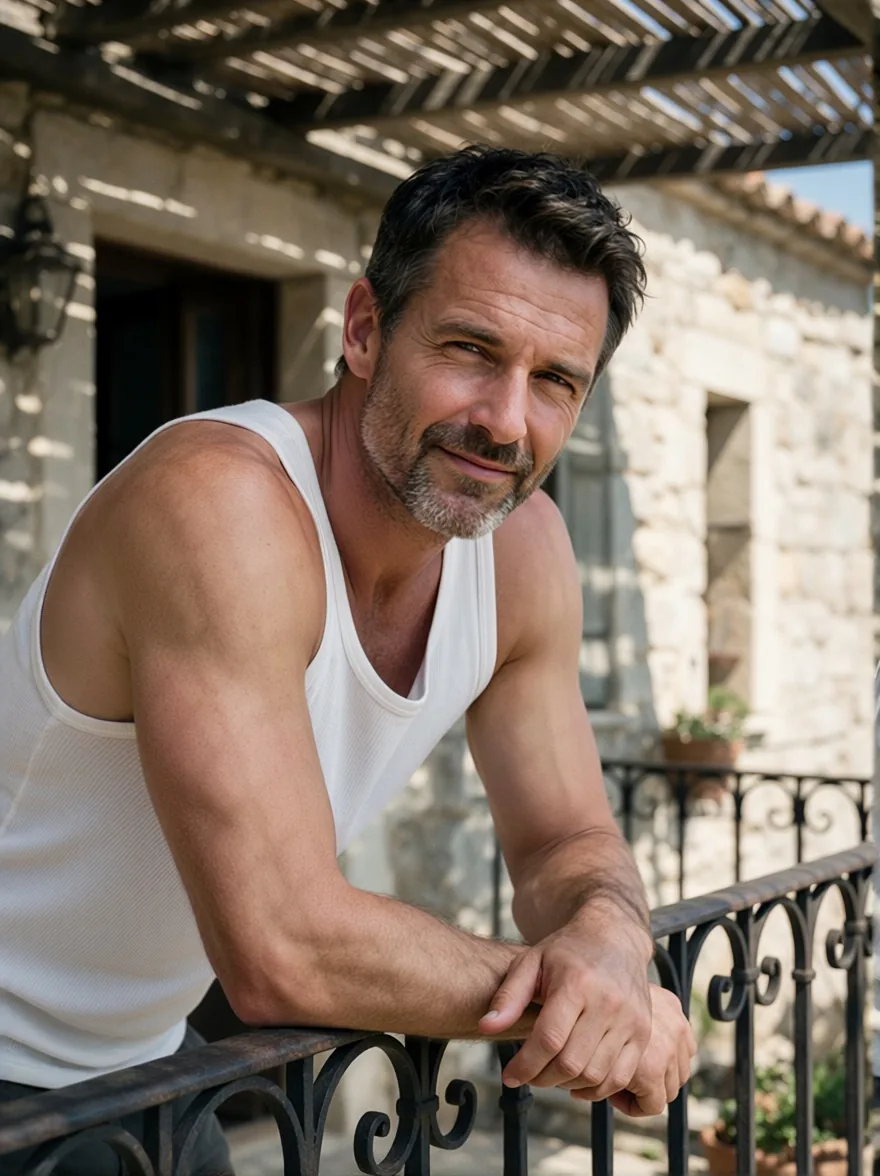
All four came back as an evenly lit photo of the same scene, in 11 to 18 seconds each.
One same-seed check: the base model without the add-on
We ran the palm-leaf photo through the underlying edit model, Alibaba's Qwen-Image-Edit-2509, with the same instruction and the same seed, once without and once with the shadow-removal add-on that Shadow Remover uses. On this photo and this seed, the base model without the add-on left the leaf shadows in place; with it, they were gone. That is one photo and one seed, so it shows the add-on does something here, not how every editor behaves on every photo. In Shadow Remover the instruction and the add-on are fixed, so you only send the photo.
The add-on is the Light Restoration LoRA by dx8152, an open community adapter. The shadow-removal behaviour is that author's work; Shadow Remover packages it behind one input.
What it cannot do
- It removes the light as well as the shadows. Every photo we tested came back evenly lit. We did not test low-key or single-lamp portraits, so we cannot say how they come out; expect deliberate mood lighting to flatten, and try one photo before a batch.
- Faces are redrawn. Features stay close to the original, but the face of the woman in the straw hat changed slightly in one of our four test photos; we did not measure how much. Compare against the original before you replace an important portrait.
- Output is about one megapixel, not your original resolution. In our runs a 1536 × 2048 (3:4) photo came back as 880 × 1176 and a 2048 × 1152 (16:9) photo as 1360 × 768, with the aspect ratio left empty. Keep your original file. For print size, run the result through Image Upscaler. Billing is flat per image, so 100 photos cost $3.00.
- It does not remove objects. To take out a cup, a cable or a person, use Object Eraser; the mask tutorial covers it.
We have not tested ID or passport photos. Many applications require an unedited photo, so check the issuer's rules before you retouch one.
Try it in the Playground
- Open the Shadow Remover page and sign in with a funded account.
- Upload a JPEG, PNG or WebP photo up to 10 MB.
- Leave the aspect ratio empty to keep the shape of your photo, or pick one of nine ratios to reframe it.
- Run it. Use the same
seedif you want to compare settings on the same photo.
Choose a photo where a cast shadow is the main problem. All our samples had one clear cast pattern (leaves, blinds, lace, a grid). We did not test mixed lighting, soft shadows or the shadows a subject casts on themselves, so we cannot say how those come out.
Then relight it the way you want
Shadow removal gives you an even starting photo. If you want a particular light back, such as warm window light or a golden-hour rim, Relight is the tool for it. We have not tested the two together, so try one photo first.
Call it from code
Install the Python SDK (pip install spicyapi) and set SPICY_API_KEY in your server environment. This runs on the model page's own example photo:
import uuid
from spicyapi import SpicyClient, output_assets

client = SpicyClient()  # reads SPICY_API_KEY from the environment

task = client.create_task(
    model="spicyapi/shadow-remover-v1/edit",
    input_data={
        "image_url": "https://cdn.spicyapi.ai/models/examples/inputs/4fdf6657c6185e94.webp",
        "seed": 424242,
    },
    idempotency_key=str(uuid.uuid4()),
)

final = client.wait_for_terminal(task["taskId"])
if final["state"] != "succeeded":
    raise RuntimeError(f"{task['taskId']} ended as {final['state']}: {final.get('errorCode')}")
print(output_assets(final)[0]["url"])  # copy the image to your own storage now
Optional fields are aspect_ratio, seed and output_format (jpeg, png or webp). For uploads from your computer, polling and error codes, see the tasks guide. Generated files are kept for 14 days at most.
FAQ
Do I need to write a prompt?
No. The instruction is fixed: remove the light and shadows and relight the photo with soft, even light. You send only the photo.
What kinds of shadows did it remove in your tests?
Palm-leaf shadows across a face and shirt, venetian-blind stripes over a woman and the wall behind her, a lace-curtain pattern on legs and stone steps, and a pergola grid on a man's face and arms.
Will it change the person?
Pose, clothes, hair and background stay. The face is redrawn while the light changes, so small differences can appear.
Am I charged if I do not like the result?
Yes. A completed image costs $0.03. Requests that fail without an image are not charged.