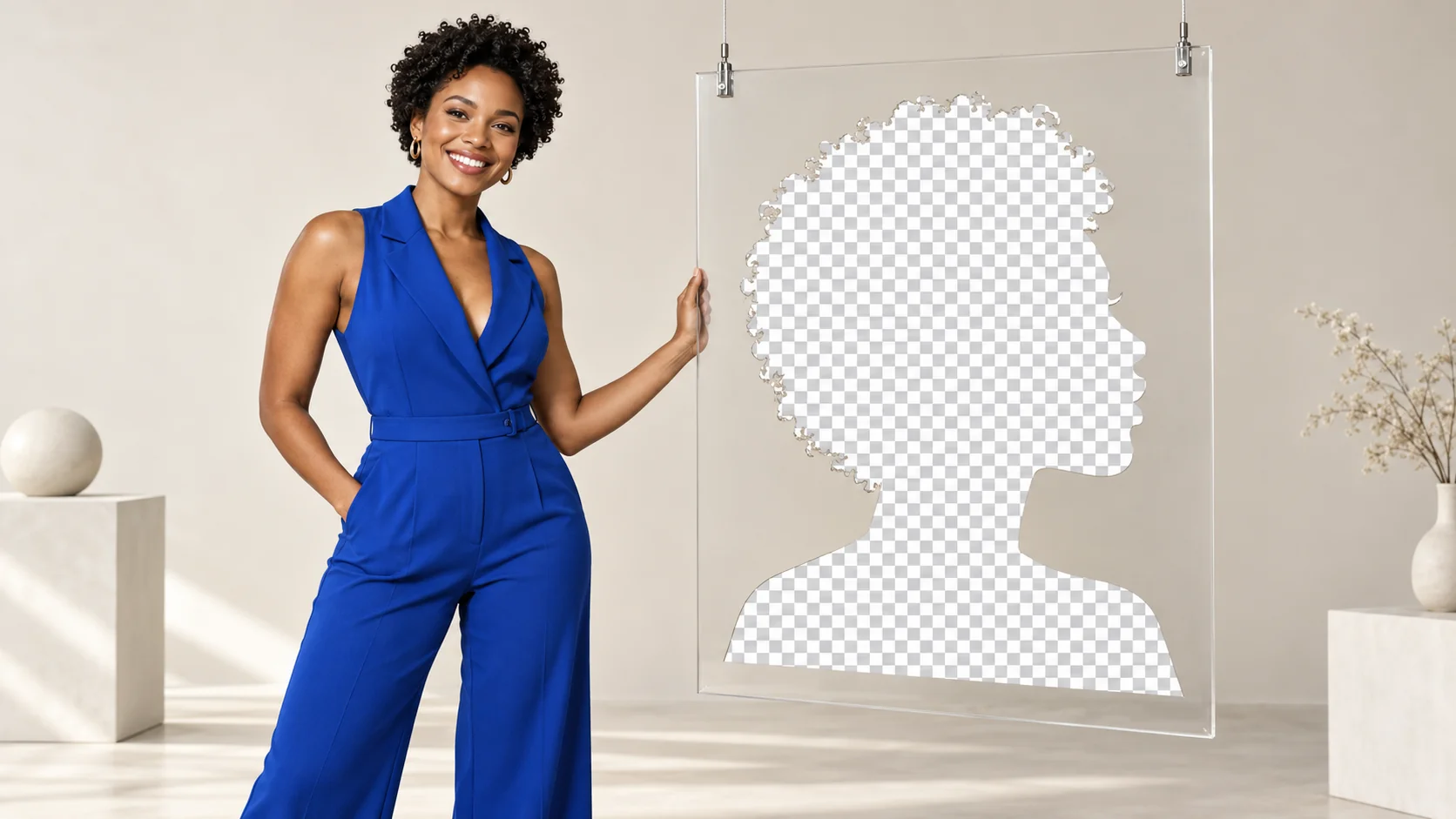
You have a few hundred product photos on grey tables and window sills, and the shop, the marketplace or the designer wants each one as a transparent PNG. SpicyAPI Background Remover does that in one call: you send a photo URL and get back the main subject on a transparent PNG at the original width and height. The work that remains is yours: confirm the file really has alpha, check the edges on the backgrounds it will sit on, and export the flat copies each destination asks for.
Try it in the Playground first
Open the background-remover-v1 Playground. Drop a product photo into Input image, check the price and press Run model. Inspect the transparent result against light and dark backgrounds before using the same photo in code.
What the endpoint takes and returns
Background Remover (spicyapi/background-remover-v1/edit) | |
|---|---|
| Input | One field, image_url: a JPEG, PNG or WebP photo. No prompt, mask or subject selector |
| Subject choice | Automatic. Crop first if the frame holds several candidates; the tool may keep more than you want |
| Output | One PNG with an alpha channel, same width and height as the input |
| Price | $0.0048 per output image; the size of the photo you send does not change it |
| Time limit | A task that has not finished within 1,800 seconds expires and is not charged |
| Result link | A pre-signed URL on output.assets[0].url, valid about 20 minutes (query the task again for a fresh one); the file itself is kept at most about 14 days |
The output keeps the source canvas dimensions, so you can position the cutout over a replacement background without rescaling. Use the returned alpha channel for the cutout boundary; keeping the same canvas does not guarantee that every foreground edge or colour is unchanged. Details are on the Background Remover model page.
See a real result first
The model page's own example is a frosted dropper bottle on a grey studio backdrop, 1024 × 1536 pixels. These are the before and after files from that page; the "after" is shown here over the page background.
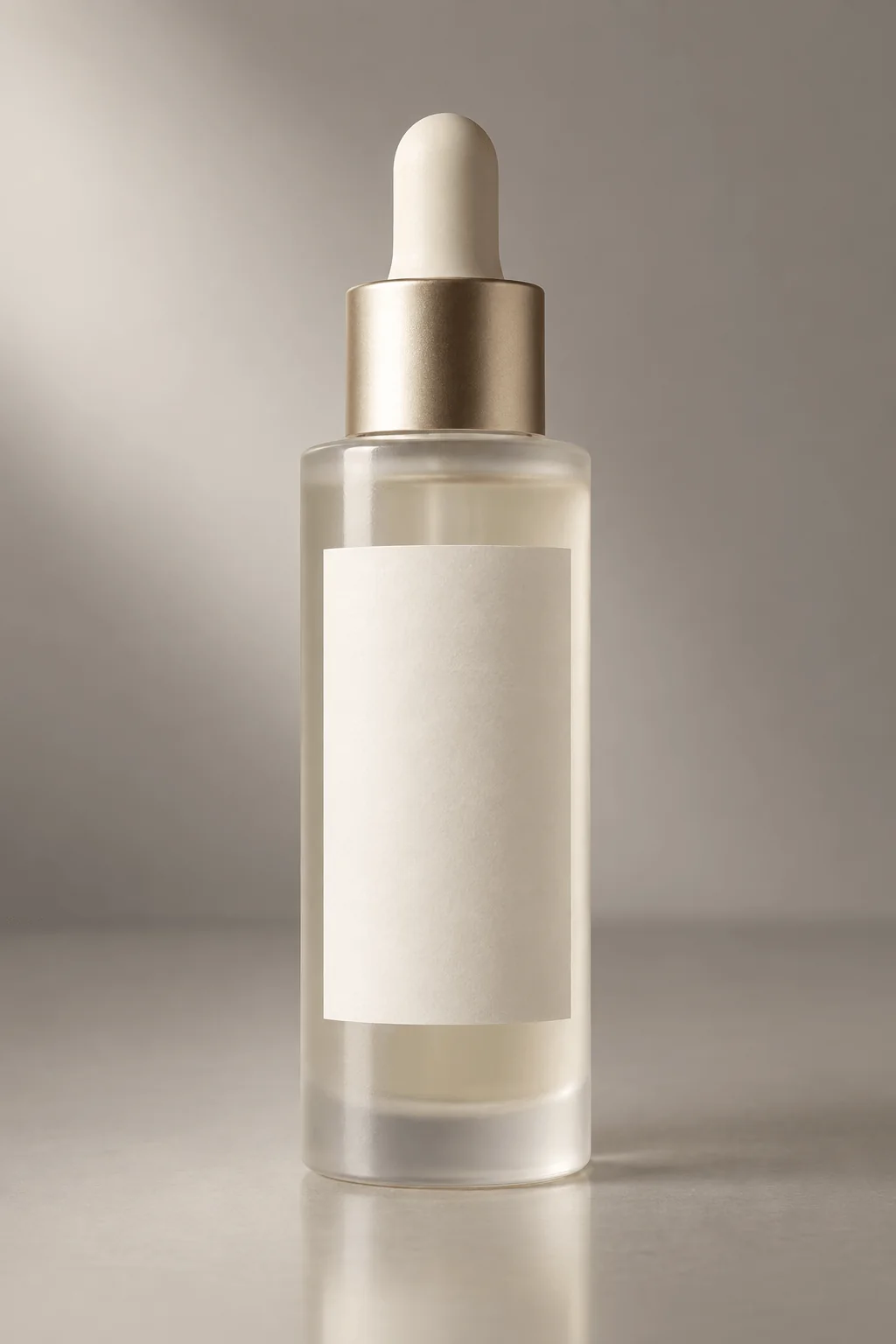
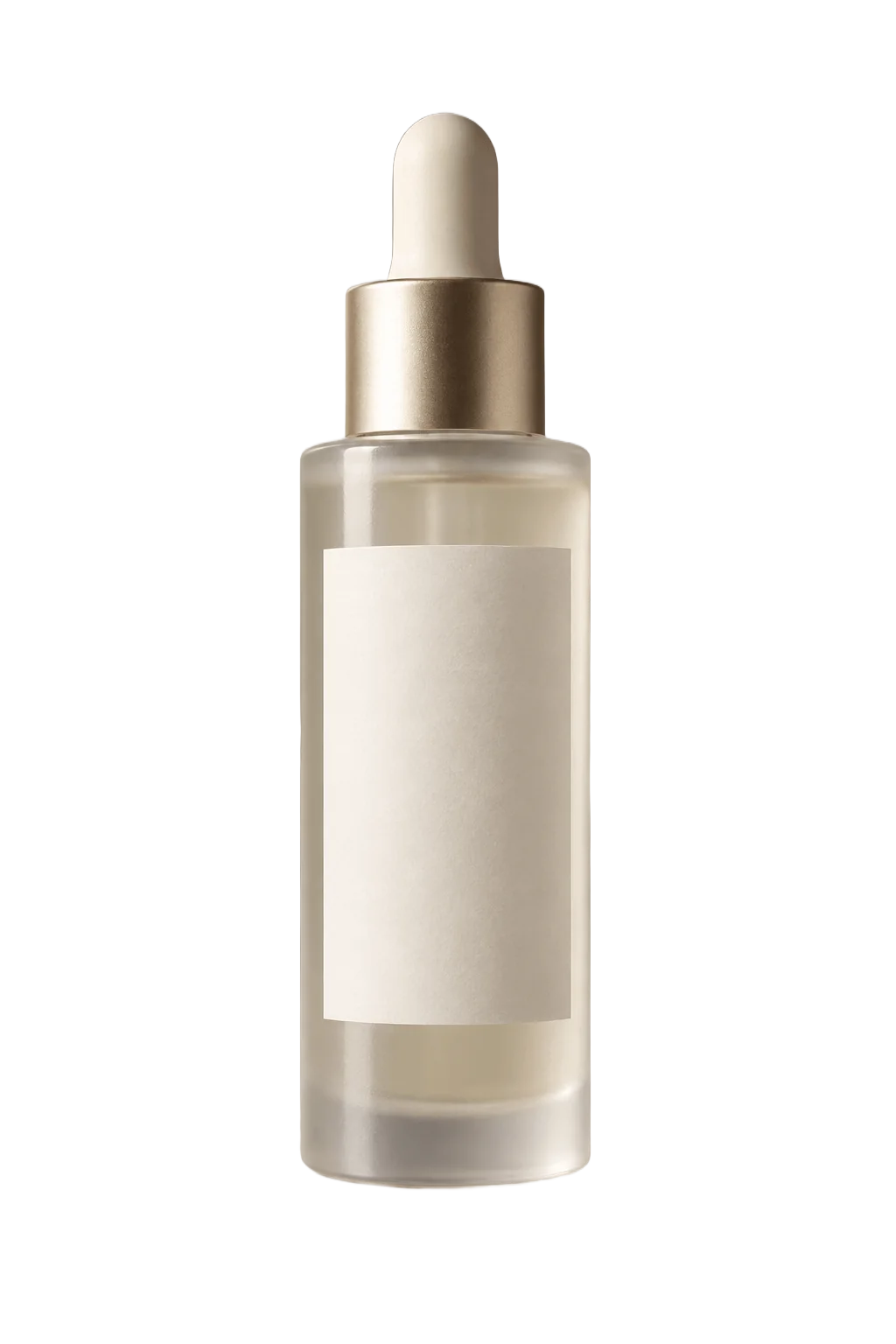
Running the check script from the next sections on this pair gives the numbers a good result looks like: the output has an alpha channel, the size matches the source, about 78% of pixels are fully clear, about 22% are solid, and only about 0.35% are semi-transparent edge pixels. The subject box is 335 × 1,234 pixels. Composited on a dark navy background, the dropper tip, the brushed collar and the frosted glass shoulders have no light fringe.
Make the call
Install spicyapi and pillow with python -m pip install spicyapi pillow. Set SPICY_API_KEY and IMAGE_URL to your direct source-image URL, then run this example. It asks you to confirm the price, creates the task, waits for it, saves the cutout and writes light and dark previews.
import os
import urllib.request
import uuid
from io import BytesIO
from pathlib import Path

from PIL import Image
from spicyapi import SpicyClient, output_assets

client = SpicyClient()
model = "spicyapi/background-remover-v1/edit"
inputs = {"image_url": os.environ.get("IMAGE_URL", "https://cdn.spicyapi.ai/models/examples/inputs/e82b71db9e3d0e5f.png")}

quote = client.quote_task(model=model, input_data=inputs)
if input(f"Maximum ${quote['maxCharge']}. Create? [y/N] ") != "y":
    raise SystemExit("Stopped without creating a task.")

task = client.create_task(model=model, input_data=inputs, idempotency_key=str(uuid.uuid4()),
                          quote_id=quote["quoteId"], expected_cost=quote["estimatedCost"])
print("Task:", task["taskId"])  # keep this ID: a timeout does not cancel the task
task = client.wait_for_terminal(task["taskId"])
if task["state"] != "succeeded":
    raise RuntimeError(str(task.get("errorMessage", task["state"])))

asset = output_assets(task)[0]
request = urllib.request.Request(asset["url"], headers={"User-Agent": "SpicyAPI-Blog-Example/1.0"})
with urllib.request.urlopen(request, timeout=120) as response:
    data = response.read()
Path("cutout.png").write_bytes(data)

with Image.open(BytesIO(data)) as image:
    if image.format != "PNG":
        raise RuntimeError("Expected a PNG cutout.")
    rgba = image.convert("RGBA")
alpha = rgba.getchannel("A")
values = list(alpha.getdata())
print({"size": rgba.size, "alpha_min_max": alpha.getextrema(),
       "clear_fraction": sum(v <= 8 for v in values) / len(values),
       "solid_fraction": sum(v >= 247 for v in values) / len(values),
       "soft_fraction": sum(8 < v < 247 for v in values) / len(values),
       "subject_box": alpha.getbbox()})
for name, colour in [("light", "#f5f2e8"), ("dark", "#162235")]:
    Image.alpha_composite(Image.new("RGBA", rgba.size, colour), rgba).convert("RGB").save(name + ".jpg")
To retry the same request after a lost response, reuse its idempotency key rather than creating a new one (idempotency reference). For local-file uploads, see the Python SDK and media documentation.
Verify the transparency by decoding the file
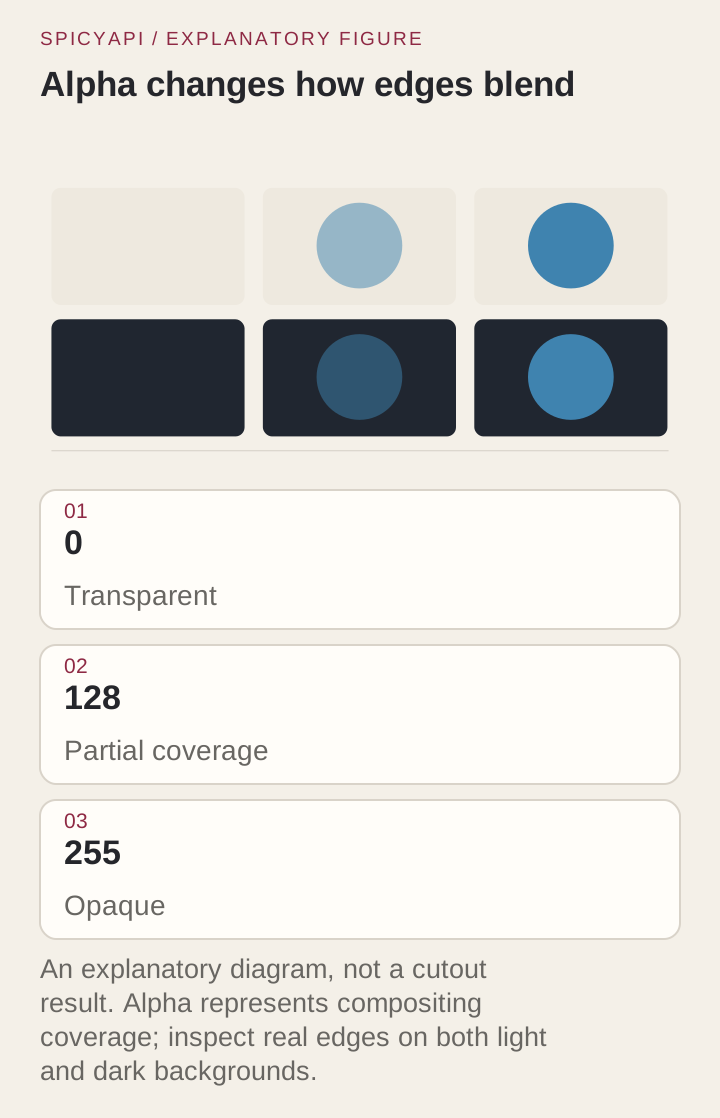
A white preview proves nothing. It might be a genuine cutout on a white page, an opaque image with a white background, or a checkerboard painted into the pixels. Decode the file and read its alpha channel. The PNG specification defines how alpha is stored; in practice you need to know whether some pixels can be transparent after decoding, not what the filename says.
The example reports how alpha is distributed and writes cream and dark navy composites for review using Pillow. Compare its reported dimensions with your source.
Note the thresholds. Counting only alpha 255 as opaque is misleading: on the dropper-bottle output, about 14% of pixels sit at alpha 1 to 254, but nearly all of those are 254, which is visually solid. Treating alpha up to 8 as clear and from 247 as solid leaves the soft fraction for what you actually care about: antialiased edges, hair, and genuinely translucent material.
How to read the report:
- A missing alpha channel, or
alpha_min_maxof (255, 255), means no transparency: investigate the pipeline before reviewing edges. clear_fractionnear 0 on a photo that had a background, orsolid_fractionnear 0, means the subject was lost or the result is a haze.- A size mismatch usually means an EXIF-rotated source or a resize in your own code, since the endpoint preserves dimensions.
- A large
soft_fractionis normal for glass, fabric and hair and a warning sign for a matte mug. Set thresholds per product category after looking at a pilot set, not one global number. - A subject box that touches the canvas edge on a photo you cropped loosely suggests a second object was kept.
Prepare the photo without changing the product
Decide what counts as the product before you shoot or crop: a ribbon, the packaging and a contact shadow are either in or out, and the tool cannot guess a brief that was never written. Do not repaint a chipped rim or invent a missing logo; a defect the listing must show stays in the photo.
- Crop to remove competing objects but leave margin around every extremity, so a handle or strap is not clipped before the API sees it.
- Overlapping objects cannot be fixed by cropping, because the hidden boundary has to be guessed. Reshoot, and route overlaps, transparent display stands and cropped subjects to an exception lane so they do not clog the normal batch.
- Submit the cleanest file. Repeated JPEG re-exports leave block artifacts exactly where the edge needs detail; keep a lossless working copy. Convert colour profiles deliberately, because a careless conversion changes the product colour before anyone reviews the cutout.
Review the edge where the image will be used
Put the cutout over the real destination background, not just the page you review it on. A cutout that looks clean on cream can show a pale rim on dark navy; the rim is source-background colour left in partly transparent pixels. Check at the delivery size, to see whether a defect matters, and at 100%, to see its shape. The script's two composites use cream and dark navy; swap in your brand colours.
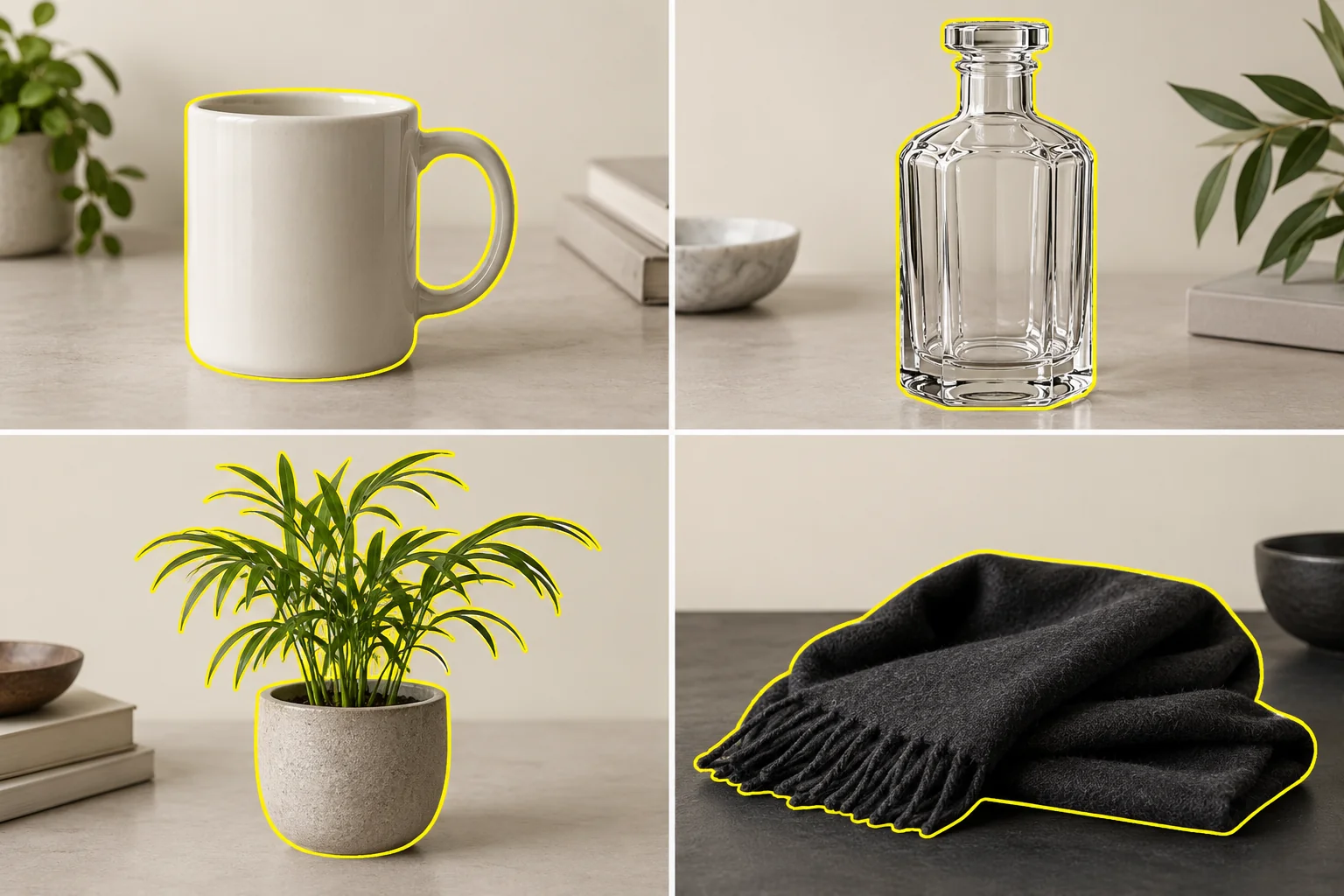
Look at the regions where this kind of product is recognised, not every pixel equally: the inside of a mug handle, the rim and foot, laces and soles, bristles, the dropper tip. Compare source, alpha and composite at the same scale and crop. When you reject a file, name the lost feature and the destination ("handle opening filled on dark composite"), so the next person knows whether to crop, retouch or reshoot.
Three situations need a decision rather than a retry:
- Holes inside the silhouette. A handle opening or the gap between chair rails belongs to the background. An outline-only check can look right while the hole is filled. Check it on the dark composite.
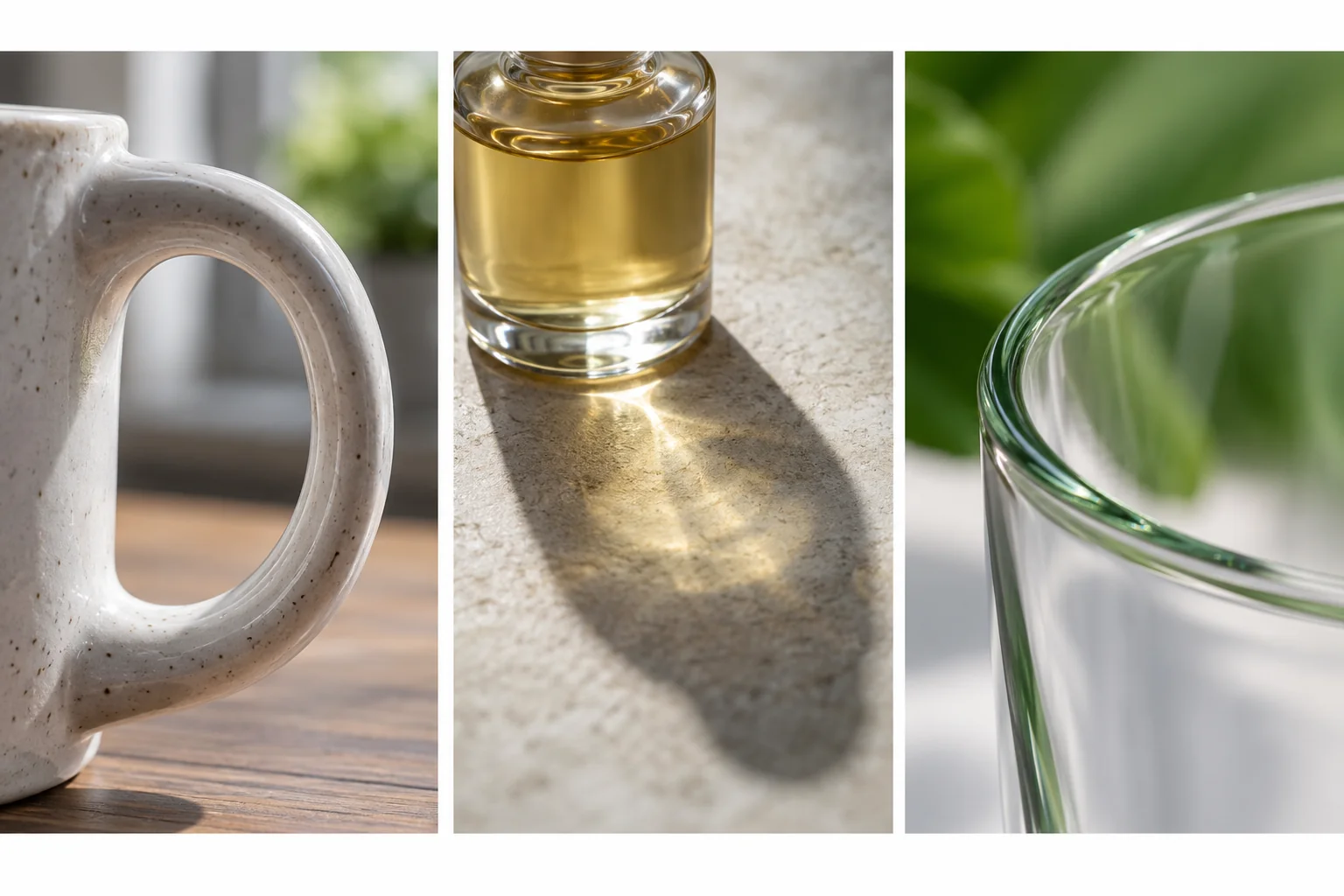
- Shadows. A contact shadow grounds a product; a long cast shadow drags background texture into the cutout. Decide whether the master keeps one, and whether the layout will draw its own. If you add your own, soften or remove the shadow already in the source so two do not conflict.
- Glass and translucent material. A bottle's colour includes transmitted background light, so no cutout can give a physically right bottle on every new backdrop; a pale studio reflection that looks natural on white can look wrong on dark. Keep partial alpha for translucent plastic and fabric rather than thresholding it to 0 or 255, and do not erode the whole mask to remove a halo: you thin the product and lose fine features. Retouch locally on a copy.
Fix the failure at the stage that caused it
Classify before you re-run. A repeated call costs money and, for most of these, changes nothing.
| What you see | Cause | Fix |
|---|---|---|
Task fails with invalid_request or a fetch error | The URL is not a direct image file | Fix the URL or upload the file; do not retry the same input |
| File will not decode, or no alpha | Transport or your own conversion | Re-download the result; check that nothing converted it to JPEG |
| Gift box or a second product kept | Several subject candidates | Crop to the product and submit as a new source revision |
| Handle tip or strap clipped | Crop was too tight before submission | Re-crop with margin around every extremity |
| Ragged hair, fringe or fine bristles | Hard edge for any automatic cutout | Reshoot on a plainer backdrop, or mask that one image by hand |
| Pale rim on dark backgrounds | Source colour in edge pixels, or later sharpening/resizing | Compare master to source to find the stage; fix the export step |
| Solid box around the product | JPEG export filled the transparent area | Flatten on purpose (next section); keep the PNG master |
There is no prompt to nudge the tool, so the levers are the input photograph and what you do after the call. If one category keeps failing, change how it is shot instead of repeating requests.
Flatten for destinations that need a solid background
Marketplaces often want a JPEG on white. JPEG has no alpha, so exporting the master to JPEG fills the transparent area with a default colour nobody approved. Flatten on a chosen colour, keep the PNG as the master, and resize uniformly (never stretch width and height independently). The light.jpg the script writes is exactly this step on cream; for white, change the colour in the loop, or export a separate flattened JPEG from your image editor. Check the flat file, not just the master: resampling, colour conversion and compression add their own defects. If a halo appears only after upload to your shop or CMS, compare the decoded pixels of the master, your export and the platform's thumbnail; the platform's resize or recompression is often the cause, not the cutout.
When a different route is the right tool
For a plain cutout, Background Remover is the lowest-priced route in this table and preserves the source canvas size. Use another route when you need something it deliberately does not offer.
| Need | Route | Price (live quote) | Notes |
|---|---|---|---|
| Plain product cutout, no new content | Background Remover | $0.0048 per image | One field; exact original size |
| Cutout plus a prompt-driven edit in one call | GPT Image 2.5 Sunburst or Flare, edit task with background: transparent, output_format: png | $0.0149 at low quality, $0.0208 at medium (1k, one input image) | Generative: the product can be redrawn, so verify it and the alpha. See the Flare vs Sunburst guide |
| GPT Image 2 (not 2.5) | Not available | background accepts only auto or opaque; a transparent request is rejected | |
| A person or product lifted out of a finished design, plus text and scene layers | Seedream 5.0 Flash layer decomposition | $0.026 per output image | One base plate plus up to sixteen transparent layers, billed per output; a default request quotes 17 outputs, $0.442, so it is a different job and cost from one plain cutout. See the layer-splitting guide |
If a generative model returns a PNG, that does not make it transparent: PNG can carry an opaque white background. Decode every result with the same script. Where exact product pixels matter (labels, logos, packaging text), prefer the extraction route over a generative redraw.
Run a batch without drowning the reviewers
The model call is cheap and fast; reviewing is the bottleneck. Start with a pilot of about a dozen rights-cleared photos that represent the catalogue: one clean solid object, one with a handle or opening, one glossy, one with a fine edge, one with a competing object. The pilot decides which categories go through light review and which always get a human.
- Submit with bounded concurrency and keep a separate download queue, so a slow download never triggers a repeat extraction. Retry a failed download against the existing result while its link is valid. The backpressure guide covers the queue design.
- Store your own asset ID, source checksum, task ID, output location and review decision per source revision. A SKU alone is not enough: one product has several angles and reshoots.
- Treat "succeeded" as "ready for inspection", never as "publish". Run the script automatically, then send only flagged and sampled files to a person. Categories that pass the pilot (solid objects on neutral backgrounds) can move to a lighter lane with periodic sampling to catch drift; reflective, transparent and ambiguous items stay on full review. Review campaign hero images before secondary angles instead of in completion order.
- For completion notifications, see the polling vs webhook guide; either way the result feeds the same inspection step.
- Pause when failures share a cause. Ten lost handle openings are information about the source set, not ten reasons to retry.
What it costs per accepted image
A hundred cutouts cost $0.48 and a thousand cost $4.80. The figure that matters is spend per accepted master. As a planning example, a batch of 100 first cutouts plus 10 re-cropped ones is 110 × $0.0048 = $0.528; if 95 pass review, that is about $0.0056 per accepted image.
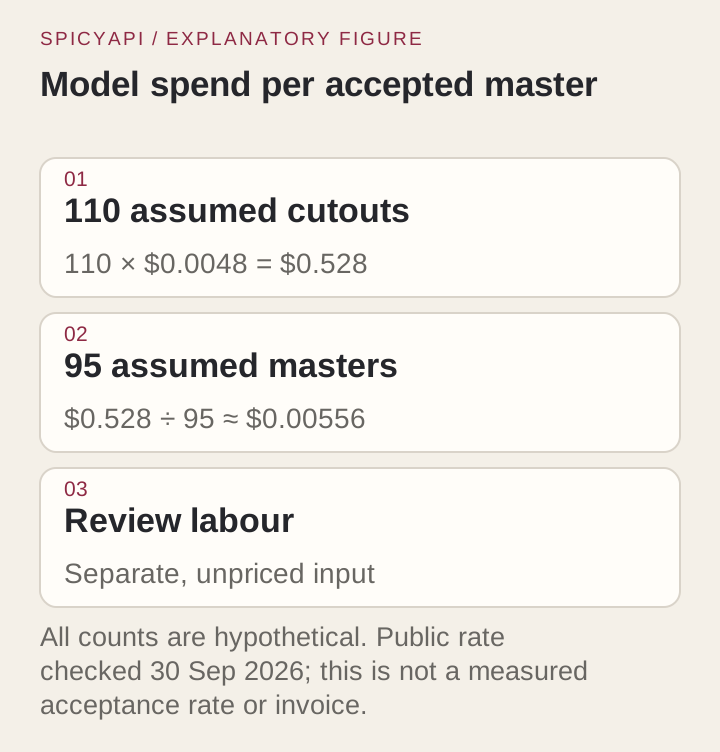
Review time usually costs more than the API. The useful levers are upstream: if most review time goes to glass bottles, a better lit setup for those saves more than any price difference. A completed cutout that you reject is still a completed, charged output; failed and expired tasks release their hold.
Keep source, master and exports apart
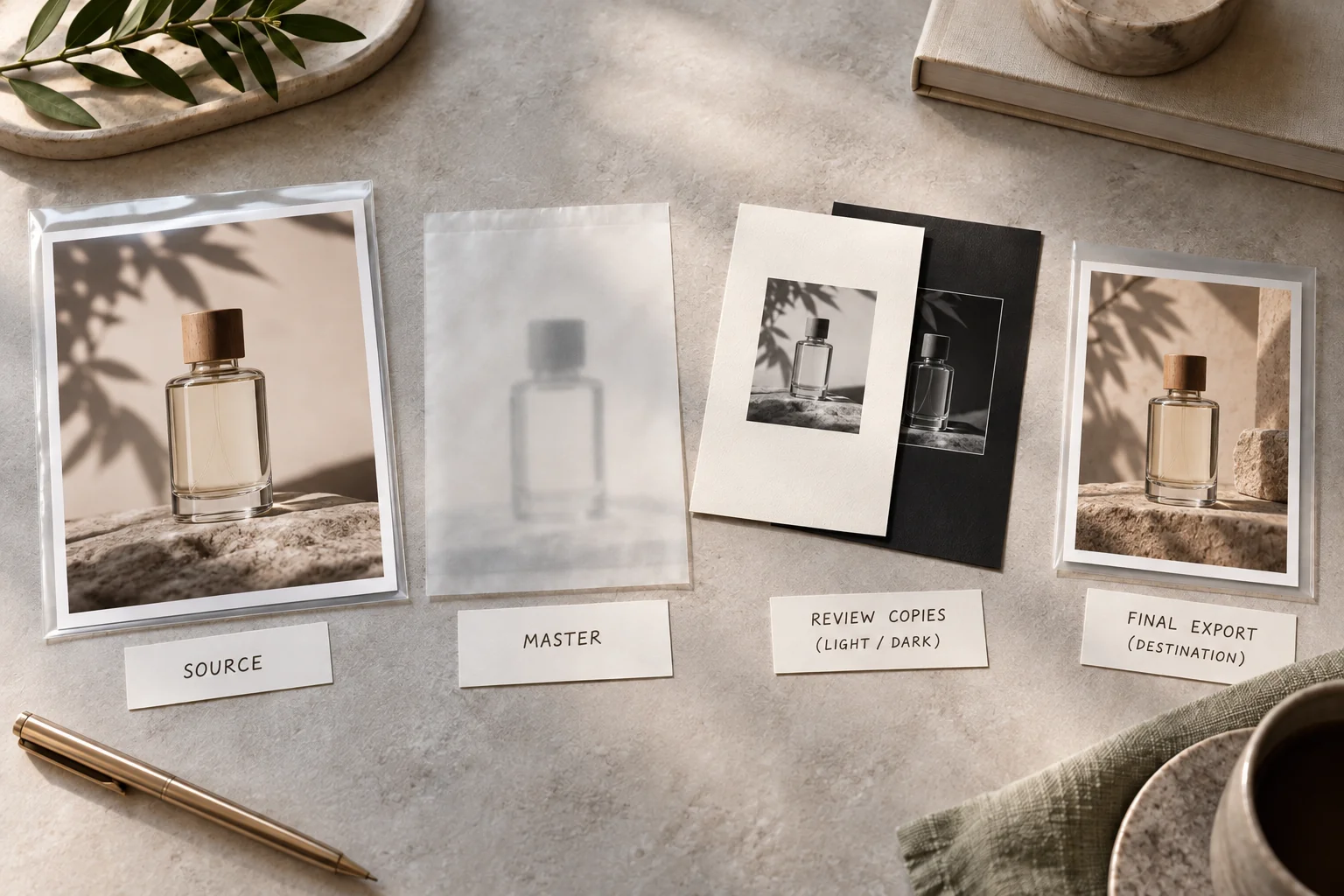
Keep the source photo, the transparent PNG master and each flattened delivery copy as separate files, named for what they are (for example <asset>-source, <asset>-cutout-master, <asset>-catalogue-cream), and keep retouched versions apart from the untouched API output so a later halo can be traced to the cutout or the export. Store the approved destination size with each master, so a card-size approval is not mistaken for a hero-size one.
Log each rejection under one category: wrong subject, lost feature, fringe, leftover background fragment or export defect. A count only matters when it changes something: a crop rule, a manual lane for glass, a corrected export preset. Give the photographer concrete capture rules ("keep the whole handle visible; no gift box behind the opening", "darker backdrop for pale products") rather than "make it easier for AI".
Questions
Is there a free background removal API?
Not for this endpoint: each completed output costs $0.0048, so a 100-photo pilot costs $0.48. If free is the requirement, self-hosting an open-source remover such as rembg avoids per-image fees, but you then run and tune it yourself; the hosted route buys a stable endpoint and predictable cost.
Does saving the result as PNG make the background transparent?
No. PNG can carry alpha, but it can also contain an opaque white background. Decode the file and read the alpha channel, then review light and dark composites. Renaming a JPEG to .png adds nothing.
Can I tell it to keep the handle, the hair or the shadow?
Not on this task: its input is the image URL only. Crop the source, reshoot, or retouch locally. If you want a prompt-driven result, use an image-edit route from the table above and verify the product and the alpha afterwards.
How should I start?
Pick one representative product and one destination. Send the photo, decode the PNG, review the edges over two backgrounds, flatten the approved derivative, and have the designer open it in the real layout. Then run the harder members of your pilot set and write down which ones need a reshoot or a manual lane before scheduling the whole catalogue.
Let an Agent handle the call
Use an Agent when you want it to prepare the inputs and return the result while you approve the price and creative choices.
- CLI: with the same input object saved as
input.json, usenpx @spicyapi/cli tasks create --model spicyapi/background-remover-v1/edit --input-file input.json --wait. The CLI confirms the price; keep the returned task ID for recovery. - MCP: ask your assistant to use
spicyapi_task_createforspicyapi/background-remover-v1/edit, thenspicyapi_task_wait. The MCP server requests price confirmation before creation. - Skill: install with
npx skills add spicyapi-ai/spicy-skill, then ask$spicyapito run the same workflow and stop for your approval. The Skill uses a configured CLI or MCP connection.