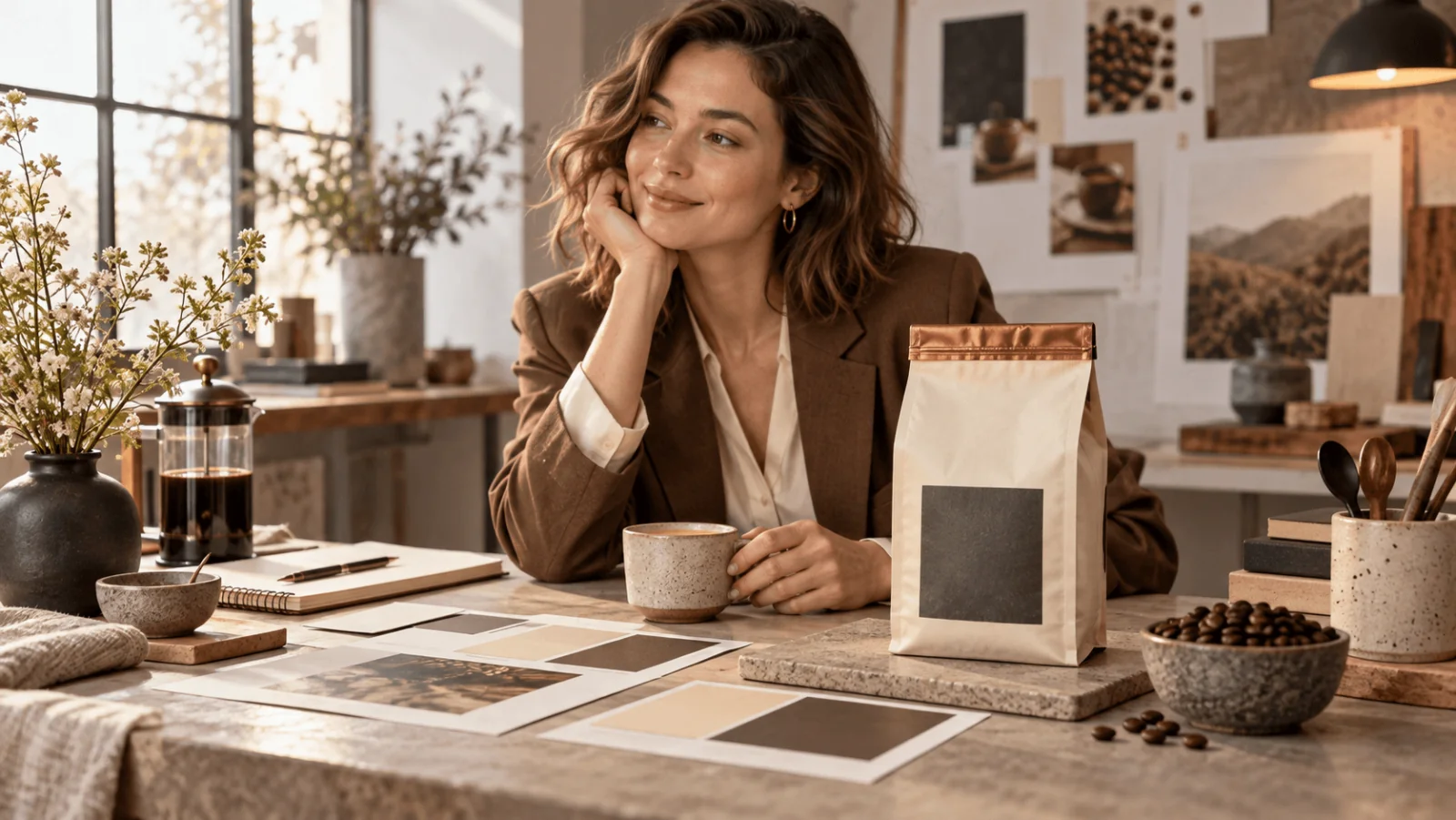
To get three ad sizes from one product photo, keep the real product as a cut-out and generate only the scenery around it. Make a separate background for each size, place the original bag on top and type the headline in your editor. A model that redraws the bag can bend a letter of the label; a composite keeps the photographed pixels. Based on our October 2026 checks of the live catalogue and quotes, generation for the whole set costs about $0.21.
The example is a cream coffee bag with a charcoal label, copper folded top and the wording “RIVER NOTES / WHOLE BEAN / 250 g”, delivered as 1:1 (1080 × 1080), 4:5 (1440 × 1800) and 9:16 (1080 × 1920).
Pick the route by what must stay exact
| What must stay exact | Route | Cost for all three sizes |
|---|---|---|
| Label, shape and every printed word | Generate backgrounds with GPT Image 2 and composite the original bag | $0.2021, plus $0.0048 for the cut-out |
| Same, and light and shadow should follow the bag | Place the bag on a canvas, let GPT Image 2 Edit paint around it through a mask, then lay the original back on top | $0.2316, plus $0.0048 for the cut-out (one source image each) |
| The bag may be relit or redrawn | Nano Banana Pro Edit with the photo as input | $0.2004 ($0.0668 per image; at most $0.3242 if it falls back to the official route) |
All figures are 2K, medium quality, one output per size, no retries. Use 2K for the simplest path: a 1K square renders at 1024 px, below the 1080 canvas. 1K costs about half ($0.101 for the set), but every file then needs the 2K upscale ($0.012 each) and that extra step is where softness appears. Nano Banana Pro charges the same at 1K and 2K.
If you only need the new shape and can accept redrawn edges, the outpainting guide covers a one-call route at $0.024 per image; its output tops out at 1536 px on the long edge, so the 4:5 and 9:16 sizes would need upscaling.
Set the three canvases
| Canvas | Bag | Copy area | Why |
|---|---|---|---|
| 1080 × 1080 | Centred at x=760, base at y=940, about 640 px high | Left column x=80–480, headline near y=250 | Meta’s recommended minimum for 1:1 is 1080 × 1080 |
| 1440 × 1800 | Centred at x=720, base at y=1600, about 930 px high | Top band y=140–500 | Meta’s minimum for 4:5 in Facebook Feed is 1440 × 1800 (Instagram Feed lists 1080 wide); 1080 × 1350 is below it |
| 1080 × 1920 | Centred at x=540, base at y=1230, about 680 px high | Headline y=300–470 | Keeps bag and text between y≈270 and y≈1250 |
For 1:1 and 4:5 Instagram Feed ads Meta asks you to keep the bottom and side edges free of key elements; about 100 px is a safe margin. For 9:16, Meta asks you to keep the top, bottom and sides free, and its Safe Zone overlay in Ads Manager draws the exact box. Guides that measure it put the margins at roughly 14% at the top, 35% at the bottom and 6% at the sides, about 270, 670 and 65 px on 1080 × 1920. That is why the story-size bag stands higher than you would first place it. Other platforms use other overlays, so check each destination’s preview before export.
The square separates copy from product left and right, the portrait stacks copy over the product, and the vertical keeps everything inside the middle band. Scale the bag uniformly; stretching it to fill a canvas changes the package proportions. Keep the photo’s viewing angle in all three: a front shot cannot show the back panel or side seam, and a generated side would be a mock-up, not your package.
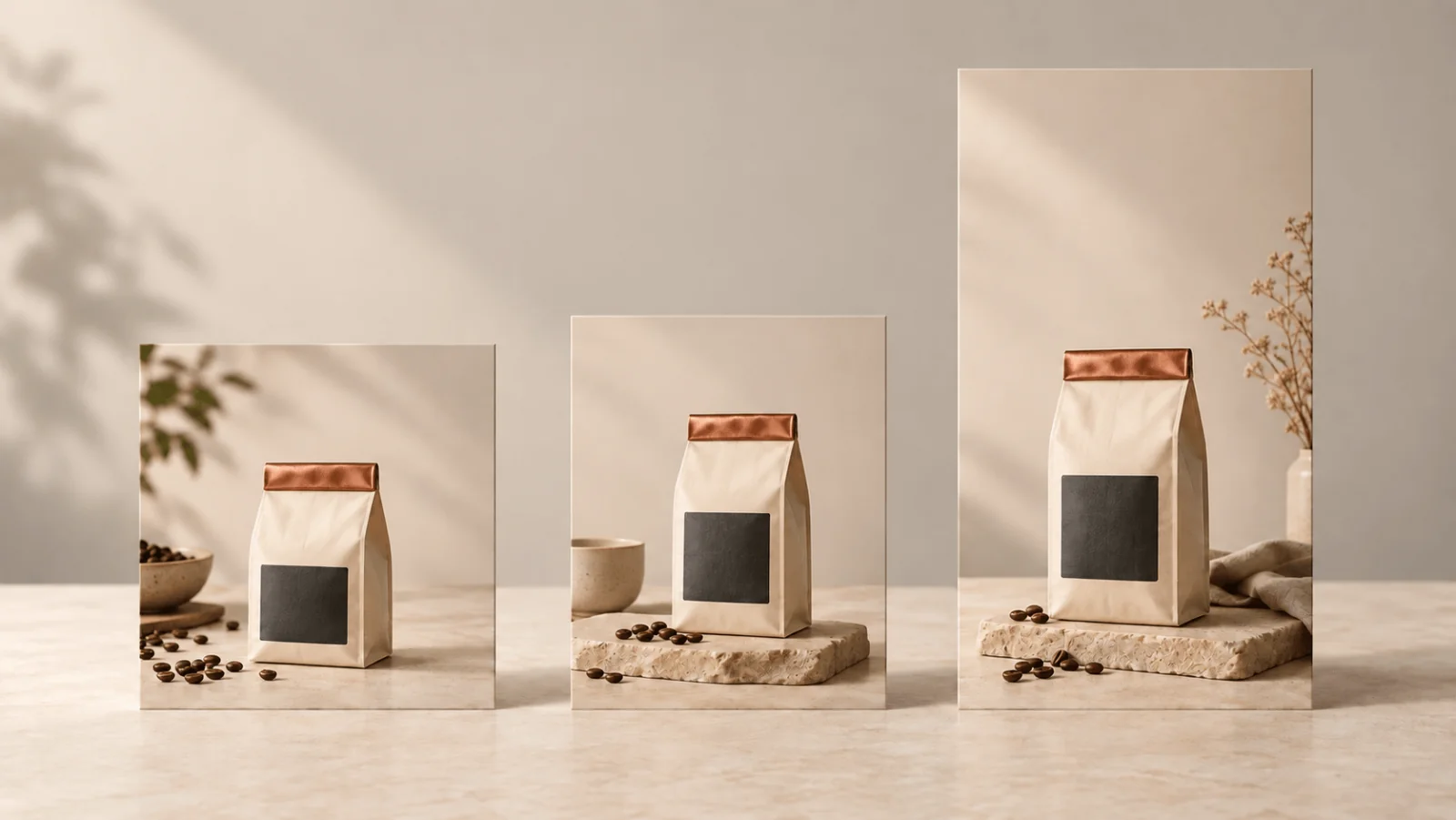
AI-generated illustration of the three proportions with a coffee bag placed in each; the real layouts follow the coordinate table above.
Try it in the Playground
Follow these steps in the Playground; the code and the Agent route follow further down.
- Open Background Remover, stay on the Playground tab in Form view (sign in with a funded account to run), add the bag photo under Input image and run it. Save the transparent PNG.
- Open GPT Image 2 text to image with the 1:1 prompt filled in. Set Aspect ratio
1:1, Resolution2k, Qualitymedium(lowwhile you tune) and Output formatpng, check the price estimate and run it. - Repeat with
4:5and9:16, swapping in the placement sentences from the prompts below, then composite the original bag in your editor.
Cut the bag out once
Send the best photo, with the whole bag visible and the label readable, to Background Remover: one image URL in, a transparent PNG at the original size out, $0.0048. The background removal guide covers edge checks. Look at the edge at 200% on a dark and a light fill, and keep the copper fold and the small shadows in the creases rather than flattening the bag into a rectangle.
Keep the original file apart from the cut-out. If the source has a hard contact shadow, soften or remove it before placing the bag on a new surface; otherwise the composite shows two conflicting shadows. If the photo is too small for the planned bag size, make the bag smaller in the layout or get a larger photo. A sharper generated label is not the printed label.
Generate the backgrounds
Open GPT Image 2 text to image with the settings from the Playground steps above and choose the aspect ratio per size. Write the light direction of your photo into each prompt; the example bag is lit from the upper left, as in the prompts below. Use 1:1 with:
Photographic still-life advertising background, empty warm stone tabletop in the lower third, softly lit charcoal wall, gentle window light from upper left, subtle warm copper accents far in the background. Leave the right half of the tabletop clear for a coffee bag to be composited later. Leave the left half of the wall quiet and low-detail for editable copy. No product, no lettering, no logo, no cup in the reserved product area.
For 4:5, replace the placement sentences with:
Leave the lower centre clear for a coffee bag to be composited later; keep the upper third as a simple charcoal wall for editable copy.
For 9:16, use:
Vertical photographic background with a broad clear tabletop below the centre. Reserve the central lower-middle area for a coffee bag, with quiet charcoal wall above and uncluttered space below. No lettering, no product, no foreground props.
Leave the bag out so no synthetic package competes with the original. Coffee beans can be added later as a separate element, away from the label and the bag’s contact edge. To save money while you tune the prompt, run it at Quality low first (about $0.024 for all three at 2K) and switch to medium once the empty zones land where the layout needs them. Check the delivered pixel size against the canvas; if it is short, enlarge it with the 2K tier of Image Upscaler ($0.012, see the upscaling guide) instead of stretching it in the editor.
Composite the bag and set the type
Place the cut-out at the coordinates above. Add a soft contact shadow directly under the base (a blurred dark ellipse set to multiply at roughly 30–40%) and a fainter, broader shadow falling away from the light. If the bag is lit from the right and the background from the left, regenerate the background with right-side light instead of painting contradicting highlights over the printed package. A pale outline around the bag is an edge problem on the cut-out: shrink its selection by a pixel or two rather than regenerating anything.
Type the headline and call to action in the editor. Keep product facts such as “250 g” as supplied and add no unsupported claims.
The same step in Pillow, for a 1080 × 1080 canvas (the bag is placed by its base, as in the table):
from PIL import Image, ImageFilter

bg = Image.open("bg-1x1.png").convert("RGBA").resize((1080, 1080))
bag = Image.open("bag-cutout.png").convert("RGBA")
h = 640
bag = bag.resize((round(bag.width * h / bag.height), h), Image.LANCZOS)
x, base_y = 760 - bag.width // 2, 940

shadow = Image.new("L", bg.size, 0)
shadow.paste(90, (x + 20, base_y - 12, x + bag.width - 20, base_y + 12))
shadow = shadow.filter(ImageFilter.GaussianBlur(14))
dark = Image.new("RGBA", bg.size, (20, 12, 8, 255))
bg = Image.composite(dark, bg, shadow)

bg.alpha_composite(bag, (x, base_y - h))
bg.convert("RGB").save("ad-1x1.png")
Save a layered master with separate background, product, shadow and text layers and export each size from it. A new price or headline then costs no new generation and cannot change the label.
Let the model paint around the bag
If the composite looks pasted, let GPT Image 2 Edit paint the surroundings. The mask's transparent regions guide where to edit, but do not guarantee unchanged pixels outside them; the original-product overlay in step 4 keeps the photographed label intact.
- Put the cut-out on a flat neutral canvas with the same ratio as the output and export it as the source image. At 2K the model returns 2048 px on the long side of a square, so build it at that size (for 1:1, 2048 × 2048 with the bag scaled by the same factor as in the canvas table), or downscale the result to the canvas size before the final overlay.
- Export the product layer alone, bag opaque and everything else transparent, at the same pixel size as the source.
- Open GPT Image 2 Edit in the Playground. Add the canvas under Images, open Advanced parameters and add the product layer under Mask (transparent pixels are repainted, opaque pixels kept). Set Aspect ratio to match the canvas, Resolution to
2kand Input Fidelity tohigh, then use a prompt such as: “Paint a warm stone tabletop and charcoal wall around the existing coffee bag. Keep the bag unchanged. Soft window light from the left with a natural contact shadow under the bag. Leave the upper third as quiet wall for copy.” - Lay the original cut-out over the result, on the same pixels the model painted around, before adding text, so the label is the photographed one whatever happened at the edge.
The model sees the bag while it paints, so light and shadow can follow it. The source image adds $0.0098 per request: $0.0959 for 1:1, $0.0778 for 4:5 and $0.0579 for 9:16 at 2K medium.
When the bag itself may change
Choose Nano Banana Pro Edit when you want the bag relit in a new scene and can review changes to its folds, label and silhouette. Add the product photo under Images, set Resolution to 2k, pick the Aspect ratio and use:
Place the coffee bag from the supplied photograph on a warm stone tabletop against a charcoal wall. Preserve its cream package, copper folded top, charcoal label and overall proportions. Soft window light from the left. Leave clear space above for copy. Do not add claims, extra logos or extra products.
If you attach the approved label artwork as a second image, say which image is the bag and which is the label. Asking for preservation does not guarantee it. If “250 g” becomes another quantity, replace the label with the approved artwork in the final composite or go back to the background-only route.
Call it from code
The same background call for the 9:16 size (install with pip install spicyapi and set SPICY_API_KEY); the Pillow step above then places the bag. About $0.048 per image.
import uuid

from spicyapi import SpicyClient, output_assets

client = SpicyClient()  # reads SPICY_API_KEY from the environment

task = client.create_task(
    model="openai/gpt-image-2/text-to-image",
    input_data={
        "prompt": "Vertical photographic background with a broad clear tabletop below the centre. Reserve the central lower-middle area for a coffee bag, with quiet charcoal wall above and uncluttered space below. No lettering, no product, no foreground props.",
        "aspect_ratio": "9:16",
        "resolution": "2k",
        "quality": "medium",
        "output_format": "png",
    },
    idempotency_key=str(uuid.uuid4()),  # new key per new request; reuse only to retry the same one
)

print("Resume task:", task["taskId"], flush=True)
final = client.wait_for_terminal(task["taskId"])
if final["state"] != "succeeded":
    raise RuntimeError(f"Task {task['taskId']} ended as {final['state']}")
assets = output_assets(final)
if not assets or any(a.get("pending") or a.get("unavailable") or not a.get("url") for a in assets):
    raise RuntimeError(f"Task {task['taskId']} has no ready output; check this task before a new run")
print(assets[0]["url"])
The Python SDK reference covers the rest.
Or let an Agent run it
Save the input fields as input.json, then run npx @spicyapi/cli tasks create --model openai/gpt-image-2/text-to-image --input-file input.json --wait (CLI). With the MCP server, your assistant calls spicyapi_task_create, which shows the price for you to confirm, then spicyapi_task_wait. Or install the Agent Skill with npx skills add spicyapi-ai/spicy-skill.
Fix the usual problems
| Problem | Correction |
|---|---|
| Label looks soft at final size | Make the bag smaller or use a higher-resolution photo; keep the original label pixels. |
| Bag seems to float | Move the contact shadow to the actual base and close any gap. |
| Product and background light disagree | Put the photo’s light direction in the background prompt, or use the masked edit. |
| Copy overlaps the copper fold | Move the copy into the reserved area; do not squeeze the bag. |
| Vertical version loses the base or sits in the UI band | Rebuild it from the layers at the 9:16 coordinates; do not crop the square. |
| Generated scene changes package text | Return to the background-only composite or restore the label from approved artwork. |
Before delivery, compare the label of each exported file at full zoom with the source photo.
For most jobs, generate backgrounds only and composite the original bag. Switch to the masked edit when the composite looks pasted.