You already have the adult character image you wanted. The expression feels right, the small tattoo belongs in exactly that spot, and the outfit has a distinctive pattern. Then an upscaler makes a beautiful larger picture—with different eyes, a simplified tattoo and fabric that looks embroidered instead of woven. It is sharper, but it is no longer the same finished image.
For an NSFW AI image upscaler, start with enlargement that does not redraw the scene, keep face restoration off initially, and add generative restoration only where the source genuinely needs it. Treat a changed face or identifying mark as a failed result, even when the output looks more polished. A larger file cannot recover an exact detail that never existed in the source.
My first route for an approved character is a conventional resize as a reference, followed by a local Real-ESRGAN-style pass if it needs more edge definition. Use a diffusion workflow when you accept some newly synthesized texture. Use a hosted upscaler when its controls, content handling and upload terms suit the actual material; a tool being called an upscaler does not establish its NSFW acceptance.
| What you need | First route | What to avoid initially |
|---|---|---|
| The same image at a larger delivery size | Ordinary resize, then modest sharpening if necessary | Face recovery and creative redraw |
| A slightly soft portrait with a good face | Restoration upscaler, face enhancement off | Making every surface equally crisp |
| A compressed image with visible block damage | A restoration model suited to that damage | Sharpening the blocks into harder outlines |
| New believable texture in a soft fictional scene | Controlled diffusion restoration | Treating invented texture as recovered detail |
| Exact small lettering or a signature tattoo | Original artwork or a separate finishing layer | Asking an upscaler to guess the missing design |
This is a practical finishing guide, not a new matched benchmark of these tools. The worked portrait and settings below are proposed workflows. Illustrations explain inspection and processing choices; they are not before-and-after model results.
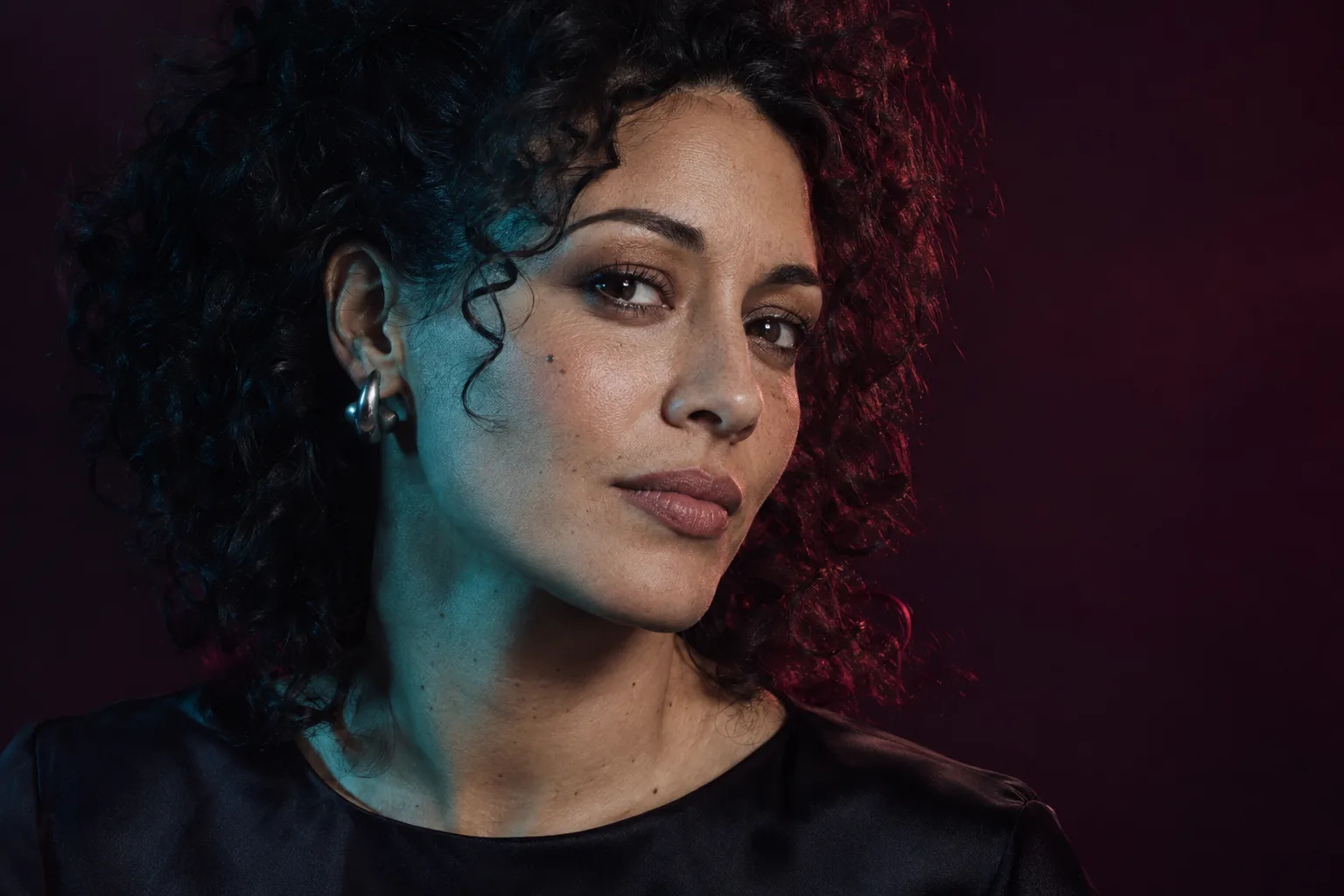
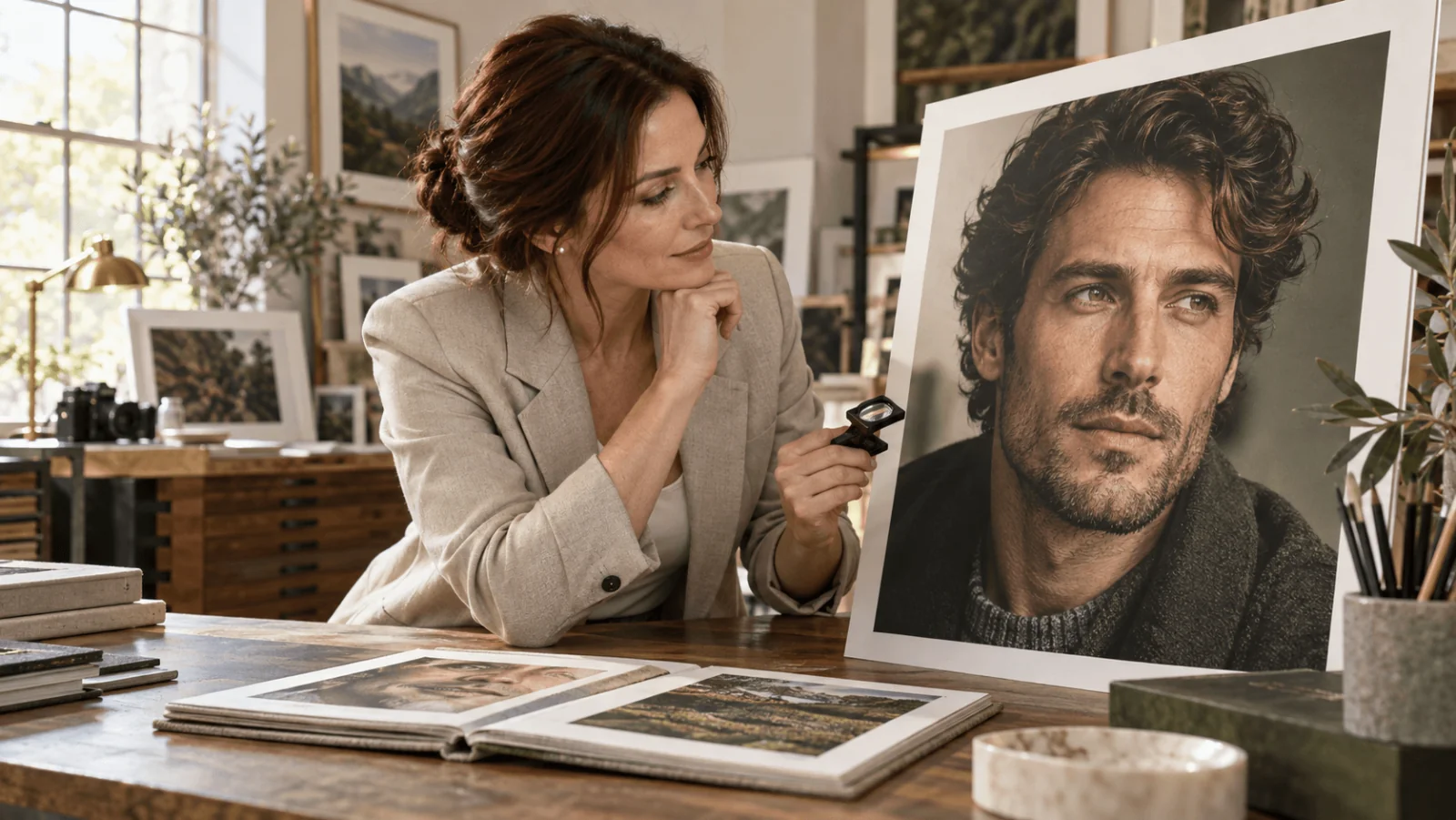
Illustration: inspect the eye corners, brow shape, cheek mark and hairline before approving a sharper face.
Decide what “more detail” is allowed to mean
Two creators can dislike the same upscale for opposite reasons. One wants pores and fabric texture added to a smooth render. The other has already approved the character and wants a bigger version of those exact features. Choose which job you are doing before choosing the model.
For an established adult character collection, separate structural details from surface texture. Eye shape, the curve of the mouth, the placement of a mark and the outline of the hairstyle help identify the person. Faint weave, restrained skin texture and background grain may have more room to change. A tool that improves the second group while altering the first has exceeded the brief.
Write a short preserve list tied to the visible image: slightly uneven eyebrows, closed-mouth expression, a curl crossing the left temple, a three-point tattoo beside the wrist, and a scalloped sleeve edge. Do not replace that list with “same person, perfect fidelity.” Concrete features help you recognize what changed. They do not force an algorithm to preserve them.
There is also a difference between preserving a character and preserving every pixel. Any enlargement resamples pixels. Restoration changes some values while estimating a cleaner image. If exact artwork matters—a logo, a numbered tag or the character's tattoo design—retain the original asset independently. You can enlarge the portrait while placing approved artwork at the final size, rather than entrusting the design to a neural reconstruction.
A Stable Diffusion community discussion about face restoration makes the distinction unusually clear. The poster wanted their character's features retained; a suggested alternative came from someone who mainly wanted a good-looking face and had not examined identity changes closely. Those are different requirements. The comments identify a real problem, but they do not establish a winning tool.
For your own project, decide which compromises are acceptable. A slightly soft but recognizable portrait may be right for a small member profile. A large collector print may need a better source. Neither job benefits from silently approving a more attractive substitute for the person viewers already recognize.
Resize, restoration and diffusion are three different operations
Ordinary resize gives you a useful reference
Bicubic and Lanczos resizing estimate new pixel values from existing ones. They do not interpret the face through a character description. That makes a conventional resize useful as the reference against which you judge an AI pass. It may look softer, but it shows how the source looks at the requested dimensions without a semantic redraw.
For example, enlarge a 1024 × 1536 portrait to 2048 × 3072 in a photo editor, preserving its aspect ratio. Save this reference separately. If an AI output has sharper eyelashes, compare their shape with this file. If the smile changes, the benefit is not simply better interpolation.
Ordinary resizing can still create ringing, soften narrow lines or alter the appearance of fine patterns. It is not a promise that every export looks identical. The useful distinction is that it provides a simple, reproducible reference before you introduce more ambitious reconstruction.
Restoration models estimate a cleaner, larger image
ESRGAN, Real-ESRGAN and SwinIR are not interchangeable labels for a single filter. They describe different research methods and checkpoints. A restoration model can infer plausible edges or texture even without a text prompt; repeatable output does not mean it recovered factual information.
The original ESRGAN project focuses on perceptual super-resolution. Real-ESRGAN extends the practical restoration problem to degraded real-world inputs. For your portrait, the important consequence is to choose a checkpoint suited to the image's damage and style, rather than assume every model with “4x” in its name performs the same job.
SwinIR's official repository provides distinct tasks for super-resolution, denoising and JPEG artifact reduction. Those are separate model choices, not three effects automatically enabled by one button. If a wrapper offers SwinIR, identify which task and weights it actually loads. A clean generated PNG does not necessarily need the same treatment as a heavily compressed gallery download.
Diffusion restoration can redesign ambiguous detail
Diffusion approaches can produce convincing high-resolution texture from a soft source, but they give a generative model more opportunity to interpret the image. The result may gain a new weave, a different eyelid crease or a stronger hair pattern. That can be useful for an unfinished fictional concept and unsuitable for an approved character.
Tiled diffusion is a way to process a large image in smaller regions. It is not an identity-preservation feature. The tiles still undergo generation, and neighboring regions can disagree about detail. Making the tiles fit in memory solves one problem while potentially introducing another.
Do not ask which family is universally best. Ask whether the original already contains the detail you need, whether you can accept synthesized texture, and which parts must remain unchanged. That answer determines whether you need a mild enlargement or a creative reconstruction.
Prepare the finished source before adding pixels
Begin with the original downloaded file, not the image shown inside a chat window, a screenshot or a social preview. Compare dimensions and file history. A platform preview may have been resized and compressed even when the full-resolution original remains available. Upscaling that preview spends effort on damage you could have avoided.
Open the source at 100% and look at three places: the face, a fine outfit detail, and a quiet background. If all three are soft, the whole source is limited. If the background is clean but the eyes are smeared, the problem is local. If only high-contrast boundaries have little squares or bright specks, compression or previous sharpening may be involved.
Fix structural mistakes before enlargement. A fused finger, a broken sleeve seam or an incorrect tattoo is part of the source content. Upscaling can make that error more legible. Use a localized edit or conventional retouch for the defect, approve the corrected source, then enlarge it.
Likewise, do not use an upscaler to correct a face you have not approved. If you dislike the expression, finish that decision first. Changing the smile, adding texture and doubling the resolution in one generative pass makes it harder to tell which operation produced the unwanted person.
Keep a lossless working copy when further edits are likely. Converting an existing JPEG to PNG stops another lossy JPEG save at that step; it does not undo previous compression. If you have both the original PNG and an exported JPEG, the PNG is usually the more useful starting file because it avoids that extra degradation.
Crop with the final use in mind, but leave enough context for any generative repair. An eye-only crop may leave a restoration model without the surrounding face. Conversely, processing a large empty room when only the portrait needs enlargement wastes resources. Finish the intended composition, and use a crop with neighboring features when making a separate local correction.
If your image includes transparency, test how the chosen tool handles the alpha channel before committing a batch. A dark fringe may be an edge-compositing problem rather than missing detail. Flattening onto the final background can be sensible for a finished photograph, but keep the transparent original if you still need flexible placement.
A straightforward local route with Real-ESRGAN
For someone who wants a desktop interface, the official Upscayl project is a practical entry point to model-based enlargement. Get the desktop application from its linked release or official download page, load one source, select a photographic or illustration model appropriate to the image, choose an output folder and save a separate result. The desktop project requires compatible GPU support; do not assume a website with a similar name is the same local application.
For someone comfortable with the original Python project, Real-ESRGAN's instructions document model selection, tiling, output size and optional face enhancement. A useful first pass after following its installation and weight-download instructions is:
python inference_realesrgan.py -n RealESRGAN_x4plus -i approved-character.png -o results --outscale 2 --ext pngThis command is guidance, not a run performed for this article. Omitting --face_enhance keeps the optional GFPGAN face stage off. The x4 model with --outscale 2 performs its model pass and then resizes to the requested output scale; it is not the same as selecting a native x2 model. The repository also provides an x2 checkpoint. Use the actual project's available model names rather than guessing from a wrapper's marketing labels.
Start with one image whose face and clothing you know well. Compare the output against the ordinary resize at equal dimensions. If the collar is clearer but the face still matches, that is useful. If the skin becomes waxy or hair turns into hard parallel ridges, return to the original and change the model or processing route; do not automatically feed the altered output through another pass.
Real-ESRGAN's general realesr-general-x4v3 checkpoint has a documented denoising-strength option. That option is checkpoint-specific. Do not assume every Real-ESRGAN model or graphical wrapper exposes it, or that its strength has the same meaning as diffusion denoise.
When memory is the problem, reduce the processing tile size in a tool that supports it. That changes how much image is processed at once, not how many final pixels you requested. The portable NCNN implementation also has different options from Python and can introduce block inconsistencies. Keep those differences in mind when comparing a desktop output with someone's Python result.
For an already clean adult character render, the conservative route is one model pass without face recovery, then ordinary resizing to the precise delivery dimensions. Repeated enhancement is a new transformation each time. Two passes are not automatically twice the useful detail.
Face restoration: leave it off until you can name the defect
“Enhance face” sounds like an easy quality upgrade. In practice it asks a specialized model to estimate what a better face should look like. That can help a badly degraded source while replacing the asymmetry, expression or marks that make your character recognizable.
GFPGAN's official project describes a face-restoration method using a pretrained generative facial prior. Its own model comparison notes identity change as a weakness for one version. That is enough reason not to apply it automatically to a face you already like; it is not evidence that every GFPGAN output changes the person.
CodeFormer's official instructions expose a fidelity weight from zero to one: larger values favor fidelity, while smaller values favor the model's visual-quality objective. The documentation also notes that whole-image face/background fusion can damage hair texture at boundaries. A wrapper's slider may rename or reverse how it presents a control, so follow that wrapper's description before transferring a number.
Suppose the source face has a small damaged patch around one eye but otherwise matches the character. Try a separate restoration candidate, compare the eye shape and lid position, and use a mask in your photo editor if only that patch is beneficial. Do not replace the entire face because one restored eyelash looks better. Keep the original mouth, nose and other eye unless you have a specific reason to change them.
If a fidelity control is available, start toward its fidelity end and move only enough to address the named defect. If the stronger restoration makes the person younger, more symmetrical or more heavily made up, reject it for this task. “Higher quality” is a model objective, not your permission to redesign the character.
To compare fairly, resize the original and restoration to the same dimensions and align their position. Alternate visibility rather than judging two differently zoomed windows. Look at the eye corners, spacing between brows, lip outline, cheek silhouette and the direction of the gaze. A sharper eye can conceal a slightly changed gaze when viewed alone.
For a portrait series, compare the enlarged frame against another approved frame as well. The output might resemble its own source but drift away from the established collection. That is particularly important when customers recognize the character by a recurring expression or facial mark. A single attractive image is not sufficient evidence of continuity across a set.
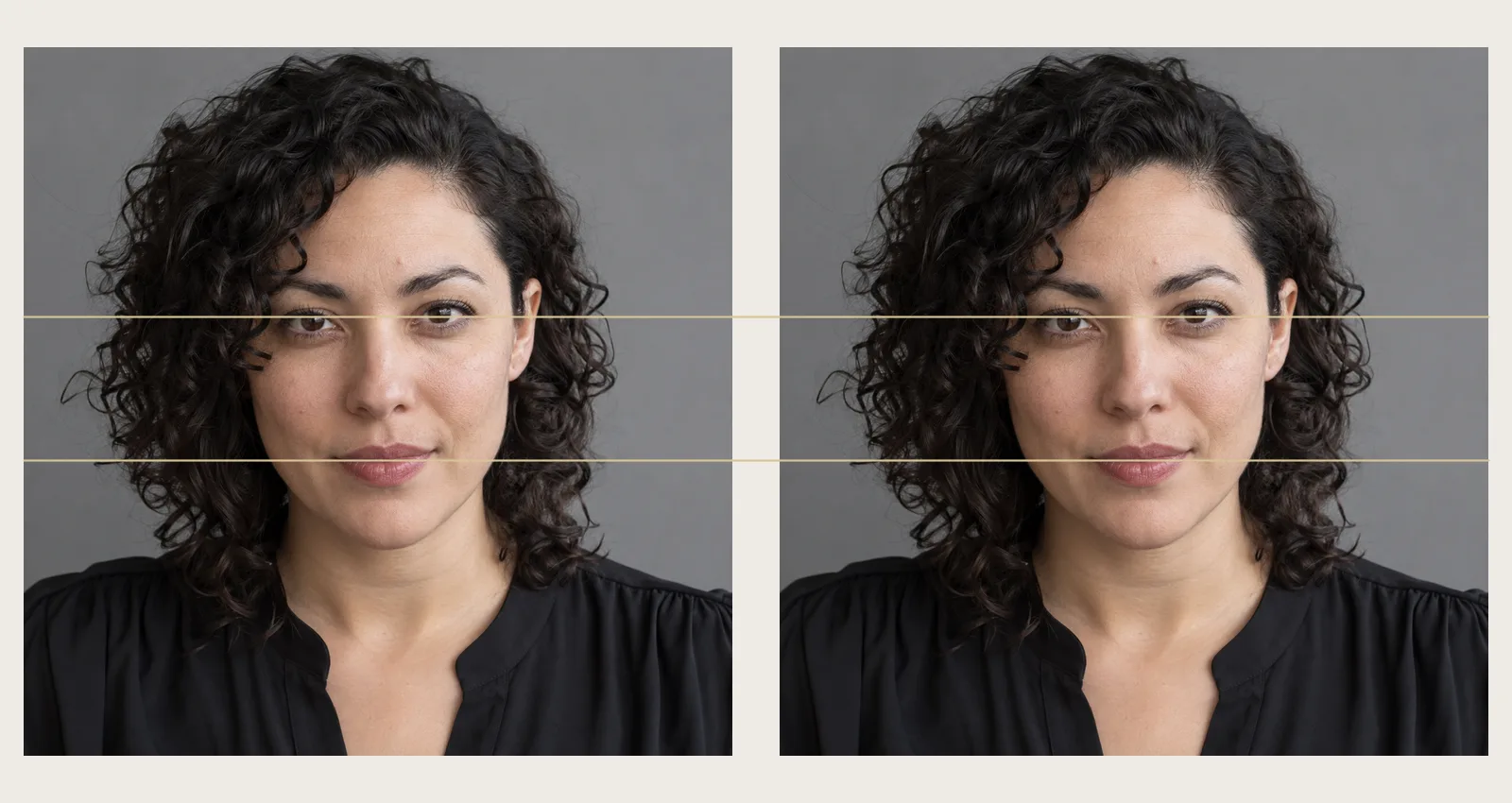
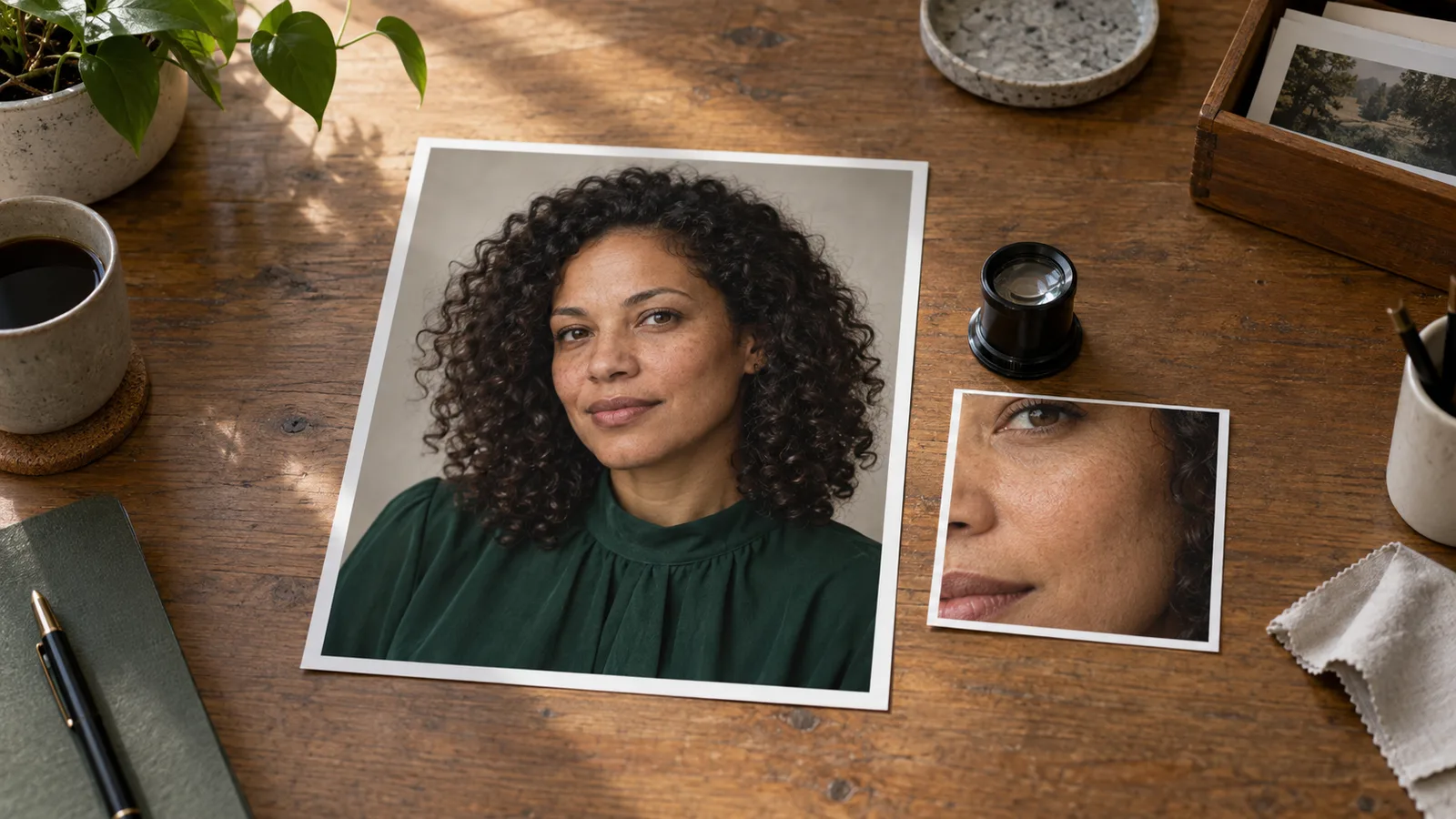
Align matching crops at the same size before comparing features. These are two copies of one illustrative source, not an upscaling comparison.
Keep lace, mesh, tattoos and hair from becoming invented patterns
Fine fabric needs continuity, not maximum sharpness
A lace cuff or mesh outfit contains repeated openings and thread intersections. When those are near the source's pixel limit, an upscaler may merge holes, duplicate a motif or turn the texture into a different pattern. Sharper edges do not establish that the weave stayed correct.
Inspect a section crossing a fold as well as a flat section. The pattern should change with the fabric's perspective and continue across the fold. If it stays perfectly regular over a curved surface, the added texture may be reading as a flat overlay. If only one region becomes a dense embroidered patch, reduce or isolate that treatment instead of increasing detail everywhere.
Preserve the boundary between fabric and background. A bright fringe around dark lace is often more distracting than slightly soft threads. Compare the boundary before sharpening, and avoid applying a large-radius sharpening effect over the entire cuff. If the source already has a halo, a stronger pass can magnify it.
For an adult character image, this may also change the intended outfit. A mesh section reconstructed as solid cloth, or an opaque panel reinterpreted as patterned openings, is a content change. The finishing pass should not decide a new wardrobe. Reject that variation and use a route with less reconstruction, or restore the approved fabric area from a conservatively resized layer.
A tattoo is artwork, not anonymous texture
A tiny symbol can become a convincing but different symbol when its original lines are too close together. Check the number of points, orientation and spacing, not just whether the mark is darker. For lettering, verify every character against the original design. The model cannot establish the intended text from an unreadable patch.
If the tattoo is a signature feature, retain its approved artwork and position reference. Place it at the final resolution using an ordinary layer with a suitable perspective adjustment and blend, rather than asking a creative upscaler to infer the design. The finishing must respect the source lighting and skin surface; a perfectly sharp floating decal is not an improvement.
For a series, keep the mark's location consistent relative to nearby landmarks. Enlarging one frame may shift a line a little; a different camera angle naturally changes its apparent shape. Compare position and design without requiring identical pixels across different poses. Keep the original artwork in the character's reference folder so that future images can be corrected against the same design.
Hair should remain grouped naturally
An attractive hairstyle contains large locks, smaller groups and occasional loose strands. An upscaler that turns every group into equally sharp wire-like lines can look detailed in a crop and artificial in the full portrait. Preserve the larger structure first: parting, curl direction, outline and the strand crossing the temple.
Look where hair meets the cheek and background. Newly bright edges may come from sharpening rather than newly useful strands. If restoration improves the clothing but roughens hair, mask that area back toward the ordinary resize. You do not need to accept the same processing strength on every material.
Do not try to preserve each vague strand in a tiny source. Choose the recognizable hairstyle and plausible texture as the goal. If the hairstyle is structurally wrong, repair it before upscaling. Texture reconstruction cannot reliably convert a different haircut into the approved one.
Skin should not receive the same treatment as fabric
Fine skin texture is usually less contrasty than a sharp cuff edge. Applying one strong sharpening treatment to both can produce hard pores and unnatural dots. In an adult-oriented portrait, that can make the character look overprocessed even when the eye and outfit are now clearer.
Use separate masks or local adjustments for different surfaces. Keep naturally smooth, out-of-focus areas smooth. If the source has a polished, waxy skin treatment, choose whether it needs a source correction instead of a bigger file. The skin-texture guide deals with that diagnosis; this finishing pass should not become another attempt to regenerate the person's complexion.
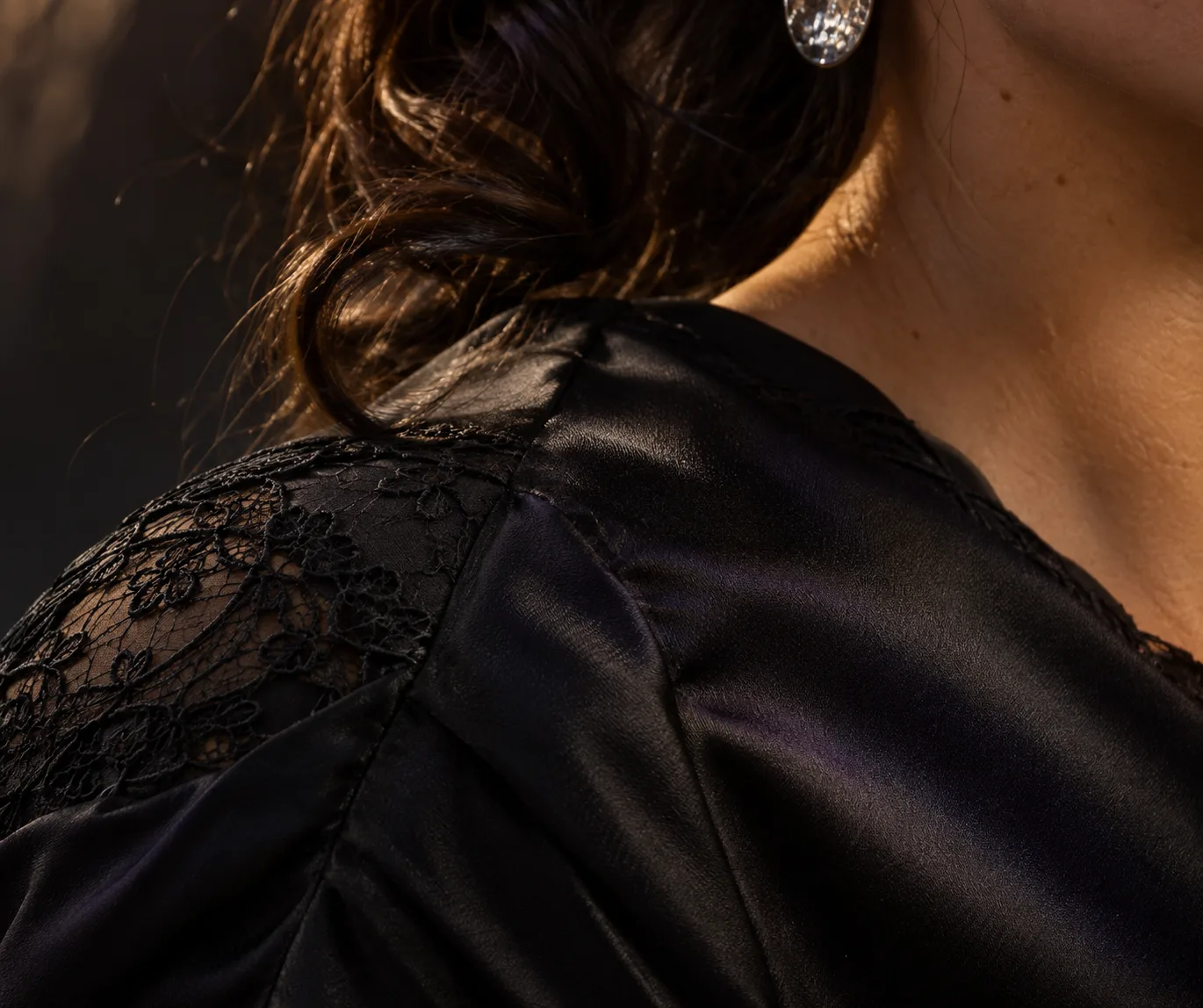
Illustration: inspect seam continuity, lace intersections, fabric highlights and the grouping of fine hairs.
When diffusion upscaling is worth the extra interpretation
Use diffusion restoration when the source lacks surface information and your brief permits adding plausible texture. A soft fictional background, an unfinished fabric concept or a portrait that is not yet identity-approved has more room for reconstruction than a final character close-up.
For an existing finished image, make a conservative enlargement first and keep it available. A diffusion candidate should solve a specific remaining problem: a soft patch of clothing, for example. It should not automatically replace the whole image because its texture looks more impressive at 200% zoom.
Ultimate SD Upscale: denoise controls redraw, not just cleanup
Ultimate SD Upscale's official FAQ explains its sequence: enlargement followed by tiled inpainting. It suggests 0.15–0.20 denoise when changes are unwanted, compared with a stronger enhancement setting. It also describes padding, mask blur and seam passes. These are extension-specific starting points, not preservation guarantees or settings for every ComfyUI node.
For a first candidate, use a short description of what is already visible rather than a new character prompt. Keep the seed fixed while changing one setting so you have a more interpretable comparison; a fixed seed is not an identity lock. If the face changes at the lower strength, stop using that candidate for the face and preserve it from the conservative layer.
Choose tiles large enough to contain useful context when memory permits. A fragment of a lace sleeve without its contour can be interpreted differently from the whole cuff. Padding lets a tile see neighboring pixels, but it does not turn independent generative passes into perfect global agreement. Increase context or reduce redraw when visible seams appear.
Do not run seam correction merely because the option exists. It is another redraw of part of the picture. If there is no visible grid or boundary problem, it can add changes without addressing an actual defect. If a seam crosses the face, reconsider tile placement or the face's treatment before asking another pass to invent a repair.
SUPIR: use fidelity controls for restoration
SUPIR's official repository distinguishes lightly degraded inputs, fidelity-oriented settings and more visually ambitious settings. Its documented examples use stronger input control for fidelity.
Begin with the fidelity-oriented preset and a restrained description of the existing image. The project's additive prompt includes a strong photographic treatment, so inspect that prompt instead of assuming only your short description affects the result. Remove incompatible appearance directions when the interface allows it.
For example, an approved warm, softly lit portrait does not need a new high-contrast editorial style. Ask for the visible outfit, hair and setting, preserving the existing treatment. Changing control strength and rewriting the style simultaneously makes a changed complexion hard to diagnose.
SUPIR is an optional reconstruction route here, not the default for an approved character. We have not measured its fidelity on the proposed portrait. A cloud service using a similar model has its own upload rules and may expose different controls. Do not transfer local software behavior or permissions to a hosted demo without checking that service.
A hosted option: what SpicyAPI Image Upscaler actually lets you choose
SpicyAPI Image Upscaler takes one image, a size tier and an output format. It has no prompt, seed, face-restoration weight, denoise slider or exact-width control. That makes it a simple enlargement route when you do not want to design a local processing chain; it does not provide a hidden way to tune a changed eye or tattoo.
Its 2K, 4K and 8K names describe pixel budgets of roughly 4, 17 and 67 megapixels while preserving aspect ratio. They are not fixed 2048-, 4096- and 8192-pixel long edges. A tier below the source's pixel count can reduce its dimensions instead of enlarging it. Choose from the final crop's needs, then inspect the downloaded width and height.
All three tiers list $0.012 per output image, with JPEG, PNG or WebP output. Twenty planned calls cost $0.24; one hundred cost $1.20. Those are request budgets at the listed rate, not guarantees of twenty or one hundred accepted character masters. Successful results you reject for altered detail still consume work and can require another attempt.
The available test records include earlier successful processing of mature imagery. They were drawn partly from existing completed tasks and automated content classification, not a matched portrait-preservation benchmark or a full refusal test. The current catalogue does not designate a specific content-policy tier for this task. That evidence supports a limited statement about recorded successful inputs, not “every NSFW image always works.”
For a practical first use, open the model page's Playground, supply your finished image, choose the tier and select PNG if you will continue retouching. Run one representative image before queuing a collection. Compare the face and signature details against the source. If they change, this task has no fidelity control to turn up; use a local route with suitable controls or preserve the affected areas through ordinary editing.
The API resolution guide covers submitting and downloading this task. Here the decision is whether its limited controls fit your finishing job. Do not add face_restore, strength or a text instruction to this endpoint; unsupported controls do not become available because another upscaler accepts them.
Calculate pixels from the final crop, not the “4K” label
The useful size is the size of the image your viewer receives after cropping. A large master is not enough if the layout uses only a narrow section of it. Equally, a small web card does not need a huge file merely because the source came from an AI generator.
For a screen placement, multiply the displayed width by the pixel density you intend to support. A card displayed 600 pixels wide at 2× density needs a 1200-pixel-wide delivery crop. If that crop keeps half the master's width, the master needs at least 2400 pixels across. This is a layout calculation, not evidence of recovered detail.
For a portrait wallpaper, specify the actual destination. A 2160 × 3840 portrait wallpaper has about 8.3 million pixels. A 3840 × 2160 landscape wallpaper has the same count but a different shape. Stretching a 2:3 portrait into 9:16 changes proportions; crop or extend the composition deliberately instead.
Suppose the approved source is 1024 × 1536 and the client wants a 2160 × 3840 portrait. A centered 9:16 crop at the source's full height is 864 × 1536, discarding 160 pixels of width in total. Enlarging that crop by 2.5× reaches the requested dimensions. Check that the crop does not cut the cuff or move the face into an awkward framing before you spend on enlargement.
For print, use the printer's requested image density. At 300 pixels per inch, an 8 × 12-inch image needs 2400 × 3600 pixels; a 12 × 18-inch image needs 3600 × 5400. For dimensions in centimeters, divide by 2.54 before multiplying by pixels per inch. A 20 × 30 cm image at 300 ppi needs approximately 2362 × 3543 pixels, with rounding handled by the final print application.
Adobe's resolution guidance distinguishes pixel dimensions, physical print size and resampling. Changing a density setting without resampling adds no pixels. Printer dots per inch and image pixels per inch are also different quantities; use the image requirement your print service supplies rather than the printer's maximum hardware DPI number.
For the 1024 × 1536 example, a 2× enlargement produces 2048 × 3072. At 300 ppi that covers about 6.83 × 10.24 inches, so it falls short of an 8 × 12-inch image at that density. A 4× enlargement produces 4096 × 6144, which covers approximately 13.65 × 20.48 inches before any further crop. Those calculations do not imply that 4× contains four times the authentic facial information.
Allow for bleed if the printer asks for it. Adding 0.125 inches at each edge makes an 8 × 12-inch full-bleed file 8.25 × 12.25 inches; at 300 ppi that is 2475 × 3675 pixels. Keep the character's face, tattoo and outfit details inside the printer's safe area, not merely inside the submitted file.
Finish the actual delivery file without destroying the improvement
Keep an approved master and export separate files for the gallery, profile card and print. Do not repeatedly resize the same delivery JPEG for each placement. Start each derivative from the master so a small card does not become the source for a larger gallery image later.
Apply final sharpening at the final output dimensions. A radius that looked subtle on a very large master can look excessive after reduction. Begin with a modest treatment on the feature that needs it—eyes or an outfit edge—and leave the defocused room alone. The aim is readable detail at the viewing size, not a uniform sharpness effect across every surface.
Watch for bright outlines along the jaw, cuffs and dark hair. Reduce sharpening when these appear. If the image already has them before your finishing adjustment, compare against the original source and choose a gentler upscale candidate. Blurring the entire image to hide a few halos can erase the improvement you wanted elsewhere.
PNG is useful for a lossless handoff when more retouching is planned. JPEG is useful for photographic delivery where file size matters, but narrow colored lines and small text can suffer under aggressive compression. Pillow's format documentation describes JPEG quality, subsampling and color-profile handling for developers implementing an exporter. A quality number is encoder-specific; do not treat “90” in every app as an identical result.
If the colored tattoo edge becomes muddy only in the JPEG, compare a PNG export before blaming the upscaler. If the defect is present in both, revisit the processing. That simple split helps separate reconstruction problems from delivery compression. A larger PNG preserves the processed pixels, including any mistakes; it does not certify the tattoo as correct.
Preserve an appropriate embedded color profile through your finishing workflow. For normal web delivery, use a deliberate sRGB export; for print, follow the service's profile instructions. If the complexion suddenly looks warmer in one application, examine color handling before regenerating the portrait. A color-management mismatch is a different problem from a changed face.
Do not flatten layers until you have finished the required local fixes. Keeping the original resize, upscale candidate and selective correction on separate layers lets you back off an overprocessed face without throwing away a useful fabric improvement. The final delivery file can be flattened; the working master should retain the choices you may need to revise.
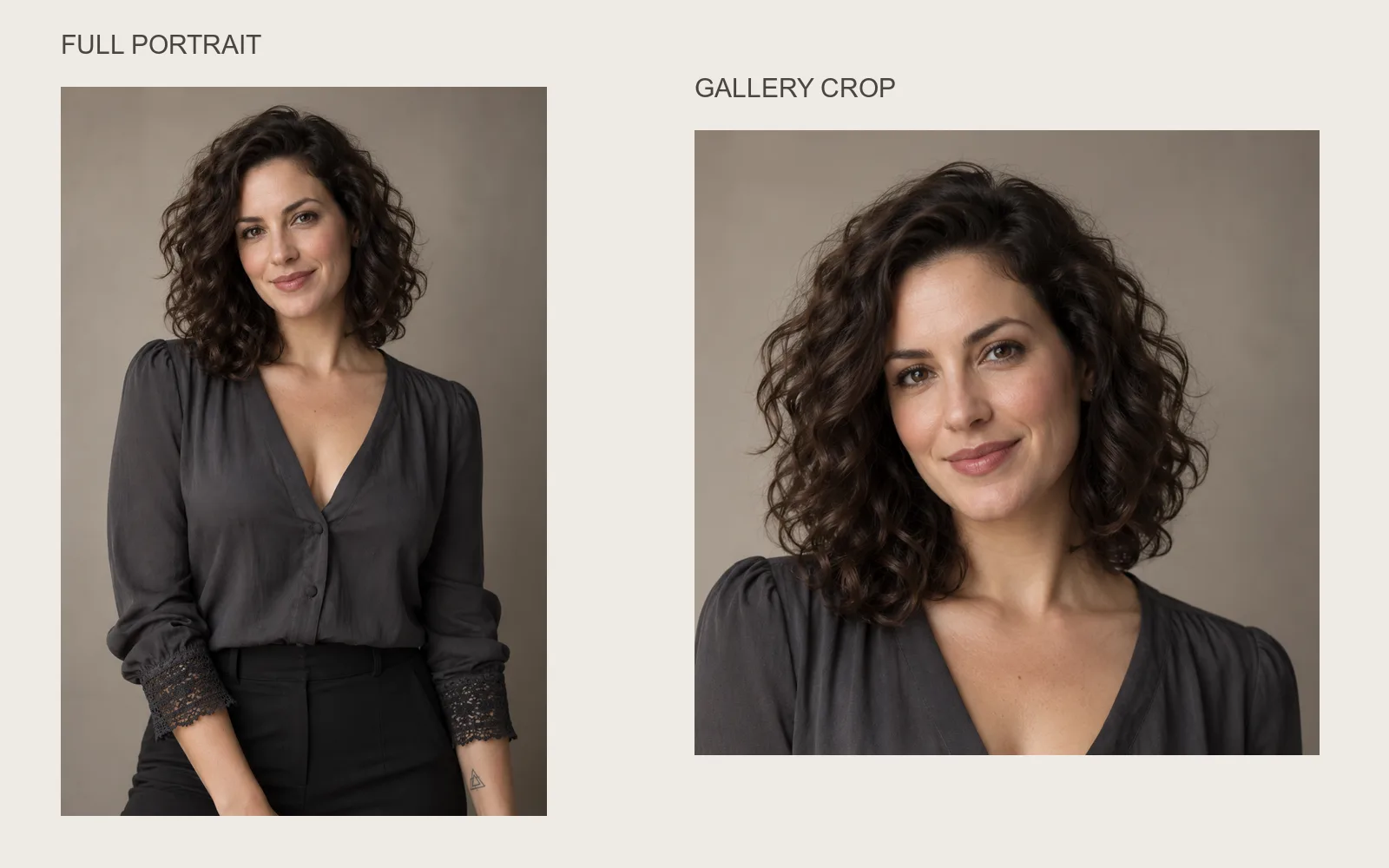
Create print and screen crops from the approved master. Both views here use the same illustrative source; they show framing choices, not quality differences.
One complete finishing plan for an approved adult character
Consider a fictional adult portrait at 1024 × 1536: an opaque dark blouse with a lace cuff, shoulder-length curls and a small wrist symbol. The face is already approved. The intended outputs are a 600-pixel-wide profile card at 2× density and an uncropped 8 × 12-inch print at 300 ppi. This is a worked plan, not a generated comparison.
First, inspect the original. If the face has the right expression but lacks crisp fine texture, keep that distinction in the brief. If the wrist symbol already has the wrong number of points, fix the artwork before enlargement. If the cuff pattern has a visible seam break, repair that break rather than expecting a larger image to correct it.
Next, calculate the required master. The uncropped print needs 2400 × 3600, so a 2× 2048 × 3072 file is insufficient at the requested density. A 4× candidate has enough pixels for the print. The web card may need only a fraction of those dimensions, depending on its crop. There is no reason to deliver the print-size master to the small profile slot.
Make the ordinary resize first. It establishes the same face and pattern at the target dimensions. Then make one restoration candidate with face enhancement off. If you use the hosted option, its documented 4K pixel budget is sufficient for the uncropped print requirement in this aspect ratio, but inspect the actual returned dimensions and detail rather than assuming the label means 4096 pixels across.
Align the two files in the editor. Compare the eyes and mouth at equal scale, then the cuff, tattoo and hairline. Suppose the restoration makes the cuff clearer while turning the cheek overly smooth. Keep the cuff improvement on a layer, mask the cheek toward the conservative resize and compare the transition. That is a proposed response to the symptom, not a claim about what a named tool produced.
If the tattoo is crisp but wrong, use the approved artwork. If the face changes, reject the face treatment. If the entire output becomes gritty, choose another restoration model or return to ordinary resizing. Do not move straight to higher diffusion strength when your complaint is excessive interpretation.
Only consider a generative fabric repair if the accepted master remains too soft for the print and you can permit added weave. Work on a separate candidate, retain nearby folds and cuff boundaries, and preserve the face outside that treatment. If new motifs appear, back off the redraw rather than accepting them as “more detail.”
Export the print to the printer's requirements and create the profile derivative from the approved master. Inspect the profile at its actual display size: it may need a small local sharpening adjustment, not another neural upscale. Inspect the print at a sensible preview size and order a proof if the material is important enough to justify it.
For twenty images using one hosted upscale each, the listed request budget is $0.24. If five completed results need a second request, the extra five calls add $0.06, bringing that portion to $0.30. Local compositing and artwork repair are separate labor; any generative edits are separate tasks. These figures are arithmetic examples, not an observed acceptance rate or a whole-project quote.
Recognize the images another upscale cannot rescue
If a face is only a few dozen pixels wide, the output can gain plausible eyelashes and skin but cannot establish the exact face that was not resolved in the source. For a recognizable character close-up, obtain a larger original, return to the original generation or create a closer composition using the approved character references.
Motion blur creates another limit. When an eye or fabric edge has smeared across several pixels, the original information is ambiguous. A restoration may produce a believable edge, but it is choosing an interpretation. Accept that only when the project permits reconstruction. For exact identity features, a clearer source is more reliable than escalating enhancement.
An over-smoothed saved image has already lost some variation. A texture generator can replace it with a plausible surface, but it cannot certify the person's original texture. If your goal is a believable fictional finish, that may be acceptable. If your goal is preserving a particular approved texture, return to the version before smoothing.
The same applies to tiny text. A word that has collapsed into a few colored blobs should be replaced from its original design, not judged by whether the upscale generated something legible. Wrong readable lettering can be worse than honestly soft lettering because it appears deliberate.
When repeated candidates alter the same identifying feature, stop that route. Use a conventional resize for the feature, simplify the finishing treatment or change the source. More iterations do not make the preservation requirement disappear. They can gradually persuade you to approve a different character simply because you have spent time processing it.
NSFW acceptance, uploads and local processing are separate decisions
An upscaler can technically process a file while a hosted service rejects that input category. Conversely, a service may accept an adult-oriented image and still produce an unsuitable face or texture. Evaluate acceptance and preservation separately; one does not establish the other.
Local processing avoids uploading the image when you actually use a local application and local model. A desktop icon, an open-source model name or a public demo does not by itself prove that the current workflow stays on the device. Check where inference runs and whether you have enabled cloud features. The official Upscayl website offers both desktop and Cloud products, so choose deliberately.
Upscayl Cloud's privacy policy covers uploaded images and generated outputs, with stated storage periods and deletion qualifications. Its service terms refer to content policies rather than giving a blanket NSFW allowance. Those pages describe the Cloud service; they should not be used to claim the desktop application uploads every file or that the cloud will accept every mature image.
For a private character collection, decide whether remote processing is acceptable before uploading, and keep the original independently of a service's storage. Use fictional adults for the example workflow here. For real-person material, have the rights to use the image and the identifiable adult's consent for the intended adult-oriented use; ordinary permission to share a photograph is not automatically permission for that use.
The finishing choice I would make
For an approved adult character, begin with the least interpretive route that meets the final dimensions: ordinary resizing, then one appropriate restoration pass with face enhancement off if the source needs it. Keep the face, tattoo artwork and outfit boundaries ahead of maximum perceived sharpness.
Use local model controls when you need to adjust the treatment or avoid uploads. Use the hosted Image Upscaler when its simple tier-and-format controls fit the material and a representative result meets your needs. Use tiled diffusion or SUPIR restoration when you specifically want newly synthesized texture, with the original face and artwork available to preserve separately.
Your next step is one finished source and one real destination size. Calculate the crop, make the conservative reference and enlarge a separate candidate. Approve it only when the recognizable character survives the improvement—not merely because the download contains more pixels.