For a small repair to an NSFW character image, use a mask to select the defect, give the model enough surrounding context, and composite the accepted repair onto your original. That last step matters when the face, pose or background must remain exactly as you approved it. A prompt saying “keep everything else unchanged” expresses an intention; copying the original pixels outside the repair enforces it.
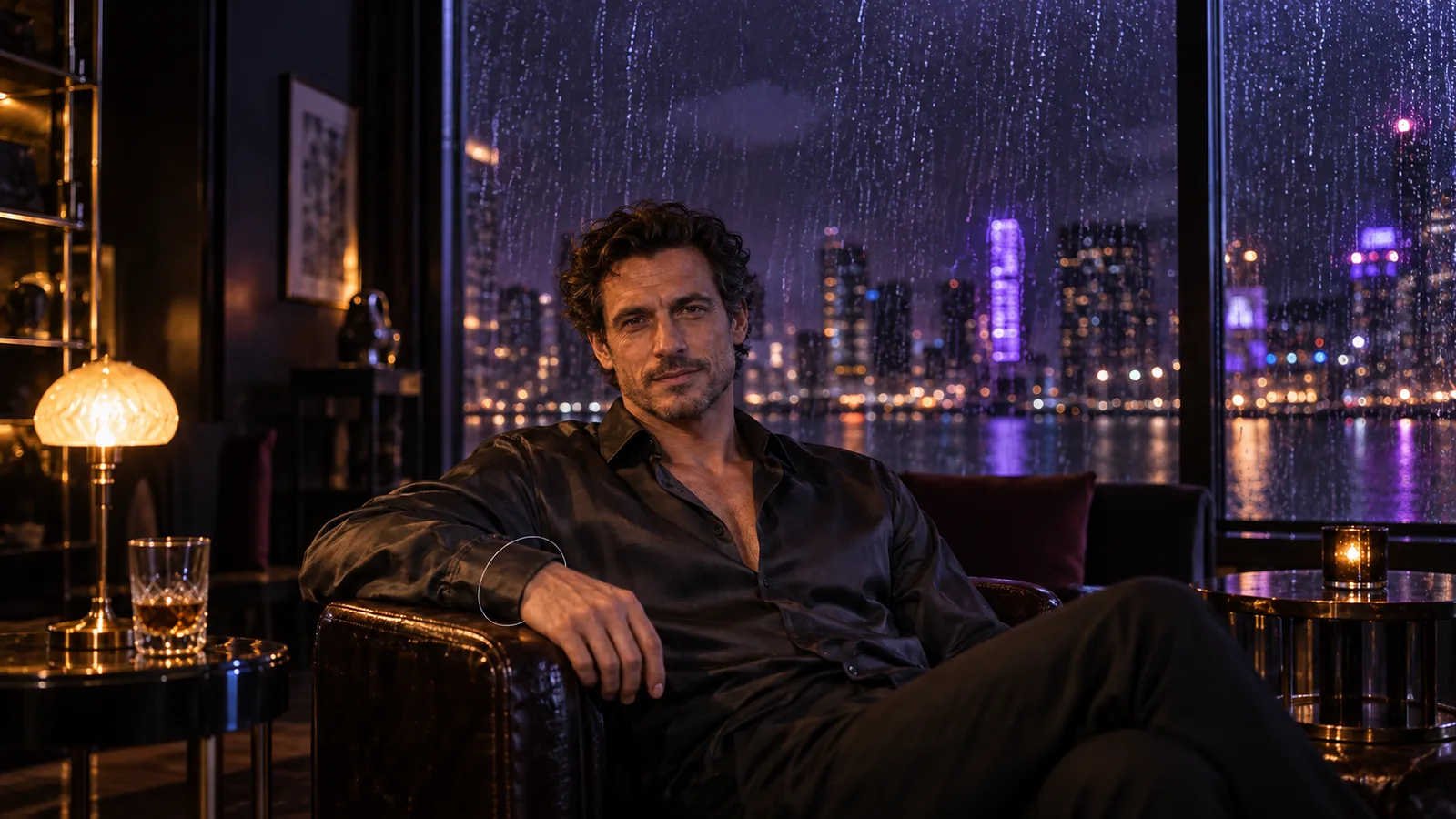
Perhaps you already have a strong image of your fictional adult character. The expression works, the room feels right, and the outfit fits the scene. But two fingers merge against the chair, a camisole strap takes an impossible turn, or the bedside lamp has two stems. Regenerating the entire picture risks losing the things you liked. Local inpainting gives that one problem its own pass.
There are two practical routes here: a local canvas such as AUTOMATIC1111 or ComfyUI, where you control sampling and compositing, and a hosted editor that actually accepts a mask. Qwen Image 2.1 Edit on SpicyAPI currently accepts one source plus a separate mask at 1k or 2k. An ordinary instruction-based editing API does not automatically have that control.
The examples below are suggested workflows, not a report of new model tests. They use clearly adult fictional characters in opaque clothing. The purpose is to show what to select, what to leave alone, and what to change after a particular failure.
Decide whether the defect needs AI at all
Inpainting is useful when a repair needs plausible new content: a hand with a different finger arrangement, a garment edge that continues naturally, or a background surface previously hidden by an object. It is less useful when you already know every pixel you want. A straight wall line, a tiny white speck or an exact brand mark can be easier to repair with a conventional layer, clone brush or vector shape.
For an adult character series, distinguish a repair from a new composition. Correcting the cuff beside an existing hand is local. Turning the character to face another direction changes the shoulders, arm position, hair overlap and possibly the room perspective. A small mask cannot make those connected changes coherent while protecting all of them. Start a new composition when the desired change exceeds the region you are willing to redraw.
| What you want | A sensible first method | What to protect |
|---|---|---|
| Separate merged fingers on a chair | Mask the hand and its connection to the wrist | Face, forearm outside the repair, chair geometry |
| Repair a broken garment strap | Mask the faulty strap and its attachment | Neckline, opposite strap, existing fabric pattern |
| Remove a duplicated background prop | Mask the prop and its unwanted shadow | Character silhouette and necessary room shadows |
| Recolour an otherwise correct opaque garment | Conventional colour adjustment, or a narrow edit | Fabric texture and edges |
| Change the entire pose | A broader generation or editing pass | An identity reference, rather than original pose pixels |
Choose a measurable endpoint: “one continuous strap connected to this seam” is more useful than “make the image perfect.”
Prepare a source you can return to
Save your approved image as the untouched master. Keep it separate from experimental outputs, even if your editor has undo. A browser refresh, a new upload or a changed workflow can leave you with the latest attempt and no easy way back to the original face.
Do the intended rotation and crop before making the mask. Phone images can carry rotation in EXIF metadata while storing pixels in a different orientation. If the source is rotated but the mask is not, both files can look sensible separately and still point to different locations. Export a working image with the orientation applied, then make the mask against that exact file.
Use PNG for the working source and intermediate repairs when practical. This avoids adding another lossy JPEG save at every pass. Converting an existing JPEG to PNG does not restore lost detail; it simply gives the next editing steps a stable starting file.
Keep the source and mask paired: portrait-master.png with portrait-hand-mask.png, for example. If you accept a corrected hand and then repair a strap, save a new source version and draw the strap mask on that version. Do not reuse a selection from a different crop because the filenames look similar.
Also note nearby details that must survive: a distinctive ring, the chair's carved edge, a garment seam or the shape of a tattoo. Include them in your acceptance check. A model can produce a plausible replacement that still breaks continuity with the rest of your character series.
Paint the mask, then verify what the tool reads
For the workflows in this guide, white selects the area to repaint and black protects the rest. AUTOMATIC1111's separate-mask option uses that convention. Qwen Image 2.1 Edit documents the same convention for mask_url. Other tools can use different selection displays, so inspect the actual mask rather than assuming a red overlay means the same thing everywhere.
In AUTOMATIC1111, Inpaint masked operates on the painted selection; Inpaint not masked reverses that choice. Use the latter only when you deliberately selected the area to preserve. The two modes are described in the project's inpainting documentation.
Select the broken structure, including its connections
For a malformed hand, painting only the gap between two fingers often leaves most of the wrong anatomy untouched. Select the hand you want reconstructed, plus enough of its wrist connection for the new hand to join naturally. Keep the rest of the arm outside the selection unless its angle is also wrong.
For a strap, select the faulty line from one attachment to the other. If the old strap divides halfway down, include both unwanted branches. Otherwise the new strap may appear alongside the surviving old branch. Include a little adjacent fabric where the attachment has to be rebuilt, rather than making a broad selection over the whole outfit.
For a background object, include its unwanted edge, contact shadow and reflection where appropriate. Protect a shadow that belongs to the character. Removing every dark patch around a lamp may erase the chair's grounding shadow too, making the scene look less convincing even though the lamp disappears.
A precise selection includes everything that must change and only what you can afford to change.
An opaque black-and-white PNG is not an alpha mask
This catches many ComfyUI users. A normal Load Image node's MASK output comes from the image's alpha channel, with alpha inverted. A fully opaque black-and-white image can therefore look like a mask while producing an empty MASK output: its white RGB pixels are still opaque. ComfyUI explains this in its image and mask documentation.
If you have a separate opaque black-and-white PNG, load it through Load Image (as Mask) and choose a colour channel such as red. For a grayscale image, red, green and blue carry the same selection. Alternatively, load it as an image and use Convert Image to Mask with a colour channel. Do not choose alpha for this particular file. The channel handling is visible in ComfyUI's source implementation.
If you paint through ComfyUI's own mask editor, use the resulting MASK connection. The official example shows opening that editor from the image node. Do not export an annotated portrait with a white circle and assume it is a standalone mask.
Preview the mask before sampling. It should show a white repair region on a black canvas in the correct place. Check the centre of the white area too: a brush at reduced opacity can leave gray pixels that blend the old defect into the new repair. Use an opaque centre and reserve the gradual transition for the boundary.
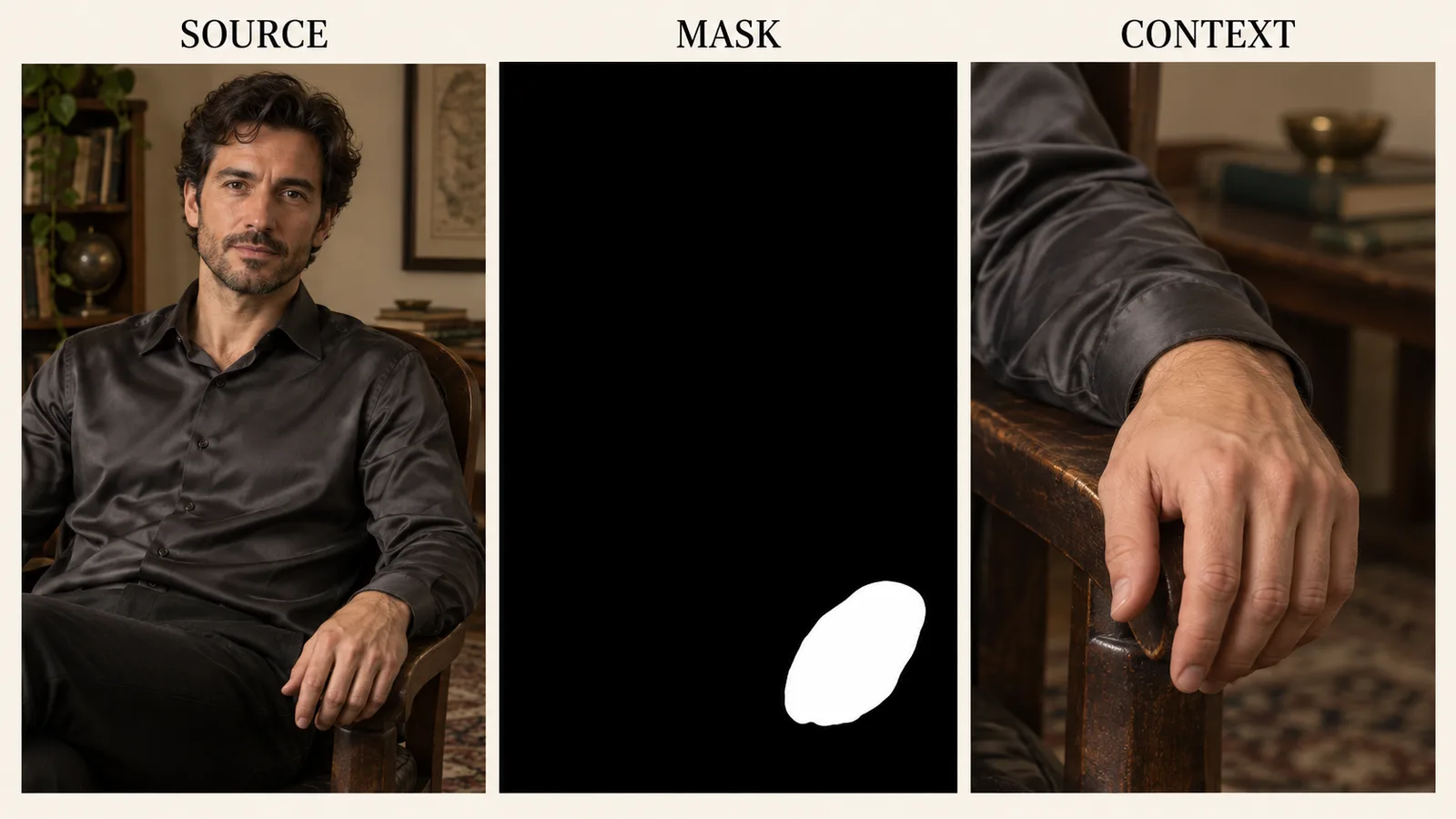
Illustration: the mask selects the repair; the larger crop supplies context. These panels explain placement, rather than showing an editing result or providing a usable mask.
Separate selection, context, edge blending and denoise
These controls solve different problems. Treating all of them as “make the mask bigger” leads to avoidable changes.
Selection defines what may be replaced. Context is the surrounding image the model gets to inspect. Edge blending determines how the accepted replacement joins the source. Denoise, where exposed, determines how far the sampling pass can move from its starting content.
Suppose the defect is a hand resting on a chair arm. The selection covers the hand and wrist join. The context crop may also show the sleeve, forearm, chair arm and nearby torso. You want the model to understand those relationships without copying newly generated versions of all of them into the final image.
Padding adds information; mask growth expands the repair
In a crop-based workflow, increase padding when the model seems confused about what the object connects to. A hand cropped without the sleeve or chair can become a detached hand, or acquire the wrong orientation. Increasing the white mask instead gives the model a larger region to reconstruct; that is a different decision.
Mask growth can help when a bad edge survives just outside the original selection. It can also erase a detail you wanted to retain. Expand into clean surrounding material only where the repair needs room to connect. Do not use a large growth value to compensate for missing context.
Blur should soften the boundary, not dissolve the object
A small transition can hide a hard seam. Too much can create a ghost of the old strap, a hazy wrist outline or an unwanted change near the face. Inspect the final blend mask at the original image size. A boundary that looks narrow in an enlarged sampling crop can cover a different amount of the source after resizing.
“Feather” is not a universal name for the same operation. In ComfyUI, the core Feather Mask node fades the edges of the mask canvas; it is not an automatic blur around every irregular painted shape. For a hand-shaped selection in the middle of a large image, use a shape-aware blur or prepare the soft edge in your image editor. Check the actual preview instead of trusting the node name. The distinction is visible in the mask nodes implementation.
Denoise is not a preservation percentage
A denoise value of 0.4 does not mean “change 40% of the image.” It is a sampling control. Nor does reducing CFG substitute for lowering denoise: CFG controls text guidance, whereas denoise affects how much the starting content is disturbed. Hugging Face's inpainting guide explains the distinction and its crop-and-overlay option.
For your own local experiment, compare a modest setting with a stronger one while keeping the source, mask, crop and prompt fixed. For example, 0.35, 0.5 and 0.65 are a proposed comparison for a suitable conventional workflow, not guaranteed presets or values to send to every model. A dedicated inpainting model can need a different recipe from a regular checkpoint, and distilled models can need different guidance and step counts.
A practical AUTOMATIC1111 repair pass
If you already use AUTOMATIC1111, begin in img2img → Inpaint. Load the working master, paint the defect, and choose Inpaint masked. Use Only masked for a small hand or garment detail. That mode works on a crop around the selection and puts the result back into the original frame; Whole picture uses the full image as the working view. These are different allocations of context and detail, not content-policy switches.
For the first attempt, use the same compatible checkpoint and style setup that produced the image, if available. Adding a new dramatic lighting LoRA during a finger repair makes it harder to tell whether a colour mismatch came from the repair method or the changed style. You can try a compatible dedicated inpainting checkpoint afterward, with its own documented recipe.
Use a short local prompt that describes the desired visible result, including its relation to nearby objects. For example:
A relaxed adult right hand resting naturally on the existing dark wooden chair arm, five anatomically plausible fingers, a continuous wrist joining the charcoal satin sleeve, matching the warm side light and photographic texture of the surrounding image.
This is more useful than pasting the original room description, camera story and full outfit brief into a crop showing only the hand. The phrase “adult right hand” identifies the relevant anatomy; the chair, sleeve and light explain how it should fit. If the crop does include much of the character, add enough description to remove ambiguity without asking for a new portrait.
Start with Masked content: original when much of the selected structure is already useful. The other content choices change the initial material under the mask; they are not promises about the final subject. If the unwanted form keeps surviving, try a more substantial regeneration with an appropriate fill option and denoise recipe rather than endlessly increasing adjectives.
Inspect the crop preview. If it cuts through the wrist or excludes the chair surface the fingers touch, increase Only masked padding until those relationships are visible. Avoid judging padding solely by its numeric value. Thirty-two pixels in a small source and thirty-two pixels in a very large portrait provide different relative amounts of context. AUTOMATIC1111's processing code shows the crop and padding handling.
Choose working dimensions that fit your checkpoint and the shape of the contextual crop. Do not stretch a tall hand-and-sleeve crop into a square merely to copy someone else's screenshot. A square crop can be made by adding context around it; squeezing the existing crop changes anatomy before sampling even starts.
Generate a small number of candidates, then compare the hand at normal size. Does the wrist angle make sense? Do the fingers rest on the chair rather than pass through it? Did a ring disappear? A sharply detailed hand is not a useful repair if it is attached incorrectly.
If none work, change context when the anatomy lacks a sensible connection, selection when remnants survive, or denoise and fill when the broken form persists. Change one cause at a time so you can repeat a successful configuration.
Build the ComfyUI path around the model you actually load
ComfyUI makes the original-image branch especially useful: one branch goes into generation, while an untouched branch becomes the destination for the final composite. Keep that structure visible in the graph. It prevents an apparently local workflow from ending with a globally decoded frame as its final deliverable.
For a compatible dedicated SD or SDXL inpainting model, the basic route is:
- Load the model, its matching VAE and text encoder setup.
- Load the working source and preview the actual MASK.
- Send the source pixels, mask, VAE, positive conditioning and negative conditioning to InpaintModelConditioning.
- Send that node's returned positive, negative and latent outputs to KSampler with the loaded model.
- Decode the sampled latent with the matching VAE.
- Composite the accepted repair onto the untouched source before saving the final image.
The conditioning node supplies both the image and mask information needed by compatible inpainting models. Its connections are documented in InpaintModelConditioning. It is not a universal adapter for every image model, and a workflow for a nine-channel SDXL inpainting model should not be transplanted into an unrelated architecture.
For a regular compatible checkpoint, a masked image-to-image workflow can retain the original latent through VAE Encode → Set Latent Noise Mask → KSampler. The noise-mask node controls the sampling region; it does not add dedicated inpainting training to the model. Start from that checkpoint's known workflow rather than assuming all downloaded graphs use the same latent preparation.
VAE Encode (for Inpainting) is another preparation node, but it clears the selected pixels before encoding and attaches a noise mask. Its growmaskby expands the sampling mask; it is not context padding. That cleared starting region can be unsuitable for a low-denoise refinement where you wanted to retain the original structure. The node's inputs are documented here; use it when the selected workflow calls for that preparation, not simply because its name contains “inpainting.”
Keep model-specific sampling settings separate from the mask problem. A graph using an LCM-style setup, a conventional SDXL model and a different model's guidance recipe is not made correct by a better brush selection. In a ComfyUI discussion about NSFW inpainting, the poster had copied a workflow and still got poor results; comments examined sampling, conditioning, context and crop-and-stitch. Those are troubleshooting leads, not universal settings or proof of one model's success rate.
For occasional retouching, a painting interface connected to the local workflow can make selection and preview easier.
Crop for detail, then put the patch back correctly
A small hand in a full portrait may occupy very little of the model's working image. A contextual crop gives that repair more useful pixels while still showing its surroundings. The crop is a temporary workspace; it should not become a new delivery crop.
Consider a proposed geometry example, not a measured generation: a 1536 × 2048 portrait has a faulty hand whose bounding box is roughly 200 × 240 pixels. You select a 480 × 640 context crop containing the hand, wrist, sleeve and chair arm. Resize that crop and its mask together to 768 × 1024 for a compatible workflow. After sampling, return the repair to 480 × 640 and place it at the original crop coordinates.
This preserves the crop's 3:4 shape. It does not guarantee better anatomy, and the model still needs suitable dimensions and conditioning. Its purpose is to avoid spending most of the working frame on an already accepted room while the hand stays tiny.
Record the crop's top-left position and size when creating it. Apply the same crop and resize to the image and mask. If one is cropped from the centre and the other from the corner, the mask can select the sleeve while your preview shows a hand. A one-pixel offset at the final boundary can also produce a doubled strap or a bright outline.
The Inpaint Crop and Stitch project packages this sequence into crop and stitch nodes, with separate context and blend controls. Use its example for your model family and inspect the output before adopting it. Its current parameters differ from older tutorial screenshots, so follow the installed version's controls rather than hunting for a slider that has been renamed.
A useful community explanation of Only masked padding describes the central tradeoff: a very tight crop offers detail but can remove the context needed to understand the hand. If your enlarged hand keeps pointing the wrong way, showing more of the forearm is often a more meaningful experiment than increasing sampling resolution again.
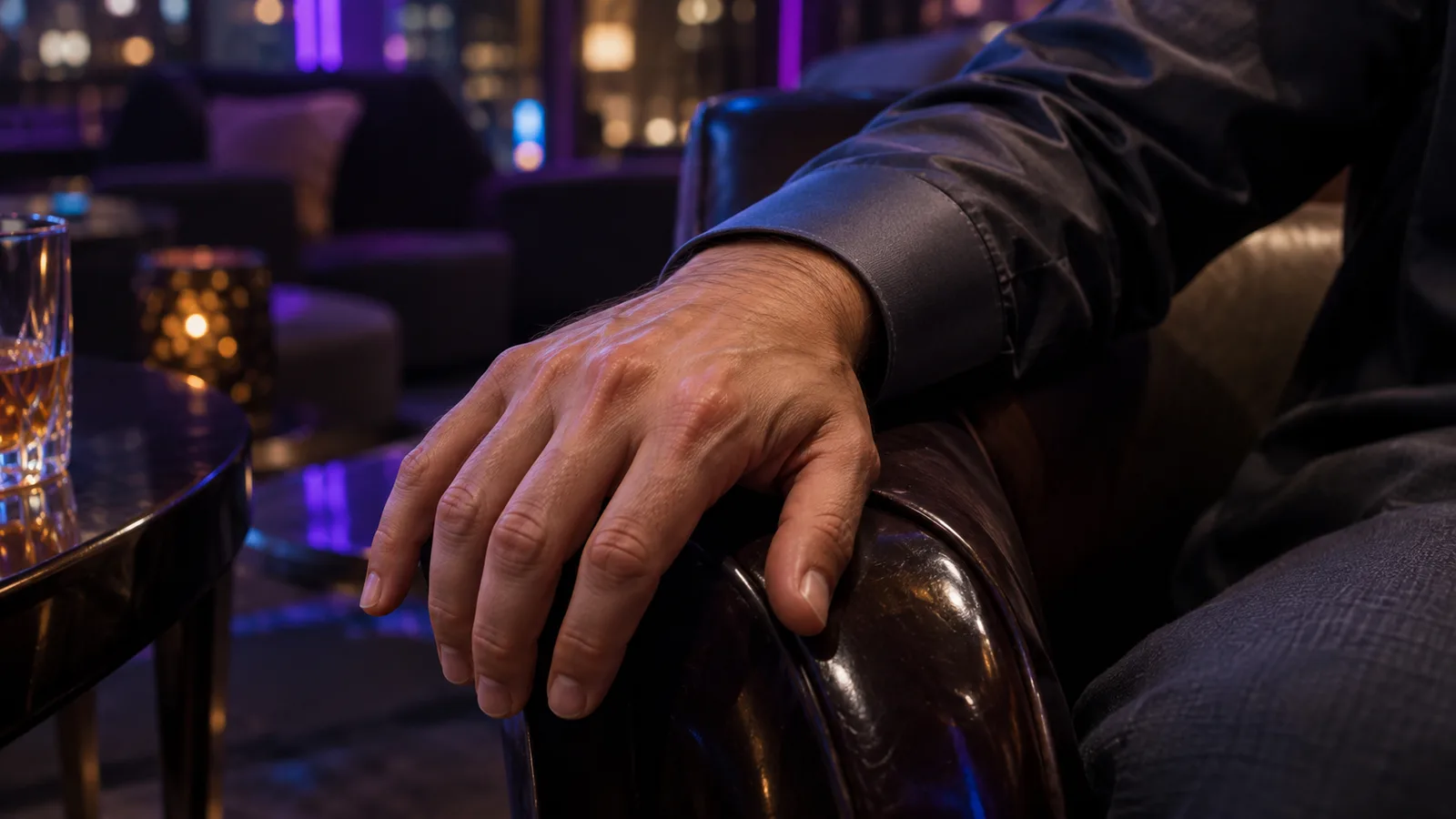
Illustration: keep the wrist, cuff and chair contact in the working crop so the repair has context. This is a crop concept, not a measured editing result.
Repair example one: a hand touching the chair
Imagine an approved portrait of Elias, a fictional man aged 36, in an opaque charcoal satin shirt. His face and hair are correct. His right forearm rests along a dark wooden chair, but the fingertips merge into its armrest. This is a local hand repair; you are not changing his pose or expression.
First inspect the anatomy you are asking to keep
Trace the forearm from elbow to wrist. If its overall position is impossible, replacing the fingertips alone cannot solve the pose. Decide whether to include the wrist connection or a larger part of the arm. If the entire arm needs a new angle, accept that this is a broader repair and reconsider how much of the shirt and chair may change.
For a plausible existing forearm, paint the hand and defective wrist join white. Keep the rest of the sleeve black. Include the small chair contact area if merged fingers have replaced its visible edge, but avoid selecting the entire armrest. You need to reconstruct the overlap, not redesign the furniture.
Make the context crop show where the wrist enters the sleeve and which side of the chair supports the palm. Keep enough of the existing light visible to establish highlight direction. A crop containing only gray skin and dark wood can leave the model guessing which way the hand should lie.
Give the hand a concrete relationship
Use the relaxed-hand prompt above or adapt it to the visible pose. Do not ask for a spread hand if the approved composition needs curled fingers around the chair edge. “Five fingers” is a count; “fingers gently curled over the existing armrest” describes the contact you will judge.
On a local workflow that retains the starting image, compare a moderate refinement with a stronger reconstruction. Keep the source and selection identical for that comparison. A low-denoise attempt may preserve the merge; a stronger one may fix the hand while changing its size. These are possibilities to inspect, not expected results from a run we performed.
On a hosted mask editor without denoise, adjust the selection and the instruction instead. If two fingers remain fused, ensure the whole faulty finger group is white. If a new hand floats above the chair, add the wrist and chair contact to the visible context and state the resting position more clearly. Do not add an unsupported strength field to imitate the local comparison.
Accept geometry before texture
Judge the repaired hand in this order: wrist connection, contact with the chair, finger arrangement, size relative to the forearm, then surface detail. Natural texture cannot rescue a hand with an impossible joint. A slightly soft but correctly placed hand may be a better base for a later detail pass than a beautifully sharp disconnected one.
Watch for replacement details you did not request. If Elias has a ring that identifies the character, a plausible plain hand still fails that continuity requirement. If the ring cannot be reliably regenerated, preserve or manually restore the original detail where the geometry allows. Do not make it part of an increasingly long prompt without checking whether it is large enough to reproduce.
Finally, composite the accepted hand and necessary contact area onto the original. Leave unrelated collar or shirt changes out.
Repair example two: an opaque camisole strap
Take a different fictional character, Mara, aged 34, wearing an opaque navy camisole under a loose jacket. One strap divides into two lines near the shoulder and joins the neckline at the wrong point. The face, jacket and outfit colour are already accepted.
Select the entire faulty strap, both branches and the wrong attachment. Include a modest amount of adjoining camisole fabric so the new seam can form. Keep the neckline's correct section, the other strap and the face outside the repair. If the jacket hides part of the strap, preserve the jacket overlap unless that overlap itself is defective.
Use an instruction that names the intended construction:
Replace the split navy camisole strap inside the mask with one continuous narrow navy fabric strap. Connect it naturally to the existing camisole seam and follow the shoulder's angle. Match the fabric and warm room light. Keep the opaque garment coverage, jacket and unmasked character unchanged.
Here, matching the seam matters more than naming a fashion aesthetic. Asking for “luxury editorial styling” can encourage a new garment design; the job is to repair the construction already present.
If the old branch remains as a faint line, inspect the mask and blend before raising denoise. Part of that branch may be black, or a broad gray transition may be bringing it back during compositing. Expand the opaque centre over the whole unwanted line while keeping the transition away from the neckline you need to protect.
If the new strap's colour is wrong but its path is good, try a local colour adjustment first. Generating again for a small hue difference risks losing the useful geometry. If the attachment is wrong, keep working on the region around the seam; recolouring cannot repair an impossible connection.
For patterned garments, decide whether the exact motif is essential. Generative continuation can invent convincing fabric without reproducing a particular print. If an adult character collection depends on the same recognisable garment in every frame, a manual patch from another approved view may be more appropriate than accepting a different plausible pattern.
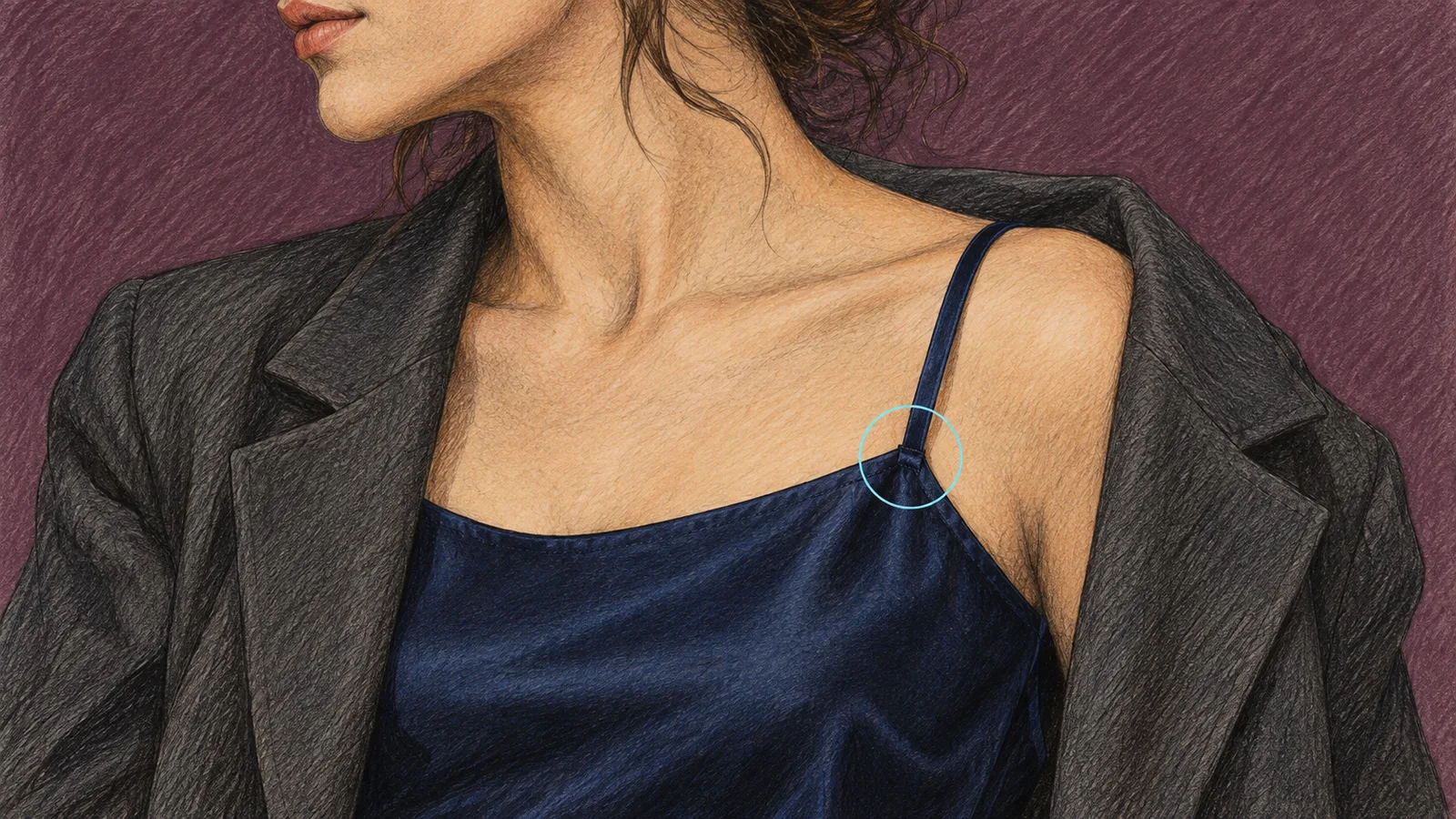
Illustration: the small circle highlights the attachment only, not the full repair mask. Select the entire faulty strap, both branches and the attachment while keeping the accepted neckline and face outside the repair.
Repair example three: a duplicated prop behind the character
A bedside lamp has two stems, or a stray cable crosses a wall behind the chair. Start by deciding whether you are removing an object or redesigning it. If you want an empty wall, an object-removal tool may be enough. If you want one correctly shaped lamp, a prompted inpainting pass gives the model a desired replacement.
Select the duplicated stem and any shadow that belongs specifically to it. Include the lower join if both stems merge into an impossible base. Protect the character silhouette, chair edge and legitimate lamp shade. A background repair does not need to include the face merely because both appear in the same frame.
For reconstruction, use a brief such as:
One simple brushed-metal lamp stem connecting the existing shade to its base, matching the room perspective and warm light. Remove the duplicated stem within the selected area. Preserve the character silhouette and the existing chair edge.
Check the lamp's geometry at normal size, then inspect the boundary where it passes behind the character. If the stem should be hidden by the shoulder, it must stop at that overlap. A perfectly straight line drawn across the shoulder is still wrong.
For removal, examine the newly filled wall, not just the disappearance of the cable. Has the wall texture changed abruptly? Does the remaining shadow imply an object that is no longer present? A narrow second repair may address that specific remnant; repainting the whole background usually creates a larger preservation problem.
Use the hosted Qwen mask mode without importing local settings
If you prefer a hosted workflow, open Qwen Image 2.1 Edit. Its current mask_url option is a genuine separate region input, unlike a prompt-only request telling an editor to “change the hand.” This makes it a relevant starting point for an allowed NSFW repair, while still requiring inspection of the delivered image.
Use this combination for a masked repair:
| Control | Use for a masked repair |
|---|---|
image_urls | Exactly one accepted source image |
mask_url | Separate black-and-white image; white repaints |
resolution | 1k or 2k; masked 1.5k is not supported |
background | Opaque; do not combine a mask with transparent output |
output_format | PNG for a later compositing step |
aspect_ratio | Masked output follows the source shape; this setting is ignored |
| Prompt expansion | Has no effect when the mask is set |
Make the mask the same dimensions as the source even though the documented path can scale a same-ratio mask. Exact alignment is easier to inspect than relying on an automatic scale. Avoid resizing or rotating either file between creating the selection and submitting the repair.
Use the specific hand, strap or lamp instruction from the relevant example. Send the mask through the mask input rather than adding it as another reference image. Mask mode takes one reference; your accepted character image is that source. If you need several references to establish a new outfit or room, finish that composition in an ordinary editing pass before making a separate repair mask.
This endpoint does not expose denoise, strength, CFG, steps, sampler or mask-blur controls. Prepare the selection and soft boundary in the uploaded mask. There is no negative-prompt field; put useful exclusions in the instruction.
The current one-source prices are $0.036 at 1k and $0.048 at 2k, per output image. The mask does not add a separate charge. Those rates apply to this one-source repair configuration, not every ordinary multi-reference request. Read the displayed quote for your actual configuration before running it.
The public catalogue classifies this edit task as unrestricted. That is a content-handling classification, not a guarantee that the repaired hand will be anatomically correct or that every outside pixel will match. No new masked generation was run for this article. Use the returned image as a candidate, and apply the preservation check below if exact retention is part of your delivery.
For background on the editors' adult-content handling, see the Qwen editing report. Those editing observations do not measure this guide's hand, strap or lamp repairs.
Preserve original pixels with the final composite
A noise mask limits sampling. It does not necessarily keep every decoded pixel identical: a workflow can encode and decode the whole image through a lossy VAE. The SDXL inpainting model card explicitly notes lossy autoencoding and imperfect generation of people. Do not infer a pixel guarantee from the presence of a mask alone.
When retention matters, keep the original as the bottom image and reveal the accepted repair through a final mask. In a conventional image editor, that means the candidate repair on a layer above the master with a layer mask. In ComfyUI, use Image Composite Masked with the untouched master as destination, the accepted repair as source, and the intended blend mask attached.
For a full-size aligned repair, use x=0, y=0 and a full-size blend mask. For a cropped patch, return both the repair and its corresponding blend mask to the original crop dimensions, then place them at the recorded top-left coordinates. Do not attach the uncropped full-canvas mask to a small patch: this node scales its mask to the source image. Leave source resizing off; stretching the hand patch to the full destination destroys its placement.
Where the final blend mask is zero, retain the original decoded pixels. Where it is fully white, use the repair. Gray values mix them. That means the soft transition itself is part of the changed region; do not describe it as untouched. Keep the transition away from a face, logo or seam that must remain identical.
The generation mask and final blend mask need not be identical. You may allow a slightly broader generation region so the model can build a natural connection, then accept a smaller patch from its result. However, your final blend must still include the whole corrected structure. Cutting through a newly generated finger to preserve its old tip can create the defect again.
Export the completed master without global resizing, colour conversion or lossy re-encoding if you intend to compare outside pixels. A final JPEG can change pixels across the image through compression even when your composite retained them. Keep a lossless working final, then make separate delivery exports at the required sizes.
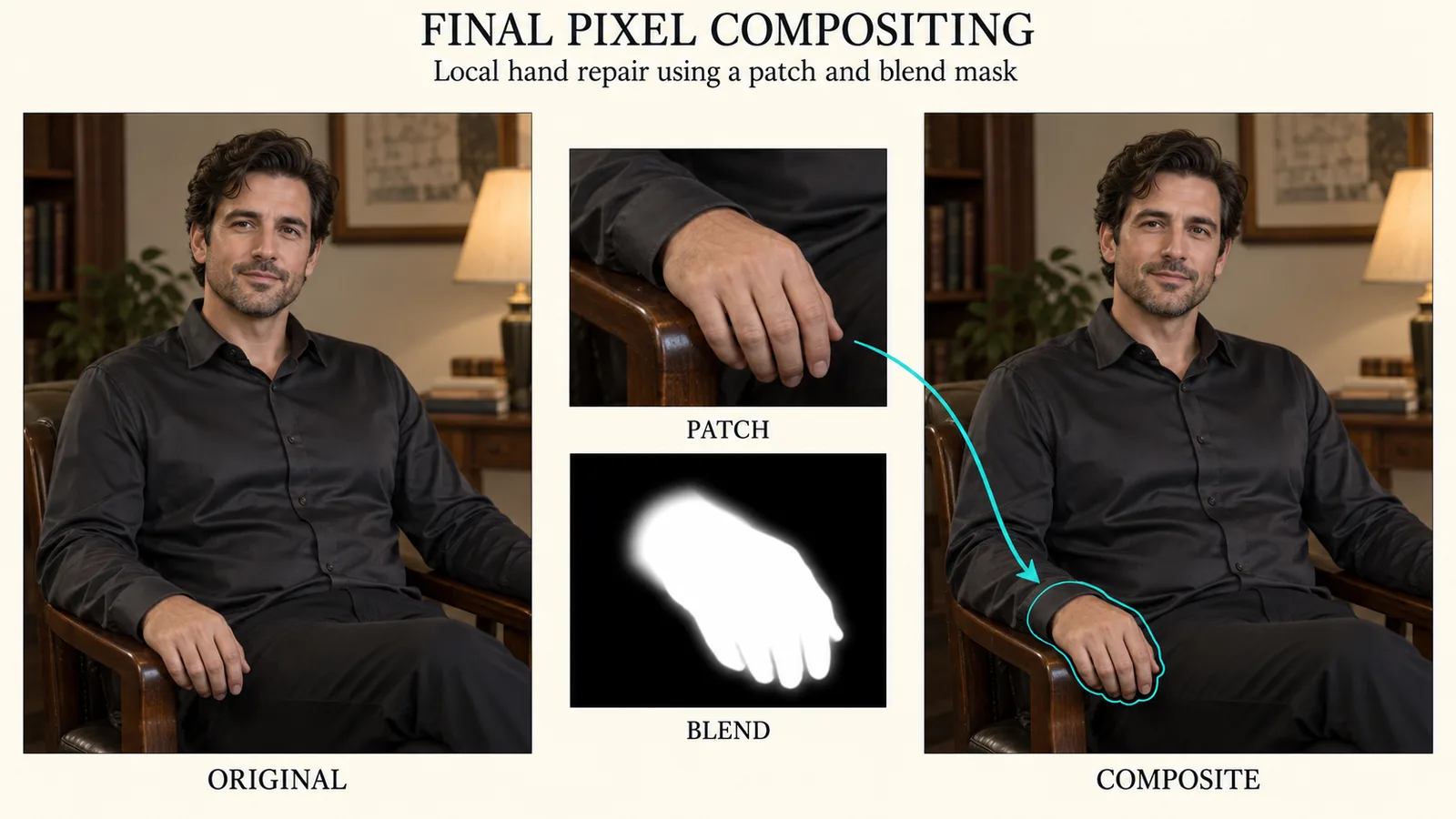
Illustration: keep the original as the destination and blend only the accepted patch. The transition is part of the changed region; these panels explain the method rather than showing a model test.
Diagnose the next attempt from the defect you can see
Open the source, actual mask and candidate side by side. Check placement before prompt wording. Many failures are a perfectly understandable edit applied to the wrong region or blended with the wrong old pixels.
| What came back | First thing to inspect | A useful next change |
|---|---|---|
| Everything except the hand changed | Mask polarity and inverse mode | Preview a white hand selection; disable unintended inversion |
| Nothing meaningful changed | Mask channel, opacity and actual output file | Confirm a nonempty mask and the new result before changing the prompt |
| Fingers improved but wrist detached | Context and selection at the wrist | Show more forearm; include the defective join |
| A new small person appeared in the hand crop | Prompt describes a full portrait inside a tight crop | Describe the local hand and contact instead |
| Original strap is faintly visible underneath | Gray mask centre or overly broad blend | Make the defect fully selected; narrow the transition |
| Repair has a bright edge | Alignment, lighting and boundary softness | Fix coordinates first, then blend or match local colour |
| The whole face changed slightly | Final image came from global decode or edit | Composite only the repair onto the saved master |
| Texture is too detailed for the surrounding image | Enlarged crop and mismatched style settings | Match grain and sharpness; avoid sharpening the entire frame |
| Unwanted shadow remains after object removal | Selection omitted the object's effect | Add that shadow without erasing legitimate grounding shadows |
| API rejects local settings | Selected task's supported controls | Remove unsupported parameters; use the mask file and instruction |
For a repeated unchanged result, inspect initialization too. A local pass that strongly retains the original can preserve the exact malformed structure you want removed. A workflow that clears selected pixels may instead need enough regeneration to rebuild them. These two starting states should not share a denoise recipe merely because the final mask is the same.
For a repeated mismatch in style, return to the accepted source and compatible model setup. If you generated the master with an anime checkpoint and repair it with a photographic model, the patch may look wrong even with correct anatomy. Dedicated inpainting support does not erase style differences.
Do not keep polishing the latest failed output. If a candidate changes the cheek, garment and chair as well as the hand, reject those outside changes and return to the master. Otherwise each new attempt quietly treats earlier mistakes as established scene content.
Compare repairs fairly and stop when the image is useful
Review one question at a time. First ask whether the requested defect is fixed. Then ask whether it belongs in the scene. Finally ask whether protected details survived. A candidate can pass the first question and fail the next two.
View at the final delivery size before declaring the repair done. Very large previews make small edge differences look urgent while hiding overall posture. Also inspect the selected region at 100% for ghost lines, doubled boundaries and inconsistent grain. Those two views answer different questions.
If you use an image editor's difference layer, align the files at the same size and orientation first. Differences outside the intended region can reveal drift, but compression, resizing or a changed colour profile can also create widespread differences. Comparing your lossless final composite with its lossless working master is more informative than comparing unrelated delivery exports.
Keep a repair note: source version, region, prompt, mask and crop, model setup, and the setting that changed between candidates. That helps you repeat the fix on another character image.
For a thumbnail, a coherent hand and no visible seam may suffice. A large poster also needs clean contact edges and matching texture. Stop according to the delivery size.
Budget for repairs you will accept
For the hosted one-source Qwen configuration above, three 1k candidates cost $0.108 at the listed rate; three 2k candidates cost $0.144. That is the cost of three outputs, not evidence that three attempts produce a keeper. Budget each additional candidate explicitly rather than assuming every successful task is a successful correction.
For a batch of twenty approved images, one 2k repair per image would be twenty outputs and $0.96. Two candidates per image would be forty outputs and $1.92. If only five images need repair, do not run the other fifteen through an editor just to make the workflow uniform.
Local work costs setup, hardware and review time. Measure time to an accepted repair on your own machine, including selection and compositing; sample speed alone misses repeated redraws.
For tiny exact defects, include manual retouching in the comparison. A clone brush may solve a fabric speck immediately. Save generative inpainting for problems where producing new plausible content is the useful part.
Questions that come up during local repair
Do I need a dedicated NSFW inpainting checkpoint?
You need a model and interface that fit the allowed content and repair task. A dedicated inpainting model can accept image-and-mask conditioning designed for filling regions; a regular compatible checkpoint can also work in a masked workflow. Neither label guarantees adult-content handling or quality. Match the model's style, documented workflow and licence to your project rather than choosing from its filename alone.
Can a prompt-only editor count as inpainting?
It may carry out a local-looking instruction, but that does not give you an explicit mask boundary. If you require spatial control, choose an exposed mask input or composite the selected repair yourself. Different tasks in one model family can expose different controls.
Should I increase blur when the repair does not blend?
Only after checking alignment, light and geometry. More blur cannot fix a wrist in the wrong place. It can hide a small boundary, but it can also reveal the old defect through a wide transition. Keep a fully accepted centre and adjust the edge deliberately.
Can I repair several areas in one pass?
Yes, but separate distant or structurally different repairs when they need different instructions or context. A hand and a lamp can make a combined bounding box nearly as large as the portrait. Repair them sequentially from accepted masters if that gives each a clearer local task. Related parts of one structure, such as two branches of a broken strap, belong in the same selection.
Why does a black protected region still look different?
Check whether the final output passed through full-image generation, VAE decoding, scaling or compression. Protection during sampling and preservation during delivery are different steps. Use the original as the final composite destination, include only the accepted repair, and keep a lossless working export when outside pixels must remain stable.
Start with one defect that is worth repairing. Keep the approved master, preview the actual mask, show enough context for the replacement to connect, and accept only the patch you need. That turns an NSFW character image with one distracting mistake into a controlled retouching task instead of another attempt to regenerate the whole character.