To batch-edit an NSFW character series in n8n, make each requested picture one job, keep that job's reference images together, and send every variation back to the same approved character source. Download the returned files into a review folder, then move only the pictures you approve into the delivery folder. This gives you a repeatable production process without treating a completed API request as proof that the face survived.
The difficult part is usually not writing six prompts. It is making sure six separate items receive the right source, outfit reference and room reference; keeping each result attached to its instructions; and finding the version you actually chose after the temporary result link stops working. A workflow can run perfectly and still deliver the wrong character if those decisions are missing.
This guide builds one complete example: a six-picture evening series for Mara, a fictional 34-year-old character. We will change wardrobe, lighting and framing while keeping one established identity. The public example uses opaque clothing and non-explicit instructions. You can use the same mechanics for permitted adult-oriented work, but neither n8n nor this tutorial promises that every NSFW request will be accepted or rendered as intended.
The workflow below is a proposed setup based on the released SpicyAPI community node and the current editing schema. It is not a report of a newly executed six-image batch. The instructions distinguish things the node does automatically from creative decisions that still belong to you.
Build the series around one approved character image
Start with the picture you would show someone when they ask who Mara is. Choose a clean, reasonably close view with a readable face, the hairstyle you want to keep, and lighting that does not hide half her features. In our example she has dark shoulder-length curls, a slightly asymmetrical smile, and a dark blue opaque camisole under a charcoal jacket. She is seated beside a green sofa. Those details make the editing instructions concrete without requiring a long invented biography.
Save that file as the character master. It should remain available in your own storage even if you later upload it to SpicyAPI. A temporary input URI is a convenient way to reference a file during production; it is not your permanent character archive. Give the master a version, such as mara-master-v1, so a later hairstyle change does not silently alter the sources used by an older series.
For this batch, prepare two additional images. The wardrobe reference shows a burgundy opaque satin dress on a hanger or mannequin, without a competing face. The room reference shows an empty lounge with a brass lamp and green velvet furniture. The model should receive three distinct instructions: take the person from the first image, the garment from the second, and the setting from the third.
A room photograph containing another prominent person makes that division less clear. A wardrobe picture with a different model's face introduces the same problem. If those are the only references you have, crop them to the part you need before uploading. You are not trying to collect the largest possible reference pack. You are trying to remove ambiguity about what each picture contributes.
Keep the initial camera request close to the source. A seated three-quarter portrait can support another seated portrait more directly than an extreme overhead view with the head turned away. This is a working recommendation, not a measured success rate. The model has less visible information to carry across when the new angle asks it to invent features the source never showed.
Do not build the series as master → outfit swap → new room → new pose → close-up. Every output in that chain becomes another interpretation of the face. A drift introduced in the second step can become the starting point for the third. Our six rows each point to mara-master-v1; they do not point to the previous result. You may deliberately make an edit chain for a small repair, but it should be a separate choice, not an accidental consequence of how the nodes connect.
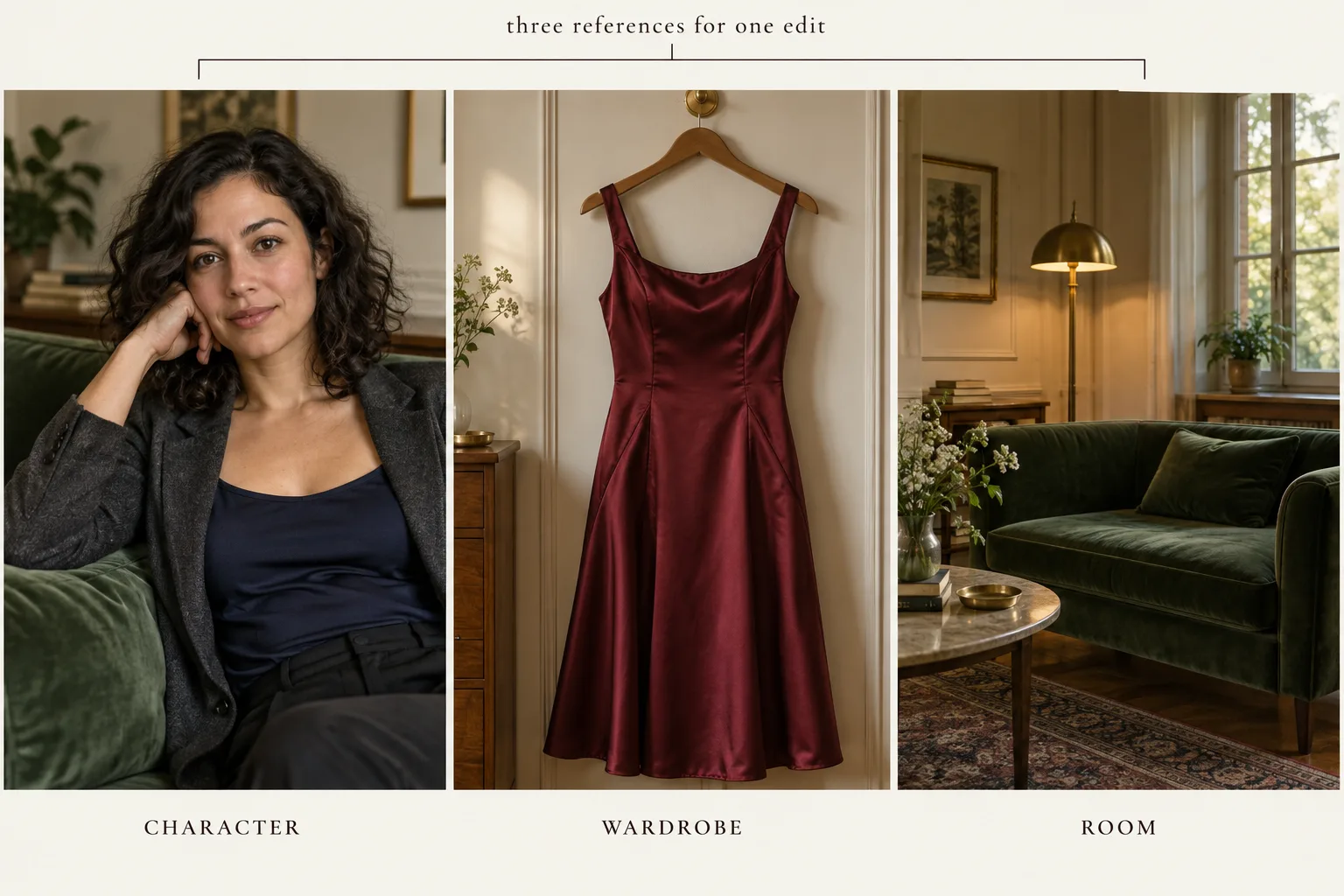
Use the first image for identity, the second for the garment and the third for the room. Illustration.
Choose the editing endpoint before building the automation
Use an image-editing model, not a text-to-image model with the character's description pasted into its prompt. n8n's built-in Edit Image node can crop, resize and composite files; it is not the generative editor that changes the character's outfit or room. For the example, the model ID is alibaba/qwen-image-2.1/edit. Its Qwen Image 2.1 editing page describes the actual task and available controls.
The current endpoint accepts image_urls as a list containing one to ten images, a required prompt of up to 5,000 characters, an output aspect ratio, a resolution tier, and an output format. It returns one image per request. Six desired pictures therefore mean six generation tasks. Adding three references to one request still asks for one output picture, not three separate variations.
For our ordinary multi-reference batch, choose resolution: 2k, aspect_ratio: 4:5, output_format: png, and background: opaque. Set enable_prompt_expansion to false if you want to begin with the written instructions unchanged. Disabling expansion is offered at 1k and 2k; it is a useful comparison setting, not an identity-lock switch. Leave the seed empty at first. A repeated seed does not guarantee the same face or reproduce the same file.
There is no strength, CFG, sampling-step or separate negative-prompt control in this endpoint's current schema. Do not add familiar Stable Diffusion fields just because another tutorial uses them. Put preservation instructions and exclusions into the main prompt. If you need those local sampling controls, choose a workflow that actually exposes them.
The endpoint also has a mask_url for a different task: a local repair using exactly one reference image. We are not using that mode for this three-reference series. A small garment-edge repair after you select a keeper can be a separate masked job. Sending the character, garment and room references together with a mask would break the local-mode input requirement.
The catalogue describes this endpoint as unrestricted. That is relevant to an NSFW creator choosing an editor, but it is not a guarantee about the pictures in your next batch. The existing Qwen editing article covers a different set of observed editing results. This tutorial adds the production mechanics for reference-based batches; it does not convert those earlier observations into a new consistency benchmark.
Install the actual node, then name the nodes in your workflow
For the package, API key setup and the n8n Cloud HTTP templates, open the official SpicyAPI n8n node guide. Then follow the scene or reference setup below for this specific workflow.
The package is @spicyapi/n8n-nodes-spicyapi, version 0.1.1. On self-hosted n8n, open Settings → Community Nodes → Install, enter that package name, and install it. Create the SpicyAPI (spicyapi.ai) API credential with your key from the API keys console. Keep the default API base URL unless you have a specific reason to change it.
n8n Cloud permits verified community nodes; publication on npm alone does not mean a package is verified. This guide uses the community node on self-hosted n8n. Cloud users can implement the same API calls with built-in HTTP Request nodes, but should not expect this package's dropdowns or automatic uploads to appear there. The current n8n installation documentation explains that distinction.
There is no separate SpicyAPI operation called “Edit Character” or “Batch NSFW.” Choose Resource: Image → Operation: Generate, then select the editing model. Generate is the node's operation for image models, including editing; the selected model determines what the task does. The model dropdown shows starting prices, not a finished quote for your particular reference pack.
We will build two small workflows. The first produces candidates and saves them to a review folder. The second reads your approved rows and puts the selected files in a delivery folder. Separating them means you can review six pictures together without keeping an execution waiting for your return. It also makes the delivery workflow usable again without paying to generate the same picture again.
Name the important nodes as you build: Read Jobs, Ready Jobs, Loop Jobs, Prepare Edit, Edit Character, Attach Job, Save Candidate, and Record Candidate. Expressions later in the guide refer to those names. If you choose different names, update the expressions accordingly. This is a manual build guide, not a claim that an official importable template exists for this exact series.
Start with a Manual Trigger. You can add a schedule after the workflow behaves the way you want, but the first run should contain one deliberate job. A folder containing new uploads is not yet a production brief. The job table will specify which uploads belong together and what output is requested.
Make six job rows, not a folder full of loosely related files
Use a Google Sheet with a Jobs tab for the example. Each row is one requested output. Give it a unique job_id, a batch name, a prompt, three source locations, a resolution, an aspect ratio, an attempt number, and a status. This makes it possible to ask for a specific retry without regenerating every other picture.
The six creative requests are different enough to form a useful series:
| Job | Picture to make | Main change | What stays familiar |
|---|---|---|---|
| M01 | Seated lounge portrait | Burgundy dress, same seated pose | Face, curls, smile, green sofa |
| M02 | Waist-up lamp portrait | Warmer side light and closer framing | Face, hairstyle, dress construction |
| M03 | Standing portrait beside sofa | Change posture and reveal more room | Identity, garment colour, lounge palette |
| M04 | Window-side three-quarter portrait | Cooler window light with lamp behind | Identity, hair length, burgundy dress |
| M05 | Close portrait with jacket | Add the original charcoal jacket | Face proportions, curls, understated expression |
| M06 | Wider seated composition | More space for a title or crop | Identity, dress, furniture arrangement |
Use batch_id: mara-evening-01 and attempt: 1 for all six. Initially mark only M01 as ready; leave the other five as draft. After one candidate travels all the way into storage with the correct row information, mark the others ready. This small start exercises the actual editing path, not just a disconnected credential test.
Keep character_uri, wardrobe_uri and room_uri in separate columns. They may contain upload URIs you just created or public image URLs that the API can fetch. The three fields are easier to read in a sheet than a string containing a whole JSON array. Prepare Edit will combine them into the model's required image_urls array in a fixed order.
Add result columns rather than trying to overwrite the creative brief: task_id, candidate_file_id, candidate_name, review_status, review_note, delivery_file_id, and actual_cost. For a batch with more than one candidate per job, put candidates on a separate Candidates tab keyed by candidate_id, while the Jobs tab keeps the requested shot. Our first pass has one candidate per row, but that separation is useful as soon as M03 needs two attempts.
A candidate ID can be mara-evening-01-M03-a2. This tells you the batch, requested picture and attempt at a glance. The API's task ID remains important for recovering a task, but it does not tell you which wardrobe change you asked for. Keep both identifiers.
Treat statuses as plain production states: draft, ready, pending_review, approved, identity_fix, creative_fix, task_error, and delivered. These are values in your own table, not SpicyAPI task states. SpicyAPI may say succeeded while your table says identity_fix, because the image exists but the face does not match your series.
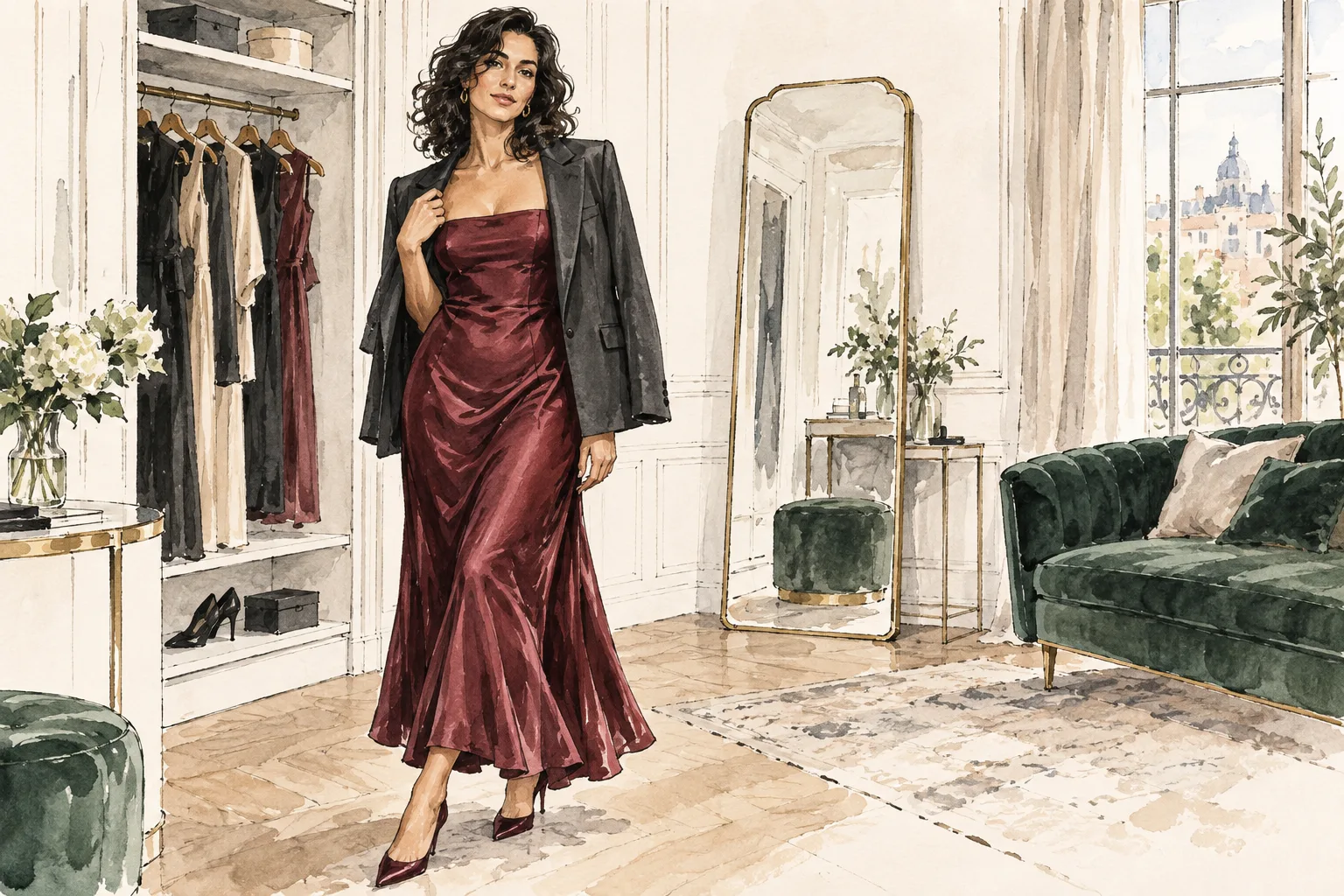
Plan the wardrobe, pose and framing for each job while keeping one character reference. Illustration.
Bring the reference files into n8n without confusing bytes and URLs
n8n can carry ordinary JSON fields and binary file data on the same item. A URL string belongs in JSON. A downloaded photograph belongs in a binary property such as data or character. Neither the binary property's name nor its storage identifier is a public image URL.
For a quick one-job setup, download the character from your storage using its n8n integration, placing the file in the binary field character. Download the garment into wardrobe and the room into room, and ensure those files arrive on the same incoming item as the prompt. If you use an Edit Fields node between the downloads and generation, keep Include Binary Data on. Otherwise the JSON may survive while the photographs disappear.
In the SpicyAPI node, open Media Inputs and add three entries. For each, select the field image_urls, choose Source: Binary File, and enter the relevant Input Binary Field: character, wardrobe, or room. Repeating the same list field is intentional. The node uploads those binaries and assembles them into one reference array in the order you added them.
Do not add three entries to a field that accepts one file, such as mask_url. The plugin checks that difference and reports an error if several inputs target a single-file field. The media-field dropdown is derived from the selected model's schema. If it shows an unfamiliar field, check the model you selected before copying a field name from another workflow.
For repeated use of the same three sources, explicit upload is easier to manage. Download each original into n8n, then use SpicyAPI → File → Upload with the matching binary-field name. The upload result contains uri, fileId, fileName, mimeType, and bytes. Put the returned uri into the appropriate source column for this production batch.
The upload operation returns a new JSON object. It does not automatically copy a field like reference_role from the previous item. If you upload a three-item list, preserve that role through linked-item expressions or merge it back explicitly. For a beginner setup, three separately named upload nodes are easier to inspect: one for the character, one for the wardrobe, and one for the room. Copying each returned URI into the sheet also makes the roles visible before any paid edit.
Uploaded inputs are temporary; the package's implementation describes the files as kept for a day. Re-upload from your stored originals when preparing a later batch. Do not assume a spicy:// value pasted into a sheet last month will still be usable. The original Drive file IDs or your own storage keys should remain beside those temporary URIs so you can recreate them.
A Drive sharing-page URL is another common mistake. The API needs the image bytes, not an HTML page that displays a preview after login. Rather than changing your character masters to public sharing, let the Google Drive node download the binary with your credential, then upload it through the SpicyAPI node. The creator's private source folder can remain private.
For our six-row case, use freshly uploaded source URIs for all rows. Set three Media Inputs to Source: URL and use {{ $json.character_uri }}, {{ $json.wardrobe_uri }}, and {{ $json.room_uri }}. In this UI, URL also accepts a Spicy URI. This avoids dragging three full image binaries through every table operation.
Keep multiple references inside one item
There are two separate kinds of “multiple images” here. You have six jobs, which should be six n8n items. Each job has three references, which should remain a three-element array inside that job. Splitting the array into three items would change the meaning: the editor could receive three independent requests with one reference each.
This distinction shows up in real community questions. In a Reddit discussion about Telegram albums, the author found that several images triggered separate executions; adding Wait delayed each execution without grouping the album. The discussion proposes buffering by the shared album identifier or separating collection from processing. It does not establish a universal fix, but it illustrates why “wait a little” is not the same as “assemble one reference pack.”
Our table avoids that collection problem. It declares the three references before you start editing. If you later add a multi-file upload form, have the collection stage produce one item with all selected files and their roles. Do not let every incoming file independently trigger Edit Character. A garment upload should not become a request to redesign the garment on its own.
You can use the repeated Media Inputs entries described above, or build the list in Additional Parameters (JSON). The JSON box expects one object and is merged last. Its keys override the Prompt field, Model Parameters and Media Inputs. That is useful for a dynamic array, but it can also hide the values you thought you selected in the form.
For example, this expression produces a complete input object from the prepared row:
{{ {
  prompt: $json.edit_prompt,
  image_urls: [$json.character_uri, $json.wardrobe_uri, $json.room_uri],
  resolution: $json.resolution,
  aspect_ratio: $json.aspect_ratio,
  output_format: "png",
  background: "opaque",
  enable_prompt_expansion: false
} }}
Choose one method for the reference array. If you use that JSON expression, leave Media Inputs empty to avoid uploading files that the final override then replaces. If you prefer the visual Media Inputs list, leave image_urls out of Additional Parameters. The assembled API input should contain one three-element array, not an array inside another array and not a comma-separated string.
An array column arriving from a spreadsheet may be plain text even when it looks like JSON. Our separate URI columns avoid that uncertainty. If you choose a references_json column instead, parse it into an array before generation, and stop the row if parsing fails. A string such as "[first,second,third]" is not a list of image URLs.
The same principle applies to the resolution and Boolean values. Put false into the JSON expression as a Boolean, rather than the text "false". Enter 2k as a valid enum string, not a guessed pixel dimension. Using the schema-generated form is convenient precisely because it shows the values this endpoint accepts.
Write the first edit instruction so the model knows what belongs where
In Prepare Edit, build edit_prompt from a fixed reference-role introduction plus the individual shot request. You can use an Edit Fields node to combine strings; a Code node is unnecessary for six simple rows. Keep the identity instructions fixed while the row supplies the change.
A suitable M01 instruction is:
Image 1 is Mara, a fictional adult character aged 34. Preserve her facial proportions, dark shoulder-length curls, slightly asymmetrical smile and seated pose. Image 2 supplies only the burgundy opaque satin dress: copy its colour, neckline and seam placement, not another person's identity. Image 3 supplies only the lounge, green velvet sofa and brass lamp. Place Mara in that lounge wearing the dress. Keep the portrait natural, with readable eyes and soft warm light. Frame a seated three-quarter portrait at 4:5. Do not introduce another person, text or extra accessories.
This is a proposed prompt, not one we ran and scored. It gives each image a role, describes the change, and names a few things that must stay recognisable. It also tells the editor what to do when two references disagree: the face comes from Image 1, while the garment comes from Image 2.
For M02, change the shot sentence to a waist-up portrait with the brass lamp lighting one side of her face. Do not repeat M01 and append ten conflicting camera terms. For M03, replace the seated-pose preservation sentence with an explicit standing pose beside the sofa, hands relaxed and visible. Asking both “preserve the seated pose” and “make her stand” produces an avoidable contradiction.
M04 asks for window-side light. Keep the curls and garment description, but specify a cool window light with the lamp remaining in the background. The change should be the lighting relationship and position in the room, not a new character description. M05 reuses the charcoal jacket from the master over the burgundy dress; say that directly, because the model otherwise has a reasonable reason to follow the garment-only reference.
M06 asks for a wider seated composition with clear space on one side. That is different from reducing the face's size by a random crop after generation. Give the editor the composition you intend, then inspect the face at full size. A wide frame may be useful for a header while providing less facial detail for an identity decision.
Keep your desired NSFW styling in the creative brief where appropriate for the endpoint and your intended audience. Do not assume that a generic “make it NSFW” tag describes the outfit, expression, crop or mood you want. A creator still needs to specify those things. For the public example, a mature evening atmosphere, opaque satin clothing and direct eye contact convey the intended tone without explicit instructions.
If your actual brief needs an exact pose that the master does not show, create that pose as its own approved reference before scheduling a large set. A workflow cannot replace missing visual information by repeatedly submitting the same vague request. The useful outcome of a first batch may be an improved source pack, not six immediate keepers.
Connect the generation loop with a separate task-error route
Add Google Sheets Get Row(s) in Read Jobs, select the Jobs tab, and retrieve the rows for the batch. Use a Filter node named Ready Jobs to keep status equal to ready. If you filter inside the Sheets node instead, make sure matching multiple rows returns all matches rather than only the first. A six-row table that returns one item is not a six-picture batch.
Connect the filtered items to Loop Jobs, a Loop Over Items node with Batch Size 1 and Reset off. Connect its loop output to Prepare Edit, then to Edit Character. SpicyAPI already processes multiple incoming items, so a loop is not required simply to make multiple edits. We use it to make each row's save and status update finish before moving to the next request.
Configure Edit Character as Image → Generate, select the exact editing model, and map Prompt to the prepared instruction. Add the three reference entries or the single JSON object, as chosen earlier. Turn Wait for Completion on and Download Output on. Set Max Cost per Item (USD) to a deliberate ceiling; for this small example, $0.10 is a useful starting ceiling, provided the quote for your complete input fits beneath it.
That ceiling applies to one item, not to the entire sheet. A hundred rows can each pass a ten-cent limit. Limit the selected batch to six ready rows and give the API key an account spending cap if you want a second boundary. Neither a row count nor a spending cap improves the image; they just prevent an accidental schedule from running a much larger production list.
The node performs its own price quote before creating the task. If the complete request exceeds the ceiling, it errors before generation. Do not add a second quote node to the production path unless you need to show a separate estimate in the table. For planning, Model → Get Quote can price the exact same references and settings without creating an image.
In node Settings, configure On Error to continue with the regular output for this guide's error branch. The plugin's continuing-error result contains error, description, and a task ID when one is available. Put an If node after Edit Character that checks whether error is present. The error path records task_error and the message, then returns to Loop Jobs; the success path saves the candidate and records pending_review, then returns to the same loop input.
Do not use the loop's done output to generate another image. Done is for the batch summary after all processed rows have returned. You can use it to read the updated candidate table or show counts. Keep the two branches explicit: an API error does not go to the review folder as an empty file, and a completed file does not go directly to the delivery folder.
For six image edits, leave the node's built-in waiting in place. A separate callback arrangement is usually unnecessary here. If an execution stops waiting while a task is still running, copy the original task ID into Task → Get and turn Wait for Completion and Download Output on in its options. Task → Get does not wait by default, so leaving that option off can return a running record without a file. For a separate recovery execution, first read the matching Jobs row and pass it through Prepare Edit, then connect Task → Get → Attach Job → the candidate-save path. This preserves the linked job context used by the expressions below; a fresh Manual Trigger connected straight to Task → Get would leave Prepare Edit unexecuted. Once the recovered task succeeds and downloads, save its candidate without sending it back to Generate. A timeout error may show its task ID in description even when the separate taskId field is empty, so check that description before submitting a replacement. Starting a new generation because the page appeared slow can create another payable task even though the original one later succeeds.
Reattach the job identity before saving anything
On success, the node outputs the task record and downloaded binaries. The JSON is not your original spreadsheet row with a few new fields appended. It contains task information such as taskId, state, cost, settled, and output. That is why a later {{ $json.job_id }} can be empty even though the prompt used the right row.
Add Attach Job, an Edit Fields node, after the success branch. Keep the task JSON, enable Include Binary Data, and add your production fields through linked-item expressions. Because the community node supplies item pairing, you can refer back to the specific Prepare Edit item rather than taking the first row in the batch.
Use {{ $('Prepare Edit').item.json.job_id }} for job_id, and the same pattern for batch_id, attempt, edit_prompt, and the source-version label. Use the current task record for task_id, through {{ $json.taskId }}. Construct candidate_id from the batch, job and attempt, and use it as the filename stem.
Do not use $('Read Jobs').first() to recover every row's identity. That takes the first result, which can label all six outputs as M01. Also avoid rebuilding associations by position after sorting or filtering one branch. Item pairing works while a clear relationship remains; if you deliberately split or aggregate items later, keep an explicit job_id with them.
The first downloaded asset is binary data by default. Additional assets use data_1, data_2, and so on. The example's editor returns one image, so data is the field passed to storage. If you change to another model that returns multiple assets, do not assume saving data saved the complete result. Decide which asset belongs to the candidate, or expand the output assets into separately named candidate records.
The JSON path output.assets[].url contains result links; it is not the downloaded file content. Those links expire after about twenty minutes according to the package documentation. A spreadsheet containing only that URL can look useful while you review immediately, then fail when you return later. Download Output gives the storage node actual bytes to save.
Binary copies also need a permanent destination. They do not inherit the short lifetime of the signed URL, but n8n execution data may be pruned. A successful workflow run is not your archive. Saving the candidate during the execution is what lets you return to the picture tomorrow without re-generating it.
Save review candidates, then let your eyes decide what needs another pass
Create a private mara-evening-01/review folder in your storage. For the example, add Google Drive File → Upload in Save Candidate, set Input Data Field Name to data, set the filename to the candidate ID plus .png, and choose that review folder. The Drive node documentation describes the binary upload fields.
The filename should reflect the actual output format. Writing .png on a JPEG does not convert it; our example selected PNG in the model request. Keep the storage integration's returned file ID, not just the friendly name. Two files can have the same name in a folder, and a later delivery step needs an unambiguous source.
Drive upload returns file metadata rather than preserving the complete candidate record. In Record Candidate, use the uploaded file ID from the current item and linked values from Attach Job for the candidate ID, job ID, task ID and cost. Map the fields manually into the Candidates tab with Append or Update Row, matching on candidate_id. This keeps another attempt from overwriting the record for the first.
If you are updating the Jobs tab as well, set the matching job_id row to pending_review. Return the final table-update output to Loop Jobs. On the task-error branch, record the original job ID from Prepare Edit, the error description, and any task ID before returning. Both branches must reach the loop; otherwise the batch can stop after the first failed or successful item.
Review the six stored pictures together at two sizes. At thumbnail size, ask whether they form the series you intended: the same character, a coherent wardrobe and room, and enough variation between shots. At full size, compare the source and candidate's eyes, nose, mouth shape, jaw contour, hairline and distinctive asymmetry. These are practical viewing points, not an automatic biometric scoring system.
Keep identity and creative failures separate in the review table. A recognisable Mara with the wrong lamp placement needs a different next instruction from a beautiful portrait of someone else. If the face works but the composition is wrong, mark creative_fix and write the missing change. If the character has changed, mark identity_fix and describe what changed, such as a narrower jaw and a different hairline.
Do not label an image approved merely because its state is succeeded or because an automated caption describes the correct outfit. A captioning model can recognise a burgundy dress without deciding whether the face belongs in your established series. You may add an assistant to suggest review notes, but keep the actual approval decision separate and visible.
Give each failure a specific next edit
Suppose M01 is close, but the character has acquired the mannequin's hair shape from the wardrobe reference. First confirm that Image 2 genuinely contains no competing head; if it does, crop it to the garment. Then clarify that Image 2 supplies only the dress and that the curls and hairline come exclusively from Image 1. Submit that as attempt 2 against the original character master, not against the drifting candidate.
If M02 looks like Mara but changes the dress neckline, improve the garment reference. A dark photograph that hides the neckline does not provide much information to preserve. Crop a clearer view of the seams, then ask for those specific construction details while keeping the waist-up framing. Adding more images of vaguely similar dresses can increase ambiguity instead of resolving it.
For M03, a standing pose may fail in two different ways. If the pose is plausible but the face changes, reduce the camera change and try a standing three-quarter portrait with her face turned toward the camera. If the face survives but the body arrangement is awkward, request a simpler stance beside the sofa with relaxed visible hands. One attempt that simultaneously demands a difficult turn, crossed arms and extreme light makes it harder to see which change caused the failure.
M04 can keep the face while making the lighting so cool and dark that the source comparison becomes difficult. Before discarding it as identity drift, inspect a neutral view and distinguish lighting from changed facial proportions. The next prompt can retain the window-side location while asking for readable facial detail and a softer shadow. Do not automatically add a different identity reference because a colour grade made the same character look unfamiliar.
M05 may lose the burgundy dress under a jacket that grows into a different outfit. State that the original charcoal jacket is worn open over the dress and that the dress construction remains visible. If only one jacket edge is malformed on an otherwise excellent frame, consider a local masked repair of that keeper rather than another whole-scene edit. That repair is a new job using the chosen candidate as its sole source, not the original three-reference request.
M06 may produce the requested empty space but make Mara's head too small for the intended cover. Adjust the composition instruction: seated medium portrait, room visible on the left, face still large enough to read. Changing the output ratio alone does not tell the model where your title space belongs. Your creative note should describe the layout, not just list 4:5 or 16:9.
Content rejection belongs on the task-error route, not the identity-fix route. Read the returned reason and choose a suitable permitted request or model; do not repeatedly resubmit an unchanged declined input. A rendered but unsuitable result is different: it may be charged because the generation succeeded. The review table should retain that distinction so the cost of unsuccessful creative attempts remains visible.
Stop a repair branch after a deliberate attempt limit, such as two attempts for the first pass. This is a production choice, not a prediction that two attempts will be enough. A stubborn shot can go back to source preparation or manual editing. Automation is most useful when it makes the problem visible and repeatable, rather than generating twenty loosely related alternatives while you are away.

Compare facial proportions and curls separately from the background framing and lamp placement. Illustration.
Deliver approved files without generating them again
When you finish review, change the chosen candidate rows to approved. Keep other attempts in review with their notes. For M03, you might approve attempt 2 while retaining attempt 1 as identity_fix. The delivery workflow should read Candidates, not infer the winner from the latest file in a folder.
Build the second workflow with a Manual Trigger, Google Sheets Get Row(s), and a Filter selecting review_status equal to approved and an empty delivery_file_id. Add Loop Over Items with Batch Size 1. Download each candidate by its stored Drive file ID into binary data, then upload that binary to the batch's approved folder with the intended delivery name.
For this download, use your own stored candidate, not the temporary SpicyAPI result URL. It is the exact picture you reviewed. Do not call Image → Generate to recreate it at the same seed or higher resolution and then assume it remains approved. Any new render needs its own review because the face, outfit or framing can change.
After the approved-folder upload, update the candidate row with delivery_file_id and review_status: delivered, and optionally update the Jobs row with the selected candidate ID. Return that update to the loop. The file ID gives you a stable way to retrieve the delivered version and prevents a normal second run from treating every approved row as unfinished.
A download-and-upload copy is used here because its binary handoff is explicit. If your storage offers a native copy operation that preserves the original bytes, you can use that instead. The creative rule is the same: delivery copies the approved image; it does not re-run the editor.
Use a separate folder for exports that have been resized, cropped or compressed. A square thumbnail and a full-size approved portrait are two different files, even if both use the same source. Keep the original approved version so you can make another export without another generation charge. If a crop cuts off a hairstyle or changes the character's presentation, review the export for that destination.
There is no social-posting node in this workflow. Delivery ends with files and a table of selected candidates. That is enough to hand the set to a page designer, prepare a private gallery, or choose destinations manually. You can add destination-specific publishing later, but it should not be inseparable from generating and reviewing the pictures.
Price the actual reference pack, not just the dropdown
The node's starting price is a browsing aid. A request's complete references and settings determine its quote. The catalogue lists Qwen Image 2.1 Edit starting amounts of $0.036 at 1k, $0.048 at 2k, and $0.072 at 1.5k. Public quotes for three references are $0.060 at 1k and $0.048 at 2k with opaque PNG output and expansion disabled. At 1k, the extra two references add $0.024; the quoted 2k request has no such addition. Do not assume that an intermediate resolution is cheaper than 2k or that the reference surcharge works identically across tiers.
Use Model → Get Quote with the same image_urls, prompt and settings before turning five additional rows ready. The node returns the assembled input alongside the quote, which is also a useful way to see whether three references survived your mapping. That planning operation uploads binary references when needed but does not generate an image.
For our planned three-reference 2k setup, the current $0.048 quote gives a six-candidate first-pass budget of $0.288; twelve requests would be $0.576. The same six three-reference requests at the quoted 1k price would total $0.360. These are quote-based production budgets, not receipts from an executed batch or a comparison of image quality. Requote your own source pack and settings before running it. Storage and your n8n hosting or subscription are separate costs.
Count attempts as tasks. Six approved pictures might take more than six successful generations because several paid candidates do not fit the brief. If you quote a first pass, then set an attempt limit of two per shot, the maximum number of planned generation attempts is twelve. That is a more useful budget than “one six-image batch” with no allowance for replacements.
The plugin sends an idempotency key for each item. Retrying the same node call within the same execution is designed to recover the existing task rather than charge for a duplicate. A new execution, changed input or another loop pass is new work. Clicking Execute Workflow again is not the same as recovering the original task ID.
Once a row has a task ID, recover or inspect that task before submitting a replacement for a technical interruption. If it succeeded and the file was not saved because Drive failed, retrieve the output and finish the save step. The face did not become better because your storage credential expired, so there is no creative reason to pay for another render.
The plugin documentation says failed and expired tasks normally release their hold, while declined requests are not charged unless the model page says otherwise. A successful candidate rejected by your own review is different from an API failure. Keep actual_cost from the settled task record so you can later see how much each delivered shot actually required.
Run the first job from source to delivery, then expand the batch
Before enabling all six rows, run M01 through candidate generation, storage and review. Open the actual saved file from your review folder. Confirm that its row says M01, its prompt uses the correct reference roles, and the returned file is the one you are looking at. A correct preview in an execution panel does not prove that the stored candidate has the right name or table association.
Approve that candidate and run the delivery workflow once. Open the approved-folder file and verify that it is the same image you chose. Run delivery again without changing its table state; it should skip the row whose delivery ID is already present. If you manually clear the delivery ID later, the workflow will treat it as eligible again, so do that only when you actually need another copy.
Next mark M02 through M06 ready. The generation loop should produce one candidate record per job or a specific task-error record. Review the contact sheet, write short concrete notes, and create only the replacement attempts that those notes justify. The character master remains the source for ordinary replacement shots.
You now have a useful n8n NSFW image-to-image workflow: a defined character source, role-labelled references, separate editing jobs, correct binary and URI handling, readable creative instructions, and a delivery folder containing the pictures you selected. The automation carries the materials and saves the work. Your shot design and selection determine whether the resulting series is worth publishing.