To build an n8n NSFW AI image generator workflow, connect a scene list to an adult-oriented text-to-image model, then save each finished image before starting the next. On self-hosted n8n, the SpicyAPI community node handles the quote, submission, waiting and download. On n8n Cloud, use the built-in HTTP Request template instead: the package is not currently verified for direct Cloud installation.
For a first fictional adult character series, use Z-Image Spicy at 1024 × 1536 with prompt expansion off. Its base price is $0.01235 per image, so six successful requests cost $0.07410 in image-generation fees. Set a per-item cost limit, keep the first run manual, and store the actual image files in a project folder. n8n hosting and file storage are separate costs.
The workflow below creates an evening portrait series around one fictional adult character. You supply the character description and six scenes; n8n repeats the preparation and delivery. It will keep your written character brief consistent, but text-to-image alone does not guarantee an identical face. Also, n8n does not change a model's content policy: adding an automation node to a restricted image API cannot make it uncensored.
This is a configuration tutorial built from the current plugin source, model catalogue and n8n documentation. The example is a proposed workflow, rather than a report of a newly generated six-image test. Its public illustrations explain the setup; they are not samples proving how these models perform.
What you will build
The sequence is:
Manual Trigger → Build scene list → Split Out → Build prompts → Loop Over Items → SpicyAPI Generate → Google Drive Upload → return to the loop.
The loop runs one scene at a time. The generation node finishes and downloads that scene's image, the Drive node saves it, and only then does the next scene start. The loop's Done output is where the finished series ends.
This order matters when you are making a set rather than a single picture. If scene four fails, scenes one through three should already be in your folder. You can recover scene four and continue with the remaining scenes, instead of starting the whole series again. It also puts a recognizable name on each image while its scene information is still available.
The SpicyAPI node can already process multiple input items. We add a loop here specifically to save each result before moving on; it is not necessary merely to send several prompts. A larger multi-item generation node can be useful later, but a one-image-at-a-time workflow is easier to understand when you are still learning what an execution, a task and a downloaded file mean.
You do not need an AI Agent, a frontend, Telegram or a prompt-writing language model for this first version. Those can be added when they solve a real problem. For now, removing them leaves you with one clear place to edit the character, one clear place to change the scene, and one clear folder containing the results.
Choose the image model before choosing a template
For adult-oriented character work, the model choice comes before the automation. A template may have a helpful form or a polished demonstration and still use an endpoint that declines your intended material. Some generic n8n image-generator examples also deliberately add their own NSFW blocklist. Importing them unchanged will preserve that behavior.
For this guide, these are the relevant SpicyAPI text-to-image options:
| Model | Generation price with expansion off | Size controls | When it fits this workflow |
|---|---|---|---|
| Z-Image Spicy | $0.01235 per image | Width and height, each 256–1536 pixels; default 1024 × 1536 | Start a portrait series with an adult-oriented endpoint and a modest request cost |
| Z-Image Spicy Pro | $0.019 per image | Width and height, each 256–2560 pixels; default 1024 × 1024 | Your final image needs a side larger than 1536 pixels |
| Z-Image Turbo | $0.010 per image | A supported aspect-ratio choice; default 1:1 | A lower-cost workflow pilot or concept pass using its own parameter set |
The two Spicy families are listed as adult-oriented, unrestricted endpoints. That is the supplied product scope, not a new measured acceptance rate for every possible prompt. Select the endpoint that supports the task you intend to automate, then make a small pilot with your actual creative brief before expanding the series.
Pro is a practical choice for a larger delivery canvas; its name is not evidence that it keeps a face more accurately. If your finished portrait needs only 1024 × 1536, standard Spicy already accepts that size. Paying for Pro should follow a concrete requirement rather than the assumption that a more expensive name fixes character drift.
Do not copy settings between the rows as though they were the same API. Spicy and Spicy Pro use width and height. Turbo uses aspect_ratio, and its prompt is capped at 1,000 characters. The Spicy prompts have no enforced character cap. These endpoints take text, not reference images; adding a picture to the workflow does not give them a reference-image capability they do not expose.
Leave prompt expansion off for the first series. You are going to write a deliberate character description and a specific scene. An expander adds another transformation between those instructions and the image request, making it harder to tell which wording produced the result. It also changes the price on standard Spicy and Turbo: expansion on costs $0.0133 and $0.016 per image respectively. Pro has one listed per-image price.
For a first run, choose standard Spicy, explicitly set 1024 × 1536, and use its default expansion-off setting. That gives the example below one consistent frame size and an uncomplicated cost calculation. After you have opened the saved images, you can decide whether you need a wider composition, a larger canvas, or an editing model for stronger identity control.
Install the node and connect your account
For the package, API key setup and the n8n Cloud HTTP templates, open the official SpicyAPI n8n node guide. Then follow the scene or reference setup below for this specific workflow.
The direct community-node route needs a self-hosted n8n instance that allows community packages. Open Settings, find Community Nodes, and install @spicyapi/n8n-nodes-spicyapi. The published package version is 0.1.1. If your instance administrator has disabled community-node installation, ask them to enable or install the package; repeatedly searching the node picker will not add it.
The package being published does not mean it is n8n-verified. n8n Cloud permits verified community nodes, and this package is not currently in that category. Cloud users should skip to the HTTP template section below. The distinction follows n8n's community-node installation documentation, rather than a limitation of the image API.
After installation, add a SpicyAPI node and create its credential. Get your API key from the SpicyAPI key console, paste it into the credential's API Key field, and keep the default Base URL, https://api.spicyapi.ai. Save the credential and use its connection test. Your key belongs in that credential, not inside a prompt, an Edit Fields node or a shared workflow export.
A successful credential test establishes that the account can be reached. It does not mean you have already generated an image, that the chosen model is available for every input, or that the account has enough balance for a large batch. Check your balance before the pilot, and leave any scheduled trigger inactive until the manual path is working.
If the SpicyAPI node appears but the model picker cannot load, start with the credential and connection rather than rewriting the prompt. A failed model-list request is a setup problem. You can also select the Model field's ID mode and enter the exact public identifier, but entering an ID does not repair an invalid key or bypass the model's parameter rules.
For this example, the identifier is alibaba/z-image-spicy/text-to-image. The family page name and API identifier serve different purposes: the page explains the product, while the full identifier selects the exact generation task. Use the full identifier in the node; do not substitute the shorter website slug.
Generate and save one image first
Before assembling the six-scene list, connect a Manual Trigger to one SpicyAPI node. Select Resource Image and Operation Generate. Choose Z-Image Spicy, or use ID mode with the identifier above. Leave Media Inputs empty because this is a text-to-image request.
Use this complete starter prompt:
Editorial photograph of Mara, a fictional 34-year-old woman with shoulder-length dark curls, brown eyes, a softly angular face and a small gold pendant. She wears an opaque deep-green satin evening dress with slim straps. She stands beside a tall apartment window at dusk, one hand lightly resting on the curtain, looking toward the camera with quiet confidence. Waist-up portrait, warm interior light mixed with cool blue evening light, natural skin texture, realistic fabric folds, restrained romantic atmosphere, no other people in frame.
The prompt describes a specific adult character and a single visible moment. It gives the camera somewhere to stand, tells the model what clothes matter, and separates warm interior light from the cooler window. It does not require an elaborate story to be reconstructed in one still image.
Set Model Parameters to width 1024, height 1536, and prompt expansion false. Leave the seed unset for this pilot. In Additional Parameters, keep the empty object {}. That field can override the visible prompt and model settings, so a forgotten value there can make the node send something different from what you see in the form.
Set Max Cost per Item (USD) to 0.015. That is above the current $0.01235 request price but well below the node's default $2 per item. Under generation options, keep Wait for Completion on and Download Output on. Use data as the binary property name. Keep Max Wait Time at its default for the first image; the node uses the task's deadline rather than waiting indefinitely.
Execute once. The node gets a quote before creating the task and checks the quote against your cost limit. When the task succeeds and its output is ready, the node downloads the image into binary data. Open its output's Binary view and preview or download data.
Three things should now agree: the task succeeded, the binary image opens, and the picture reasonably follows your pilot brief. A successful task with the wrong outfit is a creative issue. A failed credential is a setup issue. A successful task with no saved file yet is a delivery issue. Keeping those separate prevents you from spending money on another generation when the original image simply has not reached its destination.
Look at the picture at the size where it will be used. For a companion profile card, the face must read at a small crop. For a chapter illustration, the pose and room may matter more. If the pendant distracts from the face, simplify it before expanding the series. If the expression is too neutral, change the gaze or pose description rather than adding a dozen general quality adjectives.
Now add a Google Drive node after Generate. Select Resource File, Operation Upload, and Input Data Field Name data. Choose your Drive credential and a project folder, then execute the upload using the successful generation output. Open the saved file in Drive. This first upload should be completed before you build the batch; otherwise six successful generations can leave you debugging the same missing-file problem six times.
Prepare one character brief and six different scenes
For a coherent set, keep the character's appearance and photographic style in two reusable fields. Change the scene description separately. This is more controllable than asking a language model to invent a new portrait prompt for each image, because you can see which parts remain fixed and which parts vary.
Add an Edit Fields node after Manual Trigger and name it Build scene list. In Manual Mapping, create these fields:
| Field | Type | Example value |
|---|---|---|
seriesId | String | mara-evening-v1 |
characterBase | String | The fictional adult character's age, face, hair, pendant and opaque green satin dress |
styleBase | String | Editorial photography, natural texture, realistic fabric, restrained romantic atmosphere |
scenes | Array | The six scene objects below |
For characterBase, use a complete sentence: “Mara is a fictional 34-year-old woman with shoulder-length dark curls, brown eyes, a softly angular face and a small gold pendant, wearing an opaque deep-green satin evening dress with slim straps.” For styleBase, use “Editorial photograph, natural skin texture, realistic fabric folds, restrained romantic atmosphere, one adult character only.”
Avoid packing every preference into the character field. “Smiling,” “sitting,” “at a window” and “blue lighting” are scene choices. If they are fixed in the base, they can contradict a later standing portrait under warm light. The character base should describe who is in the picture; the scene should describe what the viewer sees happening there.
Paste the following as the value of the scenes Array field:
[
  {"sceneId":"01","scene":"Waist-up beside an apartment window at dusk, hand on the curtain, cool evening light and warm interior light, looking toward the camera."},
  {"sceneId":"02","scene":"Seated sideways on a velvet armchair in the same apartment, relaxed shoulders, hands resting separately, warm floor-lamp light, medium portrait."},
  {"sceneId":"03","scene":"Standing in the apartment doorway, one hand on the doorframe, softly playful expression, three-quarter portrait, warm light behind her."},
  {"sceneId":"04","scene":"Close portrait beside the window, curls tucked behind one ear, pendant visible, steady direct gaze, soft side light."},
  {"sceneId":"05","scene":"Standing on a quiet balcony at blue hour, dress moving slightly in the breeze, looking back toward the apartment, medium portrait."},
  {"sceneId":"06","scene":"Seated on the armchair near the window, looking down with a small smile, hands resting in her lap, gentle mixed evening light, waist-up portrait."}
]
These six prompts form a small shoot rather than six unrelated requests. The room, wardrobe and character remain stable while the distance, pose and direction of attention change. You get enough variation for a story or character profile without asking the model to change everything at once.
The public example stays fully clothed. For an adult-oriented project, you can adapt the permitted wardrobe and atmosphere to your own fictional adult brief. Keep the instructions visual and concrete. A mature category label by itself does not tell the model whether you want an intimate close portrait, dramatic evening fashion, or a relaxed room scene.
Do not start with six difficult full-body poses. Wide compositions give the model more things to arrange and make facial differences harder to assess. The close portrait in scene four is useful precisely because it lets you compare the defining facial features without the room taking up most of the frame.

Illustration: the close portrait emphasizes the appearance details kept in the reusable character description.
Split the scenes and build the final prompts
After Build scene list, add Split Out. Set Field to Split Out to scenes, choose Include All Other Fields, and set Destination Field Name to scene. Its output should now contain six items. Each retains seriesId, characterBase and styleBase, plus its individual scene object. These settings follow the Split Out documentation.
Open the output before continuing. Item one should contain scene.sceneId equal to 01; item two should contain 02. If there is still only one item containing all six scenes, the split field is wrong. If the character description disappeared, the Include setting is wrong. Fixing either here costs no generation fees.
Add another Edit Fields node and name it Build prompts. Keep the incoming fields. Add sceneId as a String in Expression mode with {{ $json.scene.sceneId }}. Add prompt as a String with {{ $json.characterBase + '. ' + $json.styleBase + '. ' + $json.scene.scene }}. The Edit Fields documentation describes the field and expression controls.
This small expression joins three pieces of ordinary text. It does not ask a language model to paraphrase the character or reinterpret the scene. Inspect all six final prompts: the character base should be identical, the style base should be identical, and only the scene ending should change.
Make sure the expression is evaluated, rather than saved as literal text. The preview should show the complete photograph description, not braces and $json. If the prompt contains undefined, a field name differs from the one you created. The exact spelling of characterBase, styleBase and scene matters.
If you want to use a spreadsheet later, keep this same arrangement. One row can hold seriesId, sceneId and the variable scene, while a fixed character and style field are attached before Build prompts. You do not need a spreadsheet for the first six images, but keeping the scene IDs stable makes that later move simpler.
Resist adding an AI Agent between these nodes just to make the workflow look more sophisticated. It can introduce text-model fees, extra latency and refusals at a different stage. An image endpoint may support your adult-oriented brief while the optional prompt-writing model declines to compose it. In that situation, the refusal occurs before image generation. Keep your own prepared prompt and send it directly to the selected image task.
Save each image before the next scene starts
Add Loop Over Items after Build prompts, with Batch Size 1. Connect its Loop output to the SpicyAPI Generate node. Connect Generate to Google Drive Upload. Connect Upload back into Loop Over Items. The Done output is the end of the completed series. Keep Reset off; this is a finite six-item list, not a loop that should recreate its input indefinitely. See n8n's Loop Over Items documentation.
Replace the Generate node's fixed pilot prompt with the expression {{ $json.prompt }}. Keep the same model, dimensions, cost limit and download settings used in the successful pilot. The loop presents one item to Generate, so the node should show one complete scene prompt on each pass.
The important connection is the return from Upload to the loop. Returning directly from Generate starts the next scene before storage is done. Connecting through the Done output instead of the Loop output skips the intended per-scene path. Follow the graph with your finger: one scene enters Generate, its file enters Upload, and the finished upload returns for the next scene.
In Google Drive Upload, keep Input Data Field Name data. For File Name, use {{ $('Build prompts').item.json.seriesId + '-' + $('Build prompts').item.json.sceneId + '-' + $binary.data.fileName }}. This prefixes the actual downloaded filename with your series and scene IDs while keeping its real extension. Choose the project folder you used in the pilot. The relevant fields are documented in Google Drive's upload operation.
Why refer back to Build prompts? The generation node outputs the task record and downloaded binary; it does not automatically copy your custom scene fields into its JSON. n8n's item linking lets the upload expression recover the corresponding earlier seriesId and sceneId. Using the current $json.sceneId after Generate may produce an empty name because the current JSON now describes the task.
For this one-output-image recipe, data is the only binary field the upload needs. When another task returns multiple assets, the node names additional binaries data_1, data_2 and so on. One Drive upload configured for data does not automatically upload every additional field. Keep that distinction in mind if you later change the selected task; do not silently assume that the first saved file is the whole response.
Execute the workflow with only scene 01 in the array once more. Confirm that its file name includes the series and scene, and that it opens from the chosen folder. Then restore the six scene objects and execute the complete series. This extra single-scene pass checks the new loop and name expressions before six paid requests depend on them.
The final folder should contain a recognizable sequence, rather than six anonymous downloads. A saved image is the useful end of this workflow. The API's output URL and n8n's execution preview are helpful during generation, but neither is the permanent project folder you are trying to build.
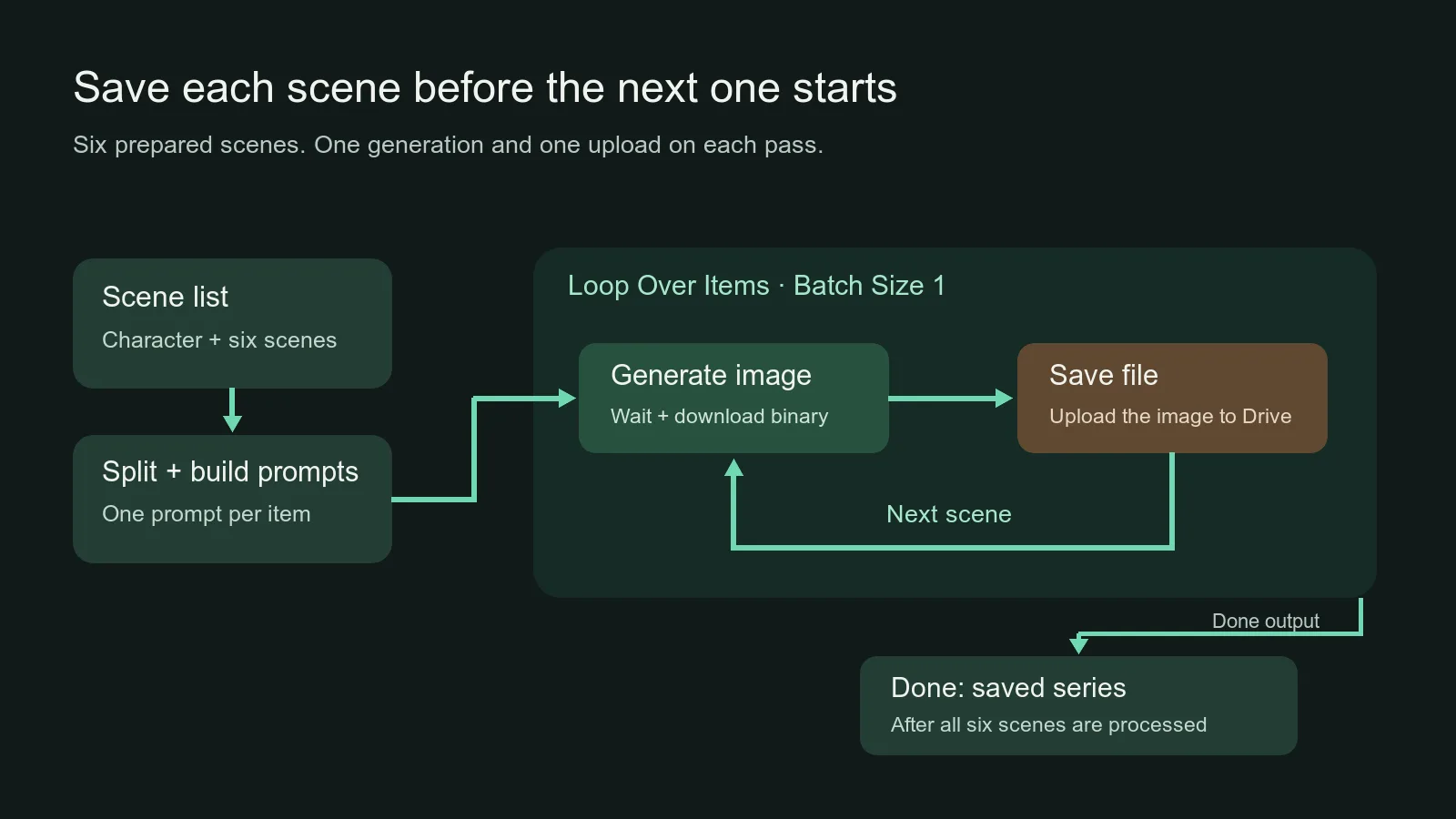
Illustration: save the current image before the loop starts the next scene.
Set a real budget for the series
The image fee is the number of successful billable requests multiplied by the applicable per-image price. The workflow does not charge for a scene that only exists in your list. It does charge for another successful generation you deliberately request to replace an image you dislike.
For the six-scene example, with expansion off:
| Plan | Standard Spicy at $0.01235 | Spicy Pro at $0.019 | Turbo at $0.010 |
|---|---|---|---|
| One complete six-scene pass | $0.07410 | $0.11400 | $0.06000 |
| First pass plus six replacement requests | $0.14820 | $0.22800 | $0.12000 |
| Three candidates for each of six scenes | $0.22230 | $0.34200 | $0.18000 |
These are generation fees, not a claim that every result will be usable. If you produce eighteen candidates and keep six, you have paid for eighteen successful images. A reliable download prevents wasted completed tasks; it does not make discarded creative candidates free.
The Max Cost field has a different purpose. The plugin checks it against each input item's quote before creating that item's task. It is not a budget for the whole six-scene workflow. The default is $2 per item, which is much higher than the example's image price. Setting it to zero disables that limit; zero does not mean free generation.
With six scene items and a $0.015 per-item ceiling, the sum of those six ceilings is $0.09. That is a useful upper bound for those six submissions, provided the workflow does not add more items, loop again, switch tasks or start additional executions. At the current standard Spicy base price, the expected generation fee is lower: $0.07410.
For Pro, a $0.015 cap would stop the request before creation because its $0.019 quote exceeds the cap. Raise the per-item limit deliberately if you choose Pro; for example, a $0.025 ceiling permits its current quote. The six ceilings then sum to $0.15. You have changed both the model choice and the permitted spend, rather than allowing a silent fallback to a different cost.
The plugin also handles a price-change conflict by obtaining another quote and checking the limit again. You do not need to build a separate quote node merely to get that protection on this community-node route. The imported HTTP fallback described below is a separate implementation, so do not assume it has every piece of that automatic behavior.
Before you schedule anything, multiply the batch cost by the number of planned executions. One six-scene standard Spicy pass each day costs $2.223 in generation fees over thirty days at the stated base rate. Three candidates per scene each day cost $6.669. Double the trigger frequency and those amounts double. Your n8n subscription or server, storage and any optional text model are added separately.
Leave the workflow manual until you know how many candidates you actually need. A daily schedule that keeps reproducing an already finished six-scene series is a recurring generation order. Give scheduled runs a new project or scene list, or make the input contain only scenes still needing an image. A cheap request can become expensive when the trigger repeats it without a reason.
A timeout is not permission to generate the image again
Waiting and generation are different activities. The plugin's Max Wait Time controls how long the node waits for a result. Reaching that limit does not cancel the underlying image task. The task can finish afterward, and a successful generation can still be charged.
Suppose scene 04 shows a timeout in n8n. Do not immediately click Execute Workflow again with all six scenes. Open the failed execution, look for the created task ID in the available output or error message, and retrieve that task first. Not every error has a dedicated taskId JSON field, so read the message as well as the output table.
On the community-node route, make a small recovery workflow: Manual Trigger → SpicyAPI with Resource Task, Operation Get → your storage node. Enter the existing task ID. If the task is still queued or running, turn Wait for Completion on. Task Get does not wait by default. Keep Download Output on and the binary property name data so a successful recovered image can go through the same upload path.
In this separate recovery workflow, give the Drive upload a filename using the known series and scene: for scene four, use {{ 'mara-evening-v1-04-' + $binary.data.fileName }}. Do not copy the earlier filename expression that refers to Build prompts; that node does not exist in the recovery workflow. Keep Input Data Field Name set to data and select the same project folder.
Check what the task actually says. A running task needs more time. A succeeded task needs its file saved. A failed or expired task needs its stated error addressed before a fresh request is useful. A refusal from the selected model is not a network timeout, so waiting longer or resubmitting it in a tight loop will not solve that kind of failure.
Failed or expired tasks normally release their hold. Content-rejected requests are normally not billed unless the model's page says otherwise. For the actual request, inspect the task's settlement and cost instead of deciding from a red n8n node alone. A stopped waiting node and a failed generation task are not interchangeable billing outcomes.
Once scene 04 is recovered and saved, remove 01 through 04 from the scene list and run 05 and 06. If scene 04 truly failed and you want a new generation, retain 04 in that remaining list after fixing its input. The scene IDs remain stable even when the array gets shorter, so the filenames still show where each image belongs.
This is why the one-item loop is helpful. It leaves earlier completed scenes in storage before a later one can interrupt the series. It cannot make the external task disappear when n8n stops, but it reduces the amount of work you need to reconstruct afterward.
Understand what retries can and cannot deduplicate
The plugin adds an internal idempotency key to task creation. Within the same execution, node run and item, using the same input can recover the same creation request instead of blindly creating a duplicate. This is useful when a network response is lost after the API has accepted the task.
That protection is not a permanent “this prompt has already been generated” check. A new workflow execution has a different scope. A later loop pass also has a different run index. Changing the prompt or parameters changes the request. Those situations can create a new paid task even if the visible scene looks familiar to you.
For that reason, use three separate responses to three separate problems. If submission communication was uncertain, recover the existing task before requesting another. If a finished image failed to upload, repeat the upload or fetch the existing task's output. If the image was saved but the pose was wrong, change the scene and make a deliberate replacement request.
Keep automatic retries modest when you add them. They are useful for temporary transport errors; they are not a creative-selection engine. An invalid dimension, wrong binary field or incompatible input will still be wrong on the next attempt. Fix the setting first. A node retry that repeats work within its existing execution scope is also different from a person launching a fresh workflow.
For a scheduled series, use a small scene-status sheet or table once manual recovery becomes inconvenient. The useful fields are seriesId, sceneId, status, task ID and saved file link. Before generation, include only rows marked ready; after the upload, mark that scene saved. A retry then has an existing task ID to retrieve rather than a guess about whether the previous request reached the API.
Do not build that bookkeeping into the first pilot unless you need it. Six manually reviewed scenes can be managed by editing the array. The table becomes worthwhile when a recurring trigger runs unattended or multiple people edit the same project. Its value is that it prevents the same completed scene being treated as a fresh order, not that it creates more paperwork.
Preserve files, not temporary output links
The API's signed output links last about twenty minutes. That is the access window for a particular signed link, not a promise that the task and its stored asset disappear at the same moment. Retrieve the existing task for current output access while its asset is retained, then download and store the image.
If you paste an output URL into a spreadsheet and return to it tomorrow, an expired link can look like a lost generation. Do not pay to recreate the picture just because that old URL fails. Fetch the task again first. For a recurring workflow, store the durable Drive file link after upload rather than treating the temporary API link as the finished asset.
With Download Output enabled, the plugin provides binary data for the next node. With it disabled, you have a task record and links, but no data binary for Drive to upload. A URL string is not the image file. If the upload says it cannot find binary data, check that Download Output is on and that the upload field name matches the generation node's binary property.
This distinction also matters when you later add a frontend. In Leon van Zyl's no-code image-generator tutorial, the transcript shows a successful n8n execution followed by a frontend error because the response handling expected something different from the returned image binary. The useful lesson is to inspect the consumer of the image before blaming generation.
For Drive, the consumer expects a binary field. For a webpage, you may want a permanent storage URL. For a local folder, the write happens on the machine running n8n, which may be a server rather than your laptop. Choose the destination deliberately and open one saved result there before adding more scenes.
If the upload fails after generation, save the task ID and retry storage. Check the Drive credential, folder access and data field. If the file is already in the folder, avoid uploading a second copy just because the last node's confirmation was unclear. Task idempotency protects task creation within its scope; it does not automatically deduplicate every downstream file upload.
Use the HTTP template on n8n Cloud
Cloud users can use the API with built-in nodes without installing the unverified package. Download the example from the official SpicyAPI n8n repository, then import that file into n8n. Start with its one-image structure rather than trying to rebuild every community-node feature at once.
The template contains a Settings node, a quote request, a budget check, task creation, task-status checks with a Wait loop, and a final image download. Its Settings node starts with Z-Image Turbo and an aspect ratio. Change its prompt to your fictional adult character pilot while keeping the supported model fields intact.
Create the HTTP Bearer Auth credential requested by the API nodes and select it on GetQuote, CreateTask and GetTask. Put the key in the credential. The final DownloadImage request fetches the signed asset URL and does not need your SpicyAPI credential added to that storage request.
The raw HTTP responses use a data wrapper, so expressions in this template can refer to data.taskId or data.output. The community node returns an unwrapped task record. Copying a community-node expression into a raw HTTP node without accounting for that wrapper can make a valid response appear empty.
The download node must treat the response as a file. n8n's HTTP Request documentation describes Response Format File and the output-field setting. Inspect the download's actual binary field, then point your Drive Upload node at that field. The template downloads the first output asset; it is not an automatic multi-asset downloader.
If you switch the template from Turbo to standard Spicy, change the request input as well as the model identifier. Use width and height instead of aspect_ratio. Update both the quote request and the creation request so they describe the same image. Changing only Settings.model while leaving the old input body is not a correct migration between these schemas.
For your first Cloud run, keep one image per execution. The template's creation key is based on the execution and item index; it is not the community plugin's richer input-and-loop-run key. Do not wrap the unmodified template in a loop and assume the community-node retry behavior carries over. A proper Cloud batch needs distinct scene request identities and matching quote/create inputs.
The polling path also needs a deliberate stopping point for unattended use. The example repeats its wait/status check until the task is terminal; it does not supply the community node's Max Wait Time control. Set an appropriate workflow execution timeout before scheduling it. Stopping that workflow still does not cancel the API task. Recover the existing task with GetTask before starting another generation.
If the price changes between quote and creation, resolve the returned conflict and obtain a fresh quote. The community plugin automates that re-quote step, while the HTTP example should not be treated as identical in every detail. The built-in route is a workable Cloud starting point, but the self-hosted community-node recipe is the simpler path for the six-scene loop taught here.
Improve the series without paying for the wrong changes
Once the six files are saved, compare them as a set. First ask whether they tell the intended visual story: the same evening, wardrobe and adult character, seen from different angles. Then decide which specific frames need replacements. Do not rerun good scenes merely because one picture is weak.
If the face drifts, shorten the changes between scenes. Keep the same hair description, face structure and pendant, and remove a new makeup style or dramatic age cue that appears in only one scene. A new camera angle can still change facial appearance; consistency in the written brief helps control inputs, but it is not a facial-identity lock.
If exact identity is essential, stop trying to solve it with another paragraph of adjectives. These text-only endpoints cannot consume the accepted portrait as a reference. Move the chosen image into a model with an actual reference-image or editing task. The face-preservation guide explains that different workflow. Use text-to-image here to establish the character and the shoot; use editing when preserving the accepted face becomes the main requirement.

Illustration: change the pose, camera angle and setting while retaining the character's defining appearance and wardrobe.
If the mood is too plain, adjust one visible feature: the gaze, the light direction, the camera distance or the dress's fabric. “More NSFW” does not specify the intended picture. A fictional adult looking back across a softly lit balcony is a different composition from a close portrait with direct eye contact, even if both belong to an adult-oriented project.
If the pose becomes confusing, simplify the physical instructions. Scene two deliberately separates resting hands instead of asking for a complicated interaction with several props. Add one interaction after the simple pose works. Automation is good at sending a prepared series consistently; it does not remove the need to give the image model a drawable moment.
If the frame cuts off something important, change the framing or dimensions before asking for higher detail. The standard Spicy portrait can show a waist-up character comfortably, but a full-body pose may need a more explicit camera distance. A larger Pro canvas provides more pixels; it does not automatically widen the camera's field of view or repair a composition instruction.
Keep the seed, prompt and dimensions of an accepted frame if you want a controlled repeat. A seed helps hold variation steady under the same settings; changing the scene or size changes the problem being drawn. On the Spicy endpoints, seed zero requests a random seed. A fixed nonzero seed is useful for comparison, not a guarantee of an identical face across every scene.
Finally, distinguish a technically successful image from a useful one. Your generation fee table should count every successful billable candidate. Your finished-series count should include the images you actually keep. If six final images require twelve candidates, budget for twelve, then improve the weak scene instructions so the next series needs fewer replacements.
Questions before you turn on a schedule
Is n8n itself an NSFW image generator?
No. It connects inputs, API requests and file destinations. The selected image endpoint determines generation capability and content scope. An optional prompt-writing agent or an imported template can impose its own restrictions before the image task is called.
Can this be done without writing a script?
The self-hosted recipe uses visual nodes, a short scene array and two small expressions. You still need to choose the model, create credentials and connect the loop correctly. The HTTP route on Cloud requires more attention to JSON input and task responses; it avoids package installation, not all API configuration.
Does a free n8n template make the images free?
No. Importing a workflow and paying for an image request are separate things. This example uses priced API requests, and n8n hosting or a subscription can add another cost. The useful number is the generation price multiplied by the successful candidates you request.
Should I automate publication after generation?
For a new character series, end at saved files and review the pictures first. You can add later delivery steps when your destination and creative requirements are settled. A generation workflow that reliably saves six scenes is already useful; automatic public posting is a separate action with different requirements.
Start with one manually generated image and one successful upload. Then expand to the six-scene list with a cost limit and a save-before-next loop. When something fails, retrieve the existing task before ordering another image. That gives you a practical n8n workflow for adult character creation: understandable inputs, predictable request costs and files you can actually find afterward.