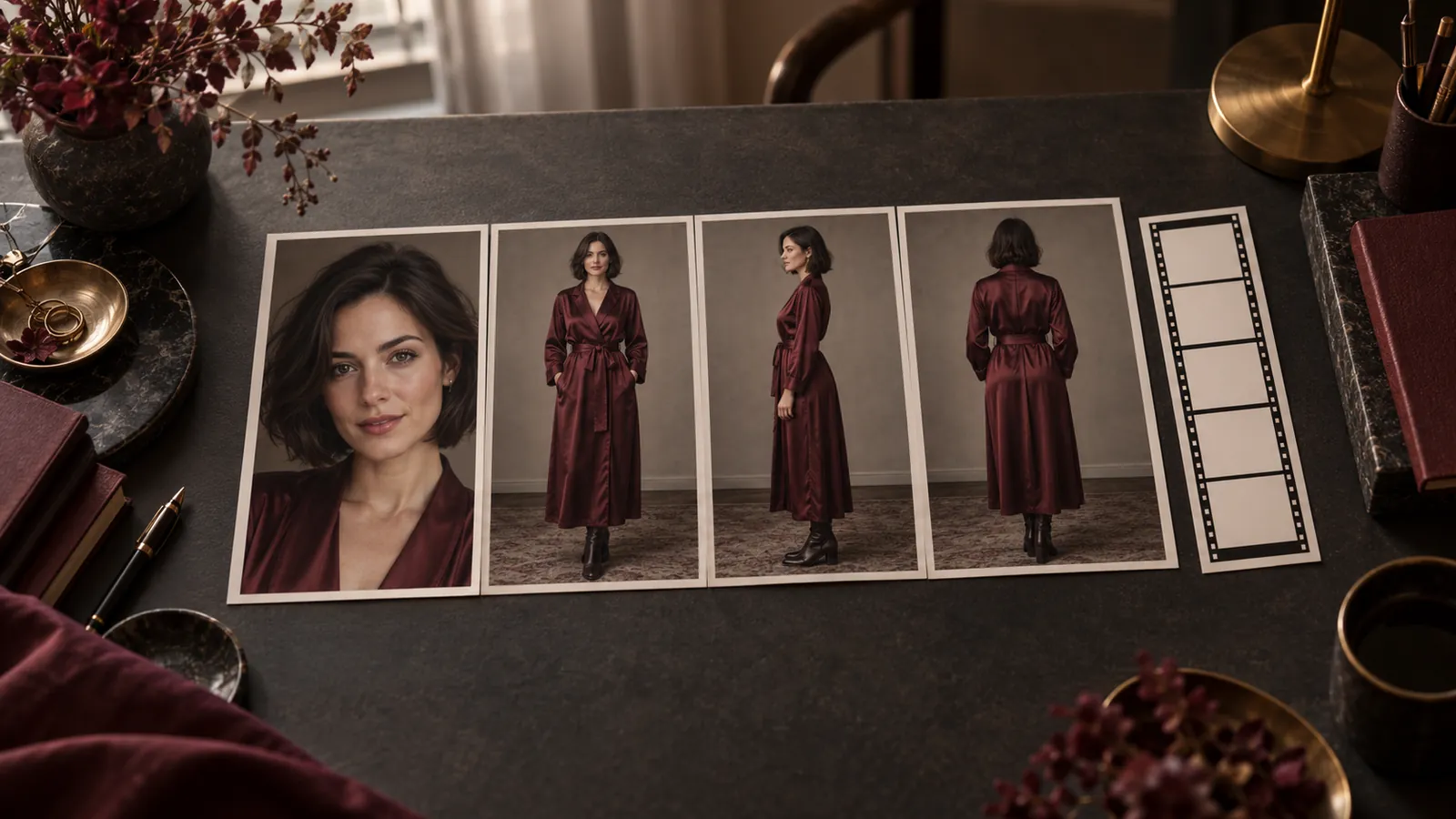
To turn a landscape portrait into vertical AI video, make a usable 9:16 still first, then animate it. The video model animates the frame you give it, and a hand that the crop removed is not in that frame. Crop when the whole person and gesture already fit a narrow window; expand when the missing space is background; recompose when the pose itself is too wide.
| Route | Use when | Cost (October 2026 prices) | Catch |
|---|---|---|---|
| Crop | Arms close to the body, action near the centre | Free | A 16:9 source keeps only 31.64% of its width |
| Image Expander | Pose is right, frame needs room | $0.024 per image | A 16:9 source fills only about 32% of the 9:16 height; the rest is invented |
| Recompose with Qwen Image 2.1 edit | Pose is too wide, same person needed | $0.036 per image at 1k | The pose changes, so check the face and hands |
| Recompose with Z-Image | A new look-alike character is fine | $0.010 per image | Not the same person as the source |
This guide starts from a still. For existing landscape footage, SpicyAPI has no reframe or video-outpainting task. Use an editor's tracked crop or position keyframes to follow the person, or letterbox the clip when the whole frame matters and a smaller image is acceptable. Expanding one still does not expand every frame of a video. To redo a clip as vertical, take a clean frame from it, run Route 1, 2 or 3 on that frame and animate it again; you get a new clip, not the original motion.
See how much the crop removes
A full-height 9:16 crop from a 16:9 image keeps only 31.64% of the original width. For a 3840 × 2160 source the window is 1215 × 2160; a 1920 × 1080 source gives 608 × 1080.
Where the window sits matters more than the export size. If a person in a dark jacket rests one arm on a chair, a face-centred crop keeps the face and drops that hand. Moving the window to the chair saves the hand and loses the other side. That is a pose problem, not a resolution problem.
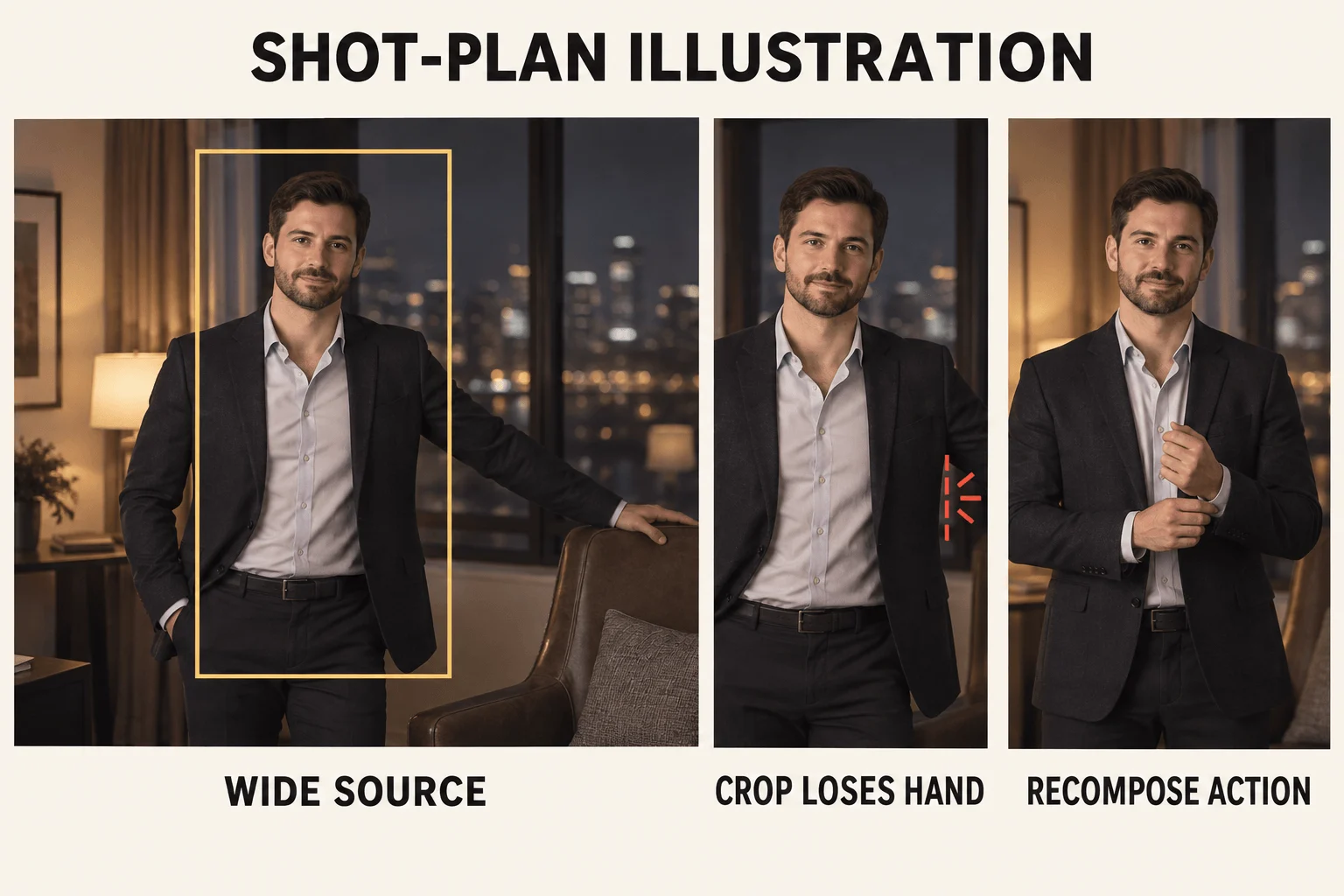
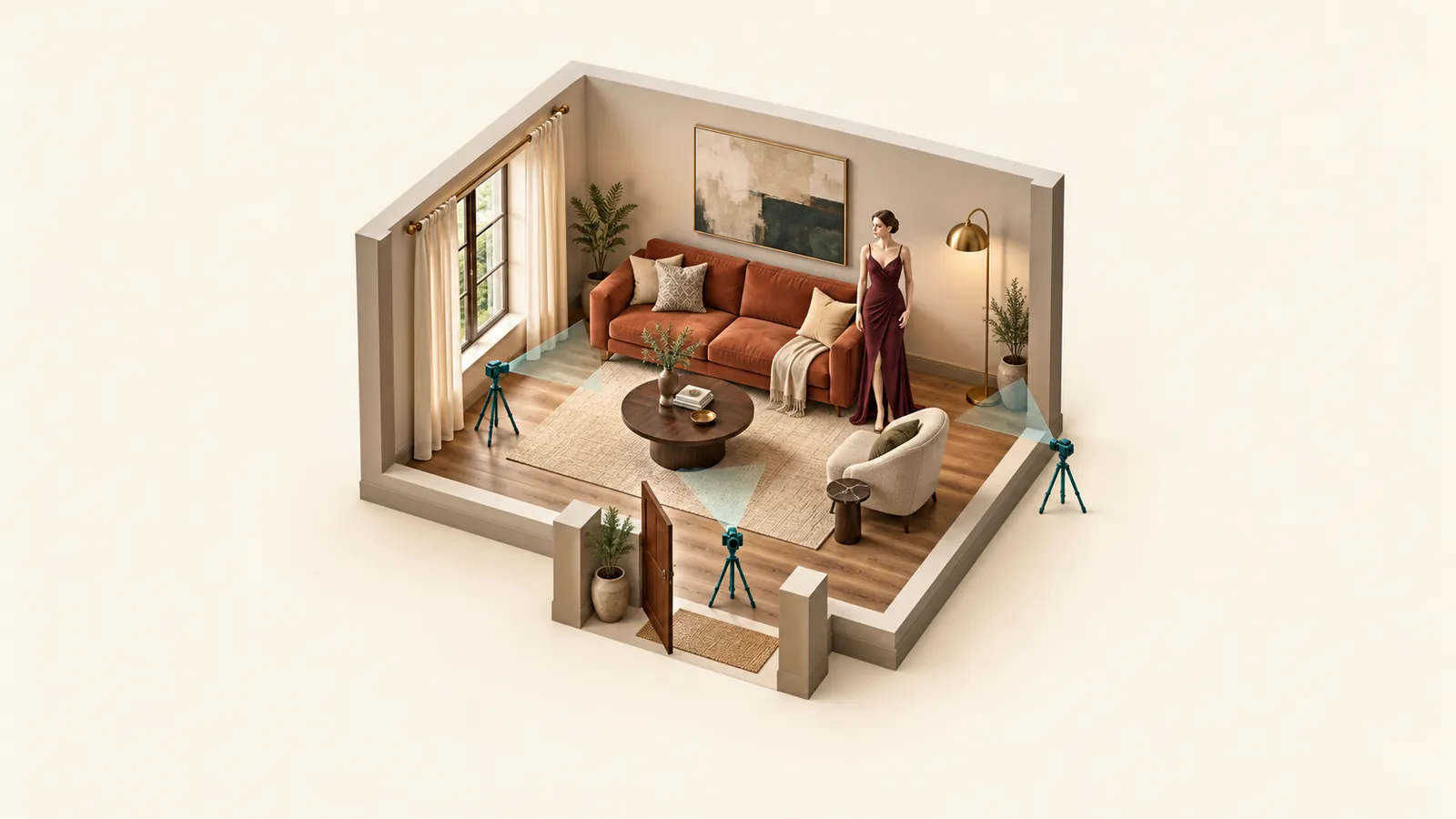
Shot-plan illustration: a face-centred crop loses the extended hand; recomposing the action near the torso makes it fit.
Open the original in an image editor, select a 9:16 crop ratio, and move the window before applying it. Fit the whole action inside: for a head turn, head, shoulders and room in the gaze direction; for a cuff adjustment, both elbows and the raised and resting hands. If they cannot fit together, do not crop; use one of the other routes.
Route 1: crop a centred pose
Crop a standing fictional adult whose arms stay close to the body. A close-fitting jacket or long coat is narrower than outstretched arms or a wide seated pose. Cropping only chooses which existing pixels remain.
For a 3840 × 2160 image:
- Set the crop to 1215 × 2160 pixels with a vertical offset of zero.
- Slide it horizontally until the person and the hand path fit. A centred crop starts about 1312 pixels from the left edge.
- Apply the crop and save it. The H3 task accepts any side from 256 to 5760 px with a ratio between 2:5 and 5:2, so the saved file does not need resizing; the video's own resolution setting decides the output size.
- Check the hair, wrists and feet in the saved file.
A 1920 × 1080 source is tighter. The 608 × 1080 window is enough for a first frame at 768p, but enlarging it to 1080 × 1920 stretches every pixel 1.78 times and adds no detail.
The window can sit off-centre. If the person will turn right, leave more room on the right rather than centring the face and clipping an elbow.
Route 2: expand background around a usable pose
Expansion keeps the whole picture and paints new scenery around it. Choose it when the body and pose are already right but the frame lacks headroom or floor. It cannot repair a hand the source never showed: the tool has to invent the anatomy.
Check the geometry first. Image Expander sets the whole source inside the tall frame without cropping or stretching, so a 16:9 source fills only about 32% of the 9:16 height and the model invents the other 68%. The pose is kept as a starting point, but the model redraws the image, so check the face, hands and clothing against the source. The person also ends up small in a mostly invented frame. The result comes back at 864 × 1536, so a large original is scaled down. If the action fits a 4:5 window, crop to 4:5 first and then expand: the source then fills about 70% of the height and the invented area is much smaller.
Upload the source, choose 9:16 and PNG. The task has no prompt, mask or placement control, so inspect where the person lands in the result. The model page's 1280 × 720 terrace example shows the case: the lower body, hand and dress are newly drawn.
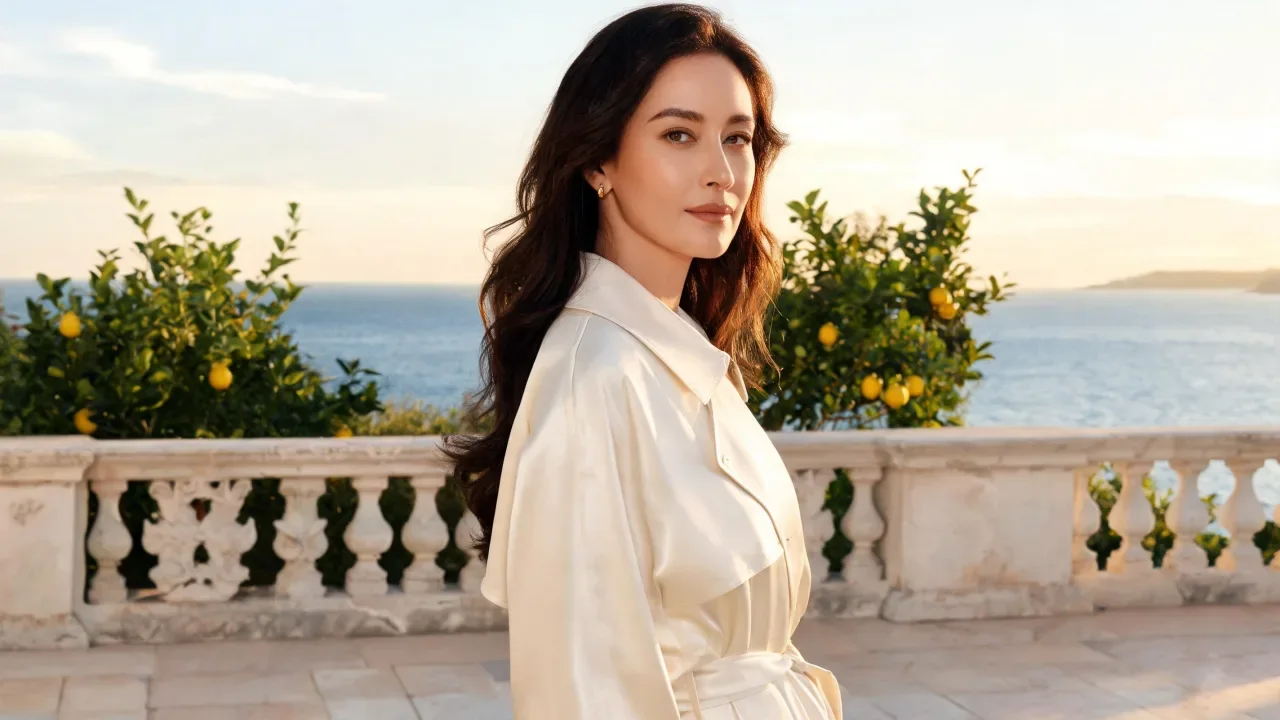
Source, 1280 × 720: a waist-up terrace portrait with a cream belted outfit, stone railing, lemon trees and sea.
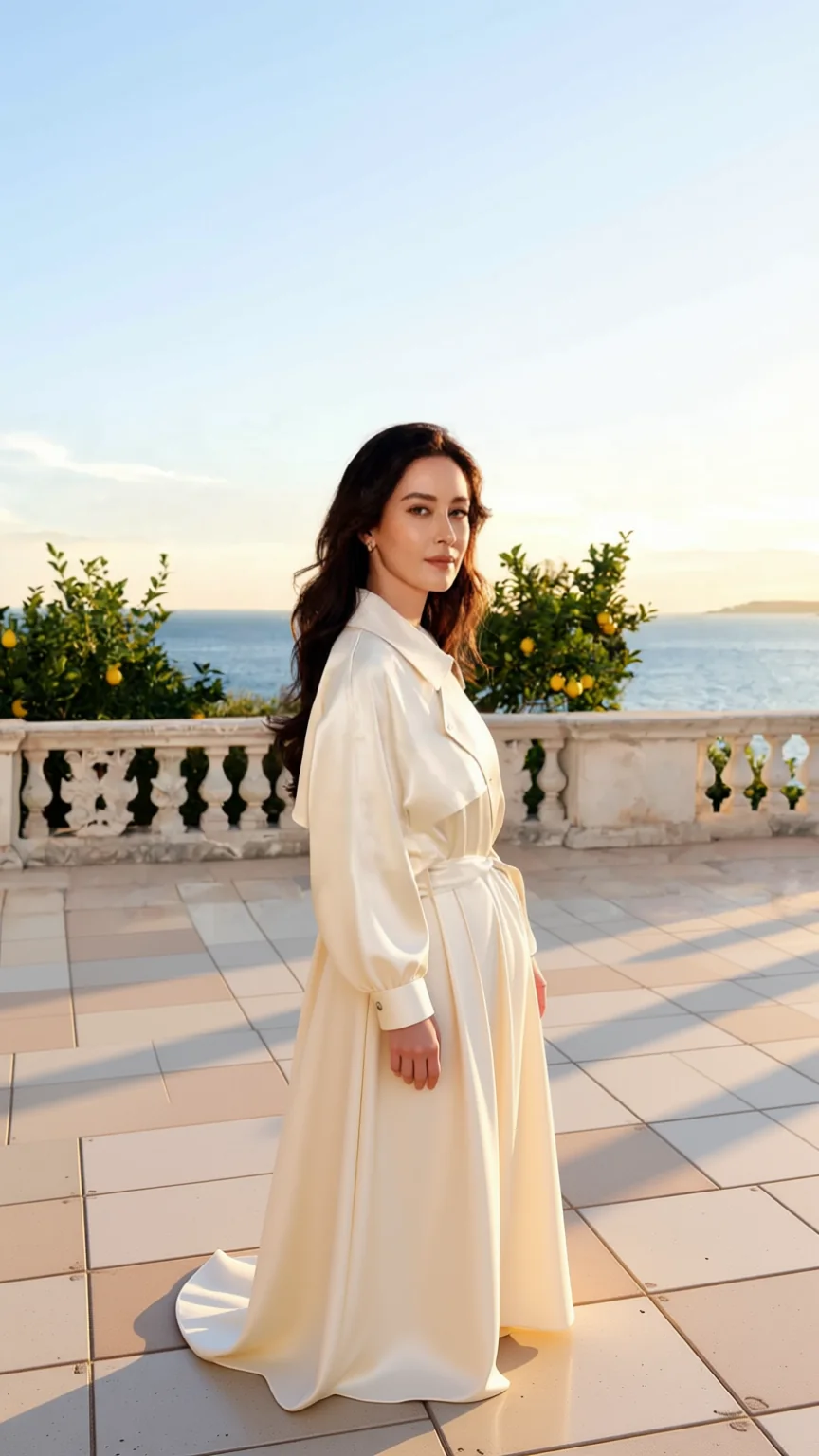
Image Expander, 864 × 1536: the lower body, skirt, hand and tiled floor are newly drawn, with more sky above. The scene resembles the source, but the retained area is also redrawn.
Try it in the Playground. Open the Image Expander page and stay on the Playground tab, in Form view; sign in to run.
- Under Input image, add your landscape file (JPG, PNG or WebP, up to 10 MB).
- Set Aspect ratio to 9:16 and leave Output format on PNG.
- Read the price estimate and press Run model. Look at the result before sending it to video.
To automate the setup that works in the Playground, run it with the Python SDK:
import uuid

from spicyapi import SpicyClient, output_assets

client = SpicyClient()  # reads SPICY_API_KEY
task = client.create_task(
    model="spicyapi/image-expander-v1/edit",
    input_data={
        "image_url": "https://YOUR-ASSET-HOST/landscape-adult-portrait.png",
        "aspect_ratio": "9:16",
        "output_format": "png",
    },
    idempotency_key=str(uuid.uuid4()),  # new key per new request; reuse only to retry the same one
)
final = client.wait_for_terminal(task["taskId"])
print(output_assets(final)[0]["url"])
Task fields and results are covered in the task docs.
Or let an Agent run it. Save the input object as input.json; the CLI shows the price and asks before a paid call: spicyapi tasks create --model spicyapi/image-expander-v1/edit --input-file input.json --wait (CLI docs). The MCP server exposes the same call as spicyapi_task_create, and npx skills add spicyapi-ai/spicy-skill installs the Agent Skill. For wider placement and ratio planning, see the image outpainting guide.
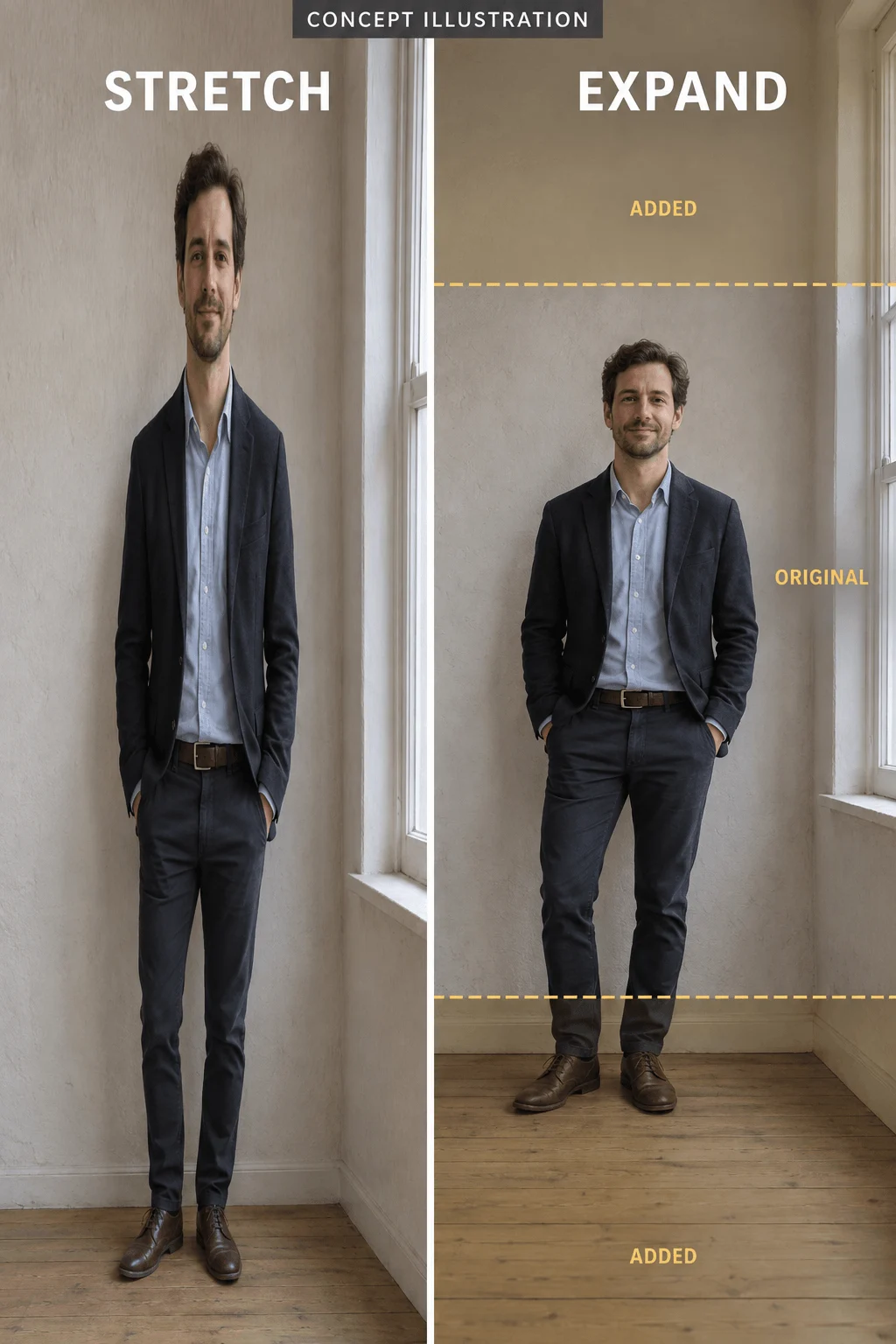
Concept illustration: stretching distorts the person; expansion adds scene area. A real 16:9 source fills only about a third of the height, as in the pair above.
Compare the retained face and body with the source, then inspect the new floor, furniture and wall lines. If the character changed, the frame is not usable just because the ratio is right. For adult-oriented portraits, use a crop or Route 3: Qwen Image 2.1 edit and Z-Image run with no content filter.
Route 3: rebuild the composition for portrait framing
Recompose when the subject fills the width: arms stretched out, legs extending sideways, a chair beside the person. A moved crop cannot fix those relationships.
To keep the same person, use Qwen Image 2.1 edit. It takes the landscape source, composes the frame at 9:16 instead of cropping afterwards, and costs $0.036 at 1k. For example:
Recompose the supplied photo as a vertical 9:16 full-length portrait of the same person. Keep the face, hair, navy jacket and trousers unchanged. Both arms rest close to the torso with both hands visible beside the hips. Entire head and both shoes inside the frame, clear floor below the shoes and space above the hair. Plain studio background, natural soft light, realistic proportions, no text or logos.Set Aspect ratio to 9:16, Resolution to 1k and switch Prompt expansion off so the model does not rewrite this precise brief. Replace the navy jacket and trousers with the real outfit, and compare the face with the source before animating.
If a new character is fine, Z-Image generates 9:16 directly for $0.010 per image with prompt expansion off:
Full-length editorial photograph of one fictional adult wearing a navy jacket, straight dark trousers and black shoes, standing in a simple studio. Vertical 9:16 composition. Both arms rest close to the torso, both hands visible beside the hips. Entire head and both shoes inside the frame, with clear floor below the shoes and space above the hair. The person stands slightly left of center, leaving room on the right for a small head turn. Plain warm gray background, natural soft light, realistic proportions, no text or logos.Use Aspect ratio 9:16 with Prompt expansion off. For a waist-up cuff adjustment, replace "full-length" and the shoe instructions with "waist-up, both elbows and the complete hand movement area visible." Do not ask for full-length and close-up framing together.
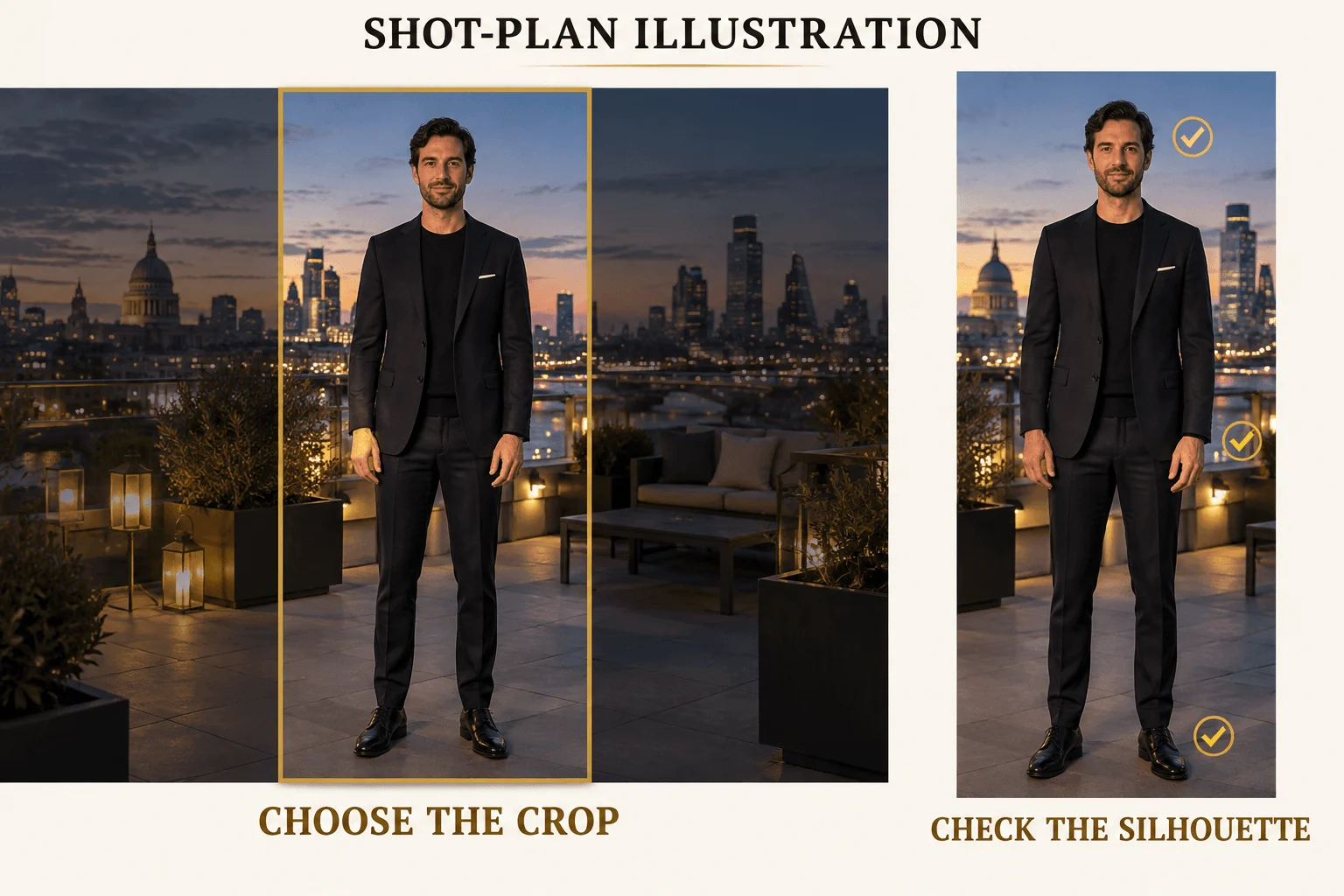
Shot-plan illustration: check head, hands and shoes inside the proposed crop. The guide shows placement, not exact export dimensions.
Keep space below the shoes in a full-body frame, because a small change in stance moves the lowest point. In a waist-up shot, spend that margin on the hands instead.
Turn the prepared still into one short clip
Open H3 image to video, upload the finished vertical still, and set 5 seconds. The default resolution is 768p, so the clip is $0.185 (480p is no longer offered). H3 has no aspect-ratio field: the clip takes the shape of the opening frame, so a landscape upload returns landscape. It runs with no content filter and generates sound with the picture.
One continuous five-second shot beginning from the supplied vertical image. The same fictional adult slowly turns their head a little toward the open space on the right, then holds. Their body stays in place and both hands remain beside the hips. Keep the whole head and both shoes in frame. Locked camera, unchanged framing, no zoom, pan, cut or walking.Run this prompt on H3 image to video →
For a cuff shot, ask for the small cuff adjustment and keep both elbows in frame. Avoid walking toward the camera: it changes the person's size and uses up the head and foot margins you just made.
One-attempt totals at 768p: $0.185 after a free crop, $0.209 after an expansion, $0.221 after a Qwen recompose, $0.195 after a Z-Image still.
If the landscape photo only needs to define who the person is, skip the still: H3 reference to video takes one to nine reference images and a 9:16 aspect ratio, so the video is generated vertical. A five-second 768p clip with one reference quotes at $0.1918. The landscape photo is then a reference, not the exact first frame, so use the still route when the composition must match.
Fix the failure at the stage that caused it
| Failure | Next step |
|---|---|
| Face fits but a moving wrist exits | Widen the gesture area in the still or choose a smaller hand action; higher video resolution adds no space |
| Expansion invents extra fingers or shoes | Go back to an uncropped source that shows those parts, or recompose if the pose is too wide |
| Person looks thin or stretched | Undo the resize; crop proportionally or expand instead of stretching |
| Person is tiny in the expanded frame | Crop to 4:5 first, then expand, or recompose |
| Video becomes a close-up | Remove approach and push-in wording; ask for a stationary body |
| Platform text covers eyes or hands | Move the subject in the still or move the overlay; keep key features out of the regions the app covers |
Preview the destination app with its real overlays: a title at the top and buttons near the bottom leave a narrower useful area than the raw 9:16 canvas.
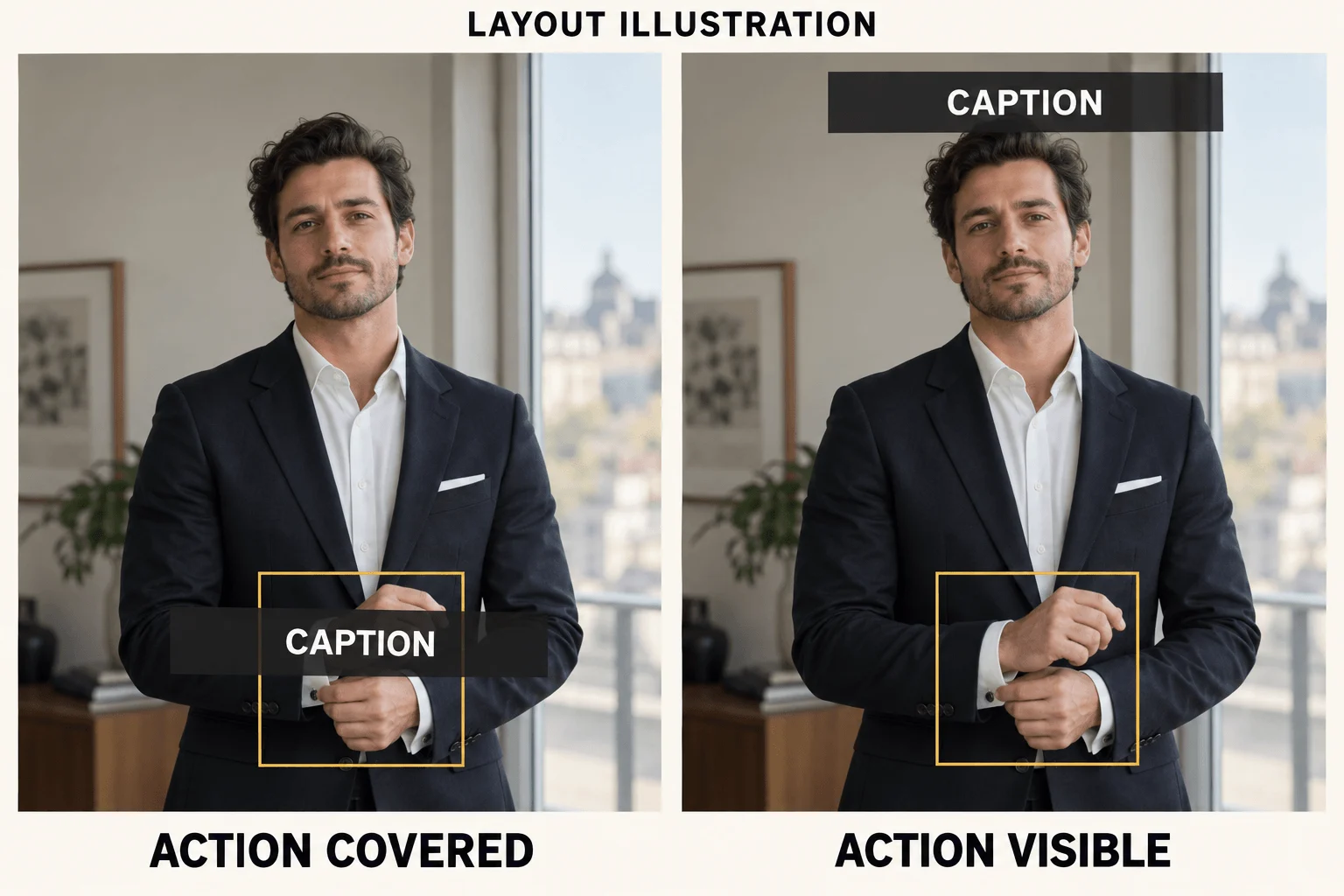
Layout illustration: the same portrait hides or reveals the cuff adjustment depending on caption placement.
Crop when the action fits, expand when only background is missing, recompose when the pose is too wide; then animate one small action.