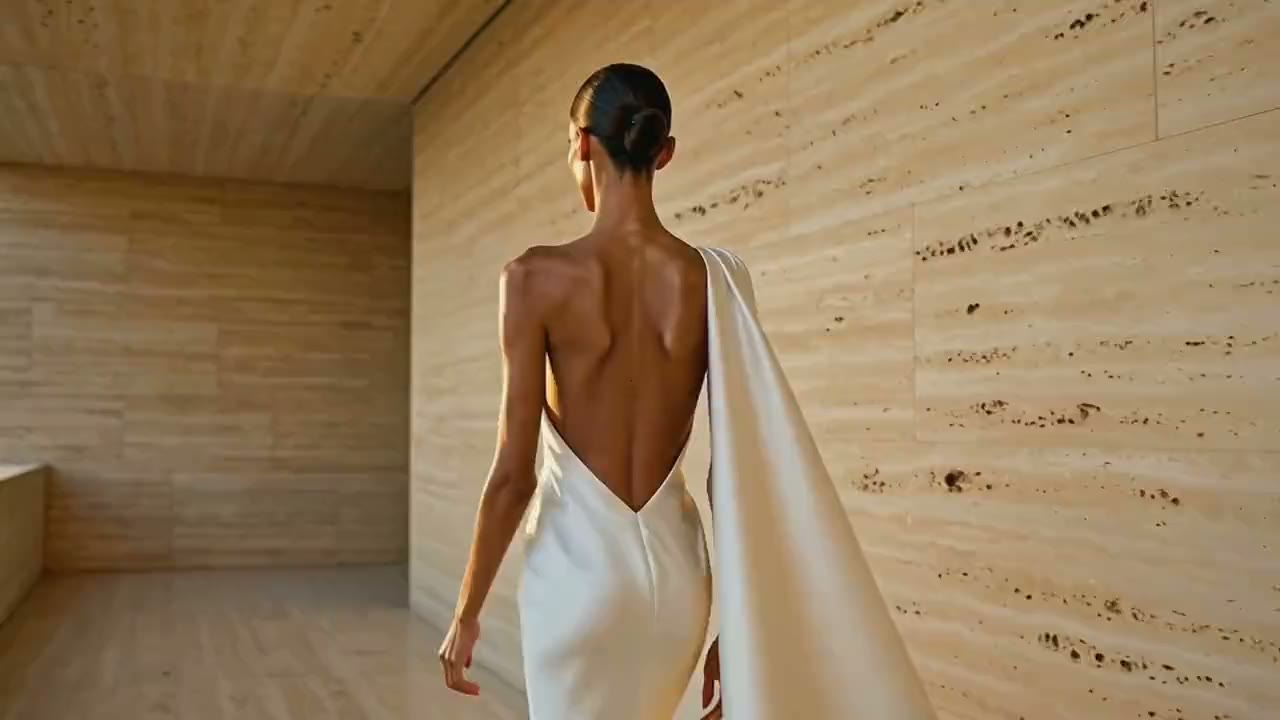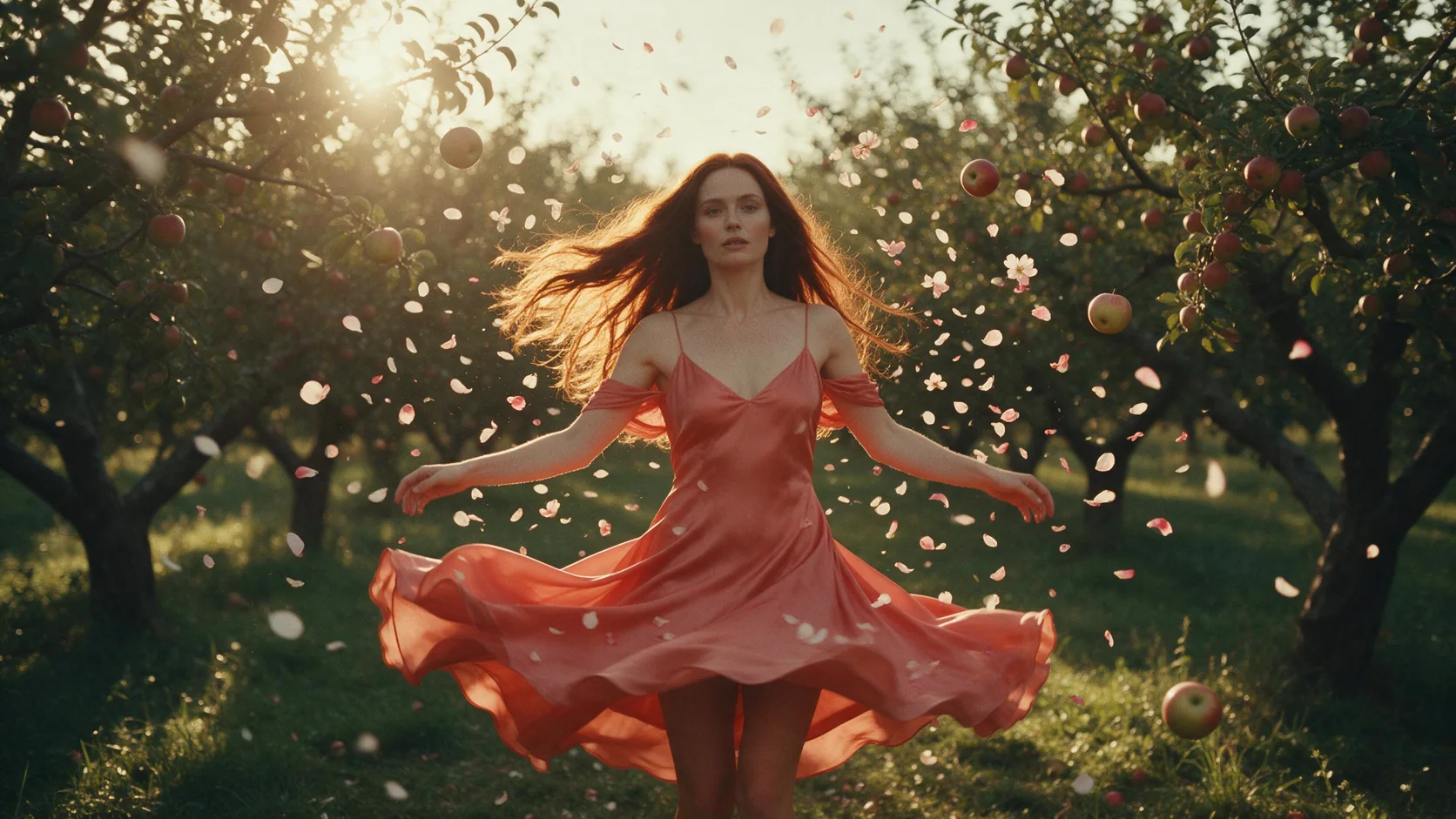
To make a 360 degree video from one photo, you need a model that stops time in the picture and moves only the camera. MiniMax H3 360 Orbit does that: you upload a photo, choose 3 to 6 seconds, and get a clip in which the camera circles the frozen scene once and finishes on your original frame, so it loops. There is no prompt to write.
This is not a drag-to-look-around 360 or VR panorama: the result is an ordinary flat MP4 in which the camera goes round the subject. It is also different from a product turntable, because nothing in the scene turns. Hair, petals, water drops and fabric stay where they were captured while the viewpoint goes round. Everyone in our examples is a fictional adult and fully dressed.
What you get
The clip keeps the shape of your photo: a square photo gives a square video. Resolution is 480p, 540p, 768p or 1080p. Your photo is sent as both the first and the last frame, which is why the last frame matches the first and the clip repeats without a jump.
The effect comes from an adapter: a small add-on file (a LoRA) trained for this one effect and loaded on top of MiniMax H3.
The sides and the back of the scene are not in your photo, so the model invents them. A dress seen from the front can have a different back than the real one. Treat the result as a convincing orbit, not a measurement.
Four results from one photo each
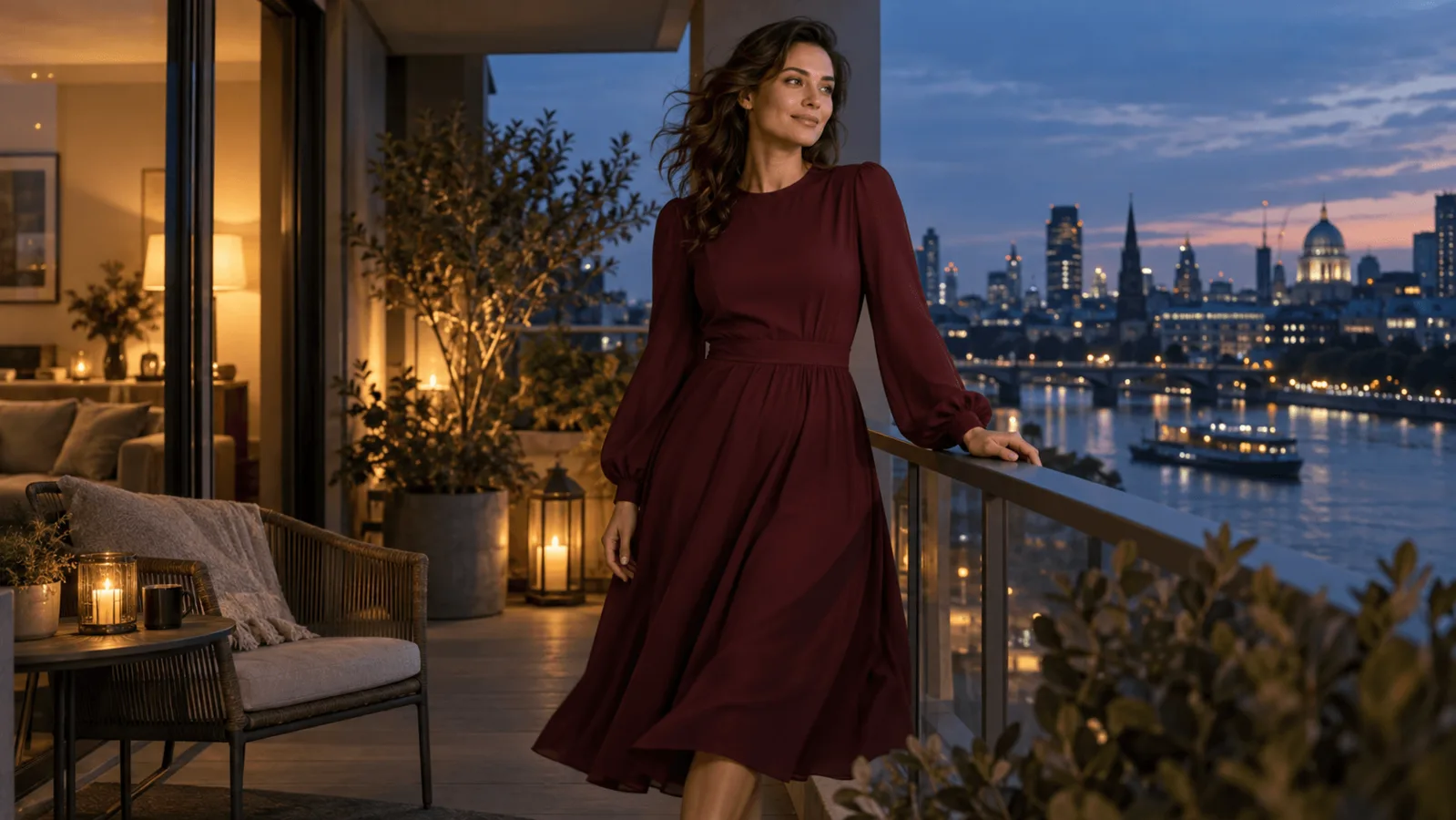
Orchard, 768p, 3 seconds, seed 51. Front, profile, back and front again, with the hair and petals held in the air. On the far side of the turn, tree trunks pass in front of her for a moment: busy surroundings can cross the lens, so leave open space around the subject.
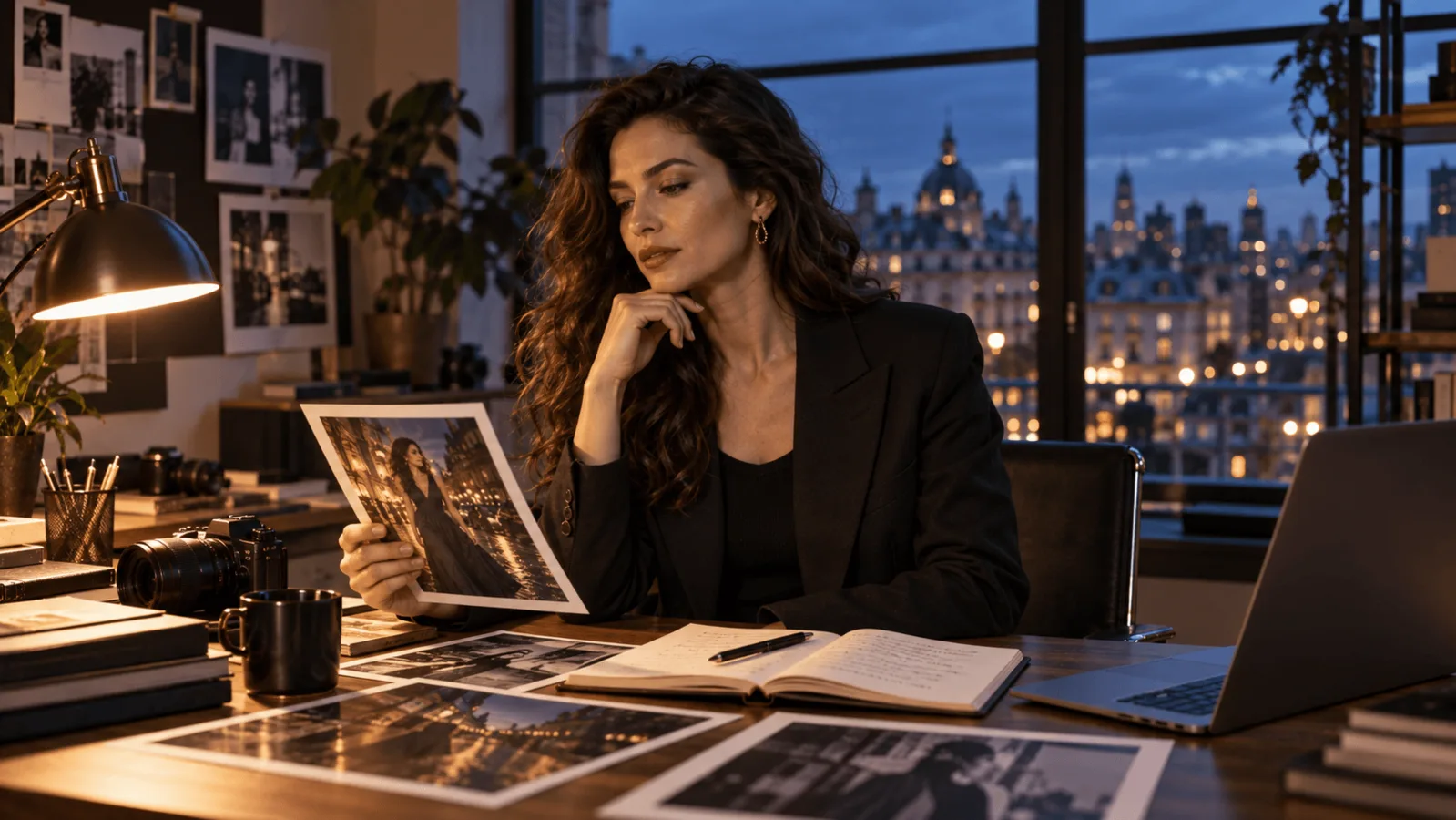
Courtyard fountain, 768p, 4 seconds, seed 53. Leaves and drops hang at their captured height while the camera goes round. Details suspended in the air make the frozen moment obvious, so they are the best subjects.
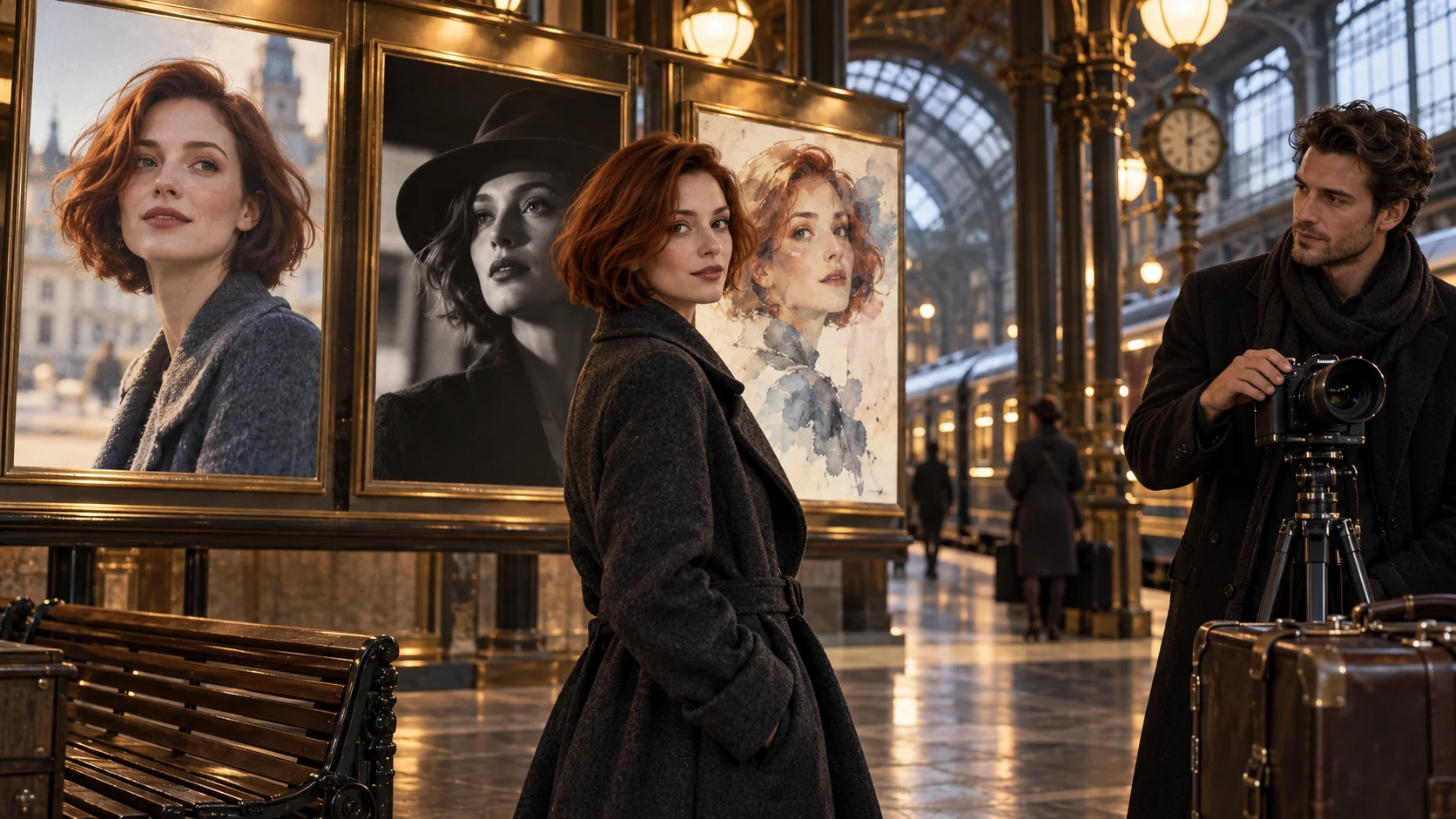
The third example is a petal toss in a tiled bathhouse, 768p, 3 seconds, seed 54:
Steam and petals stay where they are for the whole turn.
The fourth example, a 6-second clip, is in the next section.
Three seconds is a recommendation, not a limit
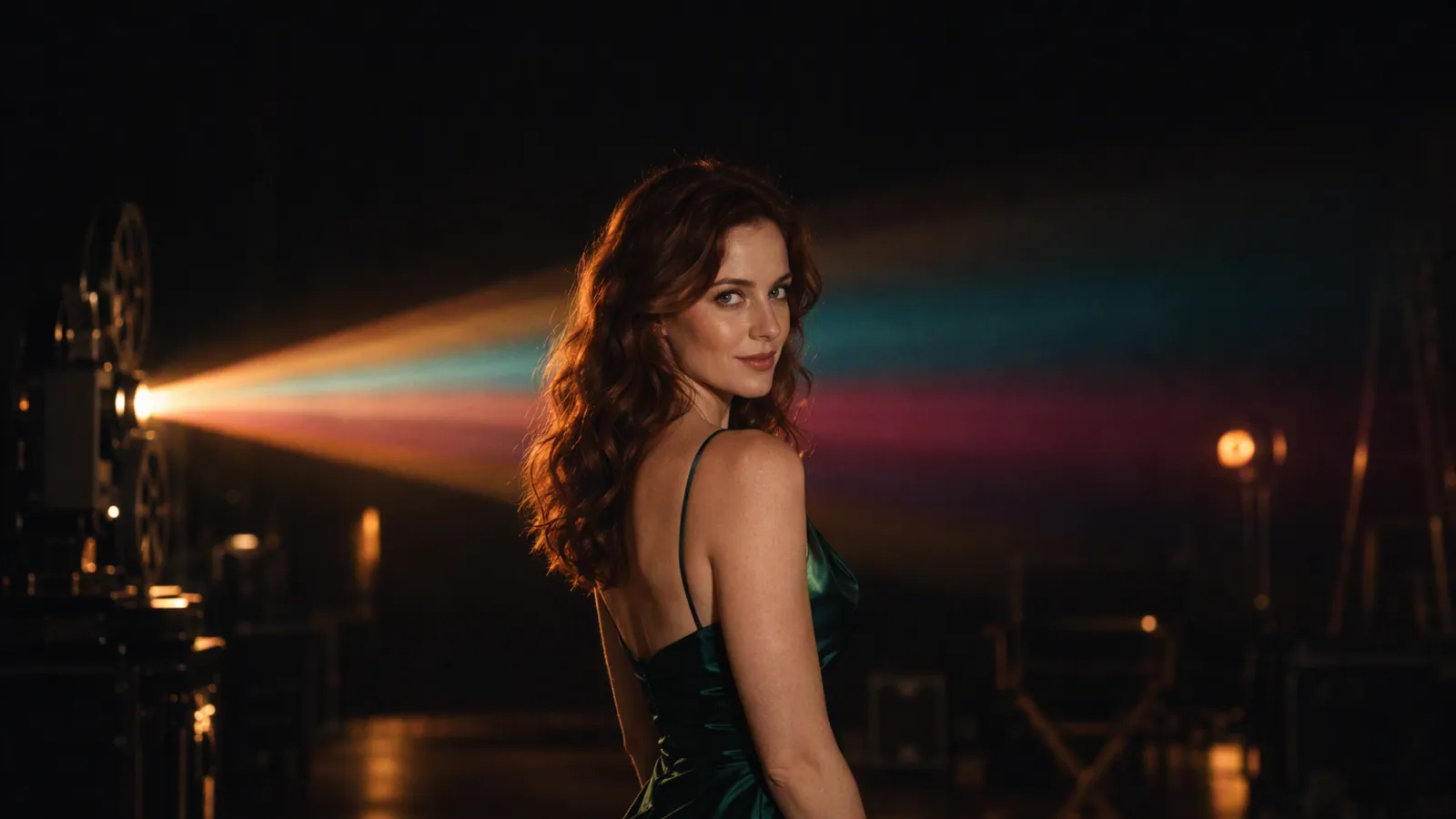
In our runs 3 seconds looked cleanest, but it is not a hard limit. The 4-second courtyard clip above still held: the man is almost static and the leaves and drops are suspended objects. We also made one 6-second test on purpose, a couple dancing on a lit carousel at night. The orbit is slower, and the couple drifted out of their frozen pose during the turn.
Carousel, 768p, 6 seconds, seed 52. This is one test, not a statistical result: with dancers mid-spin the freeze did not hold for the whole 6 seconds. For a longer shot, make 3 seconds and loop or chain them, since each clip ends where it starts.
In one same-seed test with the same photo as first and last frame, the orbit adapter gave a full turn that landed on the start frame, while the plain base model gave a nearly still 3-second clip.
Choosing a photo
What our four examples had in common (observed, not a controlled test):
- One clear, centred subject with open space around it.
- Something suspended in the air: hair, petals, leaves or water drops.
- A photo already cropped to the shape we wanted, since the video follows it.
Suggestions we did not test:
- If trunks, furniture or other objects cross the lens, as the orchard trunks did, try a photo with more open space on both sides of the subject or a plainer backdrop.
- Avoid crowds and cluttered foregrounds; they give the camera more to pass through.
- Start at 3 seconds and raise the length only if the freeze holds.
Try it in Studio or from code
In the web Studio, open MiniMax H3 360 Orbit, upload a photo, pick the length and resolution and run it. A cheap workflow: test at 480p ($0.15 for 3 seconds), then render the keeper at 768p ($0.30). The same request over the API:
curl https://api.spicyapi.ai/api/v1/jobs/createTask \
  -H "Authorization: Bearer $SPICY_API_KEY" \
  -H "Idempotency-Key: $(uuidgen)" \
  -H "Content-Type: application/json" \
  -d '{
    "model": "minimax/h3-360-orbit/image-to-video",
    "input": {
      "image_url": "https://example.com/photo.jpg",
      "duration_seconds": 3,
      "resolution": "480p",
      "seed": 5
    }
  }'
The response gives a task ID; poll it until it finishes and download the MP4. Only image_url is required. duration_seconds takes a whole number from 3 to 6 (3, 4, 5 or 6; default 3), resolution is 480p, 540p, 768p or 1080p (default 480p), and seed is optional. There is no prompt field, because the orbit instruction the adapter was trained on is sent for you and rewording it breaks the effect. With the same photo, seed 51, 768p and 3 seconds reproduce the setup of the first example, but the same seed does not guarantee a frame-identical clip. The API reference covers the full task flow.
In our four 768p runs for these examples a clip took 48 to 80 seconds to finish, and our 480p tests took 21 to 28 seconds. That is one run each, so treat it as a rough guide.
Price
Billing is per second of output, by resolution: $0.05 per second at 480p, $0.075 at 540p, $0.10 at 768p and $0.20 at 1080p. For example, 480p for 3 seconds is $0.15, 768p for 3 seconds is $0.30, 768p for 4 seconds is $0.40 and 1080p for 3 seconds is $0.60. The live estimate on the model page shows the total before you run it, and prices can change, so check it there.
Credit
The orbit effect comes from the community 360 Orbit LoRA for MiniMax H3 by Pablo Dawson, and the credit for it belongs to the author. The author notes that it was trained on a narrow set of 28 human-centred clips and that small movements such as blinks can still appear.
Who it is for
- Fashion and outfit shots: show a look from the side and back from a single photo.
- Portraits and social posts: a looping frozen-moment clip that ends where it starts.
Use photos of people who agreed to it, and do not use someone's photo to make a clip that misleads viewers about who they are. For other ways to make a clip that loops, or to compare image-to-video workflows, see the seamless loop guide and the image to video workflow.
FAQ
How do I make a 360 degree video from one photo with AI?
Upload the photo to the 360 Orbit model, pick a length of 3 to 6 seconds and a resolution. The camera circles the frozen scene once and ends on your photo.
Is it a 360 video I can look around in?
No. It is an ordinary flat MP4 in which the camera moves around the subject, not an interactive panorama.
Can I steer the camera or change the speed?
Not with words. The orbit is fixed, and a longer clip only makes it turn more slowly.
Why do the people move in longer clips?
At 6 seconds the orbit is slower. In our one 6-second test the dancing couple began to shift their pose, while the 3-second and 4-second clips held. Stay at 3 seconds if you want the strictest freeze.