Introduction
What this endpoint does
It finds the object named in prompt and removes everything else, returning a PNG with a transparent background.
Inputs that matter
image_url is the photo and prompt describes the object to keep. autocrop trims the canvas to the object; refine_edges runs an extra cleanup pass on the edges. Both are off by default.
What you get back
One transparent PNG, at the photo's size unless autocrop is on.
| Field | Value |
|---|---|
| Input | Image |
| Output | Image |
| Endpoint | Image edit |
| Canvas | Full photo size, or trimmed with autocrop |
| Edge cleanup | Optional extra pass ( |
Key features & highlights
One of two people, chosen by description
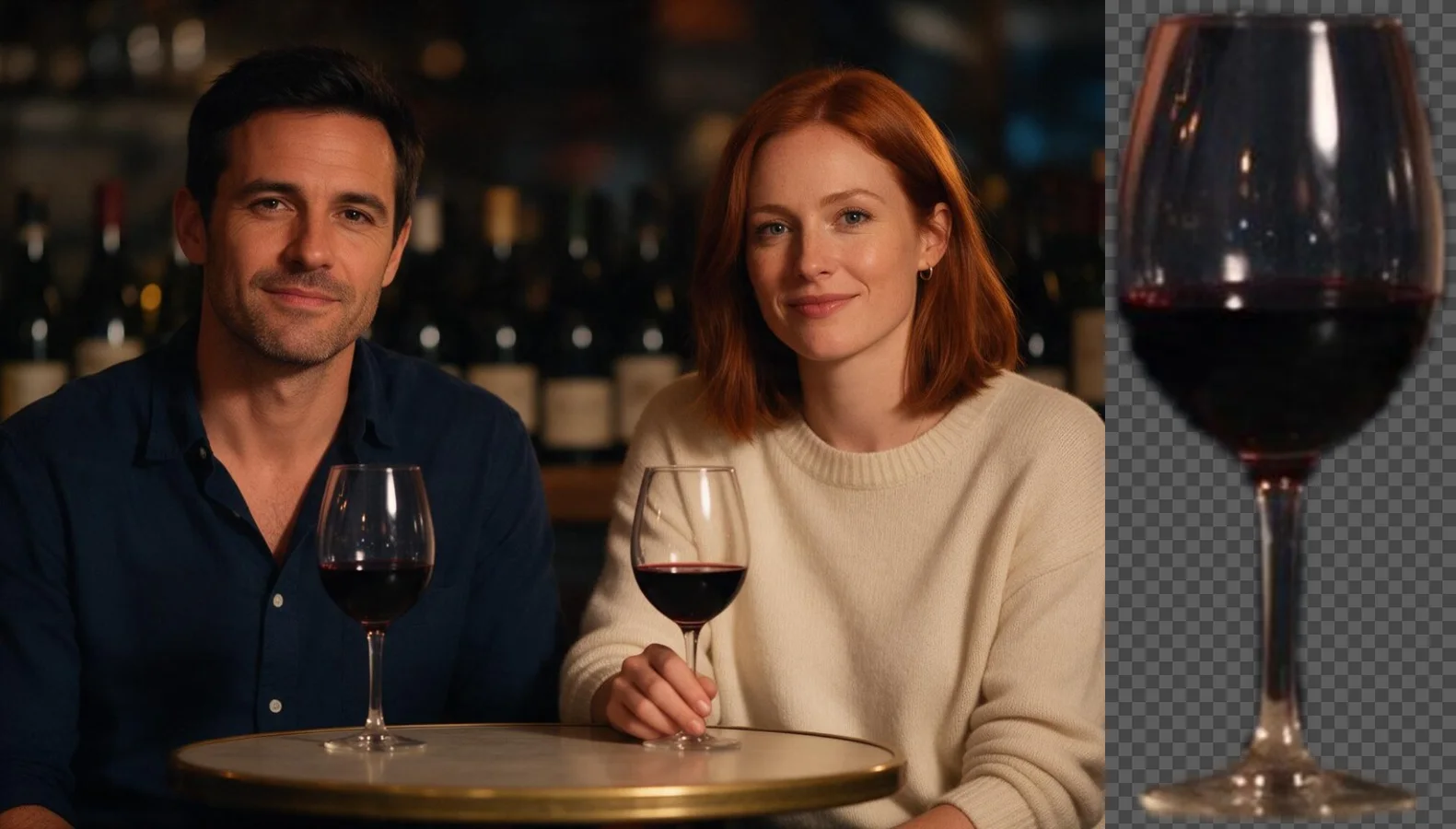
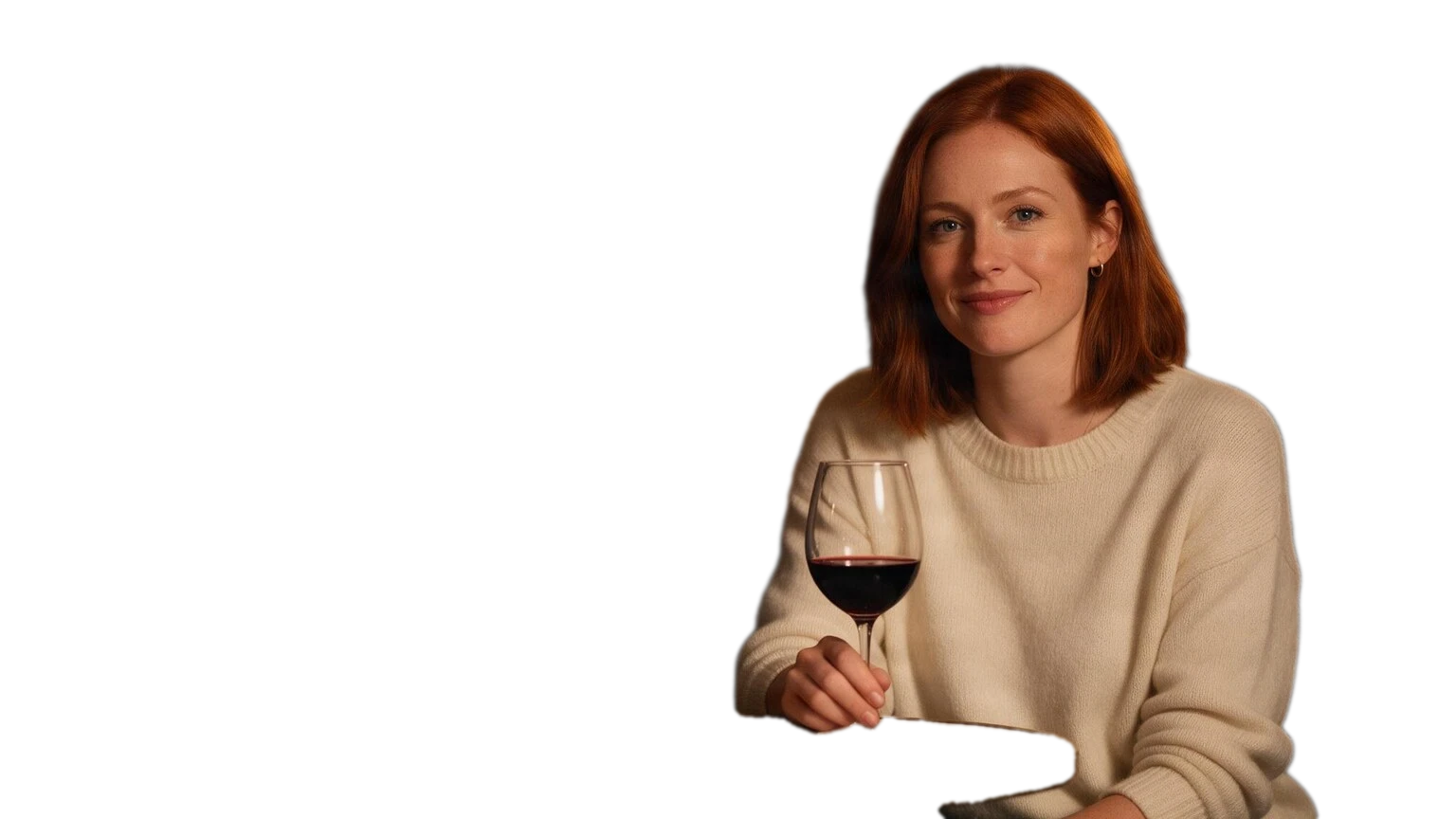
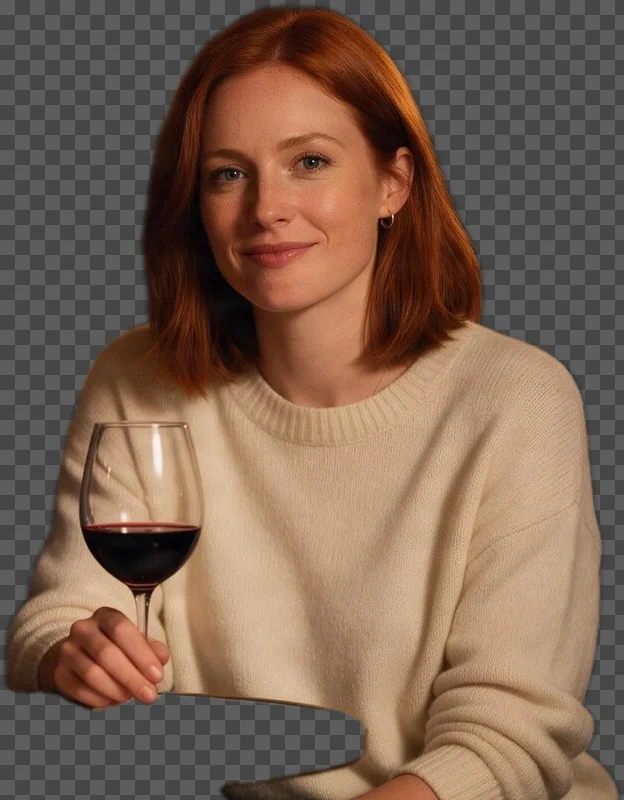
We asked for "the woman in the cream sweater" in a two-person bar scene. She came back on a transparent canvas at the full 1536×864 size, hair and sweater edges intact, while the man and the bottle shelf were removed.
A single wine glass, trimmed tight
With autocrop on, "the wine glass in front of the man" came back as a 130×307 PNG of just the glass. The bar lights seen through the bowl stayed in the cutout, which is worth knowing before you place glassware on a new background.
No mask to draw
There is no brush or box to place. A short phrase with a color, a position or a piece of clothing is enough to tell two similar things apart.
Request parameters
| Parameter | Required | Description |
|---|---|---|
image_url | Yes | The photo that contains the object: a JPEG, PNG or WebP upload or a direct link. Without autocrop the cutout keeps this photo's dimensions. at least 1 characters |
prompt | Yes | Required. A short description of the one object to keep, such as "the red car" or "the woman in the cream sweater". at least 1 characters · at most 500 characters |
refine_edges | No | Off by default. On runs an extra background-removal pass that cleans leftover background pixels and edge transparency, useful around hair and soft outlines. Default: |
autocrop | No | Off by default, which returns the cutout at the full photo size. On trims the canvas tightly around the object. Default: |
Pricing
$0.024 / image
Billed at a flat price per extraction; the description, edge cleanup and cropping do not change it. Failed requests are not charged.
Use cases
One product out of a busy shot
Pull a single bottle, bag or shoe out of a lifestyle photo for a catalog tile, without retouching the rest of the scene by hand.
Choosing one person in a group photo
A background remover keeps everyone in front; here you name the person to keep and the others are dropped with the background.
Assets for collages and thumbnails
Trim the cutout to the object and drop it onto a new background, a video thumbnail or a slide.
Prompt guide & pro tips
Describe one object
Write a short noun phrase in prompt, such as "the red car" or "the woman on the right". Add a color, position or clothing detail when the photo has several similar things.
Choose the canvas
Leave autocrop off to get a cutout at the full photo size, ready to layer back in place. Turn it on to get a tight PNG around the object for a product card or a sticker.
Clean the edges if needed
Switch on
refine_edgesfor an extra background-removal pass that tidies stray pixels and edge transparency, useful on hair and soft outlines.
Introduction
Object Extractor isolates one thing in a photo from a text description and returns it on a transparent background. Where a background remover keeps every foreground subject, this endpoint keeps only the object you name.
Request
{
 "image_url": "https://example.com/bar.jpg",
 "prompt": "the woman in the cream sweater",
 "refine_edges": true,
 "autocrop": false
}
image_url and prompt are required. refine_edges adds a background-removal pass that cleans up leftover pixels around the edges. autocrop trims the canvas to the object instead of keeping the full photo size.
What we saw in testing
In a 1536×864 bar scene, "the woman in the cream sweater" came back alone at 1536×864 after about 17 seconds, with clean hair and sweater edges. The wine glass in her hand came with her, along with a thin strip of the table she leaned on. With autocrop on, "the wine glass in front of the man" came back as a 130×307 PNG; the background seen through the glass stayed inside it. A coffee mug held in two hands came back with gaps where the fingers covered it. A request without a description returned the photo unchanged.
Task flow
Extraction is asynchronous. You create the task, poll it, and download the transparent PNG from SpicyAPI storage once it is ready. Each extraction is billed at a flat price, and a failed request is not charged.
Tips
- Be specific when there are look-alikes: "the taller bottle on the left" beats "the bottle".
- Keep
autocropoff when you want to put the cutout back in the same position later. - For every subject at once, Background Remover (
/models/background-remover-v1) is the simpler tool.
API quick start
# Generate the idempotency key once; reuse it when retrying after a lost response.
export SPICY_IDEMPOTENCY_KEY="${SPICY_IDEMPOTENCY_KEY:-$(uuidgen)}"
curl -X POST https://api.spicyapi.ai/api/v1/jobs/createTask \
  -H "Authorization: Bearer $SPICY_API_KEY" \
  -H "Content-Type: application/json" \
  -H "Idempotency-Key: $SPICY_IDEMPOTENCY_KEY" \
  -d '{
  "model": "spicyapi/object-extractor-v1/edit",
  "input": {
    "image_url": "https://example.com/reference.png",
    "prompt": "A ceramic teapot on a linen cloth, soft window light, muted palette"
  }
}'

# Copy data.taskId from the response into TASK_ID, then poll the status.
TASK_ID="TASK_ID_FROM_RESPONSE"
curl "https://api.spicyapi.ai/api/v1/jobs/recordInfo?taskId=$TASK_ID" \
  -H "Authorization: Bearer $SPICY_API_KEY"
See the API reference for authentication, the complete schema, polling, and error handling.