Introduction
Seedream 5.5 text to image creates a picture from a written scene, including designs that contain supplied lettering. Use this Seedream 5.5 API endpoint when your starting material is a description rather than an existing image. The examples range from a magazine cover and a ramen menu to photographic portraits and a transparent product graphic.
ByteDance describes photorealistic output, accurate small and multilingual text, and native RGBA PNG transparency. Our tests give specific examples of those capabilities. A 2k menu reproduced its requested copy letter for letter, and a separate 2k PNG had a real alpha channel. Treat these as measured examples when planning your own layout.
Key features & highlights
An AI image generator with text
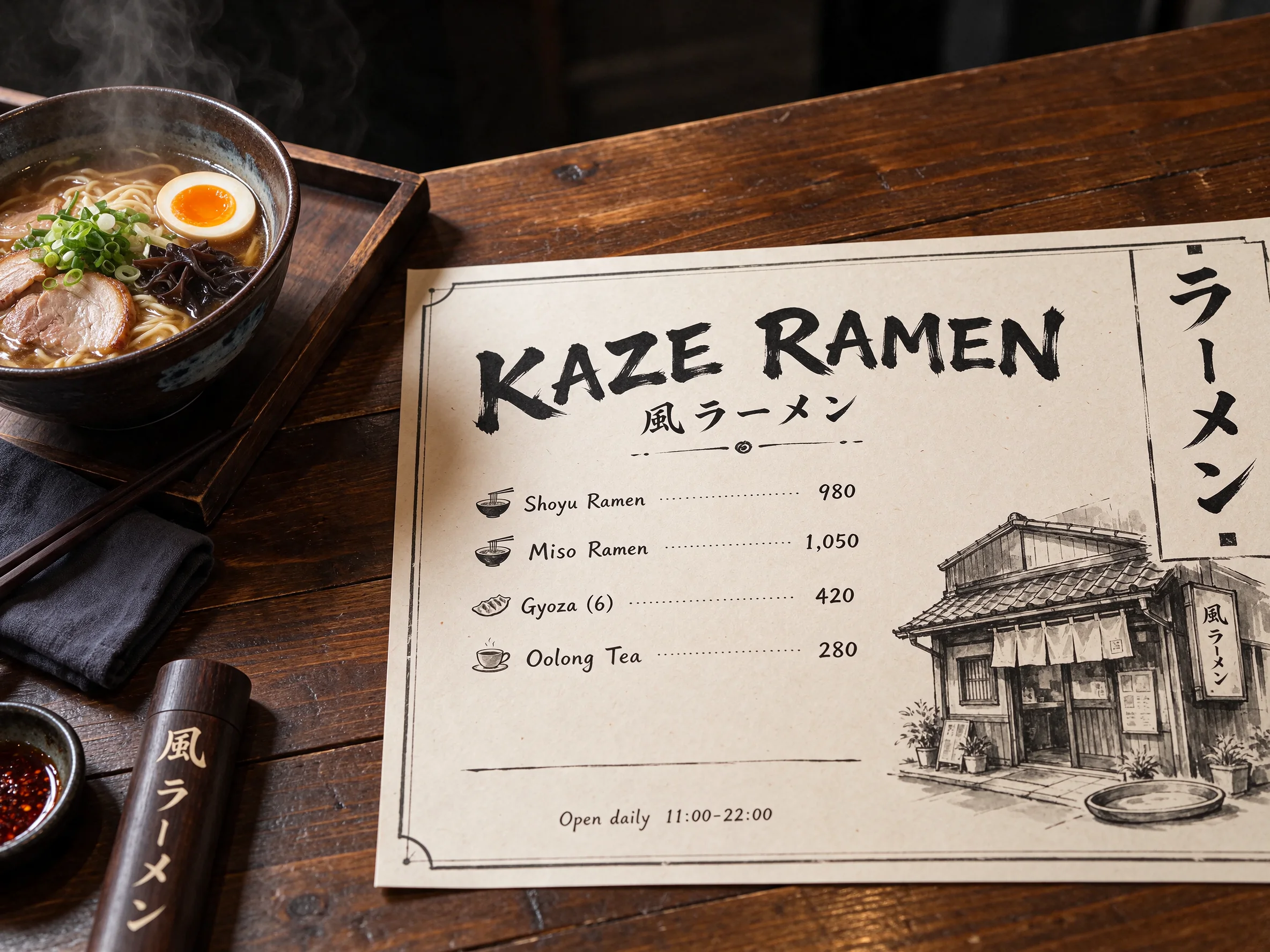
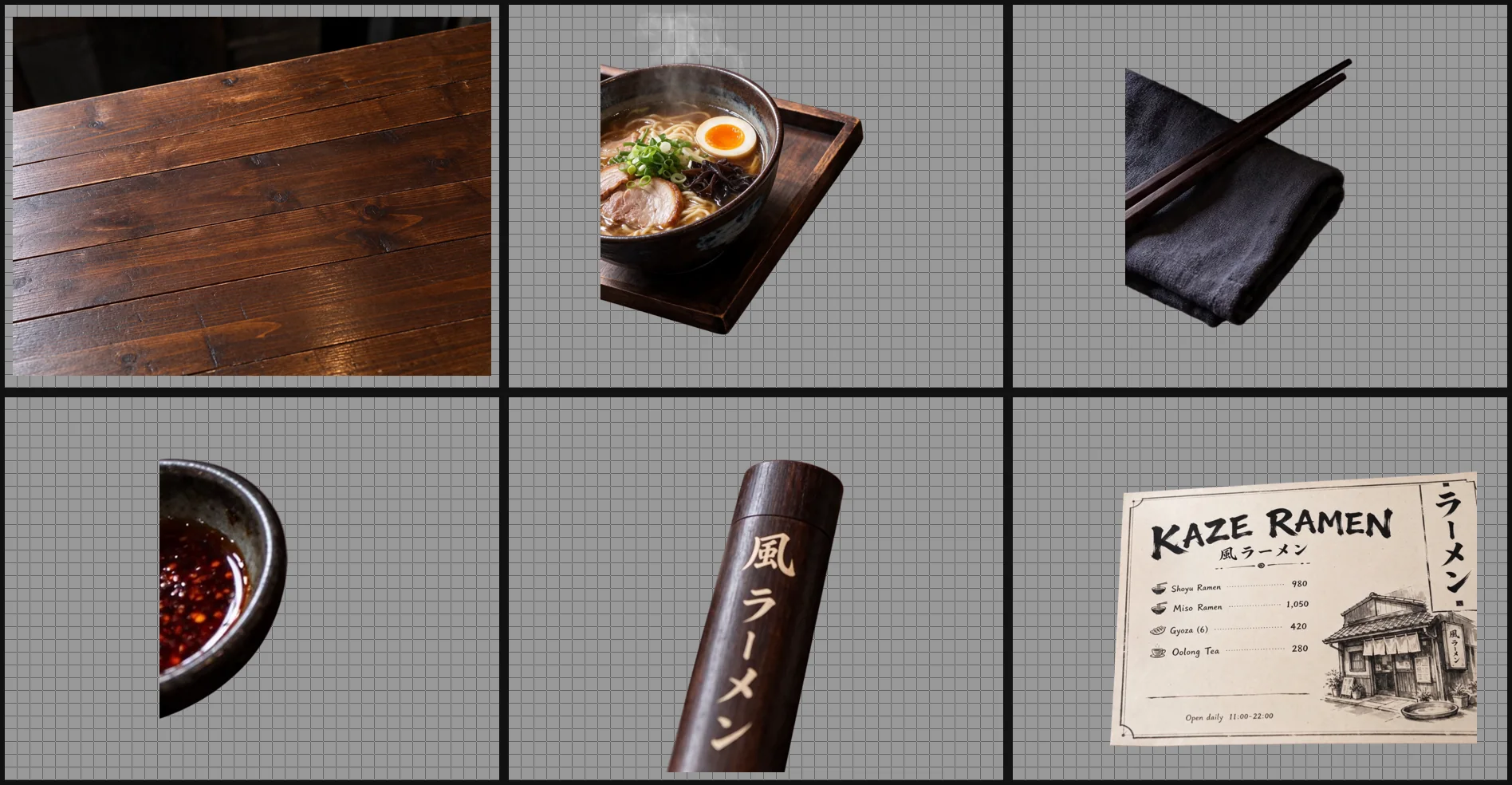
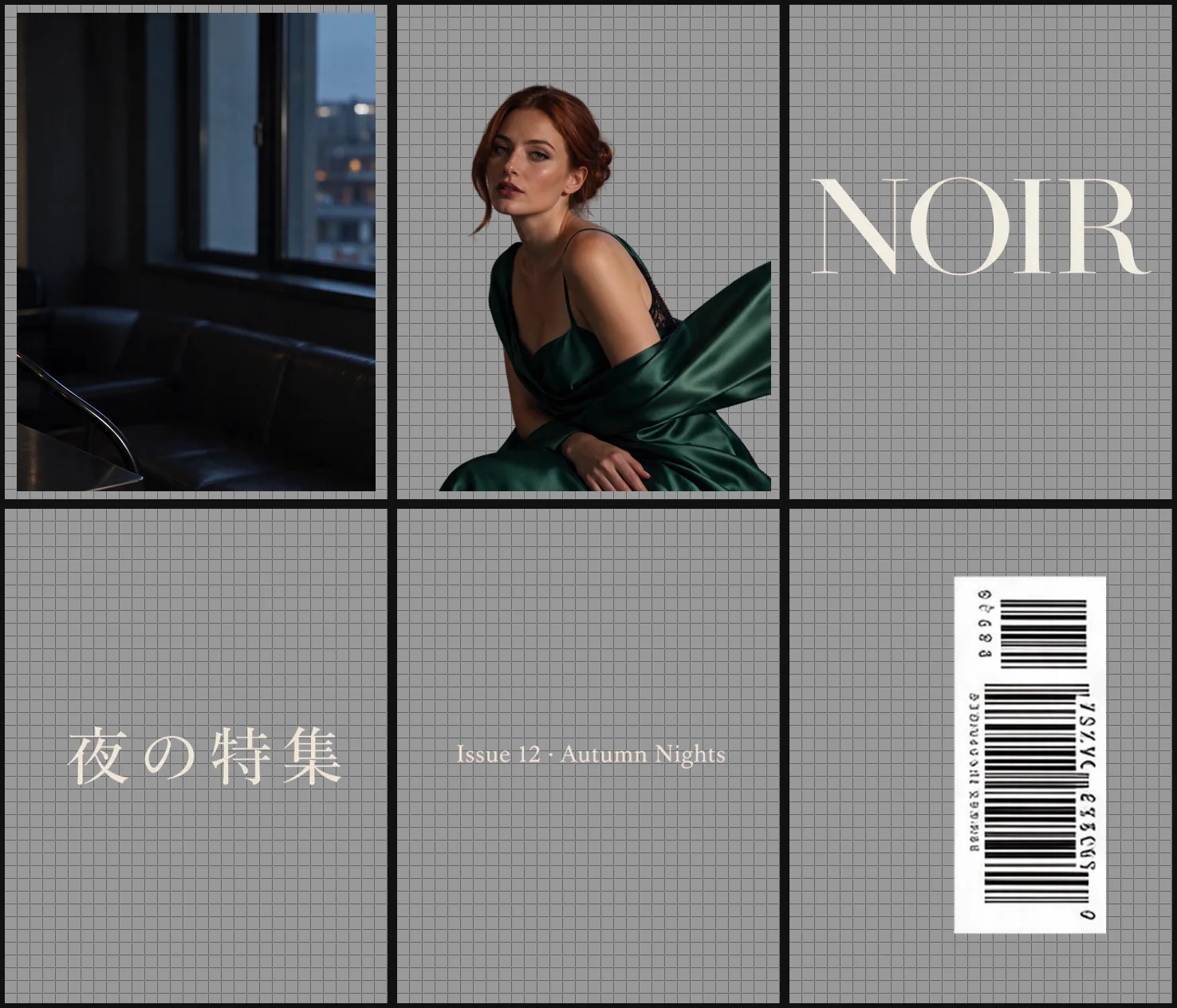
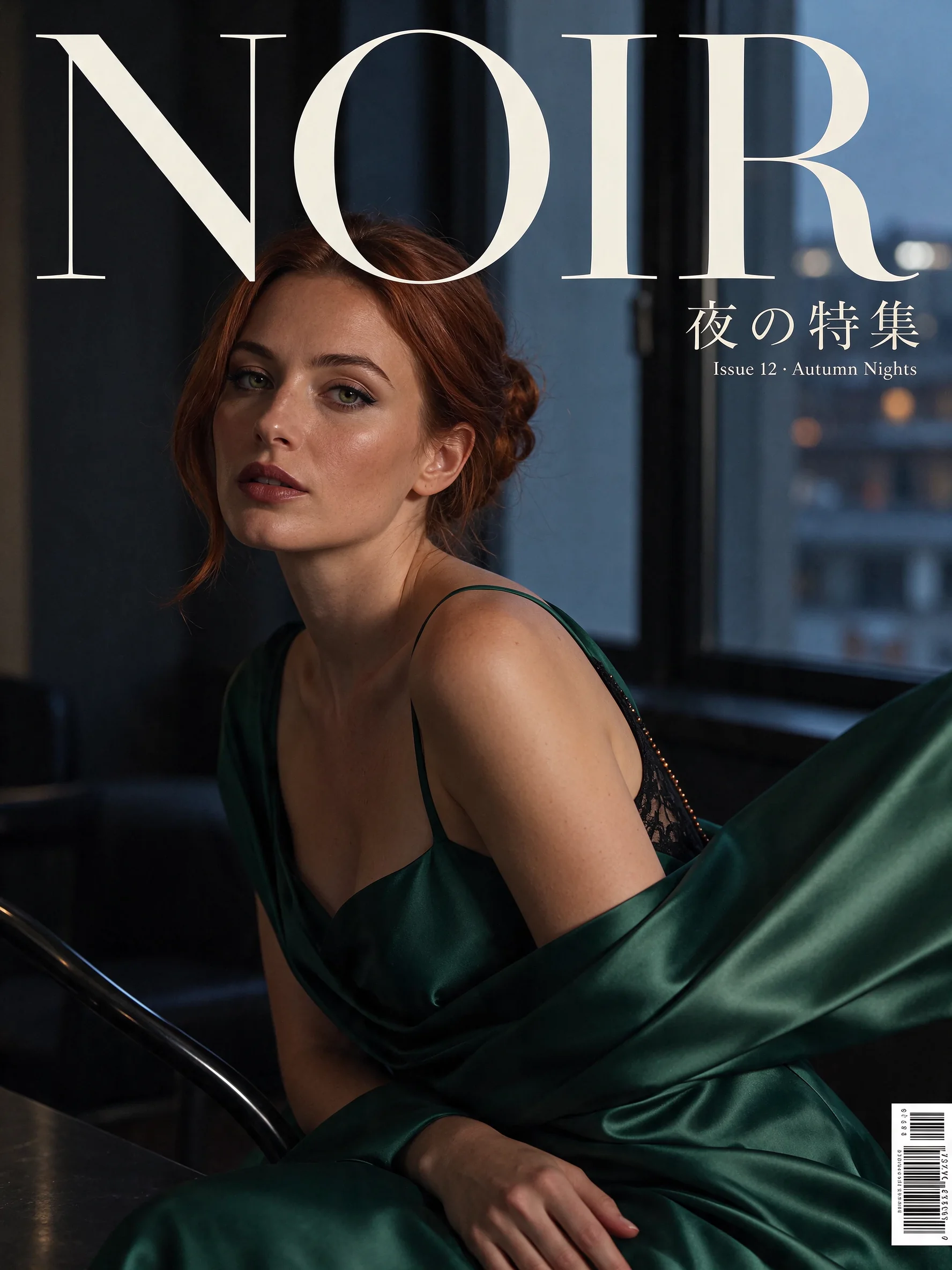
The Kaze Ramen example separates its copy into an English title, a Japanese subtitle, four item lines, and an opening-hours footnote. Our tests reproduced that supplied text at 2k. The NOIR cover uses a different hierarchy: a large masthead with smaller supporting lines and a barcode. Write each block as exact copy so the model has wording to place.
Text control also needs a boundary around what can appear. In one of our tests, a prompt without a restriction on additional words produced extra lines. For a design containing just the supplied copy, quote each line and add a direct instruction such as "No other words anywhere."
Transparent PNG generator settings
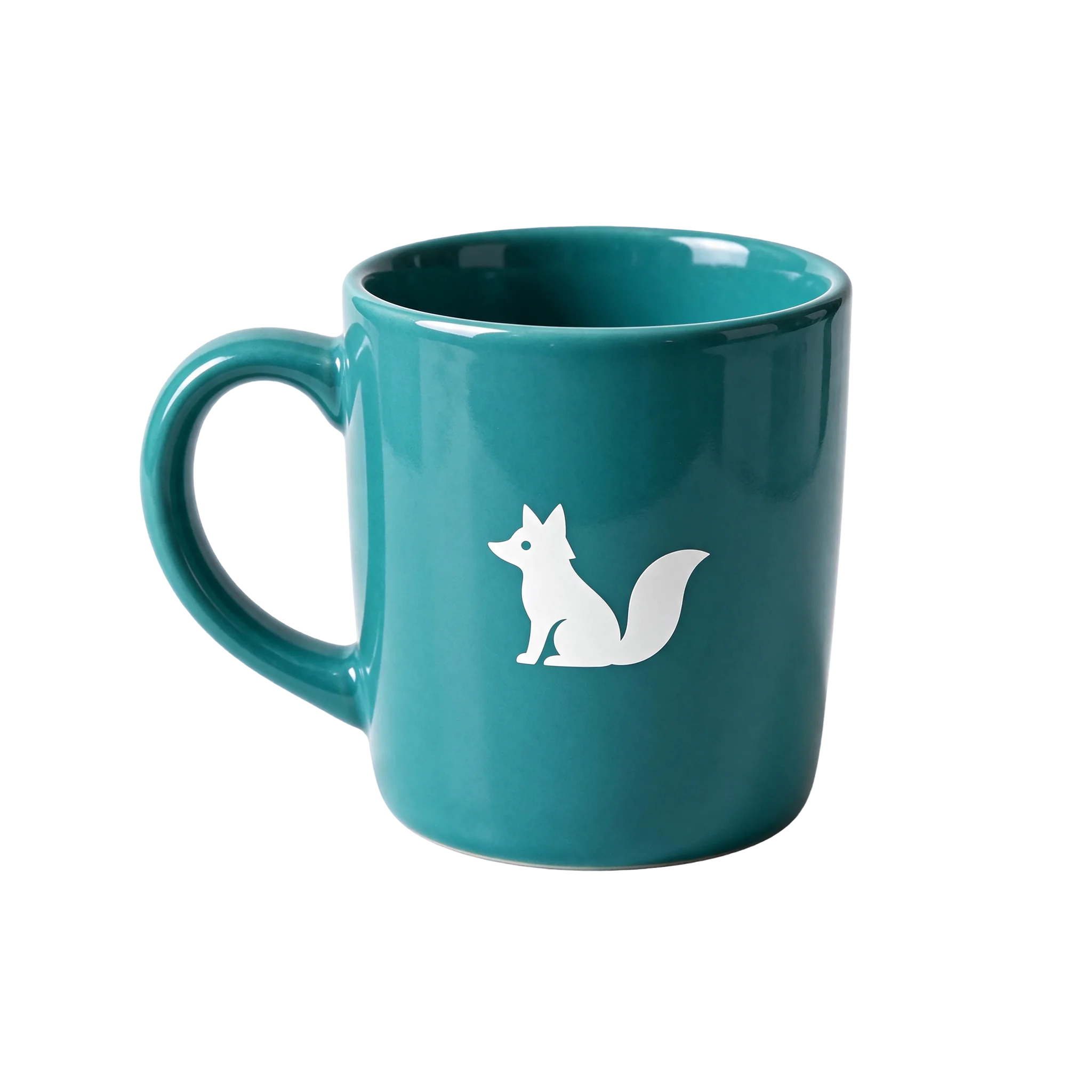
The fox mug example describes a glossy teal ceramic product with a white logo and studio lighting. Its output settings select PNG and a transparent background. Our 2k transparency measurement confirmed an alpha channel, which carries transparency in the file. Choose both settings when the graphic will be placed into another composition.
Canvas and output choices
Generation has eight aspect ratios and four resolution tiers. The default canvas is square, and the default resolution is 2k. Pick the shape for your intended placement instead of expecting the scene description to select it.
| Control | Available choices | Starting value |
|---|---|---|
aspect_ratio | 1:1, 4:3, 3:4, 16:9, 9:16, 3:2, 2:3, 21:9 | 1:1 |
| resolution | 1k, 1.5k, 2k, 4k | 2k |
output_format | png, jpeg | png |
| background | auto, transparent, opaque | auto |
At the 4k tier, 16:9 produces 3840 x 2160 pixels, and 1:1 produces 2880 x 2880. Those dimensions describe the named settings. JPEG output is opaque, so keep PNG when transparency is part of the task.
Request parameters
| Parameter | Required | Description |
|---|---|---|
prompt | Yes | This version is moderated, so some requests are refused without charge; an unmoderated version is coming soon. at least 1 characters · at most 5000 characters |
aspect_ratio | No | Sets the output canvas: 1:1, 4:3, 3:4, 16:9, 9:16, 3:2, 2:3, or 21:9. The default is 1:1. |
resolution | No | Sets the billed resolution tier: 1k, 1.5k, 2k, or 4k; 2k is the default. This changes the charge, with equal rates for 1k and 1.5k. |
output_format | No | Selects png or jpeg encoding; png is the default. Encoding does not change the charge. |
background | No | Controls the background: auto, transparent, or opaque; the default is auto. Choose transparent with png for an alpha channel. |
Pricing
The generated image is charged by resolution tier. The 1k and 1.5k tiers share a rate; ratio, encoding, and background selection do not add a charge.
| Specification | Price |
|---|---|
| $0.0195 / image |
| $0.0195 / image |
| $0.027 / image |
| $0.0525 / image |
Use cases
A menu with supplied multilingual copy
Start from checked menu wording and give each line a place. Use the Kaze Ramen structure to separate the shop name from its subtitle, entries, and small footnote. Compare the returned text with the supplied lines before using the image. The measured menu result supports this example without promising the same outcome for every text arrangement.
A magazine cover with a clear hierarchy
Name the cover scene, then distinguish the masthead from the supporting copy. The NOIR example quotes its required lines and rules out additional words. Copy that instruction pattern when a title must stay exact. Describe the relative size and location of each block instead of leaving all lettering at the same level.
Photographic scenes with concrete direction
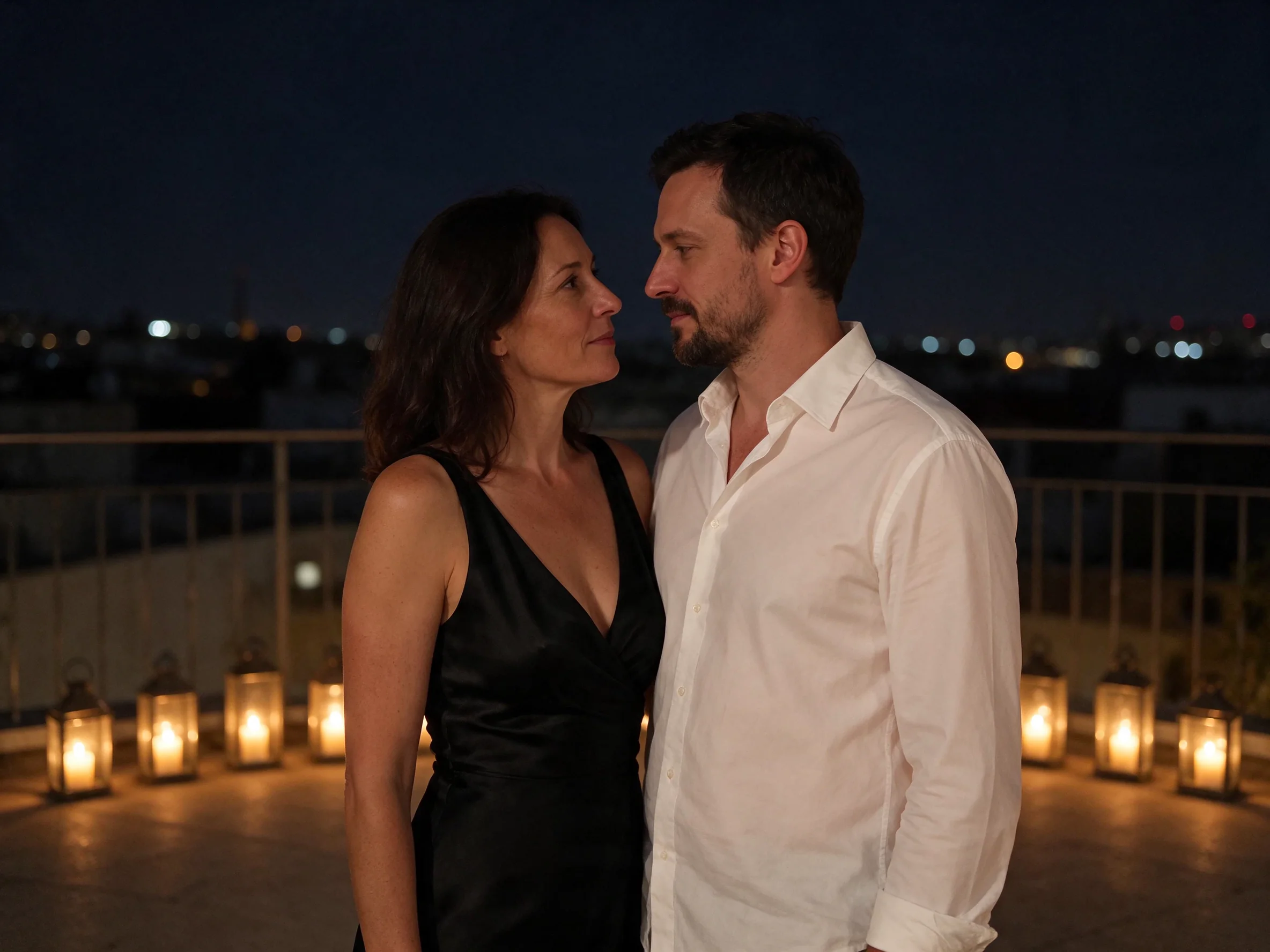
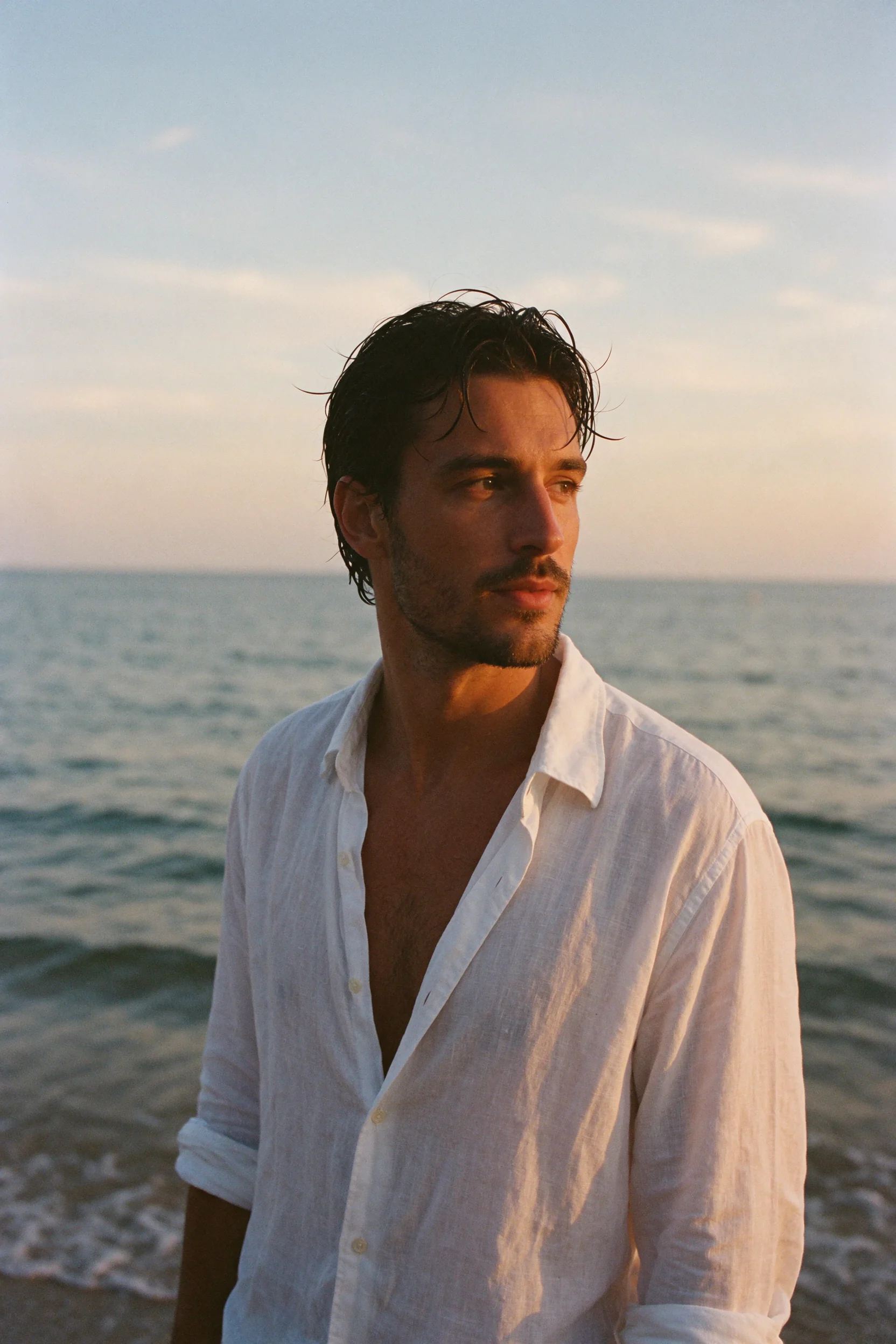
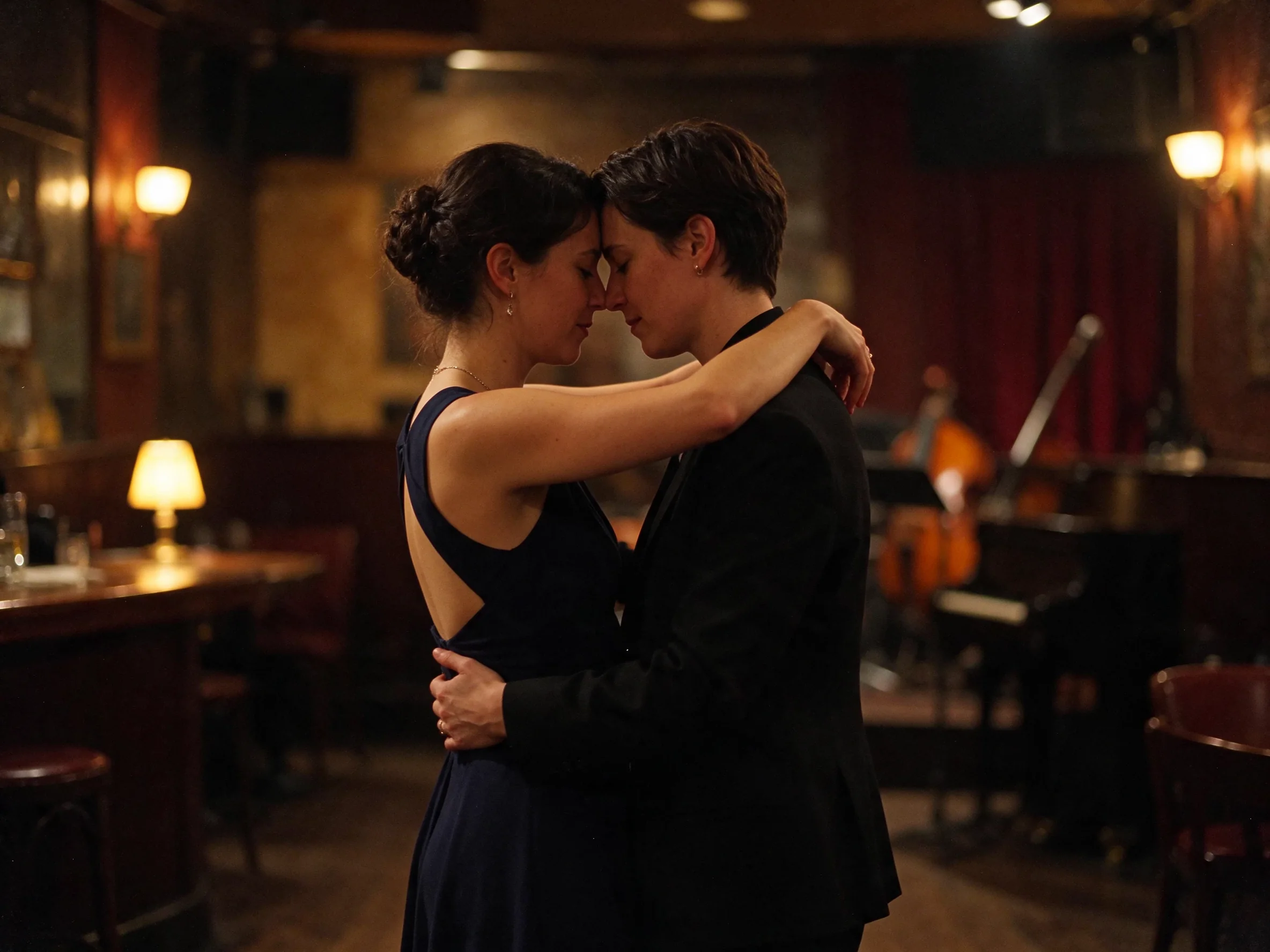
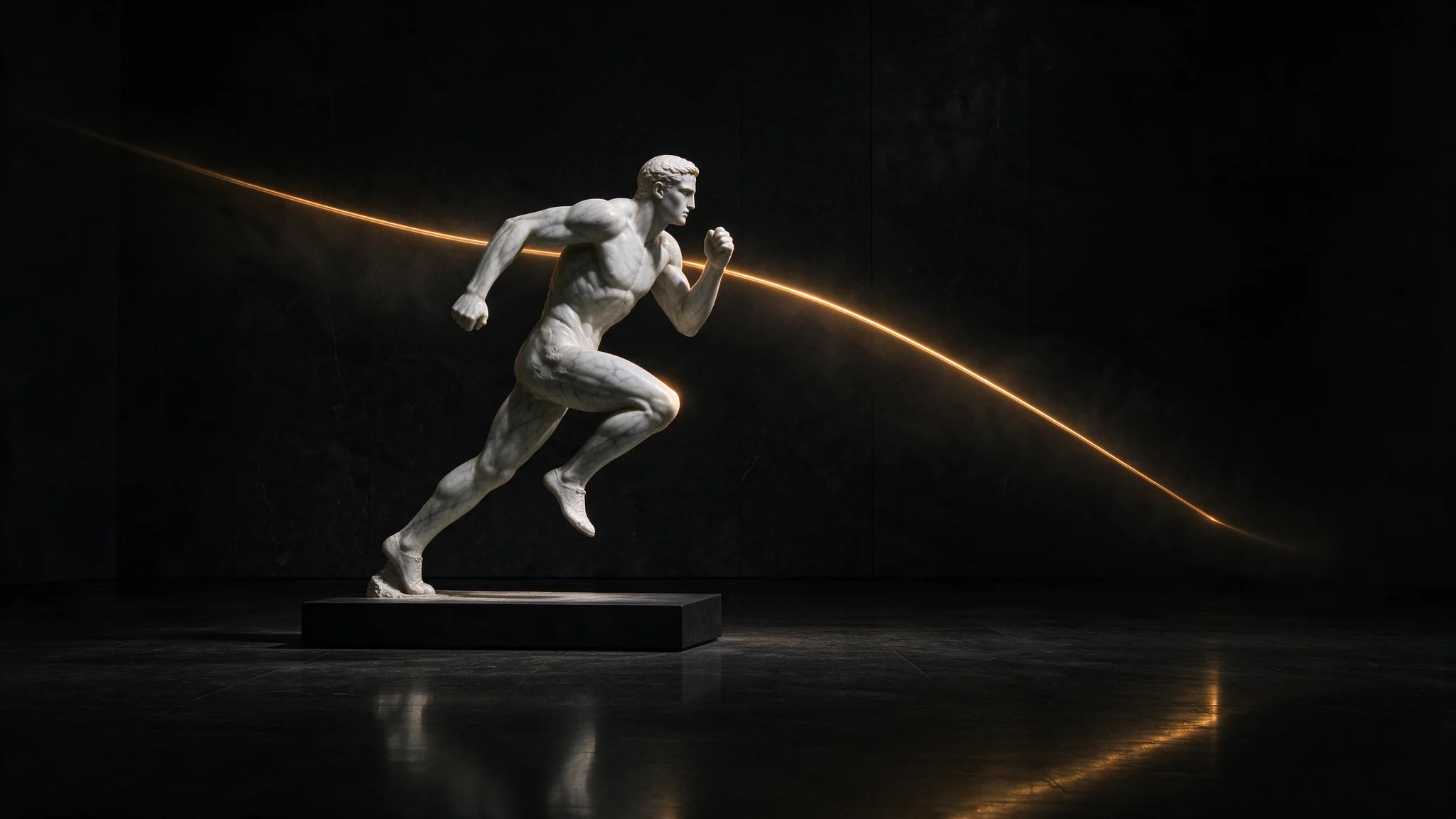
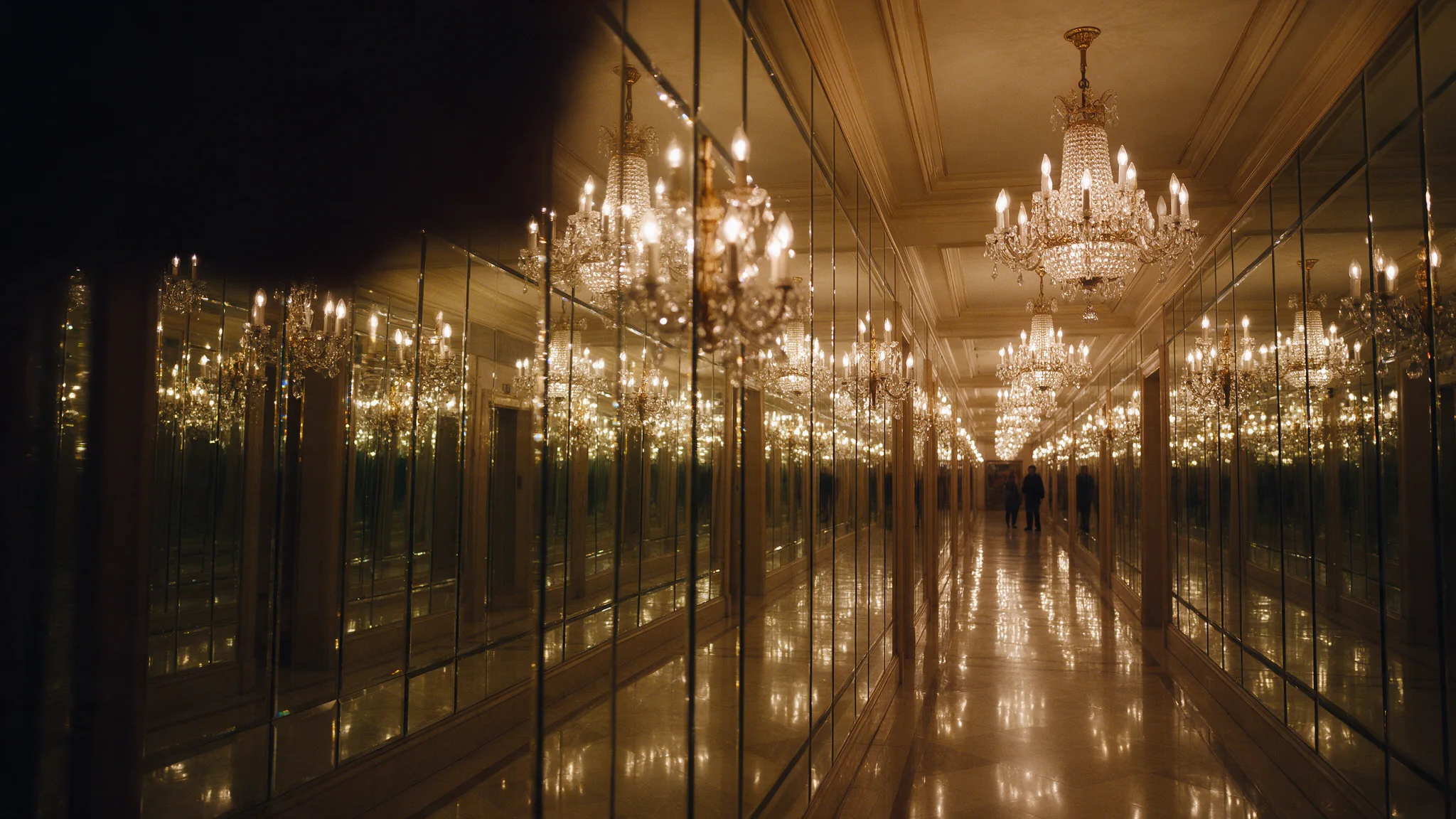
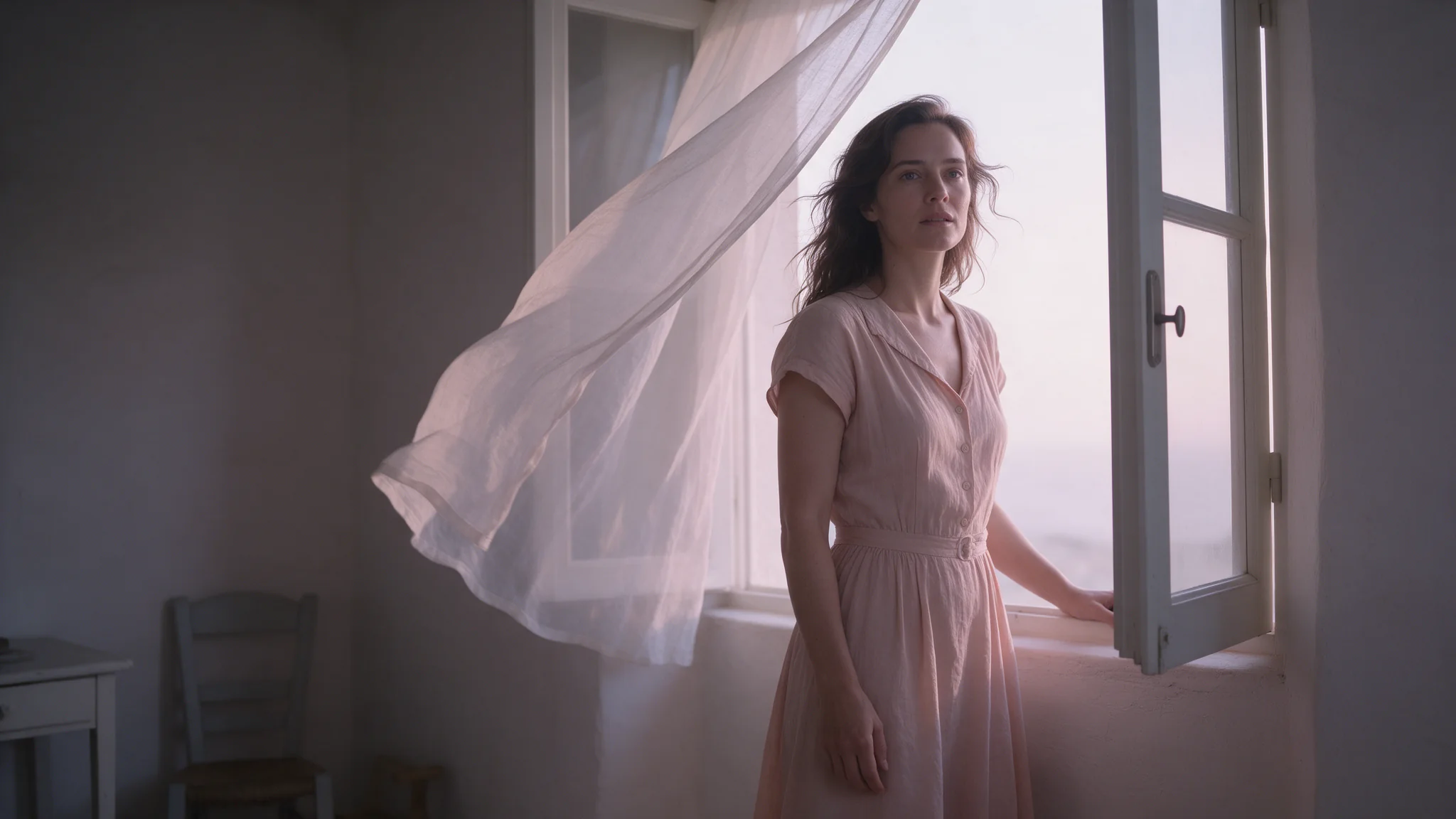
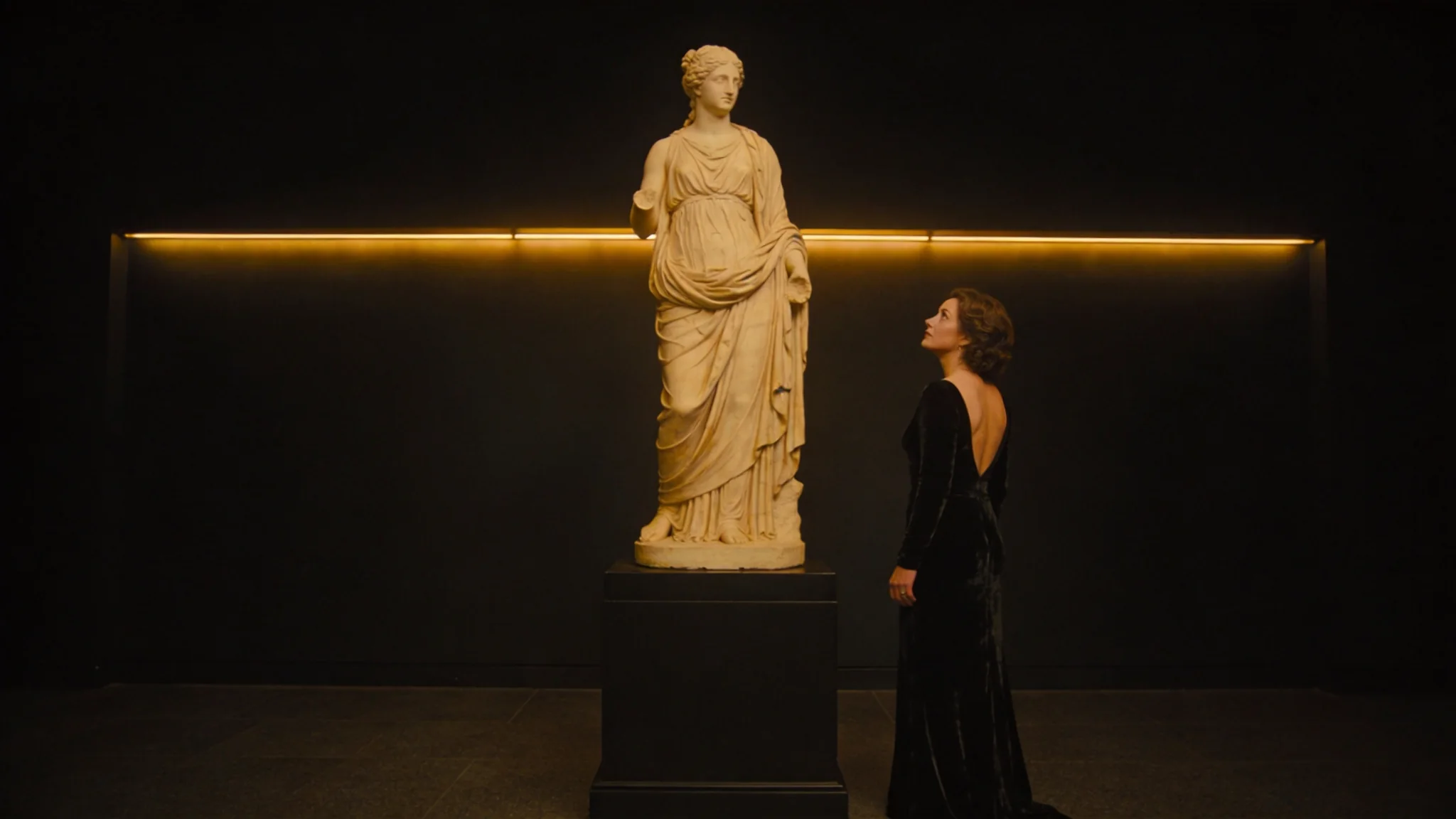
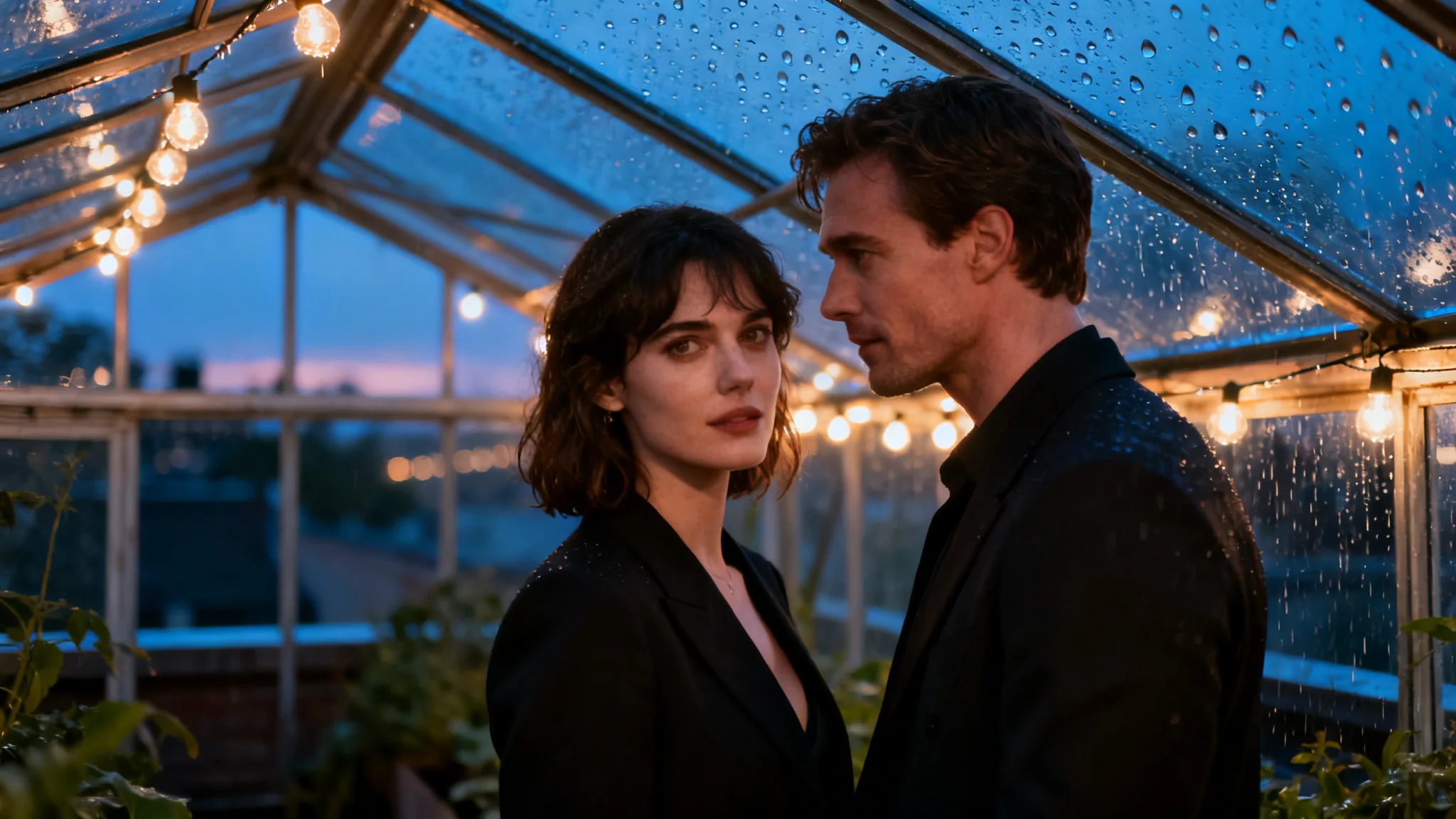
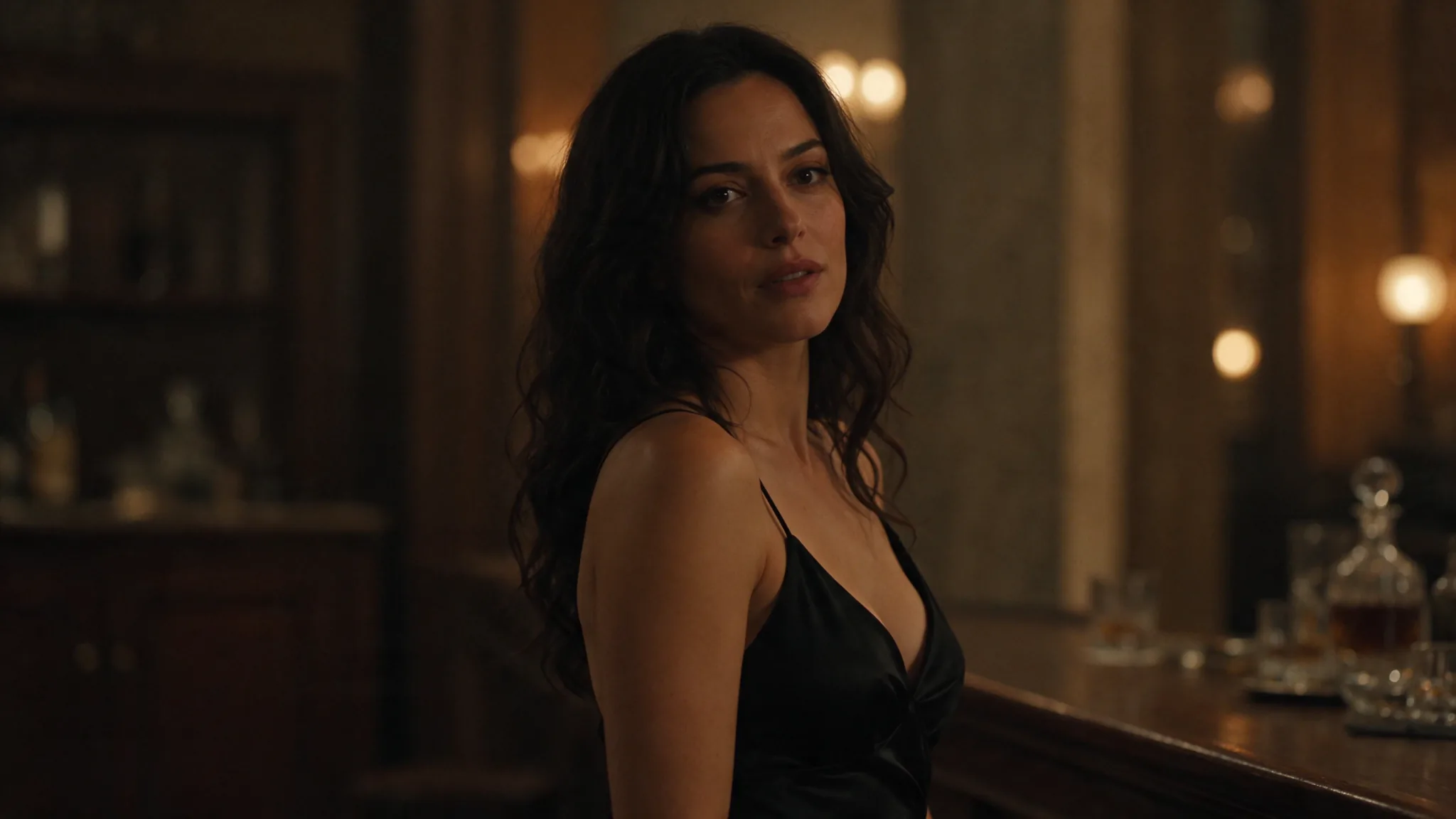
The seaside portrait uses a linen shirt, dusk light, and film grain to set its look. The jazz bar example names two people, their clothing, a slow dance, and amber room lighting. Use a similarly concrete scene description: say who appears, where they are, what they wear, and how the light should look.
A product graphic for another layout
Describe the mug's material, color, logo, and viewing angle before selecting the transparent output settings. A phrase such as "isolated product cutout" explains the composition. The background control determines whether the PNG carries transparency. Keep the product instruction and file settings aligned.
Prompt guide & pro tips
Write the scene before decorative wording
Begin with the central subject and setting. Follow with the materials, colors, lighting, and photographic treatment that matter to the result. For example: "A teal ceramic mug with a white fox logo, soft studio light." This gives concrete visual directions without adding unrelated objects or invented copy.
Quote every line you need to retain
Use short role labels such as "Masthead: 'NOIR'" or "Title: 'KAZE RAMEN'." Put a footnote in its own instruction so it is distinct from the title. Keep wording and placement together: "Place 'NOIR' in large serif lettering above the photograph." Supply the intended language directly rather than asking the model to invent a translation.
State the text boundary
Follow the quoted copy with "Use the supplied wording and no other words." This advice comes from our tests, where missing that boundary allowed extra text. After generation, compare every line with the prompt, including smaller supporting text. Adjust the instruction if a block is missing or has the wrong role.
Set the frame in the controls
Select 3:4 for a tall composition or 16:9 for a wide scene when those shapes fit the intended layout. Do not rely on a word such as "vertical" to replace aspect_ratio. If you leave the setting unchanged, the result uses the default 1:1 canvas. Choose resolution separately from shape.
Keep transparency deliberate
For a cutout, use output_format png and background transparent together. A short scene phrase such as "isolated product cutout" can explain the visual goal. It cannot give JPEG an alpha channel. Use background opaque when you want an opaque result, or leave auto selected when you have not chosen a background mode.
Keep the instruction within the prompt limit
This platform accepts up to 5,000 prompt characters, and ByteDance recommends staying within 600 English words. Spend that space on scene details, exact copy, and placement. Save the prompt with the selected ratio, tier, and downloaded image so the design direction is available for later edits.
For related model pages, see Seedream 5.0 Pro and Seedream 5.0 Flash.
API quick start
# Generate the idempotency key once; reuse it when retrying after a lost response.
export SPICY_IDEMPOTENCY_KEY="${SPICY_IDEMPOTENCY_KEY:-$(uuidgen)}"
curl -X POST https://api.spicyapi.ai/api/v1/jobs/createTask \
  -H "Authorization: Bearer $SPICY_API_KEY" \
  -H "Content-Type: application/json" \
  -H "Idempotency-Key: $SPICY_IDEMPOTENCY_KEY" \
  -d '{
  "model": "bytedance/seedream-5.5/text-to-image",
  "input": {
    "prompt": "A ceramic teapot on a linen cloth, soft window light, muted palette",
    "background": "auto",
    "resolution": "2k",
    "aspect_ratio": "1:1",
    "output_format": "png"
  }
}'

# Copy data.taskId from the response into TASK_ID, then poll the status.
TASK_ID="TASK_ID_FROM_RESPONSE"
curl "https://api.spicyapi.ai/api/v1/jobs/recordInfo?taskId=$TASK_ID" \
  -H "Authorization: Bearer $SPICY_API_KEY"
See the API reference for authentication, the complete schema, polling, and error handling.