Introduction
GPT Image 2.6 Flare Image Editing takes existing images and a description of the revision you want. It serves quick iteration on outfits, locations and other visual changes using 1–16 supplied sources.
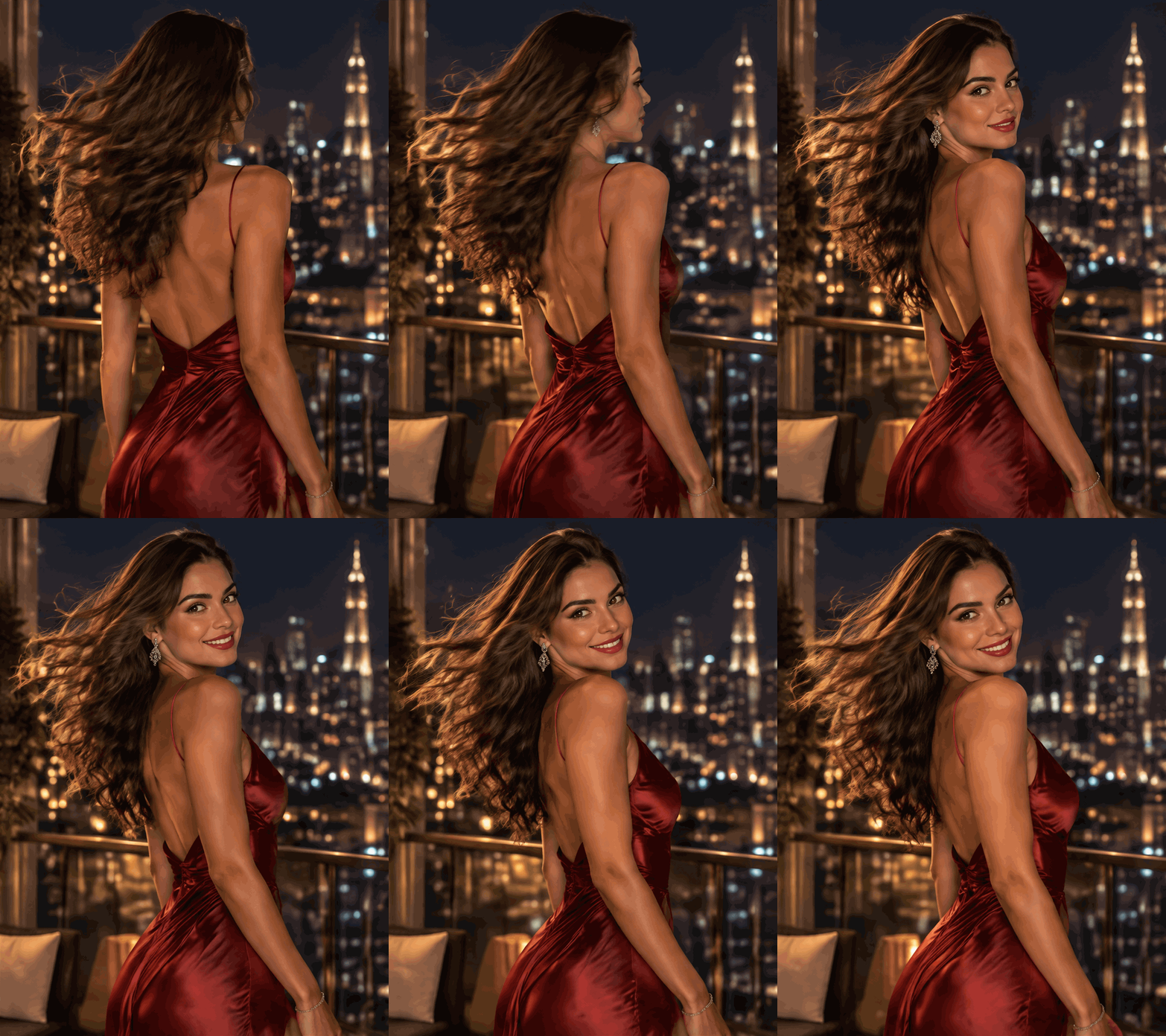
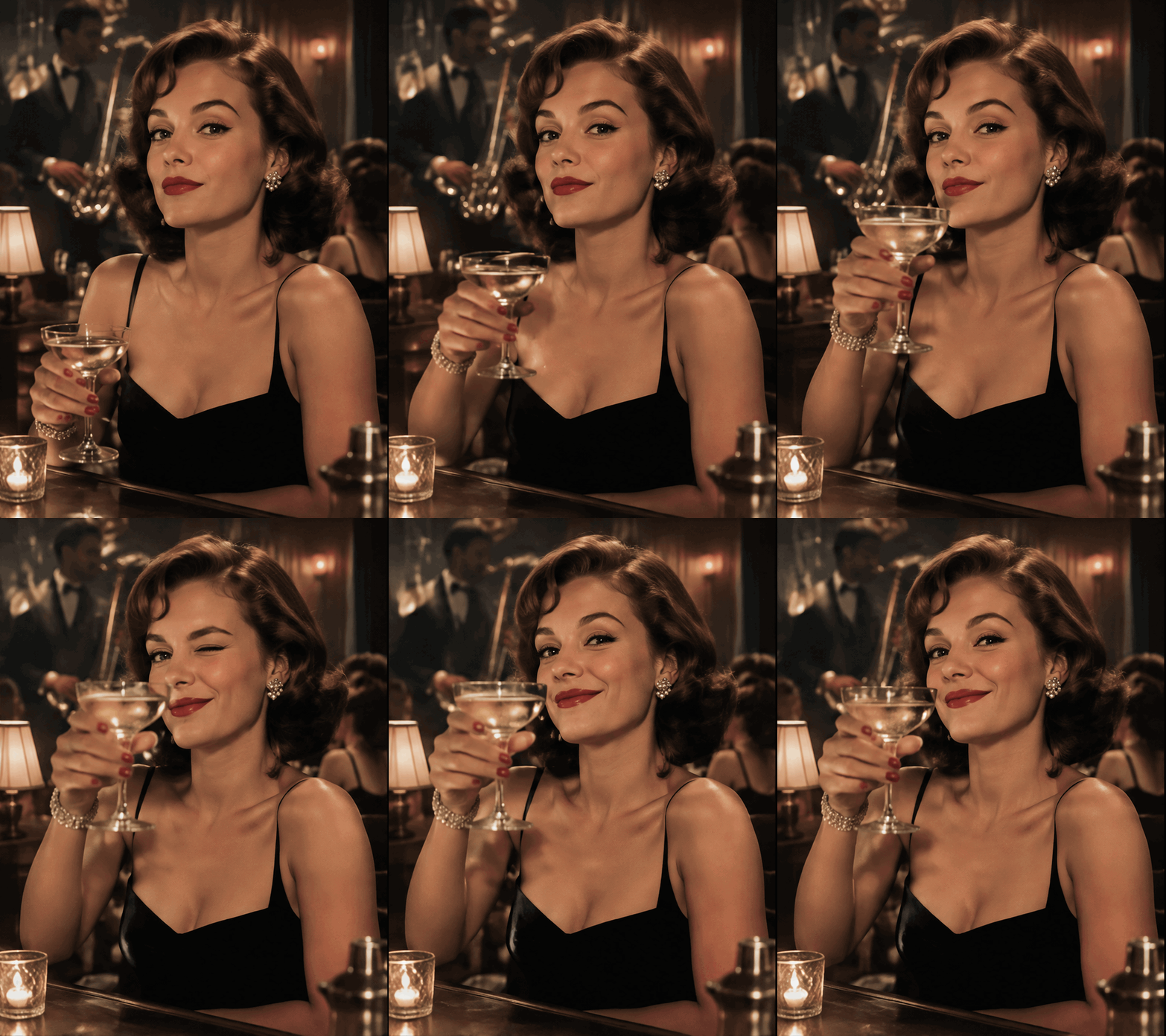
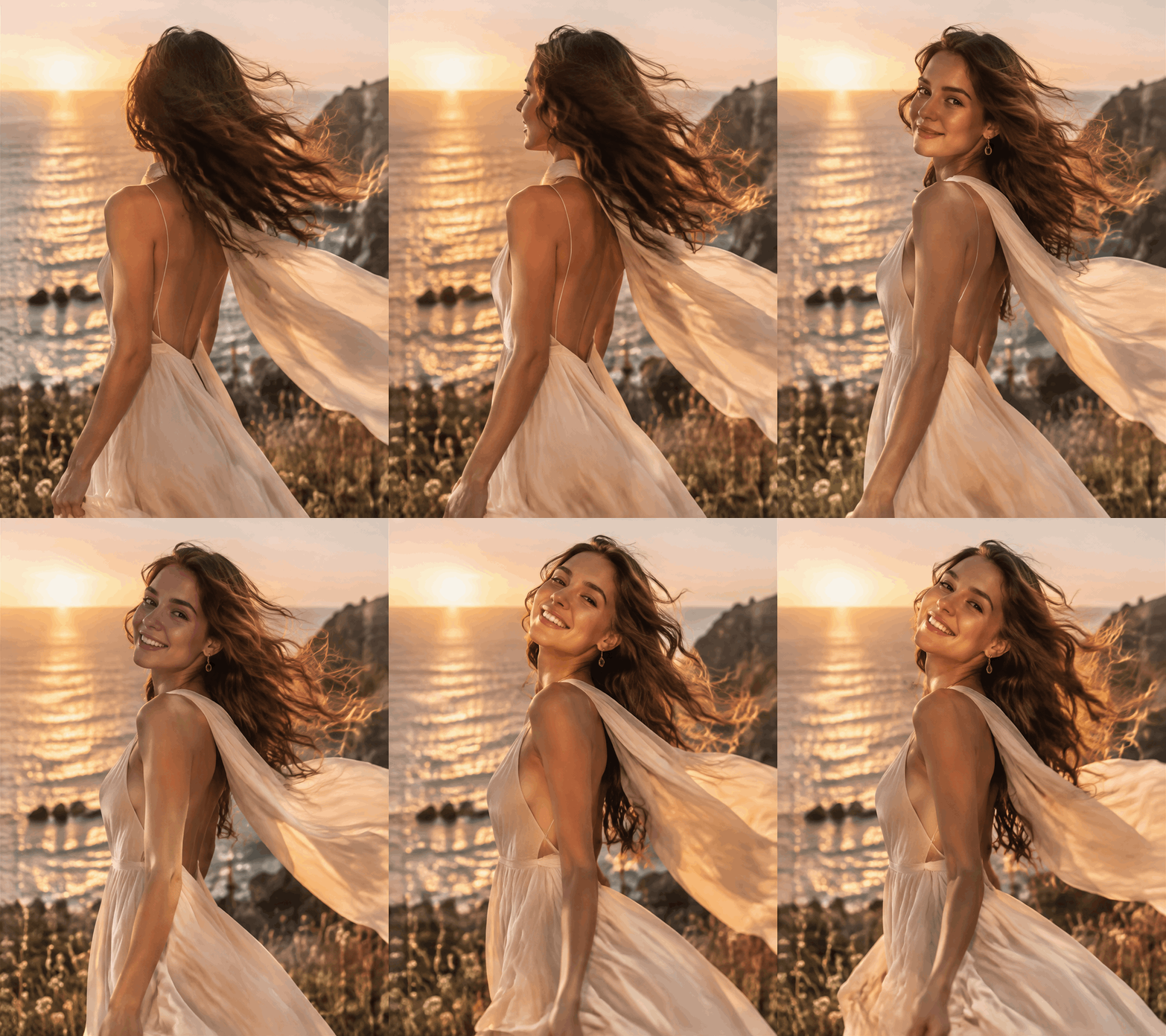
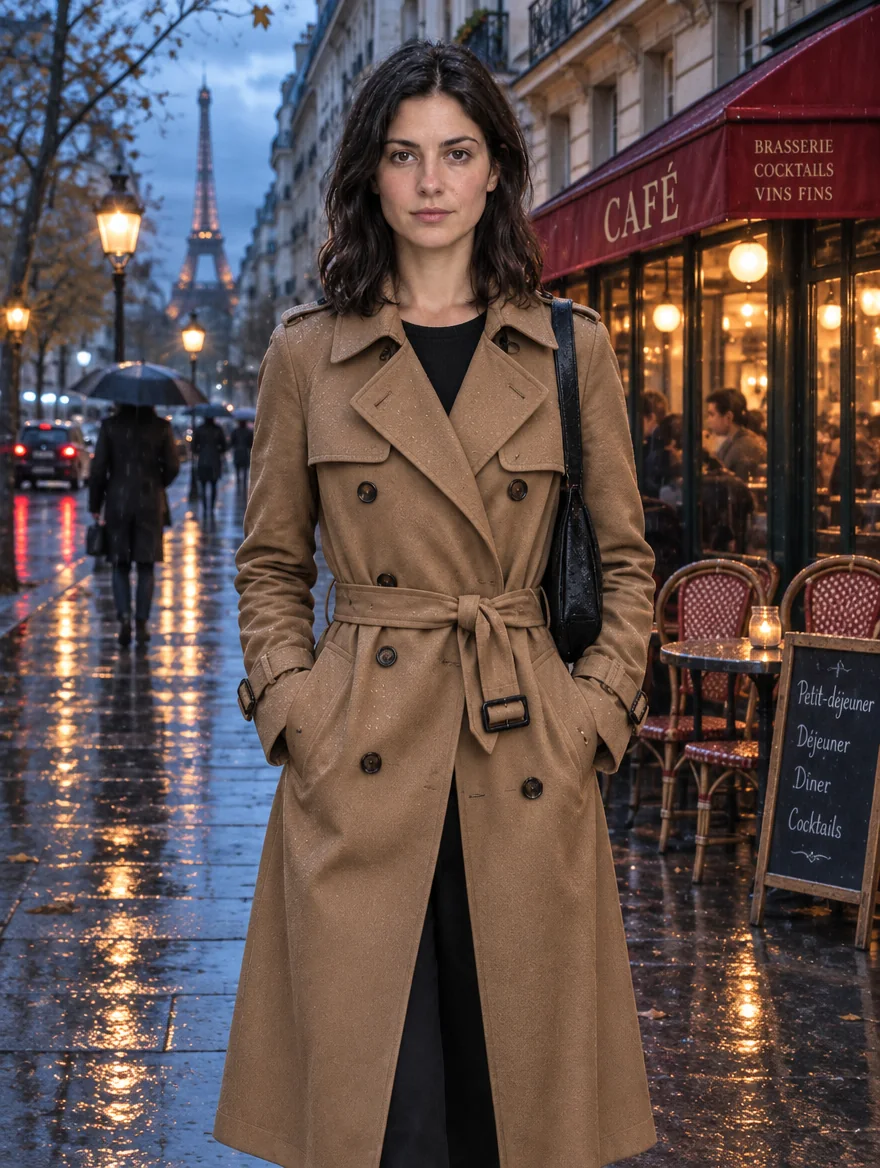
The first input is the picture being revised, and later inputs can supply reference details. In our tests, a rainy Paris outfit revision kept the subject recognizable while replacing the clothing and surrounding scene.
Key features & highlights
- Visual revision notes: upload a same-size transparent PNG through
markup_urlto show the change; it is billed as an extra input and replacesmask_url. - Reference roles: address inputs as Image 1, Image 2 and so forth to explain their contributions.
- Optional masks: supply a PNG with transparent repaint pixels at the dimensions of the first input.
- Output framing: leave the ratio unset to retain the first source’s shape at 1k, or select a ratio for 2k and 4k.
- Detail and size choices: five quality levels and three resolution tiers also apply to revisions.
- Background delivery: transparent output requires PNG or WebP, while JPEG is another format for other results.
Request parameters
| Parameter | Required | Description |
|---|---|---|
prompt | Yes | Write the required Flare edit instructions within 5,000 characters; no text is supplied by default, and very long prompts incur a small per-token fee. at least 1 characters · at most 5000 characters |
image_urls | Yes | A Flare edit requires 1–16 image URLs and has no default inputs; refer to Image 1, Image 2 and later numbers in the prompt, with a small fee for every input image. at least 1 items · at most 16 items |
mask_url | No | A Flare mask is an optional PNG matching Image 1, with transparent pixels selecting the area to repaint and no mask surcharge. Use either |
markup_url | No | For a quick visual instruction, pass |
aspect_ratio | No | Fifteen shapes are available, from 1:3 portrait strips to 3:1 panoramas. |
resolution | No | Select Flare delivery at 1k (~1 MP), 2k (~3.7 MP) or 4k (~8.3 MP); the default is not specified here, and the selected size affects billing. |
quality | No | Flare offers low, medium, high, xhigh and max detail, starting at medium; moving higher adds detail, time and cost. |
reasoning_effort | No | Flare offers low, medium and high for |
num_outputs | No | Set the Flare result count from 1 through 10; the default count is not specified here, and each image has its own charge. |
background | No | Choose auto, opaque or transparent for the Flare background; its default is not specified here, transparency needs PNG or WebP, and this selection adds no fee. |
output_format | No | Flare file delivery starts at png; jpeg and webp are also supported, with no charge for switching formats. |
output_quality | No | When an edited Flare result is saved as JPEG or WebP, compression runs from 0 to 100; PNG output ignores the setting and the price stays the same. |
Pricing
Flare charges per image according to the chosen quality and resolution tier, multiplied by the number of images requested. Each source image in an edit adds a small fee, and very long prompts carry a small per-token fee. No charge applies to refused Flare requests.
| Resolution | Quality: low | Quality: medium | Quality: high | Quality: xhigh | Quality: max |
|---|---|---|---|---|---|
| $0.02232 / image | $0.03915 / image | $0.04743 / image | $0.08433 / image | $0.18972 / image |
| $0.04131 / image | $0.07299 / image | $0.08847 / image | $0.15723 / image | $0.35379 / image |
| $0.07479 / image | $0.13221 / image | $0.16011 / image | $0.28512 / image | $0.64044 / image |
Use cases
- Seasonal outfit concepts: preview a camel coat on a supplied portrait for a rainy-weather campaign.
- Setting variations: move a subject from an existing photograph into a blue-hour street scene.
- Graphic revisions: mark part of a draft poster and ask for a new painted backdrop in that region.
Prompt guide & pro tips
- Identify the base first: write “revise Image 1” before naming the desired result.
- List what to retain: say “preserve the subject’s appearance” when changing wardrobe and location.
- Separate reference instructions: try “take the background colors from Image 2” to clarify source roles.
- Use a focused mask instruction: ask for “a teal wall in the marked region” alongside a prepared PNG.
- Review a defined change: use “camel trench coat at blue hour” rather than combining unrelated alternatives.
- For faster iteration, consider
reasoning_effortlow or medium; high is the default and spends longer planning dense text or complex layouts at the same price.
API quick start
# Generate the idempotency key once; reuse it when retrying after a lost response.
export SPICY_IDEMPOTENCY_KEY="${SPICY_IDEMPOTENCY_KEY:-$(uuidgen)}"
curl -X POST https://api.spicyapi.ai/api/v1/jobs/createTask \
  -H "Authorization: Bearer $SPICY_API_KEY" \
  -H "Content-Type: application/json" \
  -H "Idempotency-Key: $SPICY_IDEMPOTENCY_KEY" \
  -d '{
  "model": "openai/gpt-image-2.6-flare/edit",
  "input": {
    "background": "auto",
    "image_urls": [
      "https://example.com/reference.png"
    ],
    "num_outputs": 1,
    "output_format": "png",
    "prompt": "A ceramic teapot on a linen cloth, soft window light, muted palette",
    "quality": "medium",
    "resolution": "1k"
  }
}'

# Copy data.taskId from the response into TASK_ID, then poll the status.
TASK_ID="TASK_ID_FROM_RESPONSE"
curl "https://api.spicyapi.ai/api/v1/jobs/recordInfo?taskId=$TASK_ID" \
  -H "Authorization: Bearer $SPICY_API_KEY"
See the API reference for authentication, the complete schema, polling, and error handling.