A believable AI mirror selfie specifies the photo the phone takes: one adult seen in one flat mirror, one phone with its rear lenses facing the glass, and a simple visible grip. Start with Seedream 5.0 Flash at 3:4, 2k, PNG, $0.029 per image, and add an identity reference if the character already exists. If the viewpoint is impossible, regenerate; if only the phone or hand is wrong, edit locally.
The worked subject is Daniel, a fictional 35-year-old man in a buttoned black shirt and tailored trousers. Both models also accept adult-oriented prompts, so the same workflow applies to adult characters.
1. Choose the camera before writing the scene
There are two useful arrangements. They need different prompts:
| Picture you want | Actual camera position | What to request |
|---|---|---|
| The selfie saved on Daniel's phone | In Daniel's hand, pointed toward the mirror | Reflected Daniel and reflected phone; no separate photographer view of his back |
| A portrait of Daniel beside a mirror | A separate camera to his side or behind him | Direct body plus the reflection visible from that camera angle |
Use the first for a casual feed post, the second when body and reflection together are the main idea. Do not mix “shot by his phone” with “camera behind him showing his back”; that describes a third-person photo of someone taking a selfie.
The reflection is the same person in the same pose, never an independently posed second one, so any mismatch between the real arm and the reflected arm is a mistake to fix.
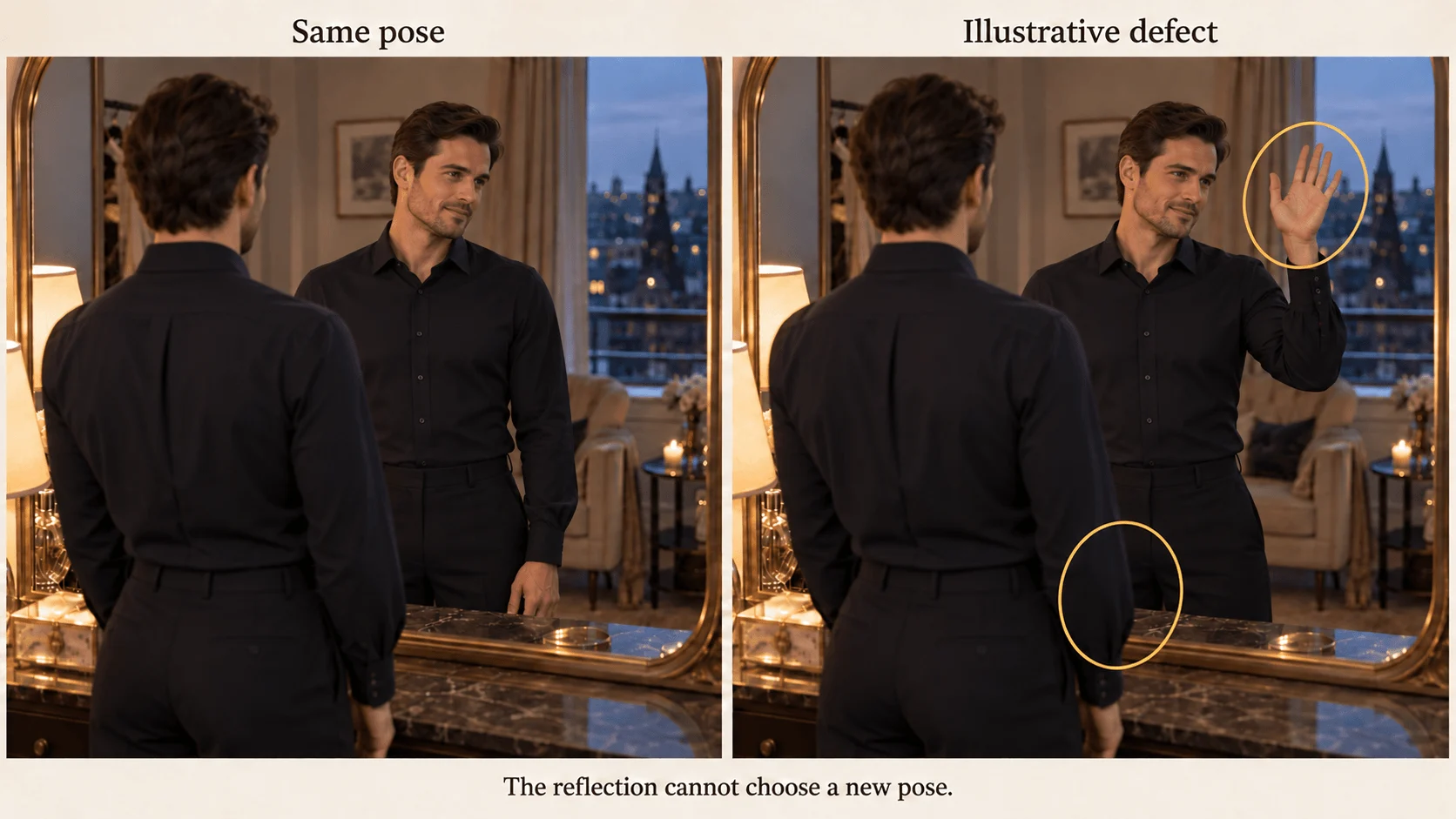
Illustration: the raised reflected hand contradicts the lowered real arm, the reflection cannot choose a new pose.
A flat mirror puts the reflection as far behind the glass as the subject stands in front of it (OpenStax physics).
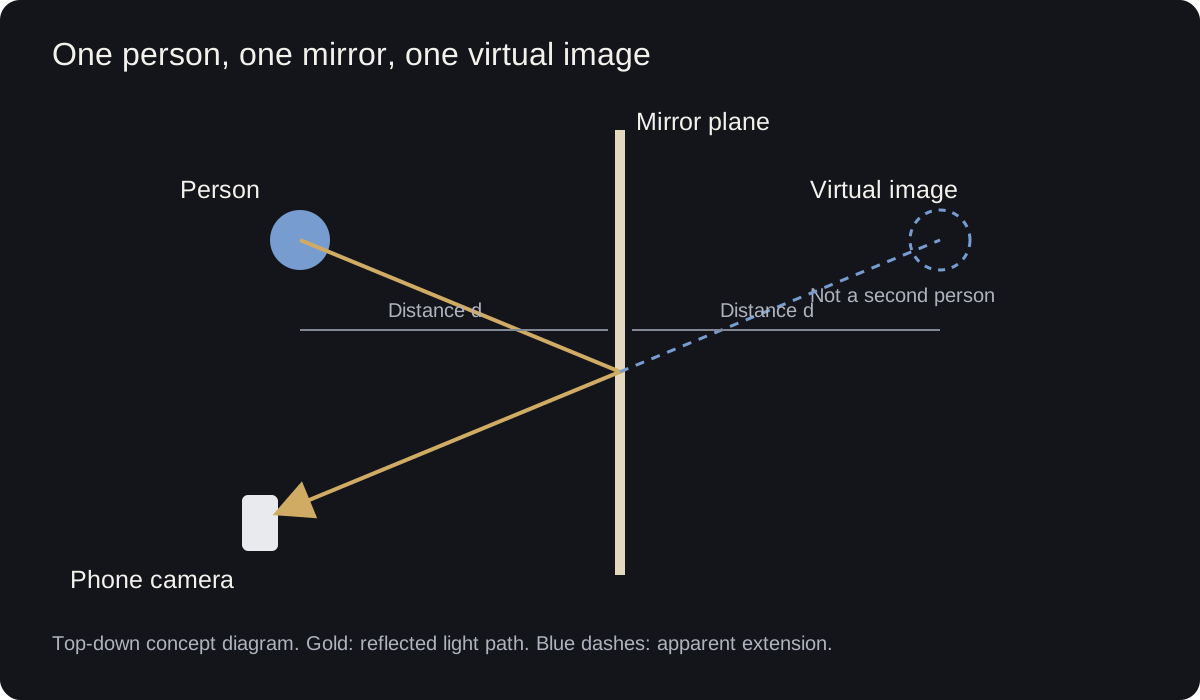
Conceptual optical diagram: the virtual image appears behind the flat mirror at the corresponding perpendicular distance.
2. Set up the first request
Try it in the Playground
- Open the Seedream 5.0 Flash text-to-image page and stay on the Playground tab, in Form view. Sign in with a funded account to run.
- Paste the prompt below into Prompt, or open the page with it filled in.
- Set Aspect ratio to 3:4, Resolution to 2k and Output format to PNG, then run.
- For an existing character, switch to the edit page and add the approved portrait under Images.
It costs $0.029 per image. There is no negative-prompt field, so put exclusions in the prompt. Editing costs the same and accepts up to ten reference images.
Prepend this sentence for the editing version: “Use the adult man in the first reference for Daniel's facial identity and hairstyle; replace the source composition with the mirror selfie described below.” Then paste:
The photograph captured by a fictional 35-year-old man's phone during a mirror selfie in a quiet dressing room. Daniel appears through his reflection in one flat wall mirror with a narrow dark frame. He wears a buttoned black shirt and tailored trousers. He holds one plain phone at upper-chest height, slightly beside his face, with the rear camera lenses facing the mirror and the screen facing him. His reflected face remains fully visible. One hand grips the phone naturally; his free arm rests at his side. Waist-up portrait, one simple wall lamp, plain background, relaxed adult expression. No second mirror, no separate photographer, no duplicated person and no lettering.
For a higher viewpoint, raise the phone and keep it beside the face; skip “eye-level camera”, since the phone position is the viewpoint.
Or call it from code
The same request as the Playground steps, run from the CLI (npx @spicyapi/cli works without installing); the image generation guide covers the Python SDK and the other fields:
spicyapi tasks create --model bytedance/seedream-5.0-flash/text-to-image \
  --input-json '{"prompt":"<paste the prompt above>","aspect_ratio":"3:4","resolution":"2k","output_format":"png"}' --wait
Or let an Agent run it. An assistant can make this call through the CLI above, the MCP server (spicyapi_upload_file for the portrait, then spicyapi_task_create, which stops for your price confirmation) or the Skill (npx skills add spicyapi-ai/spicy-skill), which teaches it the live schema.
A prompt pattern you can reuse
Order the sentences by what the mirror depends on:
- Capture and mirror: "The photograph captured by <character>'s phone during a mirror selfie in one flat wall mirror"; name the mirror's type and count.
- Person: age, outfit, expression.
- Phone and hand: which hand holds it, at what height, which side faces the glass, and whether the face stays visible.
- Scene: one light source, plain background.
- Exclusions, last: "no second mirror, no separate photographer, no duplicated person, no lettering."
Name the holding hand and keep the phone on the same side of the frame in the real view and the reflection: write "his right hand holds the phone, which appears on the right of the frame". Do not describe the reflection as a separate left-handed person.
Ask for one light source. Reflected lettering reads reversed, so either exclude lettering or write “any sign appears mirror-reversed”.
3. Diagnose the phone surface and grip
A conventional rear-camera mirror selfie normally shows the phone's back and lenses in the reflection. The screen faces Daniel. A screen facing the mirror contradicts that setup.
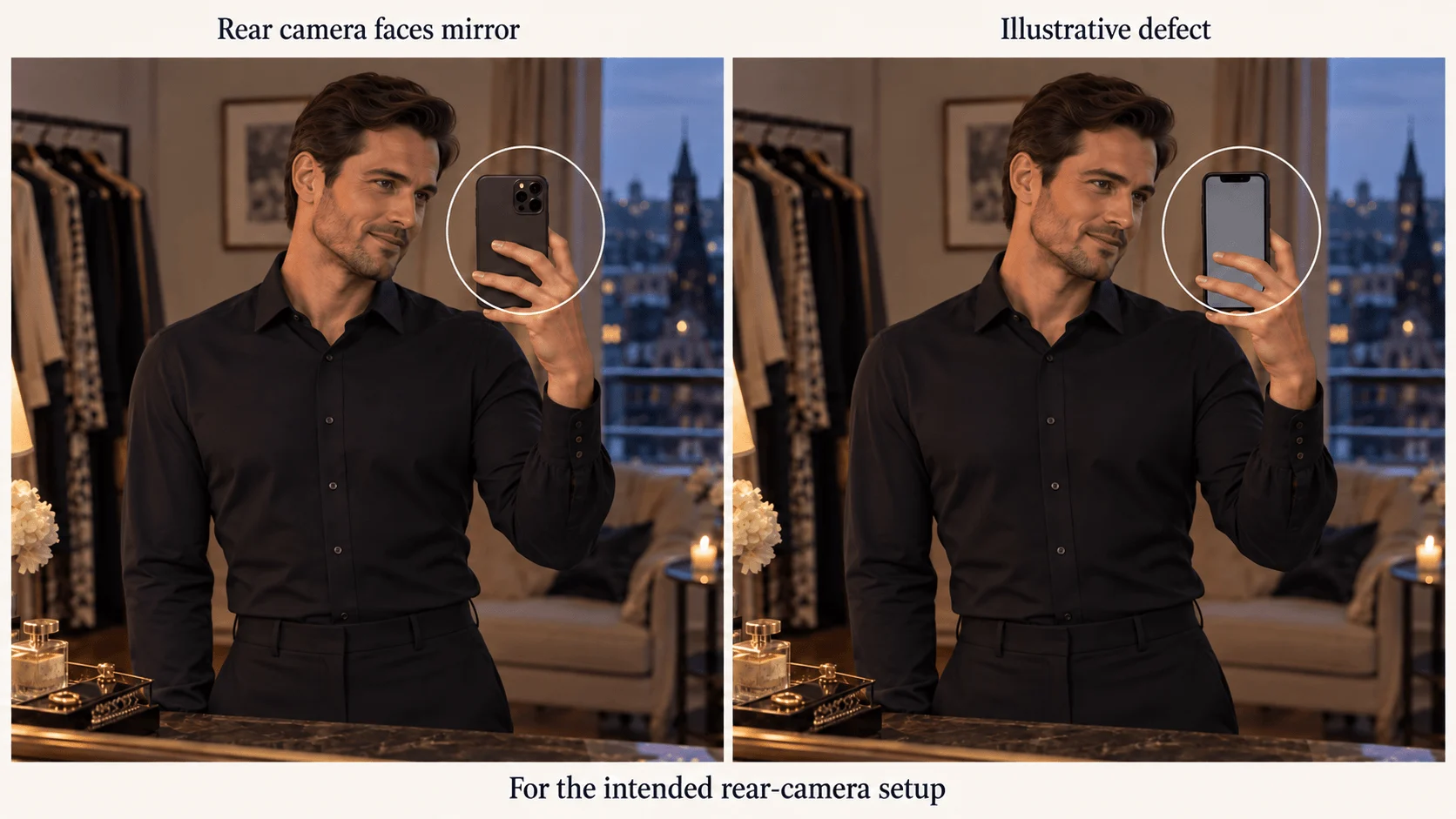
Illustration: a screen-facing phone in the reflection conflicts with a rear-camera selfie.
For this and the other fixes in sections 3, 5 and 6, open the Flash edit page, add the accepted selfie under Images, keep Aspect ratio at 3:4 and paste the correction into Prompt. If the phone is reversed, use:
Correct the phone orientation for a rear-camera mirror selfie: the phone's back and camera lenses face the mirror and are visible in its reflection; its screen faces Daniel. Keep one phone at the same height beside his face. Adjust the gripping hand as needed for that orientation. Retain his face, black shirt, mirror frame and room.
Include the grip in this edit: a corrected camera bump on a hand that still holds the phone the old way keeps the problem.
If there are two phones, specify which remains: “Keep the phone held at upper-chest height; remove the extra floating phone beside his shoulder and restore the background there.” If both phones are tangled with arms, go back to the first simple prompt; erasing one phone cannot fix two incompatible forearms.
For a phone covering the face, the correction is placement, not more facial detail:
Move Daniel's phone slightly outward beside his cheek and below his eyes so his entire reflected face is visible. Preserve a natural bent elbow and continuous forearm leading to the grip. Keep one phone, the rear-camera orientation, outfit and room.
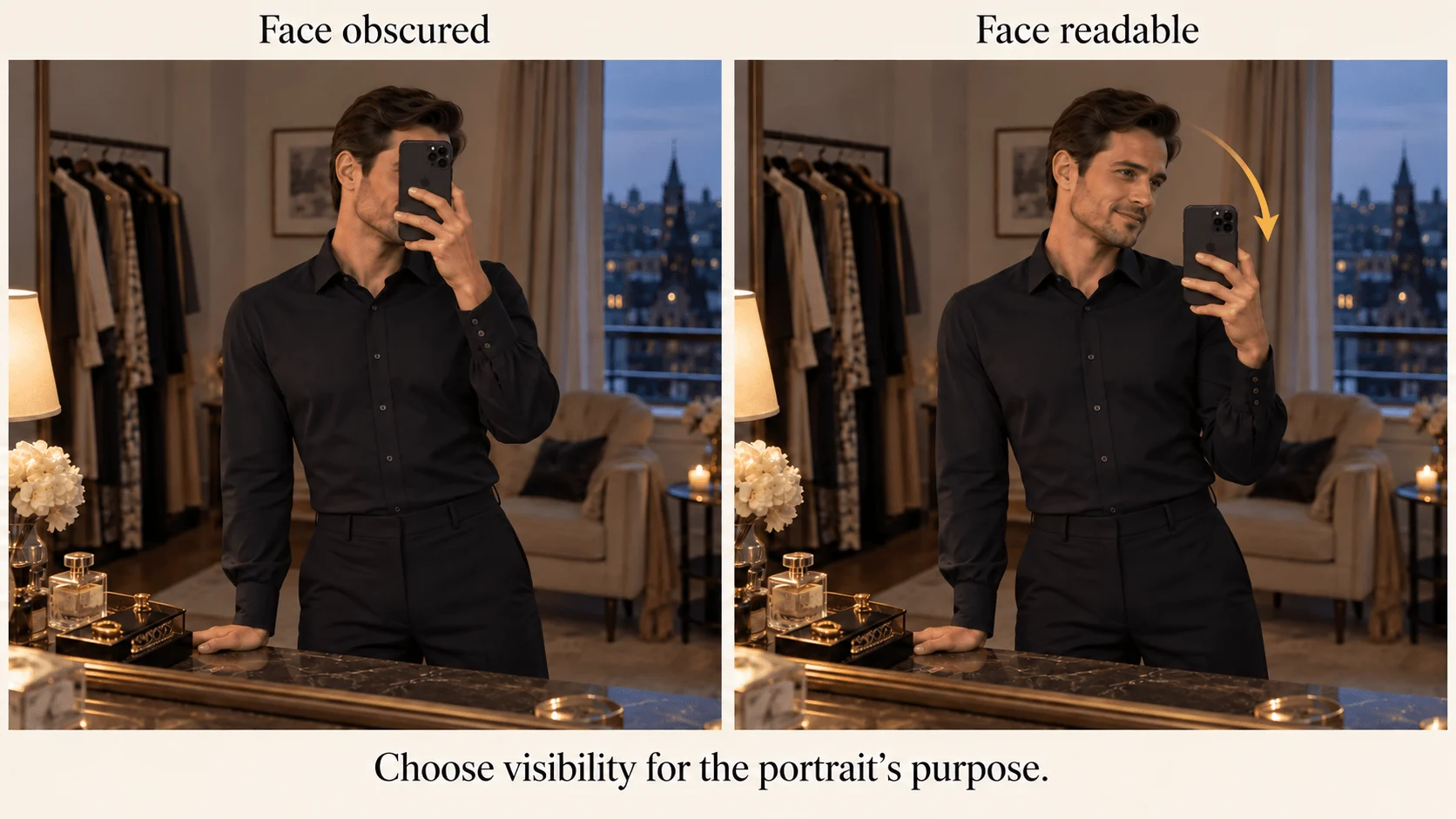
Illustration: moving the phone outward shows the face without inventing detail behind the device.
4. Fix a hand with a region-capable editor
Flash editing has no mask field. For a localized grip repair, open Qwen Image 2.1 edit and use the Playground tab:
- Add the coherent selfie under Images as the one source image. Masked mode takes exactly one image, so do not add Daniel's portrait.
- Under Advanced parameters, add a same-size Mask: white over the faulty grip and adjacent phone edge (repaint), black over the rest (keep). Prompt expansion is ignored when a mask is used.
- Set Resolution to 2k to match a 2K source ($0.048 per image; 1k at $0.036 only if you generated at 1k) and Output format to PNG. The aspect ratio follows the source.
- Paste the repair prompt below into Prompt and run.
Repair the masked hand-phone connection. One natural hand grips one phone, with fingers wrapping around its edge and the wrist continuing into the existing black sleeve. Keep the phone's rear lenses facing the mirror. Retain Daniel's face, shirt, body pose, mirror boundary and lighting.
Mask the relationship that is wrong. A missing wrist needs a region containing the wrist and sleeve transition; a doubled fingertip may need less. Afterward, compare Daniel's face and the phone position with the source, since pixels outside the mask can still shift.
If the whole arm starts from the wrong shoulder or the reflection has another pose, regenerate with the simpler prompt; that is structural, not a grip repair. For a small logo blemish on the phone, a conventional retouch preserves more of the accepted image.
5. Use the mirror boundary to find depth mistakes
A physical object in front of the mirror can cover the mirror frame and reflection. A reflected object belongs within the mirror's view. If one vase switches roles along its edge, “realistic reflections” is too vague a fix.
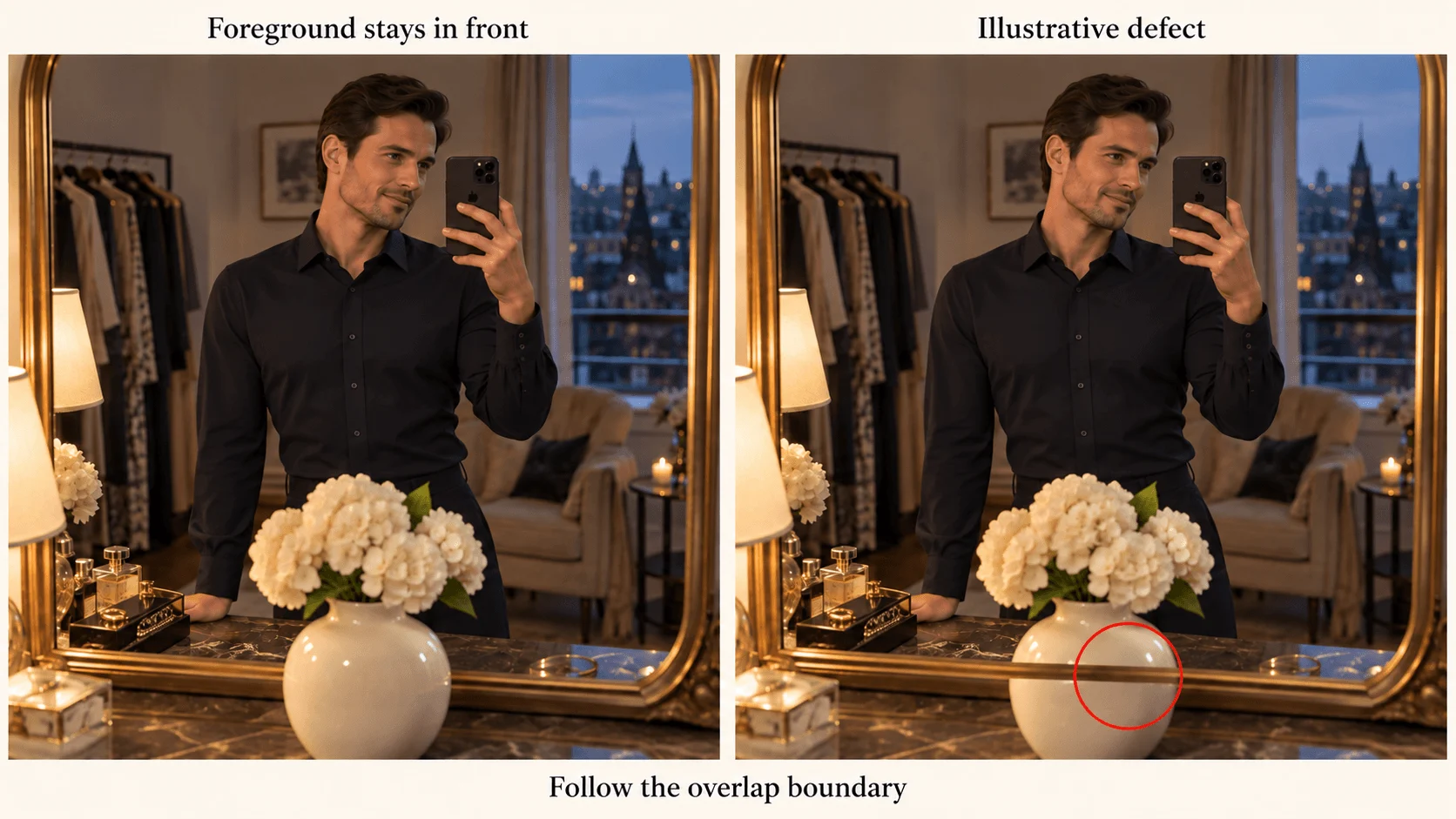
Illustration: a foreground vase should hide the mirror frame; a frame stripe crossing it is the defect.
Pick the correction that matches what you intended:
- Remove an unnecessary foreground object: “Remove the vase and its reflection; continue the existing plain wall, mirror edge and empty counter coherently.”
- Retain a foreground vase: “The vase stands on the counter in front of the mirror. Its silhouette covers the mirror frame behind it; do not draw the frame across the vase.”
A lamp visible only in the mirror is not wrong, and unequal highlight brightness is normal. Fix intersections and position errors, not asymmetry.
6. Simplify extra reflections before widening the shot
Mirrored wardrobes and glossy bottles add views that the first request does not need. When the scene produces a duplicate Daniel, remove those causes explicitly:
Keep a single flat wall mirror. Replace the mirrored wardrobe and reflective bottles with a plain matte wall and an empty counter. Show Daniel once through the main mirror, holding one phone in the existing pose.
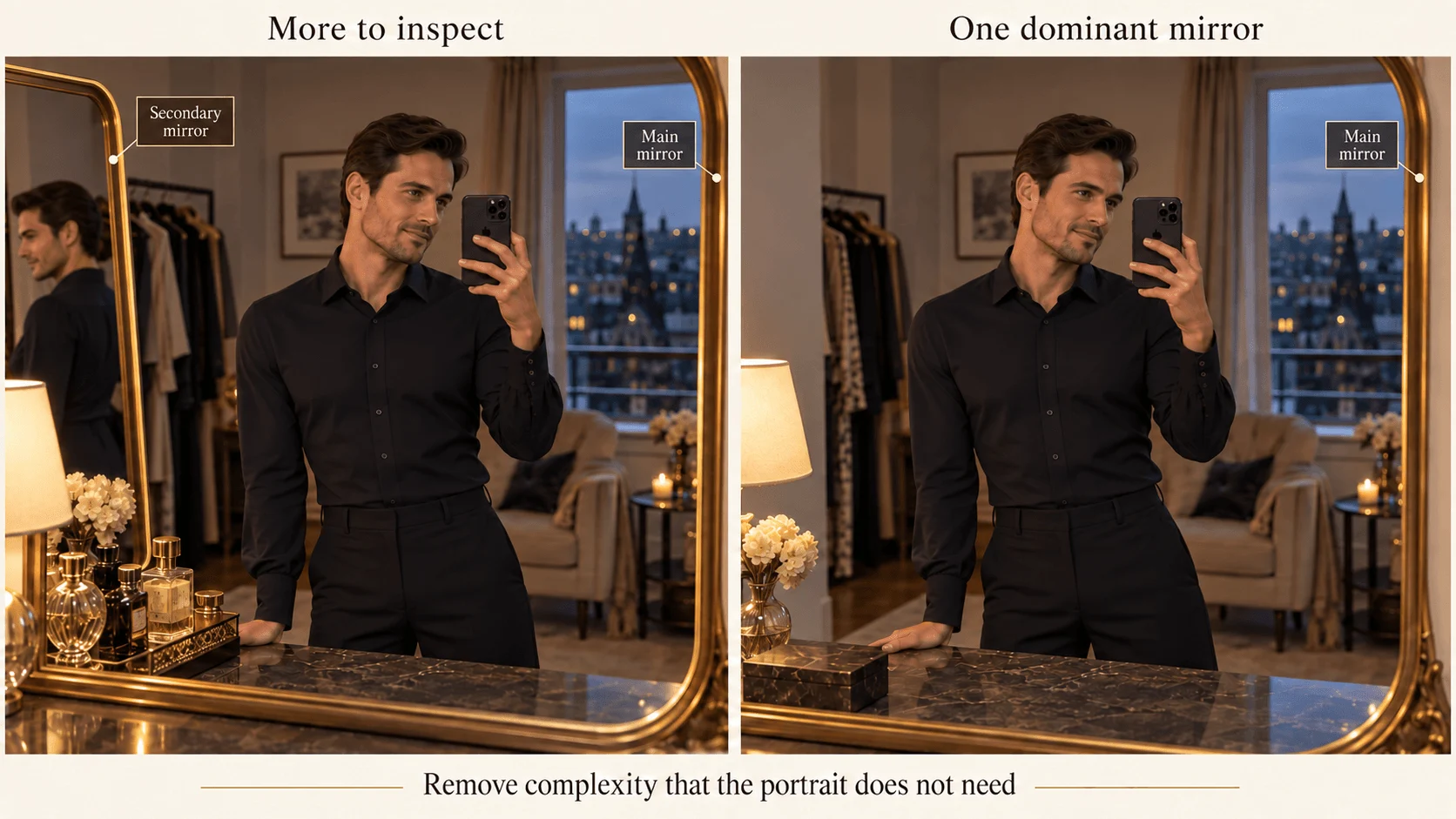
Illustration: one dominant mirror removes the secondary views that confuse the scene.
For a full-outfit version, use the accepted selfie as the editing source and request “a zoomed-out full-length reflected view with Daniel's trousers, both shoes and their floor contact visible.” Keep 3:4 or use 2:3. A waist-up crop cannot be resized to reveal feet; the zoomed-out request generates new legs and floor, so inspect them.
For an external side-angle portrait instead, replace the viewpoint instruction entirely:
A separate camera photographs fictional adult Daniel standing beside one flat wall mirror. The camera sees his direct three-quarter back and his face in the mirror from a compatible side angle. His arms hang at his sides in both views. Buttoned black shirt, tailored trousers, simple dressing room, no phone.
Fix or regenerate: a quick triage
| What you see | Fix | Tool |
|---|---|---|
| Phone screen faces the mirror | Orientation edit with grip (section 3) | Flash edit |
| Two phones or a floating phone | Name the phone to keep, remove the other | Flash edit |
| Phone covers the face | Move the phone outward, below the eyes | Flash edit |
| One hand or wrist wrong, rest fine | Masked grip repair | Qwen edit with mask |
| Reflected arm has a different pose | Regenerate with the simple prompt | Flash text to image |
| Duplicate Daniel or second mirror | Remove the extra mirrors and reflective props, then regenerate | Flash text to image |
| Vase or lamp crosses the mirror frame | Occlusion wording (section 5) | Flash edit |
Before posting, check what viewers notice first: the reflected pose matches the real pose, the reflection is lit like the room, nothing repeats (identical clothes or props across the frame), and the phone is held by a hand with a visible wrist.
What it costs
An initial composition plus one phone-position edit with Flash is $0.058. A masked Qwen repair is a separate request at $0.036 (1k) or $0.048 (2k). Retries are billed per image, so fix the viewpoint in the first prompt before spending on repairs. The result to aim for is a scene you can explain in one breath: one camera, one phone, one mirror and one person whose reflected details agree.