To turn a photo into anime-style art without changing who is in it, use image editing with the photo as the first image, say exactly what must stay, and describe the drawing treatment (lines, shadows, background) separately. Start with Seedream 5.0 Flash editing at 2k, PNG, $0.029 per image. A dedicated photo-to-anime filter applies one fixed look to the whole frame; an edit model lets you name what stays and what may change. Prices and settings are current as of October 2026.
The example is a fictional adult photographer on a station bench by a window: short wavy dark hair, moss-green jacket, cream scarf, navy bag, one camera held in both hands.
Choose the source and decide what may change
Use a photo where the face, the pose and the hands on the camera are clear. Do not crop out the camera to enlarge the face; the object is part of the picture. If the face is blurred or mostly hidden, pick another photo you have the right to use: the model will invent what it cannot see.
Decide before you write the prompt what must survive (face outline, hair, pose, jacket and scarf color, camera, window on the right) and what may become simpler drawn shapes (skin texture, fabric wrinkles, background detail). A style conversion redraws every pixel, so the goal is a recognizable person and composition, not an unchanged photo under a filter. A link to a photo-album or drive page returns a web page, not the image, and the task fails; use a direct image link or upload the file (see the media docs).
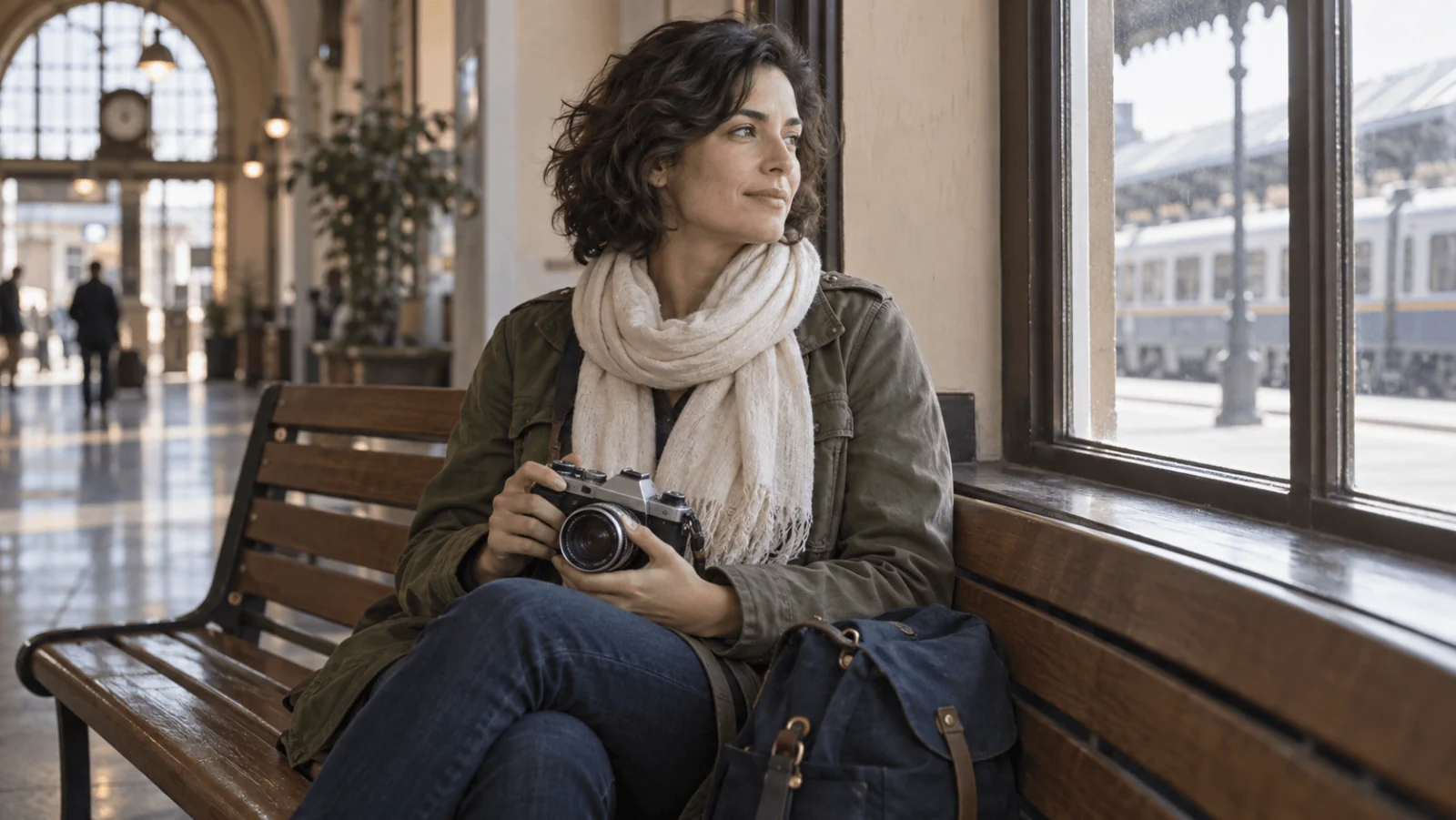
Example source image: the camera, scarf, bench and right-hand window are what the conversion must keep.
Try it in the Playground first
- Open the Seedream 5.0 Flash editing page and stay on the Playground tab, in Form view. Sign in with a funded account to run.
- Under Images, use Add a file (or Asset URL for a direct link) to add the photo first. Flash takes 1 to 10 images at the same price and has no seed or mask.
- Paste the prompt below into Prompt, replacing the example details with what is in your own photo.
- Set Aspect ratio to match the photo, Resolution to 2k, Output format to PNG and Background to Opaque, check the price estimate, then run it.
Convert the image into an original anime-style illustration. Keep the same adult woman: face outline, short wavy dark hair, seated pose, moss-green jacket, cream scarf and navy bag, with one analog camera held in both hands and the station window on the right with its light direction. Use clean drawn contours, a few flat cel-shaded shadow shapes and a softly painted background. Restrained eye enlargement; keep the original face proportions. Keep the composition. No new people, lettering, camera or costume.
If your subject holds the camera with one hand, copying "both hands" asks the model to redesign the pose. Asking for chibi or exaggerated proportions asks the model to change the face; for a recognizable person keep "restrained eye enlargement; keep the original face proportions". The request body under the form is the same JSON the API takes, so a conversion that works here can be copied straight into code.
Then call it from code
Install the Python SDK (pip install spicyapi), set SPICY_API_KEY in the environment, and run:
import uuid

from spicyapi import SpicyClient, output_assets

client = SpicyClient()  # reads SPICY_API_KEY from the environment

photo = client.upload_file("./authorized-photo.jpg")  # local files become spicy:// URIs

task = client.create_task(
    model="bytedance/seedream-5.0-flash/edit",
    input_data={
        "image_urls": [photo["uri"]],
        "prompt": "Convert the image into an original anime-style illustration. Keep the same adult woman: face outline, short wavy dark hair, seated pose, moss-green jacket, cream scarf and navy bag, with one analog camera held in both hands and the station window on the right with its light direction. Use clean drawn contours, a few flat cel-shaded shadow shapes and a softly painted background. Restrained eye enlargement; keep the original face proportions. Keep the composition. No new people, lettering, camera or costume.",
        "aspect_ratio": "auto",
        "resolution": "2k",
        "output_format": "png",
        "background": "opaque",
    },
    idempotency_key=str(uuid.uuid4()),  # new key per new request; reuse only to retry the same one
)

final = client.wait_for_terminal(task["taskId"])
if final["state"] != "succeeded":
    raise RuntimeError(f"Task {task['taskId']} ended as {final['state']}")

print(output_assets(final)[0]["url"])  # copy it to your own storage now
Uploads, waiting, errors and retries are in the Python SDK reference and the asynchronous tasks guide. For a style comparison start from the original photo each time; to keep accepted changes, edit the last accepted result and check for drift.
Or let an Agent run it
If an assistant should run the conversions, give it the CLI or the MCP server. Both show the price and ask you to confirm before a paid call. The Skill adds instructions on top of either.
- CLI.
spicyapiruns one task from a terminal or script (npx @spicyapi/cliworks without installing):
``bash spicyapi files upload ./authorized-photo.jpg # prints a spicy:// URI spicyapi tasks create --model bytedance/seedream-5.0-flash/edit \ --input-file input.json --idempotency-key anime-001 --wait ``
input.json holds the same input object as above, with the spicy:// URI in image_urls.
- MCP server. Add the MCP server to your assistant, then ask: "Convert ./authorized-photo.jpg to an anime-style illustration with Seedream 5.0 Flash editing, keeping the pose, camera and scarf." It calls
spicyapi_upload_file, thenspicyapi_task_create(which stops for your price confirmation), thenspicyapi_task_wait.
``json { "mcpServers": { "spicyapi": { "command": "npx", "args": ["--yes", "--package=@spicyapi/mcp", "spicyapi-mcp"], "env": { "SPICY_API_KEY": "YOUR_SPICY_API_KEY" } } } } ``
- Skill.
npx skills add spicyapi-ai/spicy-skillinstalls the Agent Skill, which teaches a coding assistant to read the live schema and reuse idempotency keys instead of guessing. It cannot run tasks by itself, so use it with the CLI or MCP.
Another whole-photo option: Qwen Image 2.1
Qwen Image 2.1 editing also converts a whole photo, from $0.036 per image at 1k, with extra references increasing the 1k and 1.5k quotes. At 2k, the current price is $0.048 per output image and the second reference does not increase it. It rewrites your prompt by default, so set enable_prompt_expansion to false (offered at 1k and 2k) to keep your wording, and it has no negative prompt, so write exclusions such as "no new people" into the prompt itself.
Add a style reference only for visible drawing choices
If words do not get the drawing look you want, add a style example as the second image: "Use the second image only for line weight, flat shadow shapes and background brushwork; do not copy its person, clothes or scene." Keep the photo first, because the prompt refers to images by position. A style picture dominated by a face can bring a second identity into the result; a crop that shows only lines and shading is safer.
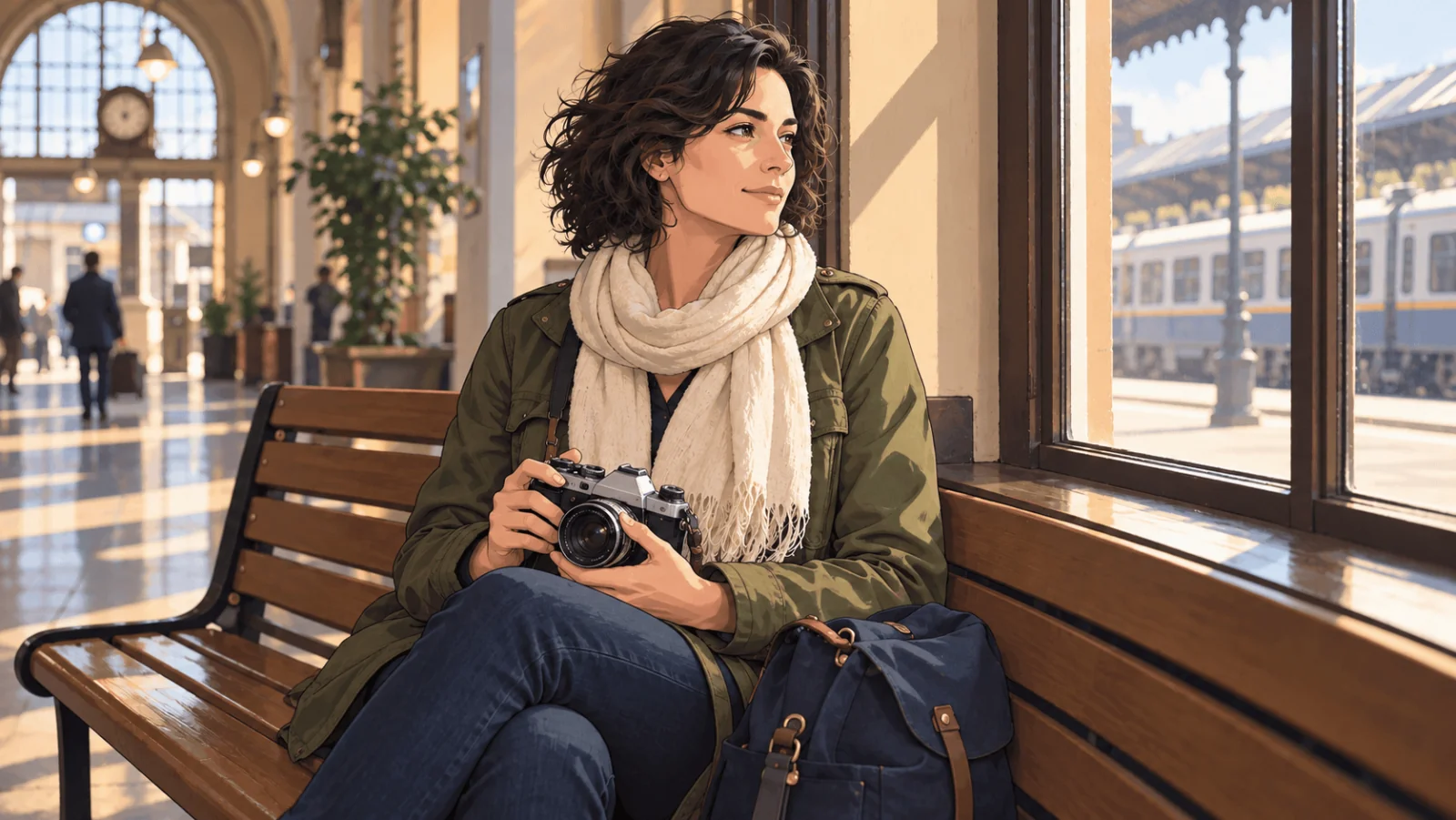
Illustrated version of the same scene: inked contours and painted shading, with the same pose, camera, scarf, bag and window.
Fix the specific failure
| Failure | Revision |
|---|---|
| Person looks younger | Remove youthful, cute or chibi wording; ask for the photo's adult jaw, face proportions and restrained eye size. |
| Camera turns into a book | "One analog camera with one lens, held in the same two-hand pose"; ask for less detail around the fingers. |
| Person stands up | Name the bench and body contact: "same seated hip, knee and arm positions; do not change to a standing pose." |
| Scarf and jacket change color | Drop any global palette instruction; name the cream scarf and moss jacket and allow only lighter and darker shade regions. |
| Window becomes a new location | "Same window divisions and bench, simplified painted texture, not a replacement scene." |
| Result looks like a filtered photo | Ask for drawn features: contour lines, flat shadow shapes, simplified background. |
| Style is right but the person is wrong | Go back to the original photo, reduce facial exaggeration and remove the second image if it carries another face. |
A broad prompt such as "perfect anime, huge eyes, magical city, same everything" invites changes to the person and the setting.
Repair one region after the drawing works
For a malformed camera edge or grip, use the accepted illustration as the source of a Qwen Image 2.1 edit with a mask; the mask focuses the requested repair on a small region, while black areas mark what should be retained. In the Qwen Image 2.1 editing Playground, add the accepted illustration under Images, open Advanced parameters and add a black-and-white image under Mask (white over the camera and the hand connection, black elsewhere), and choose 1k or 2k for Resolution (masks are not offered at 1.5k). The 1k price starts at $0.036 per image. Then request:
Repair the marked camera and adjacent grip in the same clean-line anime treatment. Keep one coherent camera with one lens supported by the existing hands. Retain the face, short hair, moss jacket, cream scarf, seated pose, bench and window.
Compare the face and scene after the repair; a mask is an instruction, not a pixel lock. For a single missing contour line, drawing it in an ordinary image editor is faster.
When you need a dial: strength and LoRA
Seedream and Qwen decide for themselves how far to move from the photo. If you need to control that distance, use an editing endpoint that has strength, a value from 0 to 1 (default 0.8): FLUX.1 Dev LoRA editing ($0.018 per image) or Z-Image Turbo LoRA editing ($0.012 per image). Lower values stay closer to the photo; near 1 the photo is only a loose guide, and on FLUX 0.95 can redraw nearly everything, the face included. Start at 0.8, change one setting at a time in steps of 0.1 with the seed fixed, and raise strength if the photo shows through or lower it if the face drifts. These endpoints return smaller images than Flash at 2k (FLUX about 0.7 megapixel; Z-Image 1024 or 1536 px on the long side) and take a single image_url instead of image_urls.
The anime look on these endpoints comes from a style LoRA that you supply (loras, up to three path and scale entries). The file must be trained for that endpoint's base model. A LoRA is worth the extra step when you want the same look across a series of photos; for a single image, the Flash prompt above is simpler. Building a FLUX LoRA style brief covers choosing a file and its starting scale.
Seedream 5.0 Flash and Qwen Image 2.1 are uncensored edit models, so photos of adult characters convert too; keep the subject an adult and reject a conversion that makes the character look childlike. Consent and legal duties stay with you.
One Flash conversion plus one Flash revision costs $0.058. The conversion has worked when the same adult, pose and objects are recognizable in the drawing, not just because it looks like anime.