Introduction
Seed3D 2.0 is the 3D asset model from ByteDance's Seed team, released in April 2026. It reads a single picture and builds the object in it as a full 3D mesh with materials, so a product shot or a character render becomes something you can turn around, light and place in a scene. The request takes one image (image_url) and an optional density switch (mesh_detail); there is no prompt, seed or style field. The result is one binary glTF file (.glb) with the textures packed inside it.
Key features & highlights
Geometry and materials from one picture
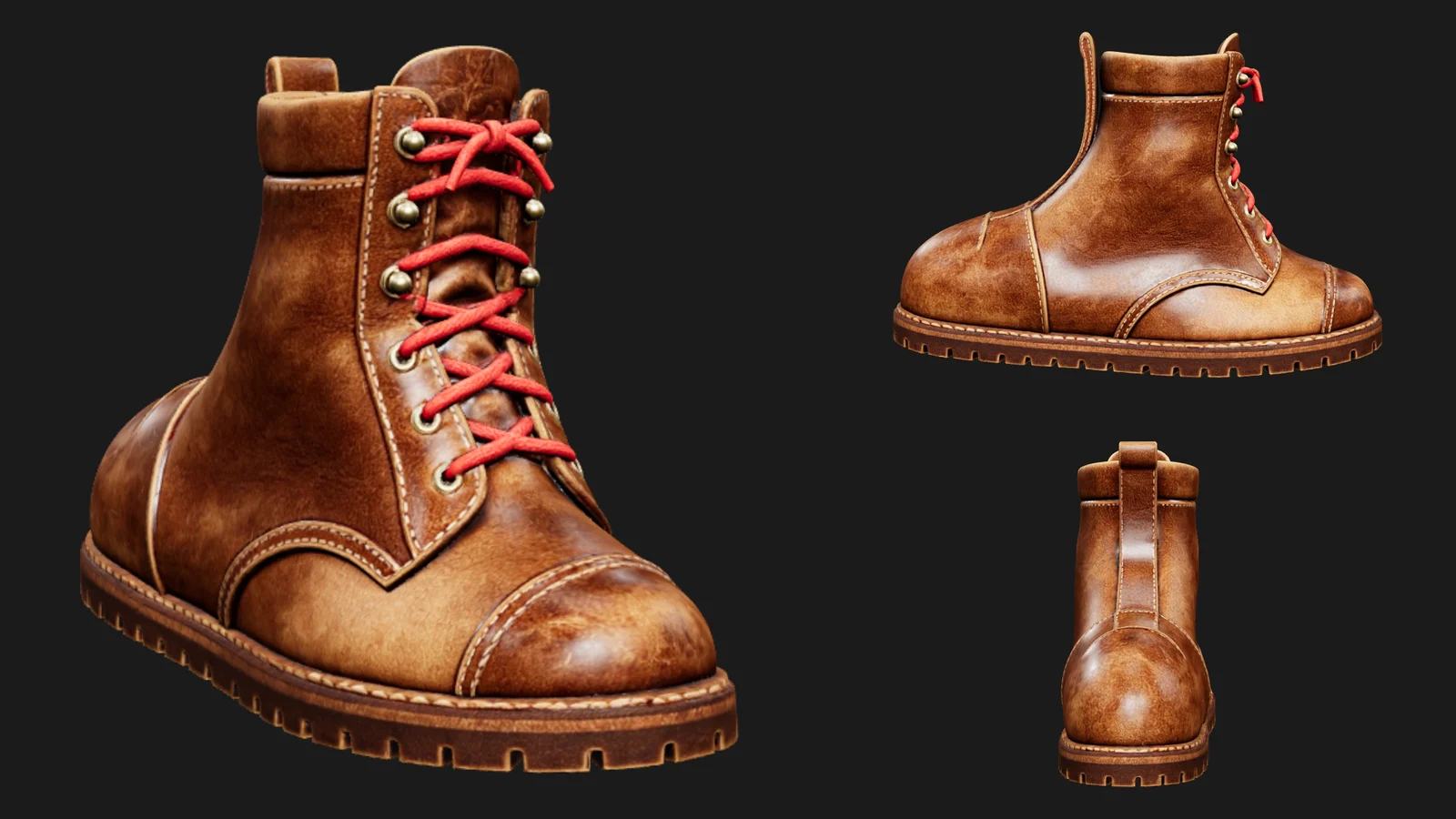
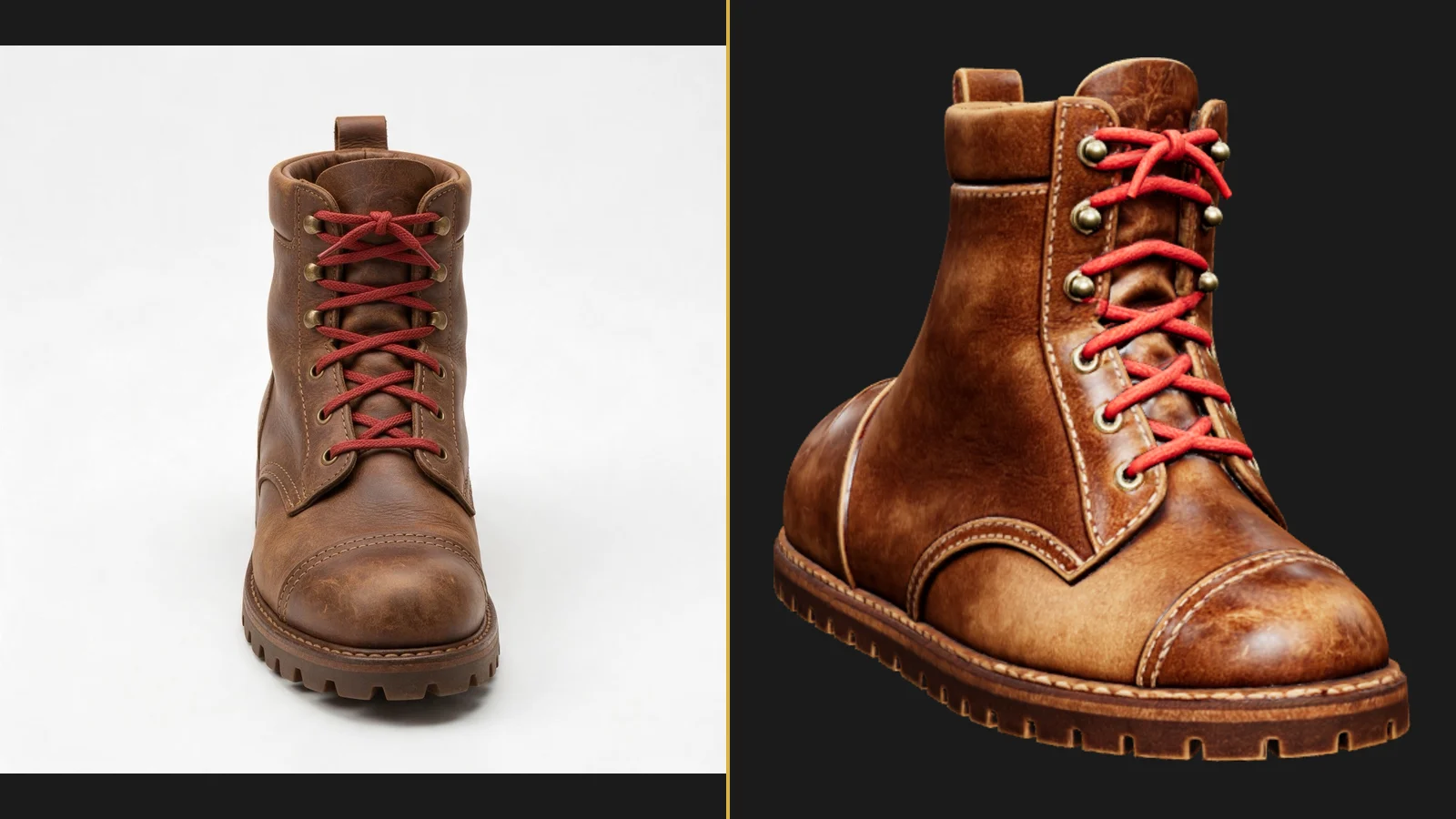
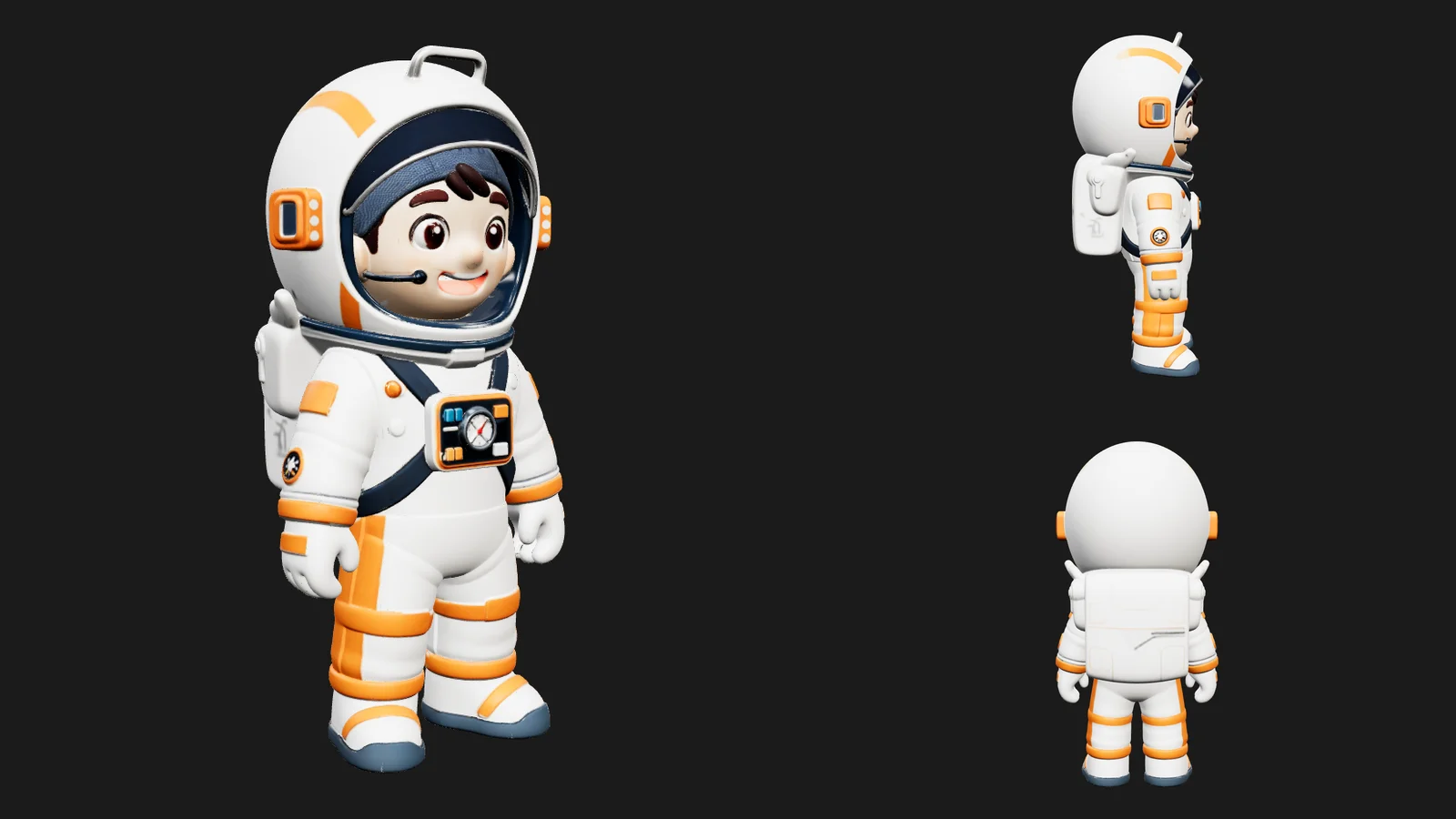
Seed3D 2.0 generates the shape and a physically based material together. In our runs every model came back with two 4096×4096 textures, a base-colour map and a metal-roughness map, so leather looked worn and matte while brass eyelets and a helmet visor picked up highlights. There is no separate normal map; the surface detail lives in the mesh itself.
A dense, closed mesh
At the default medium level both test models came back at just under 500,000 triangles in one mesh and one material; at low the same boot had 99,977 faces. The publisher describes the levels as about 100,000, 500,000 and 1,000,000 faces. A denser mesh holds small features such as laces, stitching and fingers better; a lighter one loads faster in a browser.
What we measured
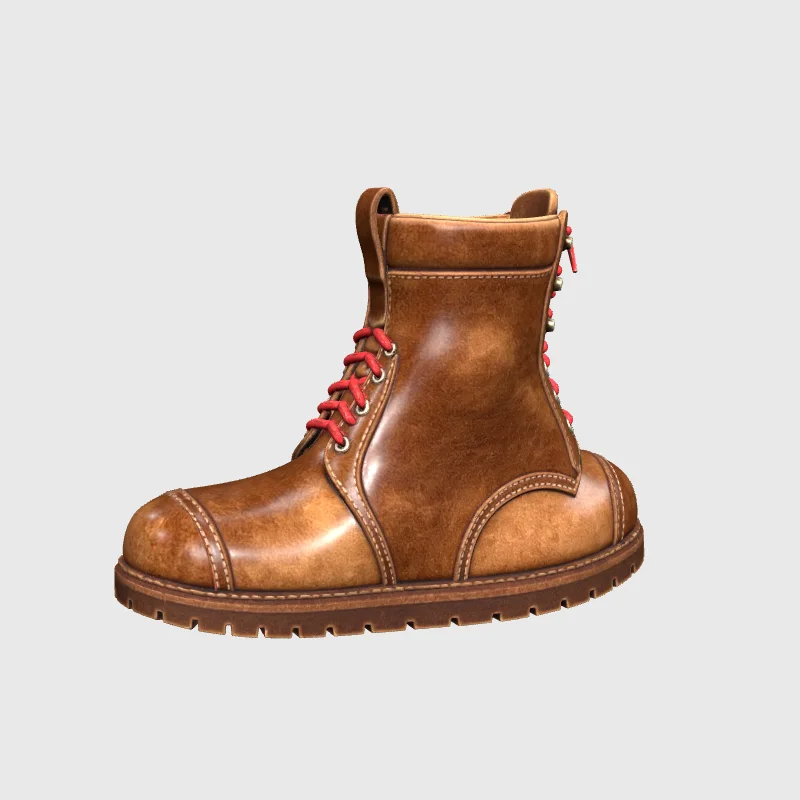
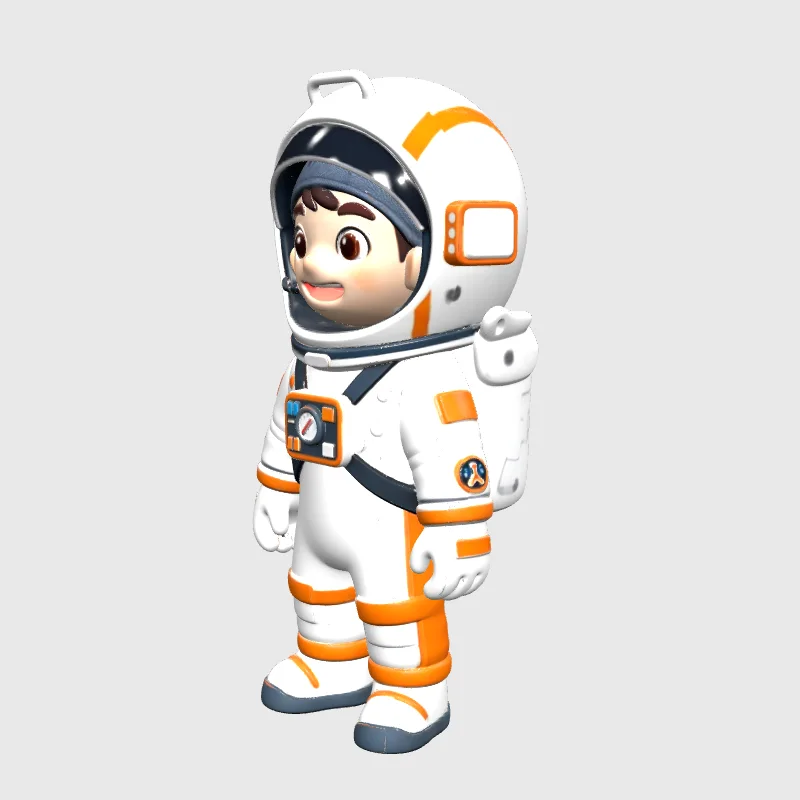
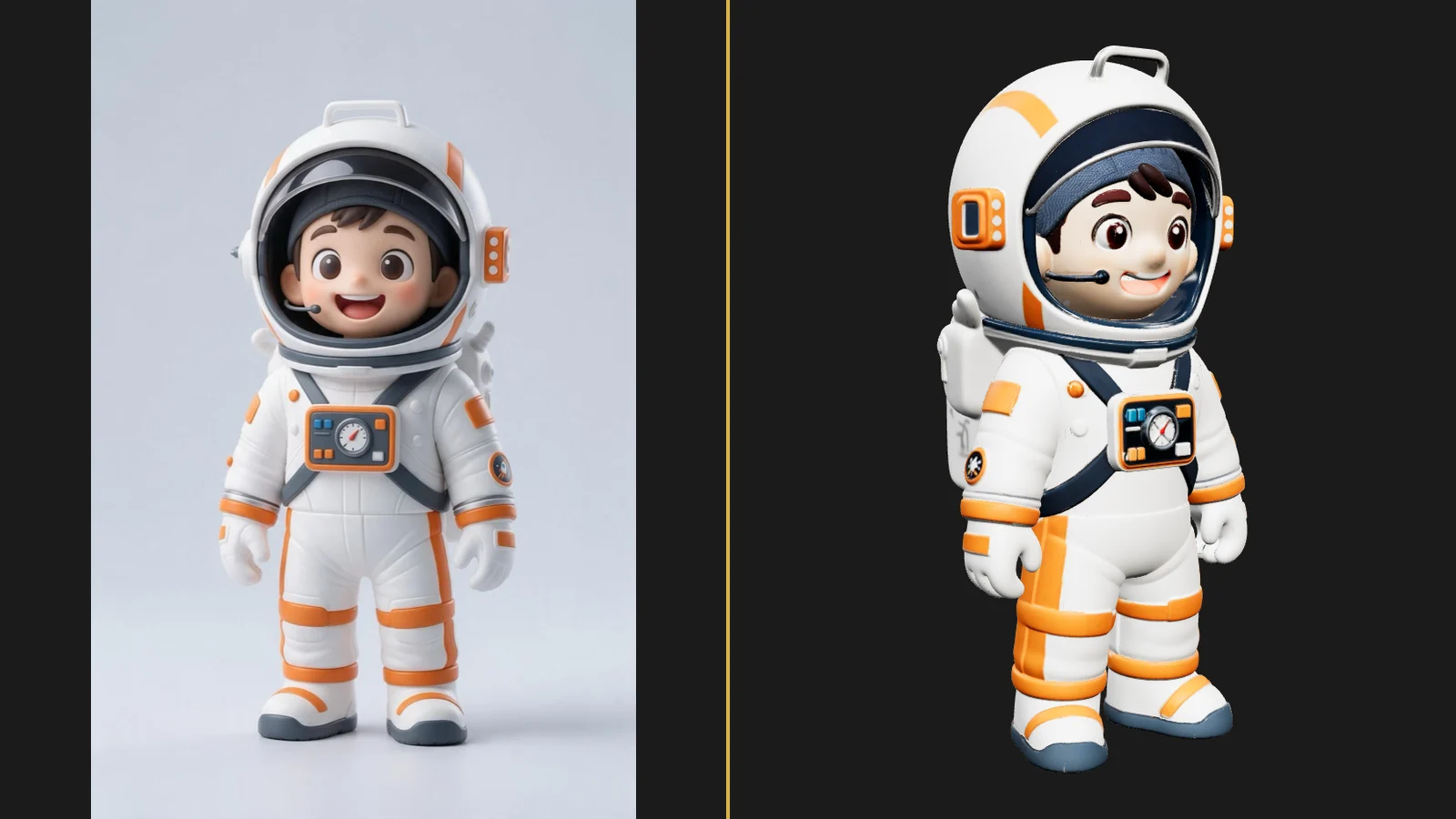
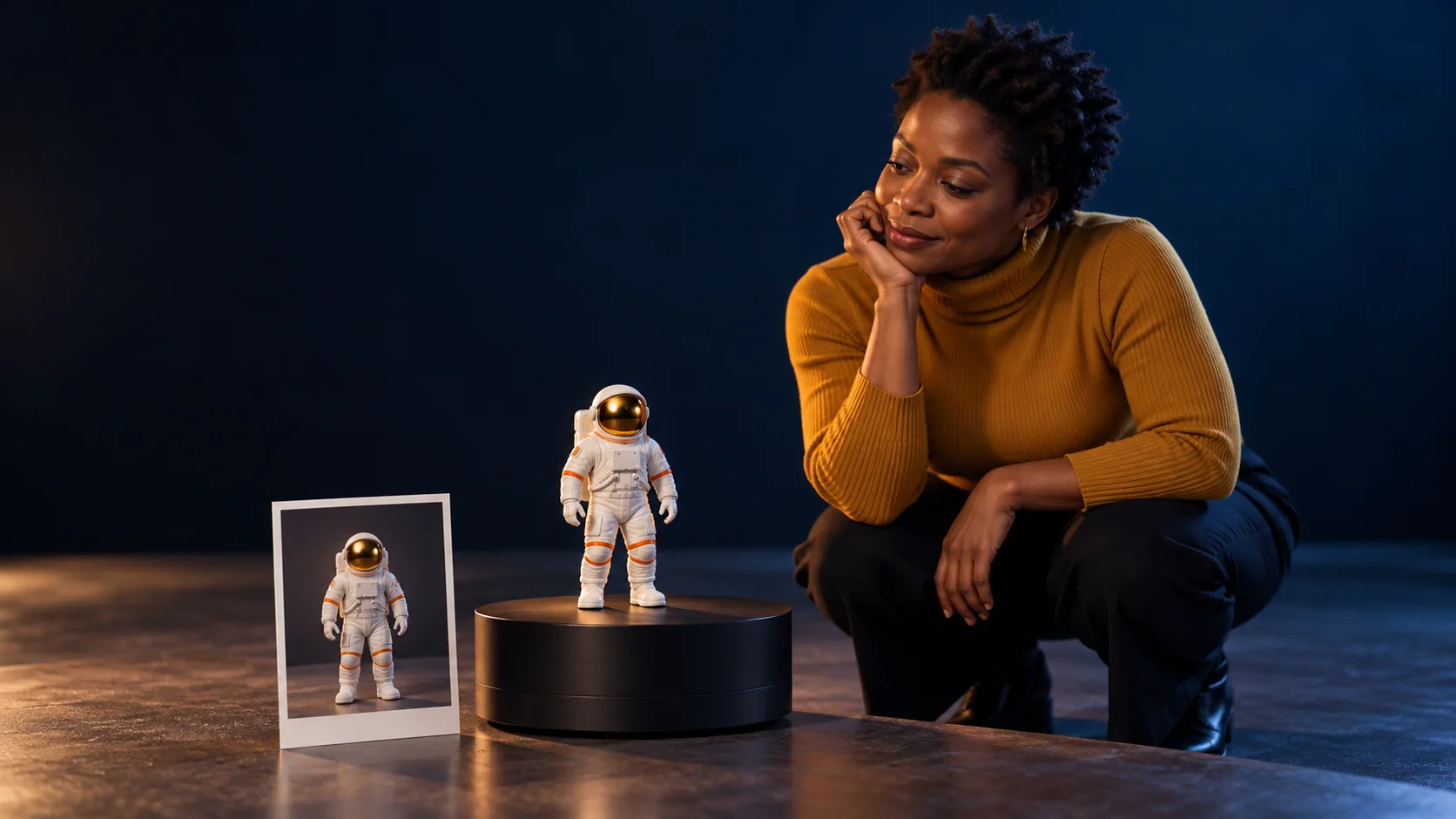
We sent a 1024×1024 studio photo of a leather boot and a 682×1024 render of a toy astronaut. Both returned valid GLB files: 37.2 MB and 28.6 MB, 499,998 and 499,992 triangles, processed in 356 and 340 seconds. The astronaut kept its face, visor, chest panel and orange trim on all sides. The boot, sent as a straight front view, came back with the back half mirrored from the front.
Request parameters
| Parameter | Required | Description |
|---|---|---|
image_url | Yes | The picture to build in 3D: JPEG, PNG or WebP up to 10 MB, roughly between 2:5 and 5:2 in shape. at least 1 characters |
mesh_detail | No | How dense the mesh is: low (about 100,000 faces), medium (the default, about 500,000) or high (about 1,000,000). All three cost the same. |
Pricing
$0.48 / model
Each request is billed once at a flat price when the model is delivered; low, medium and high detail cost the same, and a failed request is not charged.
Use cases
E-commerce and product viewers
A packshot becomes an interactive model for a product page or an AR preview. Shoot or render the product at a three-quarter angle on a plain background, keep the whole object in frame, and use the medium level for a good balance between detail and download size.
Characters, toys and collectibles
Character renders and figurine photos convert well because their shapes are simple and their colours are bold. The texture carries painted details such as faces, badges and stripes; the back is inferred, so pick a pose where most of the character is visible.
Prompt guide & pro tips
Prepare the picture
Use one subject, centred, with some margin around it and nothing touching the frame edge. A plain light background separates the object cleanly. JPEG, PNG or WebP up to 10 MB is accepted, and the image should stay between about 2:5 and 5:2 in shape.
Choose the angle on purpose
The model only sees one side. A straight front view of a shoe or a car leaves the length of the object unknown, and the hidden half may be filled in as a mirror of the front. A three-quarter view that shows the front and one side gives a far more reliable result.
Pick the detail level for where the model will be used
Use low for mobile previews and scenes with many props, medium for most web viewers and high when the model will be inspected up close or 3D-printed. The price does not change between levels, but file size and loading time do.
Check the result before you ship it
Open the GLB in a viewer, turn it all the way round and look at the side you did not show. If the back looks wrong, try another photo angle rather than another detail level.
API quick start
# Generate the idempotency key once; reuse it when retrying after a lost response.
export SPICY_IDEMPOTENCY_KEY="${SPICY_IDEMPOTENCY_KEY:-$(uuidgen)}"
curl -X POST https://api.spicyapi.ai/api/v1/jobs/createTask \
  -H "Authorization: Bearer $SPICY_API_KEY" \
  -H "Content-Type: application/json" \
  -H "Idempotency-Key: $SPICY_IDEMPOTENCY_KEY" \
  -d '{
  "model": "bytedance/seed3d-2.0/image-to-3d",
  "input": {
    "image_url": "https://example.com/reference.png",
    "mesh_detail": "medium"
  }
}'

# Copy data.taskId from the response into TASK_ID, then poll the status.
TASK_ID="TASK_ID_FROM_RESPONSE"
curl "https://api.spicyapi.ai/api/v1/jobs/recordInfo?taskId=$TASK_ID" \
  -H "Authorization: Bearer $SPICY_API_KEY"
See the API reference for authentication, the complete schema, polling, and error handling.