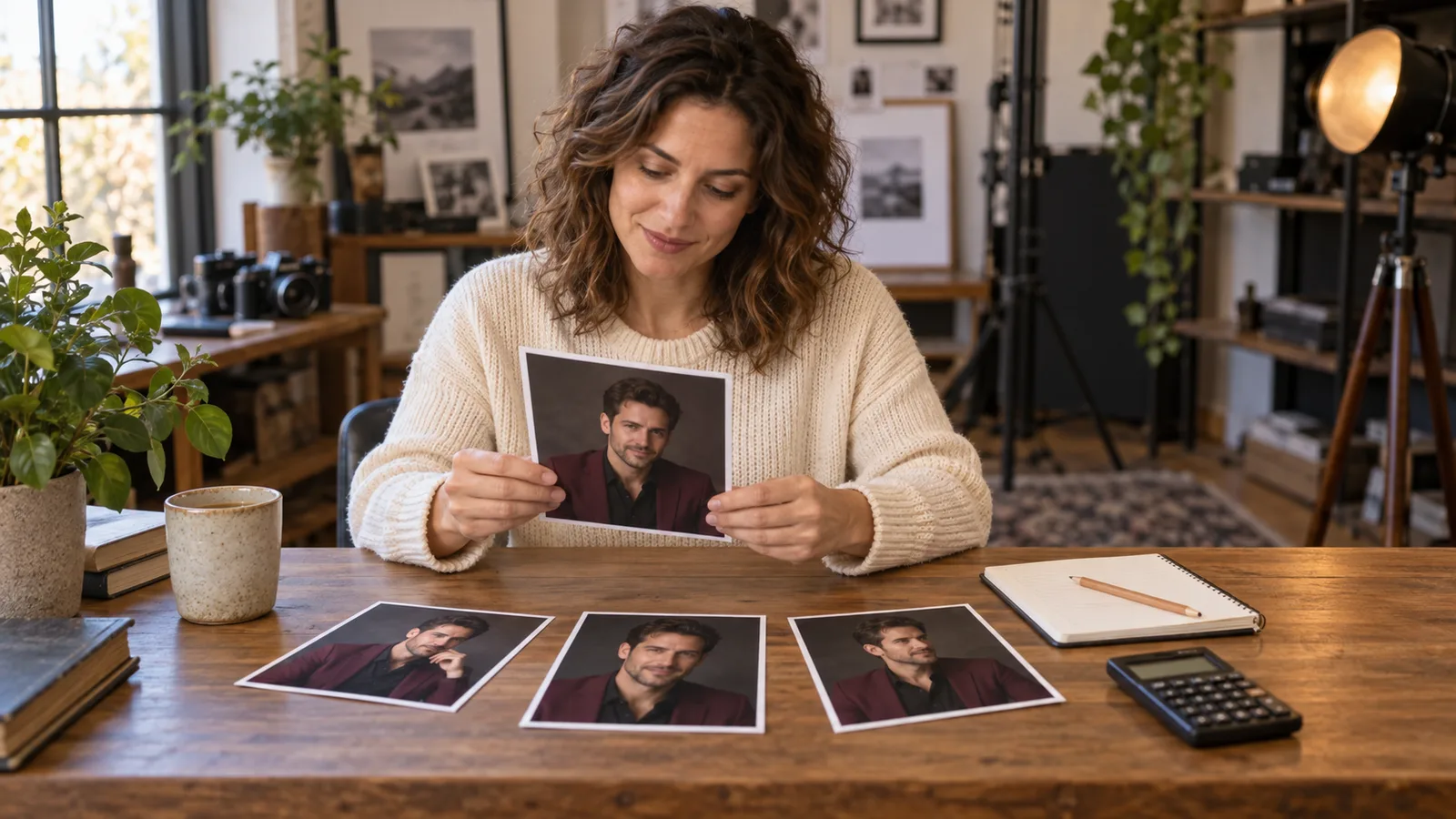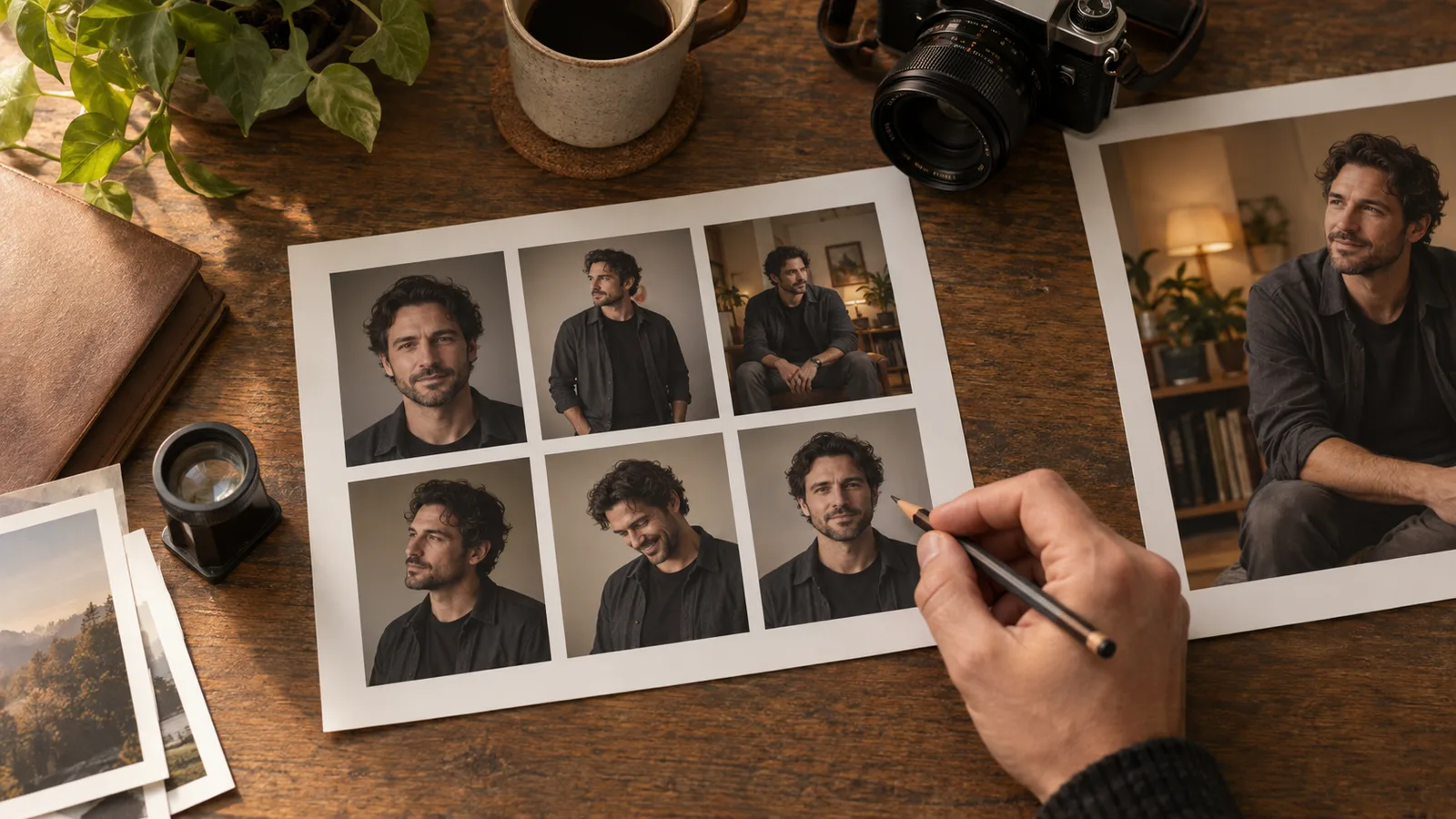
You generated twelve NSFW character images. Four look attractive as thumbnails, two have strange hands, several seem almost identical, and the sharpest picture belongs to a different-looking person. Picking the last completed image or the brightest thumbnail will not give you a coherent gallery.
Assemble a numbered contact sheet after generation, reject wrong characters and unusable compositions first, inspect the shortlist at full size, then choose pictures that do different jobs. Generate a small pilot before a large set, and repair only candidates that already have the right face, pose and scene.
A contact sheet is a grid made from separate image files. It is a review aid, not a prompt asking the model to squeeze twelve pictures into one canvas. On the tasks used below, each generation returns one image. Your collection of requests is the batch; there is no extra batch_count parameter to add to their input.
For a concrete budget, Z-Image Spicy text to image is $0.01235 per output with prompt expansion off. Twelve outputs cost $0.1482 before any later editing. Qwen Image 2.1 editing with one reference at 1k is quoted at $0.036 per output. Neither amount tells you how many keepers the set will contain.
The gallery plan here uses fictional adult characters and fully clothed SFW examples. It is a proposed selection method, rather than a newly measured model comparison or a collection of real NSFW test outputs.
Start with the gallery you need, not an arbitrary batch size
For an adult character account, six usable photographs may serve six different purposes: profile portrait, waist-up introduction, full outfit, seated room scene, a closer expression and a wider setting. Six beautiful portraits with the same eye contact cannot do all those jobs.
Write the intended positions before generating. Suppose Theo is a fictional adult aged 35, with short dark curls, brown eyes and a small gap in his left eyebrow. His gallery uses an opaque black tee, a charcoal overshirt and a warm apartment setting. The adult-oriented account needs a public SFW profile and a separate private character gallery. It does not need public previews to reveal the private gallery's contents.
For the first set, choose three target photographs: one direct portrait, one waist-up view looking just off-camera, and one seated room photograph. Make a few candidates for each job. That is more useful than asking for twelve “attractive mature portraits” and discovering they are all variations of one shot.
The numbers in this plan are editorial starting points. There is no established optimal batch size for every character, model or content category. If two candidates already supply the portrait you need, stop generating more portrait variations and spend the next request on the missing seated view.
An existing character needs an approved visual source. Text-to-image exploration can help discover Theo's first design, but it does not guarantee the same face across later scenes. Once you have selected him, move to a reference-based editing task for the recurring gallery. The character-reference workflow explains that transition; this article focuses on deciding which returned files deserve to survive.
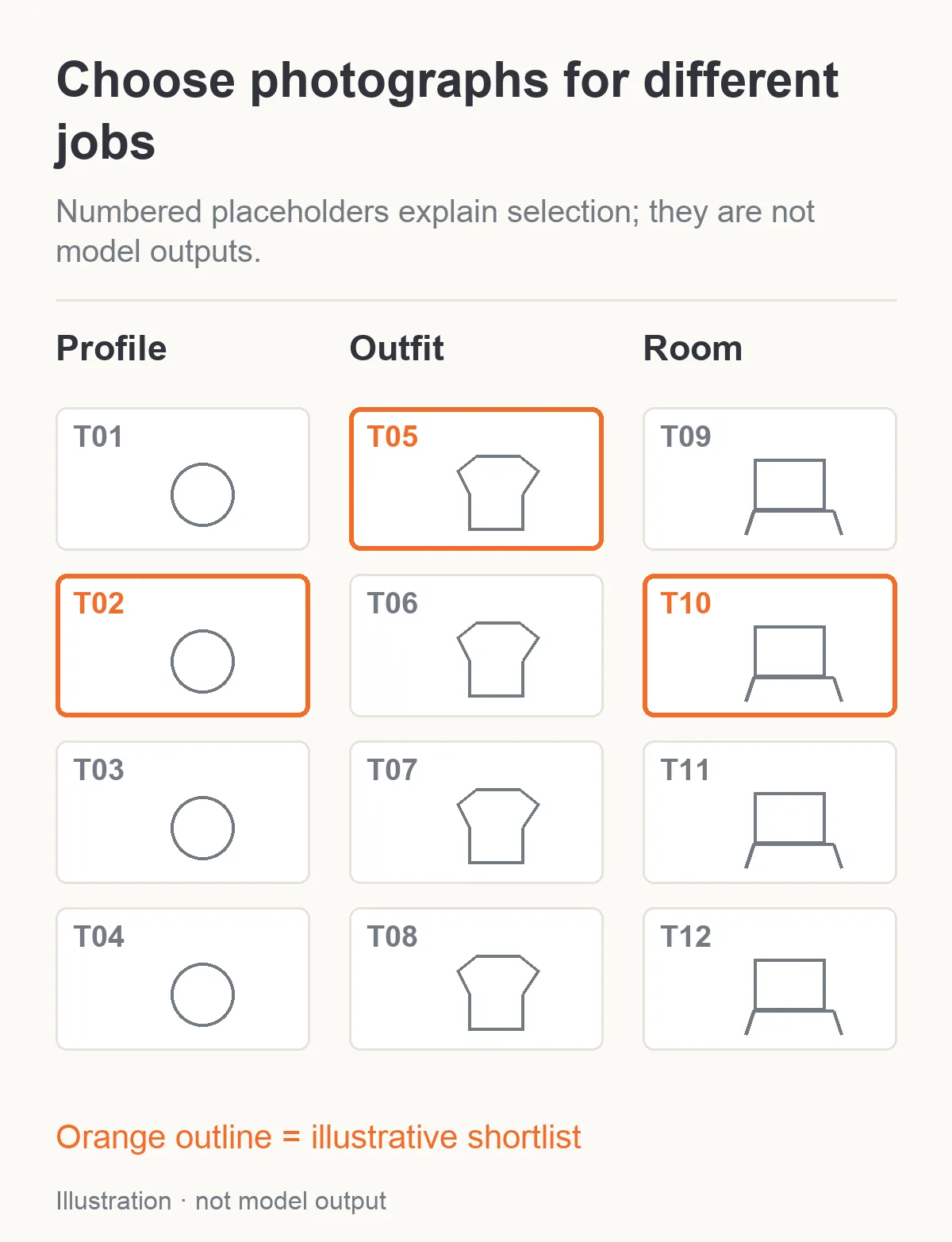
Illustration: select candidates for distinct gallery jobs instead of keeping repeated portraits. These panels are placeholders, not model outputs.
Run a small pilot with the difficult composition
Start with a few images, including the shot most likely to cause a problem. If the planned gallery contains a seated character with a hand on a chair, do not test only uncomplicated headshots. You will learn little about whether the seated composition works.
For a new design on Z-Image Spicy, this proposed prompt is a useful pilot:
One natural photograph of Theo, a fictional 35-year-old adult man with short dark curls, brown eyes and a small gap in his left eyebrow. He wears an opaque black tee, charcoal overshirt and dark trousers. Seated upright in a simple lounge chair in a warm apartment, medium frame from head to knees, face clearly visible. Both hands rest separately on his thighs. Relaxed closed mouth, eyes toward the camera. One floor lamp, natural skin and fabric texture, no lettering, collage or extra people.
Set width: 1024, height: 1536 and enable_prompt_expansion: false. The task accepts independently chosen dimensions from 256 to 1536 pixels per side. It has a seed but no image reference, negative-prompt field or output-format control. Leaving the seed out or setting it to zero requests random variation; a fixed nonzero seed can help compare changes, but it is not a stored character identity.
A 512-pixel pilot is not cheaper than a 1536-pixel image on this task's current expansion-off tier. Reducing dimensions may change the output and the amount of detail available for review; it does not change the listed per-image charge. Do not shrink every pilot on the assumption that all image APIs bill by pixels.
For an established Theo, use the approved source with Qwen editing instead. Start at 1k, 3:4, opaque background, PNG and prompt expansion off, with this instruction:
Use image 1 for Theo's adult facial identity, curls, eyebrow detail and body proportions. Keep his opaque black tee and charcoal overshirt. Create one seated photograph in the same warm apartment, head-to-knees frame. Both hands rest separately on his thighs, face clearly visible, relaxed closed mouth. Keep the person and outfit; change the pose only. No collage or additional person.
These prompts are starting instructions, not results from a new pilot. If the initial outputs repeatedly fail the same contact point, simplify that part before generating the rest. A hand beside the chair is easier to inspect than a hand intertwined with fabric, another hand and an armrest in one small area.
Build the sheet from the original files
Download or retain the separate outputs and give them stable labels such as T01 to T12. Use any ordinary contact-sheet or layout tool you already trust. Add the label below each thumbnail rather than covering part of the photograph. Keep a mapping from that label to the original file and the request that produced it.
For twelve portrait candidates, a three-column, four-row sheet is a useful first layout. Preserve each image's aspect ratio. Fit the whole image into the cell instead of cropping every candidate to a square: a square crop can hide a cut-off hand, a poorly placed foot or a composition that will not work in the intended gallery.
Use a neutral background and enough space between cells to read the boundaries. Do not put a colorful border around your favorite candidate before reviewing the others; it can steer the choice. A second sheet with face crops can help compare identity after the full-frame pass, but keep it separate from the composition sheet.
Contact sheets are not unique to AI. Adobe's Contact Sheet II instructions describe assembling image thumbnails with layout and filename controls. The principle here is the same: the sheet helps you find a source file; it does not replace that file's quality or resolution.
Community discussions identify the practical need. In an original Stable Diffusion image-browser thread, the creator described the difficulty of finding and managing useful images across generation tools. A commenter preferred inspecting candidates full-screen even when the files were small. Those are workflow observations, not evidence that any particular NSFW model has a specific keeper rate.
Keep the sheet private when it contains private adult imagery. A convenient link for a collaborator should not accidentally become a public portfolio asset. The public article illustrations use SFW examples to explain selection without exposing a sensitive gallery.
First pass: remove pictures that cannot fulfill the job
At contact-sheet size, look for the decisions that do not require fine detail. Is the right number of people present? Is Theo recognizable? Does the requested seated photograph actually show him seated? Does the crop leave the needed garment and hands inside the frame?
For an NSFW set, also compare the result with the intended scene category. A completed image can be more restrained than the request, or different in a way that makes it unsuitable for the private gallery. Do not count it as a fulfilled adult-content result simply because it downloaded successfully. Equally, a public SFW teaser can be unusable if it no longer meets your public placement requirements.
Make rejection reasons short and observable: “new hairline,” “second person,” “hand outside frame,” “wrong outfit,” or “private scene does not match the brief.” “Bad vibes” may express your reaction, but it gives you little to change in the next request.
An image with the wrong identity should normally leave the shortlist even if it has the nicest lighting. For a recurring adult character, the audience is following that person. Replacing them with a more attractive stranger undermines the point of the set.
Keep a separate “new character ideas” folder if you want to save an attractive off-target design. Do not let it drift back into Theo's approved references. The picture can be useful for another project without becoming a keeper for this one.
Second pass: inspect the shortlist at the size people will see
Open the remaining files at full resolution, then at the actual display size. These are two different checks. Full-size inspection exposes defects; the intended gallery view tells you whether the important features remain readable after scaling and cropping.
For a portrait card, place the candidate in the planned crop. If the face sits under the username overlay, the image may need a different composition. For a private gallery view, examine the entire delivered frame. Do not judge it from a compressed contact sheet that conceals detail.
Check the following areas in a consistent order:
| Area | What to look for | Why it changes the decision |
|---|---|---|
| Face | Eye spacing, hairline, jaw and distinctive eyebrow detail against the anchor | An attractive face can still be the wrong recurring character |
| Eyes and mouth | Uneven focus, mismatched gaze, implausible teeth or a distorted corner | These are often prominent in close portraits |
| Hands | Finger separation, wrist direction and connection to the visible forearm | A small thumbnail can hide a fused grip |
| Body and pose | Limbs belong to the same person; sitting and leaning make physical sense | A dramatic pose is not useful if its structure is unreadable |
| Clothing and props | Closures, straps, seams and contact with the chair | Errors can make a supposedly continuous set look like different outfits |
| Texture | Natural detail rather than excessive sharpening or waxy smoothing | Sharpness alone does not establish realistic quality |
Avoid judging changes in body proportions solely from unmatched angles. A closer camera, torso turn or seated pose changes apparent shape. Compare similar views where possible. A plainly altered shoulder-to-head relationship at a similar angle is a stronger rejection reason than a different silhouette caused by bending.
For hands, trace the visible arm into the wrist before counting fingers. A hand may appear to have the right number while still attaching to the wrong arm. When a pose hides much of a hand naturally, do not require every finger to be visible. The test is plausible structure for the photograph, rather than a checklist that forces unnatural hand poses.
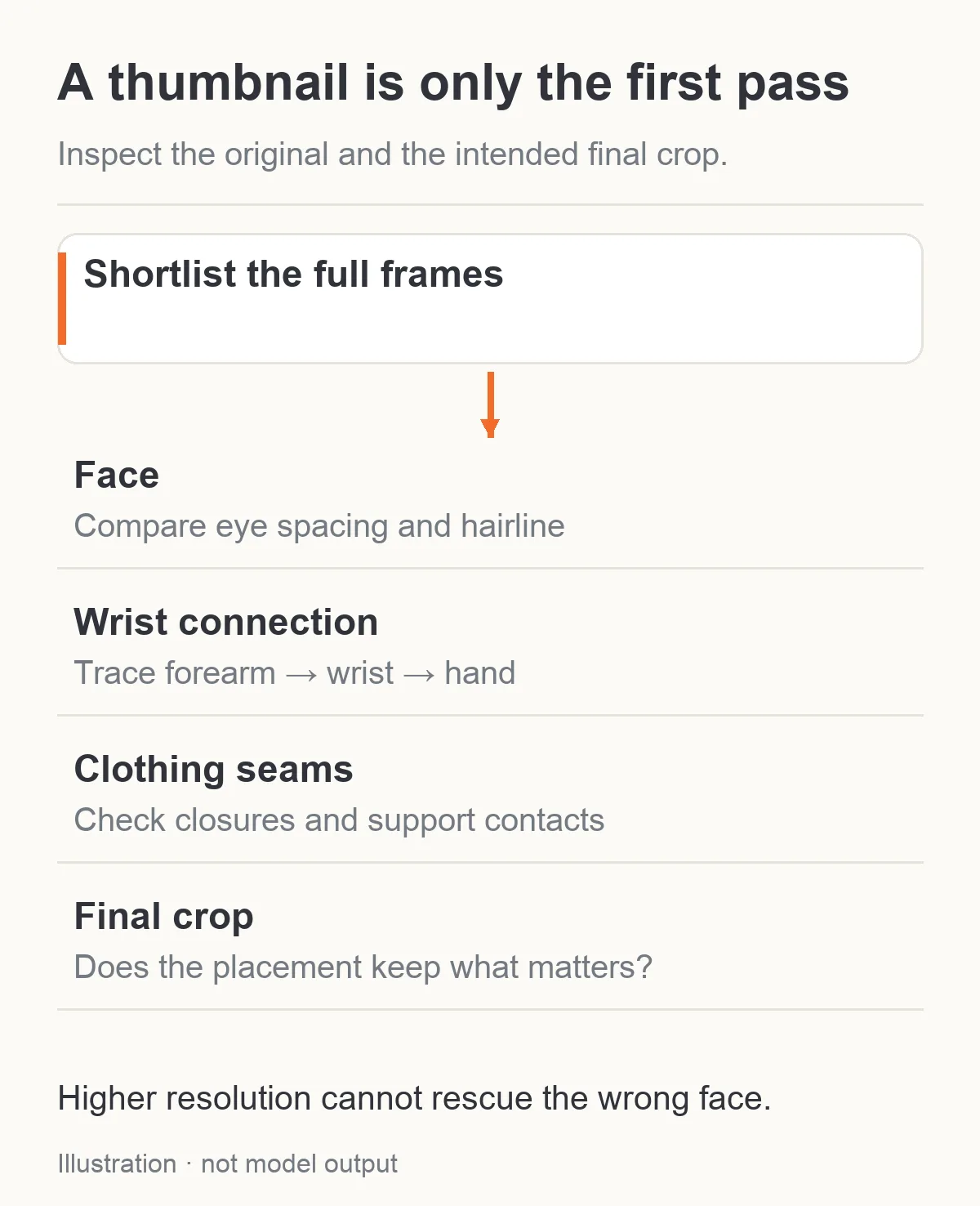
Illustration: the sheet narrows choices; the original file reveals details thumbnails conceal.
Do not let high resolution rescue the wrong picture
A detailed wrong face remains the wrong face. A larger output can make an incorrect garment seam sharper without correcting its construction. Choose the composition and character before buying more detail.
If a candidate is otherwise useful but slightly small for delivery, decide between keeping the current file, ordinary resizing, an appropriate upscaler or a new generation. Ordinary resizing changes pixel dimensions without asking a generative model to reinterpret the face. Generative upscaling or regeneration can change small details, so inspect the resulting file again.
Qwen's output tiers are different billed configurations. They are not a command to reproduce the same accepted picture exactly at a larger size. Likewise, increasing sampling steps on a local workflow is not a universal preservation guarantee. A Stable Diffusion user's original question asked how to choose one low-step batch candidate for a higher-step rerun; replies discussed selecting its seed and warned that sampler behavior could change the picture. That older local-workflow discussion does not define SpicyAPI's controls, but it highlights the mistaken assumption behind “finish this exact thumbnail.”
Save the accepted source before any enhancement. If the new version changes Theo's eyebrow, jaw or fabric detail, you can return to the original rather than accepting the change just because the file is larger. Use the image-upscaling guide when extra delivery pixels are the actual problem.
Pick a set, not six versions of one expression
After rejecting the failures, there may still be eight plausible images for a six-image gallery. Compare them together again. This time ask what each picture adds.
Two nearly identical portraits do not become meaningfully different because one has a slightly brighter background. Keep the version with the more appropriate expression and crop, then use the other slot for a different view. A wider photograph can establish the room; a waist-up one can show the outfit; a close view can communicate expression. They do not have to be ranked on a single beauty score.
For Theo, a useful three-image selection could be:
- A direct portrait that clearly establishes his face and eyebrow detail.
- A waist-up view with his gaze just off-camera and the same overshirt.
- A seated room scene that gives the gallery a place and a different pose.
If the seated image fails, do not fill the slot with a third direct portrait and claim the plan is complete. Either generate a simpler seated view or revise the gallery deliberately. Missing variety is a different problem from a low technical success rate.
In a private adult character set, variety should follow the intended story or collection. Do not automatically choose the most intense image every time. A coherent introduction, expression change and room context may be more useful than repeating one composition. Content category, expression and camera distance are separate choices; a change in one does not require changing all three.
The sequence matters too. Start with a photograph that makes the character readable, then move to other views. Two distant room shots at the beginning may leave the person unclear. A sequence of six tight faces can feel repetitive even if each one passes inspection.
Decide whether to repair, regenerate or discard
Repair is worth considering when the picture already has the right person and composition, and the remaining defect is small. A single faulty cardigan button or hand contact can qualify. A wrong face, wrong room and unsuitable pose together usually do not.
Qwen Image 2.1 editing offers an optional black-and-white mask with exactly one reference image. White identifies the area to repaint; black is the area to keep. Use the shortlisted image as that sole reference. A repair mask around the hand should include the relevant wrist or contact edge when that is where the defect occurs, rather than repainting a tiny isolated finger without its connection.
For a hand resting on Theo's thigh, a proposed correction is:
Correct only the marked hand and wrist so the right hand rests naturally on the existing trouser leg, with plausible finger separation and a continuous connection to the forearm. Preserve Theo's face, curls, eyebrow detail, overshirt, seated pose and room. No new object or person.
The instruction expresses the intended preservation; it is not a guarantee that every black-area detail will remain exact. Compare the complete repaired image against the source, especially the face. If the repair changes the character, reject the repair and retain the pre-edit file.
Do not attach an extra portrait alongside a mask on this task. The mask is supported only with one image input. If you need a different multi-reference composition, make that a separate edit without the mask, rather than sending an unsupported combination.
Set a small repair limit. For example, allow one deliberate hand correction for a strong candidate, then decide whether to use another candidate. Spending five repairs on an image that was barely acceptable can exceed the cost of exploring a clearer composition. The limit is a recommendation for your project, not a platform retry rule.
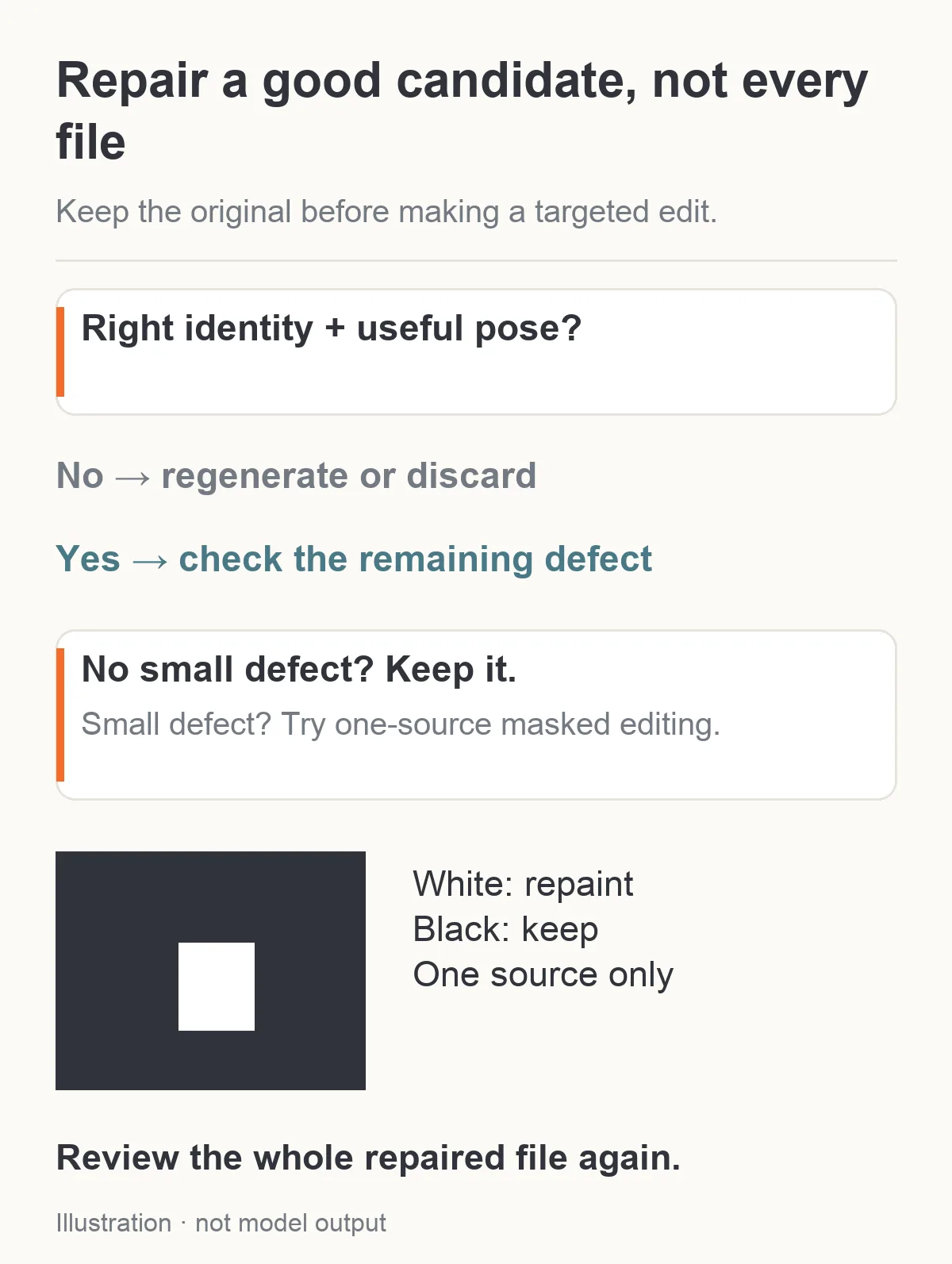
Illustration: reserve local repair for a good candidate with a small fault. The mask is schematic, not a tested repair.
Calculate cost per keeper after selecting
The useful number for a creator is often cost per accepted image, rather than cost per task. Calculate it from your actual completed work:
Cost per keeper = the generation and finishing spend for the set ÷ the number of accepted images.
Here is a planning example using current public amounts. It is arithmetic, not a reported test or a predicted keeper rate:
| Planned work | Amount |
|---|---|
| Twelve Z-Image Spicy requests, expansion off | 12 × $0.01235 = $0.1482 |
| Two Qwen 1k edits, one reference each | 2 × $0.036 = $0.072 |
| Image-generation subtotal | $0.2202 |
If that hypothetical work leaves six accepted images, the subtotal is $0.0367 per keeper. If it leaves only two, it is $0.1101 per keeper. The endpoint prices are identical in both examples; the useful output count changes the economics.
For an existing character whose entire set uses Qwen editing, twelve one-reference 1k requests start at $0.432. Twelve requests with two references each are $0.576 under the quoted configuration. A second source should supply missing visual information, such as an approved profile or room, rather than simply make the request look more thorough.
Include deliberate new attempts and finishing edits in this figure. Keep failed API tasks and artistically rejected completed images separate: they are different outcomes and may settle differently. Read the actual task's billing record rather than assuming every rejection from your contact sheet is a refundable technical failure.
Most of the savings in this workflow come from stopping unhelpful requests. If the pilot keeps changing the person's face, fifty more candidates from the same weak setup are not an efficient strategy. Improve the identity input or choose a reference-based workflow first. If one gallery slot is missing, generate candidates for that slot rather than repeating the entire set.
Keep enough information to continue the character later
For every accepted image, save the original file, its label, exact task/model, prompt, input-reference list and relevant settings. Keep the selected version separate from its resized public preview. A contact-sheet cell is not the full-resolution master.
You do not need to keep every discarded picture forever. Retain rejected examples when they explain a recurring problem, such as a specific chair contact or identity change, and follow the application's retention choices for private material. Avoid scattering adult gallery files into public design boards merely because that is where the contact-sheet tool defaults to saving them.
When a later request asks for the same character in a new setting, return to the approved identity anchor. Do not choose whichever accepted gallery photo is most recent unless it contributes the specific angle or wardrobe information you need. A good finished photo and a good identity reference are related but different roles.
For large collections, request scheduling and cost limits remain important; the batch-generation guide covers those engineering concerns. Selection should remain a separate decision. The scheduler can tell you that twelve tasks finished. The contact sheet and original files tell you which pictures are worth using.
Start with one character, three intended gallery slots and a small set of candidates. Label them, remove wrong identities, inspect the shortlist, then fill the remaining jobs. Stop when the gallery does what you need. More outputs are useful only when they solve a missing photograph, rather than add more almost-identical choices.