Introduction
Submit image_url to get a transparent PNG cutout from a single photograph. No prompt, mask or quality field is exposed for this operation.
| Field | Value |
|---|---|
| Input | Image |
| Output | Image |
| Model identifier | ideogram/remove-background |
| Input per request | One photograph |
| Public parameter |
|
| Text instruction | No prompt parameter |
| Output per photo | One cutout image |
| Output format | PNG |
| Background result | Transparent |
| Billing basis | Fixed charge per completed image |
| Failed requests | Not charged |
| Result retention | 14 days, followed by deletion |
Key features & highlights
Check the lever as well as the bell
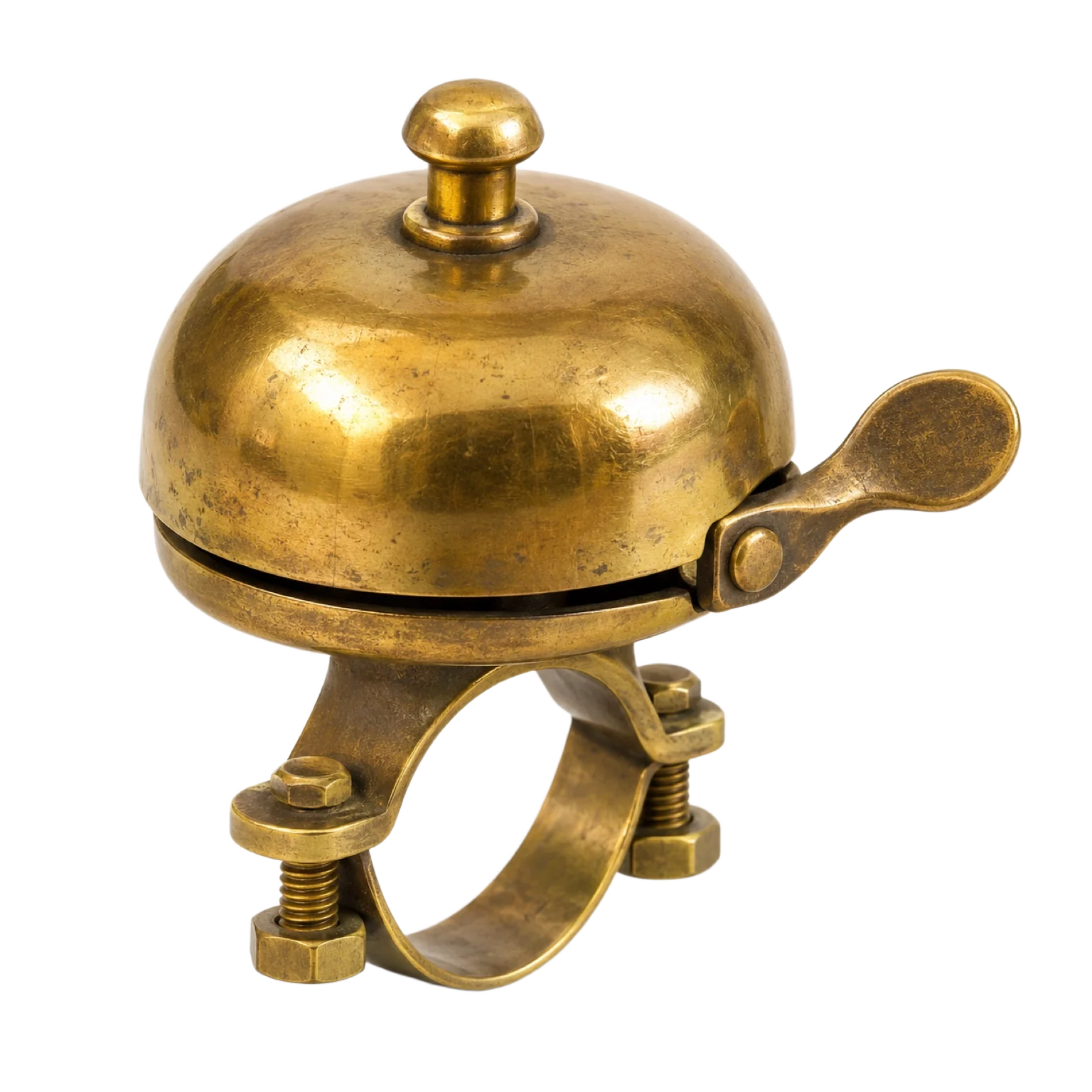
The brass bicycle bell test separated the hardware from its workbench surroundings. The returned transparent PNG retained the lever and clamp edges, giving a concrete example of the small outlines worth inspecting. Use the pictured result to understand that test, then review the corresponding details on your own product photo before building a catalog layout.
One URL starts the cutout
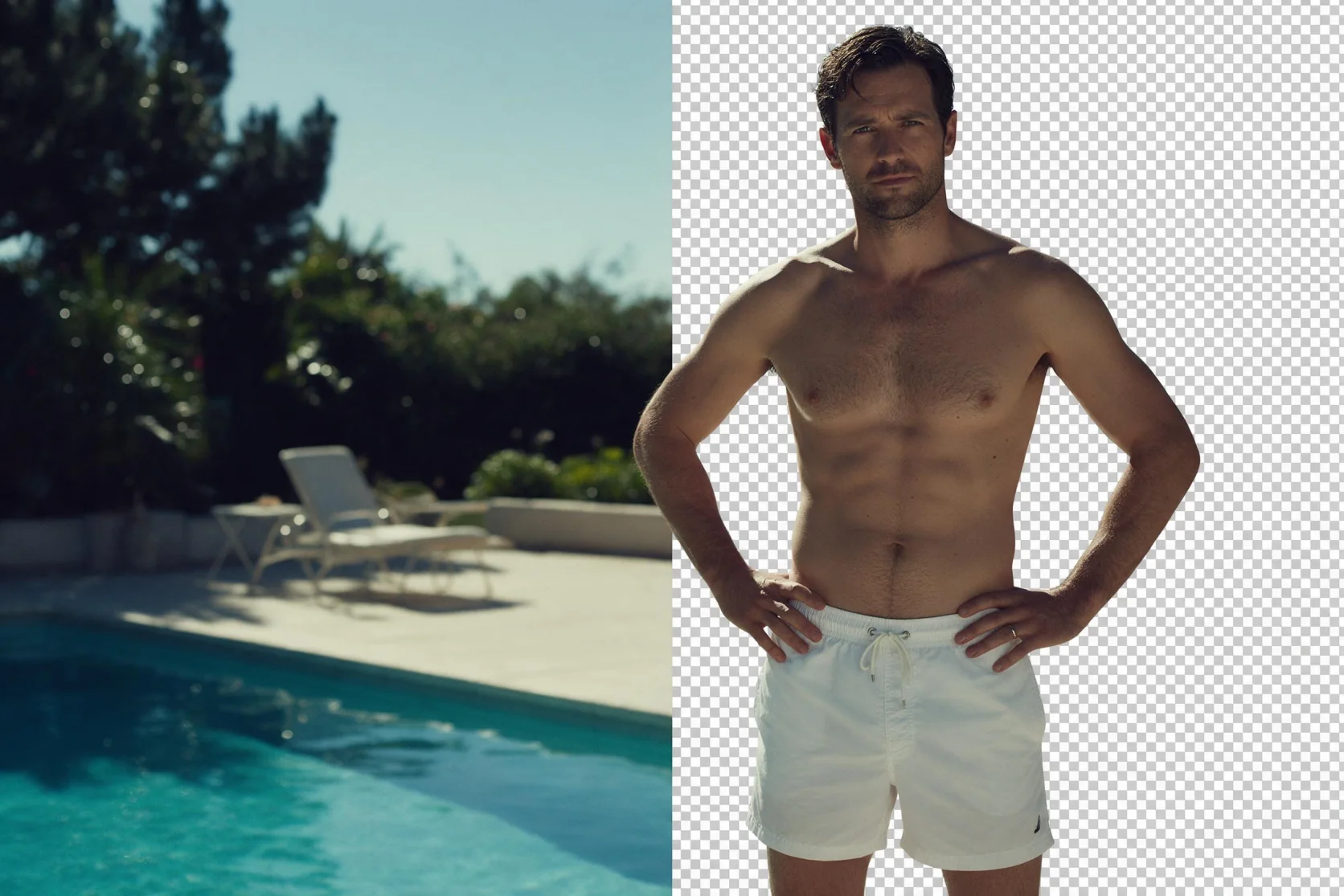
Submit the source photograph through image_url without preparing a written instruction or drawing a mask. A completed photo uses a fixed per-image rate and returns a PNG with transparency. The poolside cover illustrates that transition; it is an illustration rather than a sample from this endpoint. For measured outcomes, inspect the bell and red satin examples.
A red satin portrait with clean edges
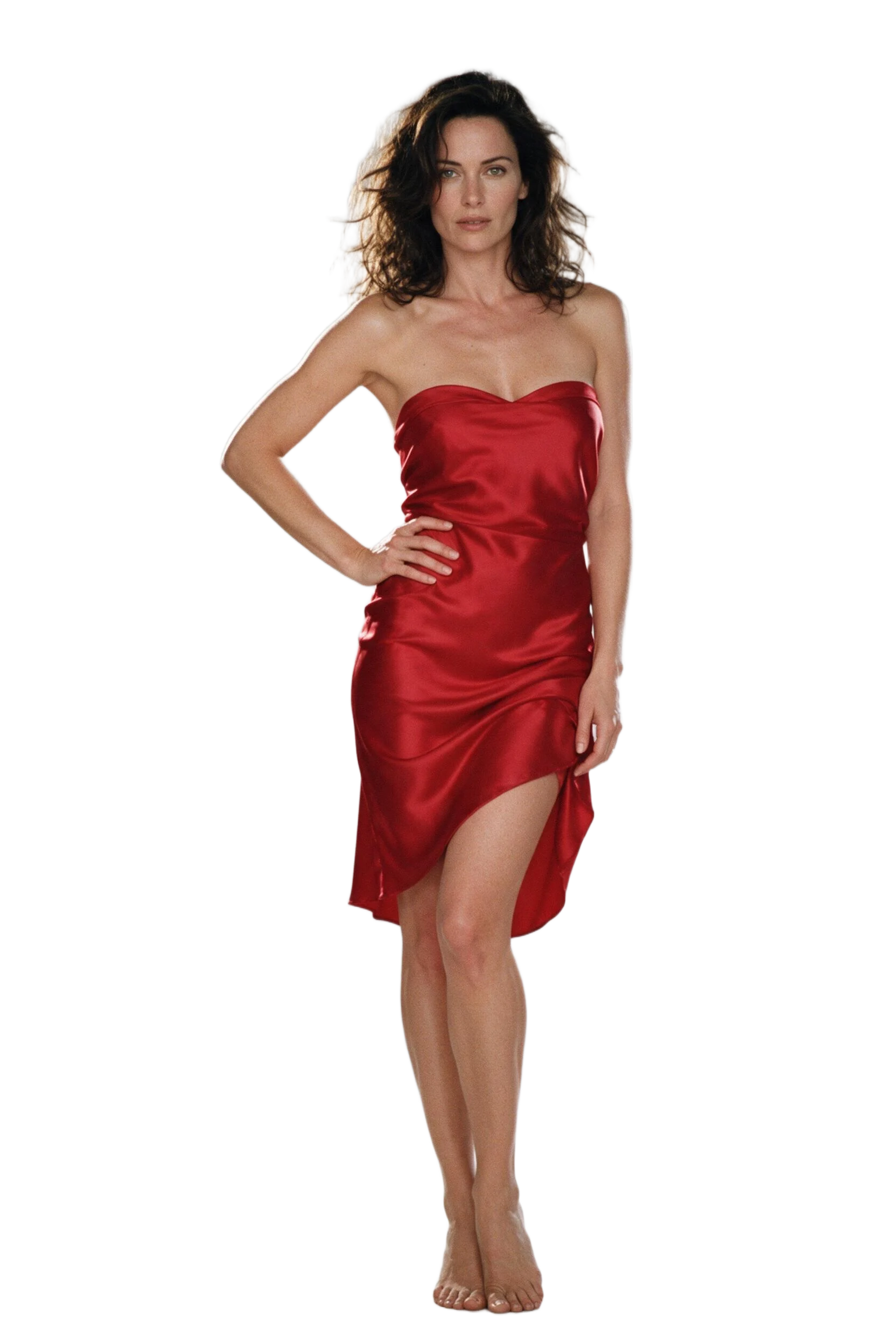
A studio photograph of a woman in a strapless red satin dress came back as a transparent PNG. The observed result had clean boundaries around her hair and the dress hem. Check those areas in the example, then inspect your own portrait over contrasting backgrounds. This result supports the pictured studio cutout rather than a promise about every hairstyle, garment or setting.
Request parameters
| Parameter | Required | Description |
|---|---|---|
image_url | Yes | Provide the source photograph URL to remove its background; this required input has no default, and every completed photo uses the same fixed image rate. at least 1 characters |
Pricing
$0.012 / image
Ideogram background removal has a fixed image charge for a completed cutout; unsuccessful processing is not billed.
Use cases
Hardware catalog layouts
Prepare a product photo for a catalog composition. The brass bicycle bell example demonstrates a cutout that retained the lever and clamp edges, details to check on similar small objects.
Fashion portrait layouts
Separate a photographed outfit and its wearer from the studio backdrop. Our red satin portrait returned clean boundaries around the hair and hem for inspection before placement.
Profile and speaker graphics
Use a transparent adult portrait as a layer in a profile or speaker layout. Choose a photograph you have permission to use, then add the name and background in your design editor.
Campaign background variations
Reuse the downloaded PNG over different campaign colors or images. Background placement happens in the layout step, so keep the transparent asset available alongside each finished composition.
Prompt guide & pro tips
Choose the source photograph
Pick the photo whose subject you need as a separate asset. For people, use an adult portrait you have the right to use and avoid impersonation.
Submit its image URL
Supply the photograph through
image_url. A written brief can help prepare the source elsewhere, but no prompt or mask is sent to this endpoint.Inspect the returned PNG
View the cutout over light and dark backgrounds in an editor. Check fine outlines such as hair, clothing hems or small hardware before placing it in a layout.
Download and place the cutout
Save the PNG within the 14-day retention period. Add your chosen background in a separate composition and retain a transparent copy for reuse.
Turn a photograph into a reusable cutout
Ideogram Remove Background separates a photo subject from its surroundings and returns one transparent PNG. Use this image-edit endpoint when you already have the photograph and need its subject as an asset for a catalog, portrait layout or campaign composition. You provide image_url; there is no written instruction to interpret.
The source determines what is available to cut out. Select a photograph that contains the person or product you intend to place elsewhere, and review the visible outline before submission. When a person appears, use an adult photograph you have the right to use and do not impersonate anyone.
Request parameter
| Parameter | Required input | Role |
|---|---|---|
image_url | The URL of one source photograph | Supplies the photo for background removal |
The public parameter set has no prompt, mask, quality, output-format or resolution selector. Do not borrow settings from an image-generation example and expect them to tune this operation. Its defined result is a transparent PNG, so you do not need to request transparency in a sentence.
For the red satin example, image_url points to the supplied studio photograph. The request did not describe a dress, hairstyle or background in text. Those details were already in the source picture.
Pricing and saving the result
Billing uses a fixed charge for each completed background-removal image; a request that fails carries no charge. Refer to the Ideogram Remove Background model page for the current price before submitting your photographs; a price from another image tool or a subscription offer does not establish this endpoint's rate.
Download the returned PNG within 14 days. Result files are deleted after that retention period. Keep your saved cutout together with the source photo so future layout changes do not depend on the hosted result remaining available.
How to use the source-photo briefs
There is no prompt to write for the removal request. The prompt examples on this page are briefs for selecting, photographing or preparing a source somewhere else. They describe clothing, mood, lighting and setting so you can plan the photograph; send the resulting image URL when it is ready.
For example, a brief about a woman in her thirties in a satin evening dress can guide a studio source. Adding that sentence to a cutout request would not supply a supported control. A product brief can similarly name a brass finish, a viewing angle and soft workshop light before you photograph the object.
When preparing inputs:
- Keep the parts needed in the composition visible within the photo.
- Decide whether you need a person, a product or a particular named object before choosing the operation.
- For portraits, confirm permission to use the photograph and keep subjects adult.
- Retain the source so you can compare its fine details with the cutout.
What our examples actually showed
Brass bicycle bell
Our hardware test returned a cleanly separated brass bicycle bell. The lever and clamp edges remained intact after removal of the surrounding workbench background. Those small pieces are useful inspection points: compare them with the source rather than checking the broad bell shape alone.
Red satin studio portrait
The red satin example began with a studio photo of a woman in a strapless dress. It came back as a transparent PNG with clean edges around the hair and hem. This observation concerns that particular photograph; it does not establish the same result for every hairstyle, fabric or backdrop.
The poolside cover is an illustration, not a generated sample or another measured result. Use the two example cutouts as the evidence for the outcomes described here.
Review the PNG before placing it
Open the downloaded file in an editor that displays transparency. Try a light background and a dark background beneath it, then inspect hair, garment hems and narrow hardware outlines at the scale you plan to use. A checkerboard in a preview is a viewing aid; examine the PNG itself when deciding whether the asset fits your layout.
A transparent cutout does not include a new white backdrop or a replacement scene. Add the background you want in your composition tool, and keep a transparent copy alongside the finished export. This lets the same saved asset serve different placements without treating background replacement as a control on this endpoint.
Limits and nearby choices
The request handles one photograph and returns one transparent PNG. No public text field is available for naming a target object or asking for changes to clothing, lighting or surroundings. Pick the source image with those decisions already made.
Background Remover V1 is another background-removal option. Choose Object Extractor V1 when you want a particular object selected by a written description.
API quick start
# Generate the idempotency key once; reuse it when retrying after a lost response.
export SPICY_IDEMPOTENCY_KEY="${SPICY_IDEMPOTENCY_KEY:-$(uuidgen)}"
curl -X POST https://api.spicyapi.ai/api/v1/jobs/createTask \
  -H "Authorization: Bearer $SPICY_API_KEY" \
  -H "Content-Type: application/json" \
  -H "Idempotency-Key: $SPICY_IDEMPOTENCY_KEY" \
  -d '{
  "model": "ideogram/remove-background/edit",
  "input": {
    "image_url": "https://example.com/reference.png"
  }
}'

# Copy data.taskId from the response into TASK_ID, then poll the status.
TASK_ID="TASK_ID_FROM_RESPONSE"
curl "https://api.spicyapi.ai/api/v1/jobs/recordInfo?taskId=$TASK_ID" \
  -H "Authorization: Bearer $SPICY_API_KEY"
See the API reference for authentication, the complete schema, polling, and error handling.