Introduction
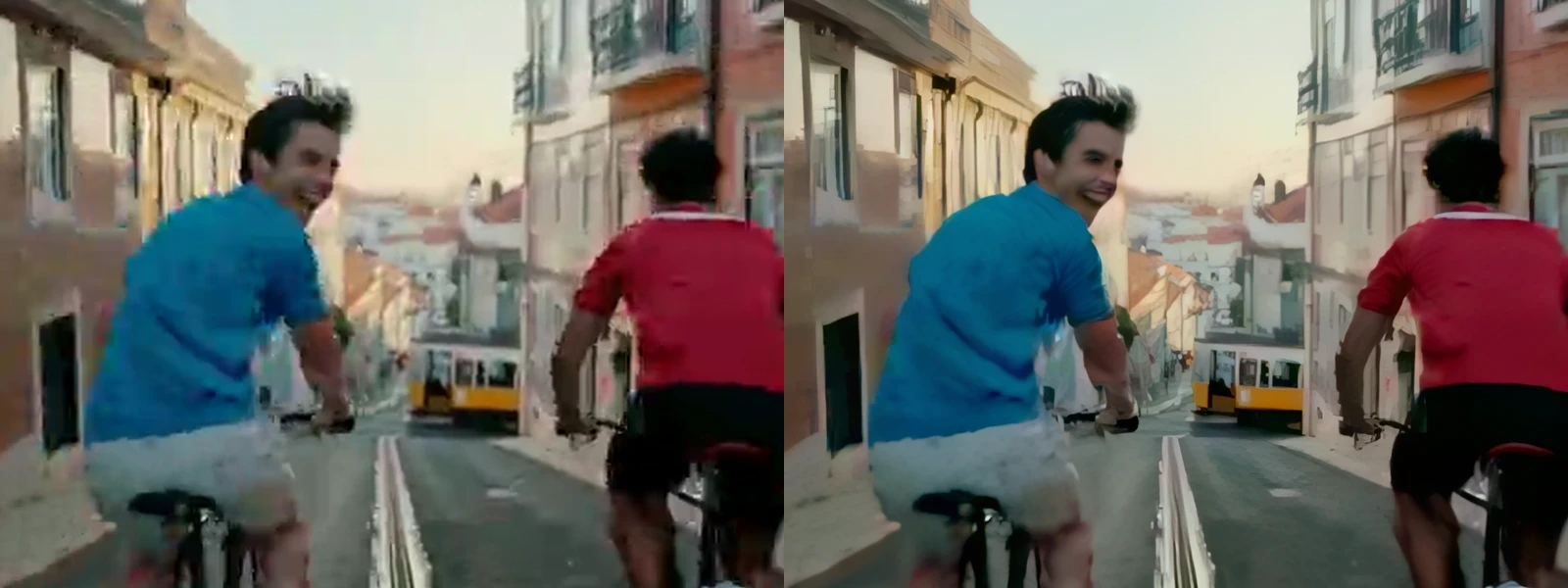
Frame interpolation is useful when movement needs a different rhythm: a dancer held longer in an edit, a gesture studied in detail or footage converted to a smoother playback cadence. Video AI creates intervening pictures, so review moving shapes as carefully as the reported frame rate of the returned file.
Key features & highlights
Apollo and Chronos each have a regular and a fast option, with Aion completing the five-model range for demanding motion. Delivery rates include 30, 48, 50, 60 and 120 fps. The source is interpreted at 30 fps, which matters when its original cadence differs from the reading assumption.
Playback rate and slowing are separate controls: a higher frame rate need not lengthen the shot, while a factor of two approximately doubles its duration. The Chronos dance run produced about 9.95 seconds at 1920×1080 and 60 fps from five source seconds. That slowed file had no audio, whereas the normal-speed Apollo Fast portrait retained its soundtrack.
Request parameters
| Parameter | Required | Description |
|---|---|---|
video_url | Yes | Input must be a linked or uploaded MP4 of 1–60 seconds; duration violations are rejected before acceptance. at least 1 characters |
preset | No |
Default model: |
resolution | No | Available output tiers are |
fps | No | Output rate: |
slow_motion | No |
|
Pricing
Interpolation rates combine model, output tier, frame rate and slowing factor. Billing uses the original clip length, never the longer slowed result: round up to whole seconds and then complete billing steps, at least one. Divide a step’s price by its length to obtain the displayed second rate. The initial reservation covers the uploaded duration or 60 source seconds for a link; any surplus is returned on completion, and failed interpolation is not charged. More output frames and stronger slowing cost more; Aion has the highest model rate.
| Specification | Price |
|---|---|
| $0.002 / second |
| $0.002 / second |
| $0.002 / second |
| $0.002 / second |
| $0.002 / second |
| $0.0058536585 / second |
| $0.0058536585 / second |
| $0.0058536585 / second |
| $0.0058536585 / second |
| $0.0087804878 / second |
| $0.0087804878 / second |
| $0.0087804878 / second |
| $0.01 / second |
| $0.01 / second |
| $0.0104347826 / second |
| $0.0104347826 / second |
| $0.0156521739 / second |
| $0.0156521739 / second |
| $0.0156521739 / second |
| $0.0156521739 / second |
| $0.0171428571 / second |
| $0.0171428571 / second |
| $0.0171428571 / second |
| $0.0171428571 / second |
| $0.0171428571 / second |
| $0.0175609756 / second |
| $0.0184615385 / second |
| $0.02 / second |
| $0.02 / second |
| $0.02 / second |
| $0.02 / second |
| $0.02 / second |
| $0.0234146341 / second |
| $0.0234146341 / second |
| $0.024 / second |
| $0.024 / second |
| $0.024 / second |
| $0.026 / second |
| $0.026 / second |
| $0.0263414634 / second |
| $0.0292682927 / second |
| $0.034 / second |
| $0.0351219512 / second |
| $0.0365217391 / second |
| $0.042 / second |
| $0.0436363636 / second |
| $0.046 / second |
| $0.046 / second |
| $0.046 / second |
| $0.046 / second |
| $0.0545454545 / second |
| $0.0545454545 / second |
| $0.0545454545 / second |
| $0.0573913043 / second |
| $0.058 / second |
| $0.058 / second |
| $0.0585365854 / second |
| $0.0585365854 / second |
| $0.0585365854 / second |
| $0.0614634146 / second |
| $0.0614634146 / second |
| $0.0614634146 / second |
| $0.0614634146 / second |
| $0.0614634146 / second |
| $0.0646153846 / second |
| $0.0654545455 / second |
| $0.0673170732 / second |
| $0.0673170732 / second |
| $0.078 / second |
| $0.08 / second |
| $0.0834782609 / second |
| $0.0917647059 / second |
| $0.096 / second |
| $0.104 / second |
| $0.104 / second |
| $0.104 / second |
| $0.116 / second |
| $0.116 / second |
| $0.1733333333 / second |
| $0.1814634146 / second |
| $0.22 / second |
| $0.22 / second |
| $0.238 / second |
| $0.336 / second |
| $0.336 / second |
| $0.3365853659 / second |
| $0.3365853659 / second |
| $0.3365853659 / second |
| $0.3365853659 / second |
| $0.3381818182 / second |
| $0.3388235294 / second |
| $0.3395121951 / second |
| $0.3395121951 / second |
| $0.3395121951 / second |
| $0.3428571429 / second |
| $0.344 / second |
| $0.3453658537 / second |
| $0.3453658537 / second |
| $0.356 / second |
| $0.4533333333 / second |
| $0.002 / second |
| $0.002 / second |
| $0.002 / second |
| $0.002 / second |
| $0.002 / second |
| $0.01 / second |
| $0.01 / second |
| $0.0104347826 / second |
| $0.0104347826 / second |
| $0.0156521739 / second |
| $0.0156521739 / second |
| $0.0156521739 / second |
| $0.0171428571 / second |
| $0.0171428571 / second |
| $0.02 / second |
| $0.02 / second |
| $0.0276923077 / second |
| $0.0276923077 / second |
| $0.0276923077 / second |
| $0.0276923077 / second |
| $0.0292682927 / second |
| $0.0292682927 / second |
| $0.03 / second |
| $0.03 / second |
| $0.03 / second |
| $0.0313043478 / second |
| $0.0327272727 / second |
| $0.034 / second |
| $0.034 / second |
| $0.0351219512 / second |
| $0.0351219512 / second |
| $0.0351219512 / second |
| $0.0409756098 / second |
| $0.0417391304 / second |
| $0.0423529412 / second |
| $0.0423529412 / second |
| $0.0423529412 / second |
| $0.046 / second |
| $0.046 / second |
| $0.0468292683 / second |
| $0.052 / second |
| $0.0585365854 / second |
| $0.062 / second |
| $0.0643902439 / second |
| $0.076 / second |
| $0.0776470588 / second |
| $0.0790243902 / second |
| $0.08 / second |
| $0.08 / second |
| $0.08 / second |
| $0.0965853659 / second |
| $0.0965853659 / second |
| $0.0965853659 / second |
| $0.1015384615 / second |
| $0.1028571429 / second |
| $0.104 / second |
| $0.104 / second |
| $0.104 / second |
| $0.104 / second |
| $0.108 / second |
| $0.108 / second |
| $0.1090909091 / second |
| $0.1090909091 / second |
| $0.1090909091 / second |
| $0.1147826087 / second |
| $0.116 / second |
| $0.12 / second |
| $0.12 / second |
| $0.1384615385 / second |
| $0.1418181818 / second |
| $0.1492682927 / second |
| $0.1617391304 / second |
| $0.1694117647 / second |
| $0.1835294118 / second |
| $0.1835294118 / second |
| $0.1835294118 / second |
| $0.2057142857 / second |
| $0.2057142857 / second |
| $0.307826087 / second |
| $0.3219512195 / second |
| $0.3913043478 / second |
| $0.3913043478 / second |
| $0.4235294118 / second |
| $0.596 / second |
| $0.598 / second |
| $0.598 / second |
| $0.60 / second |
| $0.60 / second |
| $0.60 / second |
| $0.602 / second |
| $0.602 / second |
| $0.604 / second |
| $0.604 / second |
| $0.604 / second |
| $0.6092307692 / second |
| $0.61 / second |
| $0.6133333333 / second |
| $0.6133333333 / second |
| $0.634 / second |
| $0.806 / second |
| $0.002 / second |
| $0.002 / second |
| $0.002 / second |
| $0.002 / second |
| $0.002 / second |
| $0.0029268293 / second |
| $0.0029268293 / second |
| $0.0029268293 / second |
| $0.0029268293 / second |
| $0.004 / second |
| $0.004 / second |
| $0.004 / second |
| $0.0052173913 / second |
| $0.0052173913 / second |
| $0.0052173913 / second |
| $0.0052173913 / second |
| $0.0070588235 / second |
| $0.0070588235 / second |
| $0.0070588235 / second |
| $0.0070588235 / second |
| $0.008 / second |
| $0.008 / second |
| $0.008 / second |
| $0.008 / second |
| $0.008 / second |
| $0.008 / second |
| $0.0087804878 / second |
| $0.0087804878 / second |
| $0.0087804878 / second |
| $0.0087804878 / second |
| $0.0087804878 / second |
| $0.0087804878 / second |
| $0.0104347826 / second |
| $0.0104347826 / second |
| $0.0109090909 / second |
| $0.0109090909 / second |
| $0.0109090909 / second |
| $0.0117073171 / second |
| $0.0117073171 / second |
| $0.0117073171 / second |
| $0.0133333333 / second |
| $0.0146341463 / second |
| $0.0156521739 / second |
| $0.0171428571 / second |
| $0.02 / second |
| $0.02 / second |
| $0.02 / second |
| $0.02 / second |
| $0.02 / second |
| $0.02 / second |
| $0.026 / second |
| $0.026 / second |
| $0.026 / second |
| $0.026 / second |
| $0.026 / second |
| $0.026 / second |
| $0.026 / second |
| $0.026 / second |
| $0.026 / second |
| $0.0276923077 / second |
| $0.0276923077 / second |
| $0.0276923077 / second |
| $0.0276923077 / second |
| $0.0276923077 / second |
| $0.0292682927 / second |
| $0.0292682927 / second |
| $0.03 / second |
| $0.03 / second |
| $0.0351219512 / second |
| $0.036 / second |
| $0.038 / second |
| $0.0409756098 / second |
| $0.0423529412 / second |
| $0.046 / second |
| $0.046 / second |
| $0.046 / second |
| $0.0514285714 / second |
| $0.0514285714 / second |
| $0.0776470588 / second |
| $0.0819512195 / second |
| $0.098 / second |
| $0.098 / second |
| $0.1058823529 / second |
| $0.1492682927 / second |
| $0.15 / second |
| $0.15 / second |
| $0.15 / second |
| $0.15 / second |
| $0.15 / second |
| $0.1513043478 / second |
| $0.1513043478 / second |
| $0.1513043478 / second |
| $0.1513043478 / second |
| $0.1513043478 / second |
| $0.1527272727 / second |
| $0.1527272727 / second |
| $0.154 / second |
| $0.154 / second |
| $0.16 / second |
| $0.2019512195 / second |
| $0.0029268293 / second |
| $0.0029268293 / second |
| $0.0029268293 / second |
| $0.0029268293 / second |
| $0.0029268293 / second |
| $0.0211764706 / second |
| $0.0211764706 / second |
| $0.0234146341 / second |
| $0.0234146341 / second |
| $0.034 / second |
| $0.034 / second |
| $0.034 / second |
| $0.038 / second |
| $0.038 / second |
| $0.0417391304 / second |
| $0.0417391304 / second |
| $0.0614634146 / second |
| $0.0614634146 / second |
| $0.0614634146 / second |
| $0.0614634146 / second |
| $0.0646153846 / second |
| $0.0654545455 / second |
| $0.0673170732 / second |
| $0.0673170732 / second |
| $0.0673170732 / second |
| $0.0702439024 / second |
| $0.0738461538 / second |
| $0.076 / second |
| $0.076 / second |
| $0.078 / second |
| $0.078 / second |
| $0.078 / second |
| $0.0917647059 / second |
| $0.0933333333 / second |
| $0.096 / second |
| $0.096 / second |
| $0.096 / second |
| $0.1015384615 / second |
| $0.1015384615 / second |
| $0.1053658537 / second |
| $0.116 / second |
| $0.1317073171 / second |
| $0.14 / second |
| $0.146 / second |
| $0.168 / second |
| $0.1726829268 / second |
| $0.1764705882 / second |
| $0.178 / second |
| $0.178 / second |
| $0.178 / second |
| $0.218 / second |
| $0.218 / second |
| $0.218 / second |
| $0.2282926829 / second |
| $0.232 / second |
| $0.232 / second |
| $0.234 / second |
| $0.234 / second |
| $0.234 / second |
| $0.242 / second |
| $0.242 / second |
| $0.2452173913 / second |
| $0.2452173913 / second |
| $0.2452173913 / second |
| $0.2584615385 / second |
| $0.26 / second |
| $0.2676923077 / second |
| $0.2676923077 / second |
| $0.312 / second |
| $0.3182608696 / second |
| $0.3339130435 / second |
| $0.364 / second |
| $0.3804878049 / second |
| $0.412 / second |
| $0.412 / second |
| $0.412 / second |
| $0.462 / second |
| $0.462 / second |
| $0.692 / second |
| $0.724 / second |
| $0.88 / second |
| $0.88 / second |
| $0.9512195122 / second |
| $1.3404878049 / second |
| $1.344 / second |
| $1.346 / second |
| $1.346 / second |
| $1.346 / second |
| $1.346 / second |
| $1.3527272727 / second |
| $1.354 / second |
| $1.358 / second |
| $1.358 / second |
| $1.358 / second |
| $1.3714285714 / second |
| $1.372 / second |
| $1.38 / second |
| $1.38 / second |
| $1.424 / second |
| $1.8133333333 / second |
Use cases
For a dance transition, extend one selected move so it can occupy a longer musical phrase. Plan the soundtrack in the edit, since the slowed result does not supply a retimed version of the original recording.
For a movement study, keep enough action before and after the moment of interest to inspect hand and body paths. Review crossings and occlusions rather than approving solely because playback appears fluid at first glance.
Prompt guide & pro tips
No text instruction is accepted for retiming. Begin by deciding whether the deliverable requires a new playback cadence, longer action or both; then choose the corresponding frame rate and slowing factor. Test Apollo for general conversion or Chronos on natural movement before deciding that a heavier model is warranted.
Check the full downloaded take for doubled outlines, distorted hands and changes where one object passes another. Confirm actual runtime, fps and audio-track presence before placing it on the final timeline. Cost follows the submitted duration even when the visual result is longer, while the chosen frame rate and slow-motion factor still change the rate charged for those source seconds.
API quick start
# Generate the idempotency key once; reuse it when retrying after a lost response.
export SPICY_IDEMPOTENCY_KEY="${SPICY_IDEMPOTENCY_KEY:-$(uuidgen)}"
curl -X POST https://api.spicyapi.ai/api/v1/jobs/createTask \
  -H "Authorization: Bearer $SPICY_API_KEY" \
  -H "Content-Type: application/json" \
  -H "Idempotency-Key: $SPICY_IDEMPOTENCY_KEY" \
  -d '{
  "model": "topaz/video-ai/frame-interpolation",
  "input": {
    "fps": 60,
    "preset": "apollo",
    "resolution": "1080p",
    "slow_motion": 1,
    "video_url": "https://example.com/reference.mp4"
  }
}'

# Copy data.taskId from the response into TASK_ID, then poll the status.
TASK_ID="TASK_ID_FROM_RESPONSE"
curl "https://api.spicyapi.ai/api/v1/jobs/recordInfo?taskId=$TASK_ID" \
  -H "Authorization: Bearer $SPICY_API_KEY"
See the API reference for authentication, the complete schema, polling, and error handling.