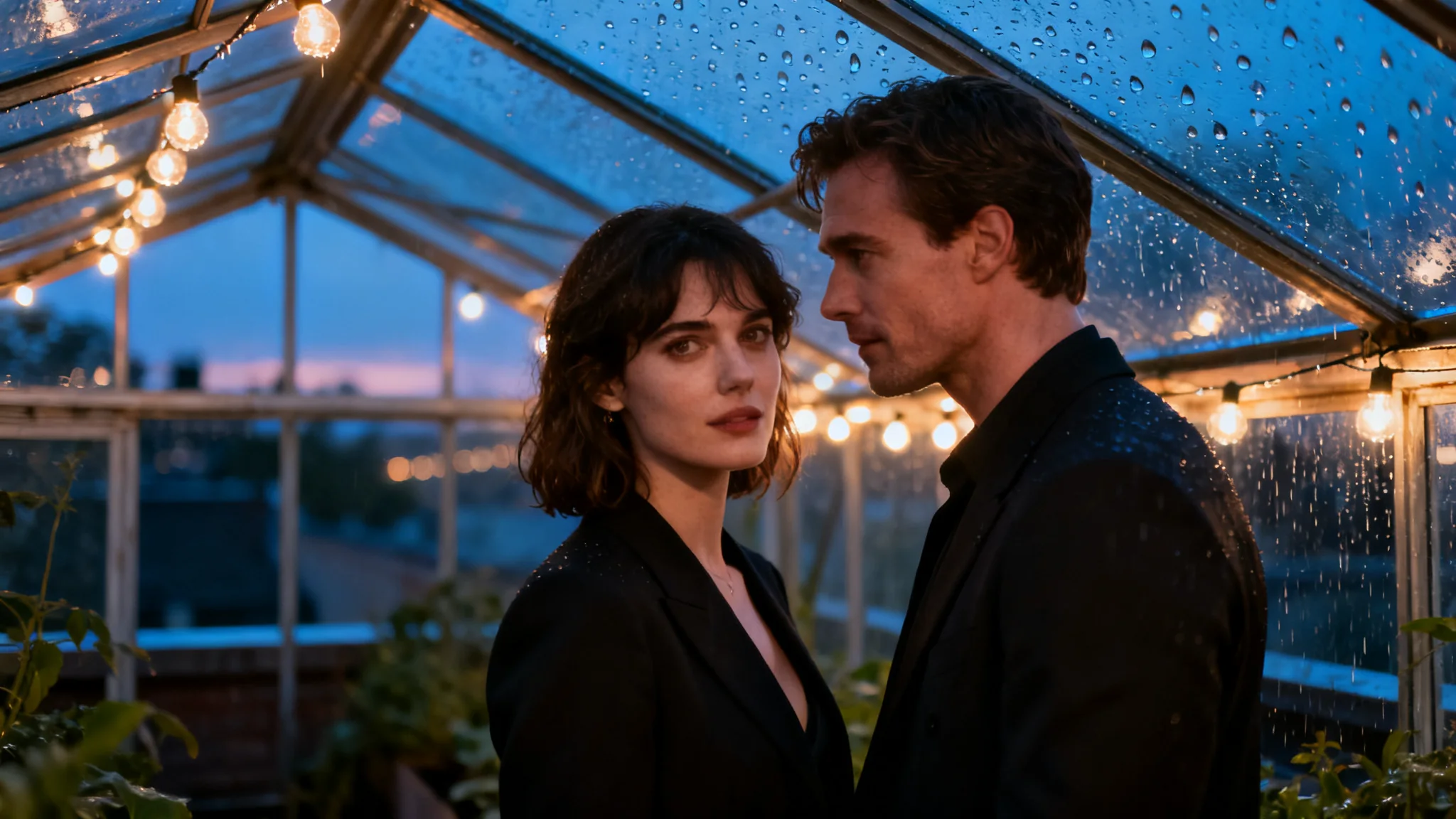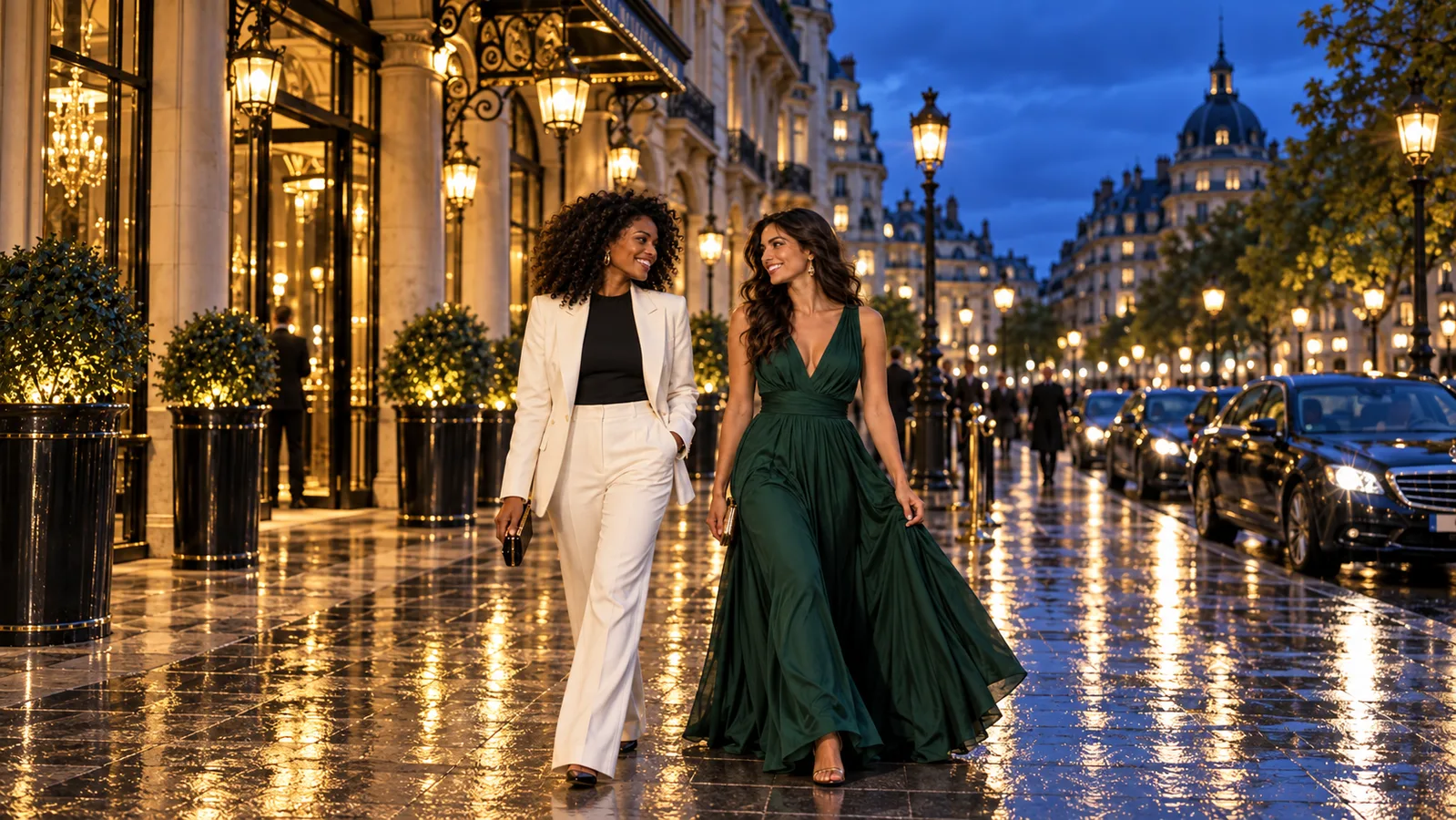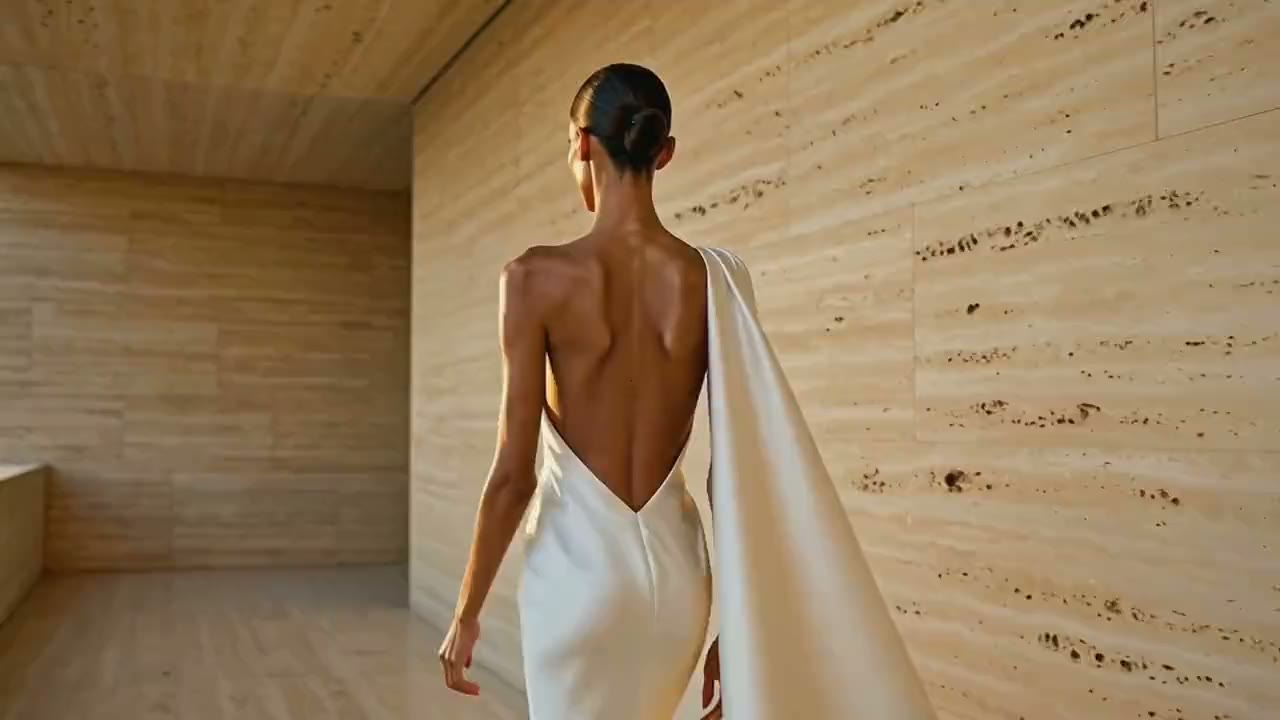
Seedream 4.0 editing takes 1–10 reference images and returns one image at a size you pick from sixteen presets. It costs $0.03 per image at every size and reference count. There is no mask, strength slider or seed, so the prompt carries all the control: use it for wardrobe, background and light changes or for turning a sketch into a render, not for edits that must leave every other pixel untouched.
SpicyAPI adds no extra platform-level content filter to this editor. In our September 2026 tests, higher-intensity adult edits sometimes came back milder than asked while the task still showed as succeeded, so check the image before you use it.
Name a job for every reference
Send the images in image_urls and refer to them in order, as image one, image two and so on. A reference you do not mention is not ignored: it is blended into the result. Give each source one job and say what must survive.
For a wardrobe edit, upload one approved image of a fictional adult in a simple jacket, choose 1728*2304 and use:
Keep the fictional adult's face, hairstyle, pose, hands, camera view and background from image one. Replace only the jacket with an opaque burgundy velvet blazer over the existing cream shirt. Preserve the original jacket length and shoulder shape. Show a soft velvet sheen under the existing light, with clear lapels and no new jewelry or text.
"Make the outfit more luxurious" leaves the construction open and can return a different costume. To match an exact blazer, add it as image two and change the material sentence to: "Image two defines the burgundy blazer's cut, lapels and fabric. Use its garment only; keep the person, pose and scene from image one." Crop the garment photo to the clothing, because a full fashion shot also brings its face, body and lighting.
SpicyAPI accepts up to ten references. Each file can be a JPG, PNG, WEBP or GIF of up to 10 MB, for images you hold the rights to.
Pick the exact size
Seedream 4.0 takes size as a width*height string, not the resolution and aspect_ratio fields of the 5.0 models. The default is 2048*2048. The result is rebuilt at the preset you choose rather than cropped from the source, so a portrait source sent with the default square is recomposed and its framing can change. Match the source shape.
| Intended shape | Standard size | Larger size |
|---|---|---|
| Square | 2048*2048 | 3072*3072 |
| 4:3 landscape | 2304*1728 | 3456*2592 |
| 3:4 portrait | 1728*2304 | 2592*3456 |
| 3:2 landscape | 2496*1664 | 3744*2496 |
| 2:3 portrait | 1664*2496 | 2496*3744 |
| 16:9 landscape | 2848*1600 | 4096*2304 |
| 9:16 portrait | 1600*2848 | 2304*4096 |
| Ultra-wide (21:9) | 3136*1344 | none |
1024*1024 is the remaining preset. Other dimensions are rejected. 4096*2304 is the largest frame among the Seedream editors on SpicyAPI; 5.0 Lite tops out at 3136*1344.
There is no 4:5 preset. For a 4:5 social card, either use 1728*2304 and leave room for a light crop, or switch to Seedream 5.0 Flash ($0.029 per image) or 5.0 Pro, which accept aspect_ratio: 4:5. Pro starts at $0.036 per image and costs more at 2K and with extra references.
Try it in the Playground first
Run the edit in the Playground before you write code; a result that is wrong here is wrong from the API too, and the fix is a better prompt or reference.
- Open the Seedream 4.0 editing page and stay on the Playground tab, in Form view. Sign in with a funded account to run.
- Add your sources under Images: drop a file or paste a link with Add URL. Up to 10; the order you add them is "image one", "image two".
- Write the change in Prompt, naming what each image contributes and what must survive.
- Pick Output size to match the source's shape.
- Check the price estimate, then run it. The JSON view shows the request body, which you can copy into code.
Then call it from code
Install the Python SDK (pip install spicyapi), set SPICY_API_KEY in your server environment, and run:
import uuid
from spicyapi import SpicyClient, output_assets

client = SpicyClient()  # reads SPICY_API_KEY from the environment

task = client.create_task(
    model="bytedance/seedream-4.0/edit",
    input_data={
        "image_urls": [
            "https://example.com/person.png",
            "https://example.com/blazer.png",
        ],
        "prompt": "Keep the person, pose and scene from image one. Image two defines the burgundy blazer cut, lapels and fabric; use its garment only.",
        "size": "1728*2304",
    },
    idempotency_key=str(uuid.uuid4()),
)
final = client.wait_for_terminal(task["taskId"])
if final["state"] != "succeeded":
    raise RuntimeError(f"Task {task['taskId']} ended as {final['state']}")
print(output_assets(final)[0]["url"])  # copy it to your own storage now
Replace the two example URLs with your own; they must be reachable without a login, or upload a local file and pass the returned spicy:// URI. The result link expires after about 20 minutes (retention details). Quotes, uploads, waiting, retries and errors are in the Python SDK reference and the asynchronous tasks guide.
Or let an Agent run it
If an assistant should run the edits for you, give it the CLI, the MCP server or the Skill. The CLI and MCP server show the price and ask you before a paid call.
- CLI. Put the same
inputobject ininput.json, then run the following (npx @spicyapi/cliworks without installing; see the CLI docs):
``bash spicyapi tasks create --model bytedance/seedream-4.0/edit --input-file input.json --wait ``
- MCP server. Add the MCP server to your assistant, then ask: "Edit ./portrait.png with Seedream 4.0: replace only the jacket with a burgundy velvet blazer, size 1728*2304." It calls
spicyapi_upload_file, thenspicyapi_task_create, which stops for your price confirmation, thenspicyapi_task_wait. - Skill.
npx skills add spicyapi-ai/spicy-skillinstalls the Agent Skill, which has a coding assistant read the live model schema instead of guessing fields.
Turn a sketch into a material concept
Put the sketch first and a material swatch second, and say who owns what. A fictional clock example:
Turn the clock sketch in image one into a realistic product concept. Keep its continuous arched case, centered circular cream dial and two short feet. Use image two only for walnut color and grain. Give the feet a muted brass finish and the dial two simple black hands. Front-facing view on a pale stone surface, soft side light, no branding or extra objects.
The same split works for a costume: the drawing sets the silhouette, a fabric image the surface, an approved portrait the fictional wearer. Use a clean sketch with abandoned outlines removed. A front-only sketch cannot define a side view, so ask for a frontal result first if the outline matters.
Fix specific failures
The new outfit changed the face. Go back to the original portrait, remove extra people from the garment reference and keep the original view. If the face must stay pixel-exact, composite the approved face conventionally instead of asking for another full redraw.
The material spread onto other objects. Name the surface: velvet belongs only to the blazer, the shirt stays cream cotton; walnut belongs to the clock case, not the dial or brass feet. A narrow swatch is clearer than a whole room used as a "style" image.
The sketch's silhouette changed. Simplify the sketch and request a frontal view. A dramatic angle can hide the contour you wanted to keep.
The subject is cropped. Pick a preset that matches the shape and ask for room around the head, feet or prop.
A small logo or phrase is wrong. Keep the scene and replace that element in a conventional editor. Without a mask, a text fix is a new redraw, not a local patch.
Repeated edits drift. Each pass redraws the frame. For cumulative changes, use the latest accepted output and check what shifted; if you return to the original, include all the accepted changes in the prompt. Start independent variations from a common original.
Cost and when to choose another model
Three edits cost $0.09 and ten cost $0.30. Larger presets and extra references add nothing. For a new picture with no source, use Seedream 4.0 text to image, which has the same sizes and price.
Choose 4.0 for large frames up to 4096*2304 at a flat rate. Choose a 5.0 model when you need aspect_ratio such as 4:5, PNG output (all 5.0 models) or transparent backgrounds (Flash and Pro). Choose a different method when you need a mask, retained pixels or exact engineering geometry. For ad creative from product photos, see product photo to ad creative.