Introduction
Send the scene description and choose a square, portrait or landscape composition.
| Field | Value |
|---|---|
| Input | Text |
| Output | Image |
| Publisher | xAI |
| Model identifier | grok/imagine-image-2.0 |
| Image workflows | Text-to-image generation and image-to-image editing |
| Prompt limit | Up to 8,000 characters for either workflow |
| Editing sources | 1 to 5 images in |
| Reference naming | Image 1, Image 2, and onward in input order |
| Available ratios | 1:1, 2:3, 3:2, 16:9, 9:16 |
| Default canvas | 1:1 for generation and editing |
| Price basis | Fixed per image; aspect ratio does not change the rate; failed tasks are not charged |
| File availability | Generated files are deleted after 14 days |
Key features & highlights
One fitting room, repeated reflections
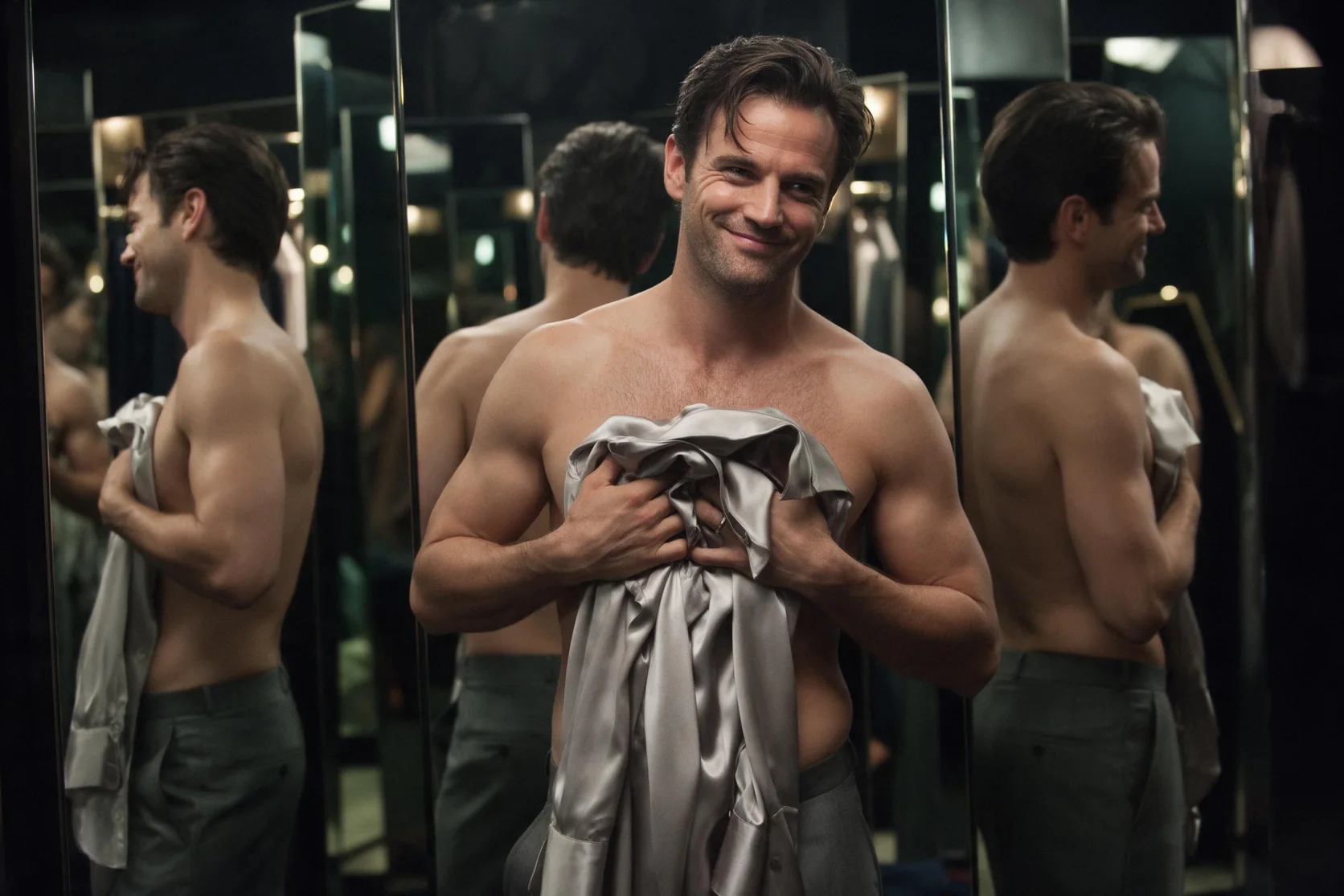
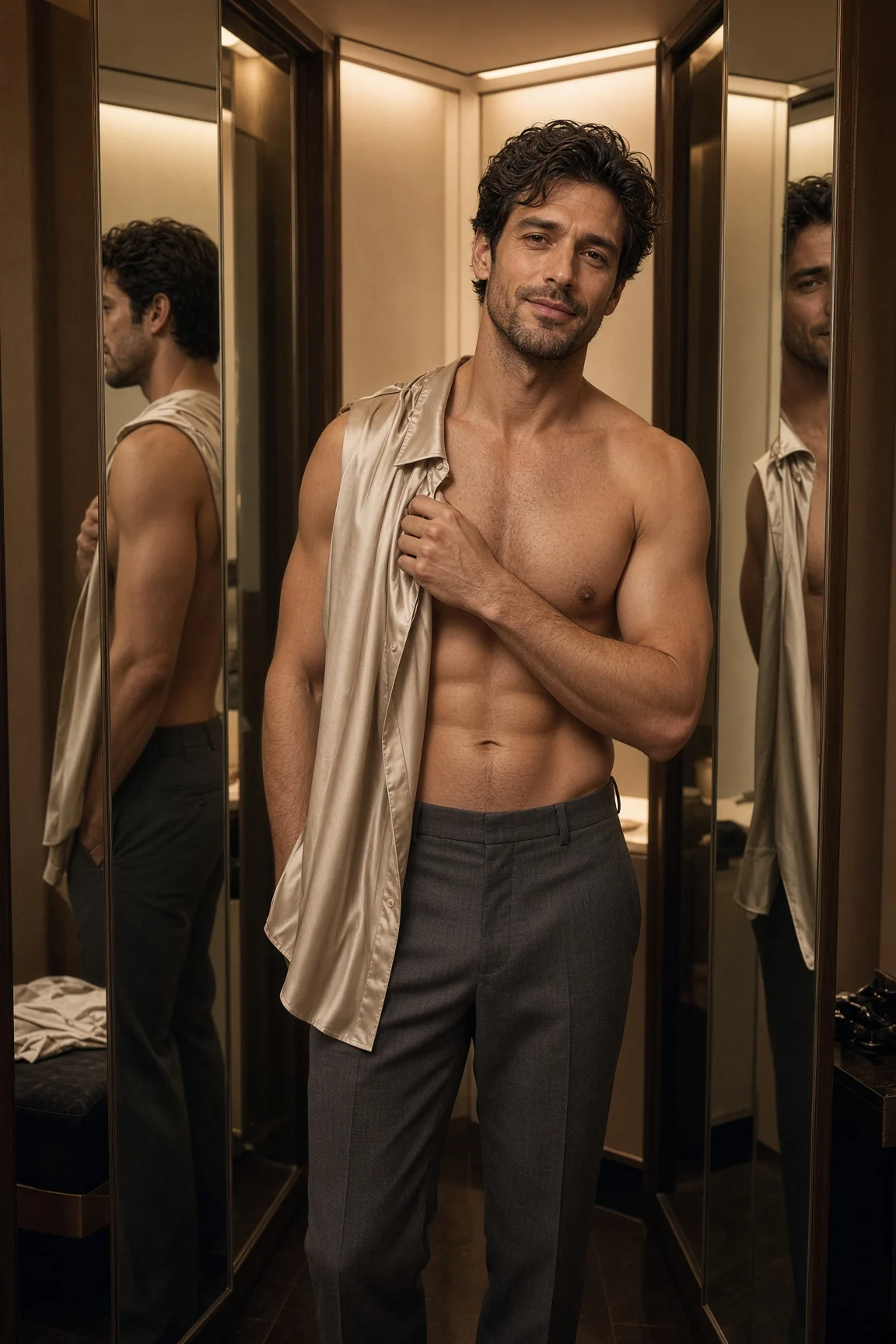
The 2:3 fitting-room example shows a man holding a silk shirt amid angled mirrors and warm boutique light. His reflection repeats consistently across the mirrors in this result. Use the scene as a reference for directing the subject, wardrobe prop, room, and lighting together; check each reflection in your own result rather than assuming the same outcome for every arrangement.
A mossy gardener at bonsai scale
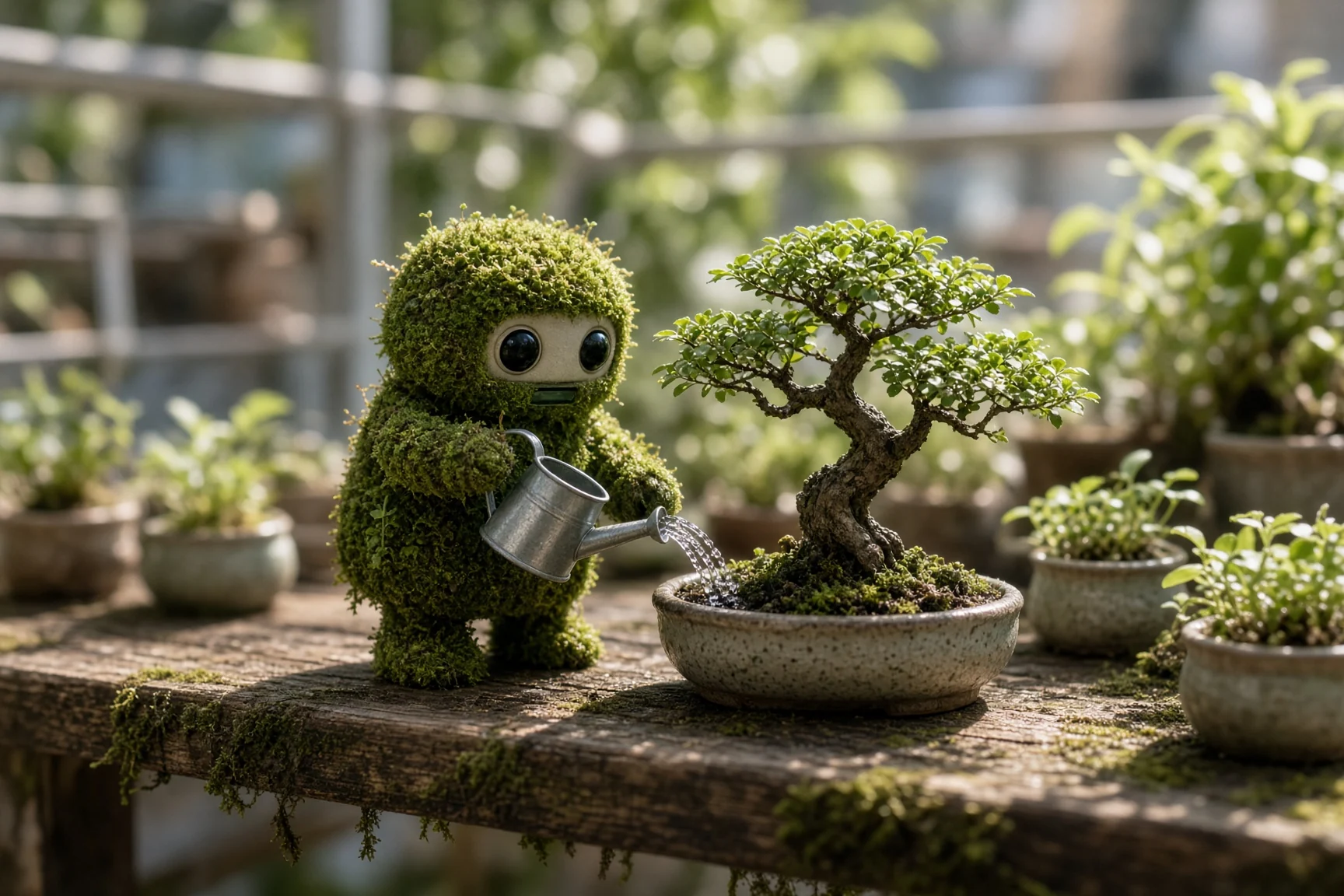
Our robot-gardener test rendered a moss-covered character watering a bonsai with convincing macro texture. A small subject, a clear action, and a close photographic view give the scene a readable scale. Describe the surface and lighting you want, then assess those details in the returned picture; this test supports the pictured miniature rather than a general score for image quality.
Replace the label and preserve its setting
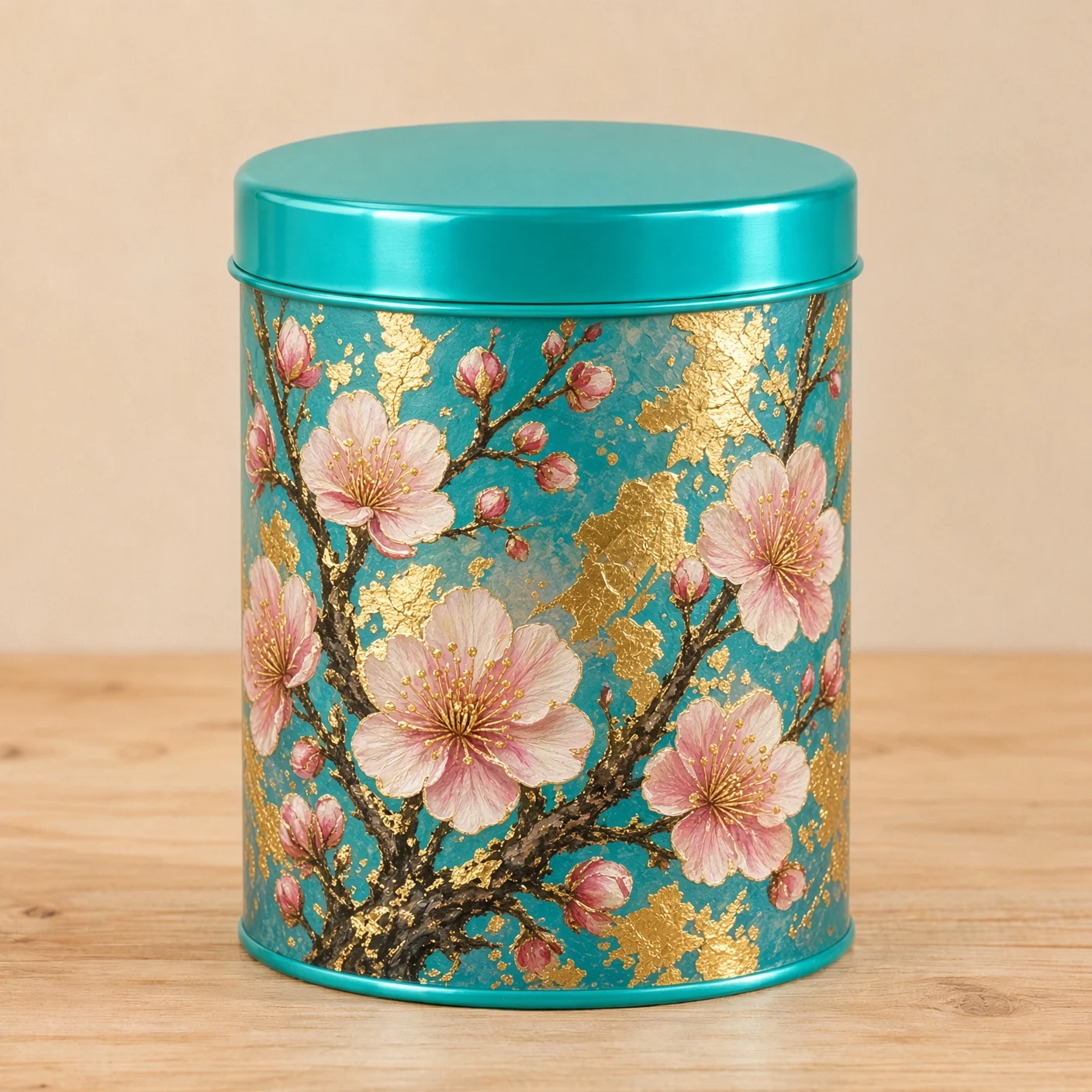
In the tea-tin test, a hand-painted plum-blossom label with gold leaf replaced the plain design while the lid, table, and light were retained. That result shows a focused edit with named preservation goals. Reference the tin as Image 1, explain the new label, and list the surrounding details that should stay, then compare the edit with the source photograph.
Request parameters
| Parameter | Required | Description |
|---|---|---|
prompt | Yes | Write up to 8,000 characters describing the scene; this text field does not select a different image price. at least 1 characters · at most 8000 characters |
aspect_ratio | No | Choose 1:1, 2:3, 3:2, 16:9 or 9:16, with 1:1 as the default; all five shapes have the same price. |
Pricing
$0.028 / image
Each generated Grok picture has a fixed per-image charge regardless of shape; a failed generation is not charged.
Use cases
Boutique fashion scene concepts
Plan a portrait around clothing, warm shop lighting, and angled mirrors. The fitting-room sample uses 2:3 and shows the same man repeated consistently in the reflections, giving a concrete reference for this composition.
Miniature worlds with material detail
Describe a small character doing a recognizable job rather than listing objects without a relationship. Our moss-covered robot watered a bonsai, and the test showed the textured surface treatment of a macro scene.
Packaging artwork on an existing tin
Keep an accepted product photograph as the starting point and request a new label. The measured tea-tin edit added hand-painted plum blossoms and gold leaf while retaining the lid, tabletop, and lighting.
Edits with assigned reference roles
Use up to five input pictures when a brief needs more than one source. Explain what each numbered image contributes and identify the details to retain; the available input count is a control, not evidence that every composition will match a reference.
Portrait and landscape concept layouts
Choose a tall, square, or wide canvas before generating a scene for its intended placement. Five ratios are available to generation and editing, and moving between those shapes leaves the image rate unchanged.
Prompt guide & pro tips
Choose generation or editing
Begin with a written scene for a new picture, or bring one to five source images for a revision. Use photos you have the right to use; any people in edit inputs must be adults, with no impersonation.
Describe the scene or change
Give a new scene its subject, action, setting, and light. For an edit, assign roles to Image 1, Image 2, and later inputs, then name the details to preserve.
Set a shape for the placement
Pick 1:1, 2:3, 3:2, 16:9, or 9:16 according to the intended composition. The default is square, and the ratio does not alter the per-image rate.
Review details and save the result
Compare the returned image with the brief, checking reflections or retained objects where those matter. Download the image during its 14-day availability period and keep the prompt with it.
Create a scene from a written brief
Grok Imagine Image 2.0 text-to-image generates a picture from your description. Begin here when you have a scene in mind and do not need an existing photograph to supply its details. The examples span a miniature robot at work and a photographic fitting-room portrait, showing two ways to organize a visual brief around a subject and its surroundings.
Generation on this page has a prompt and a canvas-ratio control. Pick the shape for the intended layout, then spend the prompt on what should appear inside it. For an accepted product photograph that needs a revised label or another directed change, use the sibling image-to-image endpoint instead.
Parameters and composition
| Parameter | Accepted value | How to use it |
|---|---|---|
| prompt | Scene description, up to 8,000 characters | Describe the subject, action, materials, setting, and light. |
aspect_ratio | 1:1, 2:3, 3:2, 16:9, 9:16 | Select the canvas proportions; the default is 1:1. |
A tall scene can use 2:3 or 9:16; a wide scene can use 3:2 or 16:9. The fitting-room example uses 2:3 so the man and the mirrored room have a portrait frame. Square remains the starting setting if you leave aspect_ratio unchanged. Choose this control deliberately even when the prompt contains a word such as vertical.
Write a prompt the image can follow
Connect a subject to an action
Give the central subject something readable to do. The robot brief describes a small gardener watering a bonsai, so the character, water, and plant belong to one activity. A fitting-room portrait can describe a man holding a silk shirt rather than leaving the wardrobe prop unrelated to the scene. For people, make the subjects adults in their thirties or older.
Give surfaces and light a purpose
Material words explain what you want to see: moss against metal, silk against tailored trousers, or a polished mirror within a warmly lit shop. Pair them with a photographic direction such as macro scale or soft boutique lighting. Use concrete choices that fit the subject instead of stacking unrelated style labels.
Describe the arrangement you will inspect
When the scene contains mirrors, explain their relationship to the subject and check the returned reflections. If a miniature needs a sense of scale, describe its nearby plant and viewing distance. These are ways to communicate a brief; they do not guarantee physical accuracy. Keep a note of the details that matter so you can judge the result against the same requirements.
What our examples showed
- In our gardener test, a moss-covered robot watered a bonsai and the miniature had good macro texture. This supports the pictured material study rather than every possible small-object scene.
- The fitting-room example returned a 2:3 portrait of a shirtless man holding a silk shirt. Angled mirrors repeated his reflection consistently in that result.
- The tea-tin example belongs to editing: it changed a label while retaining the lid, table, and light. Select that endpoint when those existing details are your starting point.
Treat the gallery as a set of observable results. The miniature and reflections are separate examples, without a measured promise of identical quality for another prompt. The additional prompt ideas on the page are suggestions to try, not additional test outcomes.
Price and request limits
Each generated image uses a fixed per-image rate, and selecting another supported ratio does not change that rate. See the Grok Imagine Image 2.0 model page for the current amount before starting a request. A failed generation is not charged.
The publisher applies its own content filter. A request it flags is refused and carries no charge. Keep the scene within the prompt limit and choose from the listed ratios. The controls documented here do not include a resolution or quality selector; avoid carrying settings from a general review into this brief.
Each finished image stays downloadable for 14 days and is then deleted. Download an accepted picture and keep its wording and ratio together. If a detail needs another attempt, revise that requirement clearly and compare the next result with the same visual brief.
Choose a workflow for the next task
Bring an existing picture to image-to-image when the goal is a focused revision with named details to retain. For a different canvas requirement, Nano Banana 2 Lite offers fourteen generation ratios. For a poster driven by supplied lettering, consider Ideogram 4.5, whose poster test reproduced its title and supporting line clearly. Choose by the needed controls and inspect your own output rather than applying a blanket model ranking.
API quick start
# Generate the idempotency key once; reuse it when retrying after a lost response.
export SPICY_IDEMPOTENCY_KEY="${SPICY_IDEMPOTENCY_KEY:-$(uuidgen)}"
curl -X POST https://api.spicyapi.ai/api/v1/jobs/createTask \
  -H "Authorization: Bearer $SPICY_API_KEY" \
  -H "Content-Type: application/json" \
  -H "Idempotency-Key: $SPICY_IDEMPOTENCY_KEY" \
  -d '{
  "model": "xai/grok-imagine-image-2.0/text-to-image",
  "input": {
    "prompt": "A ceramic teapot on a linen cloth, soft window light, muted palette",
    "aspect_ratio": "1:1"
  }
}'

# Copy data.taskId from the response into TASK_ID, then poll the status.
TASK_ID="TASK_ID_FROM_RESPONSE"
curl "https://api.spicyapi.ai/api/v1/jobs/recordInfo?taskId=$TASK_ID" \
  -H "Authorization: Bearer $SPICY_API_KEY"
See the API reference for authentication, the complete schema, polling, and error handling.