Your SillyTavern character is finally writing the way you want. You ask for a picture, ComfyUI starts loading, and either the picture fails or the next chat reply becomes painfully slow. An 8GB or 16GB graphics card can be perfectly usable for either job individually and still struggle when both are active.
For SillyTavern NSFW image generation on low VRAM, the most useful first decision is which job gets to keep the GPU. If uninterrupted local roleplay matters most, generate images remotely. If your local character checkpoint and LoRAs matter most, move the conversation to a chat API. If everything must stay local, generate the visual prompt first, unload the text backend, render the picture, then reload the text backend. That third route preserves your saved conversation, but it cannot promise uninterrupted generation while the GPU switches jobs.
These are practical setup choices, not a benchmark claiming that a particular pair of models fits every 8GB card. We have not timed a paired local run for this guide. The connection instructions come from the projects' documentation and source, while the suggested working order is designed to isolate the common failures without changing five settings at once.
The problem appeared plainly in an October 2 SillyTavern discussion: a user with a 16GB AMD card was already using the memory for local roleplay and wanted to add Z-Image. The useful question is not whether Z-Image can run on a consumer GPU. It is whether it can run with your existing chat model still occupying that GPU.
Choose where the GPU goes before downloading another model
Start with the part of your evening you are least willing to interrupt. A long conversation with a favorite local model, a carefully tuned image workflow, and a requirement that nothing leave your computer lead to different setups.
| What matters most | Recommended route | What you give up |
|---|---|---|
| Keep your existing local character chat responsive | Local chat, remote images | Image prompts and any references go to the image service |
| Keep your exact local image checkpoint, LoRAs, and workflow | Remote chat, local ComfyUI | The selected chat API receives the conversation context you send |
| Keep both conversation and pictures on your machine | Local chat and local images, used sequentially | Model switching interrupts the pace and can require prompt reprocessing |
| Pictures only occasionally, without another integration project | Local chat plus a browser image generator | Pictures are made outside SillyTavern's native image controls |
An 8GB owner should usually start with one local generation workload. A 16GB owner has more room to experiment, but the same decision applies if the current LLM already uses most of the card. Buying another quantized checkpoint before deciding which workload owns the remaining memory often produces another download and the same failure.
Do not confuse a chat API with an image backend. Your model can write an excellent description of an adult fictional character without being able to produce the pixels. A model that accepts images as input may only analyze them. The connection selected in API Connections runs the conversation; the source selected in Image Generation draws the picture. Treat those as separate settings throughout this guide.
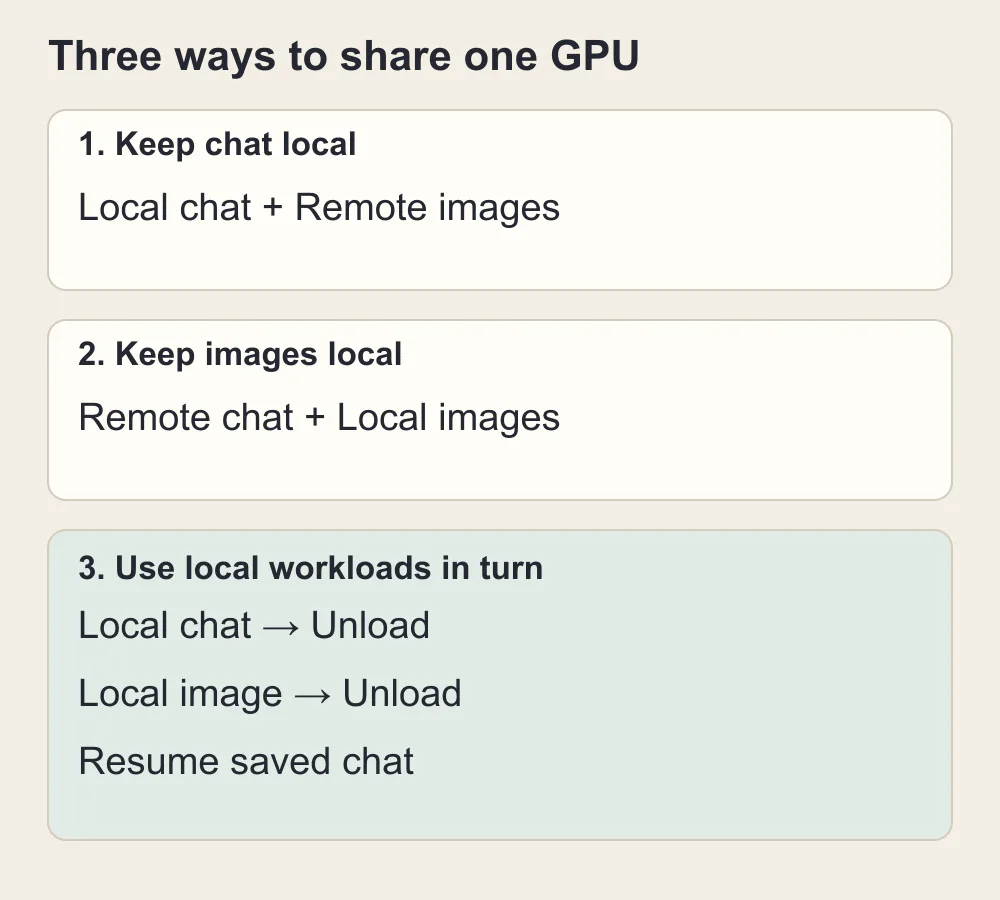
Keep one workload remote, or let local chat and images use the GPU in turn.
Why an idle chat window can still take most of your VRAM
The confusing part is that the chat may look inactive. You are not generating a reply, GPU utilization drops, and the machine sounds quiet. Yet ComfyUI still cannot load the image model. Utilization measures work happening now; memory occupancy measures resources retained for the next piece of work. A backend can be doing almost nothing while keeping a large allocation.
The model's download size is only part of the explanation. The LLM also needs space for its conversation cache and temporary computations. A larger context setting can increase that burden even if you have not changed model weights. Image generation has its own model components and temporary work. The peak can arrive after loading appears to succeed, rather than at the first download or connection step.
This distinction is documented in a llama.cpp maintainer explanation of memory allocation: weights, the context cache, and compute buffers are separate allocations. That is why subtracting the GGUF file size from the number printed on the GPU box is a poor way to decide whether ComfyUI has enough room.
For an illustrative budget, suppose a 16GB card has 1GB committed to the desktop and other applications, while the text backend occupies 11GB. That leaves about 4GB before an image workload starts. These are invented numbers to explain the arithmetic, not a measurement of Z-Image or a recommended allocation. A published claim that a model runs on a 16GB device does not mean it runs inside that leftover 4GB.
The official Z-Image repository describes Turbo running within 16GB consumer devices and offers CPU offloading for memory-constrained setups. This is an image-model deployment statement. It does not reserve space for a separate roleplay LLM, a long conversation cache, several adapters, and another process doing inference at the same time.
Before making any changes, look at memory rather than GPU percentage. On Windows, open Task Manager, choose Performance, and select the actual discrete GPU. Distinguish dedicated GPU memory from shared memory. On other systems, use the GPU vendor's monitoring tools or the backend's allocation logs. The important observation is which process remains loaded, not whether the chart says the GPU is momentarily idle.
Find the failing stage in four short checks
Do this before trying a new quantization, reinstalling SillyTavern, or adding a model-unloading custom node. A connection problem and a VRAM problem can look identical from the chat window because both end with no picture.
First, test the conversation by itself. Close the image backend completely, start your usual text backend, and generate one normal roleplay reply. Record whether it is already slow. If it is, you do not yet have an image-sharing problem: the local LLM itself is too demanding, is using an unsuitable execution backend, or is processing a large prompt.
Second, test the image workflow by itself. Stop the text backend, start ComfyUI, and render one picture in ComfyUI's own interface. Use one image and the workflow's intended settings. If this fails with no local LLM present, reducing the chat context will not solve it. Fix the image installation, missing files, unsupported nodes, or image memory requirement first.
Third, connect SillyTavern to that working image backend. Keep the LLM stopped, turn off Extend free-mode prompts in Image Generation, and use a manual command such as /sd a fictional adult lounge singer age 29 in a black satin evening outfit, seated beside an amber lamp. This bypasses the extra text-model prompt-writing step. If ComfyUI works directly but SillyTavern never submits the request, investigate its image source, server address, and API-format workflow. Do not lower resolution to repair a URL that points at the wrong service.
Fourth, repeat with the LLM loaded. Now the only major change is the additional text workload. If the image works in the previous checks and fails here, you have good reason to pursue memory separation. If it still works but chat slows dramatically afterward, inspect whether ComfyUI has retained models or whether the text backend fell back to slower execution.
There is a fifth useful comparison once those checks work. Compare a manually written image prompt with /sd last. The latter adds a text-model step that describes the recent conversation. If your manual request reaches ComfyUI but the contextual request does not, the failure can be in prompt writing rather than image rendering. A refusal, empty response, or malformed description from the LLM cannot be repaired by freeing memory in the image backend.
Write down the exact stage shown in ComfyUI when it fails: loading the model, encoding the text, sampling, decoding the image, or a later detail pass. That observation tells you what to remove. An error in the final upscale pass can be fixed by postponing upscaling, while an error loading the main model requires a different memory plan.
Route one: keep local roleplay, make the pictures elsewhere
This is the route I would choose first if you already love your local character model and take only a few pictures during a session. Leave the text setup alone. Move the image generation workload out of its way instead of shrinking the conversation until it no longer feels like the conversation you wanted.
A source already supported by SillyTavern
Open Extensions and expand Image Generation. In Source, choose a service that actually appears in the current supported source list. Configure that source's own credentials and model, rather than pasting the address of your text model into the image panel. The official Image Generation documentation is the reference for the source list and integration-specific controls.
Then generate one modest, non-explicit character portrait before enabling automatic triggers. This tells you whether the service, credentials, selected model, and result handling work together. An integration appearing in the list does not promise that every model behind that integration accepts the adult scene you want.
Do not replace a service-specific image URL with a different company's generic API URL and expect the integration to translate it. Even when both services accept a prompt, they may differ in request bodies, job status, image return format, authentication, and error responses. A field labeled API URL does not mean every API is interchangeable.
Put ComfyUI on another computer
If you want your existing checkpoint and LoRAs, keep the workflow and move its execution. Start by making the workflow render successfully on that other computer. It needs its own compatible software, model files, and installed nodes. A workflow JSON references components; it does not pack all those components into the file.
In SillyTavern's Image Generation panel, select ComfyUI and choose Standard Server. Enter the address reachable from the machine that runs the SillyTavern server, then use Connect. Your phone's ability to open the remote ComfyUI page is not proof that the SillyTavern host can reach it.
If both services run on different machines, 127.0.0.1 refers to the machine making the request. It will not find ComfyUI on your other computer. Use the actual accessible address for that installation. For an online host, use a properly protected connection; exposing an unrestricted ComfyUI instance publicly is unnecessary for a home setup.
After the first render works, add your saved API-format workflow. Preserve the same checkpoint and adapters if you want matching results. If the remote GPU uses another quantized model variant, update its loader node rather than assuming a similarly named file produces identical behavior. The local LLM can remain loaded throughout because the image model is using another machine's memory.
This route is attractive when you already know ComfyUI. It is less attractive when you simply want two pictures tonight and would have to learn server administration first. A browser generator can be the more practical choice even though it is less integrated.
Use SpicyAPI beside the chat
SpicyAPI's image tasks do not appear as a native source in the inspected SillyTavern Image Generation implementation. Its asynchronous generation contract is not something you can paste into the ComfyUI URL field or treat as an AUTOMATIC1111 image endpoint. This guide does not provide or claim to have tested an adapter that makes those protocols interchangeable.
You can still keep local roleplay open and use the Z-Image Spicy model page in a second browser tab. Open Playground, paste the current scene's visual description, set the dimensions, generate, and download the picture. Your local GPU remains available to the LLM because the image inference happens remotely.
For an introductory portrait, choose 832 by 1216 pixels, leave prompt expansion off, and describe one fictional adult in a specific outfit and room. Both dimensions are within Z-Image Spicy's public range of 256 to 1536 pixels per side. That setting is a proposed starting composition, not a claim that we rendered this scene or compared its quality against your local checkpoint.
A remote image service receives the visual prompt and any images you upload. You do not need to send the entire roleplay history to make a picture. Copy the character's visible traits and the current scene only; remove private notes, real names, and details that are not needed in a still image.
Route two: keep your local image workflow, move chat to an API
Choose this route if the image model is the part of your setup you have carefully tuned. You may have a particular illustration checkpoint, a character LoRA, a pose control, or a scene workflow that a browser service cannot reproduce. Moving chat is often simpler than rebuilding all that image work elsewhere.
The first action is to stop the local text backend, not simply change the API selector. If llama.cpp, Ollama, or another server stays loaded in the background, it may keep the memory you were trying to recover. Save the existing connection profile so you can return to it, then connect your chosen hosted chat source.
SillyTavern supports hosted chat connections separately from image sources. Follow the API Connections documentation for the selected protocol. A chat source can be local or hosted regardless of whether its category is called Chat Completion or Text Completion; those names describe how the prompt is sent, not where the GPU sits.
For SpicyAPI chat specifically, our SillyTavern roleplay connection guide supplies the Custom OpenAI-compatible settings and the model-specific handling of unsupported parameters. Use that actual setup rather than inserting an image-task model ID into the chat model box. This article's main task is freeing your GPU for pictures, so there is no need to repeat every chat model's settings here.
Now return to ComfyUI and run the exact workflow that succeeded in isolation. Do not immediately add extra image stages because the GPU looks free. Keep the first integrated request identical to the isolated request; that comparison verifies that changing the chat route removed the interference.
A hosted LLM still does useful work for the visual pipeline. It can turn the current scene into an image prompt before SillyTavern submits the local ComfyUI workflow. That is a text request, so it uses the chat service rather than loading another large local model onto the card.
The cost is conversation privacy and per-token billing. The chat API receives the context SillyTavern includes, which may contain your character description, instructions, selected lore, and conversation messages. If local-only chat was your non-negotiable requirement, this route is not a small technical adjustment; it changes where that text is processed.
Keep an eye on the first chat reply after each image. If it is now responsive and ComfyUI finishes cleanly, you have solved the main competition for GPU memory. If the picture remains slow in exactly the same way it was slow when running alone, the bottleneck is inside the image workload, not the newly hosted conversation.
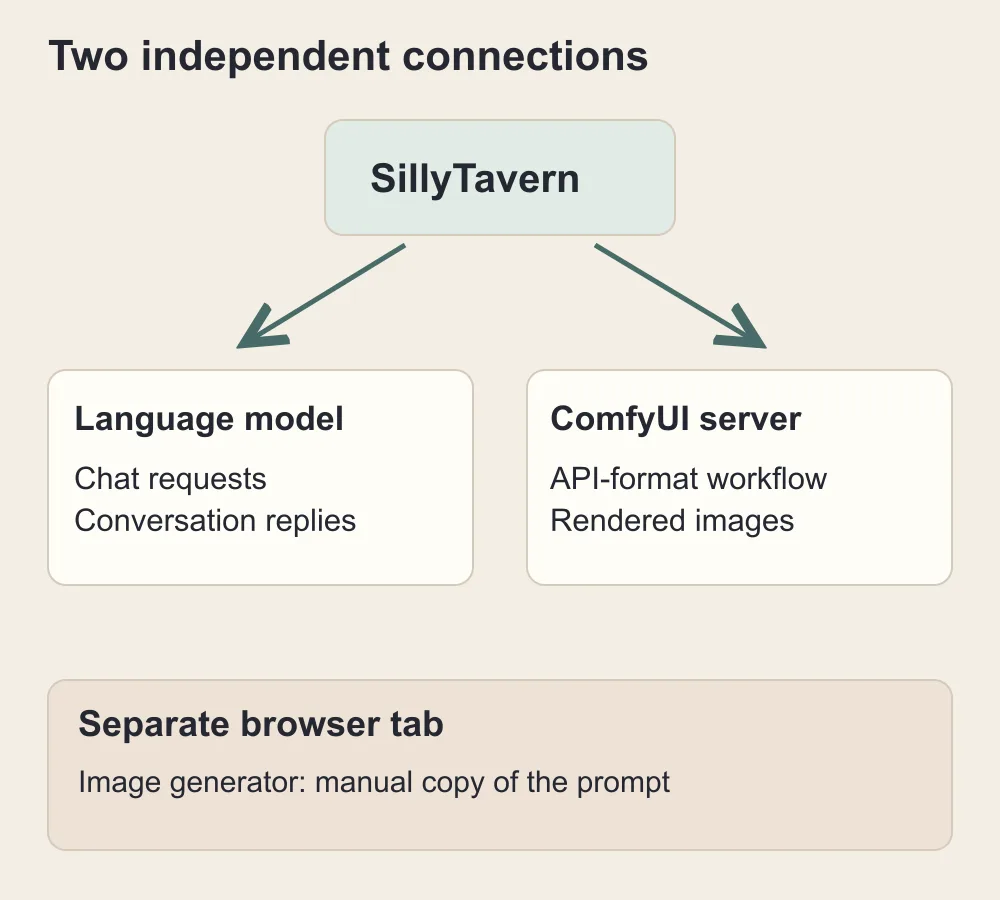
Chat and image sources are separate connections. A browser generator beside the chat is a manual route, not a native ComfyUI integration.
Route three: keep everything local and take turns
If neither conversation text nor image prompts should leave your machine, use the GPU sequentially. That means treating image creation as a short pause in the conversation. You are not deleting the character or starting a new chat; you are temporarily changing which backend holds the GPU allocations.
A saved conversation and a loaded conversation cache are different things. SillyTavern retains its chat data, while the backend's in-memory cache helps process the next request quickly. Stopping or unloading the backend can discard that cache. When the text model returns, the next request may need to process context again. The story remains available, but the first resumed reply can take longer.
The working order
- Finish the current reply and stop any automatic regeneration or image trigger that could submit another request.
- Create and save the visual prompt while the text model is still loaded, or write it yourself.
- Save the current conversation and keep the intended image description somewhere you can paste it.
- Unload or stop the text backend, then confirm dedicated GPU memory has actually fallen.
- Run one image in ComfyUI using the saved description.
- Download or retain the completed picture, then unload ComfyUI's models or stop its backend.
- Confirm memory is available again, restart the text backend with its saved settings, and reconnect if needed.
- Continue the same conversation; expect the first reply to rebuild context if the previous cache was lost.
The prompt-writing step belongs before unloading. If you stop the LLM and then ask /sd last to describe the scene through that same backend, you have removed the service needed for the first half of the image request. Use the description you already saved in a manual /sd request with Extend free-mode prompts off during the image phase.
Begin manually. A visible stop-and-restart sequence is less elegant than an unloading extension, but it tells you whether the fundamental memory plan works. If the image still fails after the text process is gone, an automatic switching tool will reproduce the failure more quickly rather than fix it.
Ollama users: unload the model, not just the window
Ollama documents an explicit stop command and a keep_alive setting. The immediate manual action is ollama stop YOUR_MODEL_NAME, using the exact name shown by your installation. Its official FAQ also describes setting keep_alive to zero for supported API requests so a model unloads after use.
For this setup, finish the image description first, stop the model, then launch the image phase. When you next send a chat request, Ollama may load the model again. Disable automatic background prompt generation while ComfyUI is using the card, or those requests can pull the LLM back into memory at the wrong time.
Do not assume that a chat client lets you set every Ollama-specific parameter through every API type. Use an explicitly supported setting or the documented stop command. A slider called context or a generic custom-body field is not automatically an implementation of Ollama's native lifecycle controls.
llama.cpp users: use the backend's own lifecycle
If you launch a single-model llama-server process, stopping that process is the clearest manual way to release its allocations before loading the image workflow. Restart it with the same saved launch settings afterward. Do not rely on closing the browser, leaving the chat idle, or changing SillyTavern's selected model name to stop a separate process.
Recent llama.cpp server versions also expose model-management features, but the available operations depend on how you started the server and which version you installed. A single-model launch and a multi-model router are different configurations. Use the controls documented for your actual server; do not copy an unload request intended for another backend.
ComfyUI users: freeing its models does not free the LLM
ComfyUI exposes a /free operation with unload_models and free_memory controls in its official server implementation. It sets flags that the execution system handles. It is not an instruction to kill a separately running llama.cpp process, and an accepted request is not proof that every requested byte has already been released.
Use the model-unloading control available in your ComfyUI frontend or installation when you have finished rendering. If you cannot find an appropriate control, stopping the ComfyUI backend is a straightforward manual baseline. Closing its browser tab alone does not stop the server process.
A custom unloading node can be useful, but only when its execution order is correct. If it runs before a later detail pass that still needs the model, that model may be loaded again. If it unloads only ComfyUI's own models, the roleplay backend remains untouched. Read the node's documentation before assuming it orchestrates both applications.
Get the ComfyUI connection working before tuning memory
SillyTavern's ComfyUI support is a real workflow integration, not a universal image API bridge. It submits an API-format graph to a ComfyUI server and retrieves its result. A workflow that looks correct on your desktop can still fail through SillyTavern if you exported the wrong format or left the prompt hard-coded.
Start in ComfyUI itself. Render one image with the exact checkpoint, text encoder, VAE, and installed nodes you intend to use. Save the ordinary workflow so you can reopen it visually later. Then export its API version through the option your ComfyUI frontend provides; menu labels can vary between versions.
In SillyTavern, choose ComfyUI in Image Generation, select Standard Server for a normal local installation, and use the address printed by your ComfyUI server. The documented default is http://127.0.0.1:8188. That local address belongs in the application's setting; it is not a public website or an address you should publish for someone else to use.
Choose Connect, create or select the intended workflow, and put the API-format graph into its workflow editor. The integration provides substitutions such as %prompt% for the positive prompt. Use those only where the graph really takes the corresponding value. A workflow without substitutions can be valid ComfyUI JSON and still draw its original demonstration prompt every time.
For a graph using CLIP Text Encode, find the actual text field that feeds the positive conditioning and replace that test description with the prompt substitution. If a custom loader or another node receives the text instead, the substitution belongs there. Do not add a disconnected text node just to make the workflow editor show a green check.
Then send two intentionally different visual requests: first the adult lounge singer, then an empty candlelit room. If both produce the same subject, inspect the exported graph before changing seeds or installing a new model. A hard-coded prompt is the likely place to begin. If only the color or mood changes, check whether another prefix or text field still contains the original character description.
The memory settings worth changing—and the ones that mislead
Do not apply every optimization flag in a forum comment at once. You need to know whether you are reducing the text workload, reducing the image workload, or changing how unused memory is retained. Those are different interventions with different effects on the next reply.
Shorten the text backend's context before cutting character quality
A 32K or larger context setting can reserve more room than the current evening needs. Try a saved profile with a smaller backend context, such as 4096 or 8192 tokens, if that still accommodates your card, instructions, relevant lore, and recent conversation. These are example profile sizes, not a memory-fit promise for any model.
Also set SillyTavern's request context appropriately for that backend. Lowering only the client-side amount of history sent may not reduce a cache allocated when the server launched. Conversely, raising the client slider does not magically increase the server's actual capacity. If a setting concerns backend allocation, change it in the backend and restart or reload as that implementation requires.
The llama.cpp server reference documents context size, GPU layers, cache types, and KV offloading. Use the names in your installed version's help. In particular, automatic fitting a text model to the device is not a promise that it will leave enough room for another application's future image peak.
Reducing GPU layers moves part of text inference away from the GPU. That can release space at the cost of slower processing. Quantizing a conversation cache is a different control from choosing a quantized model file. Do not assume a Q4 weight file also means the cache is using four-bit storage.
Reduce image peaks with a simpler render
Use batch size one. Generating several pictures one after another is different from asking the workflow to handle a batch simultaneously. Keep the intended model's usual aspect ratio and a reasonable starting size, then avoid a second high-resolution sampling pass until the basic image succeeds.
If a particular graph fails at VAE decoding, a supported tiled decoder can be worth trying. If it fails loading the main model, tiled decoding will not make those weights smaller. If it fails only in a face-detailing or upscale stage, remove that stage from the live workflow and do it later with the chat backend stopped.
Read what Low VRAM means in your actual program
ComfyUI's current argument definitions distinguish dynamic memory management from older flags. --lowvram does nothing when DynamicVRAM is enabled; without it, the flag moves text encoders to CPU. Its meaning is narrower than “make every image model fit whatever free space remains.”
ComfyUI also offers options for reserving memory and more aggressive offloading. Reserving room can help keep space available to other software, but it is not a shared scheduler between ComfyUI and your chat backend. If their combined minimum workloads do not fit, a reserve cannot manufacture extra memory. Test a single change, then repeat the same one-image request.
KoboldCpp uses different controls. Its SillyTavern quickstart specifically warns against ticking the pictured Low VRAM checkbox. That page describes an older launcher, so consult your installed version's help as well. The practical lesson is to avoid copying a setting solely because another application uses the same name.
An AMD card changes the setup details, not the memory arithmetic
The recent community question involved AMD and llama.cpp's Vulkan backend. That is a reason to pay attention to supported execution paths rather than paste a CUDA launch command from an NVIDIA tutorial. The available acceleration, numerical formats, and operator support depend on the GPU, operating system, build, and backend you actually installed.
First confirm that each application works alone on the card. A successful Vulkan text run does not prove the ComfyUI installation is using an appropriate accelerated image backend. Likewise, a working image model does not prove your local LLM has been built with the backend you intended. Look at the startup messages and the actual device used during the isolated checks.
If text generation is fast alone and pictures are fast alone, but the combined run fails, changing the GPU brand argument is unlikely to solve the basic lack of space. Keep one workload remote or make them take turns. If one application is slow even alone, solve that application before researching simultaneous execution.
Be wary of a quantized image model that is described as “8GB friendly” without stating the full setup. That description may exclude its text encoder, rely on offloading, use a particular custom node, or assume the GPU is otherwise free. Before downloading, read the exact model's loader requirements and confirm the quantization is supported by your installed image backend.
Make the picture match the adult scene without sending the whole story
Once the setup works, memory is no longer the only reason a picture disappoints. Your roleplay model may be writing a description of what the character feels rather than what a camera can see. That produces a plausible portrait which ignores the room, outfit, or present action.
For a fictional adult named Mara, separate enduring appearance from the current scene. Enduring facts might be age 29, a short dark bob, a silver ear cuff, and a small crescent tattoo on the shoulder. Current facts might be a black satin outfit, a velvet lounge chair, warm low lighting, and a confident sideways glance. Only the second group should change because the story has moved to another room.
Here is a proposed visual description you can adapt; it has not been used as a model test for this article:
A fictional adult lounge singer, age 29, with a short dark bob and a silver ear cuff, wearing a fitted black satin evening outfit, seated sideways in a deep burgundy velvet chair. Her expression is confident and playful. Warm amber light falls from a table lamp, with a softly blurred late-night lounge behind her. Medium portrait, hands relaxed and visible, intimate editorial mood, no lettering.
If the character has moved from the lounge to a balcony, change the setting and lighting rather than rewriting every identifying detail. If the outfit changed in the conversation, state the new outfit plainly and remove the old one. Conflicting wardrobe descriptions can produce the wrong scene even when the image model is following the text as best it can.
Character-specific prefixes can help maintain descriptive continuity, but they are not a guarantee of the same face. A visual identity that matters enough to require matching reference images or a dedicated LoRA needs a workflow that actually supports that method. A character card's text and its avatar do not automatically become a reference input to every image source.
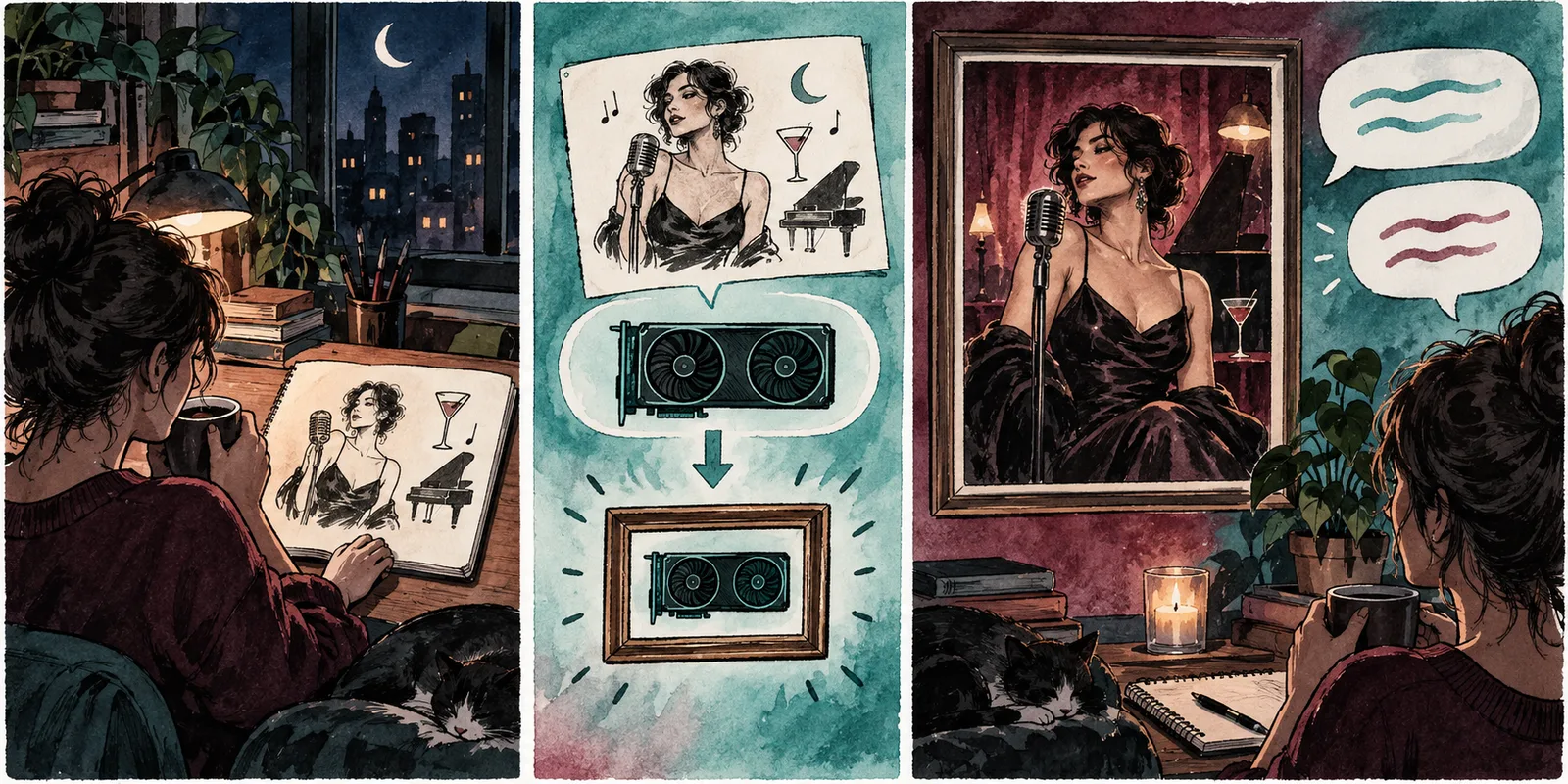
Save the visual description before unloading the text model; resume the saved chat afterward.
What occasional remote images actually cost
A browser-side image route is worth considering before buying hardware just to stop occasional model switching. On the current public SpicyAPI catalogue, Z-Image Spicy is $0.01235 per image with prompt expansion off and $0.0133 with it on. Z-Image Spicy Pro is $0.019 per image. These are image fees, not subscription prices or the cost of hosted chat.
| Planned image requests | Spicy, expansion off | Spicy, expansion on | Spicy Pro |
|---|---|---|---|
| 10 | $0.1235 | $0.133 | $0.19 |
| 50 | $0.6175 | $0.665 | $0.95 |
| 100 | $1.235 | $1.33 | $1.90 |
The calculation is simple multiplication of the displayed per-image rate. It is not an estimate of how many attempts will produce a picture you keep. If you make four alternatives and keep one, budget for the four requested generations. Prompt-writing chat calls, further editing, and upscaling are separate work if you add them.
For ten pictures during an evening, the listed image component is therefore small enough to compare against the inconvenience of stopping and reloading your local model. That does not settle the decision if you need offline use, exact local LoRAs, or a requirement that prompts stay on the machine. Those requirements can outweigh a low per-image price.
Choose the Spicy Pro page if you need its public dimension range up to 2560 pixels per side; choose the ordinary Spicy endpoint if its maximum 1536-pixel sides cover your portrait. The larger public dimension limit is a verified feature difference, not proof that Pro is better at every adult character scene.
Fix the symptom you actually see
ComfyUI can render, but SillyTavern says images are unavailable
Open Image Generation and select a configured source. A fresh or old installation may retain a source that is not connected. Check the address in that image panel, rather than the chat API URL. If the source is a cloud service, use its own image credentials and configuration. A working text connection does not establish an image connection.
Then try a short manual picture request. If that works, move on to context-derived image prompts. Starting with an elaborate automatic trigger makes it harder to tell whether the source is unreachable or the trigger never matched the message.
SillyTavern connects, but every image looks like the workflow's example
Open the API-format workflow and find the positive text actually used by its graph. Replace the fixed example with the prompt substitution at that real input. Check other active text fields and prefixes for the same old subject. Changing seeds only gives different versions of the prompt that is still hard-coded.
The image fails only while the chat model is loaded
Keep the successful isolated image workflow unchanged and choose memory separation: remote images, hosted chat, or sequential local use. If you want simultaneous local execution, first reduce the backend's actual context allocation or its GPU layers. Do not keep retrying the same combined workload and expect a different amount of available memory.
The first image works, then the next chat reply becomes slow
Inspect memory after the picture completes. ComfyUI may retain models for faster reuse, while the text backend may have moved work to slower memory. Unload the finished image workload before the next reply, or move images remote. If restarting the chat process restores normal speed, preserve a smaller shared-use profile instead of making the full-memory chat profile compete again.
You unloaded ComfyUI, but VRAM still looks full
Identify the process holding the remaining allocation. ComfyUI can release its own models; it cannot unload another application's LLM. Also distinguish an allocated cache from memory that has actually been returned to the device. For the manual baseline, stop the backend processes deliberately and verify the memory change before relaunching either.
The image never starts after you ask for the last scene
Try the same scene as a manually written free-mode image request with prompt extension disabled. If that works, inspect the text-model prompt-writing step. Its endpoint may be stopped, its response may be empty, or its instructions may produce prose instead of the format expected by your workflow. Freeing image memory does not fix a missing text reply.
The renderer starts, then fails at the final polish stage
Remove the detailer, second sampling pass, or upscaler from the live graph and render its base image. If the base succeeds, save it and perform the extra stage separately with the text backend unloaded. You can keep the more elaborate workflow for finished artwork without making every spontaneous chat picture use it.
The GPU is not full, but everything is still painfully slow
Check whether the actual workload is running on the intended accelerated device and whether system RAM is exhausted. Heavy CPU offloading can make a setup technically functional but unpleasant for live conversation. In that situation, another VRAM optimization may trade speed for even more offloading; moving one workload remote can be a clearer improvement.
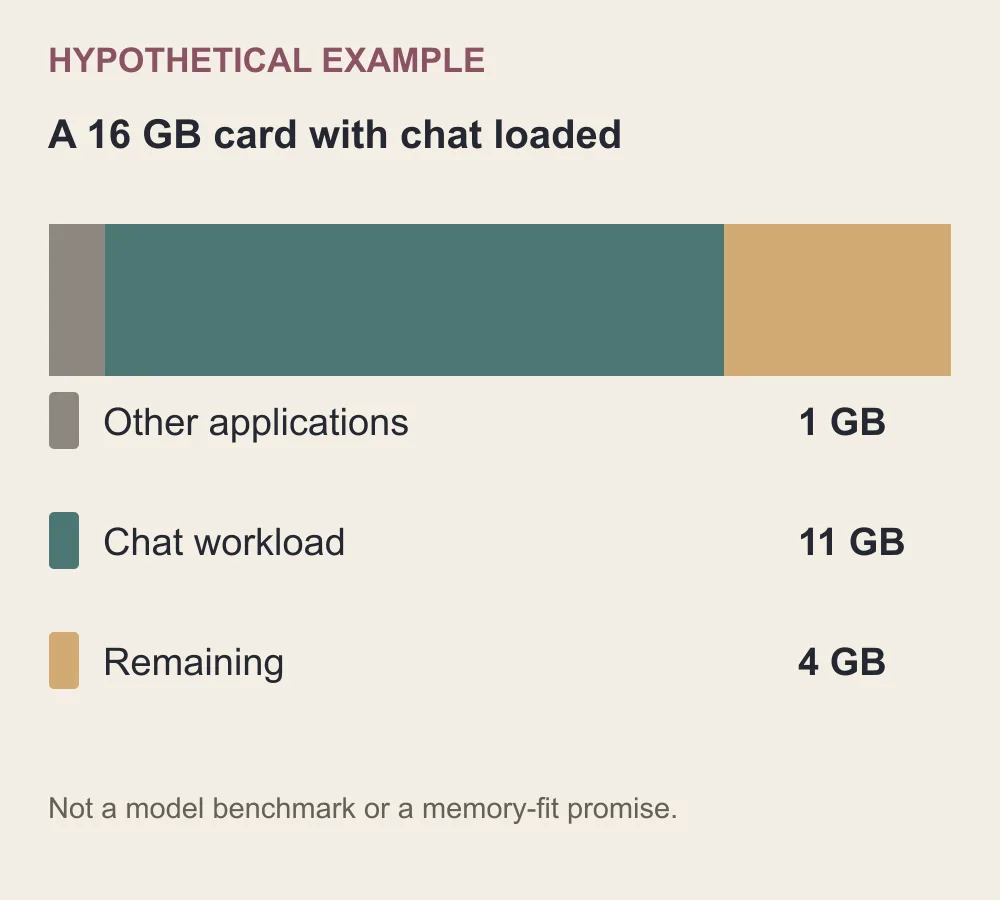
Illustrative numbers only: a model that fits on a free 16GB card may not fit beside an LLM already using most of it.
A realistic starting plan for your next session
For 8GB, keep one demanding generation workload local. If you already have a good local roleplay model, leave it loaded and make occasional images through a supported remote source or a second browser tab. If you already have a good local image workflow, stop the text backend and use hosted chat. Choose fully local switching when keeping the material on your own machine matters more than a seamless pace.
For 16GB, begin with the same simple plan if the local LLM currently occupies most of the card. If you have room to experiment, first prove that the image workflow works alone, then test a smaller chat profile with one image, no detail pass, and a bounded context. A stable pair is useful; a setup that fits only before the conversation grows is not a reliable evening plan.
The goal is a session in which you can keep reading and writing instead of repeatedly restarting failed tasks. Give the GPU a clear job, connect the image source through a protocol SillyTavern actually supports, and keep the first live workflow small enough to diagnose. Once that works, add the character control or finishing step you miss most—one at a time.