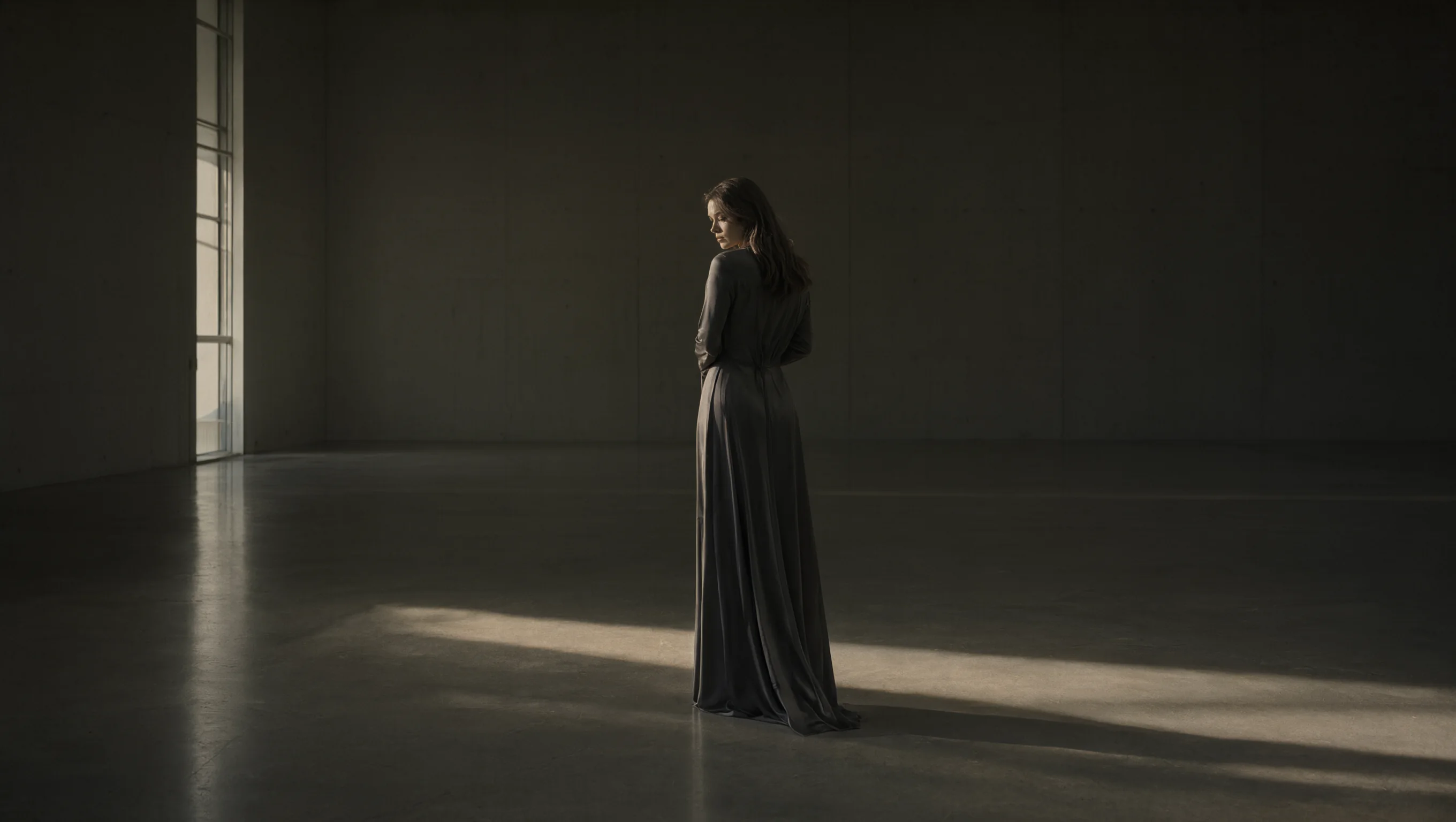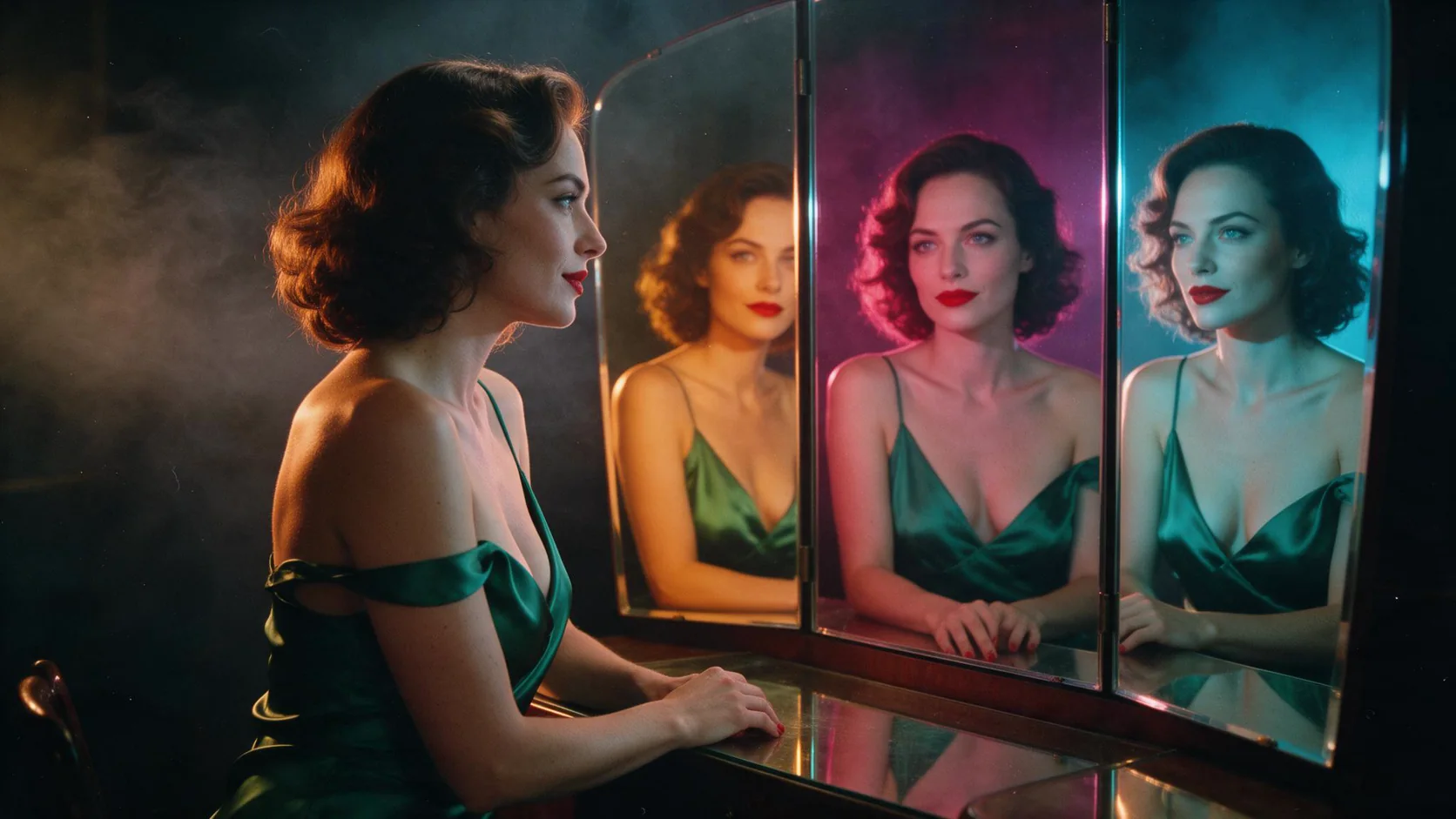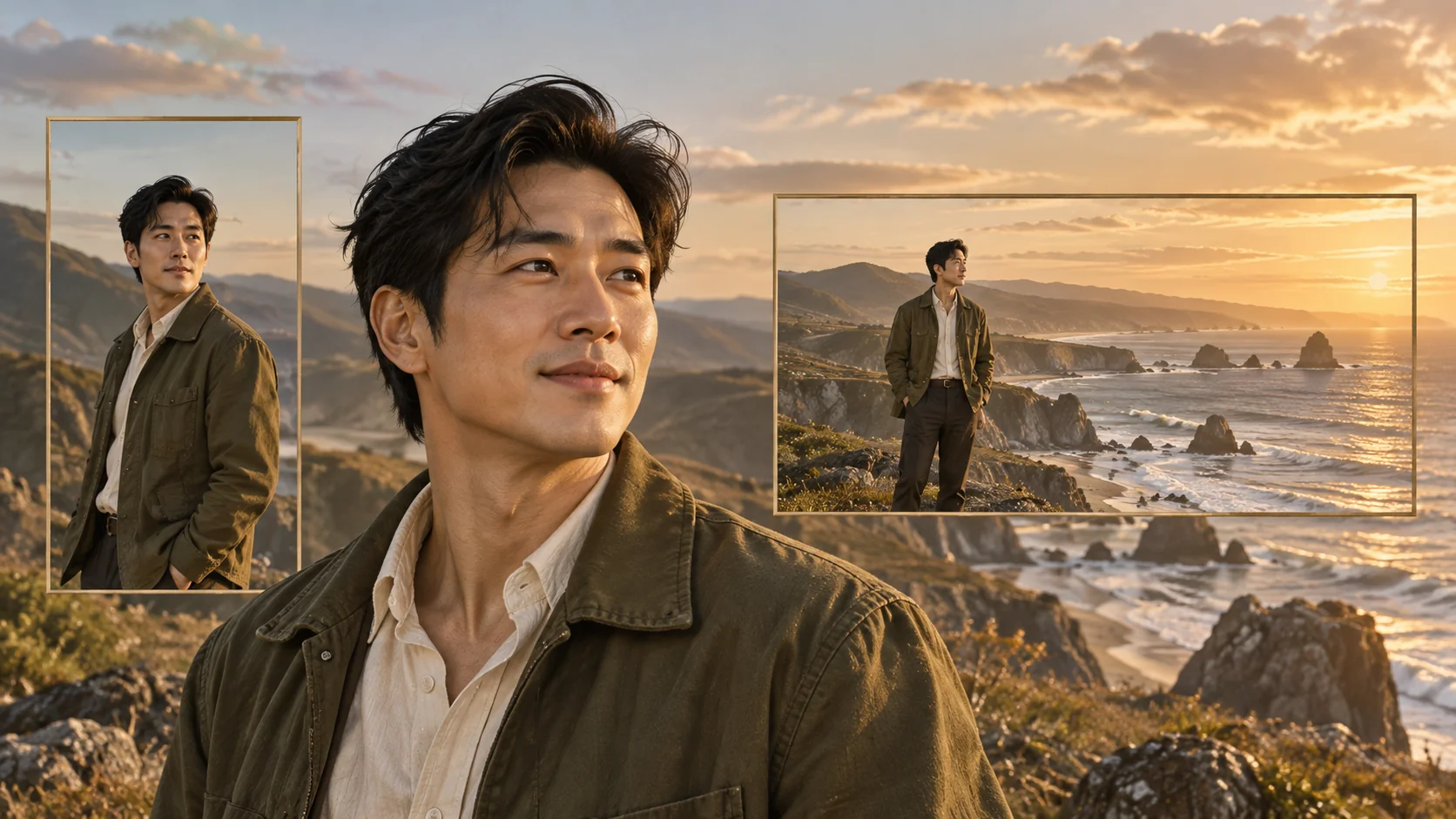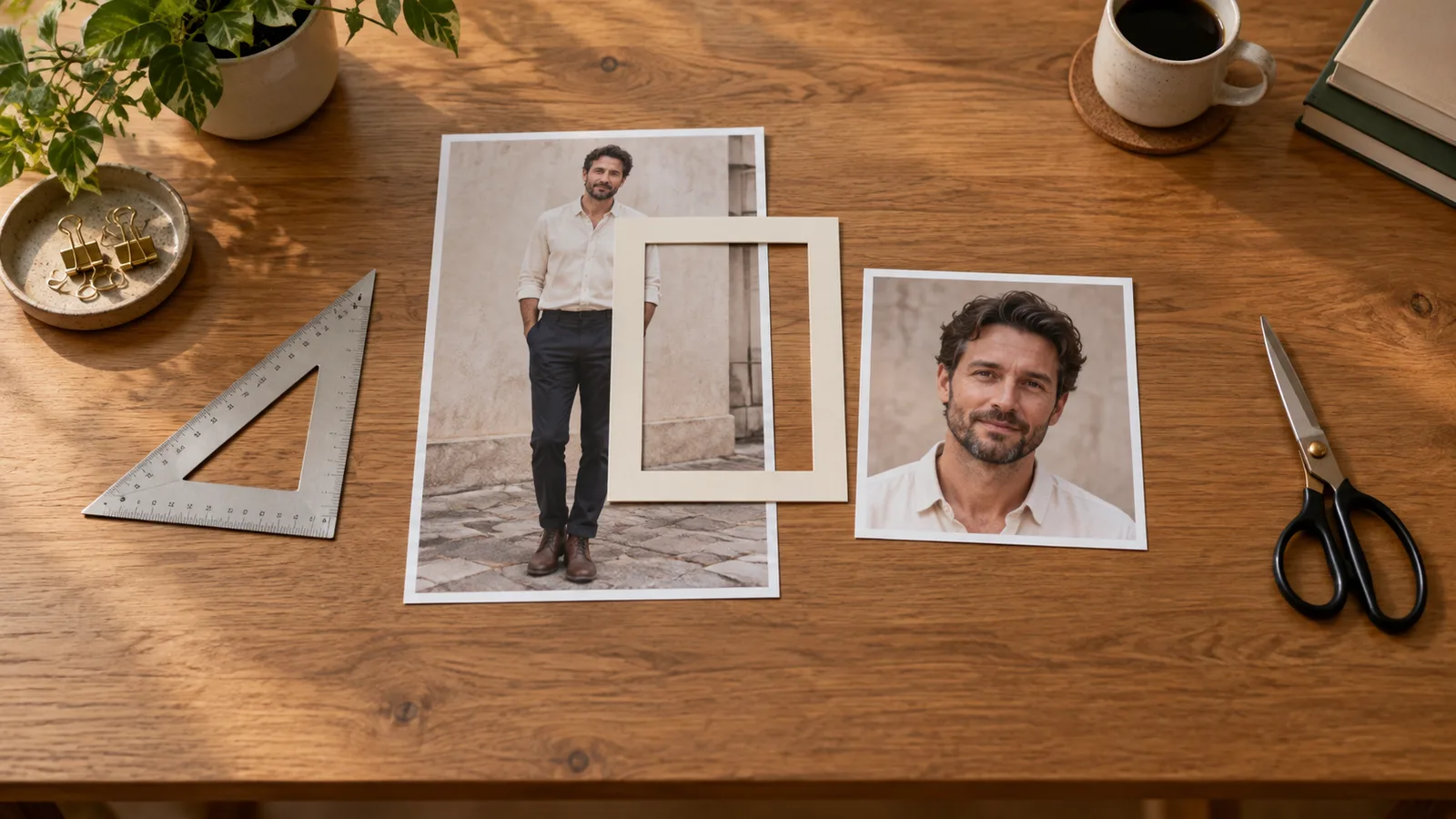
Your fictional adult character looks right in the generated file. Then the avatar cuts off the hair, the portrait card loses a hand, and the mobile gallery shows the shoes only after someone opens the full image. Generating a higher-resolution version will not fix a layout that keeps cutting away the same parts.
For an NSFW character collection, start with 1:1 for a face avatar, 3:4 or 4:5 for a portrait card, and 2:3 or 9:16 for a standing full-body image. Choose the shape for the actual placement, then choose the framing inside it. Crop an accepted picture when it already contains the required view; pad or expand when the whole picture must remain visible; generate again when the view itself needs to change.
These are starting composition choices, not universal rules or a guarantee that a publishing platform accepts adult content. A ratio tells you the canvas shape. It does not decide which character details a model keeps in frame, whether the face stays consistent, or how your gallery displays the file.
This guide works through a clothed fictional-adult portrait used in an adult-oriented character collection. The generation instructions are proposed examples, with no new image-output test claimed. The crop arithmetic uses explicit example dimensions; they are not promised output sizes for every model tier.
Make three placements instead of forcing one image to do everything
Our character is Julian, a fictional 35-year-old adult, with dark curls and a short beard. His approved standing portrait has an opaque ivory shirt, dark trousers, boots and a plain lounge background. You need a recognizable face avatar, a waist-up character-selection card, and a full-length gallery image.
Those placements ask the viewer to look at different information. The avatar needs the face and a readable outline at a small size. The card needs identity plus enough outfit and posture to suggest the character's visual personality. The full-length gallery needs the whole outfit and a believable relationship between shoes, floor and body.
| Placement | Useful starting ratio | Compose for | Common mistake |
|---|---|---|---|
| Small avatar | 1:1 | Face and hair inside a central area that also survives a circular crop | Using the entire full-body photograph, leaving the face tiny |
| Waist-up character card | 3:4 or 4:5 | Face, shoulders and any hand or garment detail the card needs | Placing a crucial hand at the lower border |
| Standing full-length gallery | 2:3 or 9:16 | Whole head, both shoes and a little floor | Combining a full-body instruction with close-up facial framing |
| Wide collection header | 16:9 | A character placed beside intentional room for title or interface text | Stretching a portrait or relying on a centered crop of a tall figure |
A 9:16 image is not automatically a better portrait because it is taller. It can fit a standing figure well, but an upright seated pose with both elbows wide may need a broader frame. A reclining, fully covered character may be easier to compose in a horizontal frame. Choose the shape around the visible silhouette, not a rule that every adult character must be vertical.
For an NSFW collection, keep the public teaser and the private gallery's composition goals separate. A clothed avatar can still convey the same fictional character through face, hair and outfit. Do not assume the avatar will need a direct crop of the most detailed gallery image. A smaller, clearer portrait often serves recognition better than compressing the complete scene into a thumbnail.
Aspect ratio and camera framing answer different questions
The first number is width; the second is height. A 4:5 portrait is wider relative to its height than a 9:16 portrait. Neither number describes how close the camera is to Julian.
“9:16, head-and-shoulders” asks for a close portrait on a tall canvas. “9:16, full length with both shoes and floor visible” asks for a different camera framing on the same canvas. Changing only the ratio can therefore leave your full-body problem unresolved.
The same distinction applies to resolution. A 2k tier may offer more pixels than a 1k tier, but the setting is not “show twice as much of the body.” Read the actual output dimensions after downloading. Different tasks can define their tiers differently; do not budget a print or final crop from the label alone.
The Qwen Image 2.1 model card shows explicit width/height examples for its own local pipeline. Those examples are useful for understanding ratio versus size, but the local dimensions are not a promise that a hosted tier produces the identical width and height. Work from the returned file when calculating a crop.
Find out whether the file or the page is doing the cropping
Before regenerating Julian, open the downloaded image outside the gallery. Are his shoes present in the file? If yes, the generator did not omit them. The thumbnail or card is displaying only part of that file.
Look at three states: the downloaded original, the unopened card, and the image after opening it in the viewer. If the card cuts off a hand but the viewer shows it, changing a prompt may only produce more unused pixels. Adjust the card's image fit, focal point or exported crop instead.
A page often fills a fixed rectangle by cropping excess image content. Another layout may fit the whole image inside that rectangle and leave empty space. Neither operation invents details. If you control the adult-character app, choose which behavior serves the placement: cropped face avatars and fully visible gallery images usually have different requirements.
If your publishing tool allows a focal point, put it on the face for an avatar or on the important upper-body detail for a card. That helps choose which part is retained, but it cannot fit both the head and shoes into a square when the original fills a tall frame. For a full-length preview, use a tall card, fit the complete image with padding, or publish a separate preview designed for that shape.
Do not diagnose a distorted face from a screenshot stretched by a preview widget. Check whether the original face has the same distortion. Resizing an image to a different width-to-height ratio squashes or lengthens the person; a correct resize keeps that ratio unchanged.
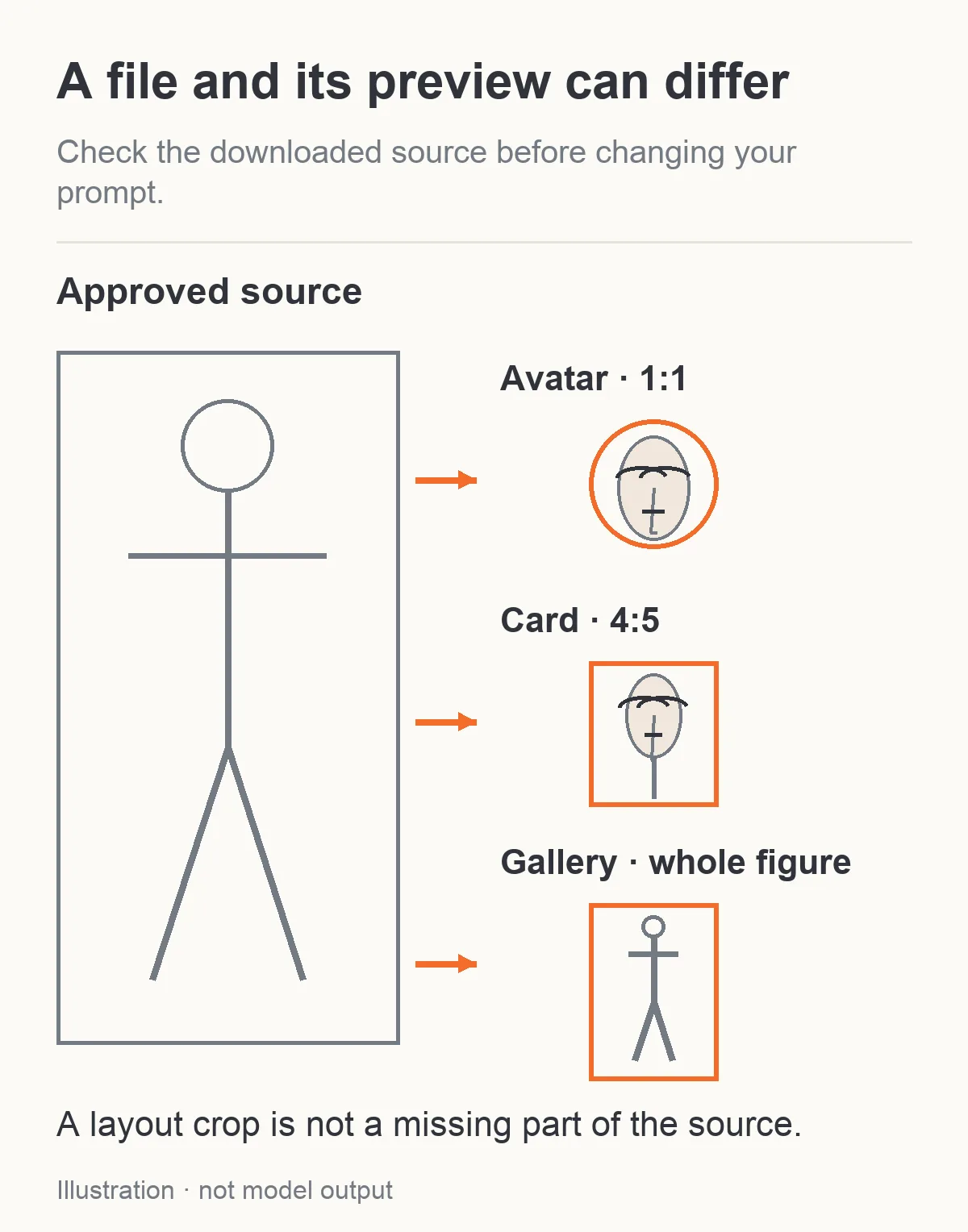
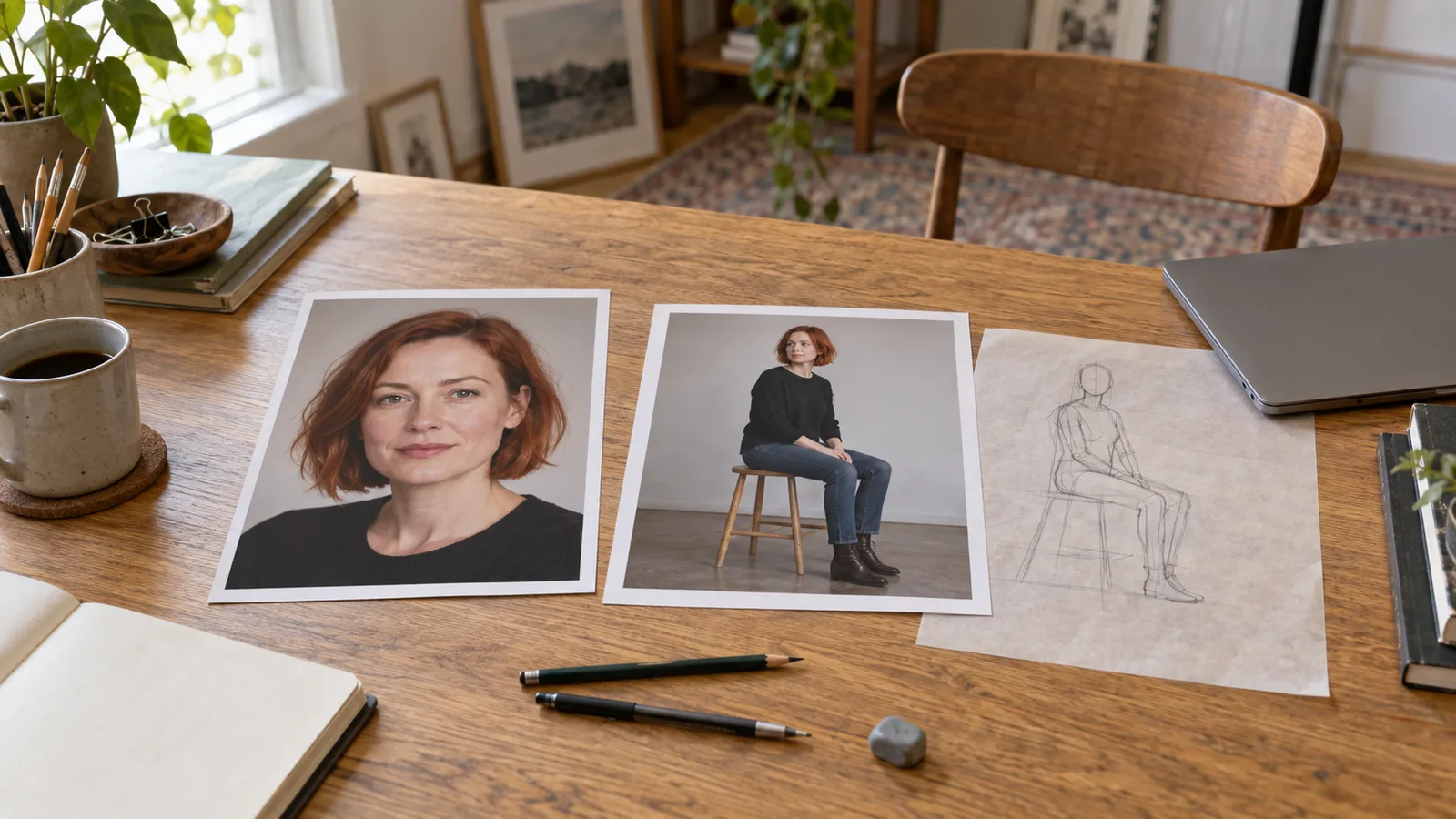
Illustration: the original file and its displayed crops can show different amounts of the same character.
Calculate what a crop removes before spending on another image
Suppose Julian's approved file is 1080×1920, exactly 9:16. To make a 4:5 crop using the entire width, the height must be 1350, because 1080 × 5 ÷ 4 = 1350.
That removes 570 pixels of height, or 29.7% of the original. A centered crop removes 285 pixels from the top and 285 from the bottom. You can move the crop up to save the hair, but then you remove more from the shoes. You cannot retain both extremes merely by choosing a better center.
Here are three explicit crop examples. They retain the source width and trim the vertical dimension:
| Source file | Target shape and largest crop | Pixels removed | Share of original pixels lost |
|---|---|---|---|
| 1080×1920, 9:16 | 1080×1350, 4:5 | 570 rows | 29.7% |
| 1600×2400, 2:3 | 1600×2000, 4:5 | 400 rows | 16.7% |
| 1800×2400, 3:4 | 1800×2250, 4:5 | 150 rows | 6.25% |
The third source is easier to adapt into a 4:5 card because the shapes are closer. That does not make 3:4 the best full-body format for every image. It makes it a practical working shape when a later 4:5 crop is already part of the delivery plan.
The calculation also works in the other direction. Cropping a 4:5 image into 9:16 while retaining its height removes width. A full-height arm gesture near the side can disappear even though the head and shoes survive. Inspect the actual silhouette before choosing which direction to crop.
A face crop can run out of detail
A 2000-pixel-tall full-body image may contain a face only a few hundred pixels tall. Cropping that face into a square avatar keeps its existing features, but does not turn them into a new detailed headshot.
If the desired export is 512×512 and the selected face crop is only 240×240, enlarging it creates a larger file from those 240×240 source pixels. For a small app thumbnail that may be enough. For a close portrait where eyes and hair must remain clear, use an approved close-up or generate a separate portrait from the identity source.
The useful question is the crop's pixel size at its actual display size. “The original was 2k” does not answer it. Keep the accepted full-body file even if you create a new headshot; a different close-up should not quietly replace Julian's established face design without review.
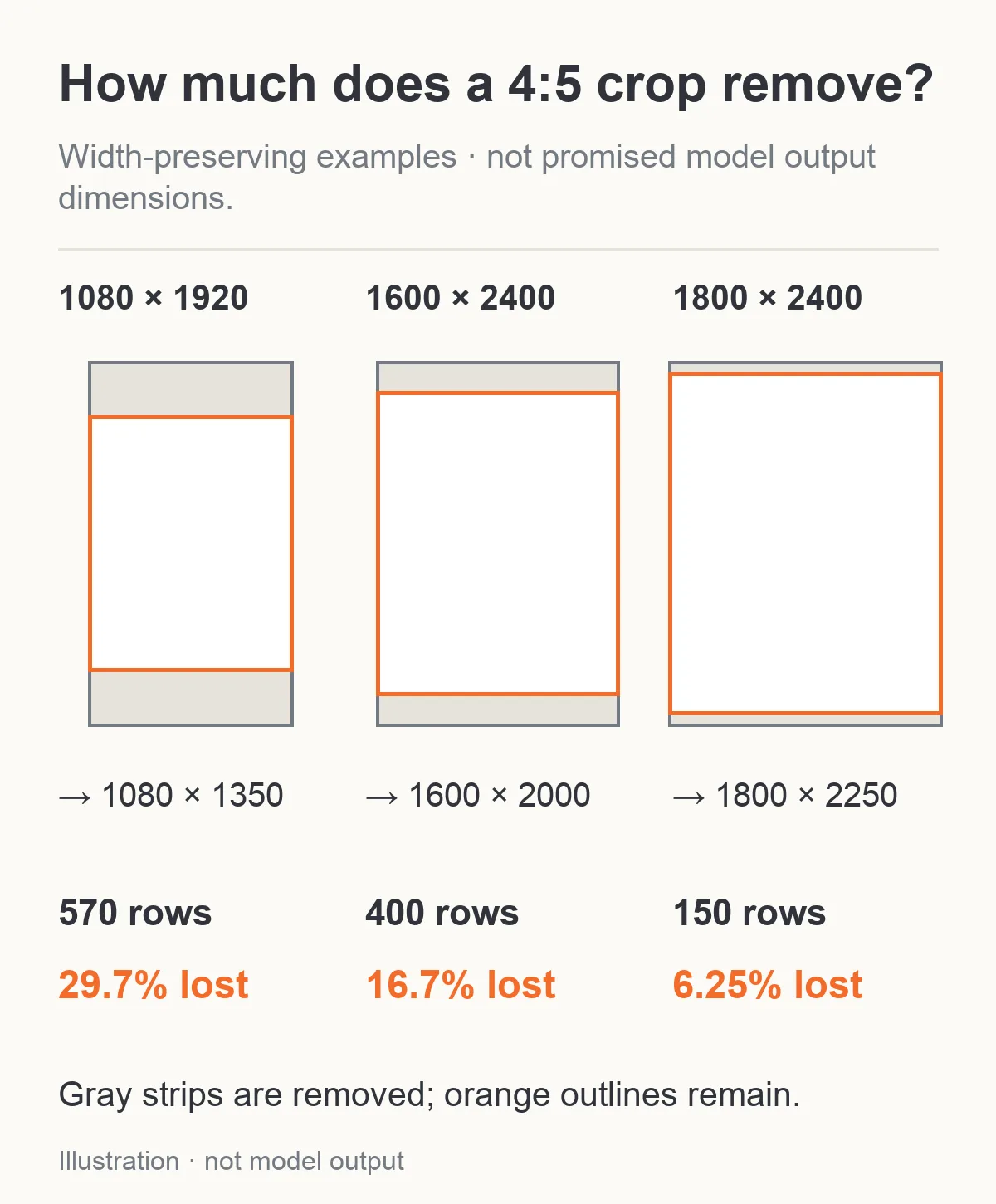
Worked examples: closer source and destination shapes require a smaller crop. These dimensions are not model output promises.
Choose crop, padding, expansion or a new photograph
Crop when the part you need already exists and the remaining pixels suit the placement. It preserves the selected image content. For Julian's avatar, crop around the face and hair, then check the circular preview so the curls are not cut at the edge.
Pad when you need the complete accepted picture inside another ratio and can live with a border. Put the image on a canvas of the target shape without stretching it. Use a neutral background or a design consistent with the collection. Padding is a direct layout operation with no new face generation. It can also be more honest than asking an editor to invent floor or clothing that was never visible.
Expand when you need the existing composition plus additional surroundings. Extending the lounge wall to make room for a title is a different request from showing Julian's missing shoes. The wall needs environmental continuation; missing lower-body content needs a new interpretation of anatomy and wardrobe. Both require inspecting newly created pixels, and neither should be described as revealing hidden original detail.
Generate a new view when the target is a different photograph: a seated instead of standing character, a new expression, a profile, or a close portrait with different lighting. That is a creative edit, with the possibility of identity or outfit drift. It is useful when a crop cannot supply the desired image, but it does not preserve the original just by reusing its reference.
The outpainting guide explains the expansion task itself. The decision here comes earlier: whether expansion is necessary at all. A crop or padded export that meets the brief avoids paying for newly imagined content you did not need.
Pick settings that the actual editing task can combine
For a new 4:5 portrait from Julian's approved source, Seedream 5.0 Pro Edit offers an explicit 4:5 output ratio at 1k or 2k. Its default auto selects the supported ratio nearest the first reference's shape. Set 4:5 explicitly when the card needs that shape; auto is not an instruction to make your card fit.
Keep one source, PNG and opaque background for the example below. PNG is useful before subsequent crops or retouching because it avoids another lossy encode. It does not improve the character's likeness by itself. Keep thinking enabled initially; that flag refines the prompt, rather than determining how much of the source stays pixel-identical.
Qwen Image 2.1 Edit also lists 4:5, but the current choices are not all freely interchangeable. Its 2k editing path does not support 4:5; neither does the separate masked path. For a 2k working edit that later needs a 4:5 export, use a supported near shape such as 3:4, leave room for the small final crop, and crop the accepted file conventionally. For an ordinary 4:5 edit, choose 1k or 1.5k, opaque background, enable_prompt_expansion: true, and no mask. Prompt expansion must remain on for this combination; do not copy the expansion-off setting from the 2k recipe below.
At 3:4 and 2k, the current one-source Qwen recipe can use PNG, opaque background and prompt expansion off. A separate masked repair must also use one source. If you repair first and crop later, paint the mask against the uncropped working file; cropping between painting and submission moves the mask relative to its intended region.
On Z-Image Turbo LoRA Edit, the source's aspect ratio is retained. The resolution choice sets a 1024- or 1536-pixel long side; it does not offer a separate output-ratio selector. Use it for a source already shaped for your task, or prepare an ordinary crop/padded source first. A padded source does not become a guaranteed outpainting job, and strength is not a camera-zoom or border-preservation control.
Write the requested frame before appearance detail
For Julian's proposed 4:5 waist-up Seedream edit:
Use image 1 as the reference for Julian, the same fictional 35-year-old adult with dark curls, a short beard and the opaque ivory shirt. Make one photographic waist-up portrait at eye level. Keep his face, hairstyle, shirt construction, expression, lounge setting and soft side light. Include his whole head with a little space above the hair, both shoulders and the shirt below its lowest visible button. Keep his arms relaxed; do not add a hand gesture or a second person. Use a 4:5 composition, not a contact sheet.
This recipe avoids asking the card to contain a face close-up, both hands, an entire outfit and the complete room simultaneously. If the hand is central to your character presentation, request a wider upper-body frame that includes it instead of relying on the last few pixels at the card's bottom.
For a proposed full-length image:
Use image 1 for the same fictional adult character, face, hair, shirt, trousers and boots. Make an eye-level full-length still photograph in a 2:3 portrait. Show the complete figure from the top of his hair to both boot soles, with a little clear floor below the shoes. Julian stands naturally with his arms relaxed beside him. Place him far enough from the camera to keep his entire figure inside the frame. Keep the lounge and existing light. One adult, no collage or text.
If the existing source does not show his trousers and boots, those instructions cannot preserve an established design it never contains. Supply an approved full-length reference or accept and approve a new design. Do not call it exact outfit continuity on the basis of a headshot.
These example prompts are fully covered so the framing remains easy to inspect. For an NSFW series, the same distinction between identity source and target frame still applies; a canvas setting is not an adult-content switch or an acceptance guarantee.
If the full-body prompt still cuts off the shoes
An original creator discussion about full-body images reports portrait outputs working while a wide interior image cuts the person at the knees. Replies discuss footwear, floor and bounding-box composition, but the author says the indoor case remains difficult. It is a useful counterexample to promising that two magic words fix every frame.
In a separate Krea full-body thread, a user describes repeated mid-thigh crops despite full-body wording. A taller ratio suggestion fails for that user; naming details at both ends of the figure helps, but eye-level framing remains another concern. These are local-interface cases, not a measurement of the hosted tasks above.
For Julian, remove conflicting close-up instructions first. “Detailed eyelashes, tight portrait, face filling the frame” is a poor companion to “complete figure.” Then name the footwear and visible floor, keep the intended camera height explicit, and try a tall supported canvas. You are proposing a clearer composition, not activating a hidden full-body mode.
If a 2:3 output repeatedly crops the boots, try 9:16 while keeping the rest of the request stable. If the reference itself is waist-up, use a complete approved figure source when available. If the picture has the shoes but the gallery hides them, return to the display settings rather than changing the model again.
A wide header is a different problem. Compose Julian as a smaller complete figure on one side, with room on the other for text. Cropping a tall portrait to 16:9 will usually remove a large part of its height. Padding or expanding the background sideways is more suitable when the entire accepted figure must remain.
Budget only the images that really need generation
Cropping or padding an accepted file in an ordinary editor adds no SpicyAPI generation request. Saving three export sizes from one image does not require three model calls.
The current one-source editing quotes are:
| Task and tier | One returned image | Relevant framing choice |
|---|---|---|
| Qwen Image 2.1, 1k | $0.036 | Use a supported combination; output-shape options vary by path |
| Qwen Image 2.1, 2k | $0.048 | 3:4 is available; crop later for a 4:5 export |
| Seedream 5.0 Pro, 1k | $0.036 | Explicit 4:5 is available |
| Seedream 5.0 Pro, 2k | $0.072 | Explicit 4:5 is available |
| Z-Image Turbo LoRA Edit, 1k or 1.5k | $0.012 | Source ratio retained |
Suppose Julian's approved full-length file supplies both the gallery and a sufficiently clear square avatar, but you need a different waist-up expression for the card. One one-source Seedream 2k edit costs $0.072 at these rates. Generating all three placements separately would start at $0.216; two useful exports from the accepted file avoid those extra requests.
That saving depends on the existing image meeting the task. A face crop that is too small is not a free substitute for a suitable close portrait. If you also generate a new avatar, two one-source Seedream 2k attempts start at $0.144. Additional artistic retries add their own cost; these figures do not promise a usable-output count.
Using Qwen 2k for a 3:4 working portrait costs $0.048 with one source. If it works and you crop that file to 4:5, the crop does not trigger a second paid edit. If you instead regenerate at another tier or shape, that is another creative output and must be checked for identity again. Prices and supported combinations should be read from the selected task before submission.
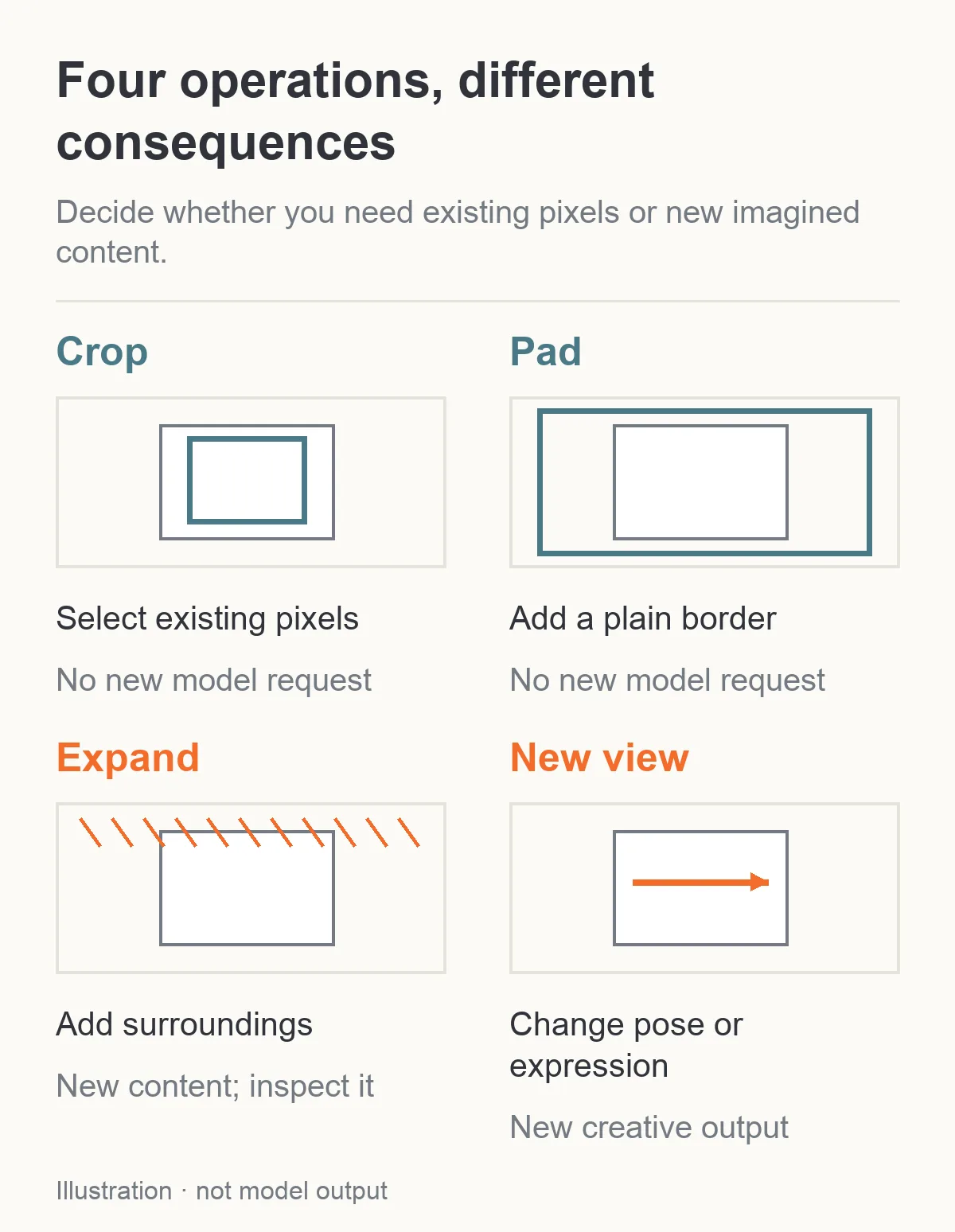
Illustration: crop and padding reuse the file; expansion and a new view introduce content that needs inspection.
Finish at the size the viewer will actually see
Preview the avatar as a small circle, the portrait card in its real rectangle, and the gallery at full-image fit. Check the face first, then the specific details the placement promises. The avatar needs recognizable features, the card needs its intended gesture or clothing detail, and the gallery needs the whole figure if you label it full length.
Keep separate exports with clear names so the app does not accidentally use the full-length file as a tiny avatar or the square avatar as a tall gallery image. Retain the approved original as well. A crop is a delivery file; it should not silently become the only source for later edits that need the parts you removed.
Choose the target rectangle, identify what must remain inside it, and inspect the existing pixels before generating again. For an adult-character series, that keeps the same recognizable person across the places readers actually encounter them, while reserving creative edits for photographs you truly need to change.